Social Wall
 Feed Analytics


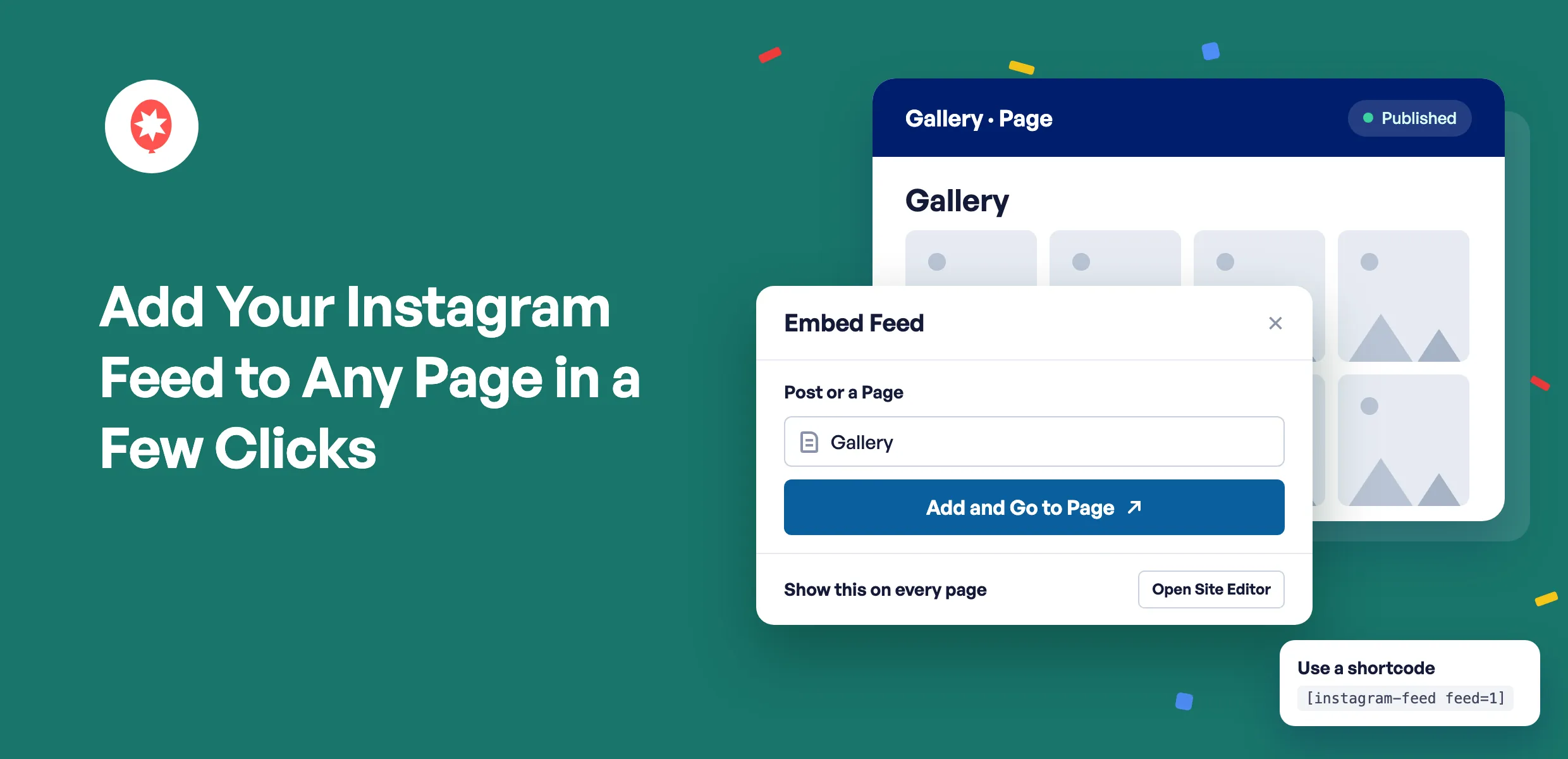
Adding your Instagram feed to a page now takes a few clicks. Click Embed, pick the page, and WordPress opens it with your feed already in place. All that’s left is to hit Save.
So once your feed looks right in the preview, you can get it onto your homepage, your gallery page, or a page about your next event without hunting for anything.
Here’s what you can do starting today:
- Search your pages and posts by name and add your feed to the one you pick
- Start a brand new page for your feed without leaving the feed editor
- Show your feed on every page of your site from the Site Editor
- Copy your feed’s shortcode for page builders and anywhere else
If you haven’t used it before, Smash Balloon Instagram Feed is the WordPress plugin that shows your Instagram posts on your website and keeps them updated as you post. There’s a free version and Instagram Feed Pro, and the new Embed Feed window comes with both.
Pick a Page and Your Feed Is Already There
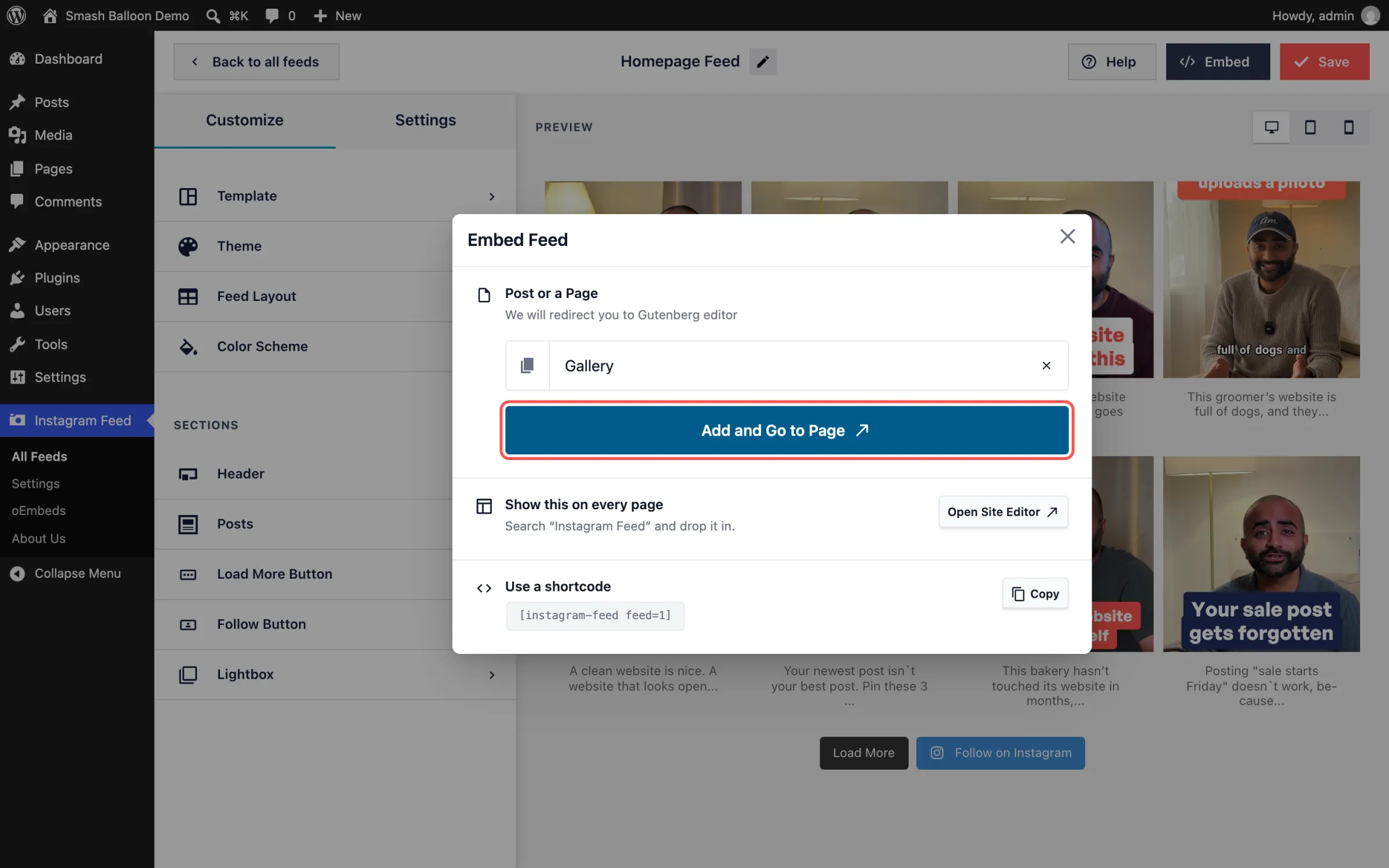
Click Embed in the feed editor and the Embed Feed window opens. It gives you three ways to put your feed on your site, all in one place.
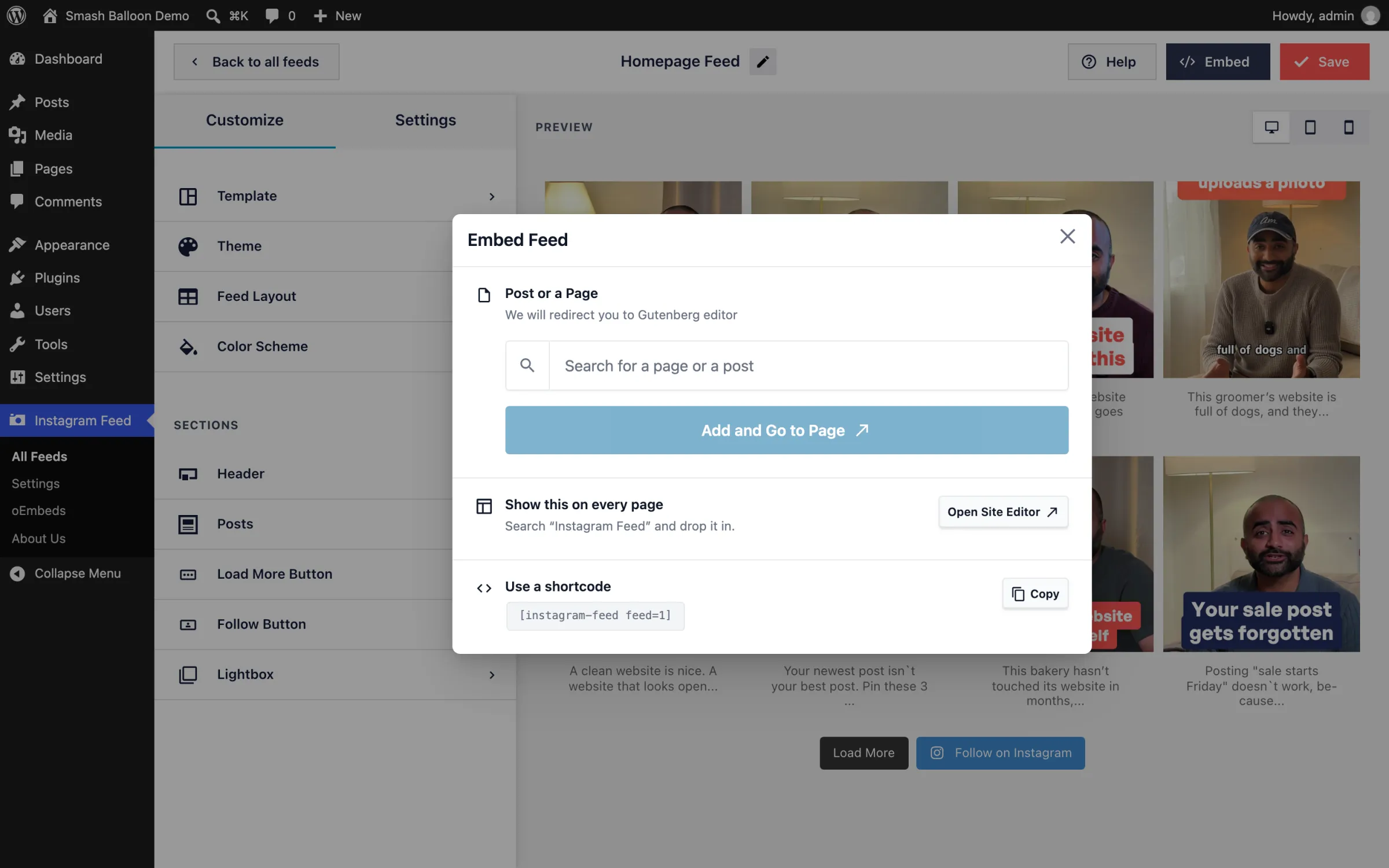
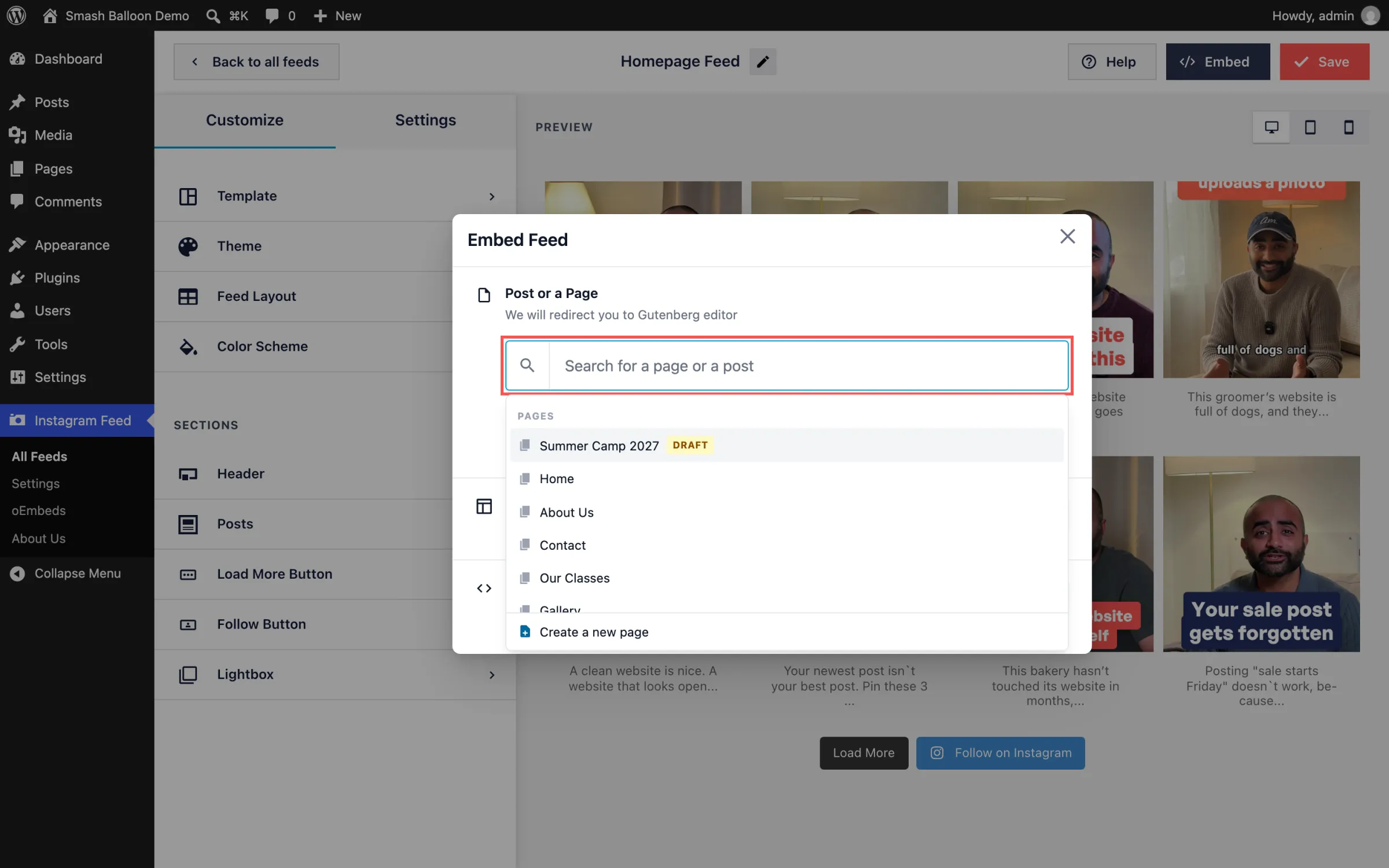
The first is the one most people will use. Start typing a page or post name, pick it from the list, and click Add and Go to Page. WordPress opens that page in a new tab with the Instagram Feed block already added, so you can see exactly where your feed sits before you save.
The list covers more than your published pages, too:
- Drafts and scheduled pages show up with a label, so you can add your feed to a page you’re still working on
- Blog posts are in there as well, handy for a recap post or a behind-the-scenes story
- Looking for one page out of fifty? Type a few letters and the list narrows down as you go
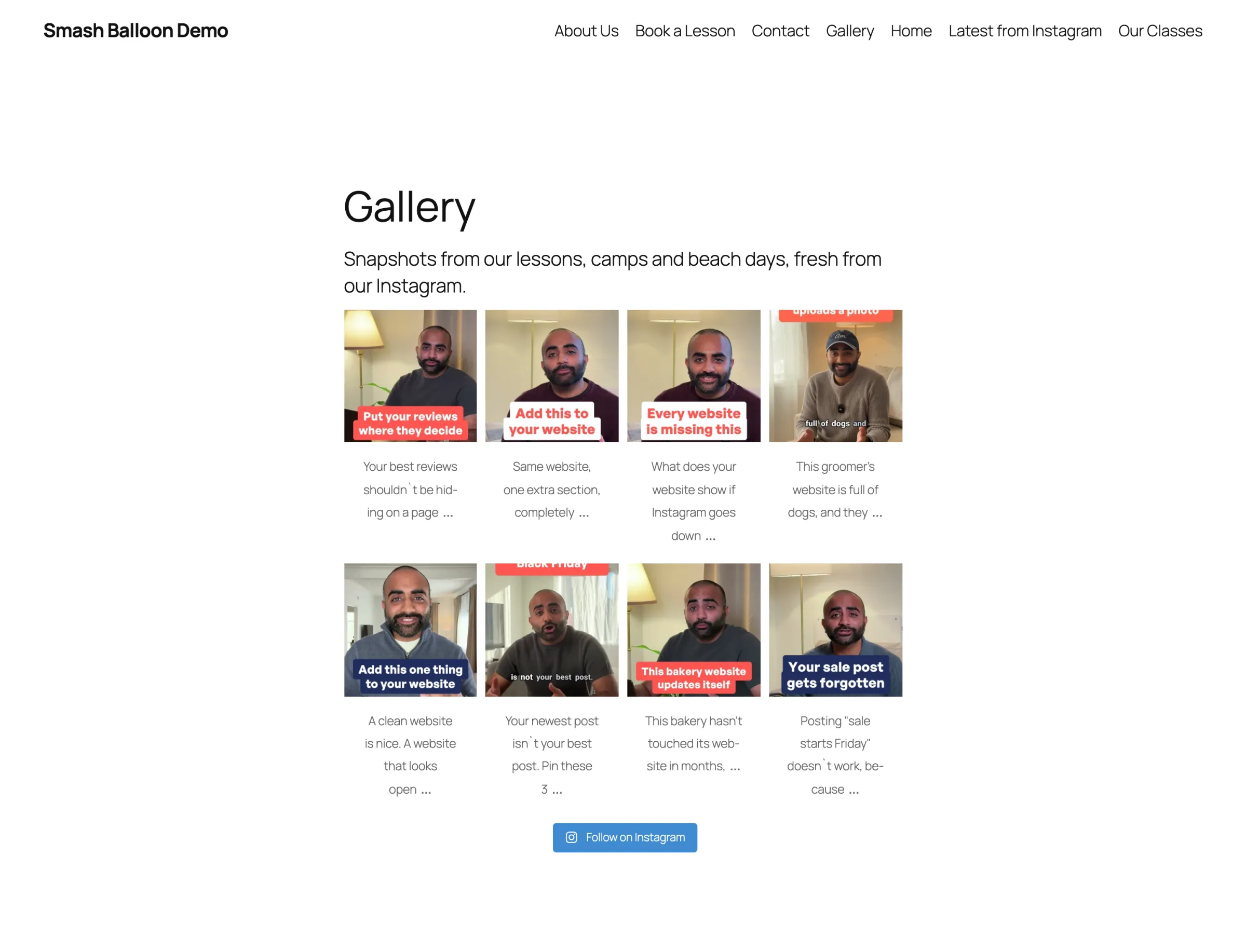
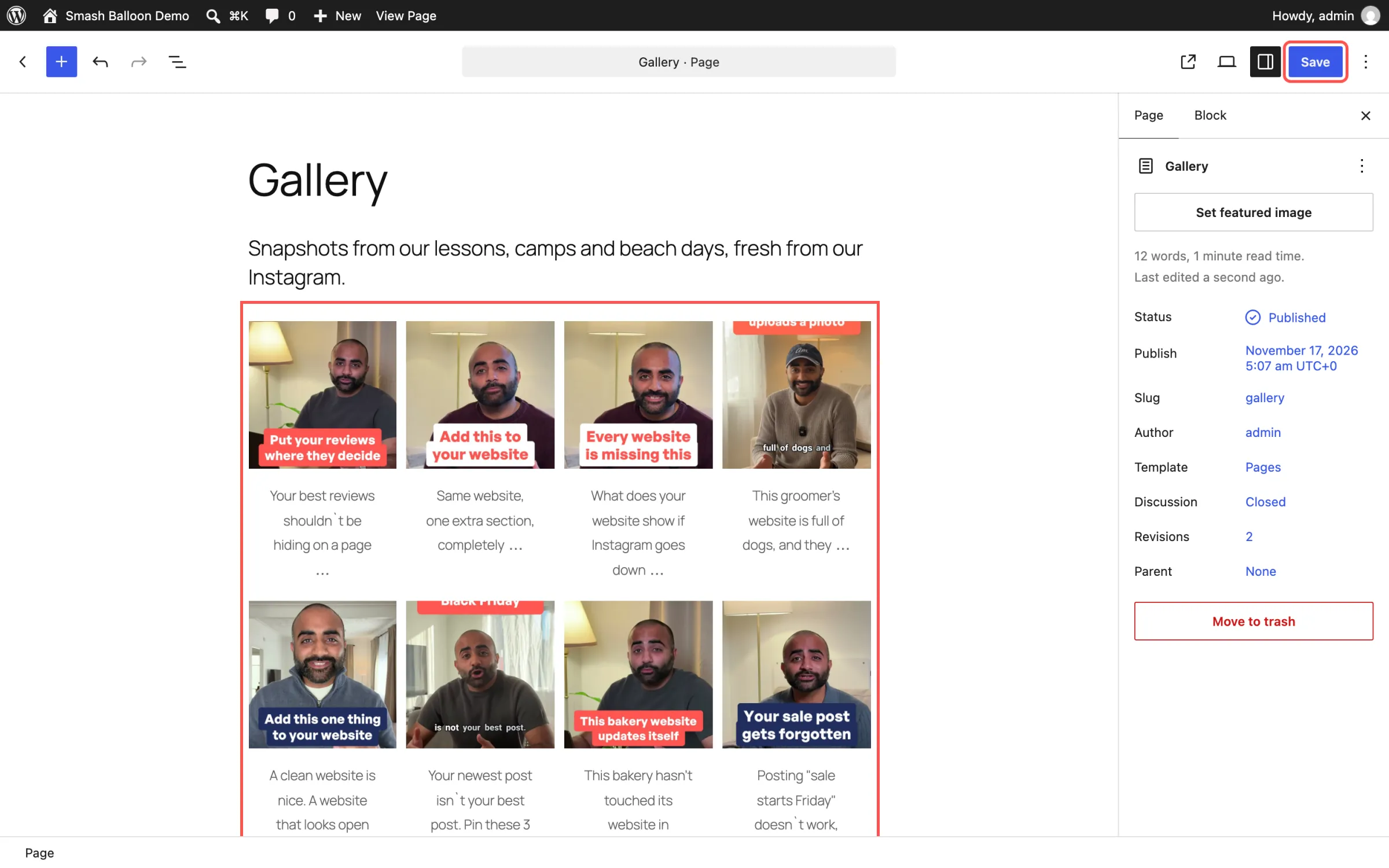
That’s the Gallery page on a test site, saved and live, showing Smash Balloon’s own Instagram posts.
Start a Brand New Page for Your Feed
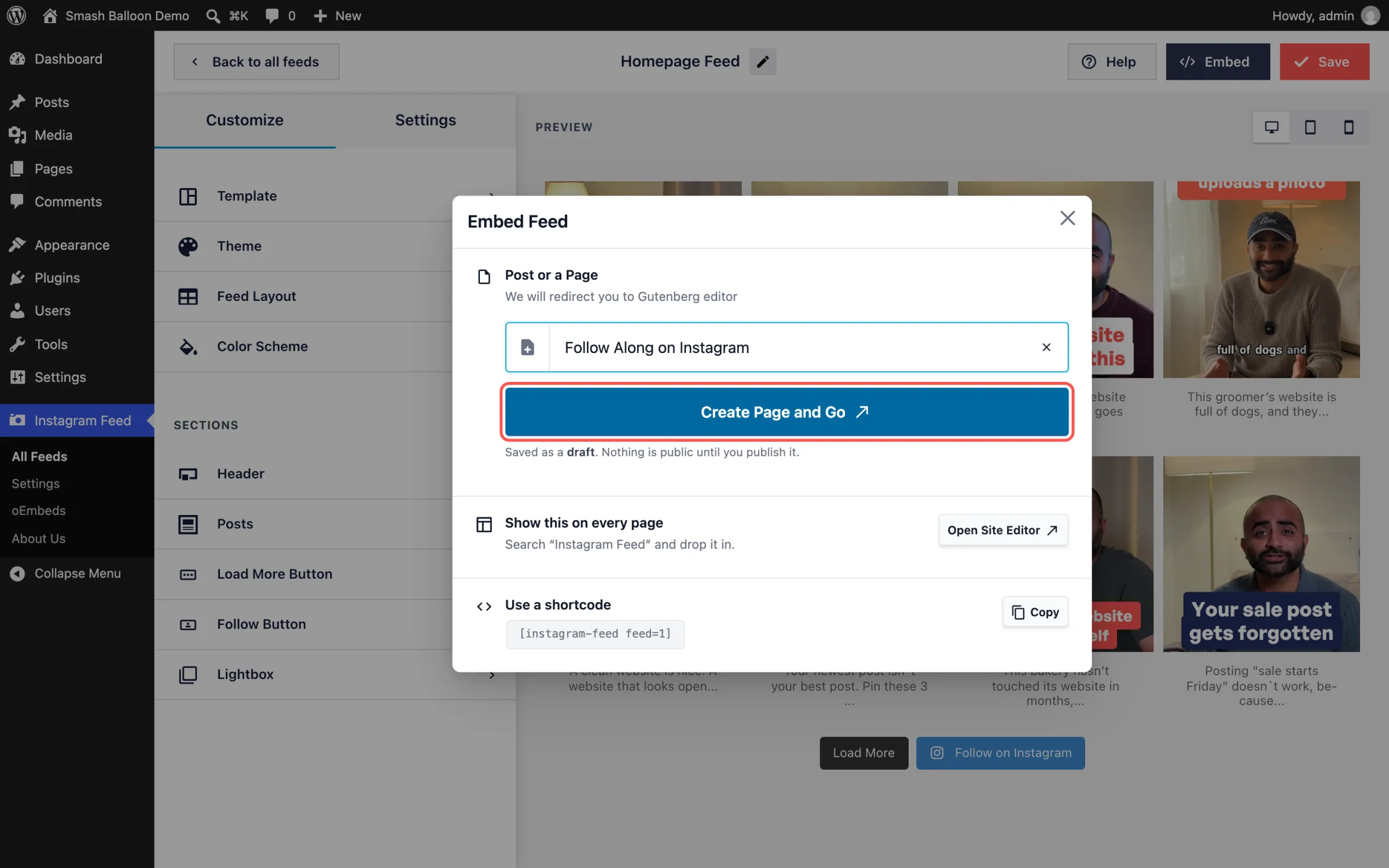
Don’t have the right page yet? Pick Create a new page at the bottom of the list, give it a title, and click Create Page and Go. The page opens with your feed already on it.
It’s saved as a draft, so nothing goes public until you’re ready. You can add a heading, a few lines about your business, and a button, then publish when it looks right.
Want more from your Instagram feed?
Instagram Feed Pro adds Reels your visitors can swipe through with sound, hashtag feeds, shoppable posts and more, on top of everything in the free plugin. Every Pro plan includes the new Embed Feed window. Backed by a 14-day money back guarantee.
Get Instagram Feed ProShow Your Feed on Every Page or Copy the Shortcode
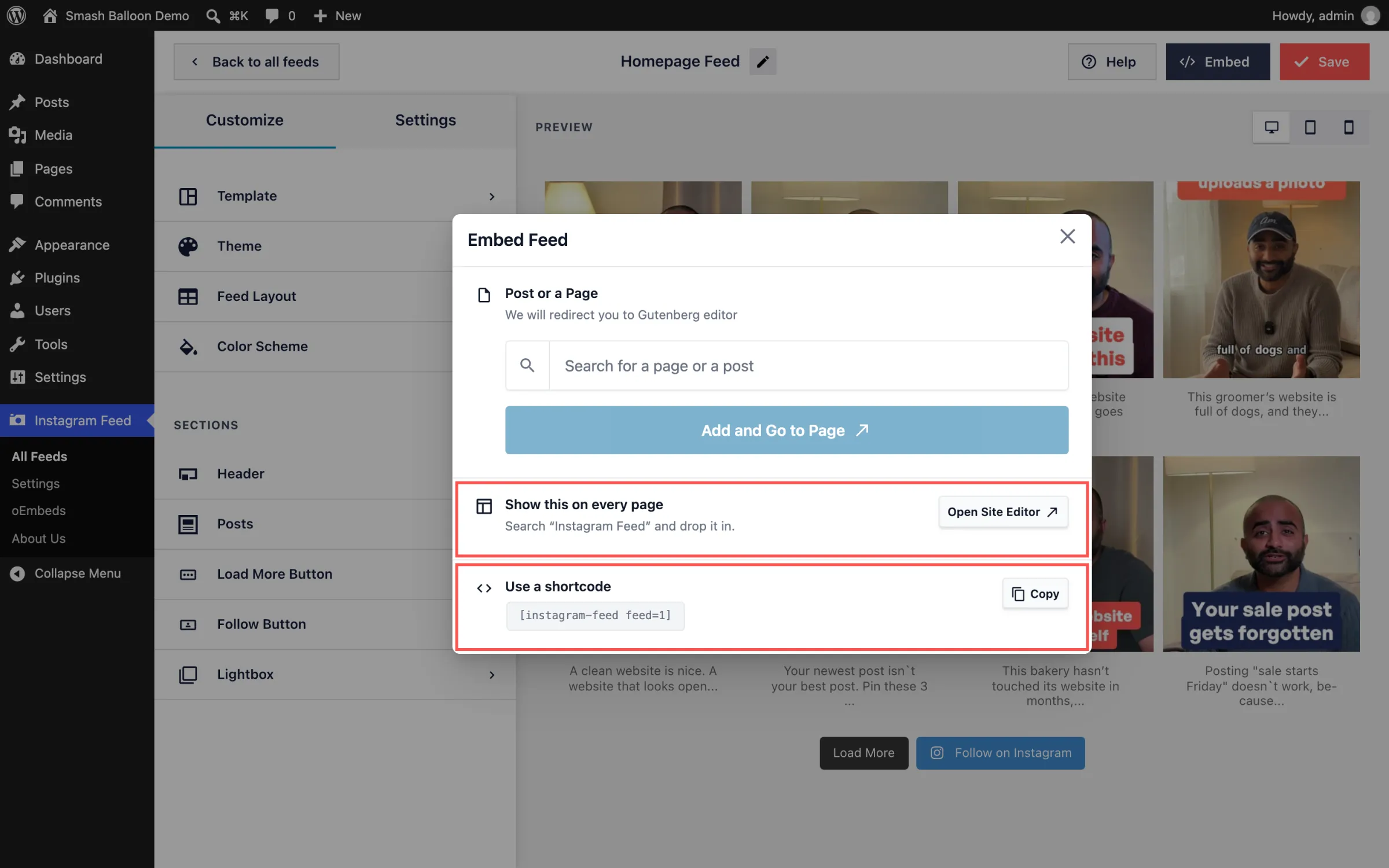
Some feeds belong everywhere, like a row of your latest posts in your site’s footer. Click Open Site Editor, search for “Instagram Feed,” and drop it into your footer. Add it once and it shows up on every page of your site. You’ll see this option on most newer WordPress themes, including the ones that come with WordPress.
On themes with a classic sidebar, you’ll see Add to a Widget there instead, so your feed can sit in your sidebar or footer.
And if you build pages with Elementor, Divi or another page builder, Use a shortcode is right there at the bottom. A shortcode is a short piece of text you paste where you want the feed to appear. Click Copy and paste it into your page.
What Pro Adds to Your Feed
Everything you set up in the free plugin stays just the way it is. Instagram Feed Pro adds more ways to show off your posts, and here’s what each plan brings:
- Basic: Reels visitors can swipe through with sound on, and a lightbox so posts open in a pop-up without leaving your site
- Plus: hashtag feeds, word filters and moderation so you choose exactly which posts appear, and ready-made templates
- Elite: posts you’re tagged in, plus shoppable feeds that link each post to the product in it
So the feed you just added to your homepage can do more of the selling while you’re busy running your business.
How to Add Your Instagram Feed to a Page (Instagram Feed 6.16.0)
The Embed Feed window is in the free Smash Balloon Instagram Feed and every Instagram Feed Pro plan, from version 6.16.0. It needs WordPress 5.8 or newer. On older versions, the Embed button shows your feed’s shortcode instead.
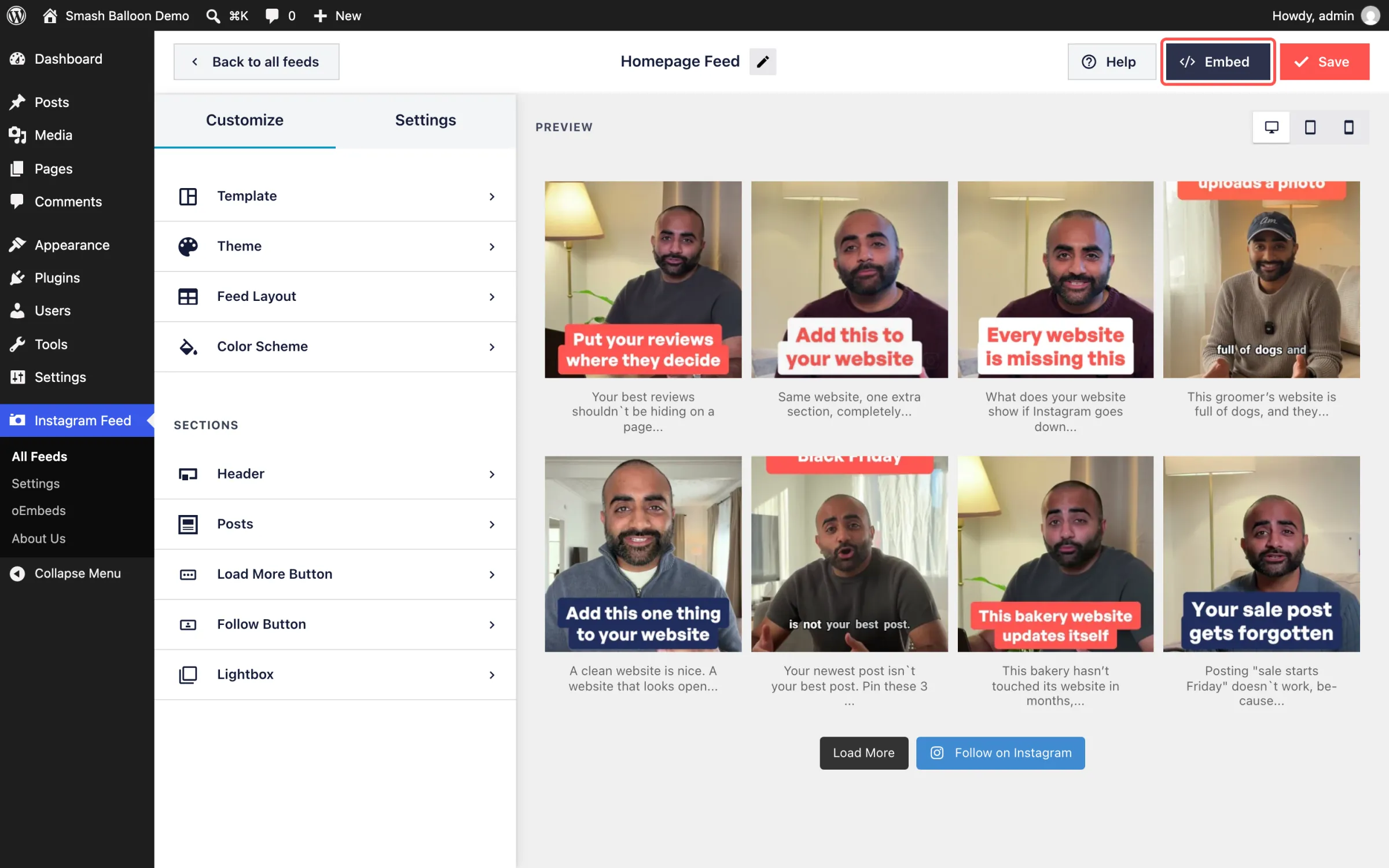
Step 1: Open your feed and click Embed. In your WordPress dashboard, go to Instagram Feed » All Feeds and open the feed you want to add. Click Embed at the top of the feed editor.
Step 2: Find your page. Click the search box under Post or a Page. Your pages and posts show up in a list. Type a few letters to narrow it down, or pick Create a new page at the bottom.
Step 3: Click Add and Go to Page. Once you’ve picked a page, the button turns dark blue. Click it, and the page opens in the WordPress editor in a new tab.
Step 4: Check it and click Save. Your Instagram Feed block is already on the page. Move it up or down if you want it somewhere else, then click Save. On a published page, your feed is live as soon as you save.
Open the page on your site and you’ll see your Instagram posts there, updating on their own as you post.
Frequently Asked Questions
Is the Embed Feed window included in Instagram Feed Pro?
Yes. It’s in every Instagram Feed Pro plan and in the free Smash Balloon Instagram Feed. Pro adds things like swipeable Reels, hashtag feeds and shoppable posts to the feeds you embed.
Does Add and Go to Page publish my page?
No. It adds your feed to the page and opens it in the editor, and nothing changes until you click Save. New pages you create from the window are saved as drafts.
Can I still use a shortcode?
Yes. Copy it from the Use a shortcode section of the window. That’s the way to go with page builders like Elementor or Divi.
What if my site runs an older version of WordPress?
The Embed Feed window needs WordPress 5.8 or newer. On older versions, the Embed button gives you the shortcode to paste instead.
Your Feed Is Ready. Put It Where People Will See It.
Update to Smash Balloon Instagram Feed 6.16.0 and your next feed can be live on your homepage a couple of minutes after you finish it.
And you can do it without:
- Opening a second tab to hunt for the right page
- Copying and pasting a shortcode
- Searching the block list for the Instagram Feed block
Already on Instagram Feed Pro? Update the plugin and the Embed button is ready the next time you open a feed. Using the free plugin? Update it from WordPress.org, then take a look at what Pro adds when you’re ready for more.
Give your Instagram feed even more to show
Instagram Feed Pro gives the feeds you embed swipeable Reels, hashtag feeds, shoppable posts and more, and every plan includes the new Embed Feed window. Backed by a 14-day money back guarantee.
Get Instagram Feed Pro