
A lot of website owners believe that great customer service relies on how fast they reply to emails.
But after talking to experts on this topic, I have found that the best support experience is actually one where the user never has to contact you at all.
When visitors can instantly find answers to their problems on your site, they are happier and more likely to make a purchase. You get to keep your time, and they get an immediate solution.
This automated approach turns your website into a helpful resource that works for you twenty-four hours a day. You don’t need to be a developer to set this up.
Here is my step-by-step tutorial on how to enable an FAQ widget for your website in just 5 steps.
- How an FAQ Widget Can Help Your Website
- Easiest Way of Adding FAQ Widgets to Your Website
- How to Enable an FAQ Widget for Your Website in 5 Steps
How an FAQ Widget Can Help Your Website
An FAQ widget helps your website by providing instant answers to common visitor questions, reducing the need for direct support and keeping people engaged longer on your site.
When visitors land on your website with a problem, they want solutions fast. If they can’t find answers quickly, they’ll leave and search elsewhere—often on a competitor’s site.

An FAQ widget solves this by placing answers right where visitors need them most. Here are the key benefits:
- Build Trust: When visitors see you’ve anticipated their questions, they feel more confident in your expertise and are more likely to stay on your site.
- Encourage Purchases: Clear answers remove hesitations about your products and services, making it easier for customers to say “yes” to your offer.
- Keep Visitors Engaged: People stay on your site longer when they find solutions instantly instead of searching Google for answers.
- Reduce Support Load: Your team can focus on complex issues instead of answering the same basic questions repeatedly via email or chat.
- Generate Leads: Modern FAQ widgets guide visitors through conversations that lead to newsletter signups, product recommendations, or direct sales.
I’ve found that the best FAQ widgets don’t just sit there passively. They actively help visitors find exactly what they need, improving their experience while saving you valuable time.
Easiest Way of Adding FAQ Widgets to Your Website
The easiest way to add an FAQ widget to your WordPress website is by using WPChat.
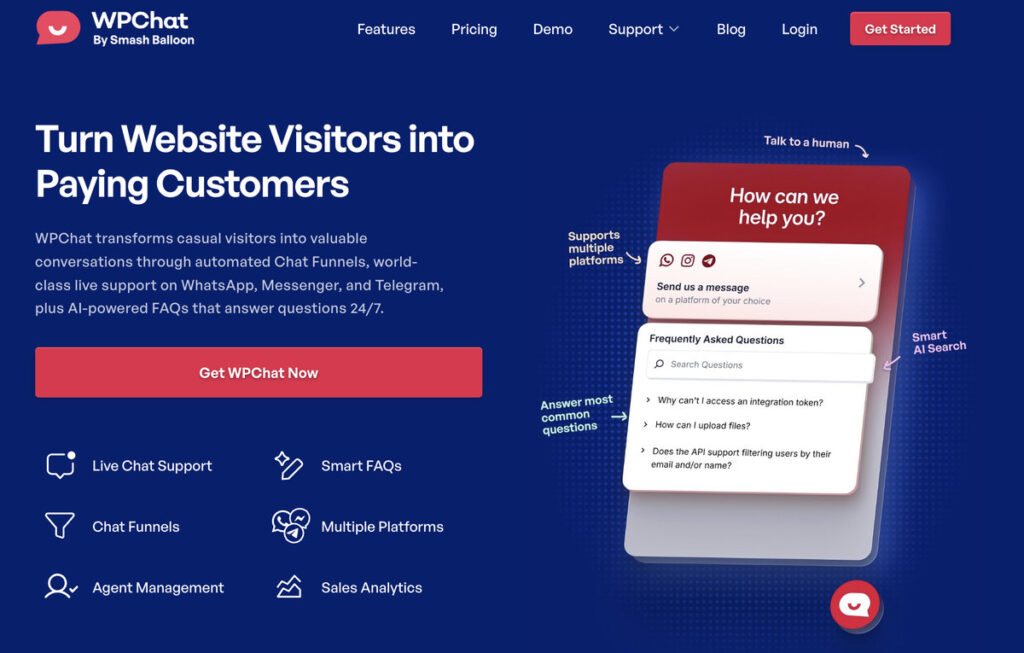
It’s the best FAQ plugin for WordPress because it combines powerful features with a beginner-friendly interface that anyone can use.
WPChat lets you create fully customized FAQ widgets in just minutes, with no coding required.
You simply add your questions and answers, adjust the design to match your brand, and the widget appears on your site automatically.
Here’s what makes WPChat stand out from other FAQ solutions:
- Create and Customize Quickly: You can build FAQ widgets, customize their design, and display them on your website in minutes without touching a single line of code.
- Smart AI-Powered Search: The built-in search bar uses AI to help visitors find the exact right FAQ instantly, even if they phrase their question differently than you did.
- Match Your Brand: Use the live customizer to change the widget’s header, color palette, theme, and more until it looks perfect with your site’s design.

- See What Visitors Need: Check analytics to see which FAQ questions your visitors are searching for, helping you understand their pain points and add missing information.
- Connect Multiple Platforms: Link your FAQ widget to popular messaging apps like Facebook, WhatsApp, Instagram, and Telegram so visitors can reach you on their preferred channel.
- Guide Visitors to Action: Create Chat Funnels that automatically answer visitor questions and guide them towards a purchase or subscription.
I recommend WPChat because it turns your FAQ from a static list into an interactive experience that actually helps convert visitors into customers.
Get started with WPChat today and transform how your website handles customer questions.
How to Enable an FAQ Widget for Your Website in 5 Steps
Now that you understand the benefits of FAQ widgets, let’s get started with the tutorial.
I’ll show you how to install WPChat, configure your FAQ widget, and get it live on your website. The entire process takes less than 5 minutes, and you’ll have a fully functional FAQ system by the end.
Step 1: Install and Activate the WPChat Plugin
First, you’ll need to grab a copy of the WPChat plugin from here.
After you have the plugin, install and activate the WPChat plugin on your website.
Once the plugin is activated, you’re ready to move on to creating your first FAQ widget.
Not sure how to add a plugin to your website? You can take a look at this beginner’s guide on how to install WordPress plugins.
Step 2: Create a New FAQ Widget
Now it’s time to set up your FAQ widget and choose how it looks on your site.
Go to your WordPress dashboard and click on the WPChat menu.
Then, click on the Set Up button to begin the configuration process.

In the first field, enter your business phone number that you use for WhatsApp.
This connects your FAQ widget to your messaging platforms later on.
Click the Next button to continue.

On the next screen, you’ll see 3 theme options for your FAQ widget.
Pick the theme that best matches your website’s design—don’t worry, you can customize colors and styles later.
Once you’ve selected a theme, click on Next to move forward.

Step 3: Enable FAQ Widget for Your Website
This step lets you control exactly where your FAQ widget will be enabled on your website.
You’ll see two main options: Display on all pages or Display only on specific pages.

If you want your FAQ available everywhere, choose the first option and use the filters below to exclude parts of your site.
You can also choose to embed the FAQ widget on specific pages and use the filters to pick those pages.
Click the Next button to continue.

Now, paste your license key into the field provided. You should be able to see it on the WPChat dashboard on their website.
Finally, click on the Complete Setup button to finish the initial configuration.

Step 4: Add Questions and Answers
With your FAQ widget set up, it’s time to add the actual questions and answers that your visitors will see.
Navigate to WPChat » Frequent Questions from your WordPress dashboard.
This is where you’ll manage all your FAQ content.
Ready to start? Click on the Add Question button to create your first FAQ entry.

In the Question field, type the question exactly as your visitors might ask it.
Keep it clear and conversational—for example, “How long does shipping take?” works better than “Shipping duration information.”

Below that, enter your answer in the Answer field.
Make sure your answer is helpful and complete, but avoid making it too long or complicated.

If you want to add a visual explanation, click on the Image icon to upload a screenshot, diagram, or photo that helps clarify your answer.
This step is optional but can be really helpful for technical questions.

Once you’re satisfied with your question and answer, click the Save Changes button to add it to your FAQ widget.
I recommend starting with your 3-4 most common questions. You can always add more later as you learn what visitors are asking.

Step 5: Manage Your FAQ Widget
After adding your first question, you can click on the Add Another FAQ button on the popup.
You can now repeat the steps above and have more FAQ entries ready to go.

If you want to manage the FAQ entries instead, click on the Back button on the top-left.

For existing questions, you’ll see three options:
- Edit lets you update the question or answer
- Clone creates a duplicate you can modify
- Delete removes questions you no longer need.

Before making your FAQ live, click on the Preview button to see how the widget appears on your website.
This is a great way to double-check for typos and other errors.

If something doesn’t look quite right, you can go back and make adjustments until everything is perfect.
After that, you can open your website and check out how your new FAQ widget looks.

And that’s it!
You’ve now successfully added an FAQ widget to your WordPress website using WPChat. Your visitors can now find instant answers to their questions without waiting for email replies or searching through multiple pages.
This means happier visitors who stay on your site longer, fewer support requests flooding your inbox, and more opportunities to convert browsers into buyers.
Your FAQ widget works 24/7 to provide help exactly when people need it.
Get started with WPChat today and start providing better support while saving time on repetitive questions.
Want to connect with website visitors directly? Check out this beginner’s guide on adding WhatsApp chat to your website.



