
It’s a common story among small business owners: Your website traffic is up, but the contact form submissions are flat.
Every visitor who leaves your site with an unanswered question is a lost opportunity. When the answer isn’t immediately visible, they won’t hunt for it—they’ll just leave.
The fix is to connect with them on their terms. Why make them fill out a generic form when they can instantly chat with you on a familiar, trusted platform like Instagram?
Embedding an Instagram chat widget on your WordPress site removes the friction. It offers a direct, low-effort path to communication, drastically increasing the chance of converting a curious visitor into a paying customer.
Stop letting valuable leads slip away. We’re going to show you the easiest method for adding Instagram chat to your WordPress website today.
- Why Add Instagram Chat to Your Website?
- Easiest Way to Add Instagram Chat to WordPress
- How to Add Instagram Chat to WordPress in 5 Steps
Why Add Instagram Chat to Your Website?
Adding Instagram chat to your WordPress to reach you—right when they have questions.
Instead of filling out a form and waiting days for a reply, they can message you directly through an app they already use every day.

This removes friction from the communication process. When people can reach you quickly on a platform they trust, they’re far more likely to follow through with a purchase or inquiry.
Here are some key benefits of adding Instagram chat to your website:
- Immediate responses keep potential customers engaged and increase the likelihood they’ll complete a purchase instead of leaving with unanswered questions.
- Instagram chat resolves issues in real-time, helping you address concerns before visitors lose interest or move on to a competitor.
- Your audience already knows how to use Instagram, so there’s no need to create accounts, remember passwords, or learn unfamiliar interfaces.
- Every website visitor who contacts you through Instagram becomes a potential follower, turning casual browsers into engaged community members.
- Instagram messages feel personal and conversational, making it easier to follow up with customers and maintain ongoing relationships than email.
Easiest Way to Add Instagram Chat to WordPress
The simplest way to add Instagram chat to your WordPress site is by using a dedicated plugin. This approach saves you from writing any code or manually configuring complex integrations.
I recommend using WPChat for this task. It’s beginner-friendly and designed specifically to add chat options to WordPress sites without any technical knowledge required.
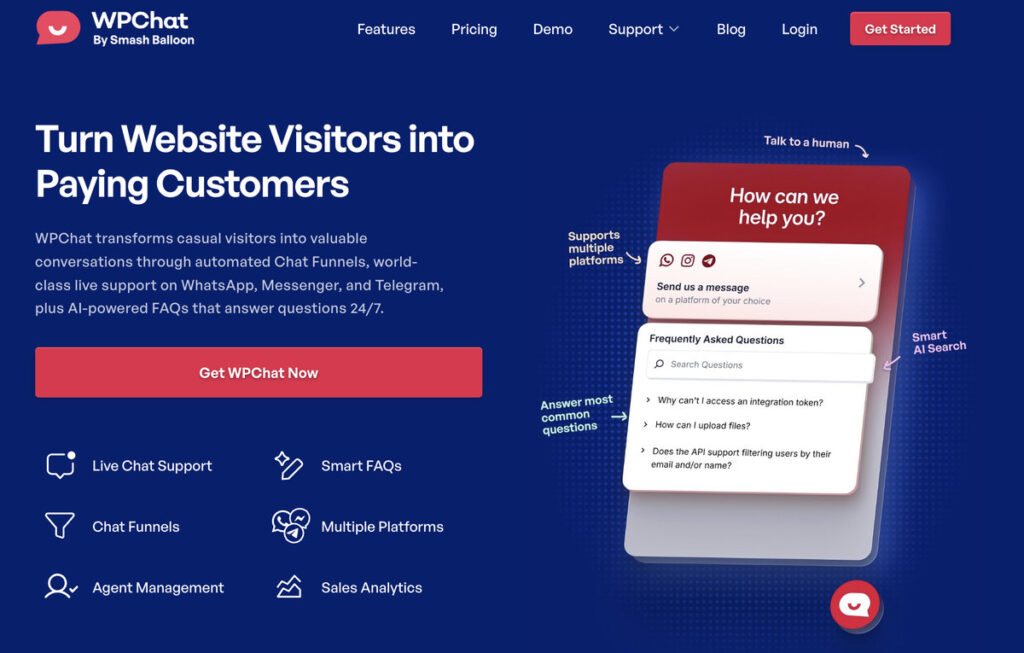
WPChat comes packed with features that make it the ideal choice for adding Instagram chat:
- Instant Setup: WPChat adds chat options for Instagram, Facebook, WhatsApp, and Telegram without requiring any code. You can have everything running in just a few minutes.
- Multiple Platforms: Create a chat assistant that works across major messaging apps, customize the design to match your brand, and control where the chat widget appears on your site.
- Team Functionality: Allow multiple agents or team members to handle conversations, making it easy to manage customer inquiries even as your business grows.
- Support Automation: Create FAQs and chat funnels that provide instant answers to common questions, reducing your workload while keeping visitors happy.
- Full Customization: Adjust colors, styling, and positioning to seamlessly match your website’s brand and design.

The best part? WPChat works seamlessly with your existing WordPress setup. You don’t need special technical knowledge or experience to get it working perfectly.
Ready to connect with visitors on their favorite messaging platforms?
Get WPChat to start building better relationships with your audience today.
How to Add Instagram Chat to WordPress in 5 Steps
Ready to get started? The entire process takes about 5 minutes, and you’ll have a working Instagram chat button on your site by the end of this tutorial.
Step 1: Install and Activate WPChat on Your Website
First, you’ll need to get a copy of the WPChat plugin here.
Then, install and activate it on your WordPress site (see this beginner’s guide if you need help).
With that, you can get started with your Instagram chat assistant.
Step 2: Create Your Instagram Chat Assistant
Once WPChat is activated, navigate to the WPChat menu in your WordPress dashboard.
You’ll see a Set Up button—go ahead and click it to begin the setup process.

On the next screen, you’ll need to enter your WhatsApp number in the provided field.
After entering your number, click the Next button to continue.

Now, you’ll see three theme options: Basic, Night, and Pastel.
Pick the theme that best matches your website’s design and click Next to move forward.

Step 3: Choose Where Chat Assistant is Visible
WPChat gives you control over where the chat widget appears on your site.
You can choose to display it on all pages or only on specific pages.

Next, you can include/exclude your chat assistant from specific Pages, Tags, Categories, and Custom Post Types.
Once you’ve made your selections, click Next to proceed to the final setup step.

You’ll now see a field asking for your WPChat license key.
Enter the license key you received with the plugin and click on Finish Setup.

Step 4: Customize Your Instagram Chat Assistant
Now that your chat assistant is set up, it’s time to customize its appearance.
Click the Customize button to open the live editor where you can make design changes.

In this live editor, you can find the customization options on the left. That way, you can customize the header, icons, avatar, and more for your Instagram chat assistant.
To make the customization easy and accurate, you can use the live customizer on the right.

I’ll start by demonstrating a few of the customization options so you can try them out yourself.
In the left menu, click on Color Palette to access the color options.

WPChat provides several pre-made color palettes that you can pick from with a single click.
You can also click on Custom to pick your own colors.

This gives you complete control over how the chat widget looks on your site.
Once you’re happy with the colors, click Save to apply your changes.
Now, click the Back button to return to the main customization menu.

Next, let’s customize the header that appears above the Instagram chat assistant.
First, click on the Header option on the left.

Now, you can simply type in your header into the Heading field.
You can write a short and friendly message to welcome visitors who want to chat with you on Instagram.

Like before, click on Save once you’re done editing the header. Just like that, you can go ahead and customize the rest of the Instagram chat assistant.
When you’re finished, click on Save to store your changes.
Step 5: Connect Your Instagram Business Page
The final step is connecting your Instagram account so visitors can actually chat with you.
Navigate to the WPChat » Agents menu in your WordPress dashboard.
You’ll see a default agent listed here. Just click Edit to customize it.

This is where you’ll add your Instagram information and personalize how you appear to visitors.
First, click on Upload to select a profile image for your agent. Choose a photo that’s professional and represents you or your brand well.

Below the image, you’ll see a field where you can type in a name for your agent.
Enter the name you want visitors to see when they interact with the chat widget.

Now, scroll down until you find the Instagram section.
In the provided field, enter your Instagram ID. This is just your username without the @ symbol.

For example, if your Instagram handle is @yourbusiness, you would simply enter yourbusiness in the field.
Finally, click Save Changes to connect your Instagram account. Your Instagram chat is now fully configured and ready to use on your WordPress site!
And that’s it!
Adding Instagram chat to your WordPress site creates a direct, low-friction way for visitors to reach you instantly.
By meeting them on a platform they already use and trust, you increase the chances of converting curious browsers into engaged customers or followers.
Ready to connect with your visitors on Instagram?
Get WPChat today and start turning website traffic into meaningful conversations.




Does WPChat support Instagram DM automation or saved replies to handle common customer questions more efficiently?
Hey Peter,
Apologies for the delay here as your comment was incorrectly marked as spam. DM Automation is not handled by WPChat but is something that can be partially handled using the Meta Business Manager suite. We can also look into creating additional features fort he plugin in the future!
Many thanks,
Joel