Social Wall
  Feed Analytics


Your EDD reviews are already doing their job on the download page. The problem is that’s the only place they show up. Not your homepage, not your landing pages, not your category pages.
EDD gives you a shortcode for exactly this, so you can put reviews somewhere else. The question is how to get it into a page you built in Elementor, and what to do when one product’s review list isn’t quite what the page needs.
There are two ways to do it without writing code. You can drop EDD’s shortcode into Elementor’s Shortcode widget, which works and costs nothing extra.
Or you can use a reviews widget that drags straight into your layout and shows your real reviews while you’re still building the page.
This guide covers both, step by step: finding your download ID, placing the shortcode, and getting reviews onto any page. Then how to pull your EDD, Google, and Trustpilot reviews into one styled block instead.
No code, no Elementor Pro. And when you launch your next download, your pages update themselves.
In this Article:
- Quick Answer: How to Show Easy Digital Downloads Reviews in Elementor
- Where Your EDD Reviews Live (and How to Move Them)
- Method 1: Paste the EDD Shortcode Into Elementor
- Method 2: Use the Reviews Feed Pro Widget in Elementor
- Do You Need Elementor Pro for This?
- Set the Feed Once, Then Stop Editing Pages
- Frequently Asked Questions
- Start Showing Your EDD Reviews in Elementor Now
Quick Answer: How to Show Easy Digital Downloads Reviews in Elementor
How do you get your EDD reviews onto an Elementor page?
Two ways, both without code. Paste EDD’s review shortcode into Elementor’s Shortcode widget, or drag in a reviews widget that renders your live reviews right in the editor.
For the shortcode route, drag Elementor’s “Shortcode” widget onto your page and paste [review download="123" multiple="true" number="10"], swapping 123 for your download’s ID.
For the widget route:
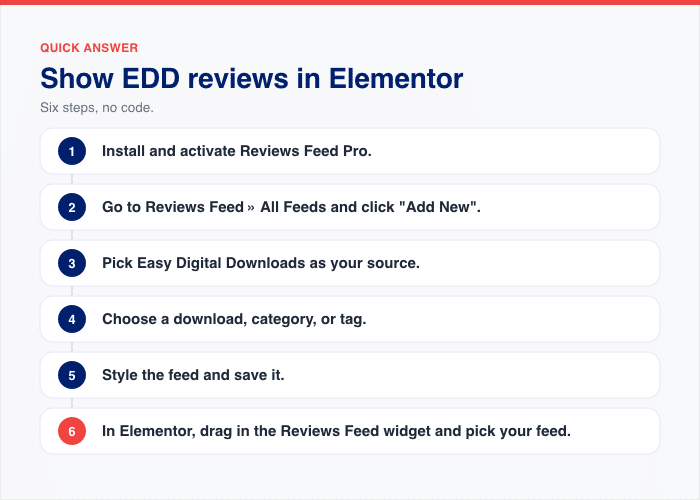
- Install and activate Reviews Feed Pro.
- Head to Reviews Feed » All Feeds and click “Add New”.
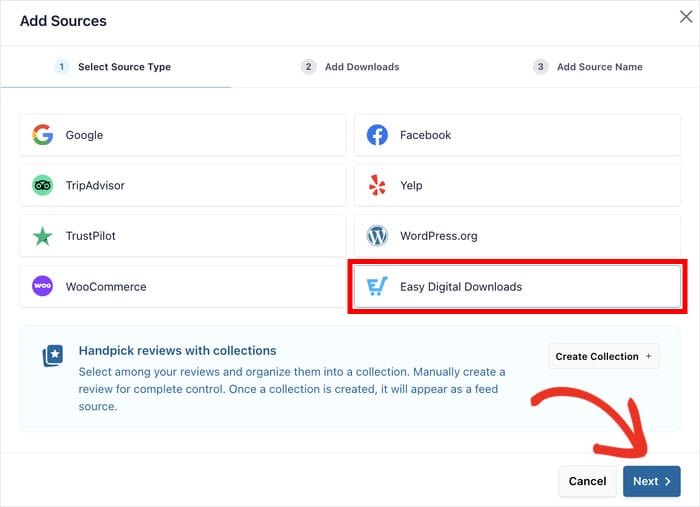
- Pick Easy Digital Downloads as your source, then choose a download, category, or tag.
- Style the feed and save it.
- Open your Elementor page, search the widget panel for “Reviews Feed”, drag it in, and pick your feed.
Your reviews render in the Elementor canvas as you build, so you can style the page around them.
The shortcode handles a single product on a single page. The widget suits anyone showing reviews in more than one place.
Where Your EDD Reviews Live (and How to Move Them)
By default, EDD reviews show up in exactly one place: the single download page.
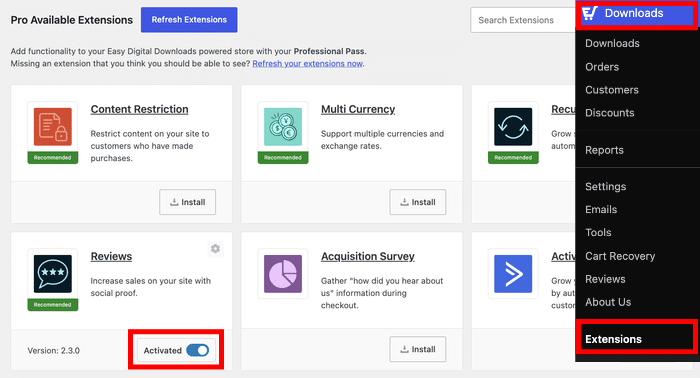
That’s on purpose. Reviews come from EDD’s Reviews add-on, which needs an Extended Pass or higher.
Switch it on under Downloads » Extensions, and each download page gets its own review list.
If you want them somewhere else too, EDD gives you two shortcodes:
[review id="REVIEW_ID"]shows one specific review.[review download="DOWNLOAD_ID" multiple="true" number="10"]shows a list of reviews for one download.
Elementor takes those through its Shortcode widget, and I’ll show you how in the section below.
One scope note before you start. These shortcodes display reviews and nothing more. EDD is explicit about this: the shortcodes show reviews, they don’t collect them. Submission happens on the download page.
Method 1: Paste the EDD Shortcode Into Elementor
Here’s everything you need before you start:
- Elementor, free is fine
- Easy Digital Downloads with the Reviews add-on enabled
First, make sure Reviews is actually switched on. Head to Downloads » Extensions, find Reviews in the list, and activate it. Without this, the shortcode has nothing to print.
Find Your Download ID
The shortcode needs to know which product you mean, and it asks for a number.
Go to Downloads from your dashboard and hover over the product name without clicking.
Look right beside the context options, and you’ll see a number like #60. That number is your download ID.
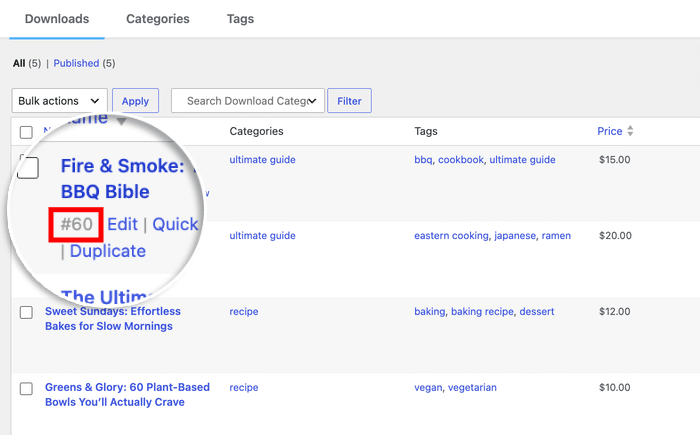
You can also click into the download and read the same number from your browser’s address bar.
The same trick works for a single review if you want the [review id=""] version.
Drop In the Shortcode Widget
Now you put that number to work.
- Open the page you want in Elementor.
- Type “Shortcode” into the widget search box on the left panel.
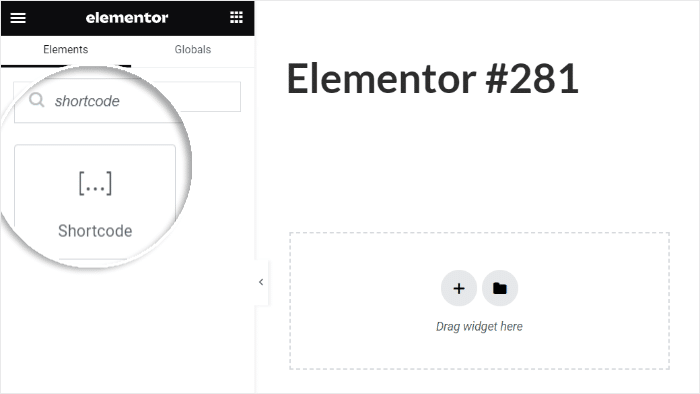
- Drag the Shortcode widget onto your page where you want the reviews.
- Paste
[review download="60" multiple="true" number="10"]into the box, swapping 60 for your download ID. - Click “Update”, then open the live page to check it.
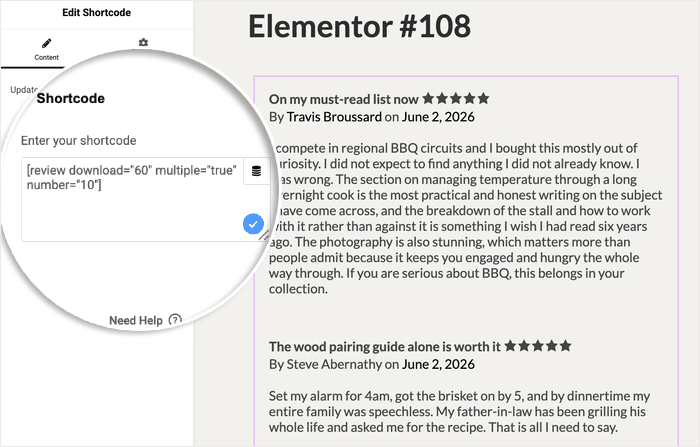
That last step matters. Editor rendering can vary depending on the plugin, so the live page is where you confirm it worked.
The multiple="true" part tells EDD you want the full list, not one review. The number="10" part caps how many show. Change 10 to whatever you want.
The Paid Widget Shortcut
If you’d rather drag a real widget than paste a shortcode, Element Pack Pro includes an “EDD Product Reviews” widget.
It gives you layout toggles plus query controls for limit, order, and status.
The catch is the price of entry. You’re buying the full Element Pack Pro bundle on top of Elementor and EDD Reviews just for one widget.
What the Shortcode Is Built For
The shortcode does one job well. It prints a product’s reviews on a page.
That’s the whole design. So it helps to know where its edges are:
- One shortcode prints one download’s reviews. Three products means three widgets.
- It prints every approved review for that product, in the order it has them.
- Styling past the defaults means CSS.
- A new download means adding it to the page yourself.
- It reads EDD reviews only. Your Google and Trustpilot reviews live somewhere else.
That last one is the gap most store owners hit. Your happiest customers aren’t all in one place, and neither are your reviews.
Method 2: Use the Reviews Feed Pro Widget in Elementor
Want a real widget instead of a shortcode box? Install Reviews Feed Pro, build your feed once, then drag its widget onto any Elementor page.
Reviews Feed Pro is a WordPress plugin that collects your reviews from different platforms and displays them anywhere on your site. You build a feed in a visual customizer, then place it with a widget, block, or shortcode.
Here’s the whole process.
1. Install and activate Reviews Feed Pro. You’ll need the Plus tier, because that’s the tier that includes Easy Digital Downloads as a source. Add your license key after activation.
2. Head to Reviews Feed » Add New, then click “Add Source”.
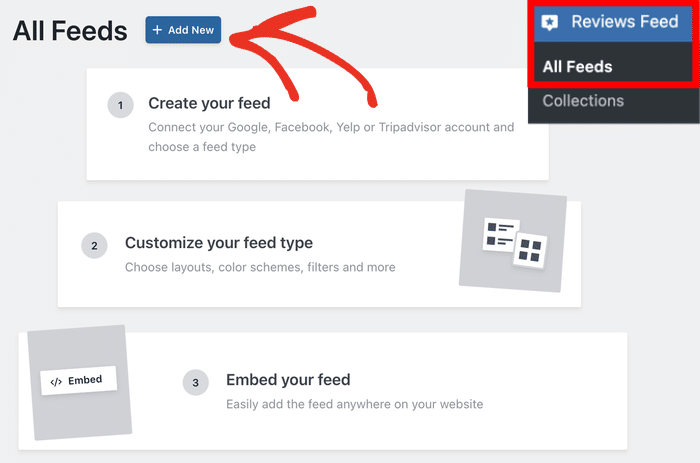
Pick the Easy Digital Downloads tile from the list.
If EDD or EDD Reviews isn’t active on your site, that tile greys out so remember to check your EDD setup first.
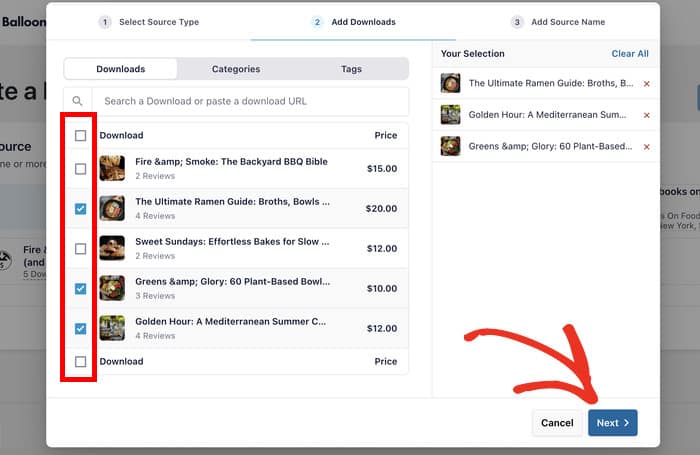
3. Choose what feeds it. You can pull reviews from one specific download, from a whole category, or from a tag.
Once you pick the source, click on Next.
Select the EDD reviews as the source and click on Next.
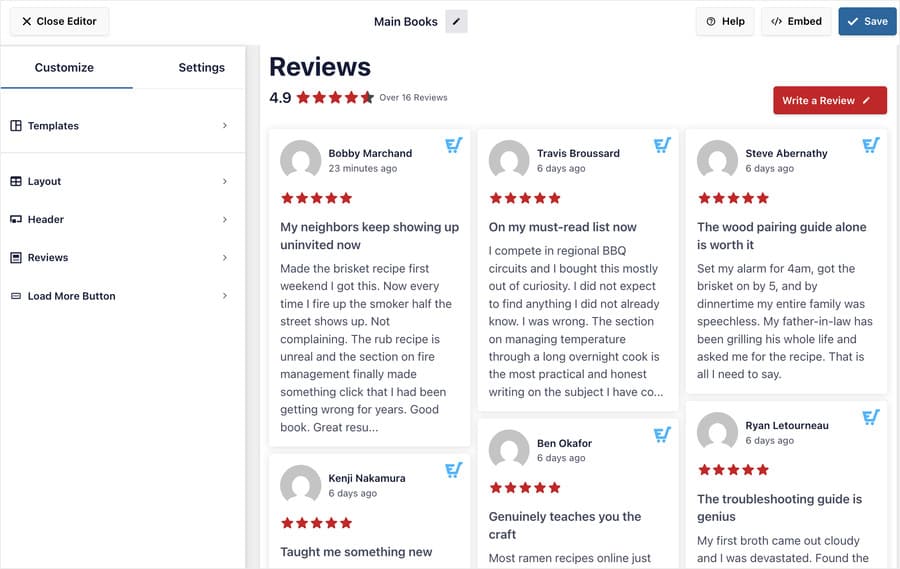
4. Set your design in the live customizer. You can pick from 4 layouts: Grid, list, masonry, or carousel.
Pick the shape that fits the page and use the remaining customization options to change your buttons, header, review elements, and more.
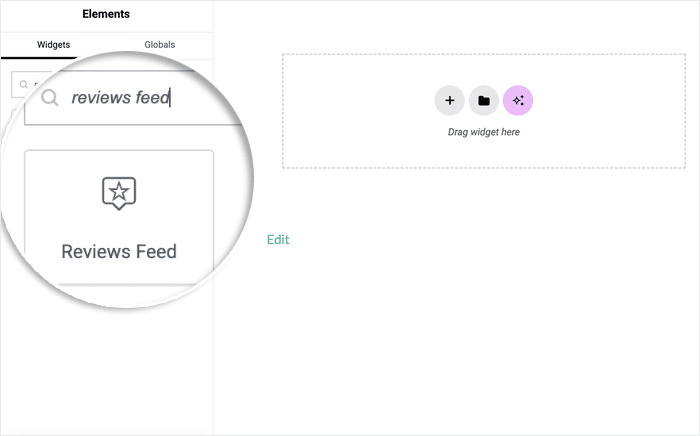
5. Open your Elementor page and search “Reviews Feed” in the widget panel.
Drag the widget to the live preview on the right.
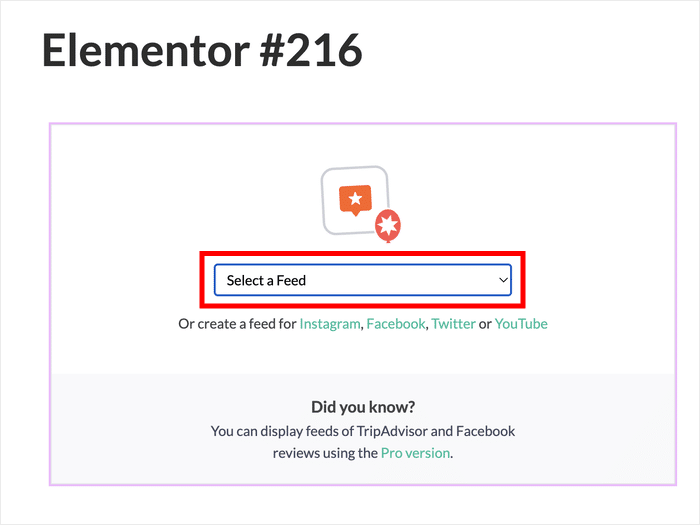
Now, you can use the dropdown menu to choose the EDD reviews feed you just created.
You can also start creating a new feed on a new tab from here if you prefer.
Here’s the part I like. Your reviews show up in the live Elementor preview, so you style the page around real customer words.
And you never touch CSS. Here’s what you control from the customizer:
- Layout type: grid, list, masonry, or carousel
- How many reviews show at once
- A star-rating filter, so only your 4 and 5 star reviews appear
- A keyword filter, to include or exclude reviews by the words in them
- Visual moderation: click any review to hide it
- Pinning, so your favorite review sits at the top
Two details worth knowing about the output. Review titles print above the review body, which gives each review a headline your visitors can skim.

And a feed pulling from more than one download shows an aggregate star rating in the header. One number, summing up the lot.
No API keys, either. Your EDD reviews already sit in your own database, so the feed reads them locally.
Add Google and Trustpilot to the Same Feed
Your reviews aren’t all in EDD, and your feed doesn’t have to be either.
Click “Add Source” once per platform, and Reviews Feed Pro merges them into a single feed.
The modal carries Easy Digital Downloads alongside other popular sources like Google, Facebook, Yelp, TripAdvisor, Trustpilot, WordPress.org, and WooCommerce.
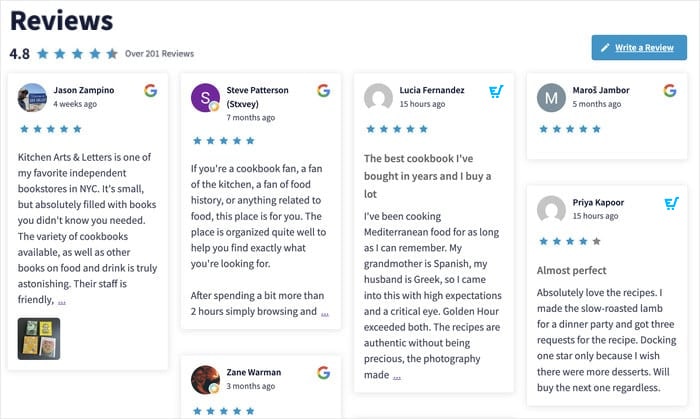
Picture a “What customers say” block on your homepage. Three EDD reviews of your products, two Google reviews praising your support, one Trustpilot review. Same star filter across every source. One widget.
Smash Balloon plugins run on over 1.75 million websites, doing exactly this: pulling reviews from wherever they landed and putting them where people will see them.
Do You Need Elementor Pro for This?
No. Both methods work on free Elementor.
Here’s why. The Reviews Feed widget is registered by the Smash Balloon plugin, not by Elementor. So it shows up in your widget panel the same way on free Elementor as it does on Pro.
Pro or free, the feed behaves the same. The sources, filters, and layout all live in Reviews Feed Pro’s own customizer rather than in Elementor.
Elementor Pro adds theme building and its own set of widgets. Neither one has anything to do with displaying your reviews. If you already pay for Pro, nothing changes. If you don’t, nothing is missing.
Set the Feed Once, Then Stop Editing Pages
Say you launch a new download next month. Do you have to open every page and add it?
With the shortcode, yes. Each shortcode names one download ID, so a new product means pasting a new shortcode wherever you want it seen. Homepage, landing page, sales page. One by one.
With a feed, no. As long as you sourced by category or tag, new downloads in that category flow into the feed on their own.
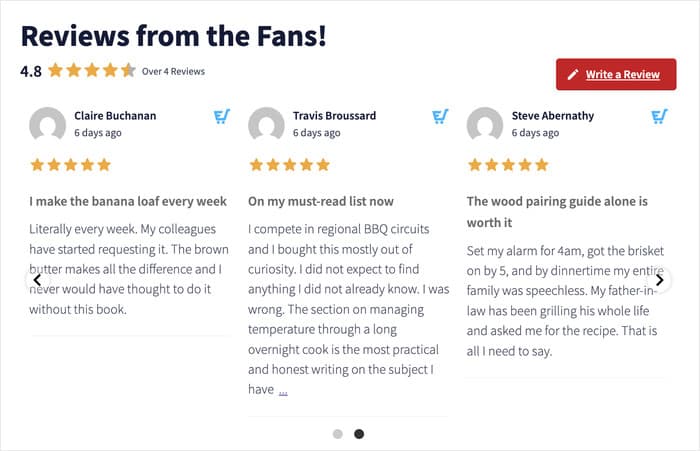
Every page showing that feed picks up the change at once. You set it up once and walk away.
The setup time is nearly identical. The upkeep isn’t.
Here’s how the two methods compare over time.
| What changes | Shortcode | Reviews Feed Pro |
|---|---|---|
| New download added | Edit each page and add a shortcode | Flows in automatically with a category or tag source |
| Change the layout | Write CSS | Switch between grid, list, masonry, or carousel |
| Hide a review | Shows every approved review | Click the review in the customizer to hide it |
| Add Google reviews | EDD reviews only | Click “Add Source” and pick Google |
If your store has one product and one page, the shortcode is fine. If you’re adding downloads and building pages regularly, the feed saves you the return trip every time.
Frequently Asked Questions
Does Easy Digital Downloads work with Elementor?
Yes, Easy Digital Downloads works with Elementor. You can build your store pages, landing pages, and sales pages in Elementor as normal. Reviews are the separate piece, and that’s what the two methods in this guide solve.
Can visitors leave a review on an Elementor page?
No, visitors can’t leave a review on an Elementor page. Both the shortcode and the feed widget display reviews that already exist. Customers still submit their reviews on the single download page.
Which EDD pass includes Reviews?
The Reviews add-on comes with the Extended pass or higher. If you’re on a lower pass, Reviews won’t appear in your extensions list, and neither method will have anything to show.
Do I need API keys to show EDD reviews?
No, you don’t need API keys for EDD reviews. They already sit in your own WordPress database, so the feed reads them locally. Connecting Google or Trustpilot is a separate step, handled inside the “Add Source” modal.
Can I show reviews from more than one product?
Yes, you can show reviews from more than one product. Source your feed by category or tag instead of a single download, and every product in it feeds the same block. The feed header then shows an aggregate star rating across the lot.
Can I make the reviews match my page?
Yes, you can style the feed to match your page. Layout, colours, and typography are all settings in the Reviews Feed Pro customizer, so there’s no CSS to write. You can check how it looks on your Elementor preview and tweak the feed design to match the page.
Start Showing Your EDD Reviews in Elementor Now
Your reviews already exist. They’re sitting on your download pages, doing their job on your download pages, and only there.
EDD’s shortcode moves one product’s review list onto an Elementor page. It’s already included with EDD Reviews, it works, and it’s fine when you have one product and one page.
A feed does the bigger job. Every source, filtered to your best reviews, styled without CSS, showing up live in the Elementor canvas while you build.
And it updates itself when you add a download.
Grab Reviews Feed Pro and build your feed once. Drop the widget on your homepage, and your reviews finally show up where new visitors will see them.
Want to add your Google reviews next? Here’s our guide on how to display Google reviews in WordPress.