Social Wall
  Feed Analytics

Your feed was working yesterday. Then you switched themes, activated a caching plugin, or updated your page builder, and now the feed area is blank, stuck on a spinner, or showing plain post text in one unstyled column.
Nothing has been lost. Your feed and every setting you configured are still sitting in your database, exactly as you left them. Your account is still connected. Something in the new setup is stopping the feed from rendering on the page.
We’ve seen this pattern across enough theme switches, optimization plugins, and builder setups to know where it tends to hide. Here’s a test that takes about two minutes, and the fix that follows from whatever it turns up.
In this Article:
Is This Actually a Plugin Conflict?
It’s a conflict if two things are true: your feed broke immediately after one specific change, and it works again when you temporarily switch that theme or plugin off. If either half is missing, you’re looking at a different problem.
Signs it’s a conflict:
- The feed area is blank, or a loading spinner never stops
- The feed shows raw, unstyled post text stacked in a single column, which means the CSS isn’t loading
- Your browser console shows a JavaScript error on the page
- The timing lines up exactly with a theme switch, a plugin activation, or a plugin update
Signs it’s not a conflict:
- The feed shows a connection or token error message instead of posts
- The feed broke days after the change, with nothing else touched on the site
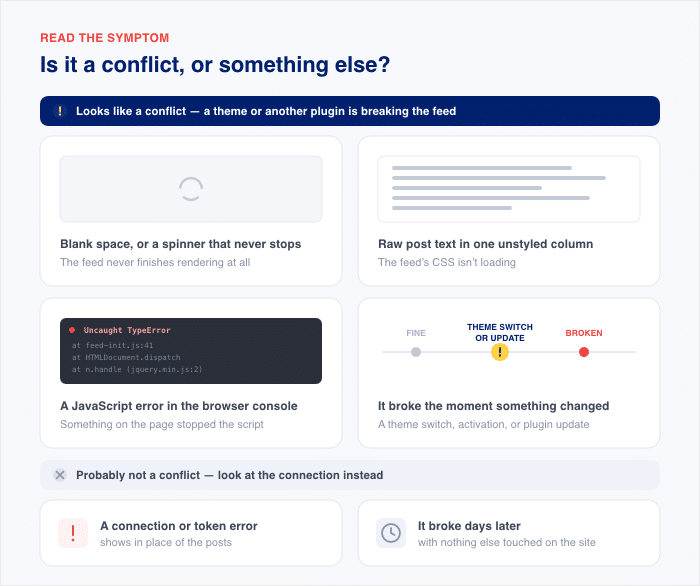
If you’re in that second group, the cause is usually the connection itself rather than your theme. Our guide on why your Instagram feed isn’t loading walks through those fixes.
Before you test anything, clear your caches (host, CDN, and browser cache). Sometimes that alone fixes it, because you were just looking at an old saved copy of the page.
And if the feed is still broken afterward, you know you’re seeing your site as it is right now, so every test you run next will actually tell you something.
Why a Theme or Plugin Change Breaks a Feed That Was Working
A feed needs three things to show up on your page: a container to sit in, the CSS that styles it, and the JavaScript that brings it to life. Those three pieces have to arrive in that order.
Some themes don’t load page content in the initial page load. They fetch it with AJAX a moment later. So the feed’s JavaScript runs, looks for its container, finds nothing there yet, and quietly stops.
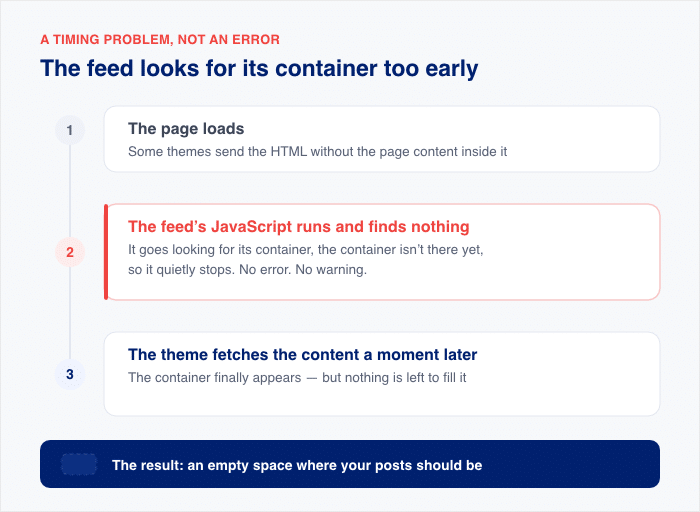
Optimization plugins break the same handshake from the other side. When a caching or speed plugin defers, delays, combines, or lazy-loads the feed’s scripts, those scripts arrive late or in the wrong order.
The container is ready, but the feed’s scripts get there too late to act on it.
Here’s the reframe that matters: your feed didn’t break. The handshake did. That’s why the fixes below are settings toggles rather than rebuilds. Nothing is lost in either scenario.
Run a Conflict Test
Before you touch a single switch, here’s what this test does not do.
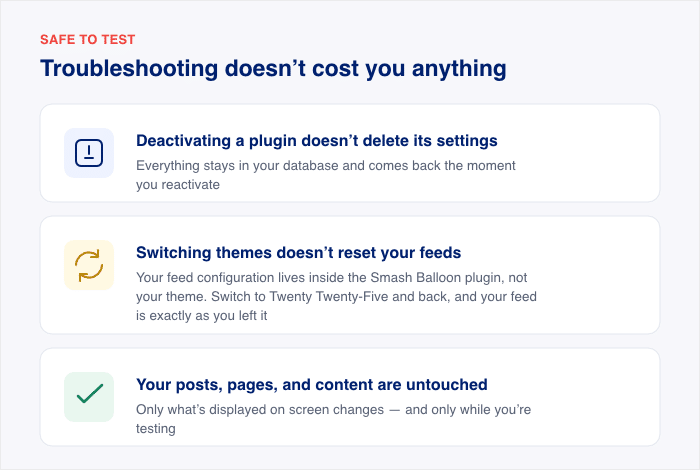
- Deactivating a plugin doesn’t delete its settings. Everything stays in your database and comes back the moment you reactivate.
- Switching themes doesn’t reset your feeds. Your feed configuration lives inside your Smash Balloon plugin, not your theme. Switch to Twenty Twenty-Five and back again, and your feed is exactly as you left it.
- Your posts, pages, and content are untouched. Only what’s displayed on screen changes, and only while you’re testing.
One practical note: run this during a quiet traffic window, or on a staging site if you have one. There’s no reason to do it during your busiest hour.
Now the test itself.
- Clear all your caches first: host, CDN, and browser. This makes sure you’re testing your site as it is right now, not a saved copy.
- Head to Plugins » Installed Plugins and deactivate every plugin except your Smash Balloon plugin. Check your feed page.
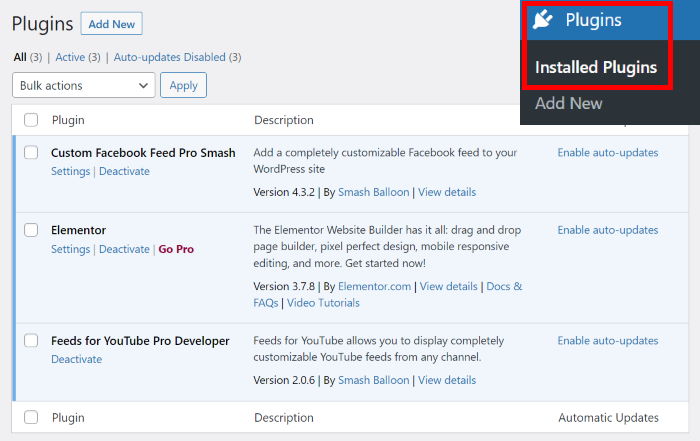
- If the feed comes back, reactivate your plugins one at a time, checking the feed after each one. How long this takes depends on how many plugins you have. The plugin that breaks it is your culprit.
- If the feed is still broken with everything else off, go to Appearance » Themes and switch to Twenty Twenty-Five. Check the feed. If it’s still broken, try Twenty Twenty-One and check again.
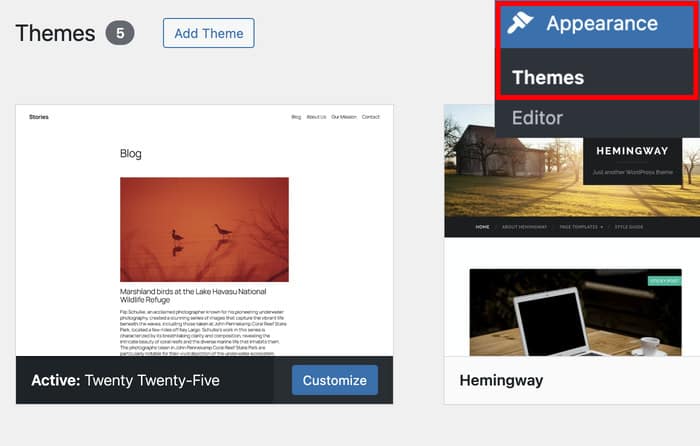
- If it works on the default theme, your theme is the conflict. Skip ahead to the AJAX fix below.
- Restore your own theme and reactivate your plugins. Make a note of the single change that reproduced the break. Restoring puts the break back, so apply the fix from the relevant section below once you’re back to your own setup.
Whatever the test turned up tells you which section to read next. A theme means the AJAX setting below. A caching or speed plugin means the exclusions section. A page builder means the page-builder check.
Enable the AJAX Theme Loading Fix Option
If your conflict test pointed at your theme, this is almost always the fix, and it’s one checkbox.
Head to Settings » Advanced in your Smash Balloon plugin and enable the AJAX theme loading fix.
Click “Save Changes,” clear your caches, and reload the page.
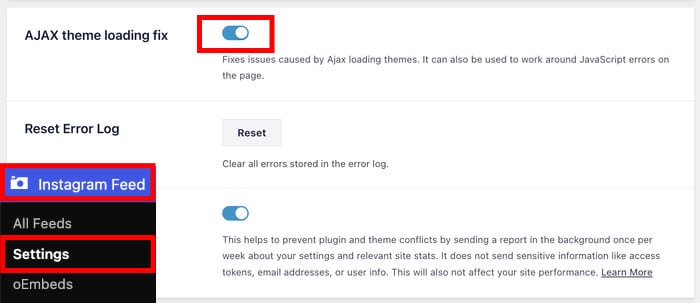
Here’s what that setting does. It loads the feed in a way that bypasses theme transition conflicts, so the styles apply correctly on the first paint. That’s the whole fix for the most common version of this problem.
No rebuild, no re-connecting your account, no going back to your old theme.
This setting lives in the same place across the whole Smash Balloon suite, so the path is the same whether you’re running Instagram, Facebook, Twitter/X, or YouTube feeds. If you have more than one feed plugin installed, turn it on in each one.
Your feed is built to survive changes to the site around it, so a new theme should mean one setting to flip, not a feed to rebuild.
Exclude Smash Balloon From Your Optimization Plugin
If your feed came back when you switched off a caching or speed plugin, this is your section. It’s also worth reading if your test turned up nothing at all, because some optimization runs outside WordPress where the test can’t see it.
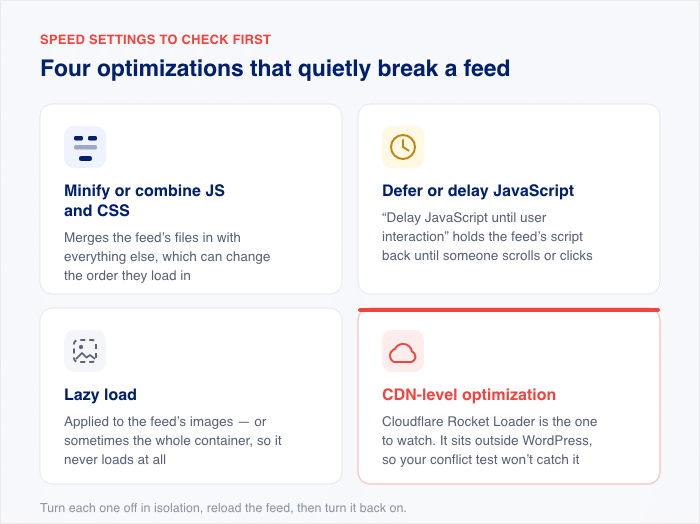
Optimization plugins work by rearranging how your site’s files load. Most of the time that’s harmless. Four settings in particular can knock the feed’s scripts out of order:
- Minify or combine JavaScript and CSS. This merges the feed’s files in with everything else, which can change the order they load in.
- Defer or delay JavaScript. The “delay JavaScript until user interaction” setting is a frequent one, because it holds the feed’s script back until someone scrolls or clicks.
- Lazy load. Applied to the feed’s images, or sometimes to the whole feed container, so it never loads at all.
- CDN-level optimization. Cloudflare Rocket Loader is the one to watch. It sits outside WordPress, so it won’t show up in your conflict test at all.
That last one is worth checking even if your conflict test came up empty, since CDN settings sit outside WordPress where the test can’t reach them.
Here’s the part worth saying plainly: you don’t have to turn caching off. Every serious optimization plugin has an exclusion list, sometimes called an ignore list. Add Smash Balloon to it, and the rest of your speed setup stays exactly as it is.
What you add is the plugin’s directory path. Your exact folder name depends on whether you’re on the free plugin or Pro. Pro directories end in -pro.
If you’re not sure which you have, open /wp-content/plugins/ in your host’s file manager and find the folder for your feed plugin.
/wp-content/plugins/instagram-feed/        (free)
/wp-content/plugins/instagram-feed-pro/    (Pro)
Swap in the directory for whichever feed plugin you’re running. Paths are the safest thing to add, because they keep working through plugin updates.
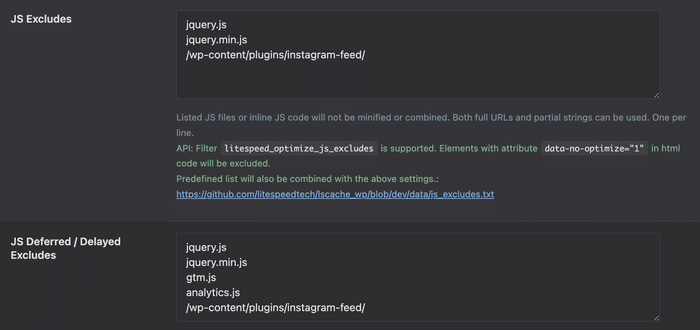
Add it to all three lists separately: your JavaScript or minify exclusions, your delay-JavaScript exclusions, and your lazy-load exclusions. Adding it to one list and stopping is the most common miss here, and it’s why people think the exclusion didn’t work.
Then clear all your caches, open the page in a private browsing window, and check that the feed loads with its styling intact.
Page Builders Need One Extra Check
Before you change anything, check the published page instead of the builder preview.
Page builder editors render pages differently than your live site does. A feed that looks broken inside Elementor, Oxygen, or Divi’s editor is very often rendering perfectly for your visitors.
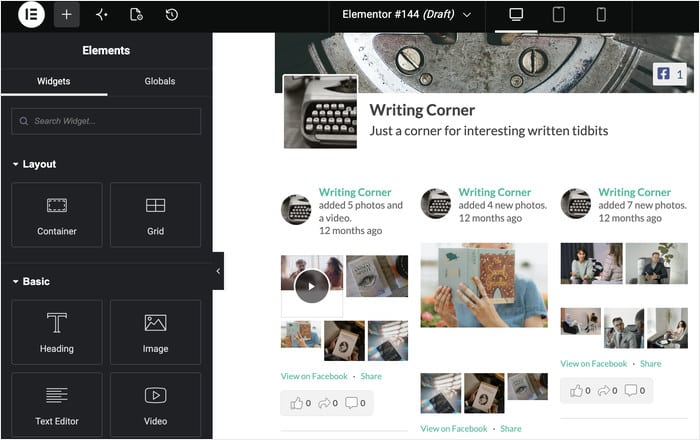
Save your work, exit the editor, and open the live page in a private browsing window.
That last part matters, because a private window skips your browser cache and shows you what a first-time visitor sees. If the feed is there, nothing is broken.
If the feed really is missing on the live page, two things to try.
Place the feed in a standard content or widget module rather than a nested dynamic container. Simple modules load in a predictable order, which gives the feed’s scripts what they need.
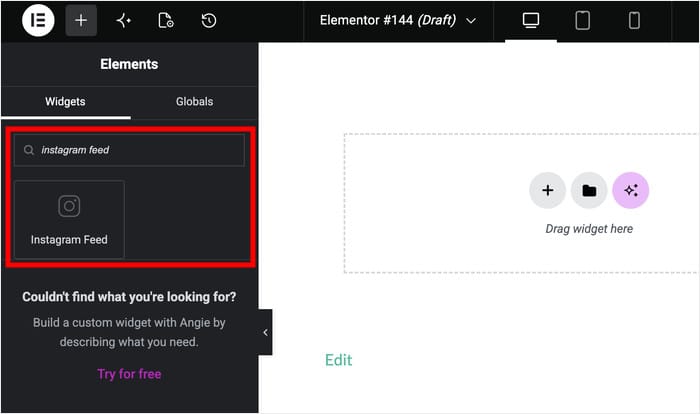
Then clear the builder’s own CSS cache after every change. Elementor keeps this under Elementor » Tools, where you’ll click “Regenerate CSS & Data.”
Builders store their generated stylesheets separately, so they can hold on to old CSS even after you’ve cleared your other caches.
For builder-specific walkthroughs, we have guides for Divi and Oxygen.
Fix it once, and stop rechecking after every change
Smash Balloon Instagram Feed Pro keeps your feed rendering through theme switches and plugin updates, with direct support when a setup needs a second pair of eyes. Backed by a 14-day money-back guarantee.
Get Instagram Feed ProFrequently Asked Questions
Why did my feed break right after I installed a new plugin?
Most often this is the new plugin changing how scripts load on your site through caching, minification, or delayed JavaScript. Deactivate it and check your feed. If the feed comes back, you don’t have to remove the plugin, just add the Smash Balloon exclusions covered above.
Does switching my WordPress theme reset my feed settings?
No. Your feed configuration is stored in your database by the Smash Balloon plugin, completely separate from whichever theme is active. Switch themes as often as you like, and your feed settings come back exactly as you left them.
How do I know it’s really a conflict and not something else?
You know it’s a conflict when the break is repeatable. Turn one plugin or theme off and the feed returns, turn it back on and the feed disappears again, and you’ve found your answer. If the feed area is showing you a connection or token error message instead, that’s a different problem entirely.
Will deactivating plugins to test cause me to lose data?
No, deactivating a plugin keeps all of its settings and content in place. Only deleting a plugin removes its data. If a brief visible blip on your live site worries you, run the test during a quiet traffic window or on a staging site.
What if the conflict test doesn’t find the cause?
Three things are worth checking next. Open your browser console to see the specific JavaScript error, confirm that every cache actually cleared (host, CDN, page cache, and browser), and look for CDN-level optimization like Cloudflare Rocket Loader, which sits outside WordPress and won’t appear in a plugin test. You switch that off in your Cloudflare dashboard under Speed, then Optimization. If none of those explain it, contact support with your theme name, your plugin list, and the console error.
A Feed That Survives Theme and Plugin Changes
Confirm the timing, run the conflict test, then apply the fix that matches what it found. A theme means the AJAX theme loading fix. An optimization plugin means adding the Smash Balloon directory to your exclusion lists. A page builder means checking the live page before anything else.
Work through those in order, and you’ll land on the cause without guessing. The timing tells you what changed. The conflict test tells you which piece did it. The fix is usually one setting or one line in an exclusion list, and it holds through future updates.
Whatever the cause turns out to be, nothing was ever lost. Your feed, your settings, and your connected account stayed in your database the whole time. The page just couldn’t render them.
Instagram Feed Pro keeps your feed rendering as your site changes around it, with direct support when a setup needs a second pair of eyes.
And if you’re running more than one social feed, the All Access Bundle gives you every Smash Balloon plugin (Instagram, Facebook, Twitter/X, YouTube, TikTok, Reviews, and the Social Wall) in a single license.