Social Wall
  Feed Analytics


If you’ve ever pasted a great customer quote onto your homepage and then quietly wondered whether anybody actually read it, you’re in good company.
That’s how most testimonial sections get built: a dozen decent reviews scattered across Google, Facebook, WooCommerce and an old email folder, four of them picked by gut feeling, dropped into a page builder module, and left there.
I’ve set these up on a lot of sites, and the thing that made the difference was never a better-looking layout. It was having a rule for deciding which reviews went up, and then a way to check whether that rule was actually working.
That’s what I’ll walk you through here: how to shortlist the reviews worth publishing, where to put them, and how to find out which ones your visitors are engaging with so you can promote those and drop the rest.
- Which Testimonials Should You Use on Your Website?
- Why Picking Your Testimonials by Taste Stops Working
- What Makes a Testimonial Worth Publishing
- The Rule Nobody Writes Down: Match the Review to What the Page Is Asking For
- Publishing Your Shortlist So Different Pages Get Different Reviews
- Now Find Out Which of Them Anyone Actually Clicked
- Promote the Winners, Cut the Rest, Check Again
- Stop Guessing Which Testimonials Are Working
Which Testimonials Should You Use on Your Website?
You should use the reviews that name a real, checkable person, come from a source a visitor can go and verify, and talk about the exact thing the page is asking someone to do.
Then publish that shortlist through a connected review feed so you can see which ones people actually click, and cut the ones nobody touches.
Most posts on this topic sort testimonials into quotes, videos, case studies, and social posts. That’s a list of formats. What you need is a rule for picking from the reviews you already have.
Here’s the rule, in four parts:
- Full attribution. A first name, last name, and something identifying like a company, a job title, or a product they bought. “Sarah T.” reads like it was written in-house.
- A verifiable source. Reviews pulled from Google, Facebook, Trustpilot, Yelp, or your WooCommerce store can be checked by anyone who cares to look. A quote typed into a page builder cannot.
- Relevance to the page. A review about your delivery speed belongs near the checkout, not on a services page. The review should answer the question the visitor is already asking on that page.
- Then measure. Publish your shortlist, let it run, and check which reviews got clicks. Promote the winners to your highest-value pages and drop the rest.
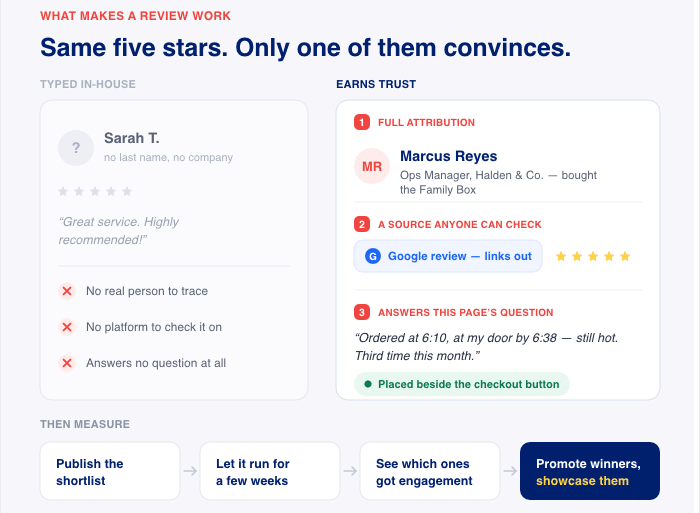
The first three parts get you a shortlist worth publishing. The fourth is what turns it from a guess into something you can improve.
Why Picking Your Testimonials by Taste Stops Working
You don’t have a format problem. You have twelve reviews sitting in Google, Facebook, WooCommerce, and an old email folder, and you need to know which four go on the site.
So you picked by taste. That’s what everyone does, and it leaves you where most sites end up:
- Eight testimonials stacked on the homepage
- None on the pricing page, where people actually decide whether to buy
- Two of them written in 2023
- Every one typed by hand into a page builder module
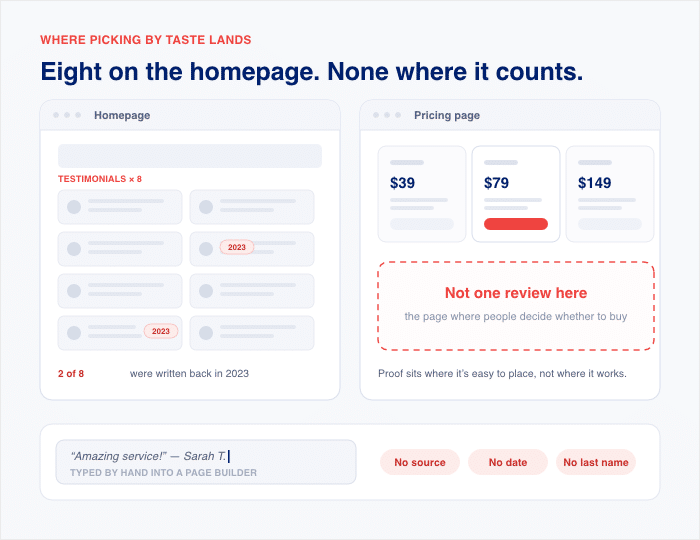
Worst of all, nothing about that setup can tell you if it’s working.
Here’s where most site owners get stuck. When people push back on testimonials, they rarely doubt that social proof works. They say the sections look cluttered and turn into another thing to maintain.
That’s fair. A wall of quotes does look like filler, and hand-pasted ones do go stale, because nothing reminds you to update them.
But cutting by taste doesn’t solve it. You’d be swapping one guess for another and hoping the shorter version reads better.
The fix is to cut the testimonials nobody clicks, which hands the decision to your visitors instead of your judgment.
What Makes a Testimonial Worth Publishing
Before you decide where a review goes, it has to clear a basic credibility bar. Some of the reviews sitting in your inbox will not clear it, and publishing them costs you more than leaving that space empty.
There are three things I check on every review before it makes the shortlist.
It Names a Real Person You Could Look Up
A first name and an initial can read as fake, even if they are from real people. Add a company, a job title, or the product they bought, and it starts to look like a person.
Most advice stops there. But there’s a bigger difference than what the attribution line says, and it’s where the review lives.
A quote typed onto your page is a claim you’re making about yourself. Your visitor has no way to tell whether a real customer wrote it or your marketing team did.
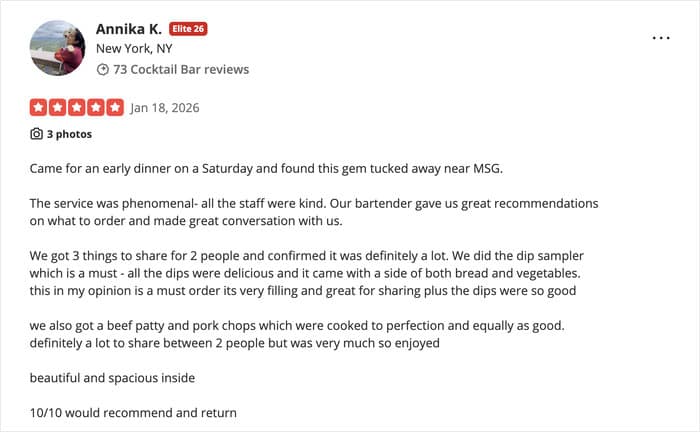
But a Google review is different. It arrives with a star rating, a reviewer profile, a date, and the weight of a platform your visitor already uses and already trusts. You didn’t have to vouch for it. Google already did it for you.
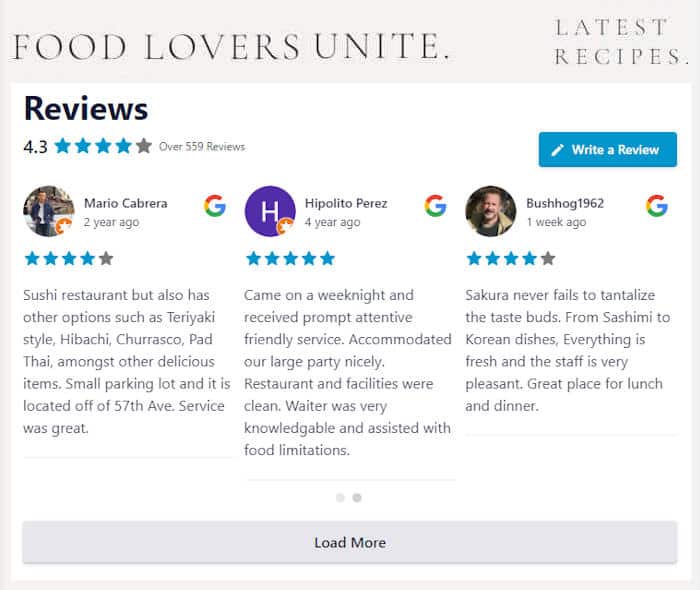
That’s why it’s worth pulling reviews in from the platform instead of retyping them, and here’s how to embed your Google reviews in WordPress.
It’s Recent Enough to Still Count
People arrive on your site already expecting reviews to be recent. That’s the standard they’ve been trained on everywhere else.
BrightLocal’s Local Consumer Review Survey 2026, which asked 1,002 US adults about how they judge local businesses, found that 74% look for reviews written in the past three months.
32% look for reviews from the last two weeks, and for 18%, only a review from the last week will do.
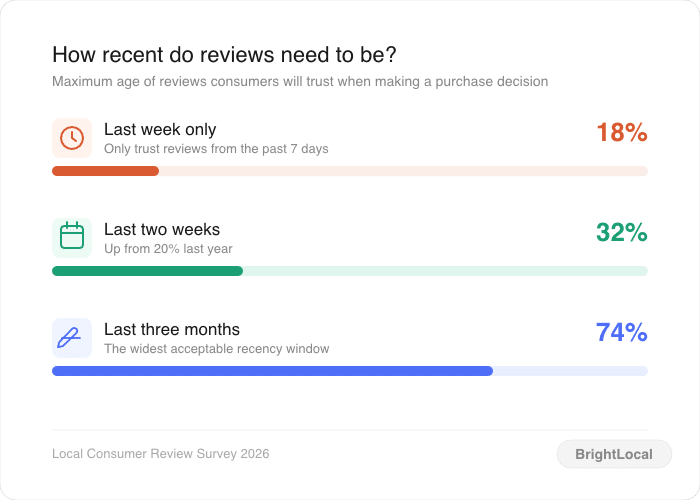
Worth being clear about what that measures. BrightLocal asked how people evaluate businesses on review platforms while they’re researching, not how they respond to a testimonial section on a company’s own website.
It tells you the expectation your visitor walks in with, not what they do once they land.
So what about the great one from 2023? You can keep it. A strong quote doesn’t stop being true.
It just can’t be the only thing on the page, and it shouldn’t be the one carrying your pricing page. Put something recent next to it so the page doesn’t read like nothing good has happened in three years.
It Reads Like a Customer, Not a Marketing Team
A wall of flawless five-star raves reads worse than a mix that includes an honest four-star review.
The Spiegel Research Center at Northwestern’s Medill School worked with PowerReviews to study how online reviews influence sales. Here’s what they looked at and what they found:
- The data set. Two consumer goods retailers covering 22 product categories and more than 100,000 products, plus a high-end retailer with over 15 million page views a year.
- Perfect isn’t the goal. Purchase likelihood peaks somewhere between 4.0 and 4.7 stars, then declines as ratings approach a perfect 5.0.
- More isn’t either. The marginal benefit of extra reviews drops off sharply after the first five on a product page.
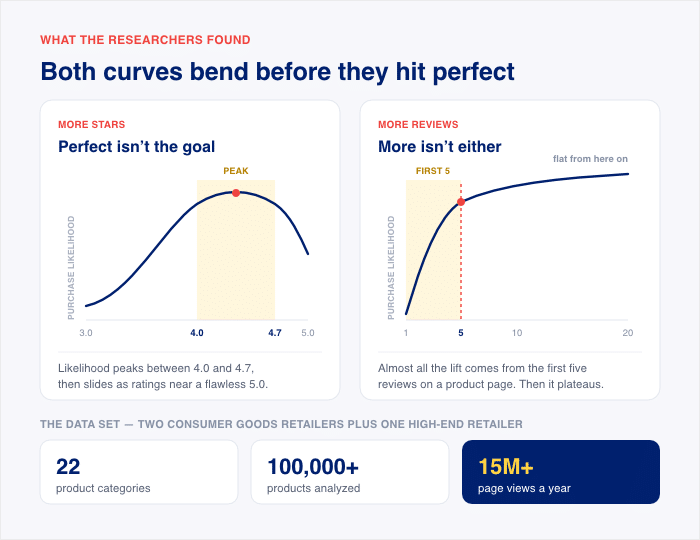
That research looked at reviews piling up on ecommerce product pages, not testimonials you’ve hand-picked for a section. Read it as evidence about how people interpret star ratings, not as a rule for your testimonial widget.
That last one is a good reason to test a short set on a page rather than assume more is better.
It lines up with what BrightLocal found, though. 31% of people say they’ll only use a business rated 4.5 or higher, and 92% say star ratings factor into their decision, but only 10% insist on a full five stars.
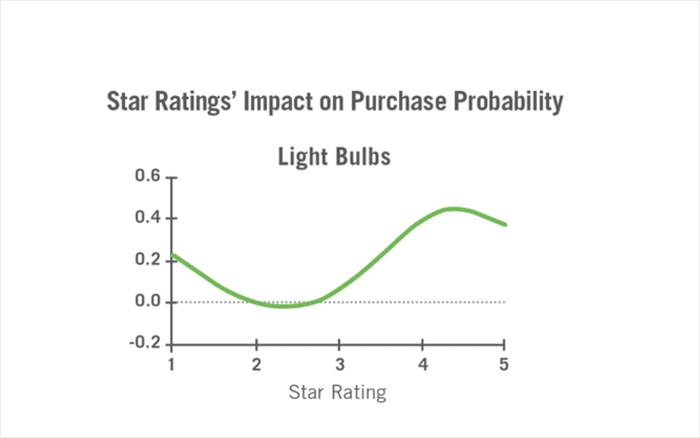
So pick the reviews that sound like a person typed them. Unedited wording, a specific result, a mention of what the customer was struggling with beforehand.
A four-star review that names one real limitation and still recommends you does more work than three polished ones that don’t.
The Rule Nobody Writes Down: Match the Review to What the Page Is Asking For
Here’s how someone on the Smash Balloon team describes what they see working on customer sites:
“The biggest wins came from finding reviews that relate to the content on the page. Product pages work best with reviews that talk about using the products. Checkout page with reviews that mention quality support, delivery, and warranty services.”
That is the whole rule. A review about fast delivery is a strong review, but it does nothing on a services page. Move it to the checkout, and it answers the exact worry that stops people at that step.
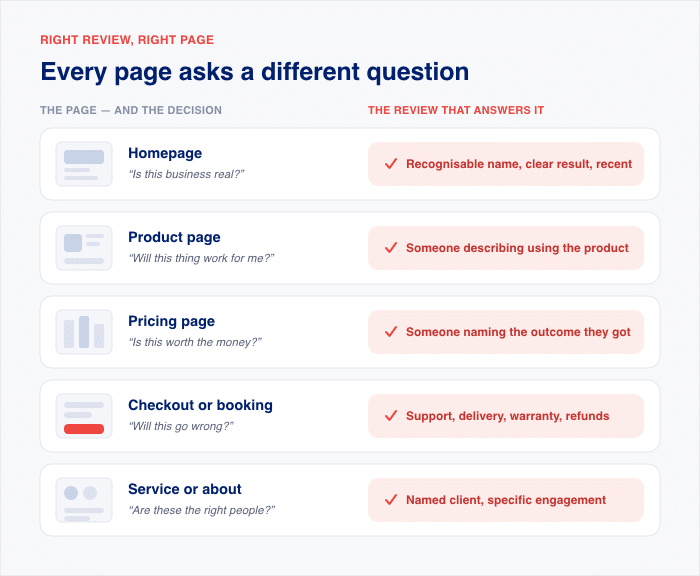
Here’s how that breaks down page by page:
| Page | What the visitor is deciding | The review to put there |
|---|---|---|
| Homepage | Is this business real? | Recognizable name, clear result, recent |
| Product page | Will this thing work for me? | Someone describing using the product |
| Pricing page | Is this worth the money? | Someone naming the outcome they got |
| Checkout / booking | Will this go wrong? | Support, delivery, warranty, refunds |
| Service / about | Are these the right people? | Named client, specific engagement |
Someone on your pricing page is doing sums in their head. A quote about how friendly your team is will not settle that. But a customer saying what they got back for the money will help.
Now the part that stops most people from acting on any of this.
Go and look at how your testimonials are built right now. If there are four quotes typed into a page builder module, you have a problem that has nothing to do with which quote you picked.
A hand-pasted quote is invisible and reads more like a marketing blurb than a trusted review.
On top of that, you can’t even see if it works. Nothing counts clicks on it, nothing knows one is from 2023 and another from last month, and nothing can tell you whether the homepage quote outperforms the one on your pricing page.
Publishing Your Shortlist So Different Pages Get Different Reviews
Once you know which review belongs on which page, you need a way to put it there that doesn’t involve copying and pasting quotes by hand. This is where a review feed plugin does the work for you.
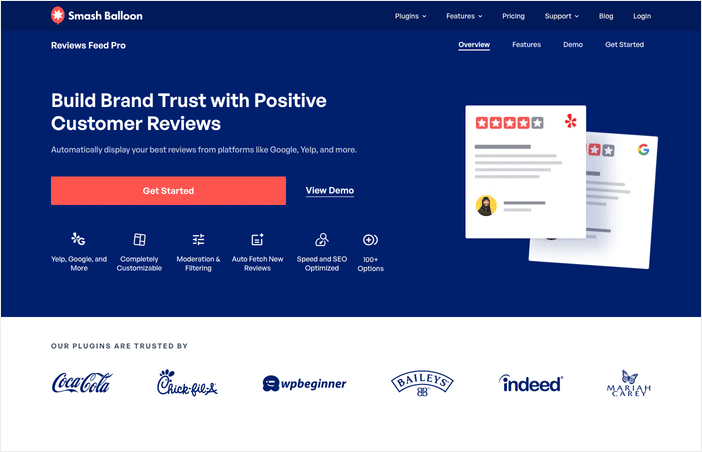
I use Smash Balloon Reviews Feed Pro for this. It connects to the platforms your reviews already live on and pulls them onto the page, star ratings and dates included, so nothing gets retyped and nothing goes stale.
You can pull from these sources:
- Tripadvisor
- Yelp Reviews
- Trustpilot
- WordPress.org
- WooCommerce
- Easy Digital Downloads
- Booking.com
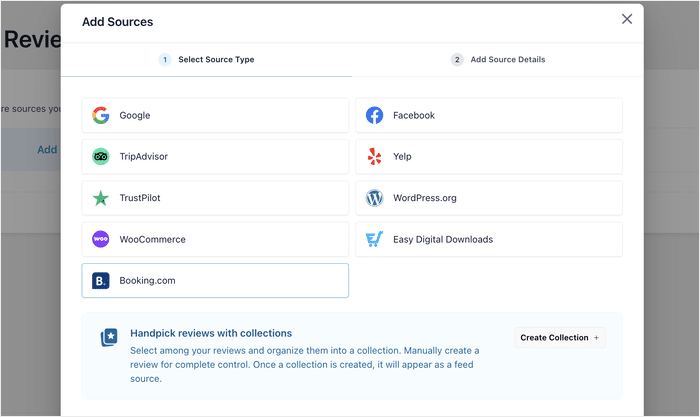
Which sources you get depends on the plan you buy, so check the pricing page for the ones you need before you sign up. If your reviews are scattered across four platforms, this is the part that pulls them back into one place.
Now the piece that matters most for the table in the last section. You are not limited to one feed.
You can build a separate feed for each intent. One feed for reviews that talk about using the product, another for reviews that mention support, delivery, and warranty.
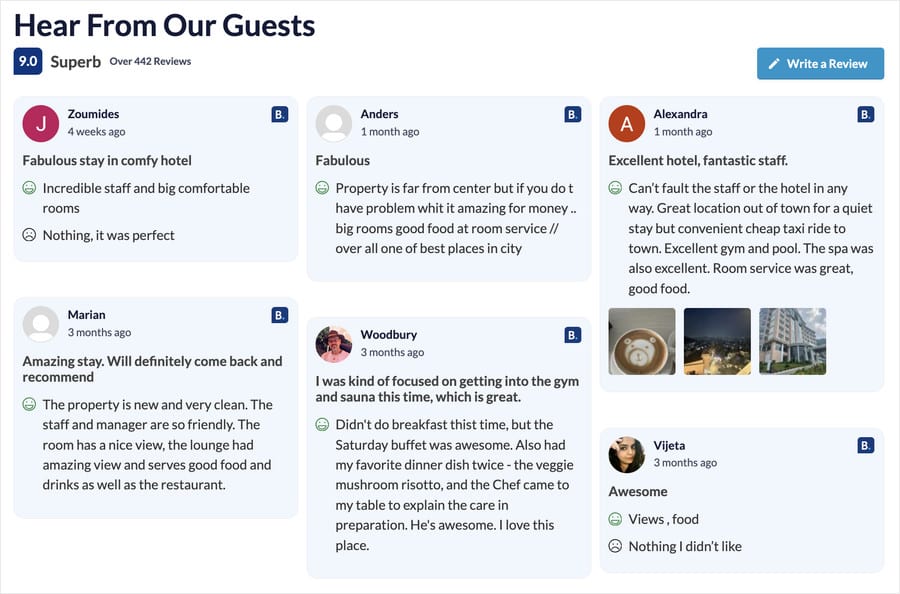
The product page shows the first one, the checkout page shows the second, and the homepage shows something different again.
That’s the mechanical version of matching the review to the page. Same plugin, different feeds, different pages.
Placing a feed takes a minute:
- Head to Reviews Feed » All Feeds and create your feed.
- Connect the review source you want and pick the reviews it pulls in.
- Copy the shortcode, or open the page in the block editor and add the “Reviews Feed” block.
- Update the page.
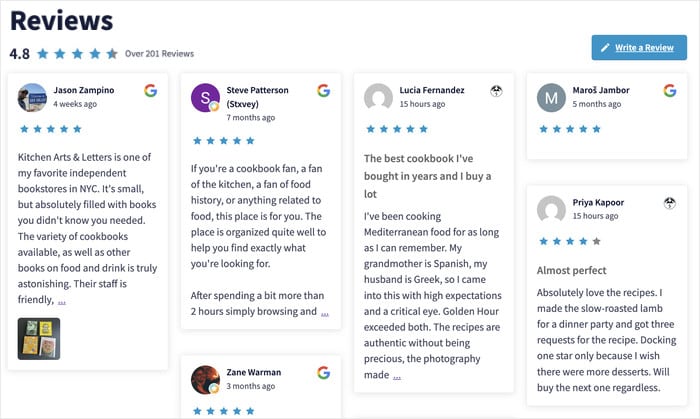
It works with any WordPress theme, so you don’t have to touch template files.
Now the question I get asked most about connected feeds: if reviews come in automatically, what stops a bad one from appearing on your site?
Filtering and Moderation
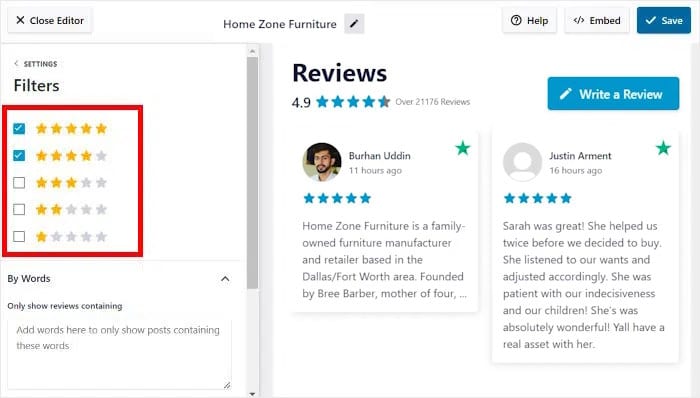
You can filter reviews by star rating, block reviews containing specific words, and hand-pick or hide individual reviews before they ever show.
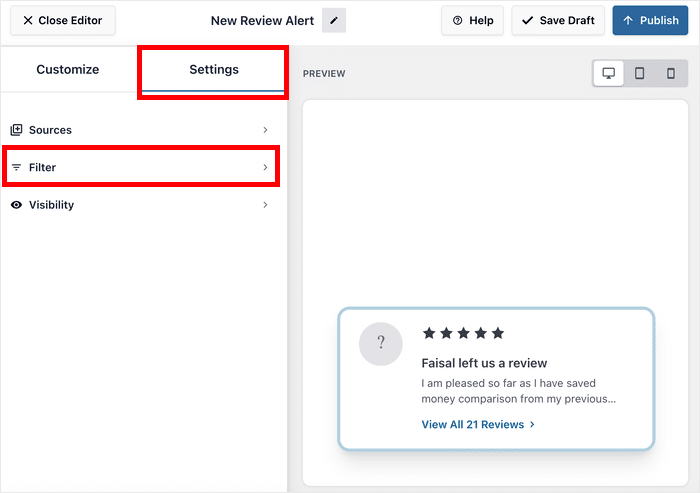
Filter to 4 and up rather than 5 only, so you’re excluding genuinely bad reviews without producing the wall of perfect scores that reads as curated.
That’s an honest answer with a real limit attached. A connected feed still needs you to set the rules once. Do that, and it stays a curated feed rather than an unsupervised firehose pushing whatever landed on Google last night onto your pricing page.
Reviews Feed Pro is built to display real reviews from the platforms your customers already use, with the moderation controls to keep the wrong ones off the page.
You get the credibility of a live, dated, verifiable review without giving up the control you had when you were pasting quotes by hand.
And the backup caching system stores your feed data locally, so your testimonials keep showing even if a review platform’s API goes down.
Ready to add reviews from trusted sites? Get started with Reviews Feed Pro today!
Now Find Out Which of Them Anyone Actually Clicked
You have a shortlist published, split across the right pages. Now you can answer the question you started with: which of these reviews is anyone actually engaging with?
Smash Balloon Feed Analytics has a Reviews tab alongside the Overview, Instagram, Facebook, YouTube, X, and TikTok tabs. Your reviews get the same treatment as your social posts.

Here’s the part that matters. Every single review you display gets its own click and profile visit count, and they’re ranked against each other in Top Posts.
That’s a list of your testimonials in order of how much attention each one got.
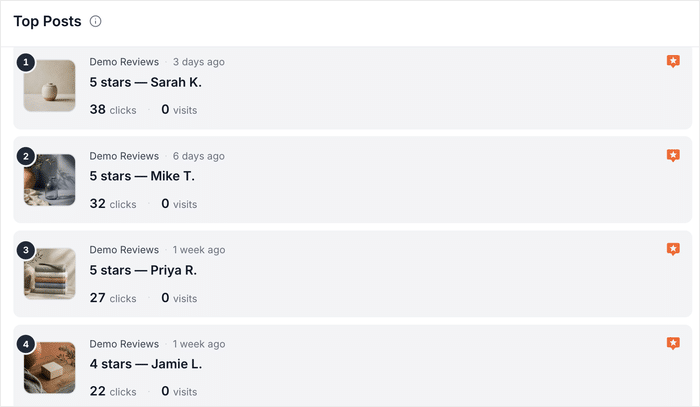
On top of stats for individual reviews, three headline numbers sit at the top of the tab:
- Clicks. How many times people clicked a review in your feed.
- Views. How many times your feed was seen.
- Profile Visits. How many people went through to the review platform itself.
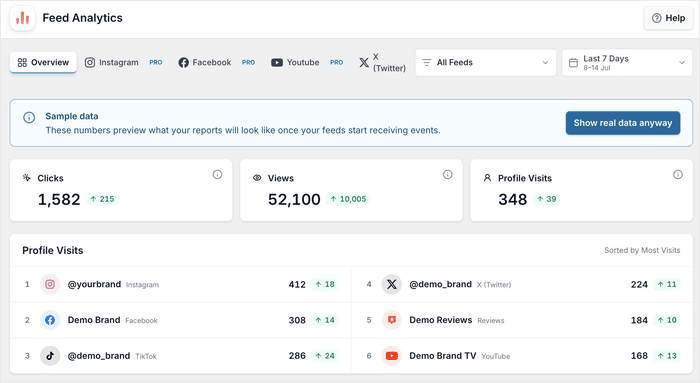
Each one shows its change against the previous period, so you can see whether a swap you made helped or did nothing.
You can filter to a single feed or account, and to any timeframe from Last 7 Days through to All Time.
Plus, your admin activity is excluded automatically. The numbers are visitors, not you refreshing your site while you fiddle with the layout.
As a demonstration, here’s how you can check your review analytics:
- Open Feed Analytics from your WordPress dashboard.
- Click the Reviews tab.
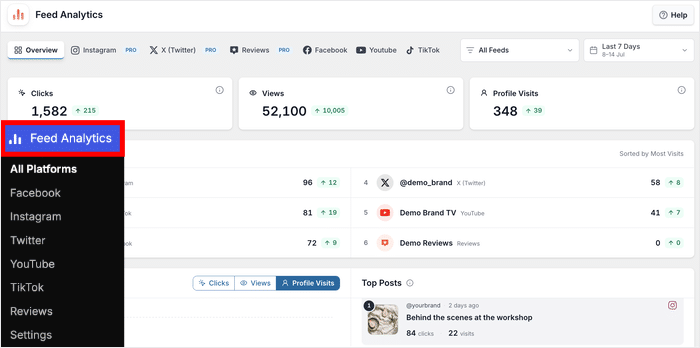
- Scroll to Top Posts to see your reviews ranked by clicks and profile visits.
- Set the timeframe using the date filter, and pick a single feed if you want one page at a time.
- Compare that period against the one before it.
The first time you open it, sample data is pre-loaded so the dashboard isn’t a blank screen. That’s placeholder data, not your site. Once real traffic comes through, it fills with your own numbers.
One caution on reading the ranking. Don’t act on a gap of a few clicks. Wait until the top-ranked review is clearly ahead of the bottom one, then check again next period to see whether the order held.
Expert Tip: Feed Analytics is part of the Smash Balloon All Access Bundle, which is every Smash Balloon plugin in one licence. Alongside Reviews Feed Pro, you get the Instagram, Facebook, YouTube, X, and TikTok feeds, plus Feed Analytics reporting on all of them in the same dashboard.
Promote the Winners, Cut the Rest, Check Again
Now you can take the reviews sitting at the top of Top Posts and move them onto the pages where money changes hands: pricing, checkout, booking. Those pages get the reviews you have proof people engage with, not the ones you liked best.
Then deal with the bottom of the list. This is where the clutter question finally gets an answer.
You are no longer guessing which of your eight homepage testimonials to remove. You remove the ones nobody touched. Cut them, or demote them to a page further from the decision.
Don’t leave a gap where they were. Pull something recent from the connected source to replace them, so recency keeps itself topped up instead of turning into a job you have to remember every quarter.
Then run the whole thing again next period.
Here’s the short version of the loop:
- Move the top-clicked reviews onto your pricing, checkout, and booking pages.
- Cut or demote the ones at the bottom of the ranking.
- Replace what you cut with recent reviews from the connected feed.
- Check the numbers again next period and compare them against the last one.
Set the date filter to the same length of period each time. Comparing seven days against thirty tells you nothing useful.
I’d give it a full period, whatever length you picked, before you touch anything the first time around. The point of the second check is to see whether the order held, and you can’t tell that from a ranking you rearranged yesterday.
So the question was never which quote reads best. It was: publish a shortlist, then check whether you guessed right. Then do it again.
Everything above ladders into that. The shortlist rules narrow the pile, the page-matching decides where each one goes, the feed makes them countable, and the analytics tell you which ones earned their spot. Taste picks the first set. The numbers pick every set after that.
Frequently Asked Questions
How many testimonials should go on one page, and is eight on the homepage too many?
There’s no fixed number, and eight isn’t automatically too many. The Northwestern Medill Spiegel Research Center, working with PowerReviews, found that the benefit of extra reviews flattens out sharply after the first handful, though that research looked at reviews accumulated on ecommerce product pages rather than a curated testimonial section.
So, treat it as a reason to test a shorter set, not a rule. Then let your own click data decide which ones stay.
Do I need different testimonials on my product pages than on my pricing or checkout page?
Yes, and this is where most of the gain is. The Smash Balloon support team put it plainly: the biggest wins come from reviews that relate to the content on the page. Product pages work best with reviews about using the product.
Checkout pages work best with reviews that mention support, delivery, and warranty. Build a separate feed for each intent and place them accordingly.
My best testimonial is from 2023. Do I have to drop it?
No, but don’t let it stand alone. BrightLocal’s Local Consumer Review Survey 2026 found 74% of people look for reviews written in the last three months, and 32% look for reviews from the last two weeks.
That survey measures how people judge businesses on review platforms, not on your own site, so read it as the expectation visitors bring with them. Keep the strong old quote, and put fresh ones beside it.
Can I stop a bad or irrelevant review from showing if I pull them in automatically?
Yes. Reviews Feed Pro gives you filtering and moderation, so a connected feed never becomes an unsupervised firehose. You can filter reviews by star rating, block reviews containing specific words, and handpick or hide individual reviews before they appear.
Set those rules once when you build the feed, and everything after that gets checked against them automatically.
How do I know whether my current testimonials are doing anything?
Open Feed Analytics and click the Reviews tab. Every review you display gets its own click and profile visit count, and Top Posts ranks them against each other, so you can see which testimonials people engage with and which ones nobody touches.
Your own admin activity is excluded automatically, so the numbers are visitors rather than you refreshing your own site. Feed Analytics is part of the Smash Balloon All Access Bundle, so check that’s the plan you’re on before you go looking for the tab.
Do I need to rebuild my feeds to start tracking?
No, the tracking is automatic as soon as you activate Feed Analytics on your website. All the reviews already sitting in your feeds start reporting as soon as you update, wherever they’re displayed on your site.
Stop Guessing Which Testimonials Are Working
Research can tell you what makes a testimonial credible: a real name, a recent date, plain customer language. What it can’t tell you is which of your reviews belongs on which of your pages. Only your own site can answer that.
So the loop is simple. Publish a shortlist matched to what each page is asking for, then let clicks rank what you guessed.
For the publishing half, Reviews Feed Pro is the plugin that does it. Connect Google, Facebook, Yelp, Trustpilot, or WooCommerce, filter what shows, and place different feeds on different pages.
That’s your shortlist live on the site, with the moderation rules already set so nothing shows up that you didn’t approve.
To close the loop and see which of those reviews people actually engaged with, the Smash Balloon All Access Bundle is what you want. It gives you Reviews Feed Pro plus Feed Analytics, so you get both halves: the publishing and the proof.