Social Wall
 Feed Analytics


Someone checks your website to see what’s new this week. Right there on your News page are the same updates you just shared on Facebook.
That page keeps itself current, because every new Facebook post shows up on it on its own. You just need a page for it to live on.
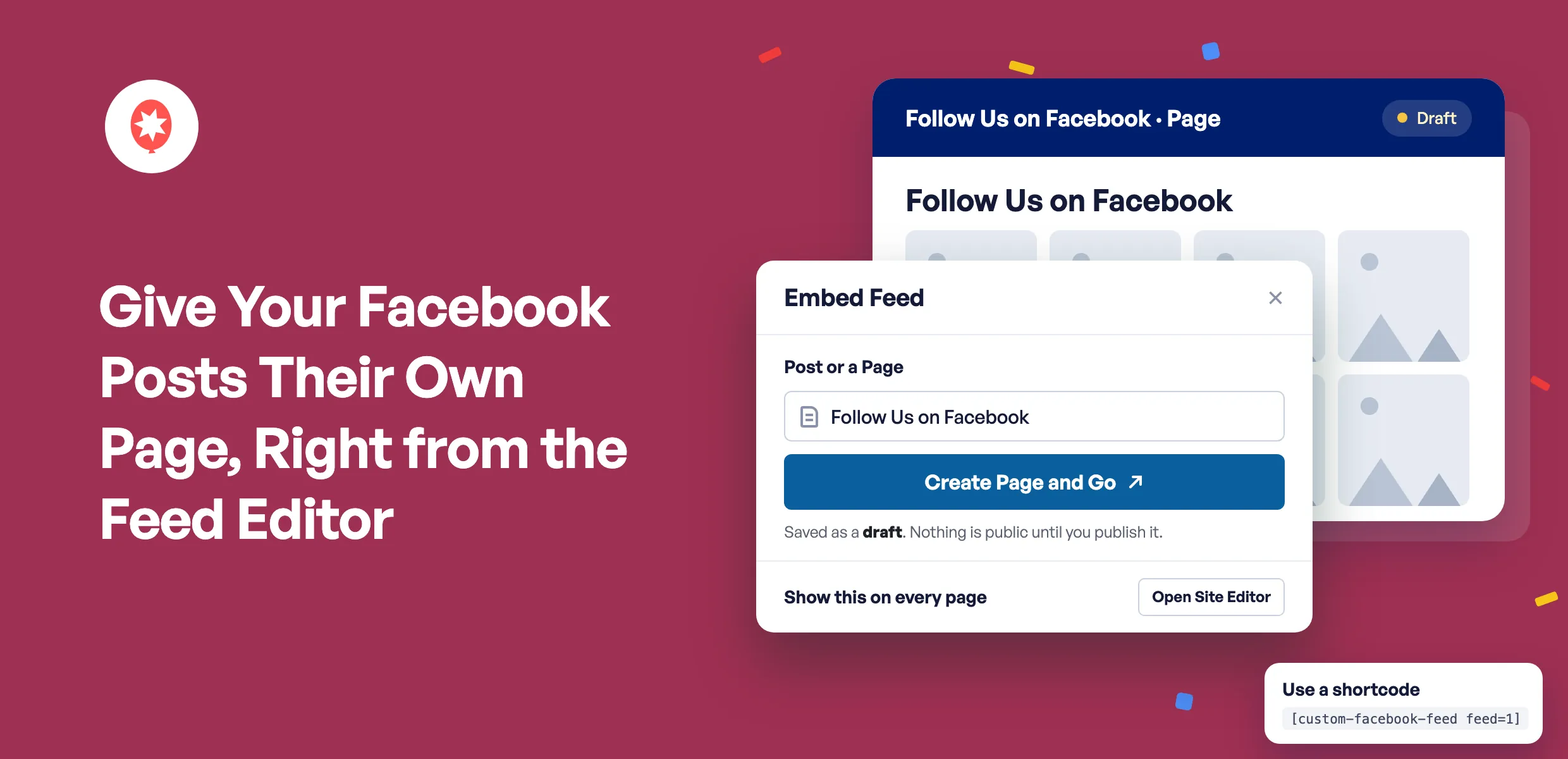
With Smash Balloon Facebook Feed, you can set that page up right from the feed editor. Click Embed, start a new page or pick one you already have, and WordPress opens it with your Facebook feed in place.
Here’s what you can do starting today:
- Start a brand new page for your Facebook posts, saved as a draft until you’re ready to share it
- Search your pages and posts by name, drafts included, and add your feed to the one you pick
- Jump straight to the Site Editor from the Embed window to put your feed on every page, like a row of updates in your footer
If you’re new here, Smash Balloon Facebook Feed is the WordPress plugin that shows your Facebook Page posts on your website and keeps them updated as you post. There’s a free version and Facebook Feed Pro, and the new page search and Create a new page option come with both.
Give Your Facebook Posts a Page of Their Own
A page just for your Facebook updates is a handy spot to send people. Link it from your menu, mention it in your email signature, and it always shows your latest news.
To make one, click Embed in the feed editor, click the search box, and pick Create a new page at the bottom of the list. Give it a name like News & Updates or Follow Us on Facebook, then click Create Page and Go.
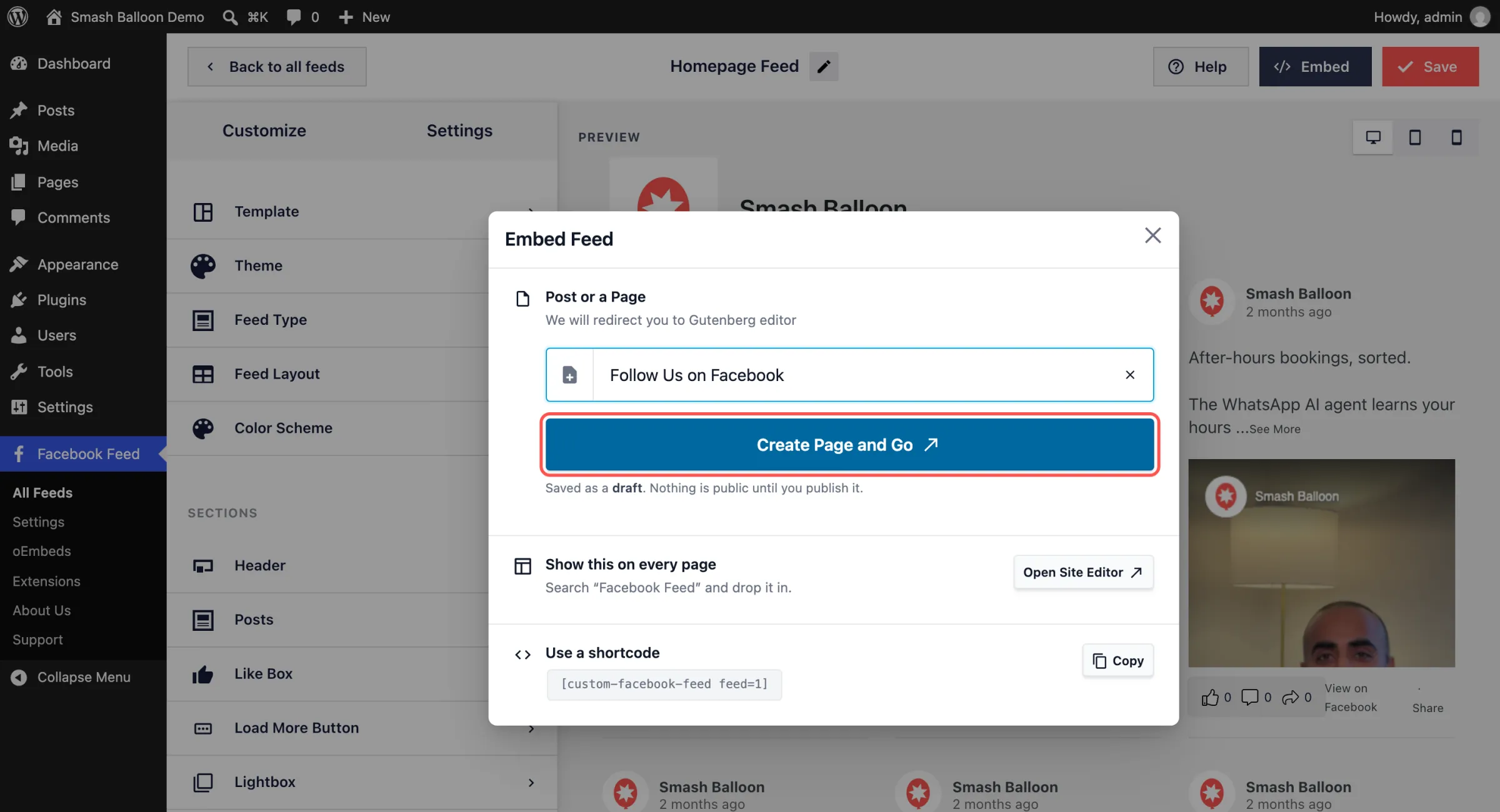
The page opens in the WordPress editor with your Facebook feed already on it, and it’s saved as a draft so nothing goes public until you publish. Add a line about what people will find there, click Save draft to keep your changes, then hit Publish when it looks right.
Or Add It to a Page You Already Have
Maybe your feed belongs on your homepage, your Events page, or a blog post about last weekend. Start typing in the same search box and pick it from the list.
- Drafts and scheduled pages show up with a label, so you can add your feed to a page you’re still working on
- Blog posts are in there too, so an event recap can show your latest Facebook posts underneath
- Got a lot of pages? A few letters is all it takes to find the right one
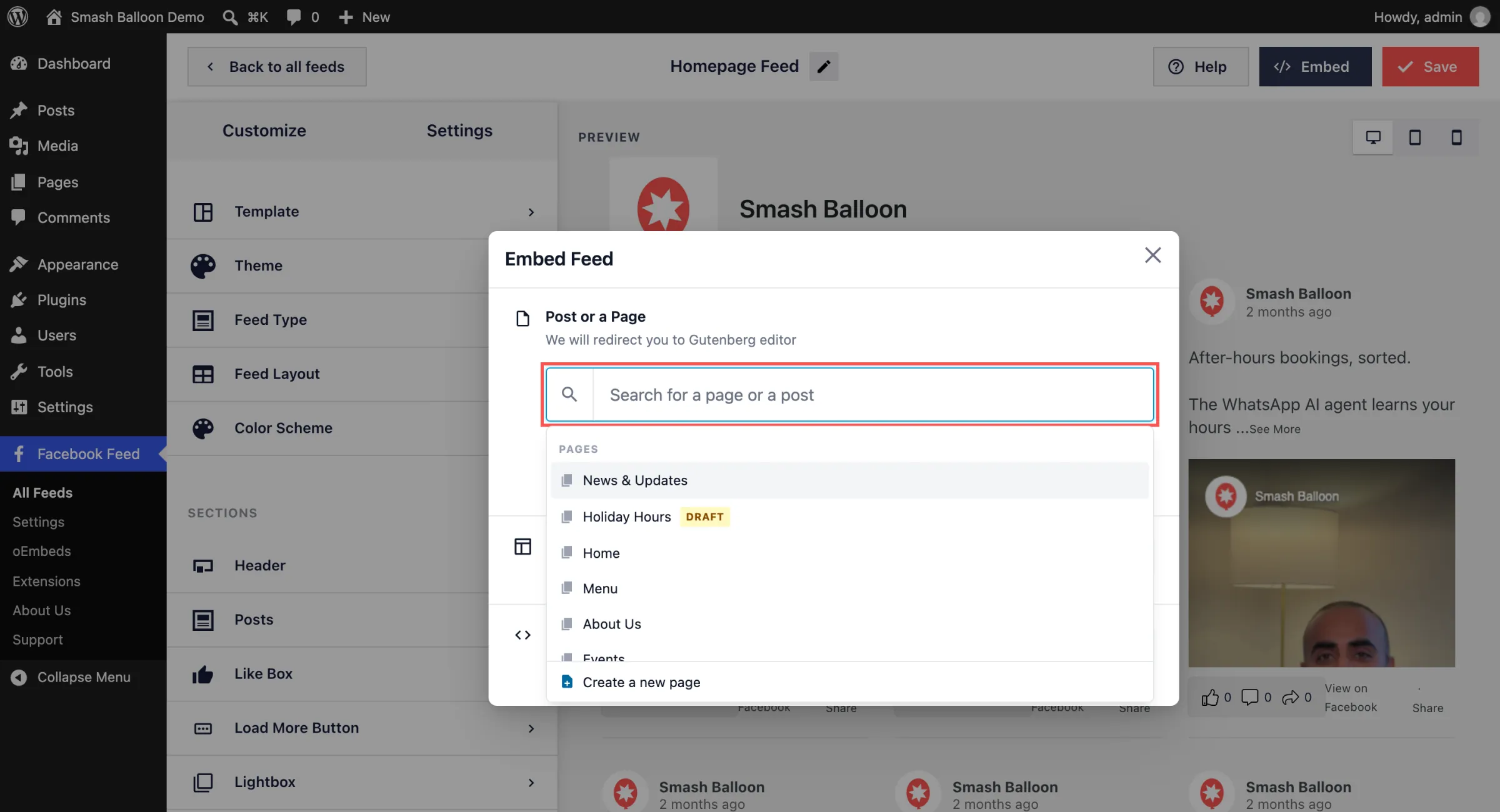
Click Add and Go to Page and the page opens in a new tab with the Facebook Feed block already in place. Nothing changes on your site until you click Save.
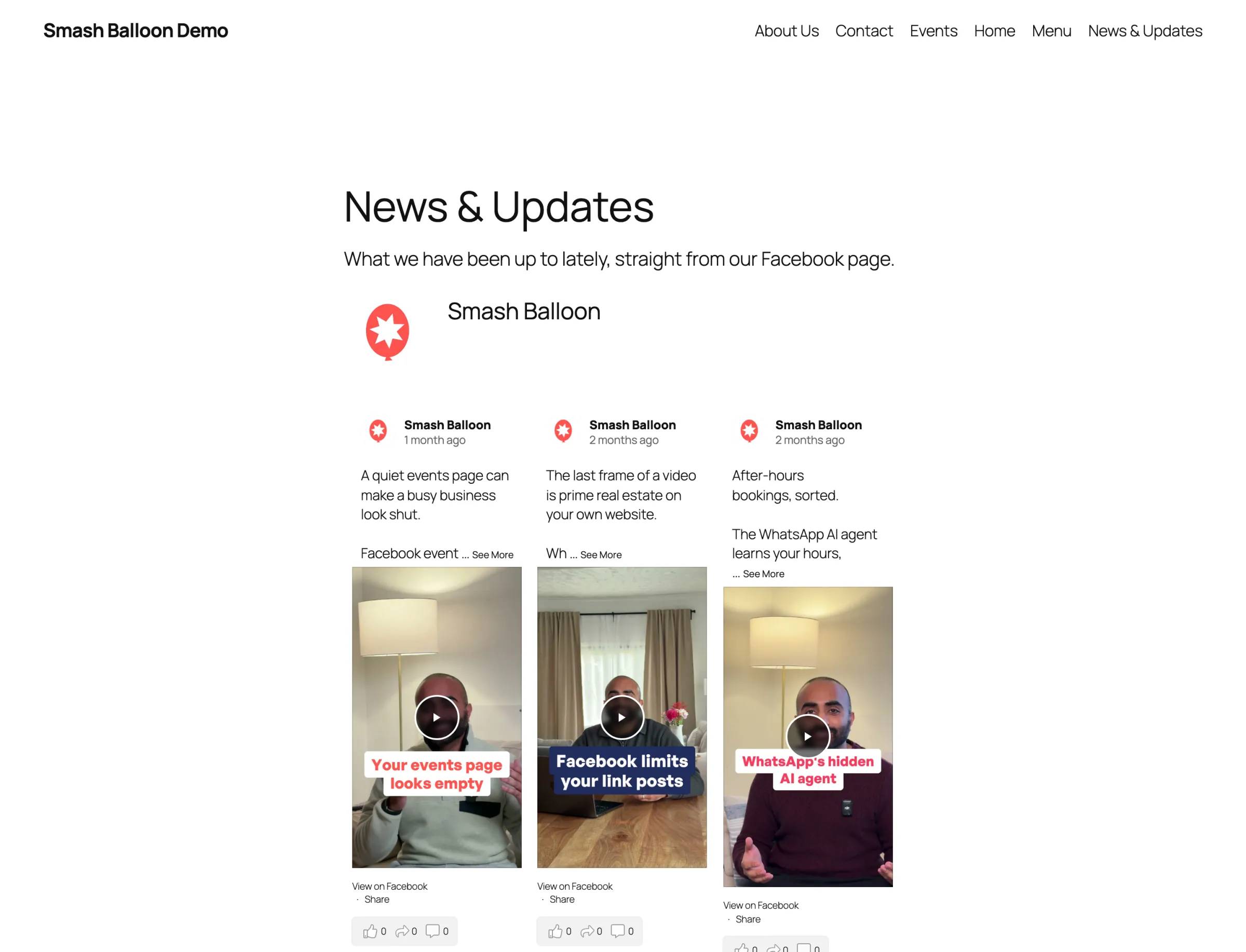
That’s the News & Updates page on a test site, saved and live, showing Smash Balloon’s own Facebook posts.
Want your Facebook feed to do even more?
Facebook Feed Pro adds Reels visitors can swipe through, a lightbox so photos and videos open right on your site, event feeds and more, on top of everything in the free plugin. On every Pro plan, you can set up your feed’s page right from the feed editor. Backed by a 14-day money-back guarantee.
Get Facebook Feed ProPut Your Feed on Every Page, or Grab the Shortcode
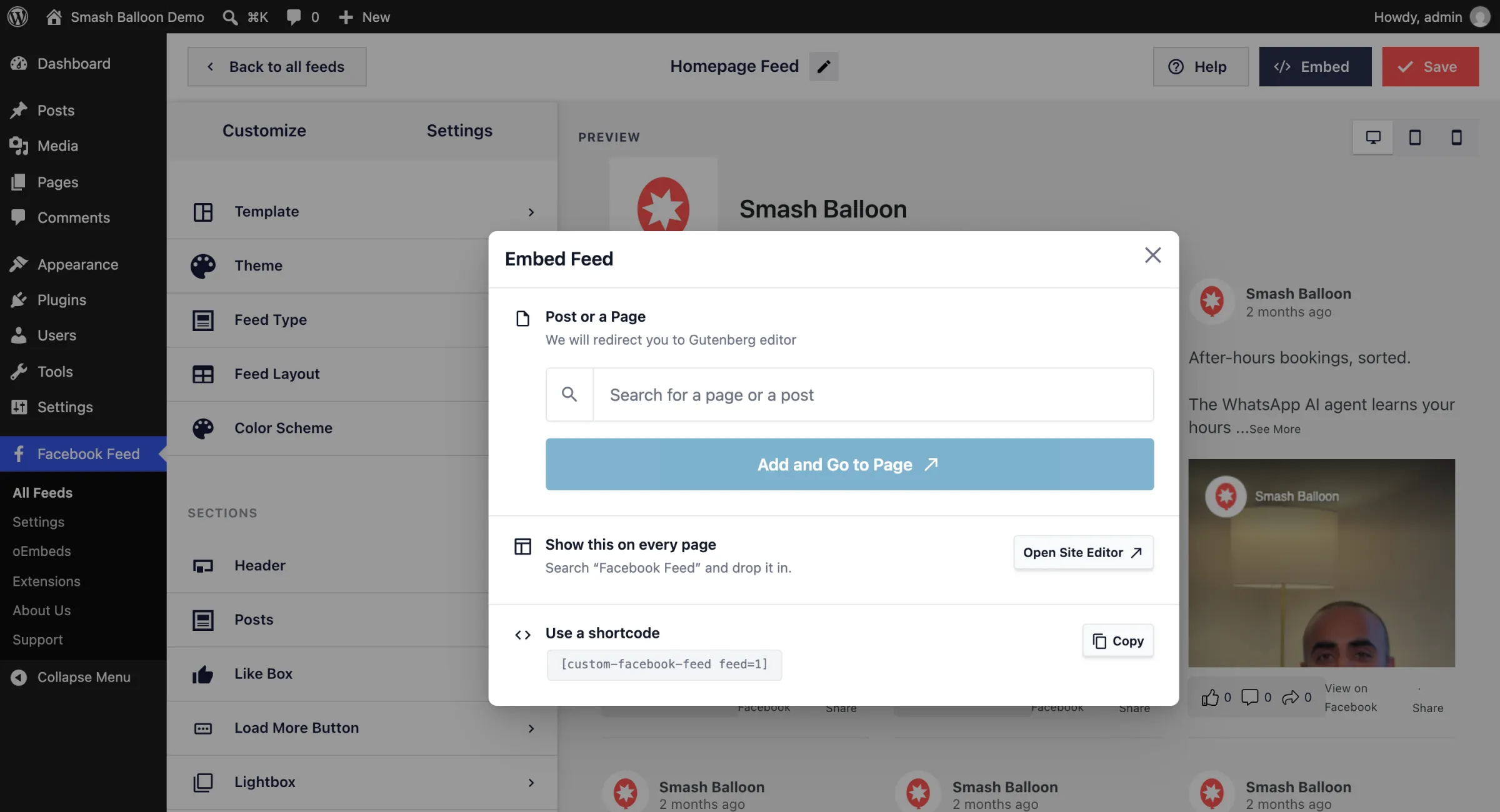
Some updates are worth showing everywhere, like a few of your latest posts in the footer. Click Open Site Editor, search for “Facebook Feed,” and drop it into your footer. Add it once and it shows up on every page of your site. You’ll see this option on most newer WordPress themes, including the ones that come with WordPress.
On themes with a classic sidebar, you’ll see Add to a Widget there instead, so your feed can sit in your sidebar or footer.
Building with Elementor, Divi or another page builder? Use a shortcode is at the bottom of the window. A shortcode is a short piece of text you paste where you want the feed to show. Click Copy and paste it into your page.
What Facebook Feed Pro Adds
Everything you set up in the free plugin stays just the way it is. Facebook Feed Pro adds more ways to show off your Page, and here’s what each plan brings:
- Basic: a lightbox so photos and videos open right on your site, plus a full-screen Reels player visitors can swipe through with sound on, which you can switch on in Settings
- Plus: photo album and video feeds, plus the comments and replies under each post
- Elite: event feeds for your upcoming events, a swipeable carousel, and Featured Post to spotlight one post or event on any page
So the page you just set up can show off your events, albums and Reels too.
How to Add Your Facebook Feed to a Page (Facebook Feed 4.16.0)
The new page search and Create a new page option are in the free Smash Balloon Facebook Feed and every Facebook Feed Pro plan, from version 4.16.0.
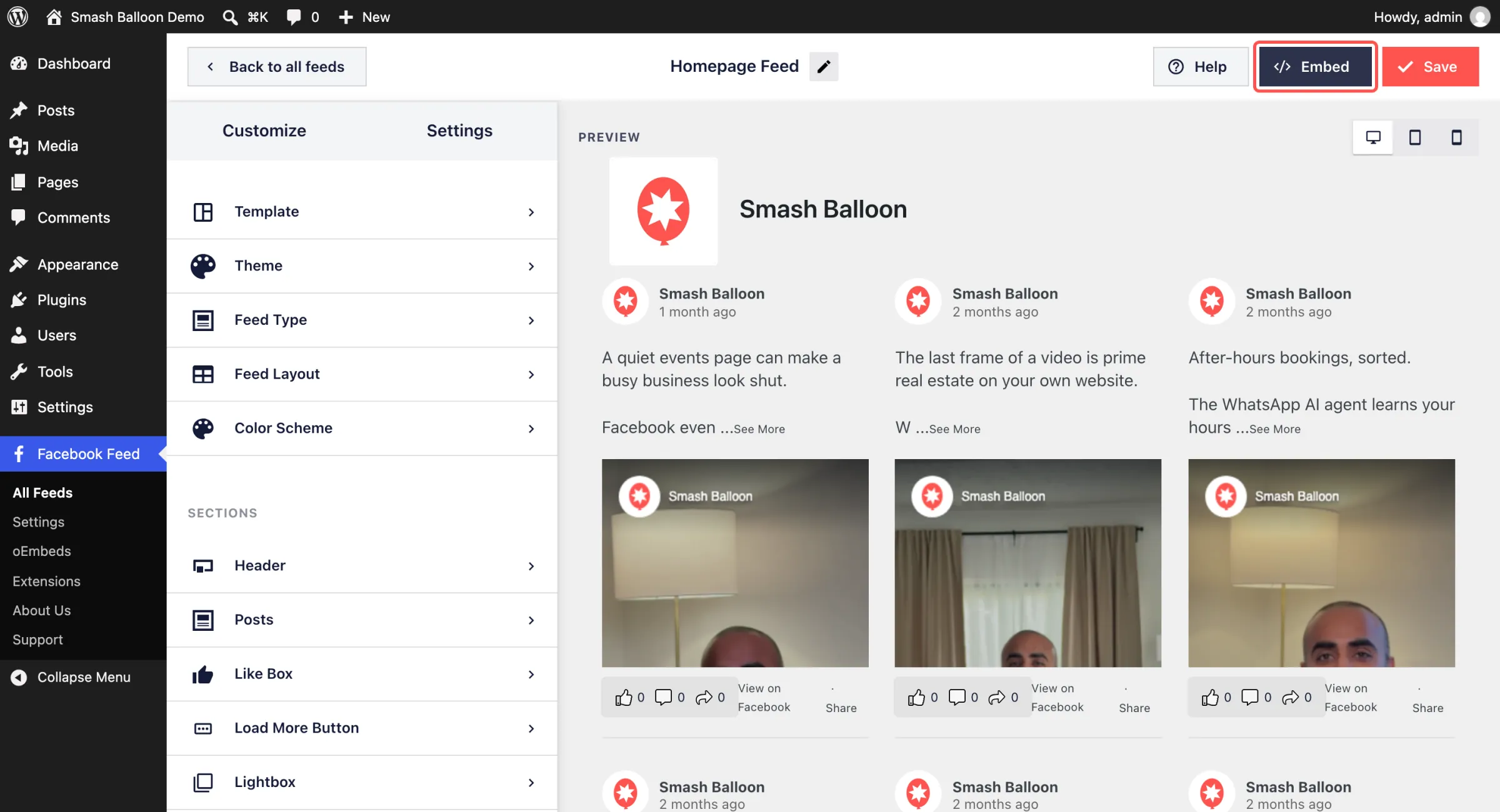
Step 1: Open your feed and click Embed. In your WordPress dashboard, go to Facebook Feed » All Feeds and open the feed you want to add. Click Embed at the top of the feed editor.
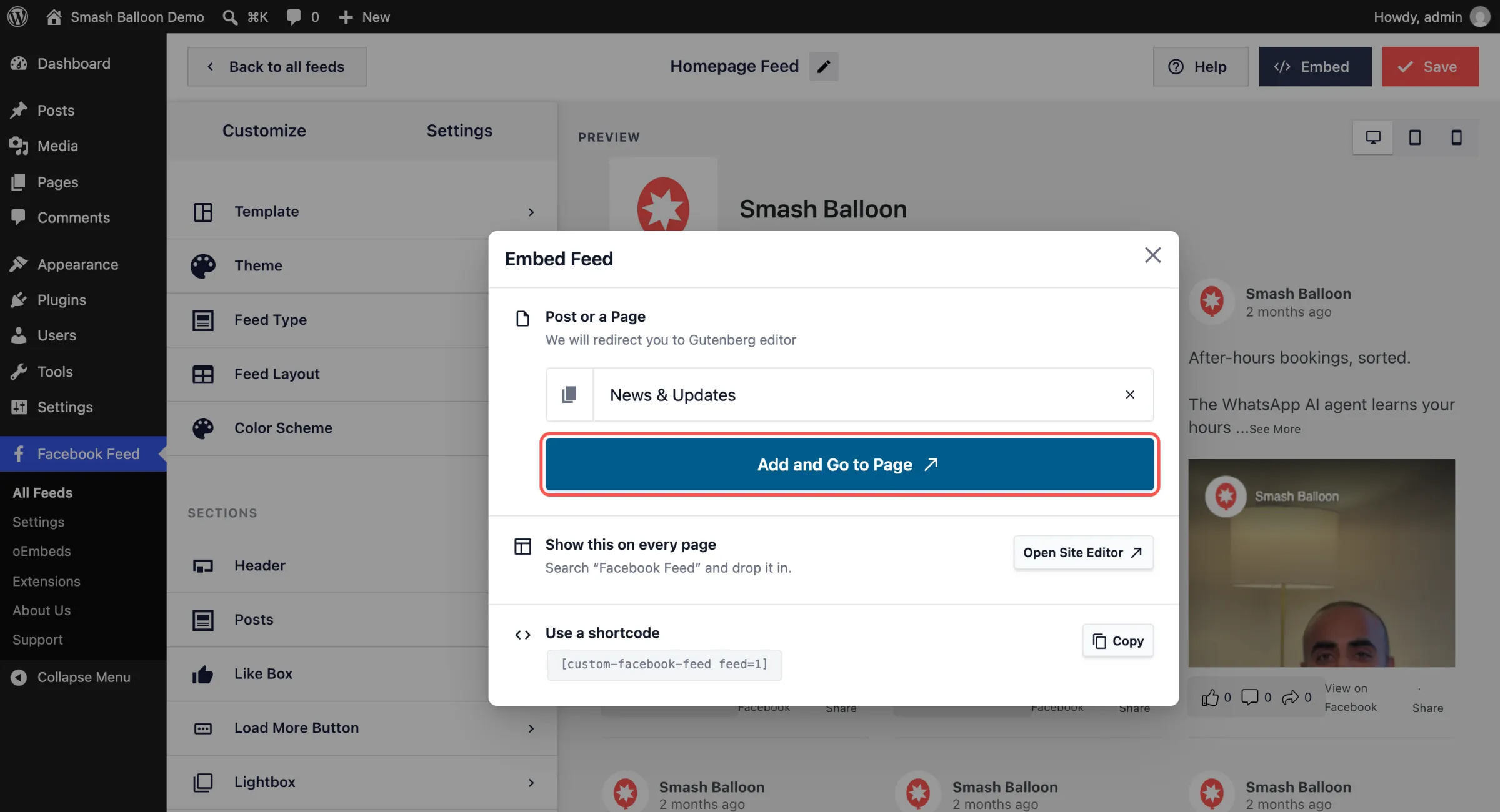
Step 2: Pick your page. Click the search box under Post or a Page and choose a page or post from the list. Type a few letters to narrow it down, or pick Create a new page at the bottom.
Step 3: Click Add and Go to Page. Once you’ve picked a page, the button turns dark blue. Click it, and the page opens in the WordPress editor in a new tab.
Step 4: Check it and click Save. Your Facebook Feed block is already on the page. Move it up or down if you want it somewhere else, then click Save. On a published page, your feed is live as soon as you save.
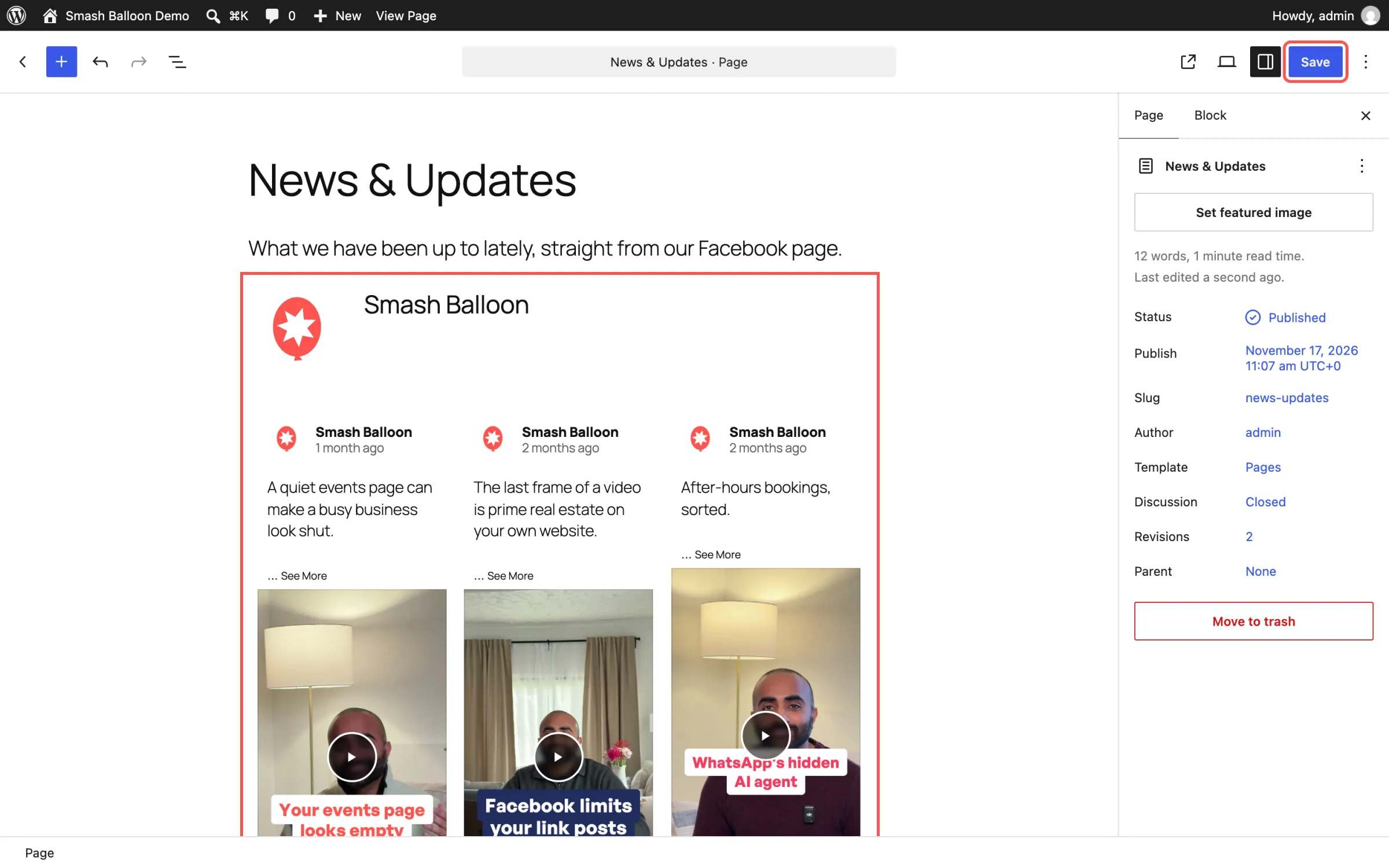
Open the page on your site and you’ll see your Facebook posts there, updating on their own as you post.
Frequently Asked Questions
Is the Embed Feed window included in Facebook Feed Pro?
Yes. It’s in every Facebook Feed Pro plan and in the free Smash Balloon Facebook Feed. Pro adds things like swipeable Reels, a lightbox and event feeds to the feeds you embed.
Does Create Page and Go publish my new page?
No. The new page is saved as a draft, and it stays a draft until you click Publish.
Can I still use a shortcode?
Yes. Copy it from the Use a shortcode section of the window. That’s the way to go with page builders like Elementor or Divi.
What if my site runs an older version of WordPress?
The Embed Feed window needs WordPress 5.8 or newer. On older versions, the Embed button gives you the shortcode to paste instead.
Your Facebook Updates Deserve a Spot on Your Site
Update to Smash Balloon Facebook Feed 4.16.0, and the next time you open a feed, you can give it a page of its own right from the feed editor.
Already on Facebook Feed Pro? Update the plugin and the Embed button is ready the next time you open a feed. Using the free plugin? Update it from WordPress.org, then take a look at what Pro adds when you’re ready for more.
Give your Facebook feed even more to show
Facebook Feed Pro gives the feeds you embed swipeable Reels, a lightbox, event feeds and more, and on every plan you can set up your feed’s page right from the feed editor. Backed by a 14-day money-back guarantee.
Get Facebook Feed Pro