Social Wall
  Feed Analytics

Your Facebook Page is where every class, gig, and workshop gets posted first. Plenty of the people who visit your website aren’t scrolling Facebook, though. They want to open a calendar, see what’s on this month, and pick a date that works for them.
Smash Balloon Facebook Feed Pro 4.13.0 gives you that calendar without adding to your to-do list. It now works with Sugar Calendar, so every event you post on Facebook shows up on a calendar on your website, and it stays up to date when plans change. You post once on Facebook, and your site keeps up on its own.
New to either one?
Facebook Feed Pro is the Smash Balloon plugin that shows your Facebook content on your WordPress site, and the Elite plan includes your Facebook events. Sugar Calendar is a free, lightweight calendar plugin for WordPress. You don’t have to go looking for it, either. Facebook Feed Pro can install it for you in one click. And if you already use The Events Calendar, that works too.
Here’s what you can do starting today:
- Add a Sugar Calendar to your site in one click, right from Facebook Feed Pro
- Have every event you post on Facebook show up on your calendar by itself
- Keep dates, times, and cancellations matched to Facebook without doing a thing
- Show each event’s cover photo and location on your calendar
- Keep any event off your calendar for good, even if it stays on Facebook
Already use Smash Balloon for your Instagram or Facebook posts and host events of any kind, like classes, gigs, open houses, or weekly services? This one’s worth a look. Your social feed shows people what you’re up to. Your calendar is where they check whether they can make it.
Add a Sugar Calendar to Your Site in One Click
A list of upcoming events is handy. A calendar is what people use to plan, though. They can see the whole month at a glance, spot the weekend they’re free, and click one event for the details.
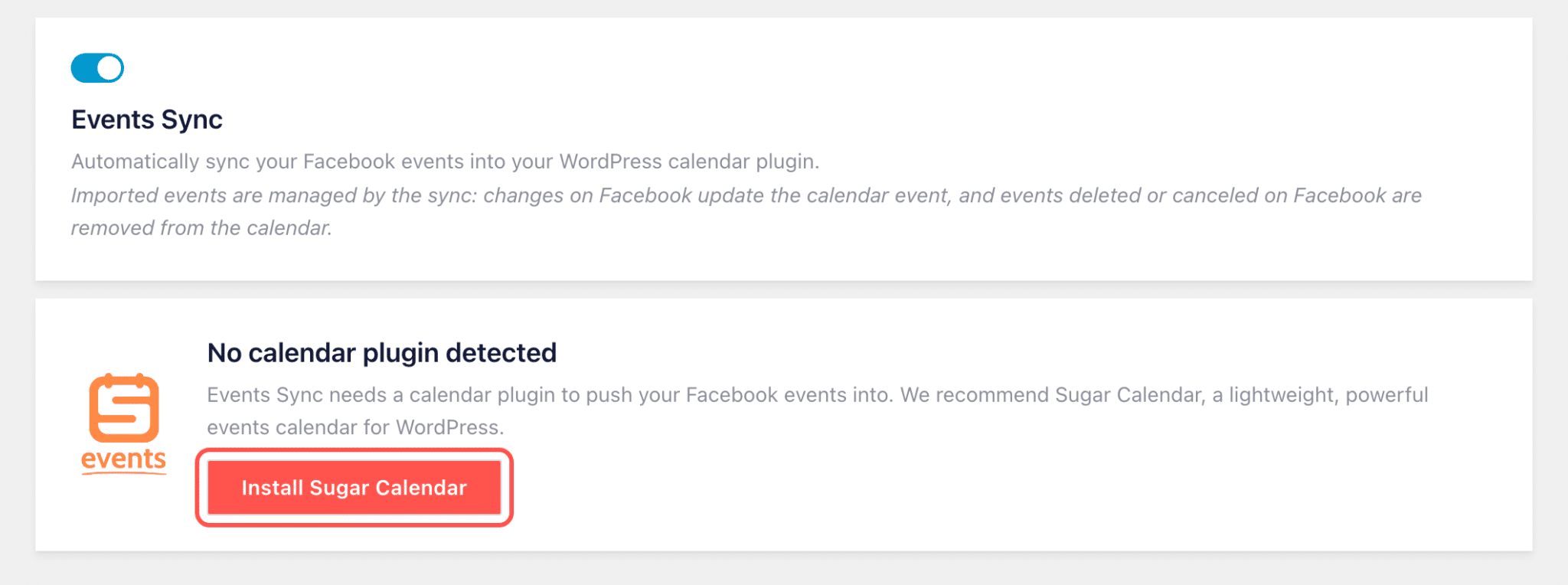
If your site doesn’t have a calendar yet, Facebook Feed Pro suggests Sugar Calendar and installs the free version for you with one click. There’s no plugin to hunt down and no options to compare, and once it’s on, your Facebook events have a home.
Already happy with The Events Calendar? Keep it. Facebook Feed Pro works with that too, and you can send your events to both if you’d like.
Every Event You Post on Facebook Shows Up on Your Calendar
Typing each event in a second time is the kind of job that slips through the cracks in a busy week. With Events Sync, you skip it and get that time back.
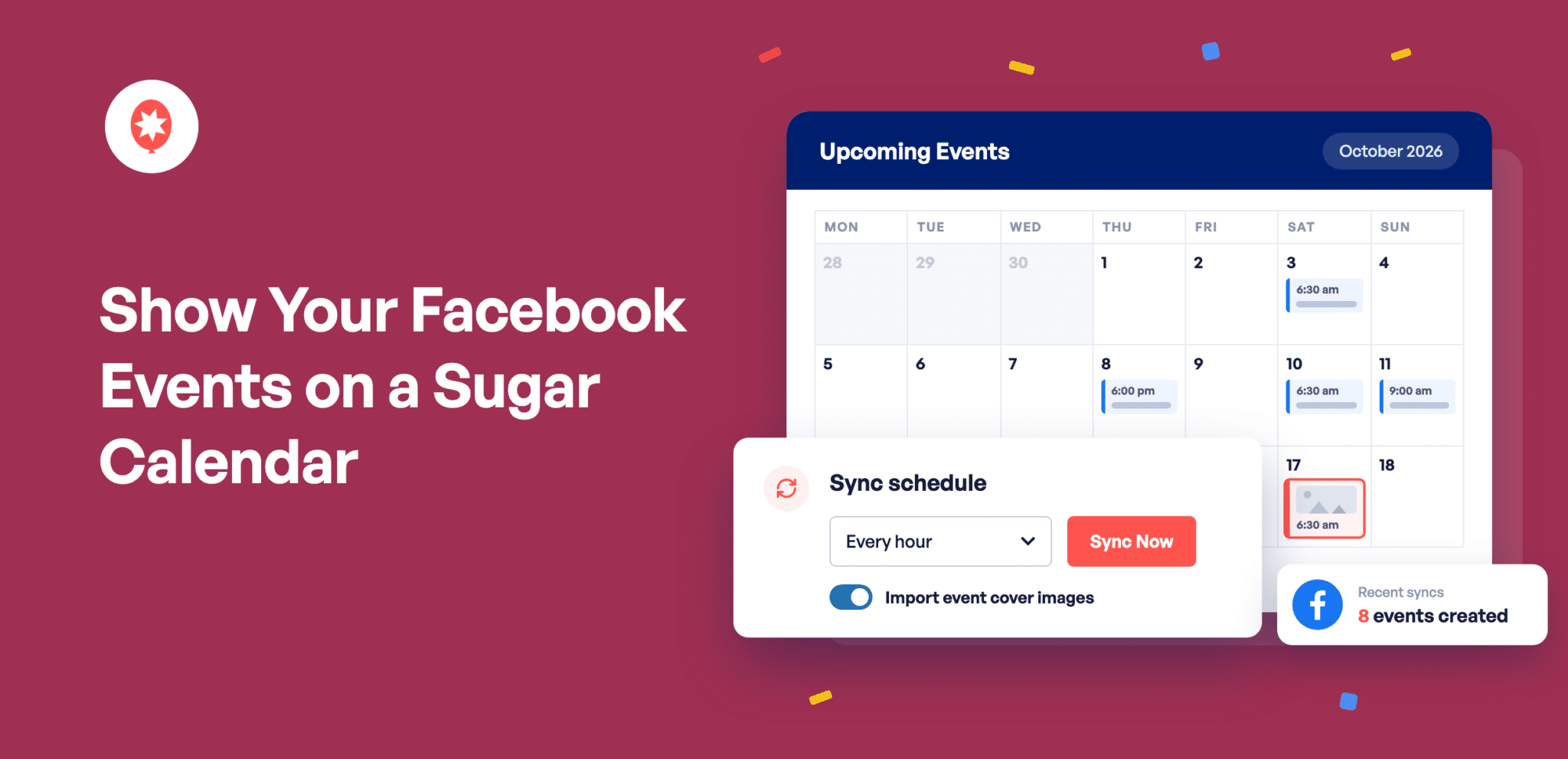
Post an event on your Facebook Page, and it appears on your website calendar on its own, with the name, date, time, description, and location already filled in. If you set up one Facebook event that repeats, like a class every Saturday, every Saturday shows up on your calendar. Your Facebook events feed keeps running exactly as it does now, too.
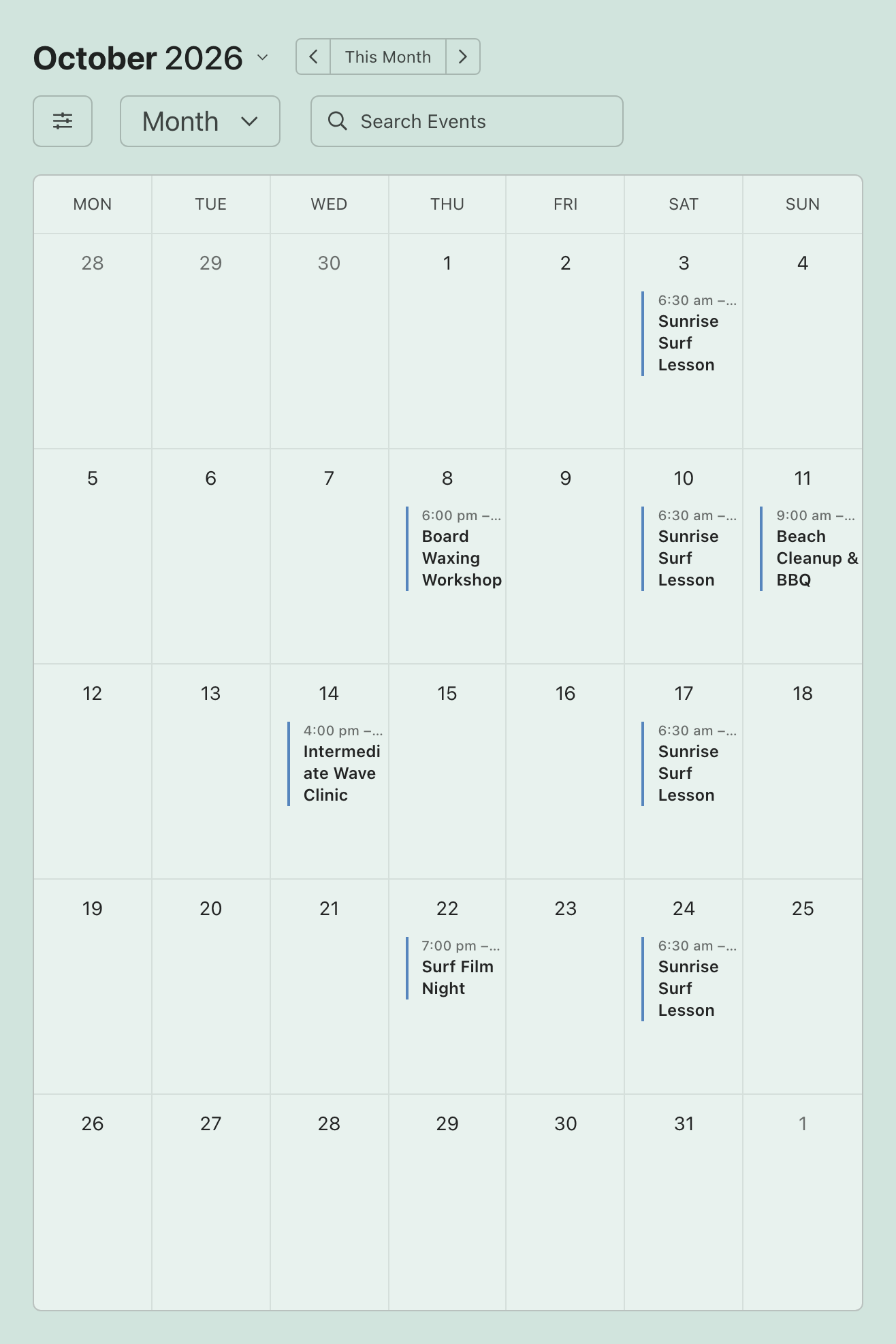
Each event brings its Facebook cover photo along as well, so your calendar looks as good as your Page does, and visitors can tell at a glance which event is which.
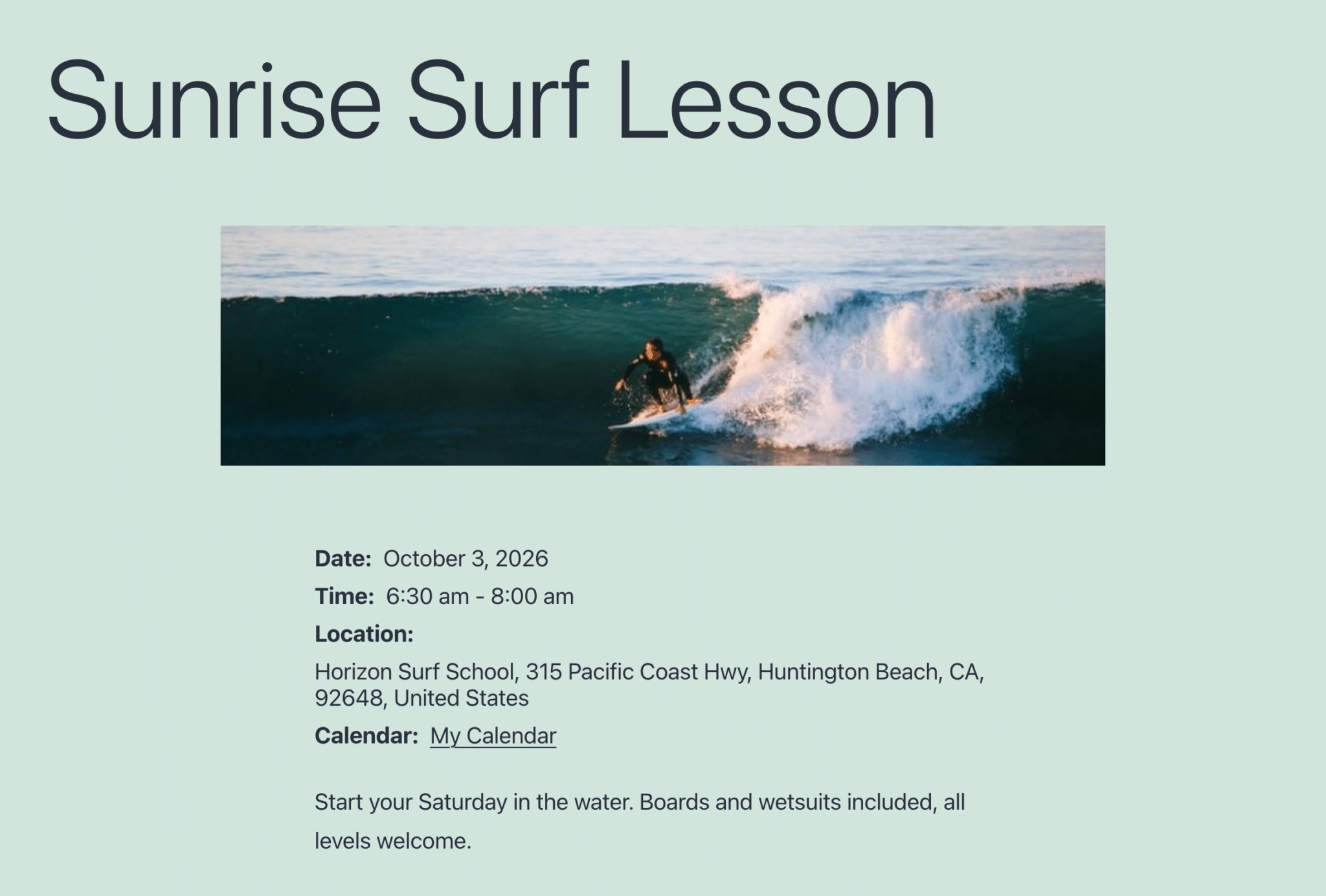
It fits pretty much any business that runs things on a date:
- Run a yoga studio that posts every class on Facebook, and each one lands on your class calendar with the time and address already there.
- Live music booked through a brewery’s Facebook Page ends up on the brewery’s calendar, so someone planning Friday night sees the band without leaving the site.
- Designed a great poster for your festival’s Facebook event? It becomes the picture on your calendar too, with nothing to upload twice.
Choose Which Facebook Pages Show Up
Post events from more than one Facebook Page? You choose which ones go on this site’s calendar, so visitors only see events that are relevant to them, like just one location’s classes on that location’s site. Nothing shows up until you’ve picked at least one Page.
If you haven’t connected your Facebook events yet, our post on showing your Facebook events by picking the Page they’re on walks you through it.
When Plans Change on Facebook, Your Calendar Changes Too
When an event moves, your calendar should show the new time before anyone plans around the old one. Facebook Feed Pro checks your Facebook events every hour, twice a day, or once a day, whichever you choose, and brings any changes over for you.
Change a time, date, or location on Facebook, and your calendar updates to match. Cancel an event on Facebook, and it comes off your calendar too. You only ever make the change in one place.
Need something on your calendar right now? One click on Sync Now brings everything over straight away.
You Decide What Stays on Your Calendar
Some events belong on your Facebook Page but not on your website calendar. Delete one from your calendar and it stays gone, even when Facebook Feed Pro checks for updates. That comes in handy for things like:
- A friend’s charity 5K you shared on your Page to help spread the word
- Members-only meetups or private parties that are on Facebook for your regulars
- Pop-ups you’re promoting for a partner but not hosting yourself
Want a fresh start? Each calendar has its own Remove imported events button, and one click clears every Facebook event off that calendar, which is handy if you’d like to try things on a test site first. Just turn off Events Sync afterward so the next update doesn’t bring them back.
Ready to stop typing your events in twice?
Events Sync comes with Facebook Feed Pro Elite and the All Access Bundle. Add a free Sugar Calendar in one click, choose your Facebook Pages, and your calendar fills itself. Backed by a 14-day money back guarantee.
Put My Events on a CalendarHow to Put Your Facebook Events on Your Calendar (in 5 Minutes)
Events Sync is available on Facebook Feed Pro Elite and the All Access Bundle, so if you’re on either plan, you already have everything you need. Here’s the whole setup.
Step 1: Update Facebook Feed Pro. In your WordPress dashboard, go to Plugins and click update now under Custom Facebook Feed Pro to get version 4.13.0.
Step 2: Make sure your Facebook events are connected. Go to Facebook Feed » Settings and look at Manage Sources on the General tab. Your Page should be listed with (events) next to its name. Not there yet? Follow our Facebook events setup guide first.

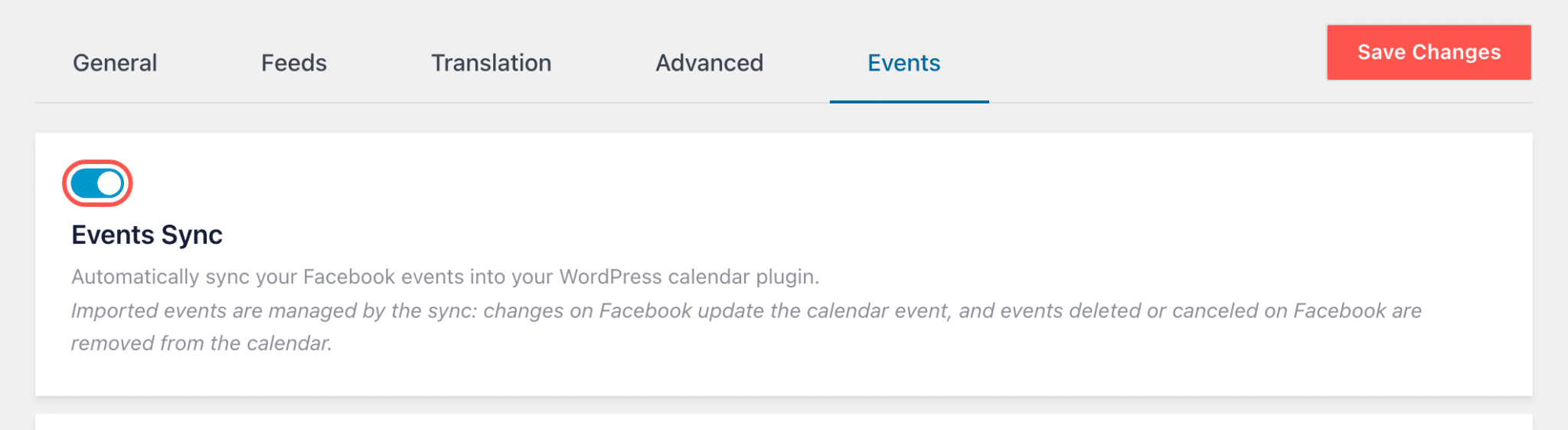
Step 3: Turn on Events Sync. Click the Events tab on the same screen and switch on Events Sync.
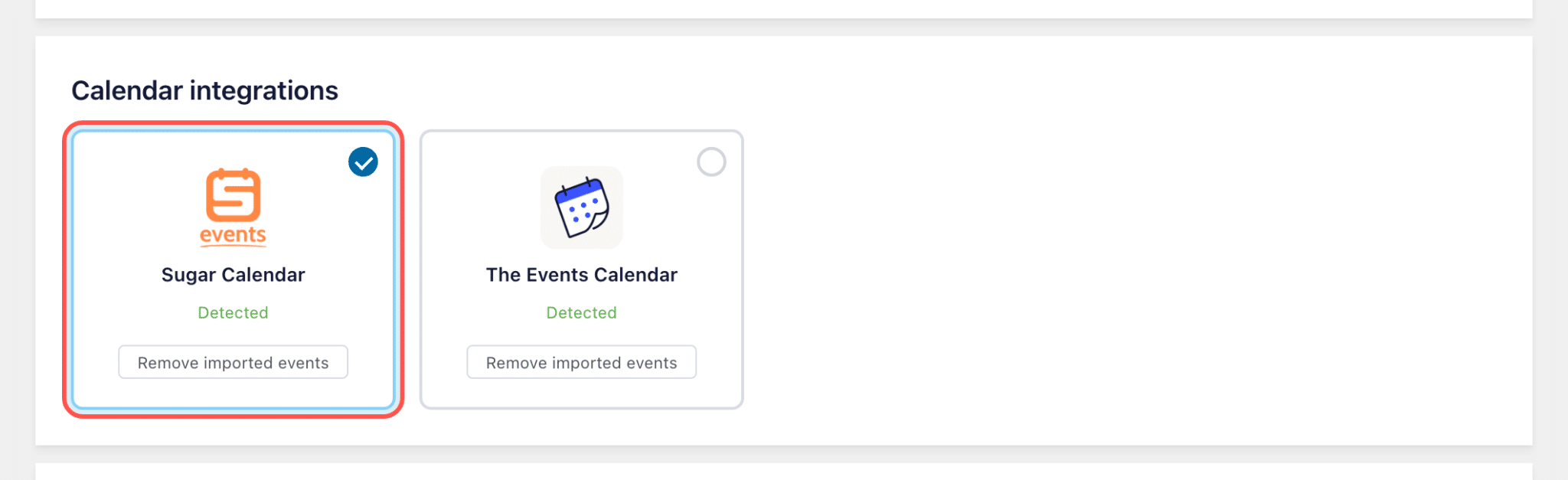
Step 4: Pick Sugar Calendar. Under Calendar integrations, click the Sugar Calendar card. No calendar plugin on your site yet? You’ll see an Install Sugar Calendar button instead, and one click adds the free version. Already using The Events Calendar? Click that card instead, or pick both if you have both installed.
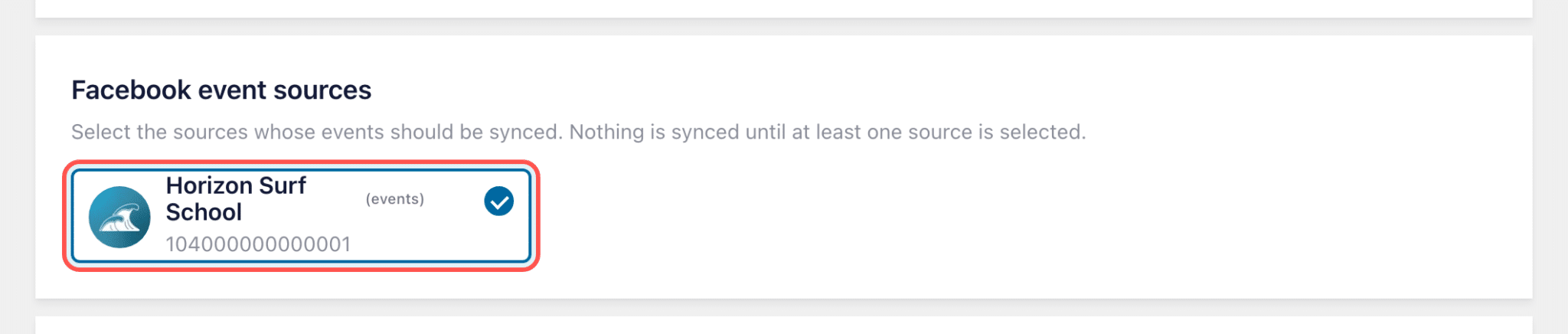
Step 5: Choose your Facebook Pages. Under Facebook event sources, click each Page whose events you want on your calendar.
Step 6: Choose how often to check, then sync. Under Sync schedule, pick Every hour, Twice daily, or Daily, and leave Import event cover images on to bring your photos along. Click Save Changes, then Sync Now to bring your events over right away.

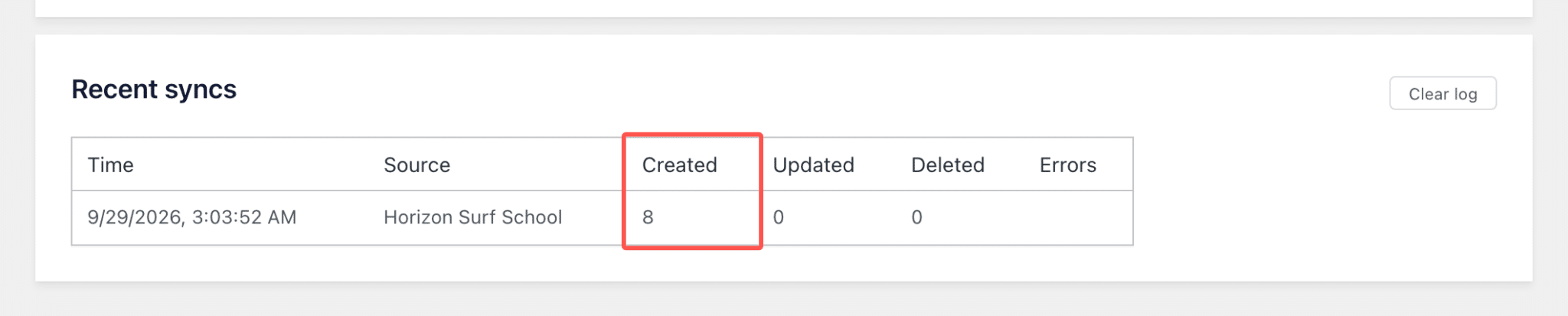
Step 7: See your events. The Recent syncs list shows how many events were added. Open your calendar page and your Facebook events will be there, photos and all.
Frequently Asked Questions
Which plan do I need?
Facebook Feed Pro Elite or the All Access Bundle. It’s part of the same plan that includes Facebook events, so if you can show your Facebook events on your site today, you can put them on a calendar too.
Do I have to pay for Sugar Calendar?
No. The free version works, and Facebook Feed Pro installs it for you in one click.
Will my Facebook events feed change?
No. Your events feed keeps showing exactly as it does now. Your calendar gets its own copy of the same events.
Can I edit an event on my calendar?
It’s best to make changes on Facebook. Your calendar follows Facebook, so the next update brings your Facebook changes over.
Can I take the Facebook events off my calendar later?
Yes. Click Remove imported events on your calendar’s card, then turn off Events Sync so the next update doesn’t bring them back.
Post It Once on Facebook, See It on Your Calendar
Did you know that if you update today, your next Facebook event could be on a calendar on your website, cover photo and all, within the next ten minutes?
And you can do it without:
- Typing the same event in twice
- Uploading the same photo again
- Remembering to fix your calendar every time a date or time moves
If you’re on Facebook Feed Pro Elite or the All Access Bundle, update to 4.13.0 and open the Events tab under Settings. You’re a few clicks away.
If you’re on Facebook Feed Pro Basic or Plus, upgrading to Elite adds Events Sync along with your Facebook events, so they can show up in a feed and on your calendar.
And if you’re not using Facebook Feed Pro yet, Elite brings your Facebook posts, your events, and a calendar that keeps itself up to date, all from the Page you already run.
Put your Facebook events on your calendar
Events Sync is on Facebook Feed Pro Elite and the All Access Bundle. Connect your Page once, add Sugar Calendar in one click, and new events show up there by themselves. Backed by a 14-day money back guarantee.
Get Facebook Feed Pro EliteWhat do you run events for? Drop a comment below and let us know what’s going on your calendar first.