Social Wall
  Feed Analytics

If you’ve ever uploaded a YouTube video, waited for the views to roll in, and heard absolutely nothing, you’re not alone.
Most small business owners start YouTube with the best intentions, post a handful of videos, and then quietly give up when the channel flatlines.
The frustrating part isn’t the work. It’s not knowing whether the problem is the content, the channel setup, or something else entirely.
To get this right, we dug into what’s working for businesses on YouTube, going past the standard “optimize your title” advice to cover the full picture.
This includes channel creation, converting viewers into customers, and making sure your video content works on your site, not just YouTube’s platform.
- How to Use YouTube for Business: The Quick Answer
- Why YouTube Is Worth Your Time (And Where Most Businesses Waste It)
- Step 1: Create a Brand Channel (Not a Personal Account)
- Step 2: Decide What to Post and How Often
- Step 3: Optimize Every Video So People Can Find It
- Step 4: Turn Viewers into Buyers (Closing the Conversion Gap)
- Step 5: Show Your YouTube Videos on Your WordPress Site
- Conclusion
- More Video Marketing Guides and Tutorials
How to Use YouTube for Business: The Quick Answer
Using YouTube for business comes down to 5 steps: set up a brand channel, plan content that matches what you sell, optimize each video, add clear calls to action, and embed your YouTube feed.
Here’s how each step of this process works:
- Create a Brand Channel: Set up a YouTube Brand Account separate from your personal Gmail. Add a banner, a keyword-rich description, and a link to your website before you post anything.
- Plan Your Content: Pick one video type (tutorial, product demo, founder story, etc.) and post one video per week.
- Optimize for Search: Write a keyword-first title, put your website link in the first line of the description, add a custom thumbnail, and include end screens on every video.
- Turn Viewers into Buyers: Say out loud where to go and why within the first 60 seconds, pin a comment with your offer, and send viewers to a specific page on your site, not your homepage.
- Bring Your Feed to WordPress: Use YouTube Feed Pro to display a live, auto-updating video feed on your site. Your site visitors can now view your content and subscribe to your channel.
Why YouTube Is Worth Your Time (And Where Most Businesses Waste It)
YouTube is the second-largest search engine in the world. People are already searching for what you sell, teach, or solve. They’re just doing it on YouTube instead of Google.
If you’re a small business owner trying to reach buyers without a massive ad budget, YouTube is worth your attention.
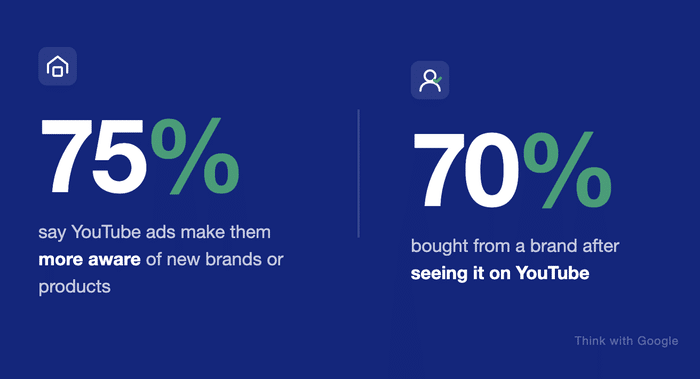
In fact, a study by Google and Talk Shoppe found that 70% of viewers bought from a brand after seeing it on YouTube.
The problem is that most businesses treat YouTube and their website as two separate things.
So, they post a video, someone watches it, and then nothing happens. The viewer stays on YouTube, browses something else, and that’s it. No sale, no email signup, no follow-up.
The businesses that get real results treat YouTube as the first step in a system.
Every video points somewhere and leads the viewer towards making a purchase. And their YouTube content shows up on their site, where the visitors closest to buying can actually see it.
That’s the system this guide walks you through.
Step 1: Create a Brand Channel (Not a Personal Account)
Before you post a single video, create a YouTube Brand Account separate from your personal Gmail.
A personal YouTube account is tied to your Google account and contains your personal watch history, playlists, and activity.
On the other hand, a Brand Account keeps everything separate so you can focus on marketing.
Here’s how the two options compare:
| Personal Account | Brand Channel | |
|---|---|---|
| Admin access | One person only | Multiple admins |
| Channel name | Tied to your Google name | Any name you choose |
| Linked email | Personal Gmail | Google Workspace or any Gmail |
| Best for | Personal content | Business content |
It also lets you give other people access to your channel without sharing your personal login. That includes a social media manager, a video editor, or a co-founder.
How to Create Your Brand Account
Setting up a Brand Account takes about two minutes. Here’s how to do it:
- Sign in to YouTube with your Google account.
- Open the Channel List on your web browser.
- On this page, click on “Create a new channel.”
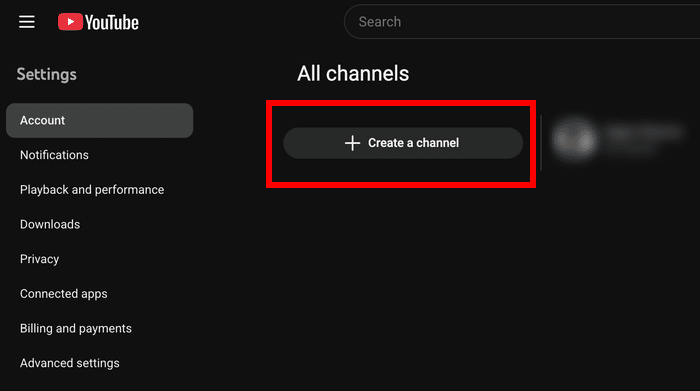
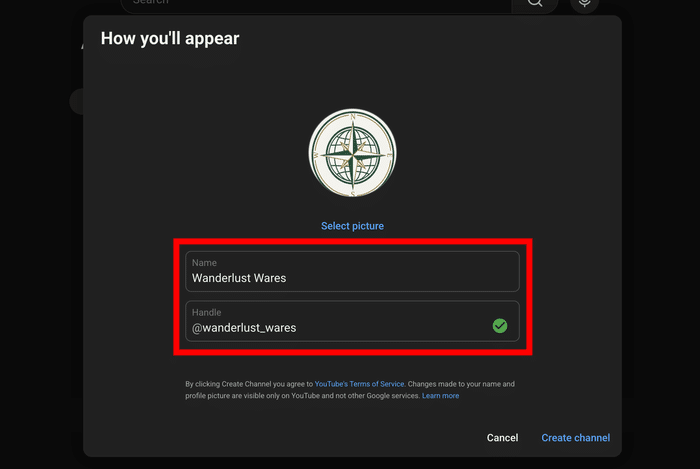
- Enter the name and handle and click on “Create channel” on the popup.
- Switch back to your main YouTube channel.
- Open the advanced settings page and select “Move channel to a brand account.”
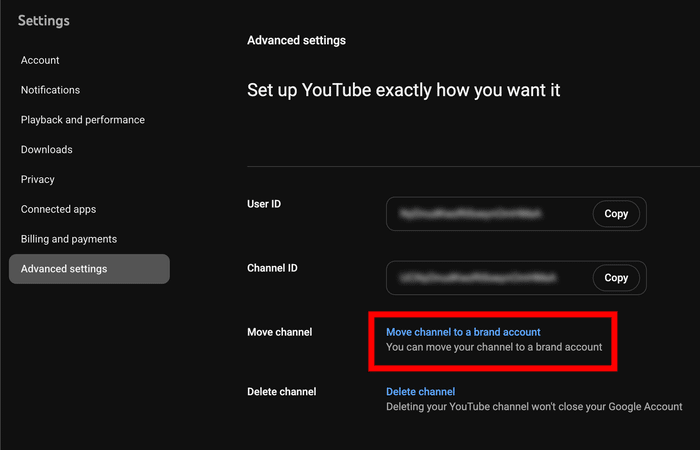
Finally, select the new channel you just created and click on Replace.
Once you confirm that you want to move the account, YouTube will create a new Brand Account linked to your Google account.
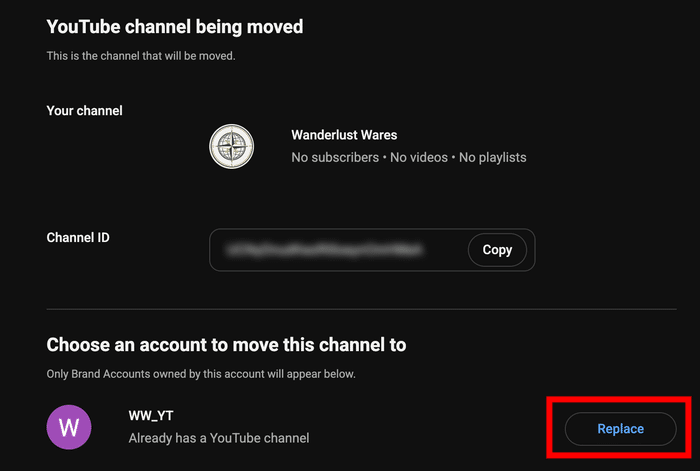
You can switch between your personal channel and your brand channel any time from the profile menu.
Set Up These Three Things Before You Post Anything
Most business owners create their channel and immediately upload a video.
Instead of doing that, take 20 minutes to configure these three things first. They affect how your channel looks to new visitors and how YouTube indexes your content.
1. Your channel handle and custom URL
Your channel handle is the @username that appears on your channel page and in search results.
Choose a handle that matches your business name as closely as possible. Keep it consistent with your handles on other platforms.
Once enough people subscribe to your channel, YouTube lets you claim a custom URL that matches your handle. That URL is what you’ll share in your email signature, website footer, and marketing materials.
2. Your channel banner
Your banner is the wide image at the top of your channel page. YouTube recommends a size of 2560×1440 pixels.
The safe zone within the cover is 1546×423 pixels. Remember to keep your key text and logo inside that safe zone.
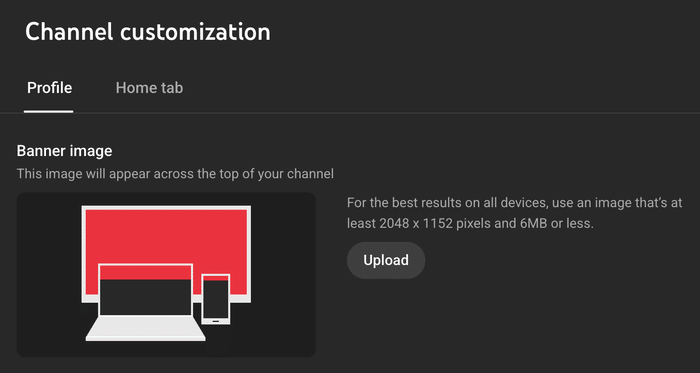
Include three things in your banner: your business name or tagline, a short line about what your channel covers, and your website URL.
Think of the banner as a billboard. Someone who lands on your channel page for the first time should know within three seconds what you do and where to find you.
3. Your About section
Go to YouTube Studio » Customization and scroll down to fill in your channel description.
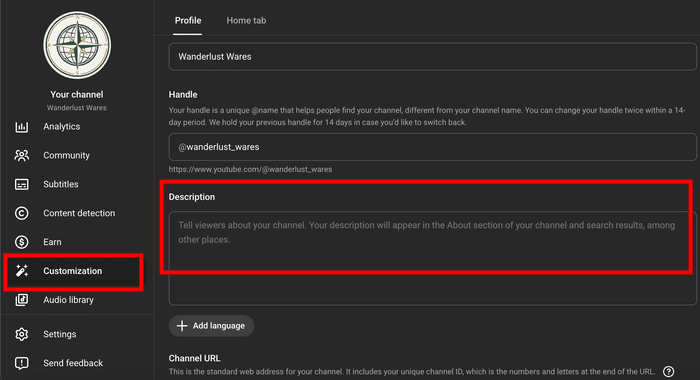
Write at least two to three sentences that describe what your channel covers, who it’s for, and what they’ll get from subscribing.
Use the same language your customers use when they search for what you do.
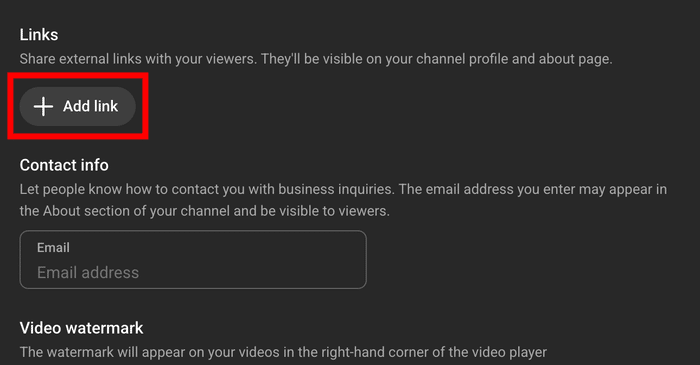
Put your website link in the description and add it again under the “Links” section so it appears on your channel banner.
Create at Least One Playlist Before You Upload
Once your channel is set up, create one playlist before you add any videos. Group your content by topic or series name.
When viewers finish one video, YouTube is more likely to suggest the next video in the same playlist.
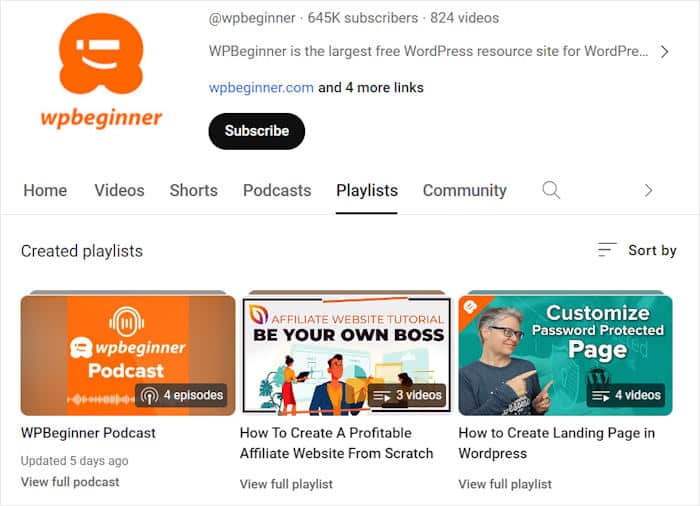
That keeps them on your channel longer. Watch time is one of the strongest signals YouTube uses to recommend content to new viewers.
Expert Tip: You can then embed these YouTube playlists on your website to capture more views, likes, and followers from your site traffic.
Step 2: Decide What to Post and How Often
The two questions that paralyze most business owners before they even hit record are “What do I make?” and “How often do I need to post?”
Both have clear answers, and neither requires you to become a full-time content creator.
Post Once a Week (And Mean It)
YouTube’s algorithm rewards watch time and session duration. A video that holds attention earns more reach than a video that was simply uploaded.
Consistency also matters more than frequency. Posting every Tuesday at 9 AM trains both the algorithm and your audience to expect something from you.
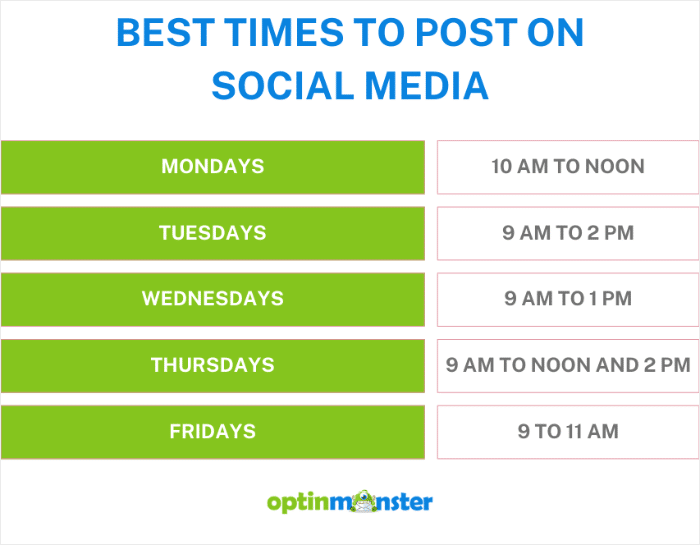
If once a week feels like too much right now, start with twice a month. Keep the schedule you can actually maintain.
For more info, you can check out this guide with the best times to post on social media.
Pick One Content Type for Your First 90 Days
The fastest way to get traction on YouTube is to become known for one kind of video. Here are the three content types that work best for business channels:
| Content Type | Best For | Example |
|---|---|---|
| Tutorial / How-To | Building search traffic and establishing authority | “How to Set Up a Google Business Profile in 10 Minutes” |
| Product Demo / Walkthrough | Converting warm leads who are already considering a purchase | “How [Your Product] Works: A Full Walkthrough” |
| Behind-the-Scenes / Founder Story | Building trust and brand affinity with a cold audience | “How We Pack and Ship 500 Orders a Week” |
Stick with your chosen type for the first 90 days. You can add variety later once your audience knows what to expect from your channel.
Find Your Next 10 Video Ideas Right Now
Go through your last month of customer emails, support tickets, DMs, or sales call notes.
Don’t forget that every question a customer asks you is a video idea. “How do I do X?” is a tutorial. “What’s the difference between Y and Z?” is a comparison video.
These questions already have an audience because someone already asked them.
Step 3: Optimize Every Video So People Can Find It
Publishing a video without optimization is like opening a store with no sign on the door.
YouTube is a search engine, and like any search engine, it relies on text to understand what your video is about. These five things take less than 15 minutes per video.
1. Title
Lead with your target keyword, then add context. Keep it under 60 characters so it doesn’t get cut off in search results.
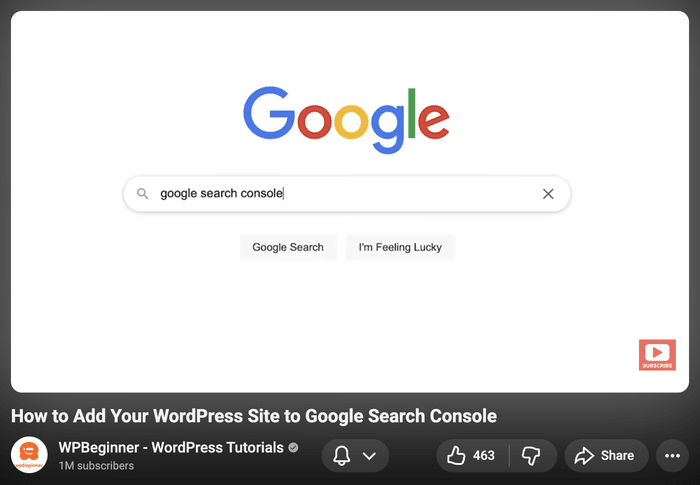
Write the title the way your customer would type the question, not the way you’d explain it internally. “How to Price a Freelance Project” works. “Client Acquisition Pricing Methodology” does not.
2. Description
Write at least 200 words. Put your most important keyword and your website link in the first two lines, before the “Show more” cutoff.
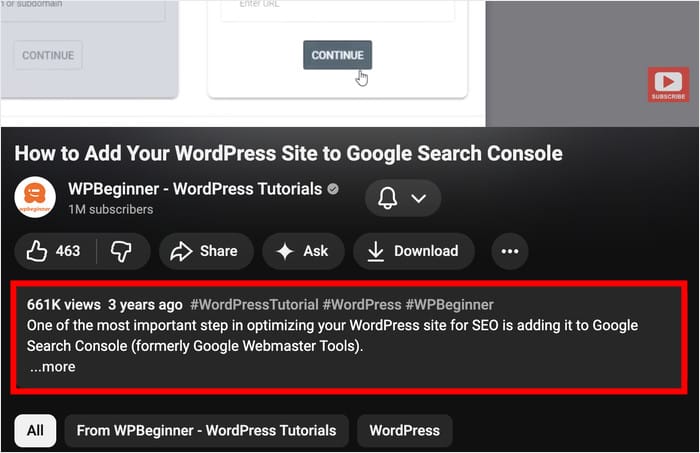
Use the rest of the description to summarize what the video covers, who it’s for, and what the viewer will know by the end.
3. Tags
Add 5 to 8 tags per video. Mix broad terms with specific ones and remember to include the main keyword you want to rank for.
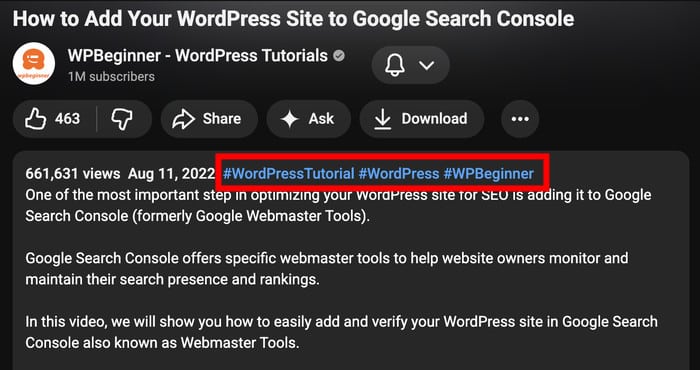
Tags help YouTube group your video with related content, which affects what it recommends alongside yours.
4. Thumbnail
Custom thumbnails consistently get more clicks than auto-generated frames. Use high-contrast colors, include a human face if the format allows it, and keep any text to 6 words or fewer.
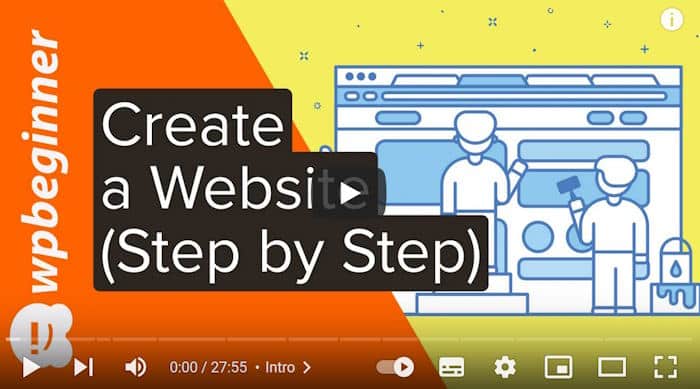
You can use tools like Canva to create beautiful thumbnails, even with zero design experience.
5. End Screens and Cards
Every video needs an end screen. Use it to link to another video, a playlist, or your website.
Add a card in the first half of the video to recommend related content. Both are built into YouTube Studio and take about two minutes to add.
One More Thing: Add Chapters
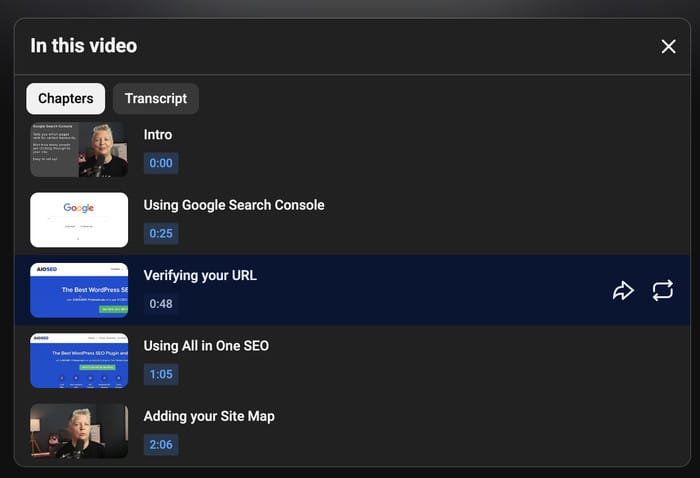
Chapters are timestamps you add to the description to break your video into named sections.
They make longer videos easier to navigate and allow YouTube and Google to surface individual chapters in search results. Use keyword-rich chapter names, not generic ones like “Part 1.”
Step 4: Turn Viewers into Buyers (Closing the Conversion Gap)
Here’s the part most YouTube guides skip entirely: viewers don’t buy on YouTube. They buy on your website. If your videos don’t send people somewhere they can actually act, every view is a dead end.
Closing this gap requires four specific things you add to every video.
1. Say It Out Loud in the Video
Tell viewers where to go and why, inside the video itself. Do this twice: once in the first 60 seconds, and again at the end.
Be specific about what they’ll get. “Visit our website” gives viewers nothing to act on. “Download the free pricing template at [your URL]” gives them a reason to stop and go.
2. Put Your Link First in the Description
YouTube shows only the first two lines of your description before cutting off with a “Show more” link. Put your primary URL in the first line.
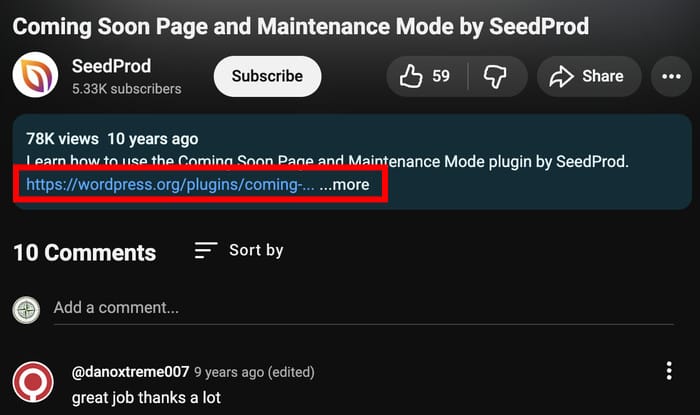
If the video promotes a specific product, link to that product page. If it’s educational, link to a lead magnet or email opt-in.
3. Pin a Comment With Your Offer
Immediately after publishing, post a comment on your video and pin it to the top.
Use it to spell out your next step: a link to a free resource, a limited-time offer, or a simple invitation to visit a specific page. Keep it to one or two sentences and one link.
4. Use the End Screen Website Button
YouTube’s end screen feature lets you add a clickable button that links directly to your website.
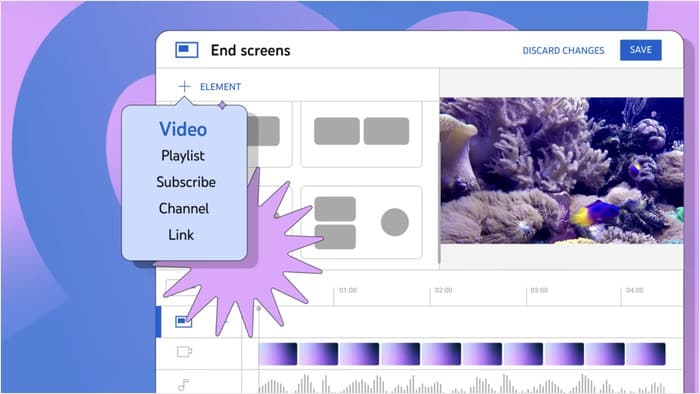
Open YouTube Studio, go to your video’s editor, and select “End screen.”
From there, add the “Website” element and point it to a specific landing page, not your homepage.
Send Viewers to a Page That’s Ready for Them
Your homepage is a general introduction to your business. It’s not designed to convert someone who just watched a video about a specific topic.
Build specific landing pages for your highest-traffic videos, or at minimum, link to the most relevant page on your site.
The video builds the trust, but the conversion happens on your site.
Step 5: Show Your YouTube Videos on Your WordPress Site
Every time you publish a new video on YouTube, your website falls behind.
If you’ve embedded videos manually using YouTube’s iframe code, each embed loads more scripts and slows your page down.
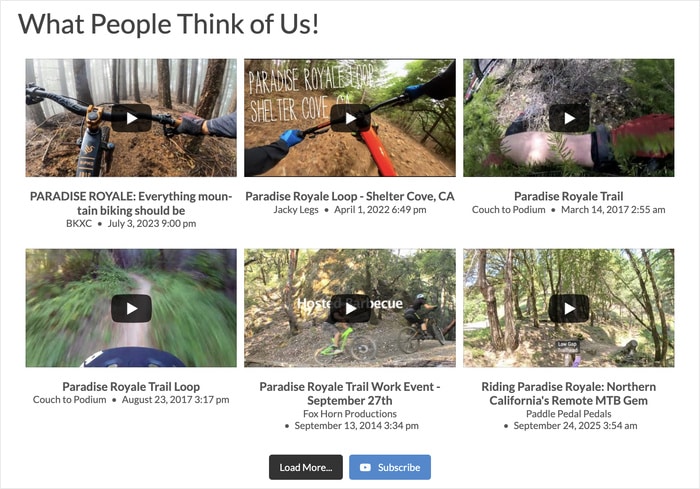
YouTube Feed Pro by Smash Balloon solves both problems. It connects directly to your YouTube channel and pulls in a live feed that updates automatically whenever you publish.
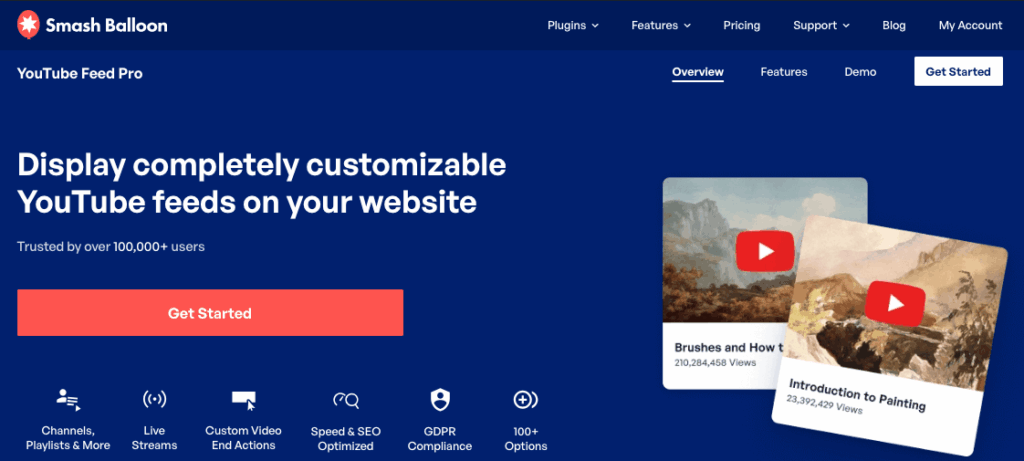
The feed is cached, so it doesn’t slow your page down while still displaying your latest content.
YouTube Feed Pro Setup:
- Install and activate YouTube Feed Pro on your WordPress site (see this beginner’s guide to installing WordPress plugins).
- Create a New Feed: Go to YouTube Feed » All Feeds and click on Add New before selecting a feed type from the options.
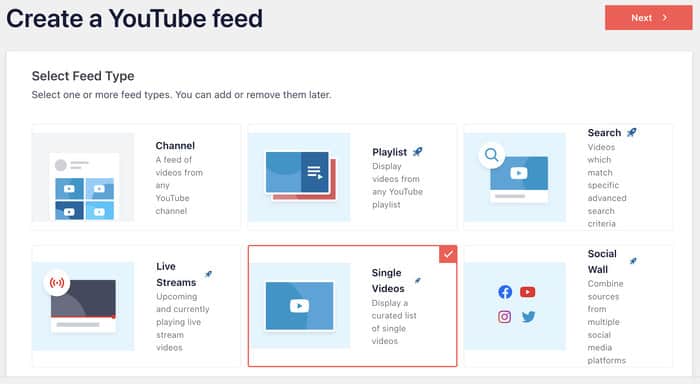
- Connect Your YouTube Channel: Enter your YouTube API key so the plugin can fetch your YouTube content.
- Customize the Design: Use the visual editor to choose your layout, header design, video elements, button design, template, and more.
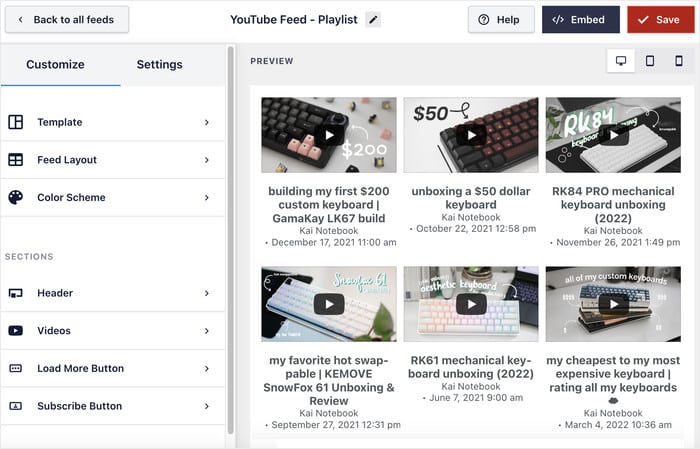
- Embed Your Feed: Click on Embed and select the page or widget area to embed the feed using a handy WordPress block.
- Preview Your Videos: Open your website and check how your videos look on your page, sidebar, or footer.
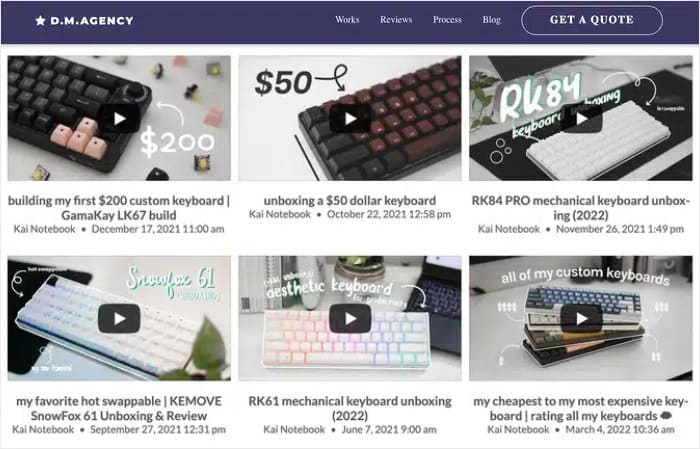
Where to Place Your Feed:
- Homepage: Shows visitors you’re active and consistently creating content.
- Product Pages: A demo video feed next to the buy button converts warmer buyers.
- Blog Sidebar: Keeps readers engaged with related video content.
What About Page Speed?
YouTube Feed Pro loads feeds asynchronously and caches them locally, so your page isn’t making a live request to YouTube on every load.
If you’re using the right tool, embedding your YouTube channel doesn’t slow down your site for visitors who aren’t there to watch.
Expert Tip: If you want to learn more, you can go through this quick guide on whether social media feeds will slow down your website.
Conclusion
With this guide, you can set up a proper brand channel, post and optimize your videos consistently, and bring these videos to your website to get even more views.
That last step is where most businesses leave results on the table. Your YouTube content shouldn’t stay on your website when you’ve got site visitors who are interested in your content.
Ready to bring your channel to your site? Check out YouTube Feed Pro and get your feed live on WordPress today.
More Video Marketing Guides and Tutorials
- Best YouTube Marketing Tools to Grow Your Channel
- Is TikTok Worth It for Small Business Owners (Beginner’s Guide)
- How to Make Money on TikTok Without Showing Your Face
- Proven TikTok Strategies Every Small Business Owner Needs to Know
- How to Make Popular Instagram Videos (Complete Guide)