Social Wall
  Feed Analytics


Most customer video testimonials are boring because the customer was handed a script and a camera and left to it.
The fix is not a better camera. It’s better questions, a tighter structure, and knowing what a good one actually looks like before you start filming.
I’ll cover all three here: the 17 questions I’d ask on camera, 13 testimonial videos worth studying, and how to get them onto your WordPress site once they’re made.
Ready to skyrocket your sales by using the power of video? Let’s jump right in.
- What Makes a Customer Video Testimonial Work
- 17 Questions to Ask for Great Video Testimonials
- 5 Tips to Create Winning Video Testimonials
- 13 Powerful Video Testimonials You Can Copy
- Where to Put Your Video Testimonials
- How to Show Your Video Testimonials on Your Website
- How to Embed Online Testimonials on WordPress
What Makes a Customer Video Testimonial Work
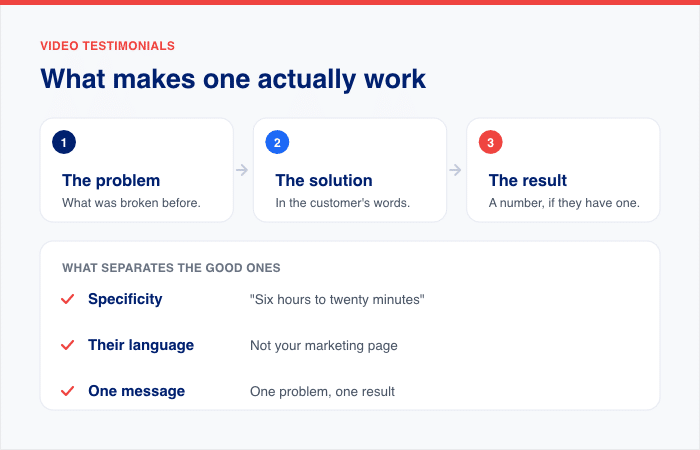
Nearly every strong testimonial video follows the same three-beat structure:
- The problem. What was broken before. Specific, not “we were struggling.”
- The solution. How your product changed the process, in the customer’s words.
- The result. A number if they have one. Hours saved, revenue up, headcount freed.
That’s it. The videos that flop skip straight to beat two and turn into a feature tour.
Three things separate the good ones from the rest:
- Specificity. “We cut invoicing from six hours to twenty minutes” beats “it’s a great tool.”
- The customer’s own language. If it sounds like your marketing page, viewers stop believing it.
- One message. Pick a single problem and a single result. Don’t cover every feature.
17 Questions to Ask for Great Video Testimonials
There’s a reason customer video testimonials are so effective at increasing sales. 92% of shoppers read online reviews before buying, after all.
Why? It’s because savvy customers trust recommendations from real people more than they trust your other marketing campaigns.
That’s why it’s important that you ask powerful questions during your video testimonial interview.

This way, your customers can give equally powerful answers — emotional, convincing stories that will give your prospects the extra nudge they need to do business with you.
Here are 17 impactful questions you can ask to get started:
- Who are you, and what do you do?
- How long have you been working with our company?
- What services or solutions do we provide to you?
- What was it like before you had our product?
- What problem were you looking to solve when you found our product or service?
- How has our product or service helped you solve this problem?
- Where did you start to search for a solution?
- What made our product or service stand out from other options?
- What’s your biggest concern about buying our product?
- What’s the greatest reason that convinced you to buy our product or service?
- After getting our solution, what made you the happiest about working with our company?
- What’s your favorite product feature?
- What are the top 3 benefits you’ve experienced from using our solution?
- What’s an example of how we went the extra mile to serve you?
- If you were to recommend our solution to your best friend, what would you say?
- How has our solution made your life easier or better?
- Is there anything else that you’d want to say about our solution?
5 Tips to Create Winning Video Testimonials
How long should a video testimonial be? Is there a guideline you can follow while filming? How can you get video testimonials from customers?
Find out the answers to your burning questions about video testimonials by checking out the best practices below:
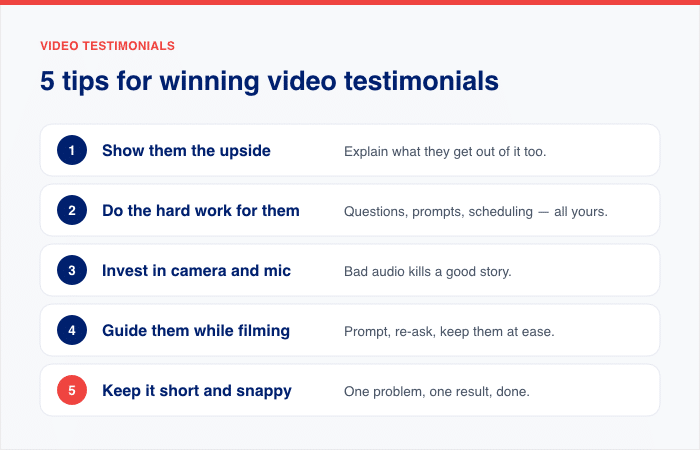
1. Show your customers how beneficial video testimonials are
When getting video testimonials from customers, the most important factor isn’t what you ask. It’s how you ask your customers that’ll make them agree to give you video testimonials in the first place.
You need to let your customers know that when they give a video testimonial about you, it’ll benefit not just your company — it’ll benefit them as well.
How? When your customer shares their story through a video testimonial, they get to promote their business, too.
On a video, your customers can freely express how their business has grown for the better. They can even quote their company’s increase in sales or productivity during the interview.
At the end of the day, it’s a win-win situation for both of you. You’re both doing each other a favor, after all.
2. Do the hard work for them
Now that you’ve gotten your customer’s “yes”, it’s time for you to get the ball rolling. Make it easy for your customers to give you a video testimonial.
Remember the questions you read earlier? Start preparing for the filming of the video testimonial by coming up with a list of questions you can ask the customer during the interview. You can use them as your own guide.
To help your customers prepare for the filming of the video testimonial, send them a list of the questions in advance.
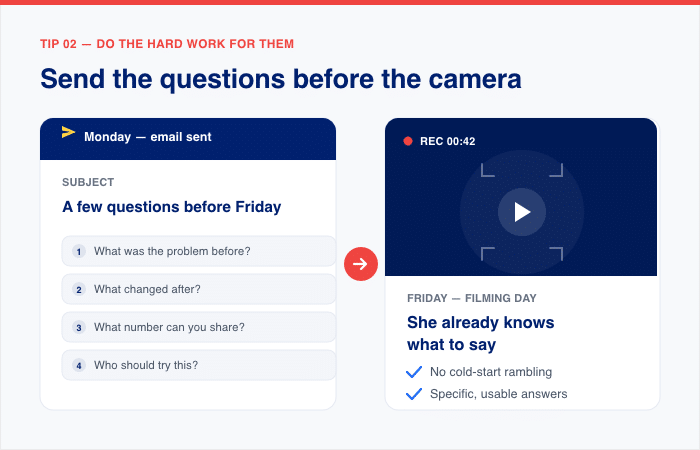
On filming day, you can set up a video call with your customer.
Even just a video testimonial using your customer’s phone can be powerful. Or you can also edit this into a video if you want to.
3. Invest in quality cameras and microphones
A poorly made video testimonial will reflect poorly on your brand.
To ensure that you’ll end up with a great video testimonial, you can borrow or rent a high-end DSLR camera for filming.
Plus, you can always browse online for reasonably-priced tripods and microphones that record high-quality sound and crystal-clear voices.
If your budget permits, you can also work with video production companies to turn your video testimonial dreams into reality.
4. Guide your customer properly while filming
While you’re filming your video testimonial, it’s better to interview your customer instead of asking them to talk in front of a camera all by themselves.
This way, they can feel more comfortable answering questions in their own words and not just reading a boring script.
Want to make your video testimonial more relatable and natural?
First, talk about your customer’s pain points. Then, ask them how your solution managed to solve their problem.
Finally, focus on their emotions. When your product helped improve their lives, how did they feel: happy, thankful, relieved, overjoyed?
5. Keep it short, snappy, and to the point
How long should your video testimonial be? Let’s face it: your viewers don’t have a long attention span. So, keep it under 3 minutes. 80% of marketers create videos that are 3 minutes or less, after all.
To keep viewers engaged, you may also want to add graphics and text to your video testimonial. Work with simple text styles so they won’t be distracting.
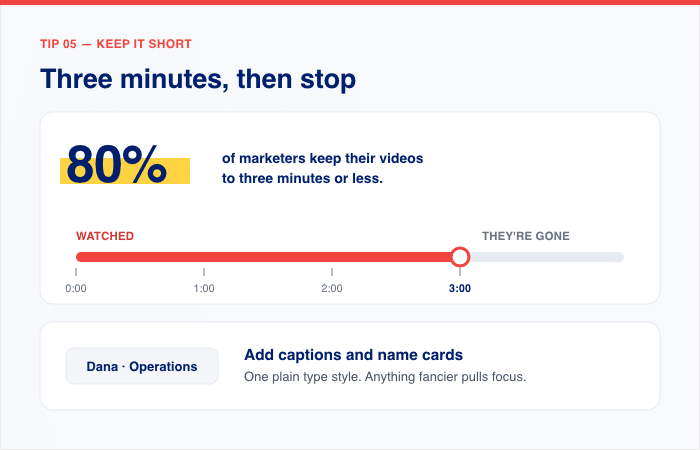
These elements are helpful, especially when you want to highlight key points in the video.
13 Powerful Video Testimonials You Can Copy
What’s the best way to get inspiration for creating your own video testimonials? Check out existing videos that are brilliantly made and powerful in converting customers. Good for you, since you don’t have to look very far!
Here are 13 awesome video testimonials you can use for your own brand:
1. Amazon
What they did: Amazon featured a range of business owners talking about how Fulfillment by Amazon changed their operations, including one reporting 800% growth.
Why it works: Several voices saying the same thing is harder to dismiss than one. The growth figures do the persuading, not the narration.
How to use: If you serve lots of small businesses, cut several customers together rather than building a whole video around one.
2. FreshBooks
What they did: FreshBooks built their testimonial around Sarah, a small business owner who matches their target customer almost exactly.
Why it works: Viewers see themselves in her. The video opens on her accounting problem rather than the product, so the pitch arrives after you already agree with the premise.
How to use: Pick the customer who looks most like the person you’re trying to convince, not your most impressive logo.
3. Codecademy
What they did: Codecademy follows Kate, a stay-at-home mom whose curiosity led her to a new career as a full-stack developer.
Why it works: The product barely appears. The story is a life change, and Codecademy is just the thing that made it possible. Three million views say people watched it to the end.
How to use: If your product changes what someone can do with their life, make the person the subject and let your product stay in the background.
4. Hotsy Cleaning Systems
What they did: Hotsy featured a dairy farm producing 200,000 pounds of milk a day, backing up their tagline, “It’s what the pros use.”
Why it works: The scale of the customer is the argument. If an operation that size trusts the equipment, a smaller buyer stops worrying.
How to use: One demanding customer at the top of your market reassures everyone below them.
5. Airbnb
What they did: Airbnb followed a host couple in Croatia, letting the hosts narrate over landscape shots and footage of their home.
Why it works: You experience the product while hearing about it. By the end you’ve half-booked the trip.
How to use: If your product involves a place or an experience, show it. Let the customer’s own voice carry the audio instead of a voiceover artist.
6. Epipheo
What they did: Epipheo asked customers what it was like to work with them, rather than what the end result was.
Why it works: For a service business, the buyer’s real worry is the process. Will they communicate? Will this be painful? The video answers that in under three minutes.
How to use: Sell a service? Use this to address the working relationship, not just the deliverable.
7. Roku TV
What they did: Roku featured a range of different customers and reinforced the main benefits with on-screen text.
Why it works: The variety shows the product suits all kinds of households, and the text makes the key points stick for anyone watching with the sound off.
How to use: Put your three main benefits on screen as text. Plenty of people will watch without audio.
8. Slack
What they did: Slack framed a customer’s communication problems as a mock documentary instead of a straight interview.
Why it works: The humor makes it watchable, but underneath it’s still problem, solution, result. Viewers remember the joke and absorb the point.
How to use: Your testimonial doesn’t have to be serious. A format people finish beats a polished one they skip.
9. Hootsuite
What they did: Hootsuite features Stuckey’s, a pecan candy company that started as a Georgia roadside stand in 1937 and grew into America’s first roadside retail chain.
Why it works: It leads with a 90-year-old brand rather than a startup, then lands a specific number: online sales up 750% in two years. Heritage plus a hard figure is a difficult combination to argue with.
How to use: One concrete percentage beats a paragraph of praise. Ask your customer for the number before you film, not during.
10. Oxford
What they did: Oxford let long-term customers talk about the support they received, including the line, “When stuff goes bad, actually, Oxford’s really good.”
Why it works: Every company claims good service. Hearing a customer say it, in unpolished language, is the only version anyone believes.
How to use: Don’t clean up the quotes. The slightly awkward phrasing is what makes it credible.
11. Dropbox
What they did: Dropbox featured more than five customers, focusing on how the product helped them collaborate with their own clients rather than just internally.
Why it works: Extending the story one step outward, to the customer’s customer, makes the benefit feel bigger than an internal tool.
How to use: Ask how your product changed things for the people your customer serves, not just for their team.
12. Salesforce
What they did: Salesforce told the story of Stephanie Herrera’s career, with the product playing a supporting role rather than the lead.
Why it works: Because the brand isn’t the focus, it reads as a real story rather than an ad, which is exactly why the endorsement lands.
How to use: The less your product appears, the more people trust what the customer says about it.
13. Twilio
What they did: Twilio shows how CraftJack uses Twilio and Twilio Segment to connect home service professionals with homeowners on both sides of their marketplace.
Why it works: It goes into the actual mechanics of the communication problem instead of staying vague, which is what a technical buyer needs before they will take a demo.
How to use: For a technical audience, specifics build trust faster than polish. Let the customer explain how it works, not just that it works.
Where to Put Your Video Testimonials
A testimonial buried on an About page does nothing. Put them where people hesitate:
- Product or pricing page. Right beside the decision, not three clicks away.
- Homepage, above the fold or just below. One video, your strongest.
- Checkout or booking page. The last moment of doubt.
- Email nurture sequences. A thumbnail linking to the video, not an attachment.
- Social, cut to size. Vertical crops for Stories and Reels, 30-second cuts for ads.
Not sure which page? I’ve written up where social proof belongs on your site in more detail.
And if you want written testimonials alongside the video ones, here are examples of website testimonials that convert.
How to Show Your Video Testimonials on Your Website
Now, you already know the questions you need to ask to make a great video testimonial.
You’ve also learned the best practices when it comes to creating, filming, and editing videos.
Plus, with the awesome examples you’ve seen, there’s no doubt that you can already make powerful video testimonials for your own brand. So, assuming that you’ve already made one, what’s the final step?
You need to make sure that your target audience sees it when they visit your website. This is where showing your video testimonials on your website enters the picture.
Easiest Way to Add Video Testimonials to Your Website
If you’re done uploading your video testimonials on YouTube, what’s next? Using YouTube’s platform, you can only display single YouTube videos on WordPress.
So, if you want to manually embed your YouTube videos to your site, you can. But you’d need to spend lots of time — you’ll add your videos one by one.
No worries, though! With the help of Smash Balloon YouTube Feed Pro, you can automatically embed multiple YouTube videos on your website.
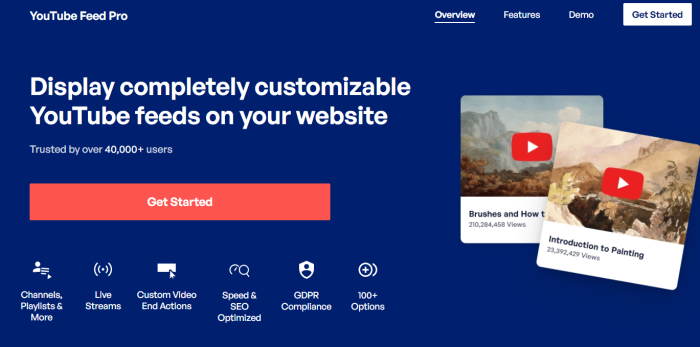
With the help of this plugin, you can create, customize, and embed feeds of YouTube videos on your website with ease.
The best part? Using this ultra-fast plugin, you can display your video testimonials on your website in under 5 minutes!
Got the videos? Now get them on your site
WordPress embeds one YouTube video per block. Pull your whole testimonial playlist into a single feed instead.
Get Smash Balloon YouTube Feed ProHow? Just follow the step-by-step tutorial below:
Step 1: Install and Activate the YouTube Feed Pro Plugin
To begin embedding your video testimonial playlist on your website, get your own copy of the Smash Balloon YouTube Feed Pro plugin here.
Once you have the plugin, just install it on your WordPress website.
Not sure about how you can do this? Check out this step-by-step guide on how to install a WordPress plugin for full instructions.
Step 2: Create a YouTube Feed
Now, you can use the guided flow to easily create a new YouTube feed to show the video testimonials.
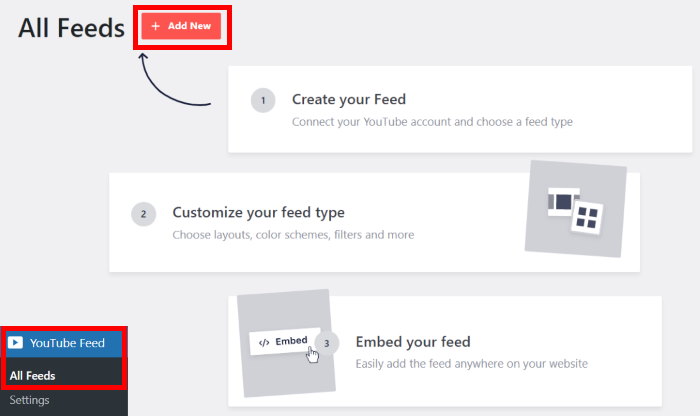
First, go to the YouTube Feed » All Feeds menu from your dashboard and click on Add New at the top.
As the most versatile YouTube plugin for WordPress, YouTube Feed Pro helps you choose from 6 feed types:
Since we want to embed a YouTube video testimonial playlist, select the Playlist feed type and then click on Next.
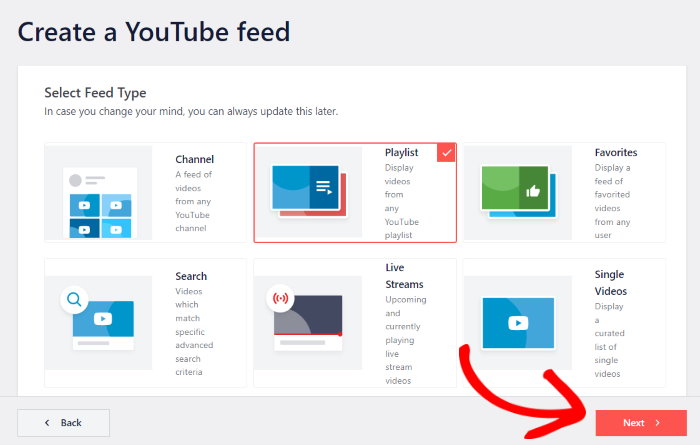
Just like that, you now have a new YouTube playlist feed for your site. Using this, you can display video testimonials and boost your sales with ease.
Step 3: Connect Your Feed to YouTube
Once you’re done creating your feed, it’s time to connect it to YouTube in this step.
For the easiest way to do this, you can simply add your YouTube API key. If you don’t have an API key yet, check out this helpful guide on creating and using an API Key.
Once you have the key, copy it and then return to your website.
Finally, paste the API key into the popup and click on Add.
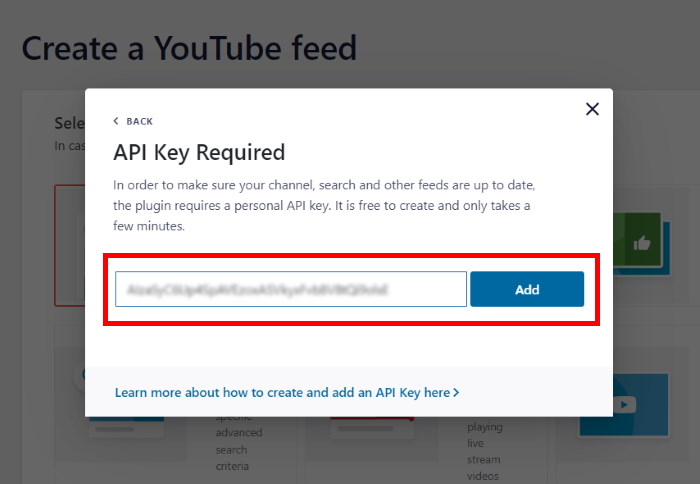
Then, you can choose the playlist that you want to display by entering your playlist ID.
To find your playlist ID, go to the YouTube playlist you want to display. The playlist ID is a string of letters and numbers shown after the “list=” symbol in your playlist’s URL.
For example, in this tutorial, we’ll embed Airbnb’s video testimonial playlist, so copy the playlist ID like this:
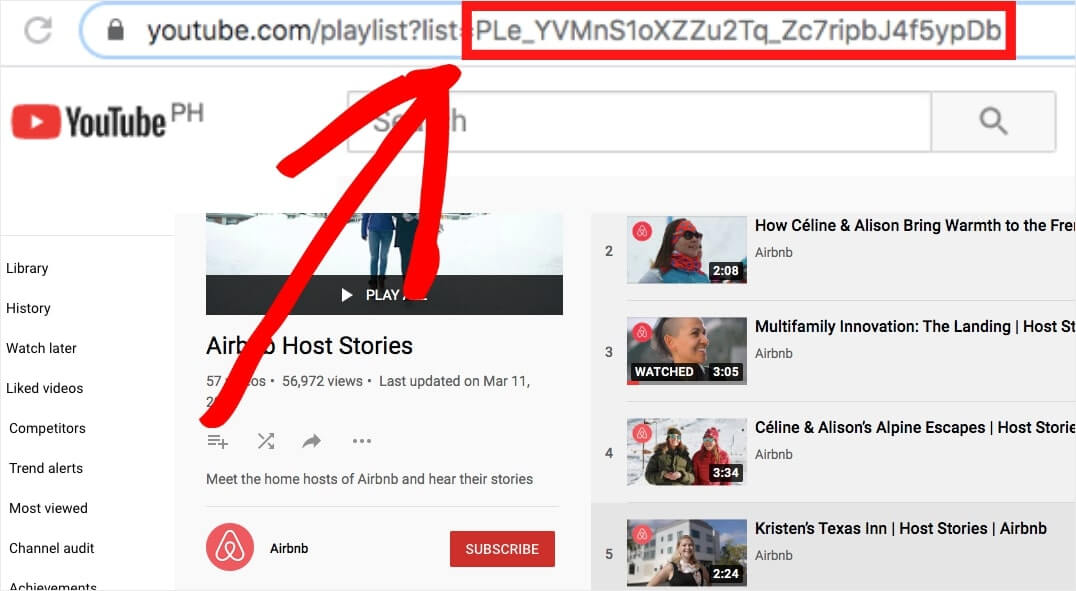
Next, paste it to the Playlist ID field in this popup to add this playlist as the source.
Remember to click the Next button after.
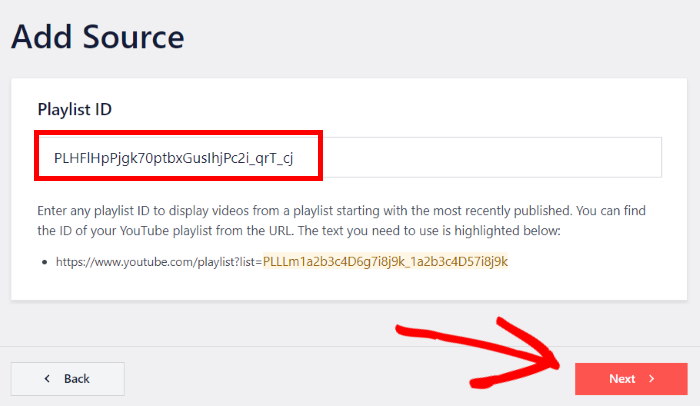
Just like that, you’ve created a YouTube feed and connected it to your video playlist.
If you want, you can skip to the final section below and learn how to embed your video testimonials on your website.
After all, the plugin already copies your website’s theme’s existing fonts and styles. So it’s consistent with your brand’s visuals.
Or, if you want to choose your video testimonial feed’s layout, learn how in step 4.
Step 4: Customize Video Testimonial Playlist
To help you easily customize your YouTube feed playlist, you can just import a pre-built template.
With this plugin, you get 8 different layouts that you can choose from:
- Default
- Carousel
- Cards
- List
- Gallery
- Latest Video
- Showcase Carousel
- Widget
Once you select a feed template, click on the Next button to continue.
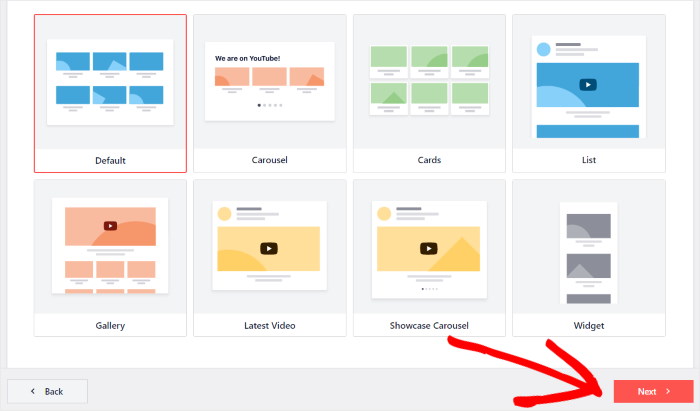
Now, the plugin will take you to the live feed editor, where you can easily customize your YouTube video playlist in a few clicks.
On the left-hand side of the editor, you can find the customization panel. Here, you can change your video testimonial playlist feed’s size, layout, color scheme, header, button design, and much more.
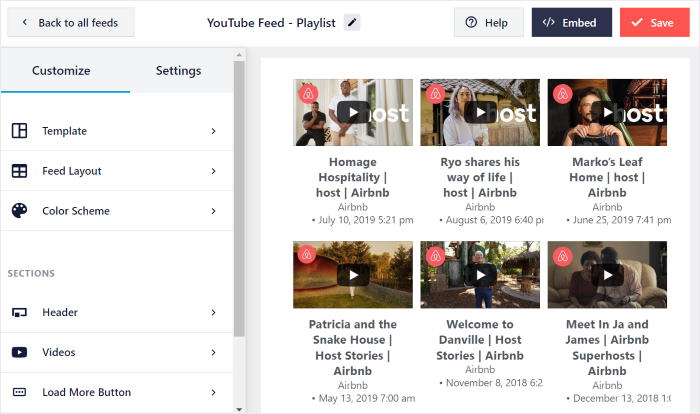
And when you make any changes, you can see how your feed looks using the live preview on the right.
Ready to start the customization? Then click on the Feed Layout option on the left.
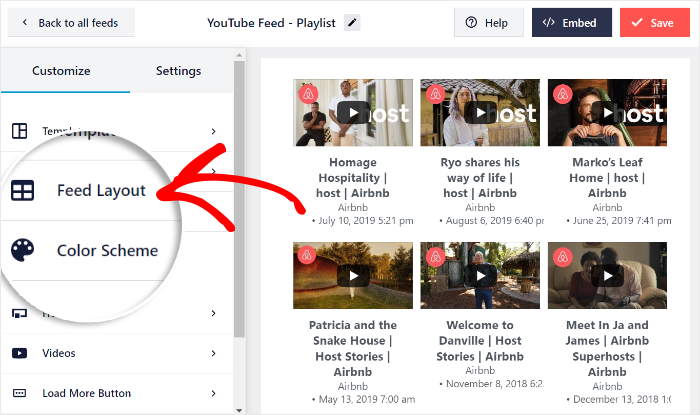
From here, you can choose from 4 layouts for your feed: Grid, Gallery, List, and Carousel.
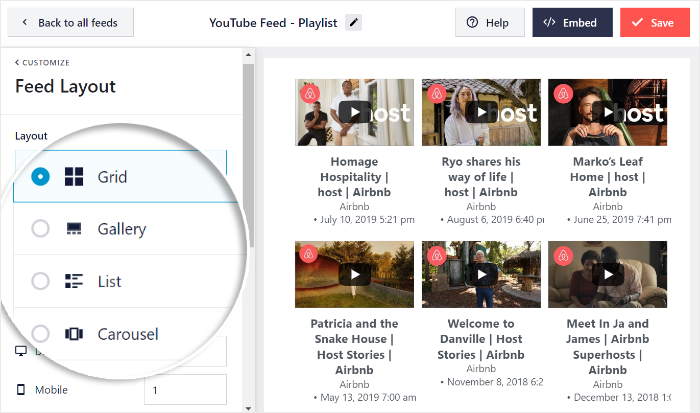
First, you have the grid layout that can show YouTube videos in simple rows and columns,
If you want to show lots of videos in a neat way, this can be the option for you.
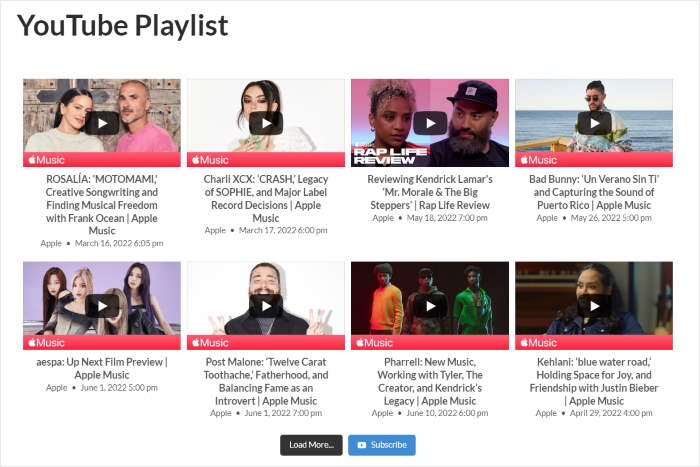
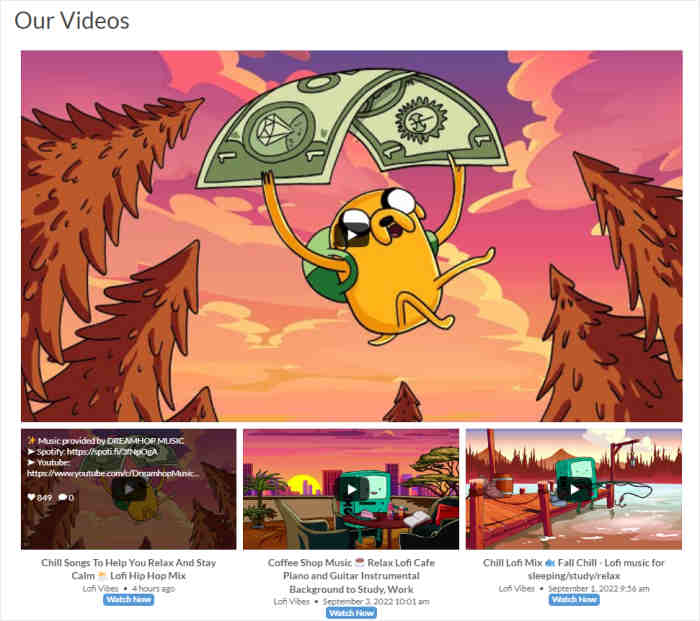
The gallery layout, on the other hand, can show one large video with small thumbnails underneath.
If you want to highlight one specific testimonial, then you can try this layout.
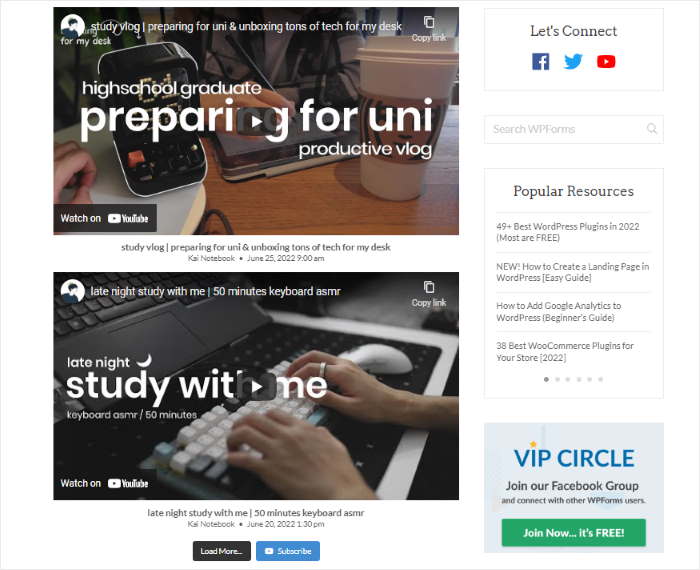
Next, you have the list layout, which shows a single column of YouTube videos. It’s a great way to make your testimonials clearly visible.
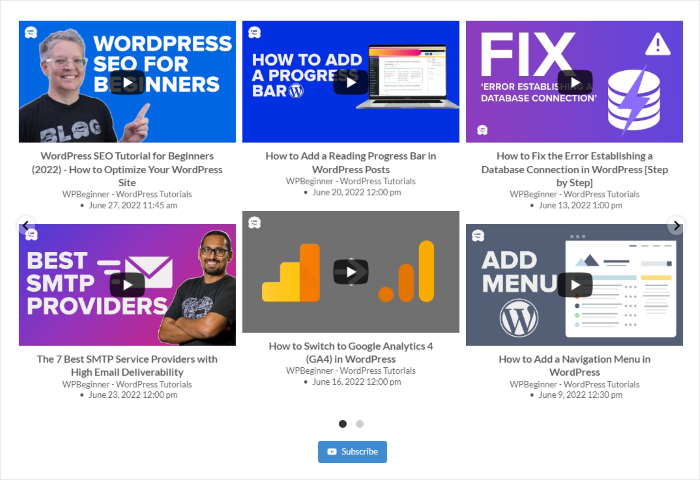
Want to make your site more engaging? You can use the carousel layout and turn your YouTube feed into an interactive slideshow.
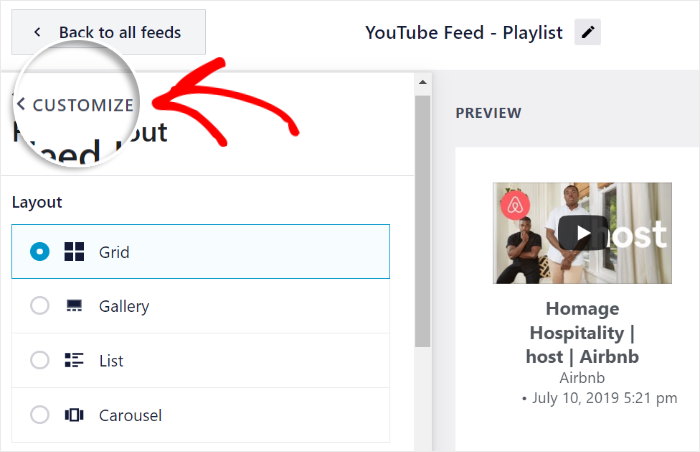
Once you select the feed layout that you prefer, click on Save to confirm your changes.
After that, you can click on Customize to return to the main customization options once again.
After that, you can use the rest of these customization options to change how your testimonial video playlist looks.
You can change your color scheme, feed size, load more button, header design, and much more in just a few clicks. Finally, click on Save to confirm your changes at the end.
Next, you can go to the final step and embed the video testimonials on your website.
Step 5: Embed Your Video Testimonial Playlist on WordPress
Using the YouTube Feed Pro plugin, you can display your video testimonials on a WordPress page or on your sidebar.
Let’s talk about both options below:
Add YouTube Videos Testimonials to WordPress Page
To start embedding your videos on a page, you can use the live feed editor as well.
First, click on the Embed button in the top right corner.
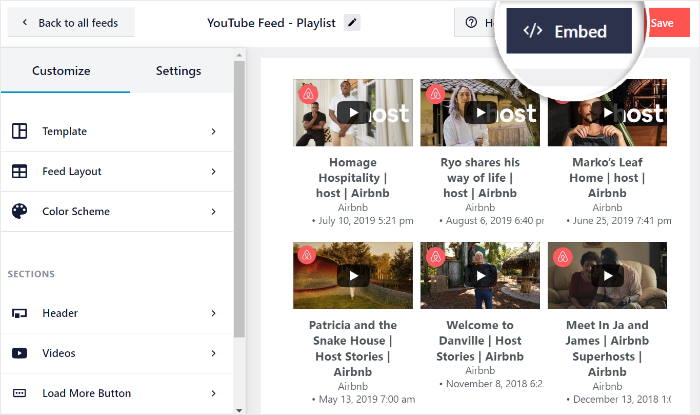
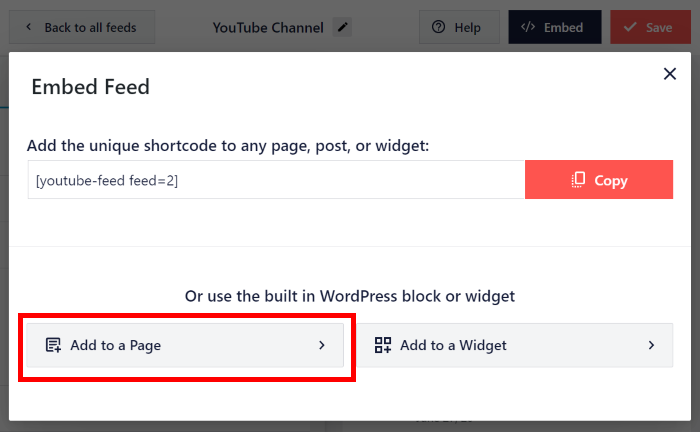
Next, you’ll see a popup that asks you to choose where you want to embed your YouTube feed.
To continue, click on the Add to a Page button here.
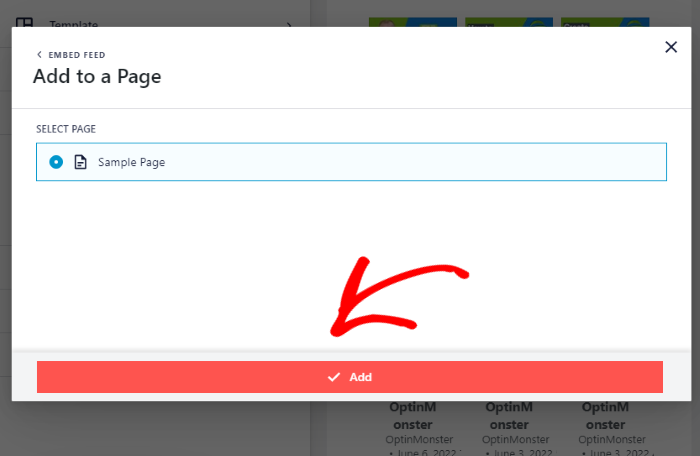
Next, the popup will show you a list of all WordPress pages that you can use.
After you select where you want to embed your video testimonials, click on Add.
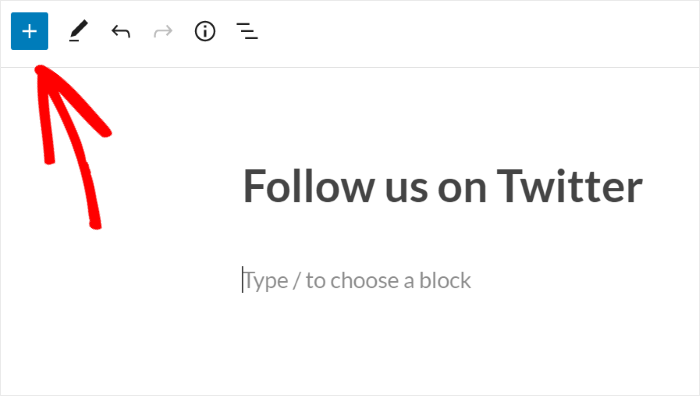
After you do that, the plugin will open the page in the WordPress editor. Here, click on the plus (+) symbol to add a new WordPress block.
Search for “youtube feed” and then click the Feeds for YouTube block to add it to your page editor.
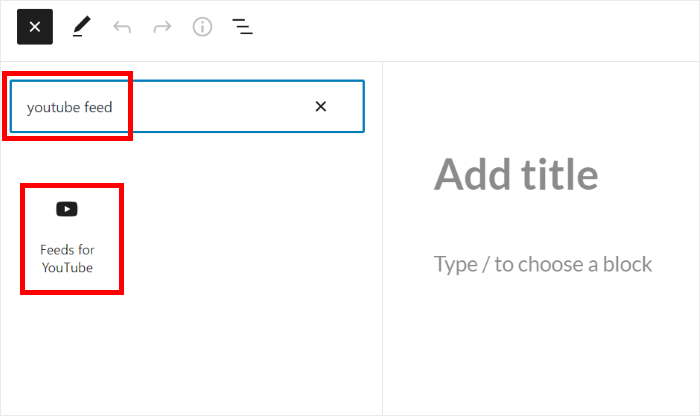
Once you’re happy with how your video testimonials look, click on Update to make them live on your site.
Now, when you visit your website, you can see your video testimonials displayed, like this:
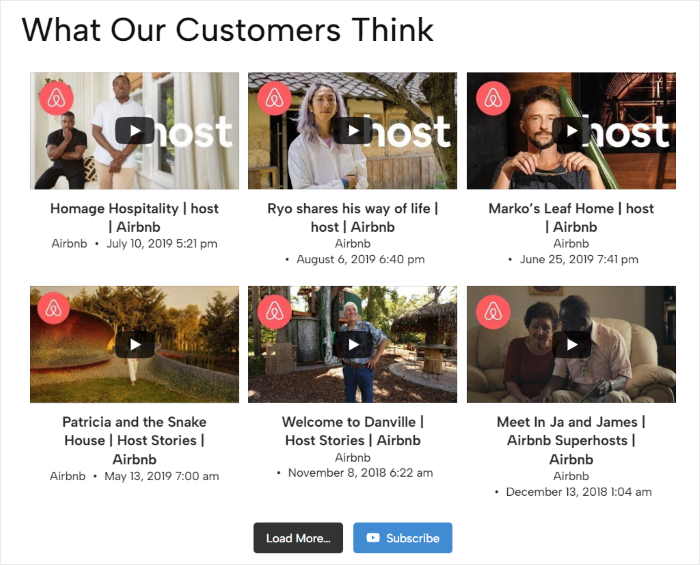
Let’s go ahead and look at the next method of embedding YouTube video testimonials.
Add YouTube Videos Testimonials to WordPress Sidebar
Want to display your video testimonials on your sidebar area instead? The plugin allows you to do this from the live feed editor.
First, go to the YouTube Feed » All Feeds menu from your dashboard to see a list of YouTube feeds that you’ve created.
You can then click on the feed that you want to embed.
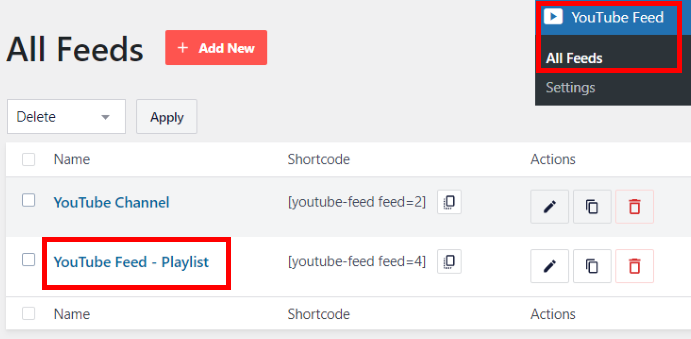
Just like that, you can open any of your YouTube feeds in the live feed editor.
From here, click on the Embed button at the top.
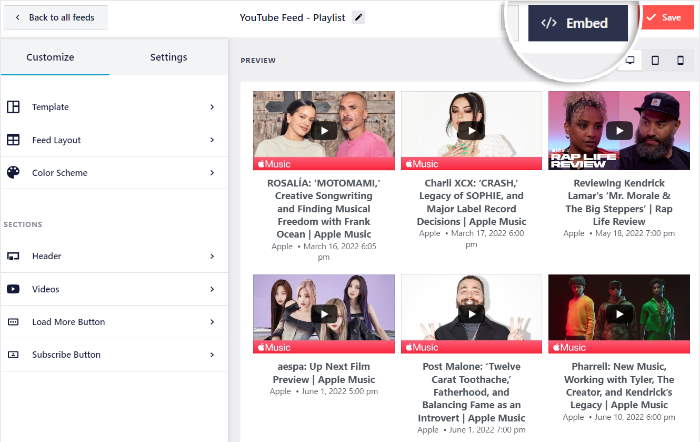
Like before, you’ll see a popup that asks where you want to embed your YouTube feed.
On the popup, click on the Add to a Widget button.
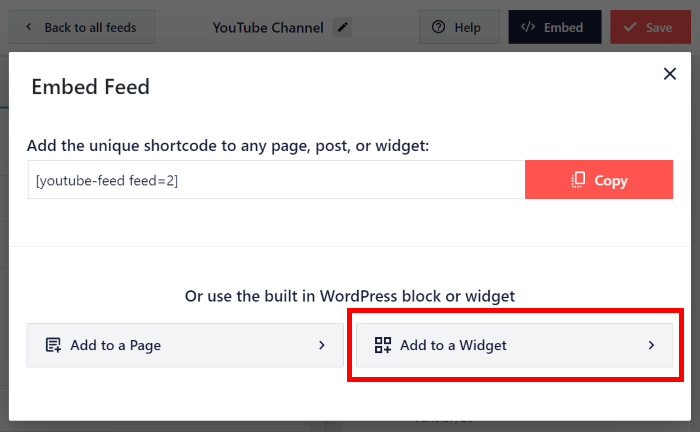
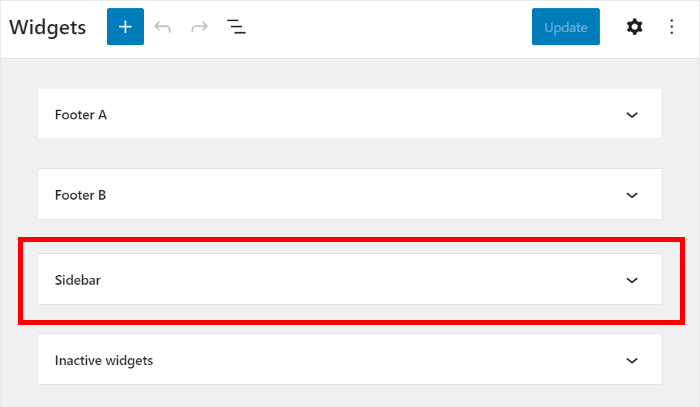
Next, you can choose to embed your YouTube video feed on your website’s sidebar or the footer.
If you want to use the sidebar, click on the Sidebar panel here.
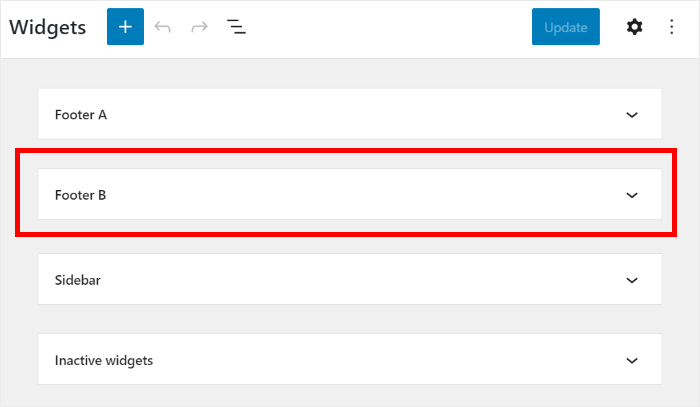
Want to use a footer instead? Then you can click on a Footer panel on this page.
For our example, we’ll go with a WordPress sidebar.
Once you do that, you can click on the plus icon (+) at the bottom to add a widget.
Next, select the Feeds for YouTube widget from the options.
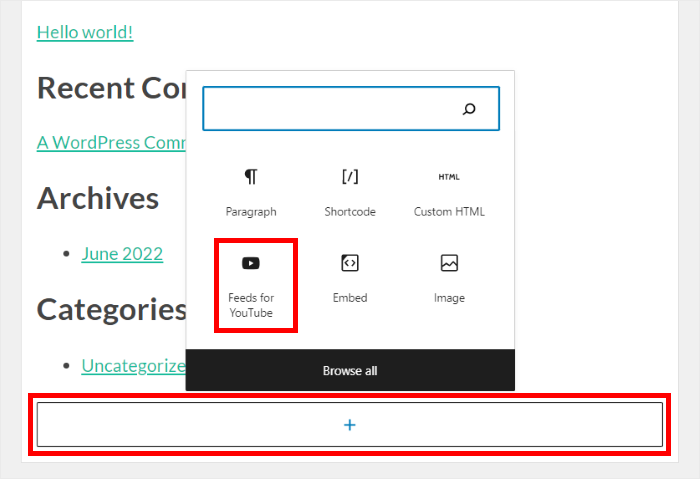
Click on Update to finalize your choices, and your YouTube testimonials will be live on your site.
When you check out your sidebar area, you can see your video testimonials embedded automatically, like this:
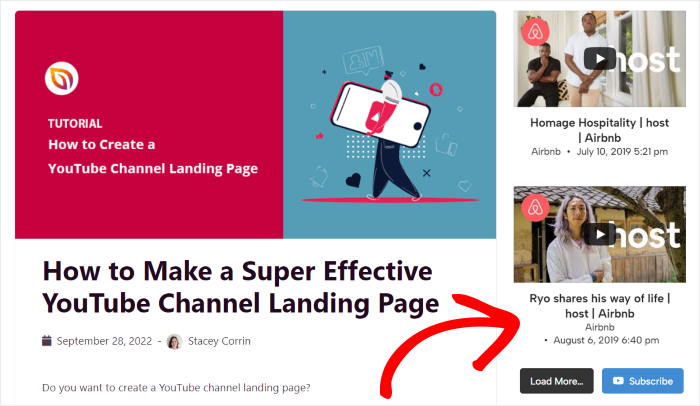
Now that you know how to embed video testimonials, let’s see how you can take it a step further and embed tons of online testimonials.
How to Embed Online Testimonials on WordPress
Another great way to boost your sales and get more engagement is to embed customer reviews and testimonials from trusted websites.
And when it comes to displaying online testimonials, the simplest way is to use Smash Balloon Reviews Feed Pro.
As the fastest growing reviews aggregator plugin, you can use it to create, customize, and embed feeds of customer testimonials in a few simple clicks.
And that’s just the start! Here are a few more amazing features you can get with the Reviews Feed Pro plugin:
- With this plugin, you can embed testimonials from trustworthy platforms like Google, Tripadvisor, Facebook, and Yelp.
- To create your testimonial feeds with ease, Reviews Feed Pro comes with a guided flow that’ll take you through the whole process of creating, customizing, and embedding review feeds.
- You can use the moderation options to directly control which testimonials show up on your site or choose to hide specific reviews.
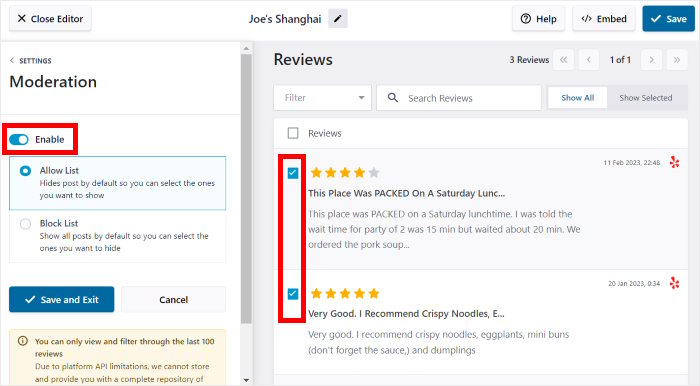
- You can choose to only show testimonials with specific star ratings and create a great impression of your brand.
- Using the visual customizer, you can change the design of your testimonials in just a few simple clicks with a real-time preview to help you out.
- Since the plugin has a convenient WordPress block, embedding your testimonial feed is easier than ever. No need for HTML, CSS, or any kind of code.
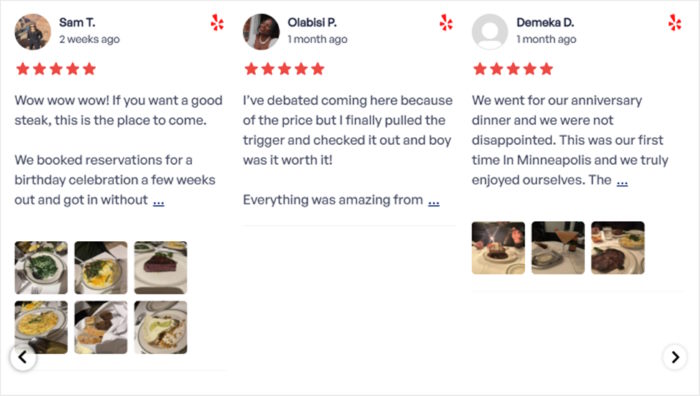
The best part?
The plugin comes with an expert support team who are always ready to lend you a hand. You can reach out to them any time if you want help or have any questions.
Ready to embed online testimonials with ease? Get your copy of Smash Balloon Reviews Feed Pro here!
And there you have it!
Now, you can increase your conversion rates by creating and displaying effective video testimonials on your website.
With the help of YouTube Feed Pro, you can embed video testimonials on your website in just a few easy clicks with no need to touch a single line of code.
Ready to display video testimonials? Get started with Smash Balloon YouTube Feed Pro here.
Interested in video marketing on different social media platforms? You can check out our next post on how to embed a Facebook video in WordPress.
And, if you enjoyed this ultimate guide for video testimonials, please follow us on X/Twitter and Facebook for more useful tutorials.