Social Wall
  Feed Analytics

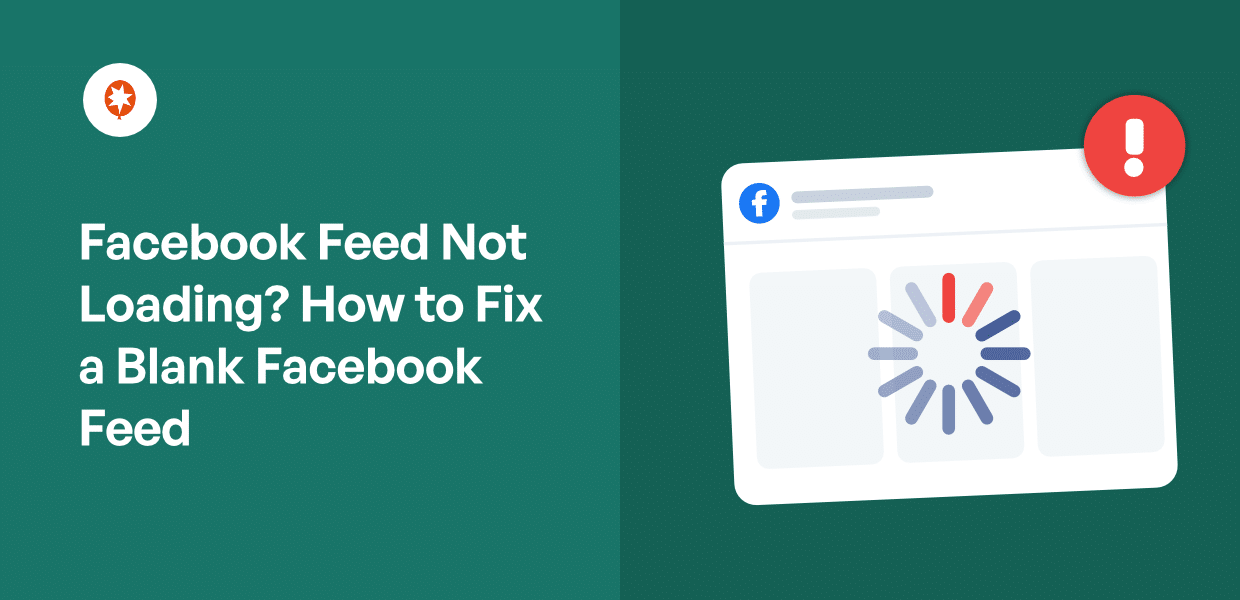
Your Facebook feed is blank. It worked last week, the shortcode or block is still on the page, and WordPress isn’t telling you why.
Usually the culprit is a site-optimization plugin. It strips, delays, or lazy-loads the feed’s script before that script can draw anything. The fix is exclusion, not deactivation. You don’t have to choose between your PageSpeed score and your feed.
I work at Smash Balloon, and I confirmed every step below in a live Custom Facebook Feed install, including the cache schedule that makes a correct fix look like a failed one.
You’ll run a 30-second check, find which of four problems you have, and get your Page feed rendering again with your speed plugin still on.
In this Article:
- Quick Answer: Why Is My Facebook Feed Blank?
- First, Figure Out Which of the 4 Problems You Have
- Add Smash Balloon to All Three Exclusion Lists
- Check That Your Facebook Source Is Still Connected
- Clear the Feed Cache, In This Order
- When the Feed Is Blank on Only Some Pages
- A Facebook Feed That Stays Visible, Not Just Set Up
Quick Answer: Why Is My Facebook Feed Blank?
Most blank Facebook feeds come from a site-optimization plugin that defers, minifies, or lazy-loads Smash Balloon’s script, so the feed never gets a chance to render.
Four things cause this. In rough order of likelihood:
- Optimization plugin conflict. WP Rocket, Autoptimize, or Perfmatters blocks the feed’s JavaScript file.
- Invalid source or expired token. The connection between your site and your Facebook Page has broken.
- Stale feed cache. You already fixed it, but the plugin is still showing you the saved copy from before.
- Page-builder or template placement. The feed sits in an Elementor or theme area that loads differently.
Here’s the fastest way to tell them apart. If the feed area is truly empty, it’s cause 1, 3, or 4. If you see error text where the feed should be, it’s cause 2.
That one distinction saves you the guesswork.
First, Figure Out Which of the 4 Problems You Have
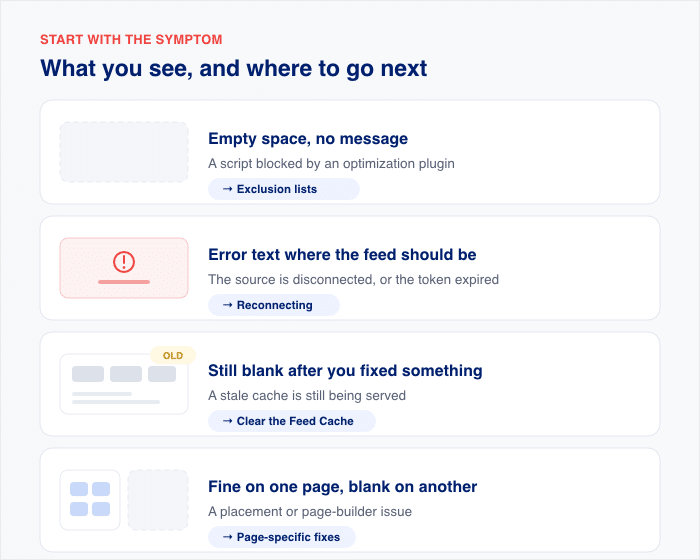
What does your blank feed area actually look like? That answer tells you which fix to run.
It’s worth 30 seconds before you change anything.
In the table below, you can find your symptom in the left column. Then go straight to that section.
| What you see | What it usually means | Where to go next |
|---|---|---|
| Empty space, no message | Script blocked by an optimization plugin | Exclusion lists section |
| Error text in the feed area | Source disconnected or token expired | Reconnecting section |
| Still blank after you fixed something | Stale cache | Clearing cache section |
| Fine on one page, blank on another | Placement or builder issue | Page-specific section |
There’s one variant worth calling out. The feed looks perfect while you’re logged in, but visitors report a blank space.
That’s not a broken feed. You’re being served an uncached version of the page, and your visitors are getting the optimized one.
So open the page in a private or incognito window before you change a single setting. This is the first thing to check, because it tells you whose version is broken.
Add Smash Balloon to All Three Exclusion Lists
Most people add the exclusion in one place, see no change, and give up.
Here’s the short answer. There are three separate exclusion lists, and missing any one of them leaves your feed blank.
Start with the plugin’s directory path. Copy the one that matches your version:
- Pro:
/wp-content/plugins/custom-facebook-feed-pro/ - Free:
/wp-content/plugins/custom-facebook-feed/
That path needs to go in all three of these lists:
- JavaScript and minify exclusions
- Delay JavaScript execution exclusions
- Lazy load exclusions
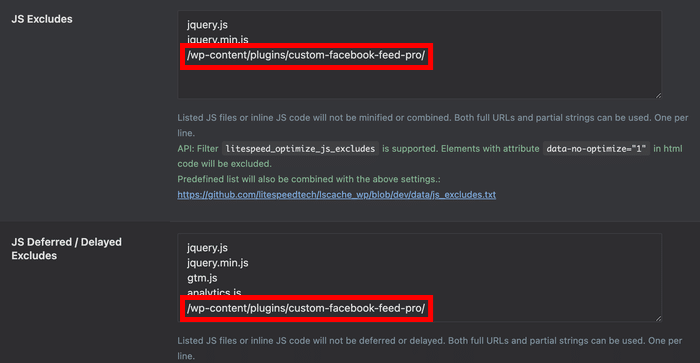
Here’s where those fields live in the popular optimization plugins:
- WP Rocket: File Optimization for lists 1 and 2, Media for list 3.
- Autoptimize: the JavaScript optimization exclusion field.
- Perfmatters: Assets for script exclusions, plus the delay JS and lazy load exclusion boxes.
Once you set up the exclusions, your social feed still renders, and the rest of your site stays optimized.
Save your changes, then clear your caching plugin and reload the page in a private window.
Flip Two Settings Inside the Plugin
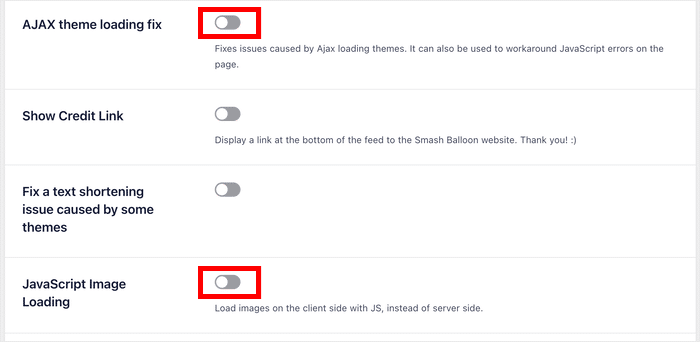
The exclusion lists are only half the job. Two toggles inside Custom Facebook Feed handle the rest.
Open Facebook Feed » Settings from your dashboard and select the Advanced tab to find the options.
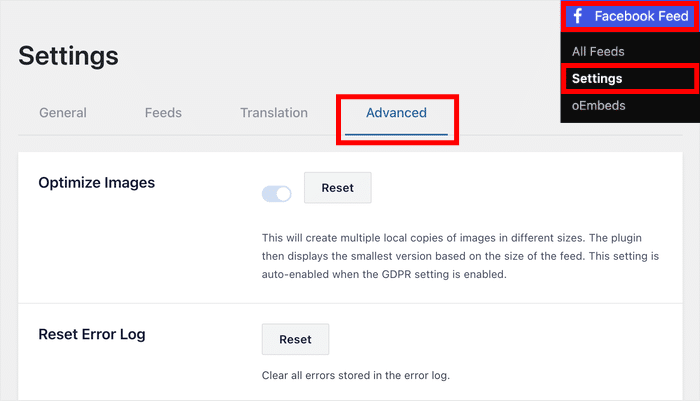
- AJAX theme loading fix: Turn it on, save, and reload the page. If your feed comes back, that was it. If nothing changes, turn it back off.
- JavaScript Image Loading. If this one is already switched on, switch it off. It’s the setting to check when the feed frame appears, but the images inside it don’t.
Not sure which plugin is causing the block? Our guide on what to do when your feed stopped working after a theme change walks you through isolating the conflict one plugin at a time.
Check That Your Facebook Source Is Still Connected
Seeing a message where your posts should be? Then WordPress isn’t the problem. The connection between your site and Facebook has broken.
Here’s how to reconnect it:
- Head to Facebook Feed » Settings in your WordPress dashboard, then open the Sources tab.
- Find the source marked invalid.
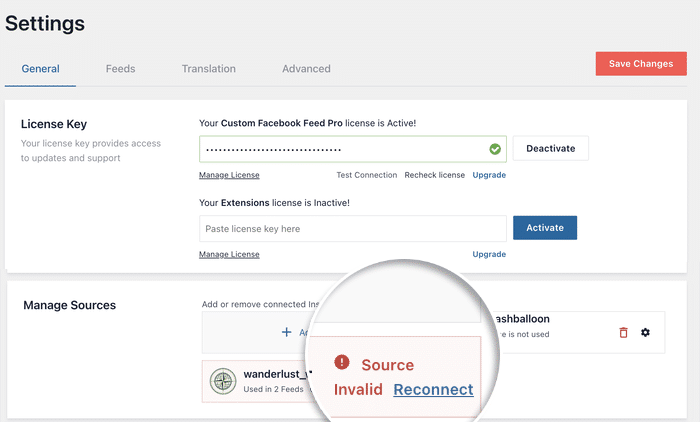
- Click Reconnect if the button is there.
- If there’s no Reconnect button, click the red trash icon, then Add Source.
- Click Connect to Facebook and confirm the source.
- Confirm permissions on Meta’s screen, then Save.
Something on the Facebook side usually triggers this, and it’s easy to miss. A Facebook page role change, a business asset transfer, or a password reset can invalidate a working token overnight.
Nothing changed on your website. The token that let your site read the Facebook page simply stopped being valid.
If the reconnect flow feels unfamiliar, our full walkthrough on how to add a Facebook feed to your WordPress website covers the source connection step by step.
Clear the Feed Cache, In This Order
Your feed keeps a saved copy of itself. That’s why your posts stay on the page even when Facebook’s API goes down.
The same thing happens right after you fix something. You’re still seeing the saved copy. The fix worked, the page just hasn’t caught up yet.
Clear your caches in this order, and check the page after the first one. That step is usually all it takes.
- Facebook Feed » Settings » Feeds, then click “Clear All Caches”
- Your caching plugin
- Your host’s cache
- Your CDN
- Your browser
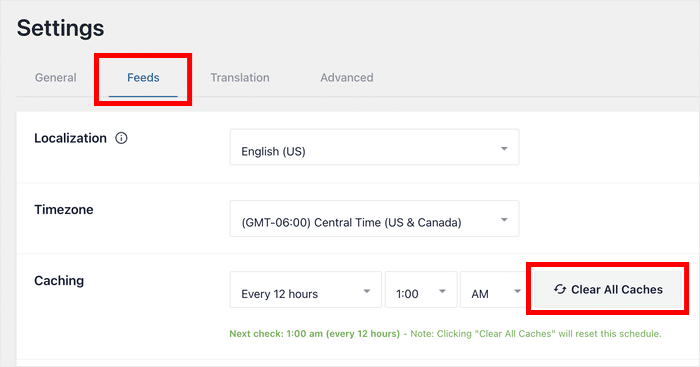
Order matters here. If you start from the outside and clear your CDN first, it just pulls the stale copy from the layer below and saves it again.
You work from the source outward. Feed first, browser last.
And no, clearing the feed cache doesn’t touch your design. It refreshes posts only. Your layout, colors, and settings stay exactly as you left them.
When the Feed Is Blank on Only Some Pages
Fine on the homepage, blank on your Elementor page? The feed isn’t broken. The placement is.
| What’s on that page | Why it breaks | Fix |
|---|---|---|
| Shortcode in a builder text widget | The builder renders it on its own terms, so the script can run before there’s anything to draw into | Swap it for the Facebook Feed block or Elementor widget |
| Feed inside a tab, accordion, or modal | The container hasn’t rendered when the script fires | Settings » Advanced, turn on the AJAX theme loading fix |
| Template area that loads over Ajax | Same timing problem, different trigger | Same fix, AJAX theme loading fix |
| A page-level optimization rule | WP Rocket and Perfmatters let you override global settings per page, and it’s easy to forget one is set | Check that page’s rule and add the plugin path there too |
Whatever you change, reload in a private window before you judge it. A cached copy will show you the old version and send you chasing a problem you already fixed.
Fix it once, and let the plugin watch it from here
Smash Balloon Facebook Feed Pro keeps a local copy of your posts, so your feed stays on the page even when Facebook’s API goes down, and emails you the moment something breaks. Backed by a 14 day money back guarantee.
Get Facebook Feed ProA Facebook Feed That Stays Visible, Not Just Set Up
You’ve found your symptom, applied the fix, and cleared the caches in the right order. Your feed is back.
So how do you find out the next time it isn’t?
Two settings in Custom Facebook Feed handle that for you, and both are on by default. You don’t have to switch anything on.
The exclusions you added earlier are what keep this particular conflict from coming back. These two cover what exclusions can’t reach.
- Feed Issue Email Reports. The plugin’s own description says that if your feed is down due to a critical issue, it will switch to a cached version of your feed and notify you. So a Facebook API outage shows visitors your last good posts instead of an empty box, and you find out by email.
- Admin Error Notice. Errors appear in the bottom right corner of your site, and only logged-in admins see them. This one reports problems. It does not decide whether your feed renders, so leaving it on costs your visitors nothing.
I’d leave both on. They’re the difference between finding out from the plugin and finding out from a customer.
Here’s the thing about those safety nets. They only exist because someone built them on purpose.
Facebook Feed Pro is made by Smash Balloon, the team behind social feed plugins with over 1.75 million users, which is a lot of happy websites.
Grab Facebook Feed Pro and let the plugin catch the problem before your visitors do.