Social Wall
  Feed Analytics

Someone lands on your homepage, likes what they see, and starts to wonder whether other customers were happy. The answer is already out there on Google, Trustpilot, or Facebook. It just isn’t on the page they’re reading.
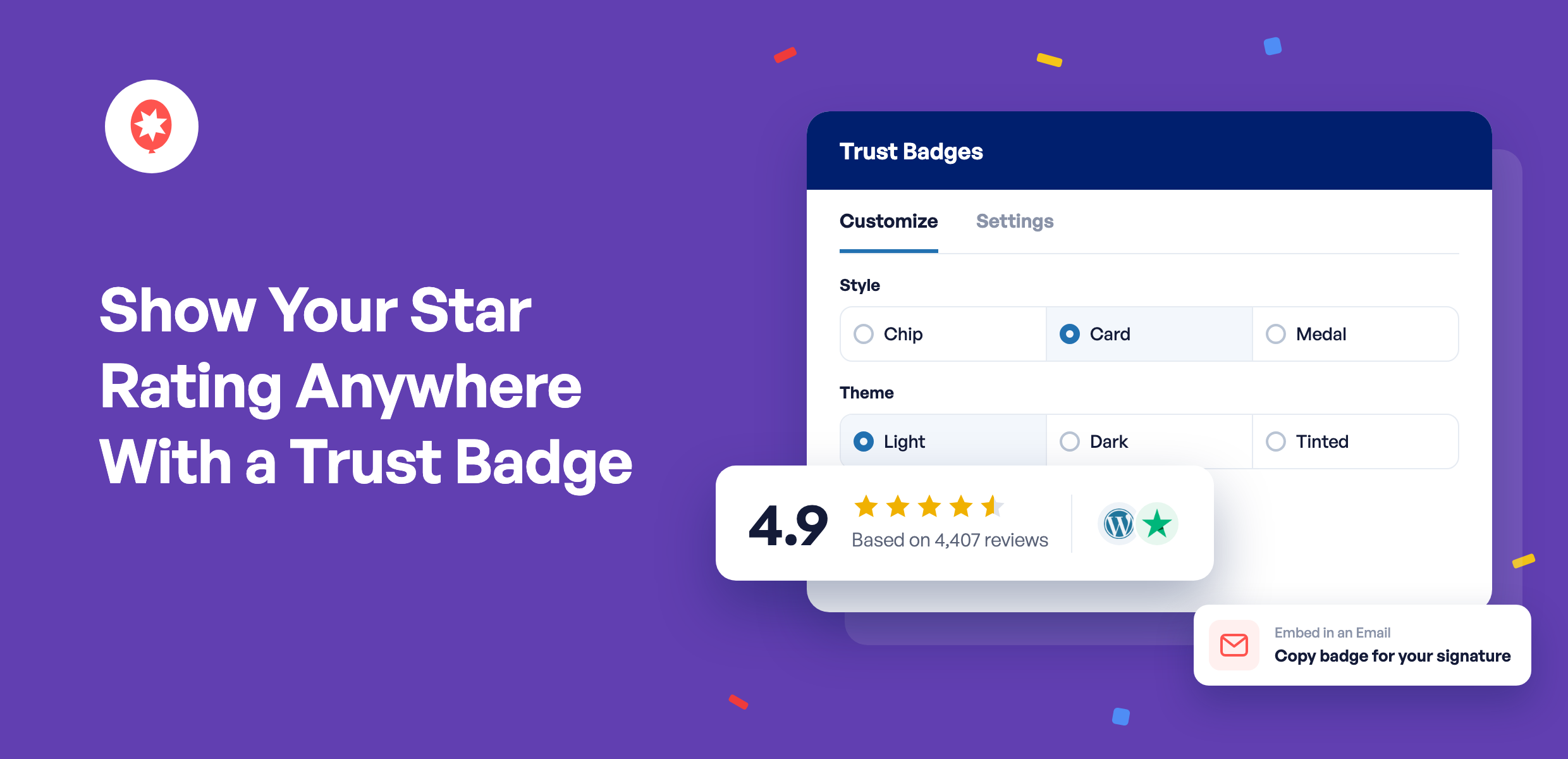
Trust Badges in Smash Balloon Reviews Feed Pro put it there. You build a small badge that shows your star rating and how many reviews it’s based on, then place it on any page, in your footer, or in your email signature.
If you haven’t tried it, Reviews Feed Pro is the Smash Balloon plugin that brings your reviews from sites like Google, Yelp, Trustpilot, and Facebook onto your WordPress site, no code needed. Trust Badges come with the Plus and Elite plans and the All Access Bundle.
With a Trust Badge, you can:
- Show your star rating and review count on any page, along with the logos of the sites it comes from
- Combine several review sites into one rating
- Pick a style and colors that fit your site
- Use the same badge on your homepage, in your footer, and in your email signature
- Change it once and have every copy update
Already showing your Instagram or Facebook feed with Smash Balloon? Your feed shows people what you do. A badge with your star rating shows them how other customers felt about it.
Your Rating Sits Right Where Visitors Decide
A badge is small enough to go under a headline, beside a Buy button, or in a footer, so visitors see your rating without scrolling to a reviews section. It shows your average rating, the stars, the number of reviews behind it, and the logos of the review sites it comes from.
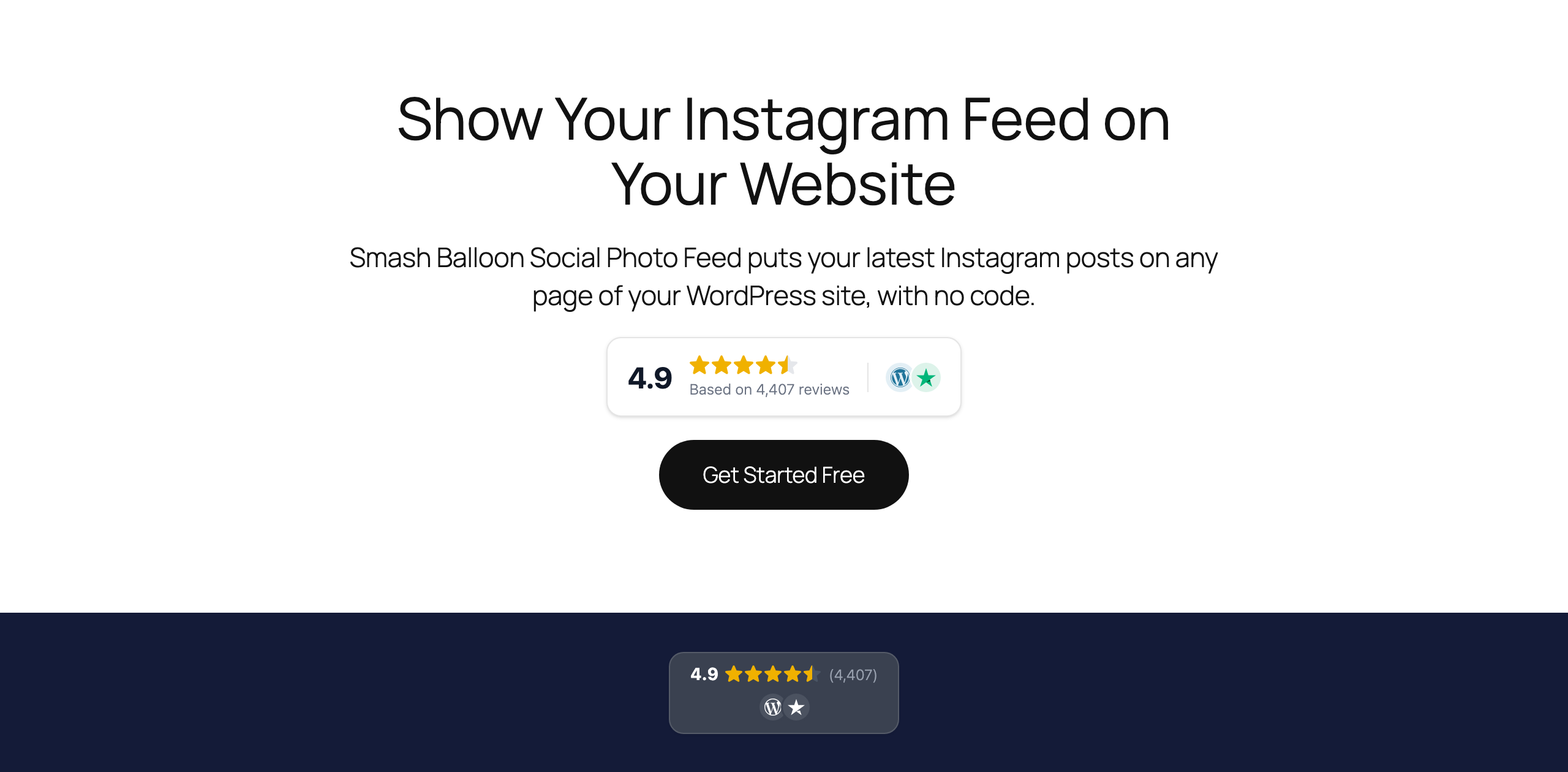
The number comes from the reviews you’ve already connected in Reviews Feed Pro, so you never type a rating in by hand. As the plugin picks up new reviews, the badge keeps up.
Get One Rating From All Your Review Sites
Have reviews on Google and Trustpilot? Or Yelp, Facebook, and WooCommerce? Pick as many sources as you like and the badge shows one combined rating. It’s weighted by how many reviews each site has, so a site with 4,000 reviews counts for more than one with 20. The logos on the badge show visitors exactly where the rating comes from.
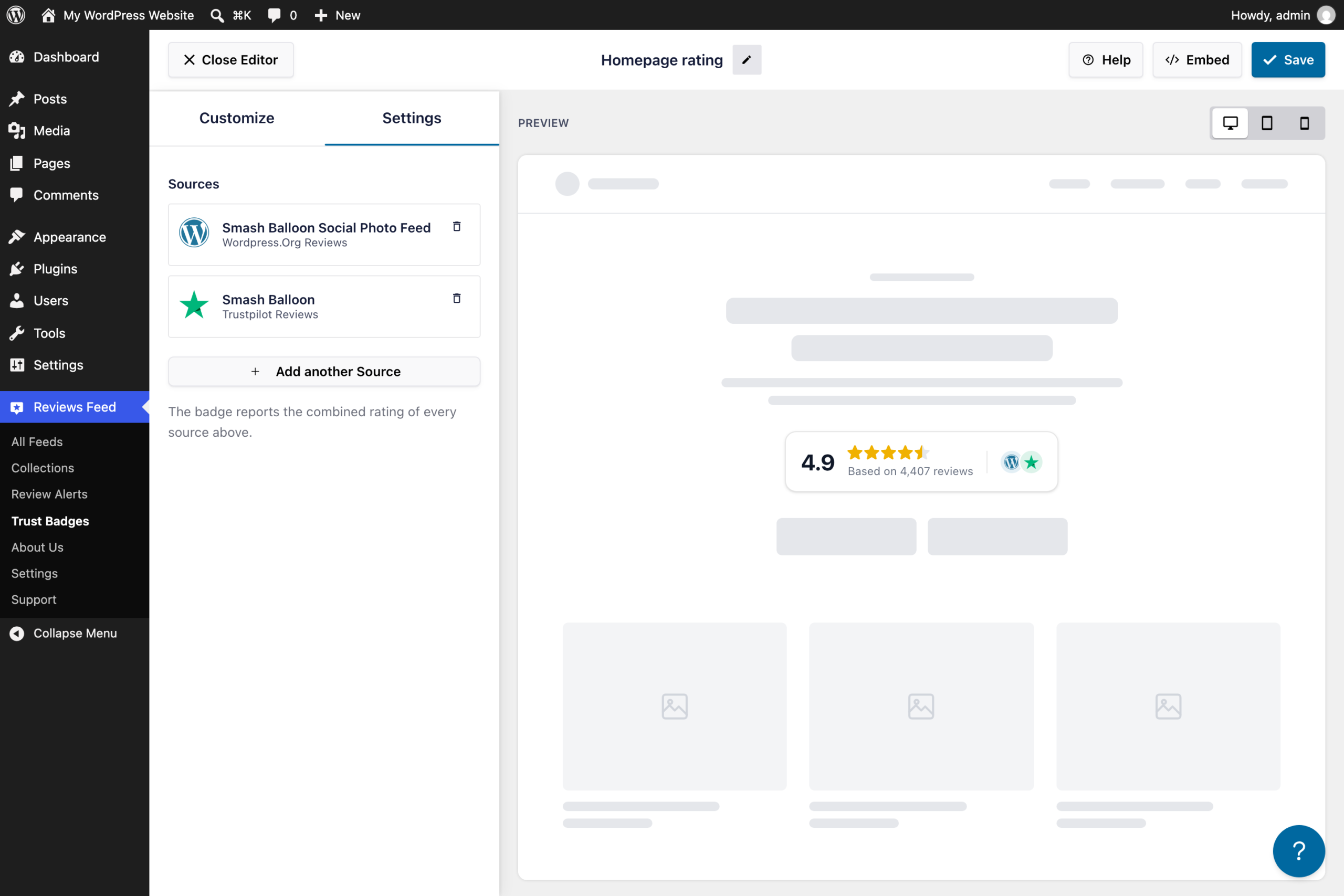
Booking.com works a little differently, on purpose. A badge that only uses Booking.com keeps the 0 to 10 score guests already know from Booking.com, instead of turning it into stars.
Make the Badge Match Your Site
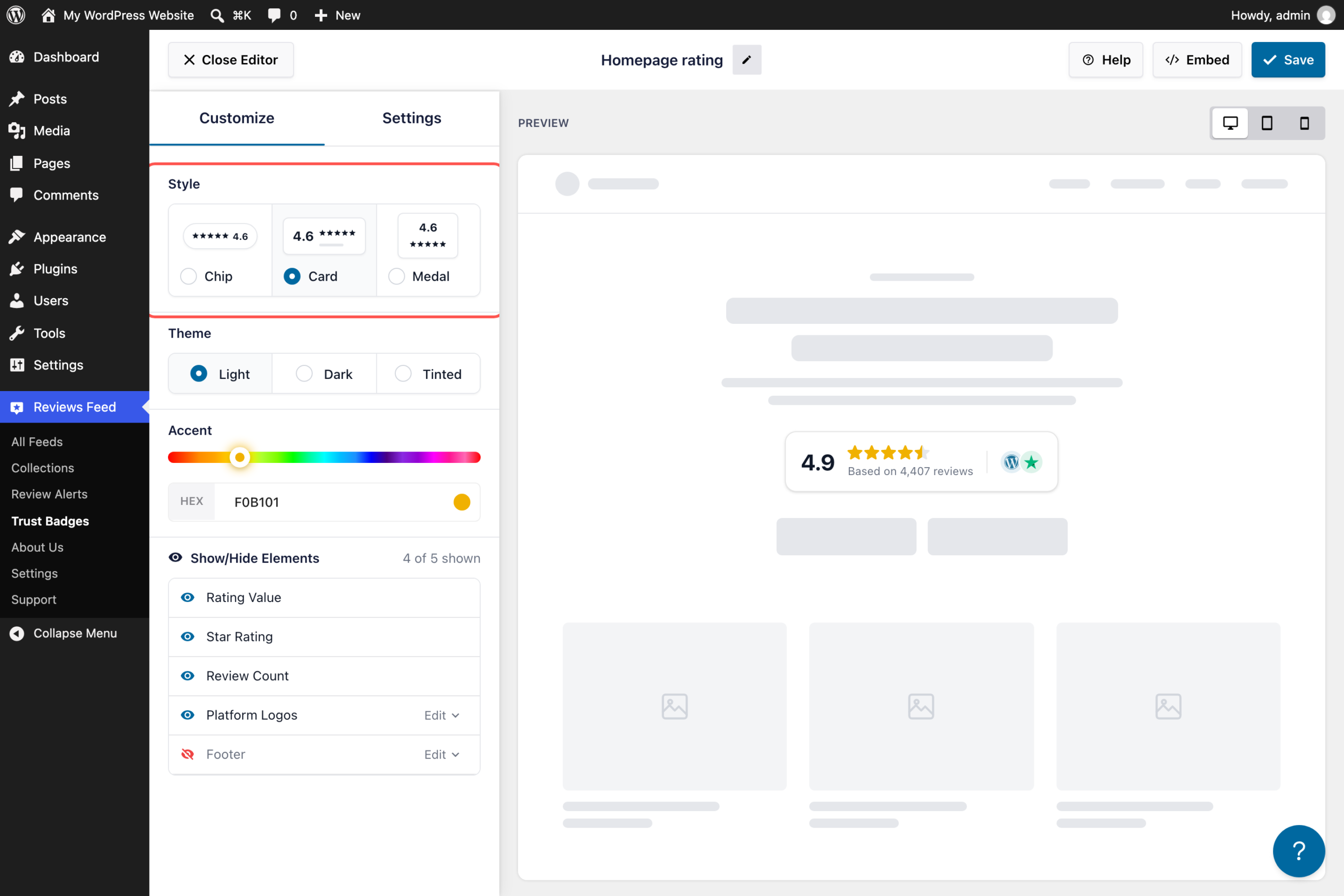
There are three styles, each made for a different spot on the page:
- Chip is slim and fits in a header, a footer, or right next to a button.
- Card is a bit bigger and spells out how many reviews your rating is based on, so it suits a homepage or landing page.
- Medal stacks your rating, stars, and review count in one centered block, so it stands out on a pricing page or an About page.

Each style comes in a Light, Dark, or Tinted theme. The Accent slider sets the star color, and on a Tinted badge the Tint slider sets the badge color, so you can match your brand. You can also hide any part you don’t want, like the review count or the logos.
Ready to show your rating on every page?
Trust Badges come with Reviews Feed Pro Plus and Elite and the All Access Bundle. Build one in a few minutes and put it anywhere on your site. Backed by a 14-day money back guarantee.
Get Reviews Feed ProPut It Anywhere, Change It in One Place
You make a badge once and then place it wherever you want it:
- On a page or post. Pick the page, and Reviews Feed Pro opens it in the editor with your badge already added. Save the page and it’s live.
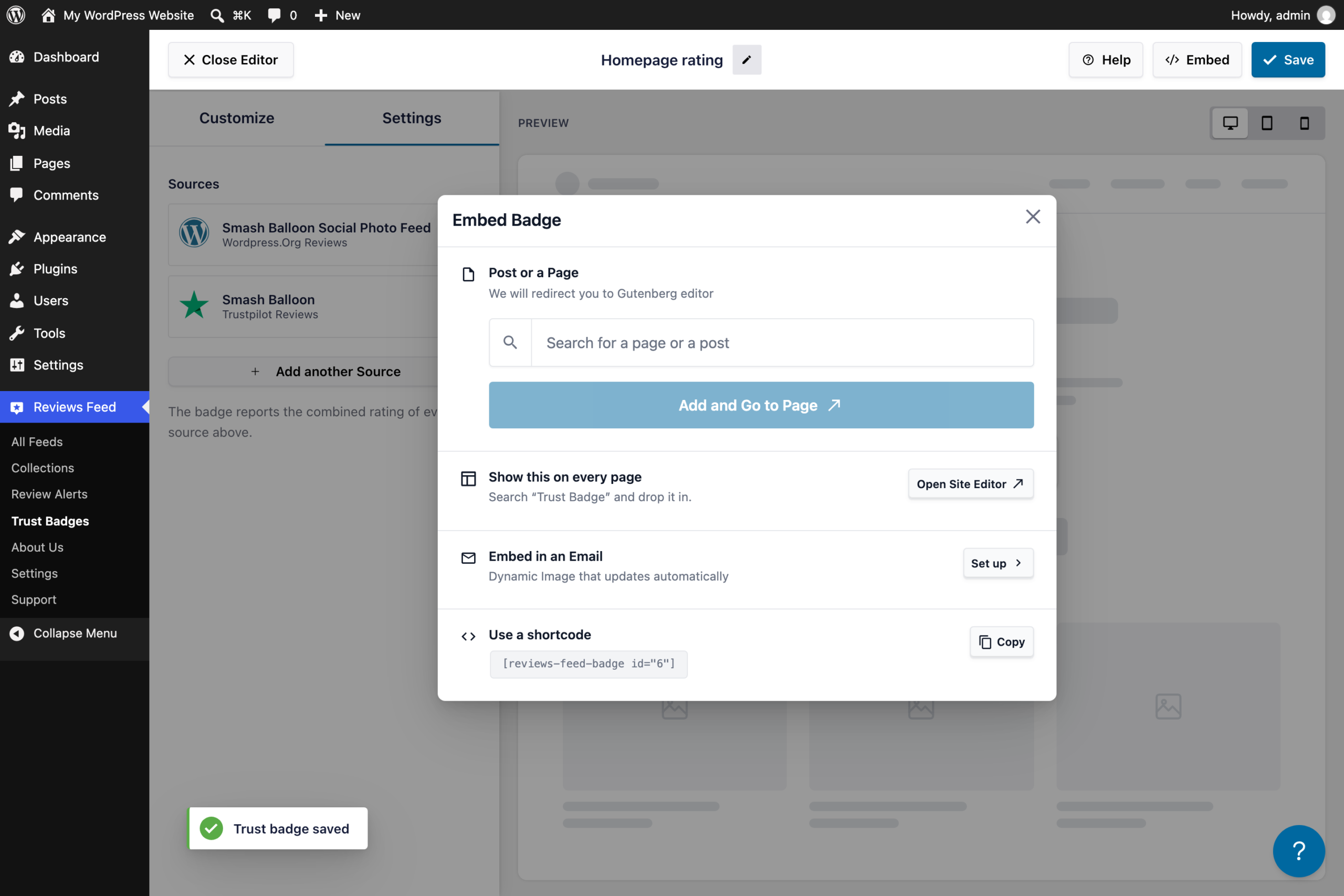
- On every page. Add the Trust Badge block to your site’s header or footer in the Site Editor, or use the Trust Badge widget in a classic sidebar.
- In a page builder. Copy the badge’s shortcode, a short piece of text you paste where you want the badge to appear. In Elementor, it goes in the Shortcode element.
- In your email signature. Copy the badge as an image and paste it into your signature.
Since every placement uses the same saved badge, changing its style or sources later updates all of them at once. The Trust Badges list shows how many places each badge is used, so you always know where it lives.
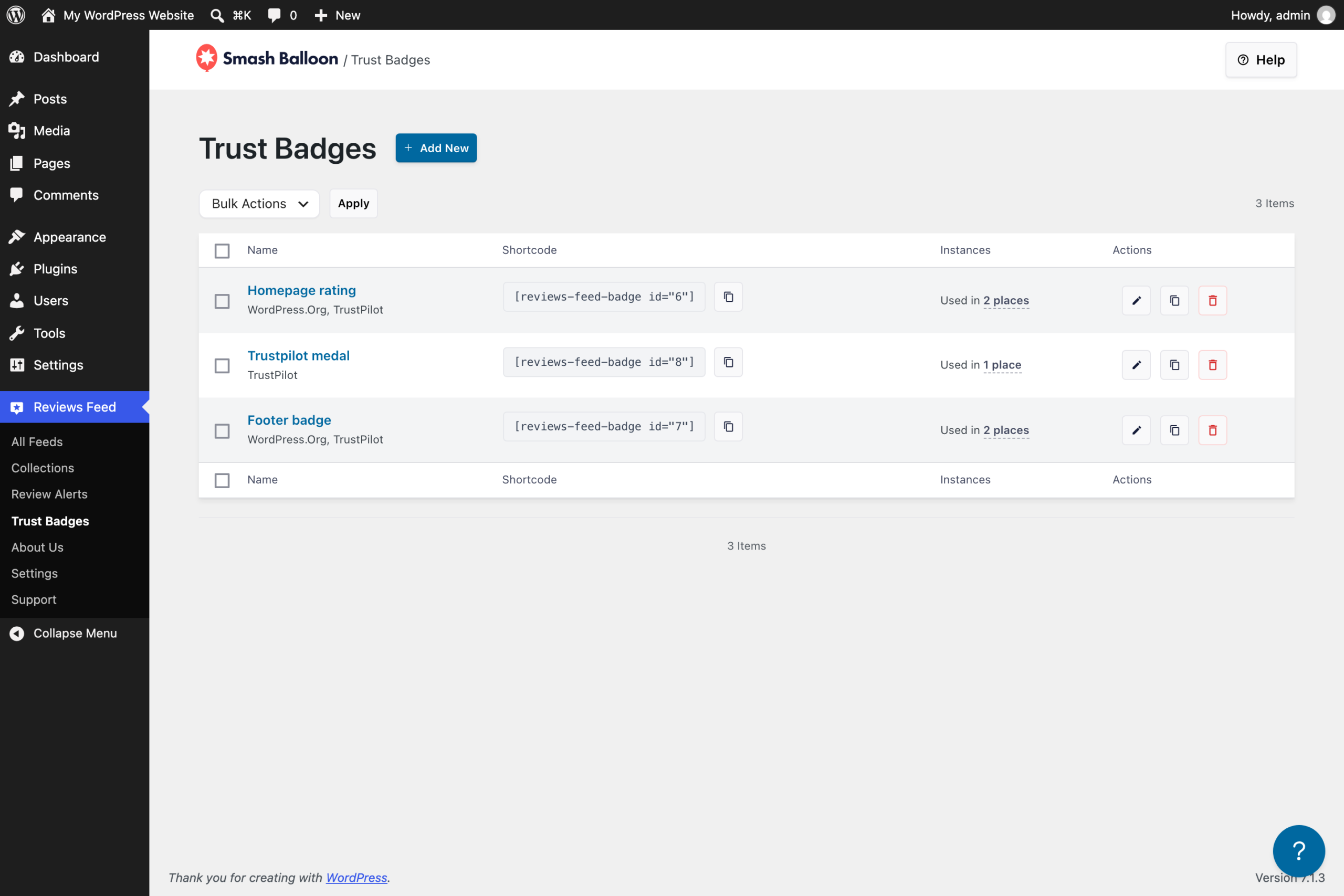
Your Rating in Every Email You Send
Quotes, booking confirmations, and follow-ups are all chances to show you’re trusted. The email version of your badge is an image served from your own website, so it shows your latest rating instead of staying stuck on the one from the day you set it up.
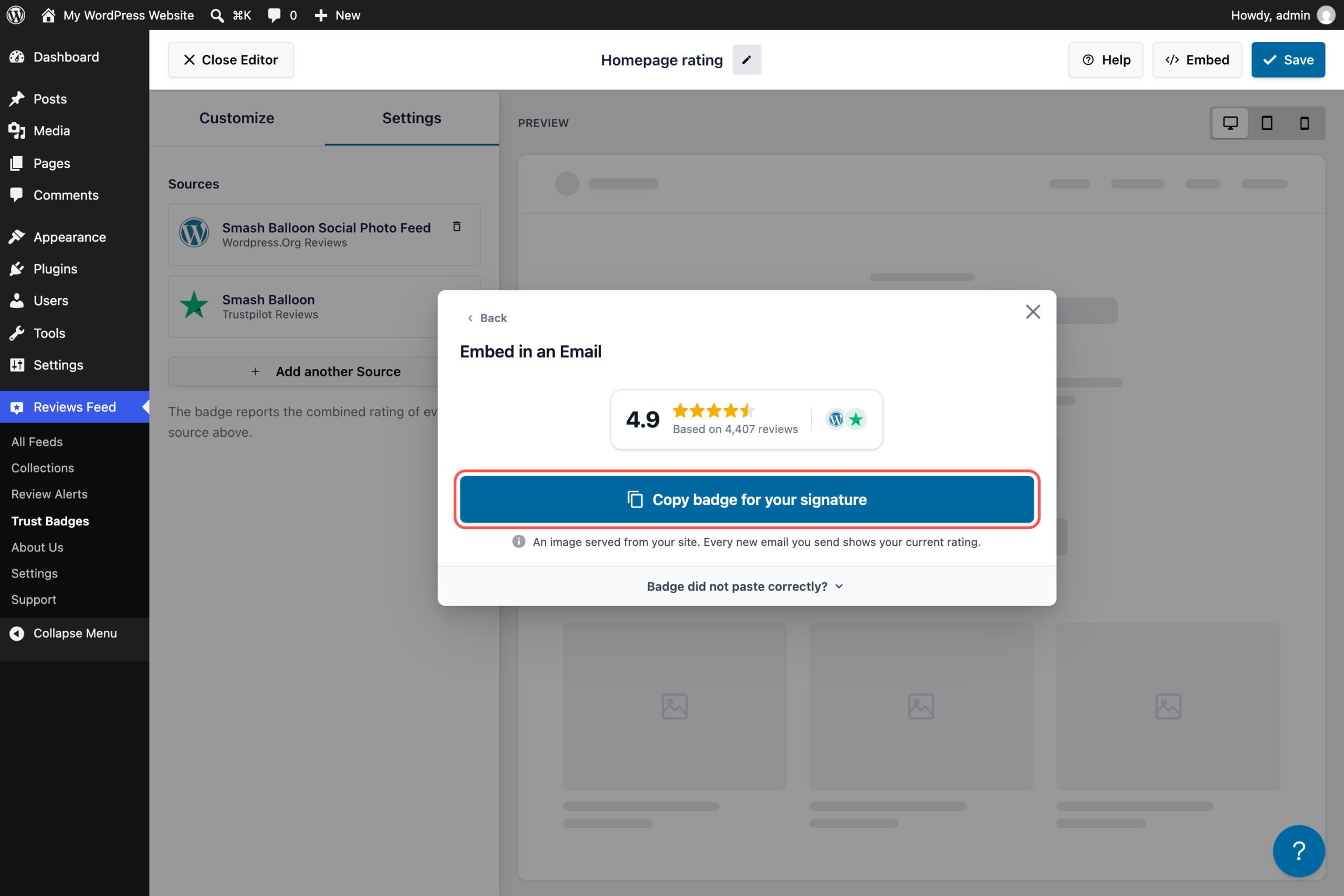
Ways a Trust Badge Helps You Win Customers
- Put a Card badge under your homepage headline so first-time visitors see your rating before anything else.
- Selling online? A Chip badge next to your Add to Cart button shows your rating right when someone’s deciding.
- Your pricing page is where people stop to think it over. A badge there shows how many customers rated you, and how highly.
- Run a hotel or vacation rental and use Booking.com? Your badge keeps the 0 to 10 score guests are used to.
- Send a lot of quotes by email? A badge in your signature puts your rating in front of every new lead.
- Collect reviews in more than one place, like Google and Trustpilot? One combined badge sums them up in a single number.
- Looking after a client’s site? Place one badge across their pages and update every copy by editing it once.
How to Create Your First Trust Badge
Trust Badges are on Reviews Feed Pro Plus and Elite and the All Access Bundle. You’ll need at least one review source connected, and you can connect one while you create the badge.
1. Open Trust Badges
In your WordPress dashboard, go to Reviews Feed » Trust Badges and click Add New.
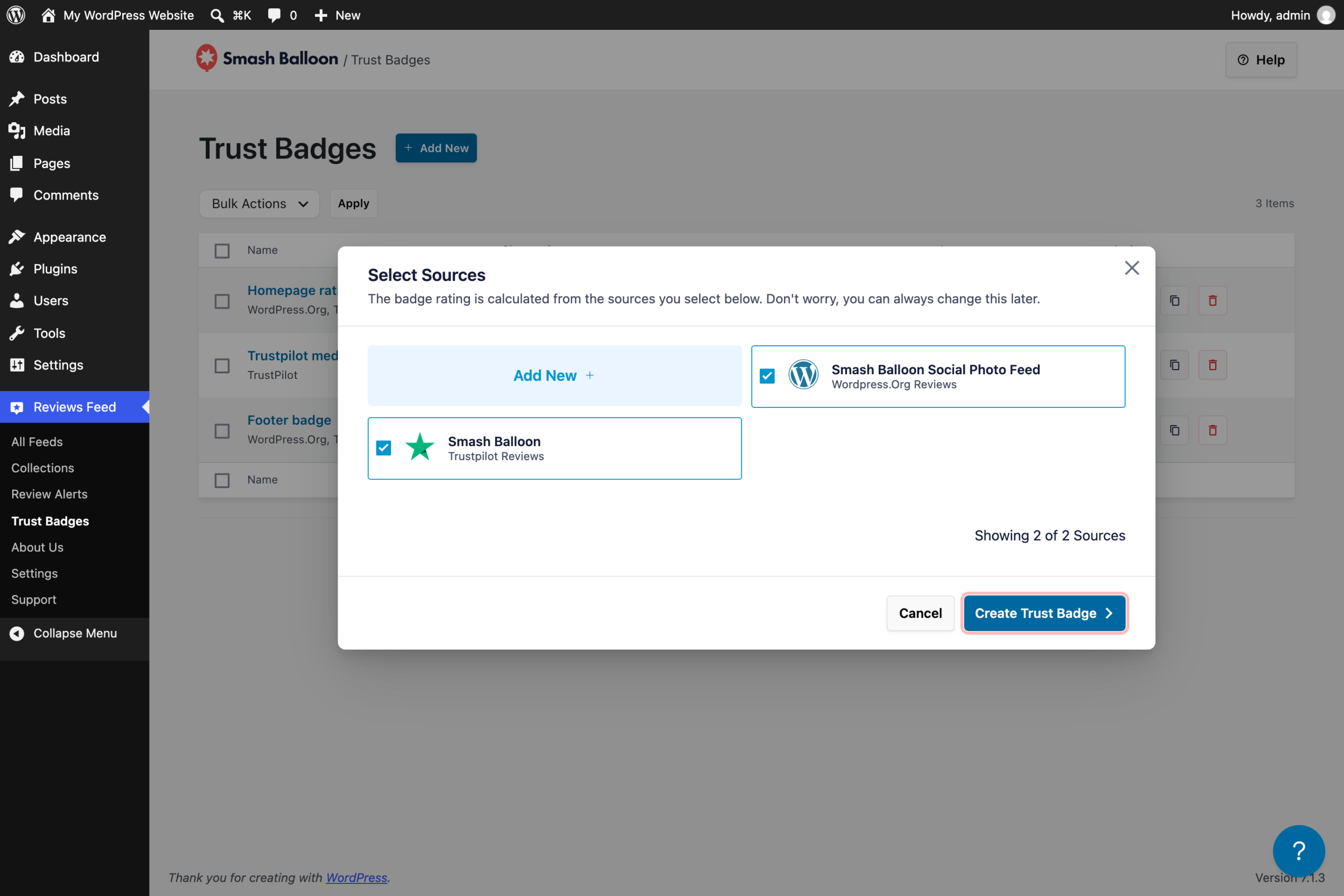
2. Pick the Review Sites to Include
Tick each source you want in the rating, then click Create Trust Badge. Need a source you haven’t connected yet? Click Add New in the same window.
3. Choose a Style and Colors
Under Customize, pick Chip, Card, or Medal, then a theme and a color. Use Show/Hide Elements to turn the rating, stars, review count, logos, or footer on or off. The preview updates as you go, so click Save when it looks right.
4. Add It to Your Site
Click Embed. Search for a page and click Add and Go to Page. To show it on every page, click Open Site Editor, or Add to a Widget if your theme uses classic widgets. You can also click Set up under Embed in an Email for your signature, or copy the shortcode. If you added it to a page, save the page and your badge is live.
Trust Badge Questions
Which plans include Trust Badges?
Reviews Feed Pro Plus and Elite, and the All Access Bundle. On Pro Basic or the free version of Reviews Feed, the Trust Badges screen shows what a badge looks like and how to unlock it.
Which review sites can I use?
Any source you’ve connected in Reviews Feed Pro. Plus covers Google, Yelp, Facebook, Trustpilot, WooCommerce, Easy Digital Downloads, and AliExpress, and Elite adds Tripadvisor, Booking.com, Airbnb, and WordPress.org.
Does the rating update on its own?
Yes. It comes from your connected review sources, so as Reviews Feed Pro picks up new reviews, the badge does too.
What if a source doesn’t have any reviews yet?
The badge counts the sources that have reviews to report. A badge with nothing to show stays hidden, so visitors never see an empty box.
Can I use it with Elementor or another page builder?
Yes. Paste the badge’s shortcode into Elementor’s Shortcode element, or into any builder that accepts shortcodes.
Show Visitors Your Rating Before They Go Looking
You’ve already earned those reviews. A Trust Badge puts them on the pages where people make up their minds, and you can do it without:
- Typing your star rating into pages by hand
- Swapping out a screenshot every time a new review comes in
- Paying for a separate badge or widget tool
- On Reviews Feed Pro Plus or Elite? Go to Reviews Feed » Trust Badges and click Add New.
- On Pro Basic or the free Reviews Feed? Upgrading to Plus adds Trust Badges on top of everything you already have.
- New to Smash Balloon? Reviews Feed Pro brings your reviews from Google, Yelp, Trustpilot, and more onto your site, with Trust Badges on Plus and Elite.
Put your star rating to work
Trust Badges are on Reviews Feed Pro Plus and Elite and the All Access Bundle. Backed by a 14-day money back guarantee.
Get Reviews Feed Pro