Social Wall
 Feed Analytics


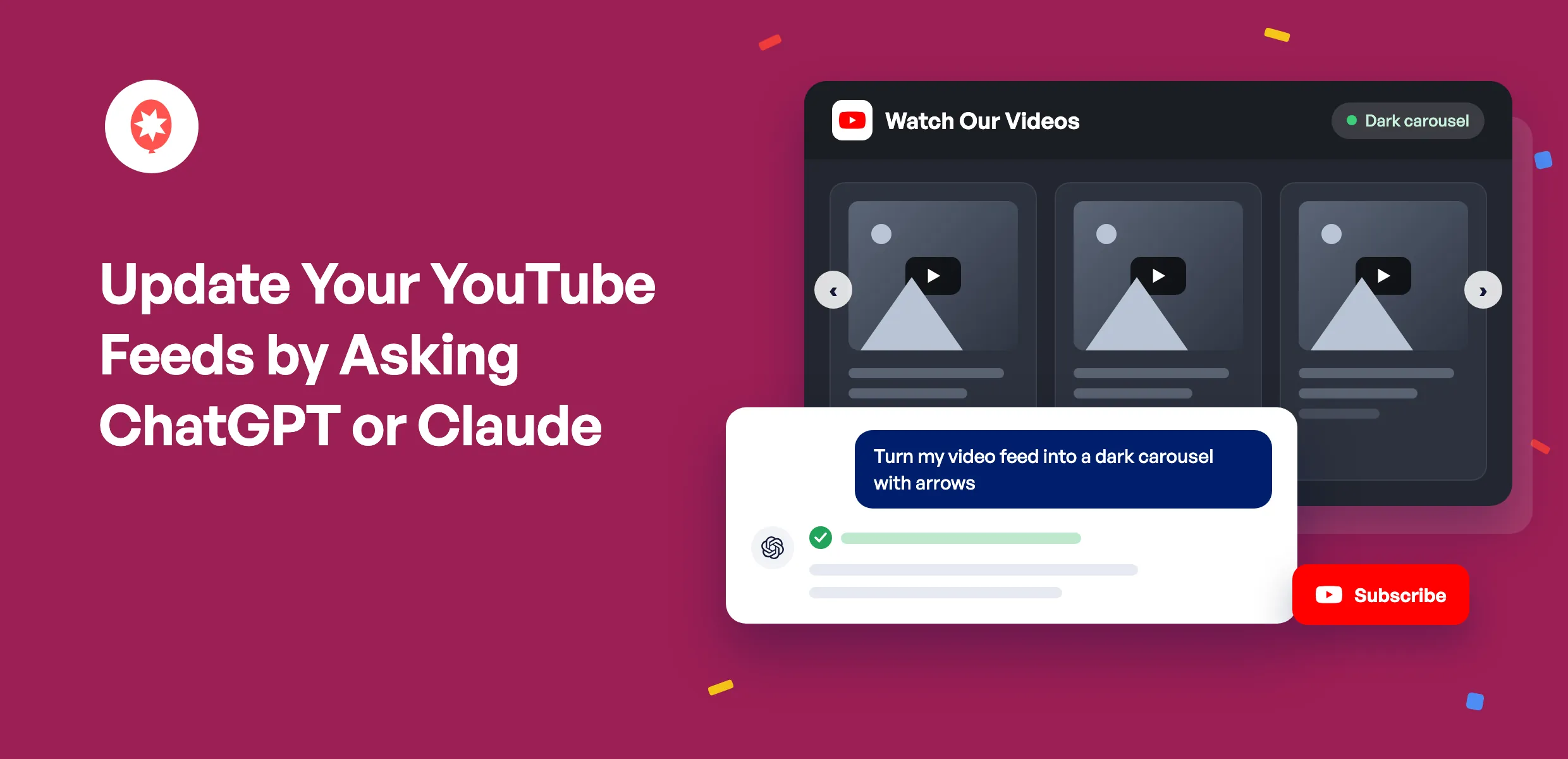
Your YouTube feed can now take requests from ChatGPT or Claude. Ask for a carousel, a darker look, or a brand-new feed from your channel, and it changes on your site while you stay in the chat.
Smash Balloon YouTube Feed shows your YouTube videos on your WordPress site and adds new uploads on its own. Version 2.11.0 adds AI Agents to every YouTube Feed Pro plan, so your AI can also build carousels, playlist feeds, and feeds that mix several channels. Free plugin users get it as well.
Here’s what you can do starting today:
- Restyle your video feed’s layout, columns, and colors by asking
- Build a new feed from your YouTube channel and get its shortcode
- Turn on the Subscribe button and Load More button in one request
- On Pro, turn a long video grid into a carousel visitors can swipe through
- Approve any feed deletion your AI asks for, right in your browser
Turn a Video Grid Into a Carousel by Asking
Here’s a YouTube Feed Pro feed of Smash Balloon’s latest Shorts, six videos in a three-column grid.
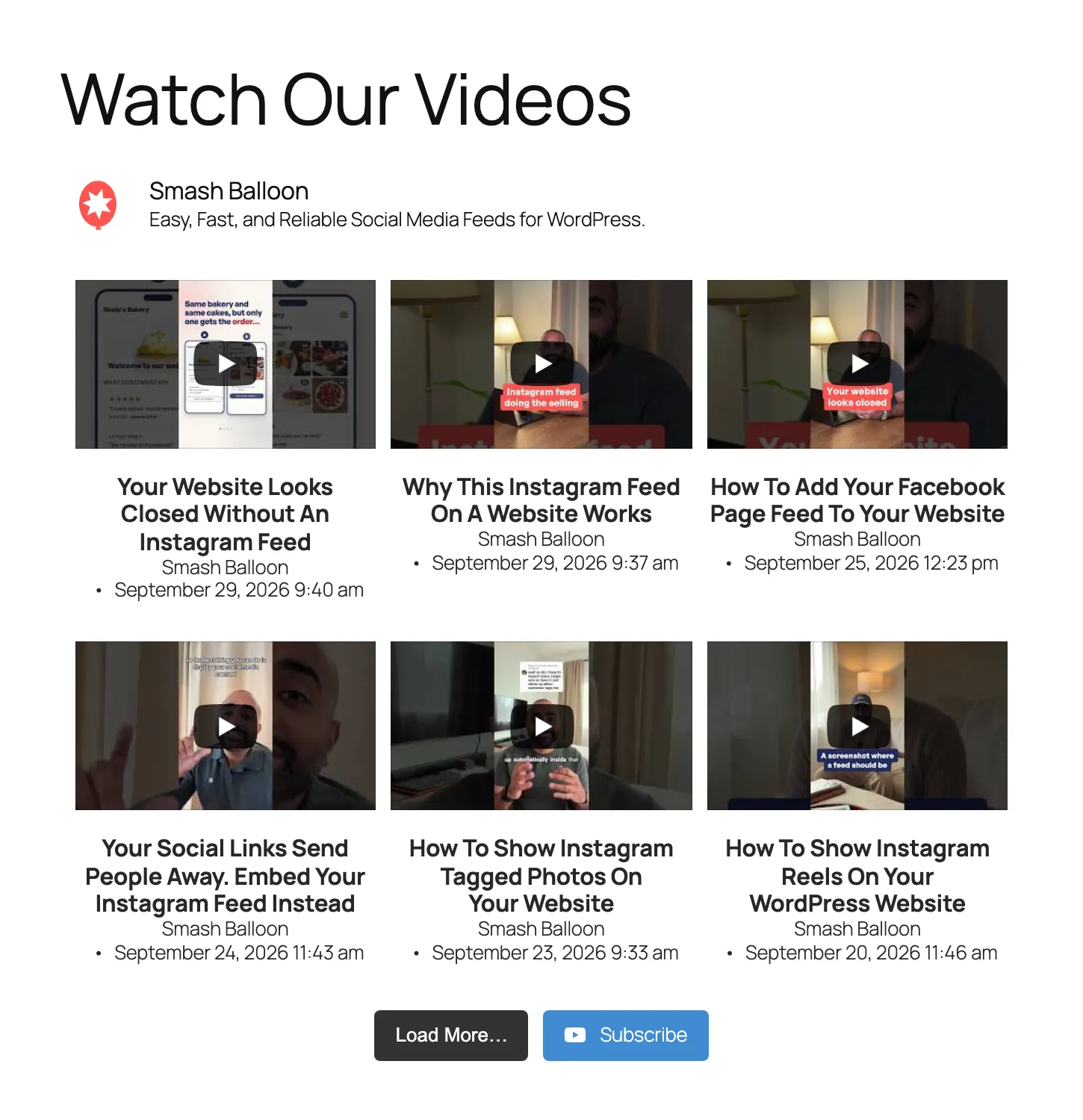
Then ask for a dark carousel with arrows, three videos across. Here’s that same feed once your AI is done. It only touches the settings you name, so the channel header and the six videos stay exactly as they were.
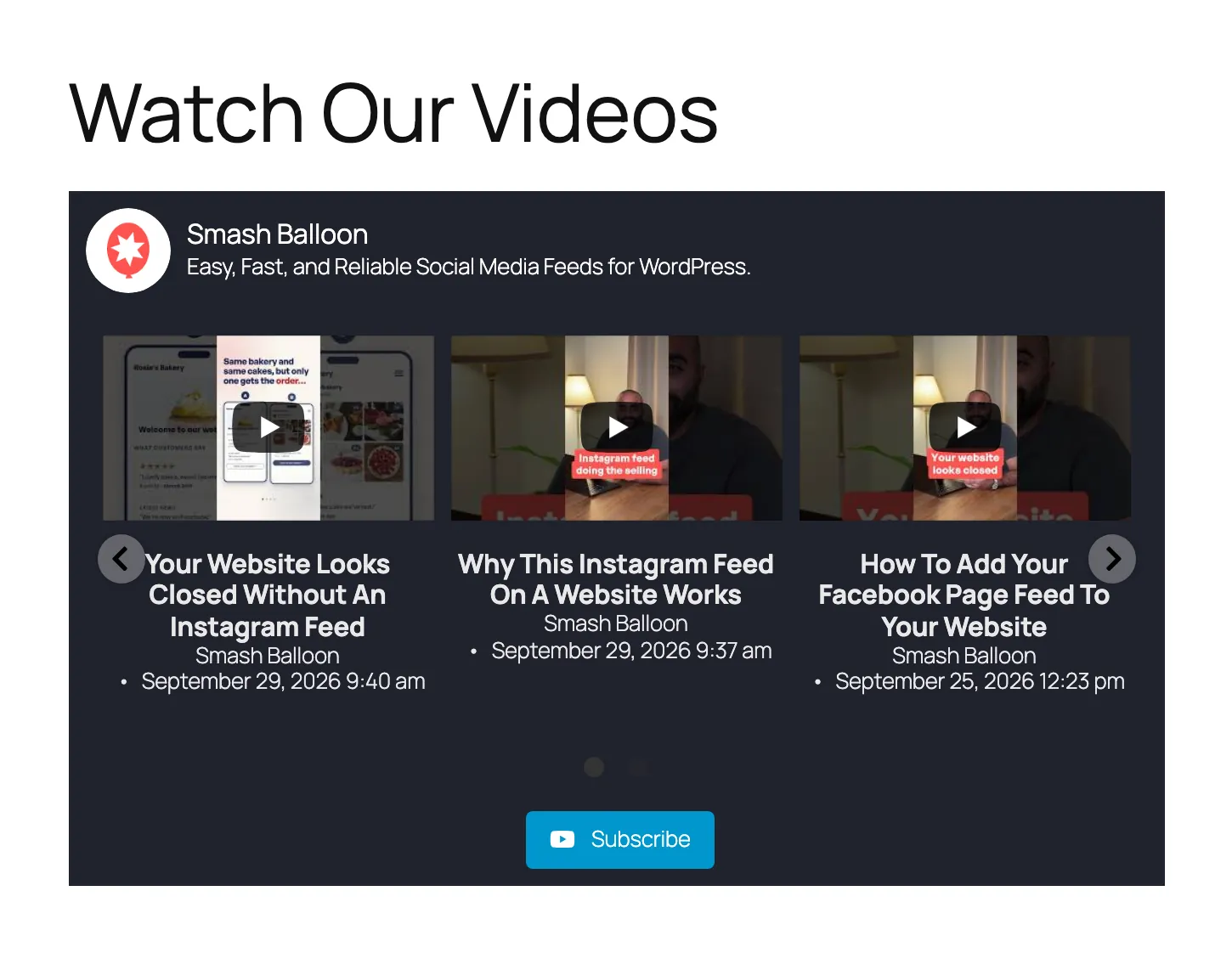
Carousels come with every YouTube Feed Pro plan. They show more videos in less room, and visitors can click the arrows or swipe through them.
What You Can Ask, Plan by Plan
Ask the way you’d text a coworker. Here’s what your AI can do for you on each YouTube Feed Pro plan.
Every Pro Plan: Fit More Videos in Less Space
- Short on room? Ask for a carousel with arrows or autoplay, so visitors swipe through your videos instead of scrolling past a long grid.
- Want your tutorials on your Help page? Ask for a feed that shows that one playlist instead of your whole channel.
- Run more than one channel? Show them all together in one feed on your homepage.
- Ask for fewer videos on phones than on computers, so mobile visitors aren’t stuck scrolling.
Plus: Turn Viewers Into Customers
If your videos sell something, start here. Ask your AI to add a button to your product or booking page that shows when a video ends, so viewers who liked what they saw can buy or book right away.
Plus also lets your AI build a feed from YouTube search results, like every video about your town or your industry, or start a new feed from a ready-made template.
Elite: Put Your Live Streams on Autopilot
Ask for a live stream feed, and your live and upcoming streams show on your site on their own, so you don’t have to update the page before every stream.
On the Free Plugin
The free plugin covers the basics. Ask your AI to build a feed from your channel and hand you its shortcode, the short piece of text you paste where a feed should appear. It can add your channel header and a Subscribe button that takes viewers straight to your YouTube channel, switch to the dark palette or your brand’s button color, or show your videos in a random order.
Add a call to action to every video
YouTube Feed Pro Plus shows a button to your product or page when a video ends. Every Pro plan adds carousels, playlist feeds, and feeds that combine channels, and Elite adds live streams. You also get AI Agents on all of them. Try it risk free with our 14-day money back guarantee.
Get YouTube Feed ProSite-Wide Settings, Too
Your AI can also handle the settings that apply to all your YouTube feeds at once. Post a lot of videos? Ask it to shorten how long your feeds wait before checking YouTube again. It can also switch on GDPR mode, so your feed stops loading YouTube’s player and shows thumbnails that link to YouTube instead.
You Decide What Your AI Can Touch
Out of the box, YouTube Feed’s AI tools can read your feeds, settings, and connected channels, and that’s it. Your API key, license key, and the tokens behind your YouTube connection never reach them. They only start making changes once you turn on write access in Settings, and you can turn it off again whenever you like.
Connecting a new channel stays with you too. Your AI hands you a one-time link that works for 15 minutes, and you sign in with Google yourself in your browser. Your AI never sees your Google login.
Removing a feed is your call, every time. When you ask your AI to delete one, it sends you a link instead. Open it in your browser, check the feed’s name and shortcode, then pick Delete feed or Cancel. Each link works a single time and stops working after 15 minutes.
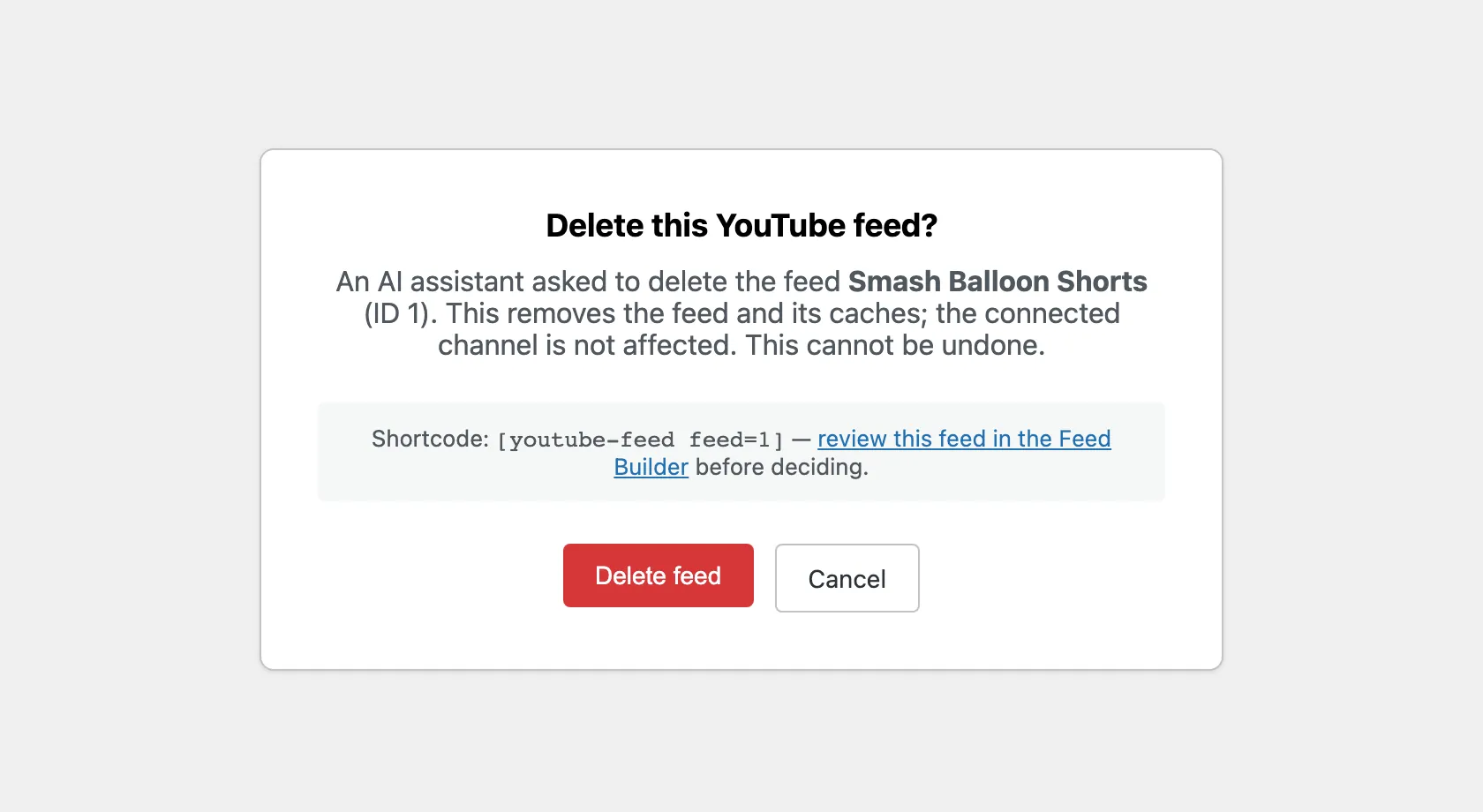
For the rest of your site, WPVibe, the free plugin that links your AI to WordPress, checks with you in the chat before any destructive action.
Connect Your AI in About 10 Minutes
Before you start, make sure you’re on Smash Balloon YouTube Feed 2.11.0, free or Pro, and WordPress 6.9 or later. WPVibe needs a secure connection, so your site’s address should begin with https://.
WPVibe comes from SeedProd, one of Smash Balloon’s sister brands in the same WordPress family, and you don’t have to install it yourself. YouTube Feed handles that part.
WPVibe comes free with YouTube Feed
There’s no separate download. One click in YouTube Feed’s Settings installs it, whether you’re on the free plugin or Pro, and you can start on WPVibe’s free plan. Haven’t tried Smash Balloon yet? The free YouTube Feed is the place to start.
Get YouTube Feed FreeStep 1: Install WPVibe From YouTube Feed
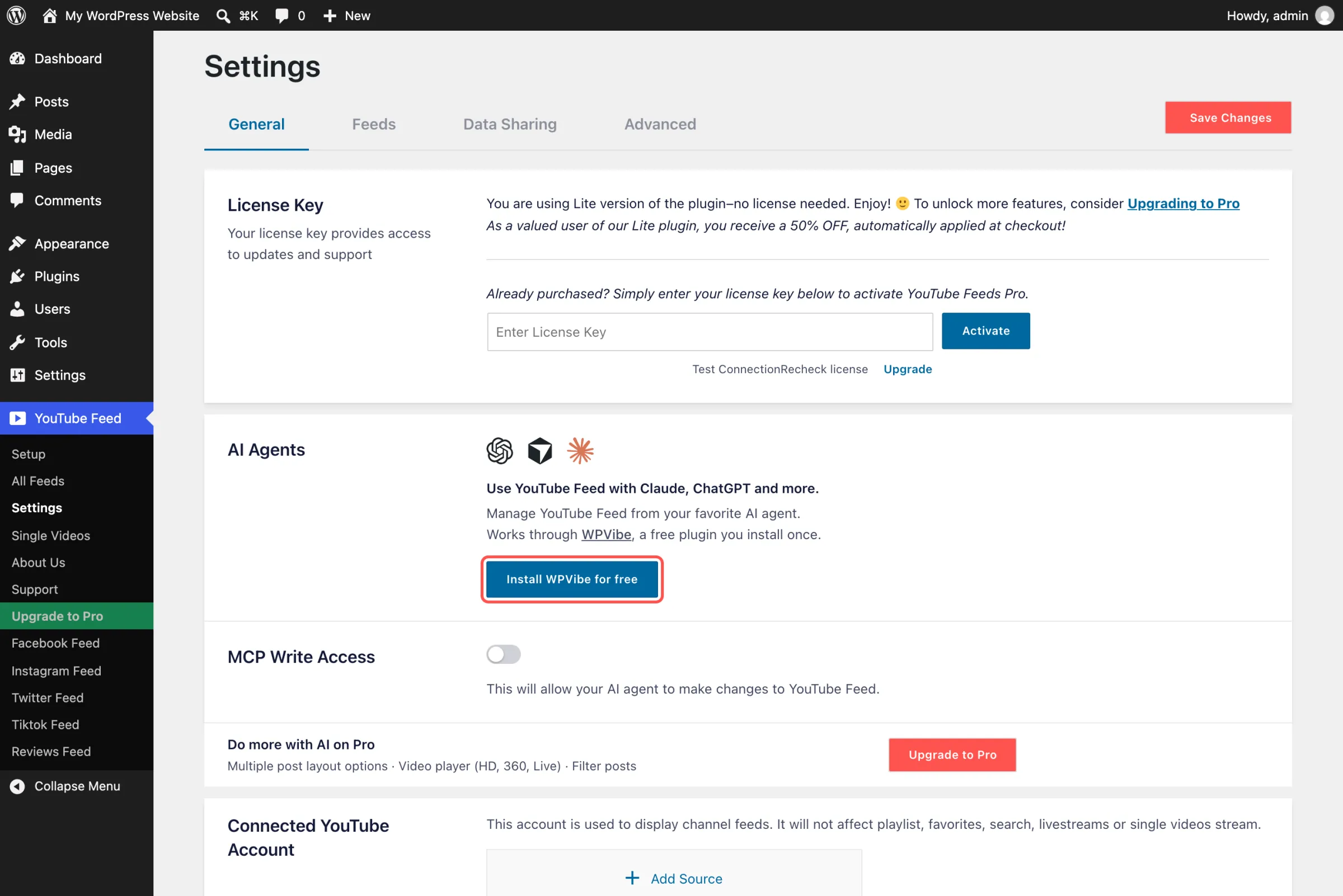
After updating to 2.11.0, open YouTube Feed » Settings and find the AI Agents box. Click Install WPVibe for free and give it a moment. Once it shows WPVibe as connected, click Open WPVibe.
Step 2: Pick ChatGPT or Claude
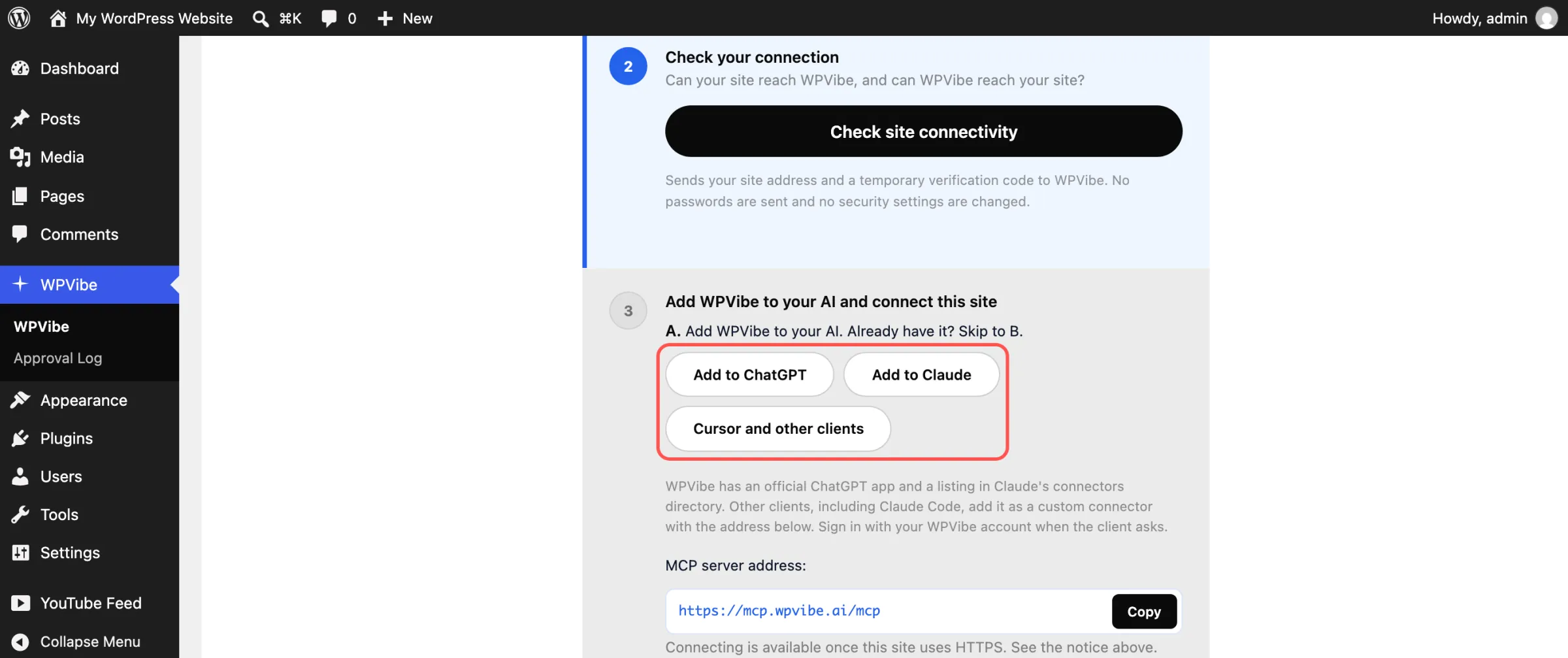
WPVibe opens on a short checklist. Choose Add to ChatGPT or Add to Claude, or Cursor and other clients if that’s what you use. Then log in to WPVibe with your email. The account is free.
Step 3: Say Yes in WordPress
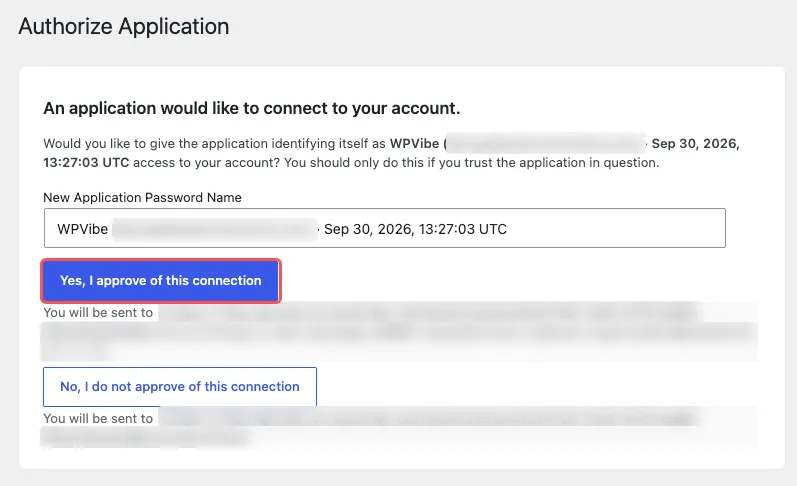
WPVibe hands you a short message to paste into your AI. That opens a WordPress screen asking if WPVibe may connect to your account, so click Yes, I approve of this connection. Once it’s linked, your AI answers with your site’s name and address.
Step 4: Switch On Write Access
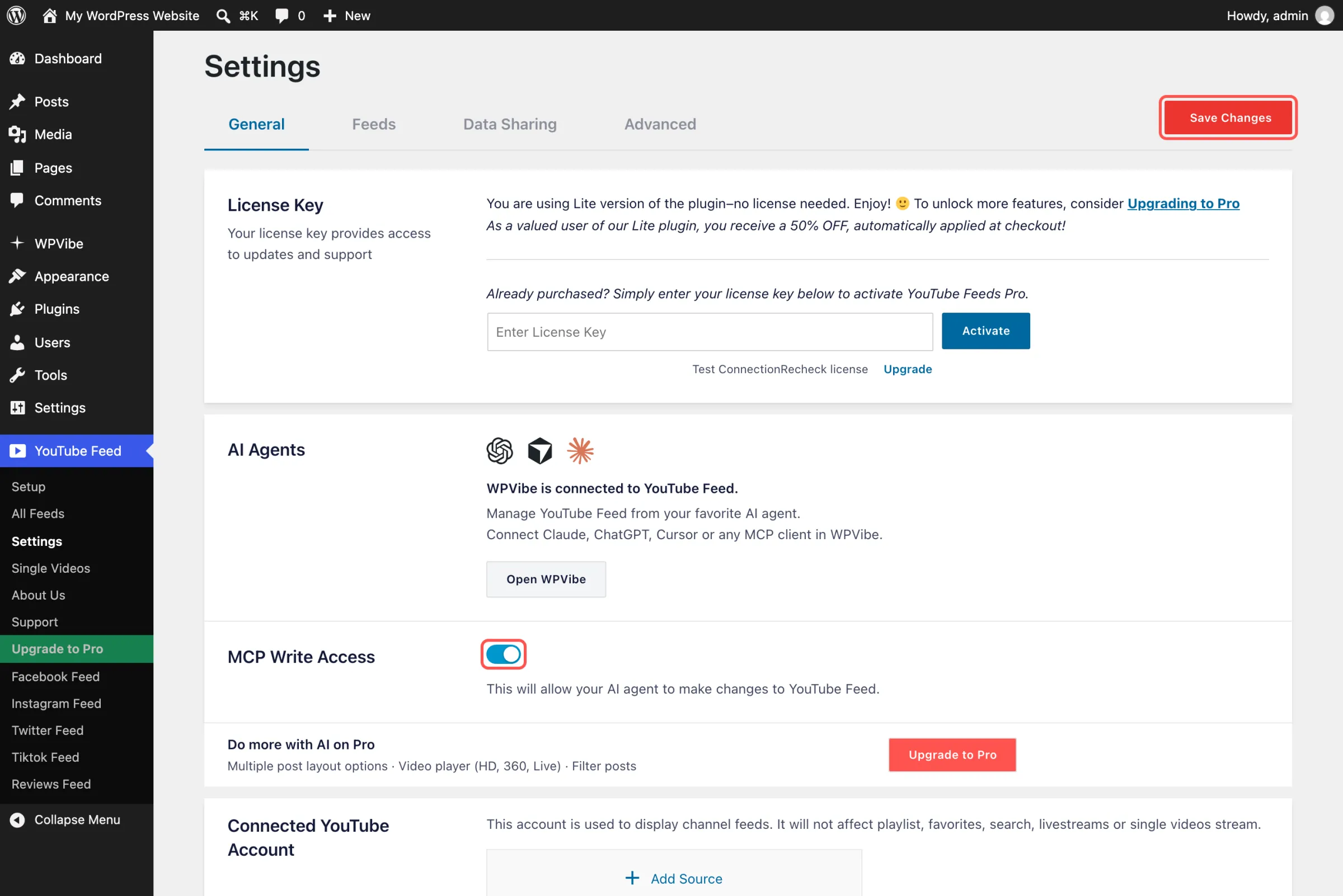
Return to YouTube Feed » Settings, turn on MCP Write Access, and click Save Changes. That’s what lets YouTube Feed’s AI tools edit your feeds. Prefer to start read-only? Skip this step and come back to it later.
Then send your first request, like “What YouTube feeds do I have, and what’s the shortcode for each one?” If you’re in ChatGPT, choose WPVibe from the + menu before you ask, so the answer comes from your site.
What YouTube Feed Pro Adds to Your Feed
With YouTube Feed Pro, your videos take up less room and work harder. Carousels and Shorts with a full-screen swipe view keep visitors watching, playlist and combined-channel feeds put the right videos on the right page, and a backup keeps your feed on the page even if YouTube goes down. Plus turns viewers into customers with a button after each video, and adds search feeds and templates. Elite puts your live streams on your site automatically and keeps off-topic videos out.
Upgrading doesn’t change your setup. AI Agents is on every Pro plan, so the same chat keeps working, now with the Pro options. On the free plugin? Ask your AI, “What would YouTube Feed Pro add for me?” It pulls the answer from the plugin’s own list of Pro features and includes a link to upgrade.
Frequently Asked Questions
Is AI Agents included in YouTube Feed Pro?
Yes. Basic, Plus, Elite, and the All Access Bundle all include it. The free Smash Balloon YouTube Feed 2.11.0 has it as well, with one channel per feed. On Pro, your AI can also build carousels, playlist feeds, and feeds that combine channels.
Can my AI build a playlist feed?
Yes, on any YouTube Feed Pro plan. Give it the playlist ID, the part of the playlist’s web address that comes after list=, and it switches the feed to show that playlist.
Do I pay anything for WPVibe?
Not to get started. WPVibe’s free plan gives you a set number of WordPress actions each day, and you can move to a paid plan if you run through them.
Can my AI see my Google or YouTube login?
No. When you add a channel, your AI gives you a one-time link and you sign in yourself in your browser. YouTube Feed’s AI tools never see your login, API key, or access tokens.
What if I change my mind about write access?
Turn MCP Write Access off in YouTube Feed » Settings and save. From then on, YouTube Feed’s AI tools can only look, and a delete link you haven’t used yet won’t work anymore.
Update to 2.11.0 and Change Your Video Feed by Asking
Give the setup ten minutes once, and every video feed change after that starts with a question in ChatGPT or Claude. No more opening the feed editor to switch a layout, digging up a shortcode from months ago, or worrying that your AI will remove a feed you need.
Already using the free Smash Balloon YouTube Feed or YouTube Feed Pro? Update to 2.11.0 and open the AI Agents box under Settings.
New to Smash Balloon? YouTube Feed Pro gets you carousels, playlists, and AI Agents from day one. Prefer to try it first? Grab the free Smash Balloon YouTube Feed from WordPress.org, connect your channel, and work through the setup above.
Run your YouTube feeds from ChatGPT or Claude
YouTube Feed Pro shows your videos in carousels, playlists, and combined channel feeds, and with AI Agents on every plan, you can change all of it from ChatGPT or Claude. Pick Plus for a call to action after your videos, or Elite for live streams too. Backed by a 14-day money back guarantee.
Get YouTube Feed ProRun Facebook Feed or Reviews Feed too? They work the same way. Here’s how to change your Facebook feed by asking ChatGPT or Claude, and how to build your review feeds the same way.
What will you ask your AI to do with your video feed first? Tell us in the comments.