Social Wall
 Feed Analytics


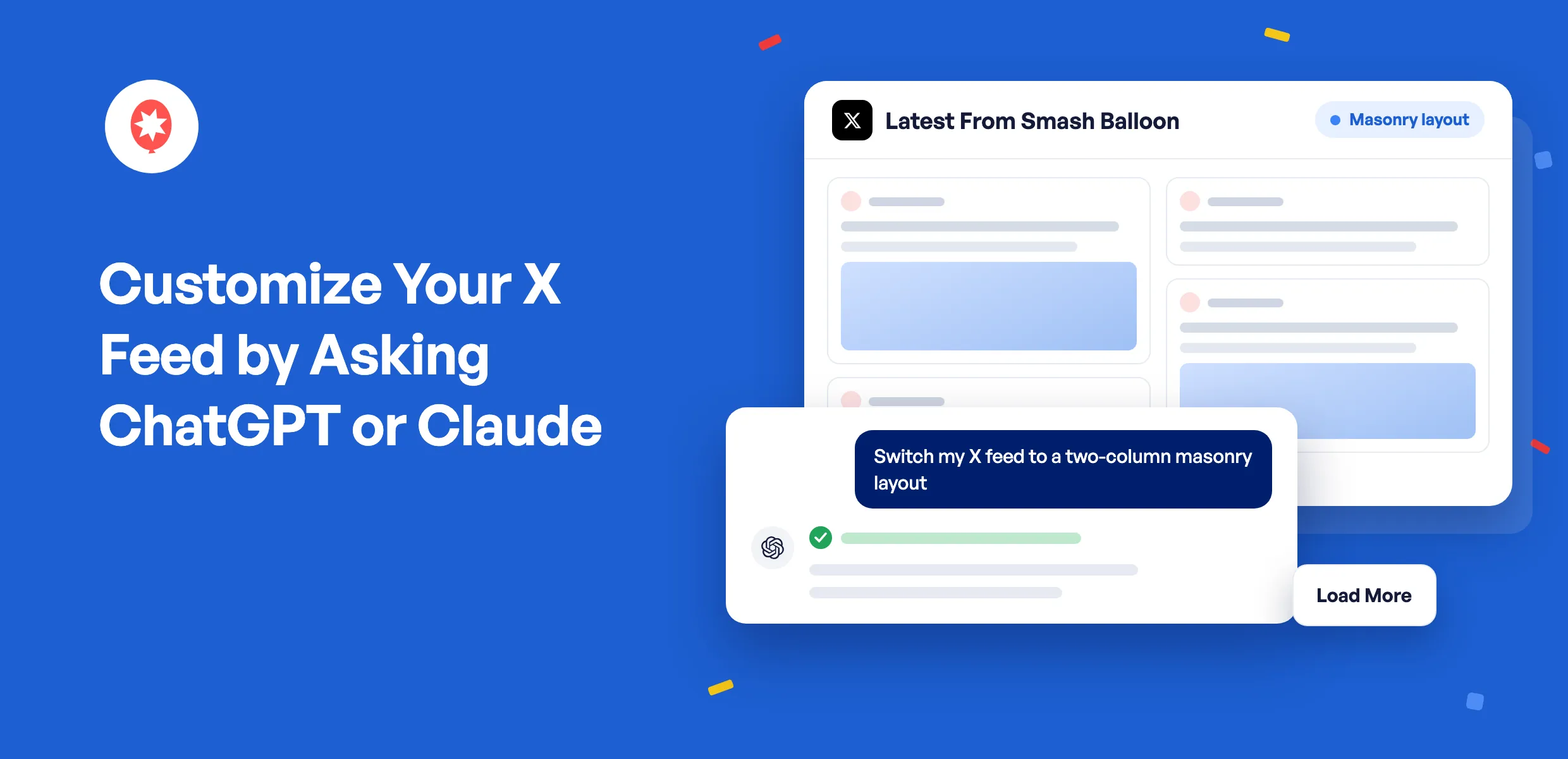
The posts you share on X show your business is active. Now you can ask ChatGPT or Claude to decide how those posts look on your WordPress site, and the change happens while you’re still in the chat.
Smash Balloon X (Twitter) Feed brings your X posts onto your site and keeps the feed up to date automatically. Since version 2.11.0, X (Twitter) Feed Pro lets your AI spread your posts across a masonry grid, filter out what doesn’t belong, and pull in posts with your hashtag. The free plugin has AI Agents too, for the settings it includes.
No hunting through settings menus, no looking up shortcodes. You say what you want your feed to look like, and it changes.
Things you can ask your AI to handle from today:
- On Pro, turn a long column of posts into a grid that fits more on the screen
- On every Pro plan, keep your feed on-topic by filtering posts with or without certain words
- Restyle post cards, colors, and your header to fit your brand
- Set up a feed and get the shortcode to paste on any page
- Sign off on any feed deletion yourself, in your own browser
Fit More of Your Posts on One Screen
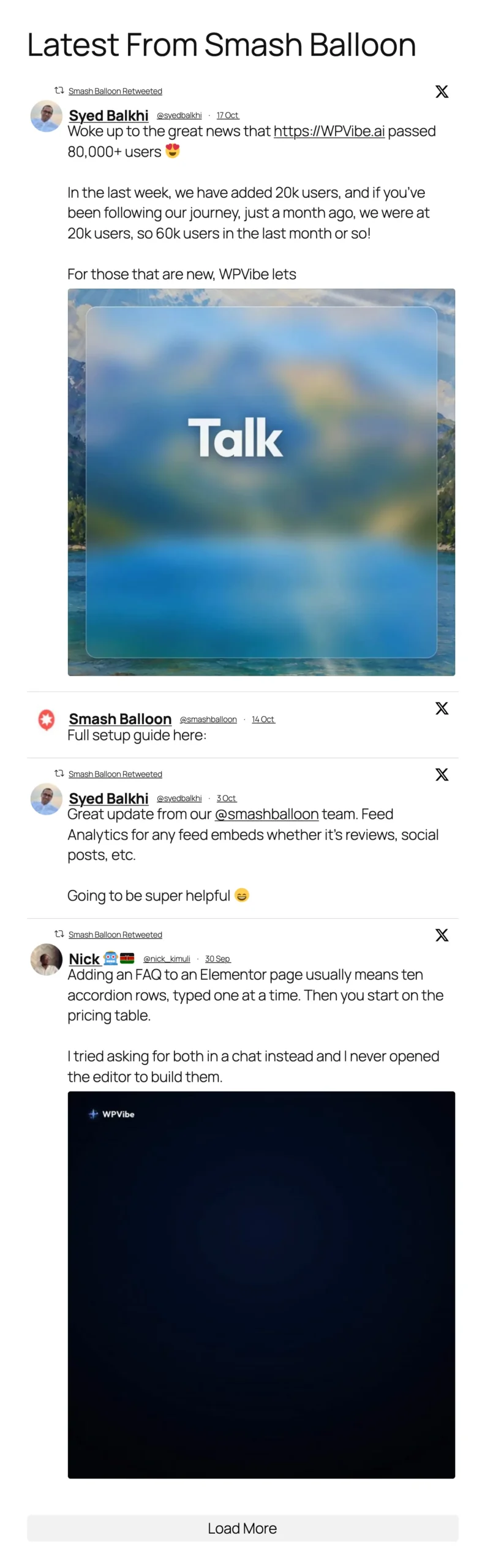
Here’s an X (Twitter) Feed Pro feed of Smash Balloon’s latest posts and reposts, shown as a single list. Every post gets the full width, so visitors scroll a long way to see four of them.
Ask your AI to switch the feed to a two-column masonry layout. The same four posts now sit side by side in about half the space, and the repost labels, avatars, and images all come along unchanged.
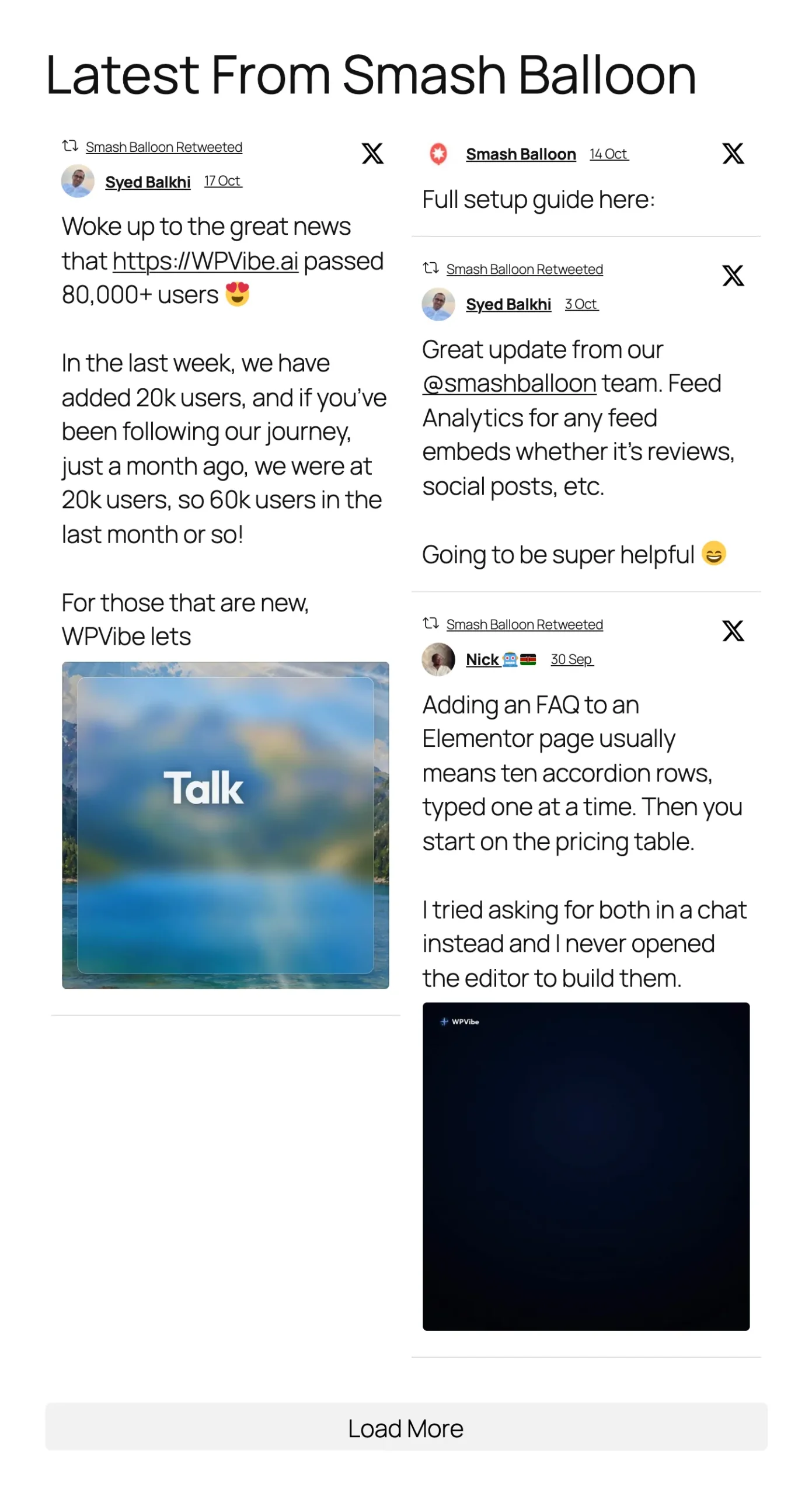
Masonry and carousel layouts come with every X (Twitter) Feed Pro plan, starting with Basic. They put more of your posts in front of visitors at once, so people see how active you are without scrolling, and that steady stream of posts is what makes your business look alive.
Three Jobs Your AI Can Take Off Your Plate
You don’t need to know any setting names. Say what you want your feed to do, and your AI picks the right settings.
Keep It On-Brand
This part works on the free plugin. Ask your AI for a light or dark color palette, or give it your brand’s hex codes for the background, text, and links. It can turn your posts into cards with rounded corners and a soft shadow, trim long posts to a shorter length, and swap your header for a short line of your own, like “Follow us on X.” The result is a feed that looks like a natural part of your site, which is what makes visitors trust it.
Keep It Focused
On every Pro plan, your AI can filter your feed by words. Show only the posts that mention your product, or hide the ones about a promotion that’s already ended. It can also leave out replies and reposts, so the feed sticks to the things you said yourself. Visitors land on your best, most relevant posts instead of scrolling past replies and old promos.
Show the Conversation Around You
Some of your best social proof comes from other people. On Plus, ask for a feed of posts that use your hashtag, so customers and event guests show up on your site. Elite adds feeds built from an X search or a public X List, and infinite scroll that loads more posts as visitors reach the bottom.
Turn your X feed into social proof
X (Twitter) Feed Pro adds masonry and carousel layouts, full-size photos and videos, and word filters on every plan, and checks X for new posts up to 12 times a day on Basic. Plus adds hashtag feeds, and Elite adds search and List feeds. AI Agents is part of each plan, with a 14-day money back guarantee.
Get X (Twitter) Feed ProA Few Settings That Apply to Every Feed
Your AI can also reach the plugin-wide settings. For example, it can turn on GDPR mode, so your feeds hold off on loading anything from X until a visitor agrees to it.
You Decide What X (Twitter) Feed’s AI Tools Can Change
X (Twitter) Feed’s AI tools only read until you say otherwise. They can look at your feeds and settings, but your license key and the details behind your X connection stay hidden from them. You decide when they can make edits with one switch in Settings, and you can switch it back whenever you want.
Removing a feed needs your click. When your AI asks to delete one, it gives you a page to open in your browser that names the feed, shows its shortcode, and links to the feed so you can double-check it. You choose Delete feed or Cancel, and the page can only be used once, within 15 minutes.
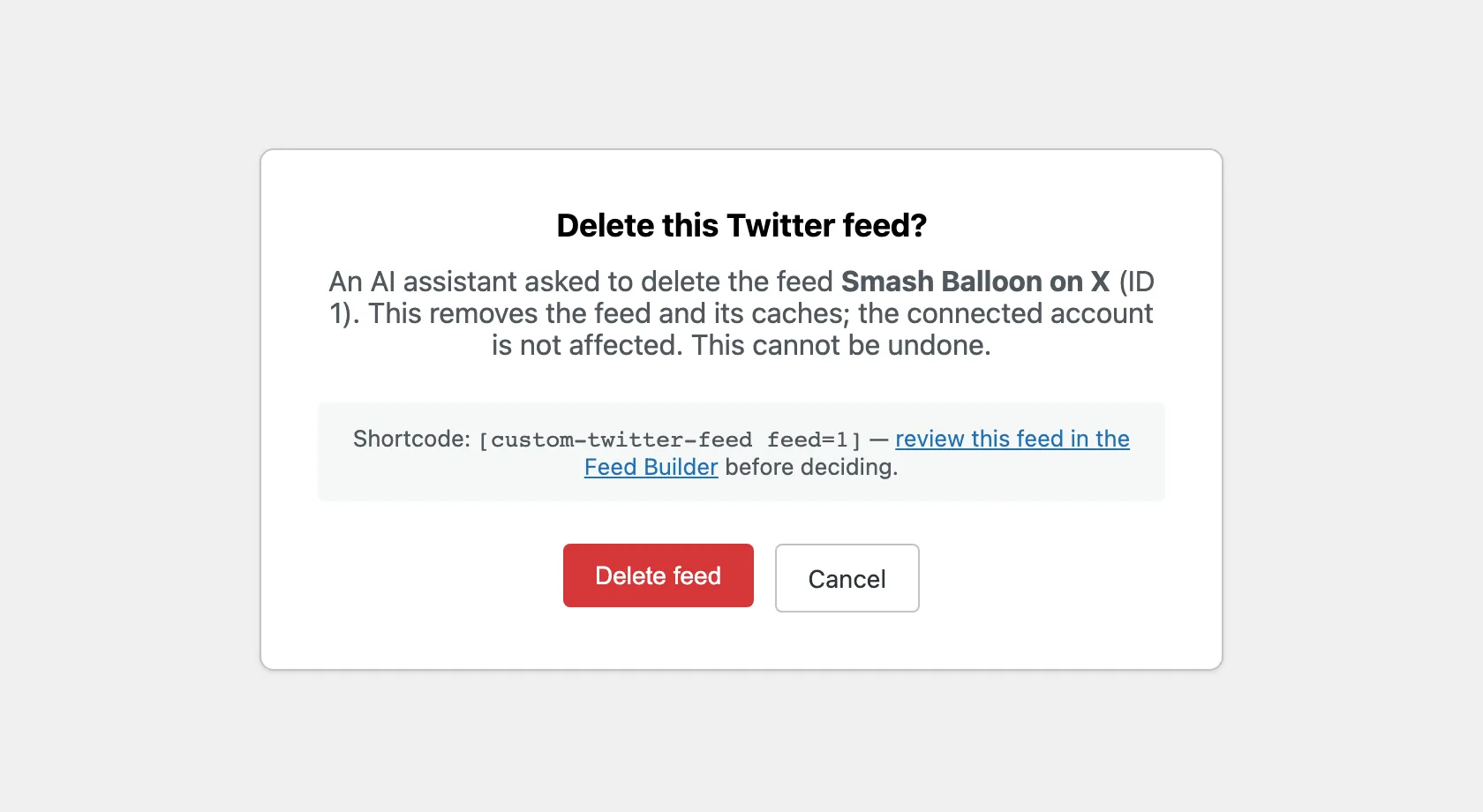
Outside of X (Twitter) Feed, WPVibe, the free plugin that ties your AI to WordPress, stops to ask you in the chat before it does anything destructive.
Get Your AI Connected
Make sure you have Smash Balloon X (Twitter) Feed or X (Twitter) Feed Pro on version 2.11.0 or newer, WordPress 6.9 or newer, and a site address that begins with https://. WPVibe needs that secure connection to reach your site.
SeedProd makes WPVibe, and like Smash Balloon, it’s part of the same family of WordPress plugins. You won’t need to hunt for it, since X (Twitter) Feed installs it for you.
WPVibe comes free with X (Twitter) Feed
No separate download needed. X (Twitter) Feed sets up WPVibe in one click from its Settings page, on the free plugin and all Pro plans, and WPVibe has a starter plan that’s free. Haven’t used Smash Balloon before? The free X (Twitter) Feed is an easy way in.
Get X (Twitter) Feed FreeStep 1: Click Install WPVibe for Free
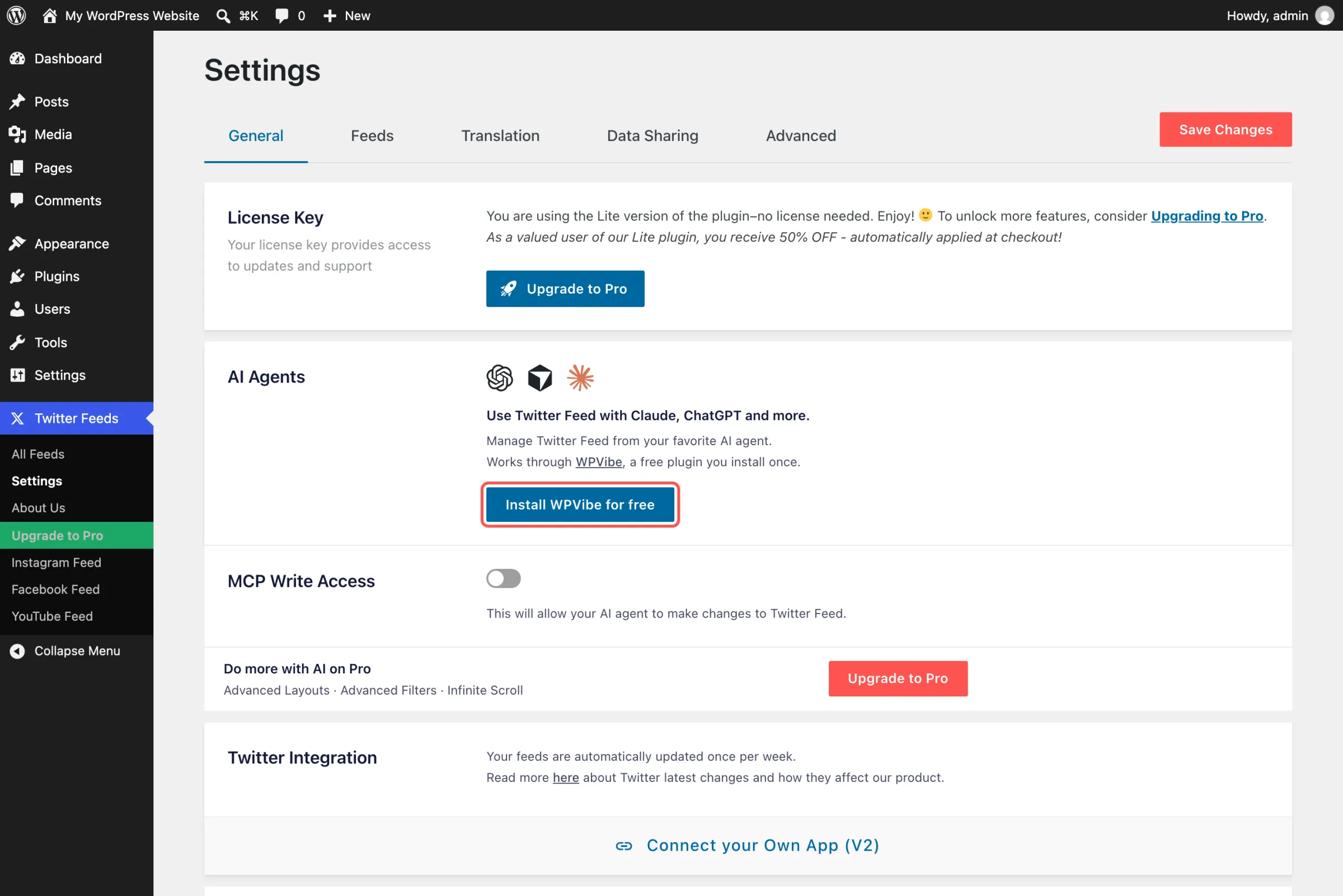
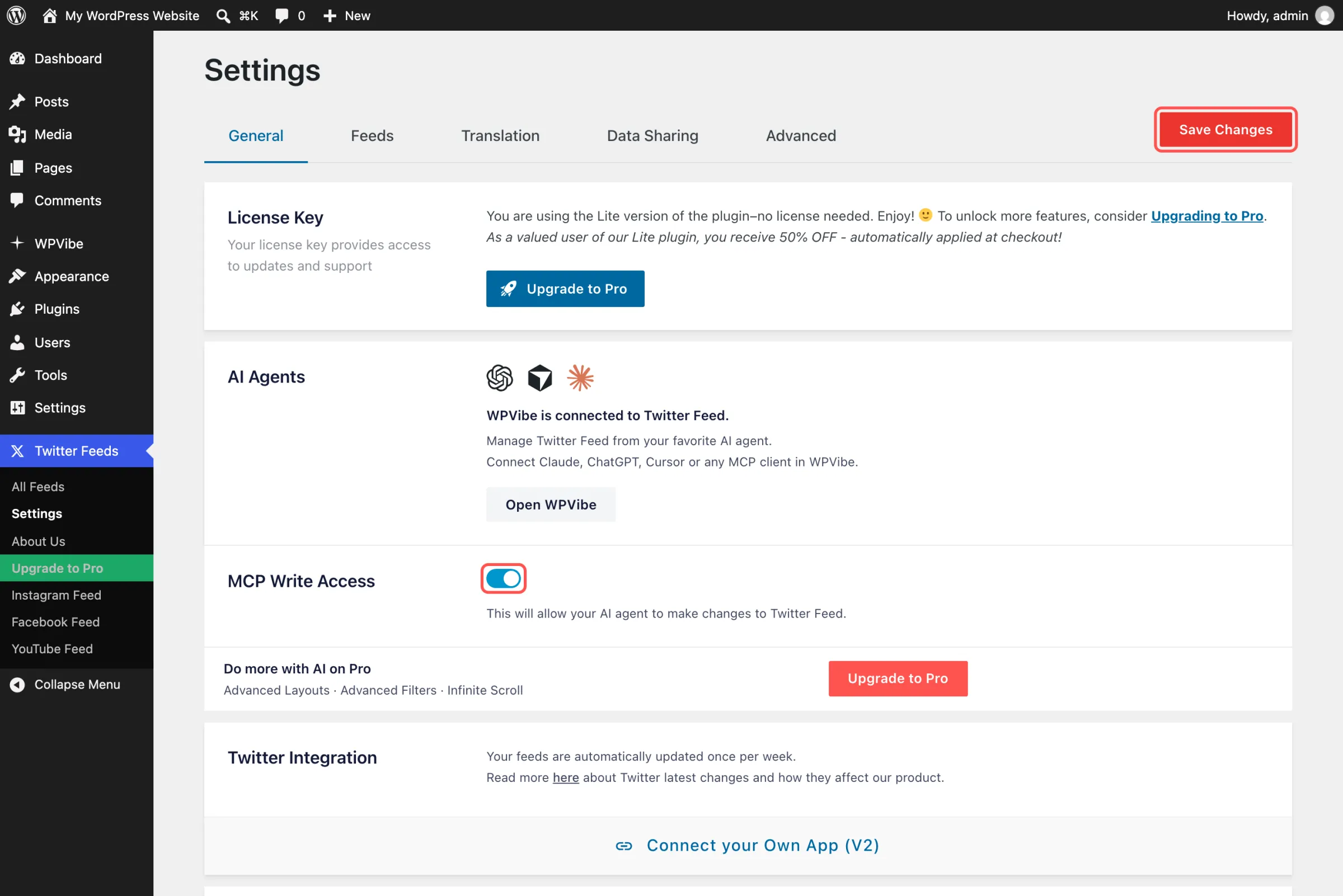
Go to Twitter Feeds » Settings in your WordPress dashboard. On the General tab, the AI Agents box has a button that reads Install WPVibe for free. Click it, and when the box says WPVibe is connected to Twitter Feed, click Open WPVibe.
Step 2: Pick the AI You Use
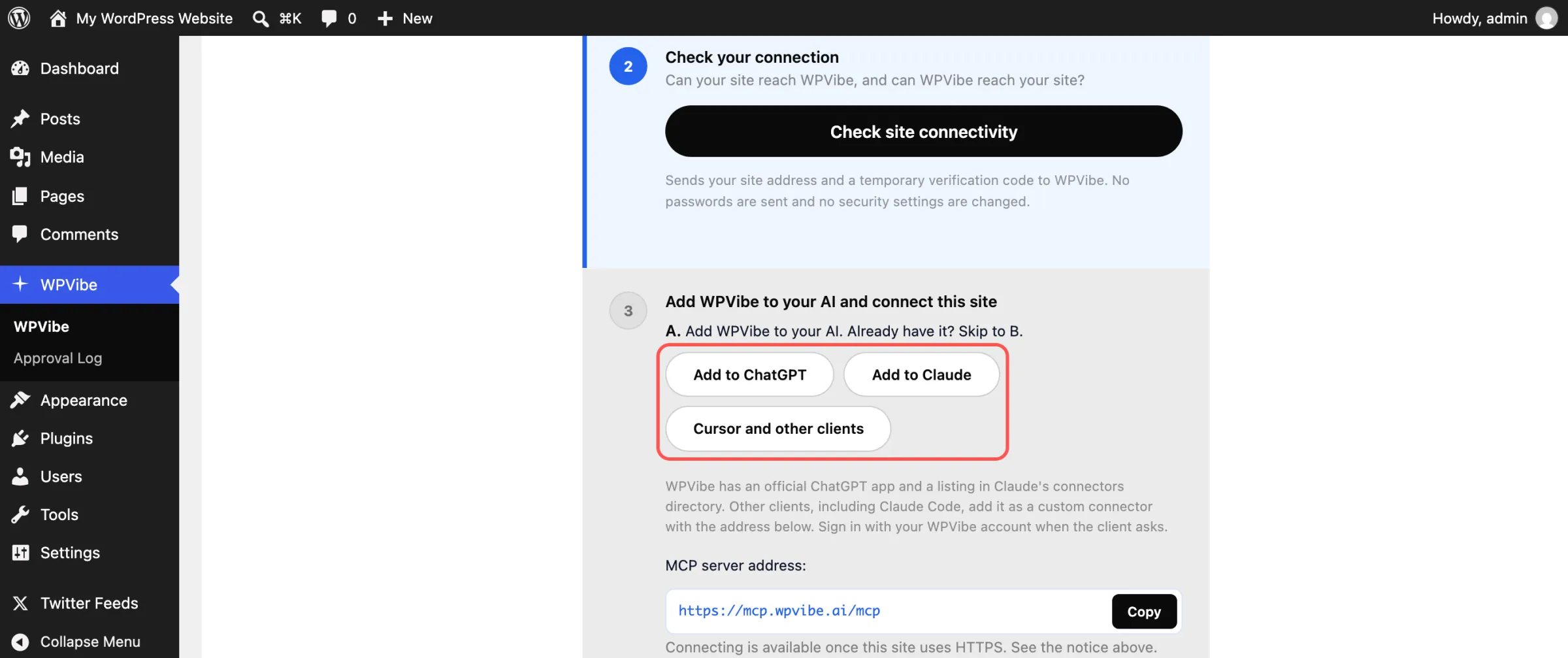
WPVibe opens a setup checklist. In the section about adding WPVibe to your AI, choose Add to ChatGPT, Add to Claude, or Cursor and other clients, then sign in to WPVibe with your email address. There’s no charge to create the account.
Step 3: Approve WPVibe on Your Site
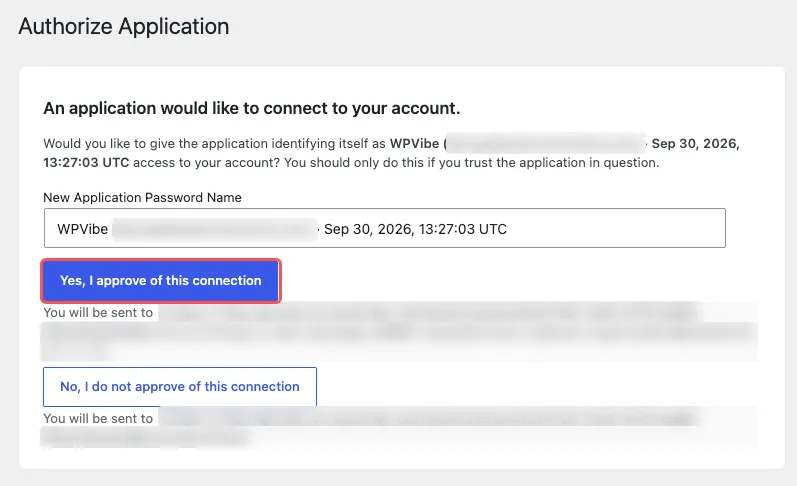
Paste the short message WPVibe gives you into a chat with your AI. WordPress will show a screen asking you to allow the connection, where you click Yes, I approve of this connection. Your AI answers back with your site’s name and address once everything is linked.
Step 4: Allow Edits When You’re Ready
In Twitter Feeds » Settings, turn on MCP Write Access and click Save Changes. Leave it off for now if you’d rather your AI only answer questions about your feeds at first.
Start with something simple, like “What X feeds are on my site, and what’s the shortcode for each?” If you use ChatGPT, open the + menu and choose WPVibe before you send it, so the answer comes from your site.
What You Get With X (Twitter) Feed Pro
X (Twitter) Feed Pro keeps your feed fresh and keeps people on your page. It checks X for new posts as often as every two hours, up to 12 times a day. Photos and videos play right in the feed or open full size in a lightbox, links show up as cards with an image and title, and a backup copy keeps your latest posts on the page if X can’t be reached.
Every plan includes AI Agents, so the chat you set up keeps working when you upgrade, with the Pro settings added. Using the free plugin? Ask your AI, “What could X (Twitter) Feed Pro add to my feed?” It looks at the plugin’s own list of Pro features and gives you a link to upgrade.
Frequently Asked Questions
Does X (Twitter) Feed Pro come with AI Agents?
Yes, every plan has it, from Basic through Elite and the All Access Bundle. The free Smash Balloon X (Twitter) Feed has it as well, for the settings the free plugin includes. Pro is where your feed starts pulling its weight, with posts spread across a grid, filtered down to what matters, and kept fresh with new posts up to 12 times a day.
Can my AI make a hashtag feed?
Yes, on the Plus plan and above. Ask for a feed of posts with your hashtag, and your AI sets the feed type for you. Elite also lets it build feeds from an X search or a public List.
What does WPVibe cost?
Nothing to get going. WPVibe’s free plan includes a daily number of WordPress actions, and paid plans raise that number if you use it a lot.
Does my AI see my license key?
No. Your license key and the details that connect your site to X are never shared with X (Twitter) Feed’s AI tools.
How do I take back edit access?
Turn off MCP Write Access in Twitter Feeds » Settings and click Save Changes. X (Twitter) Feed’s AI tools can only read again, and any delete page you haven’t used yet stops working.
Update to 2.11.1 and Let Your X Feed Keep Up
Set it up once, and the next time you want your X feed to look or behave differently, you can type it into ChatGPT or Claude. You won’t be clicking through layout menus or looking up shortcodes, and nothing gets deleted unless you’re the one who clicks.
Already have the free Smash Balloon X (Twitter) Feed or X (Twitter) Feed Pro? Update to 2.11.1, then find the AI Agents box in Settings.
Just getting started? X (Twitter) Feed Pro gives you masonry layouts, word filters, and AI Agents right away. You can also begin with the free Smash Balloon X (Twitter) Feed from WordPress.org and follow the steps above.
Run your X feed from ChatGPT or Claude
X (Twitter) Feed Pro turns your posts into a grid that fills the page, keeps it on-topic with word filters, and keeps it fresh with new posts up to 12 times a day, and AI Agents on every plan lets you change all of it from the chat. Choose Plus for hashtag feeds, or Elite for search and List feeds. Backed by a 14-day money back guarantee.
Get X (Twitter) Feed ProHave a TikTok or YouTube feed too? See how to restyle your TikTok feed by asking ChatGPT or Claude, and how it works for YouTube.
What would you want your X feed to show first? Tell us in the comments.