Social Wall
  Feed Analytics

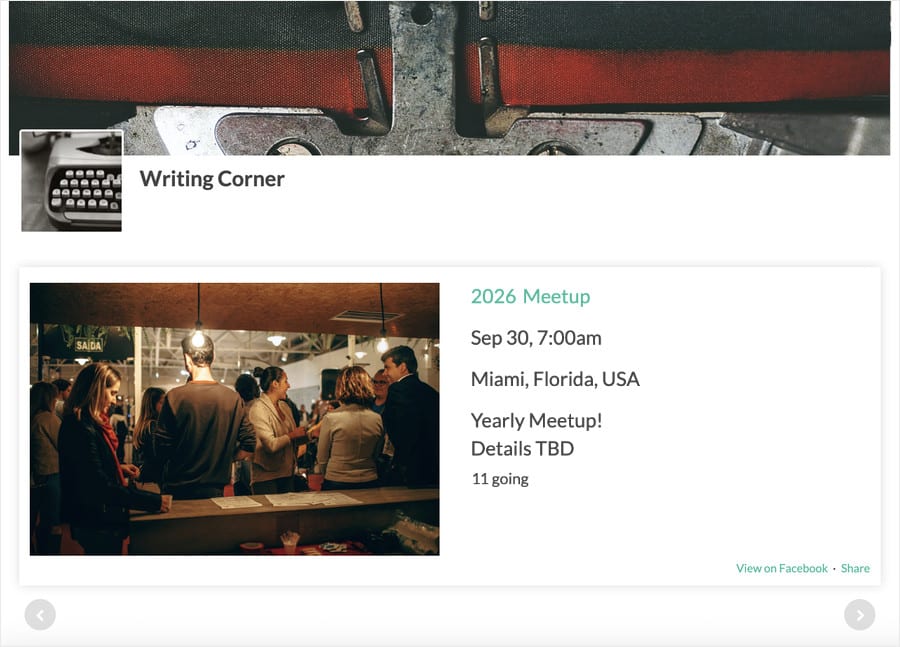
You run a weekly class, a season of live shows, a calendar of workshops. Every date is already on Facebook, posted and updated as things change.
The people on your site aren’t on Facebook. They’re on your homepage, and unless your events are there too, they’ll never think to go looking.
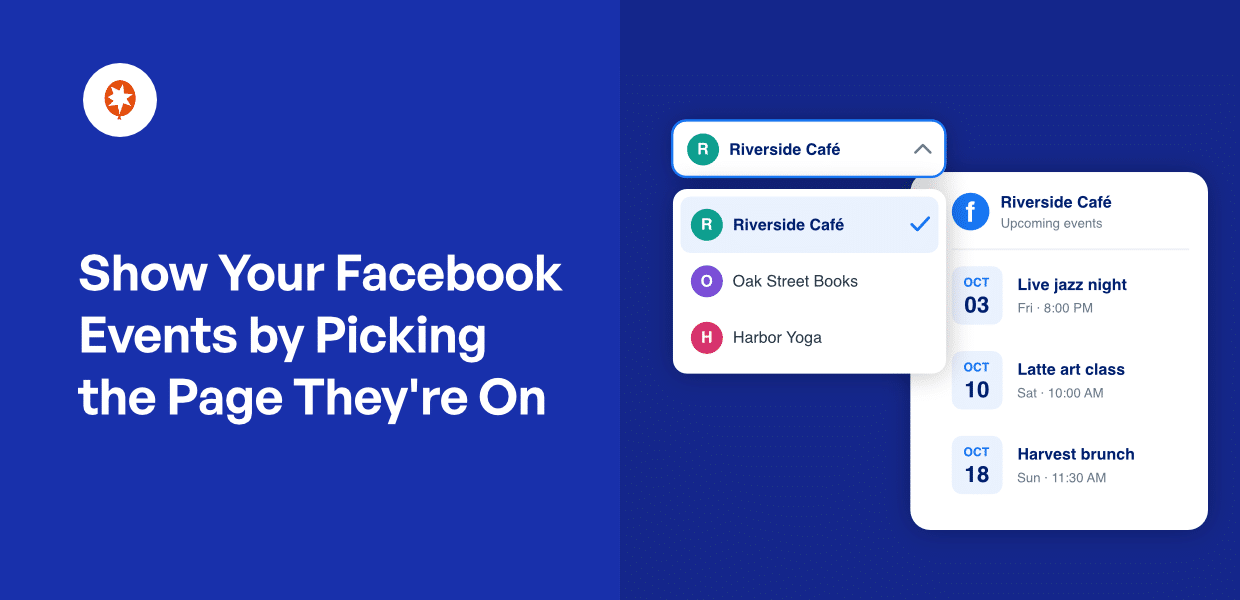
Smash Balloon Facebook Feed Pro puts them on your site by pulling from a Page you pick. Connect your own Facebook App and every Page you manage comes back in a list, so choosing the right one takes a click.
Your events feed then keeps itself current. Post a date on Facebook, change a time, cancel something, and the feed on your site follows.
Here’s what you can do:
- Pick the Page whose events you want from a list of your own Pages
- Connect once and reach every Page on your account at the same time
- Add a Page on Facebook later and it shows up without reconnecting
- Build as many events feeds as you like from the same connection
- Keep every events feed you already have running exactly as it is
Connect Your Facebook App and Your Pages Come With It
You can already pull posts, photos, and videos into a feed with a simple login. Events work differently: Facebook keeps them behind an app you create yourself, so the connection stays in your hands.
That connection takes three things from the app you create: your App ID, your App Secret, and a User Access Token.
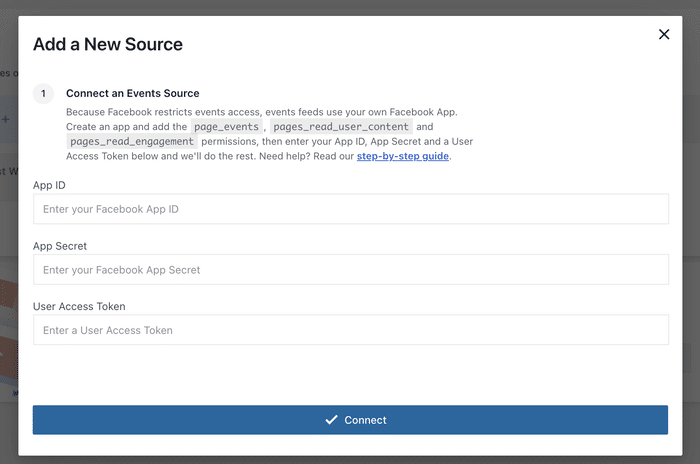
Paste them in, click Connect, and the plugin asks Facebook which Pages that app can reach. Every one you manage comes back in a list.
Just select the Page your events are on, click Add, and it’s a source you can build feeds from.
- A theatre connects the Page its season is posted on, and the listings land on the what’s-on page the same afternoon
- A community centre pulls from the Page its timetable lives on, so classes show up on the site as they’re scheduled
- A gallery points the feed at the Page behind its openings, and every new date reaches visitors already browsing the exhibitions
Run Several Pages? They All Come Through at Once
Manage more than one Page? You only need to connect once.
The same app reaches everything it has access to, so a single connection covers every Page on your account.
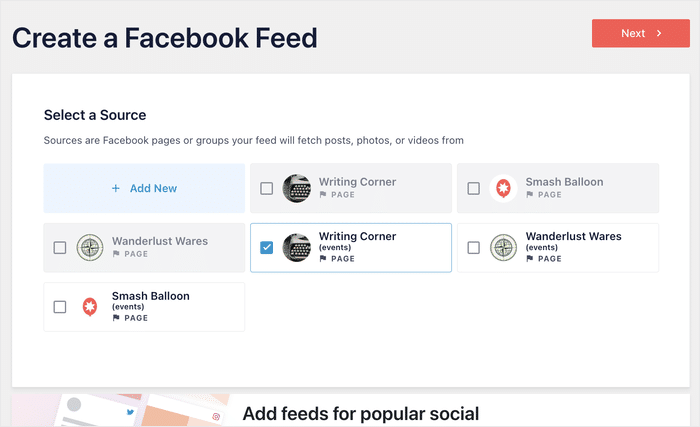
Each Page becomes its own source, which means a separate feed per Page if you want one, or one connection feeding several feeds across the site.
Pages you’re given access to later turn up in the list automatically, so there’s no need to reconnect or paste your credentials in again.
- A gym with three studios gives each location page its own events feed, all from the same connection
- A promoter running a Page per venue builds a feed for each and puts them on the right listings pages
- A church with a main Page and a youth ministry Page shows each set of events where its own people are looking
Your Existing Events Feeds Carry On Exactly as They Are
If you have an events feed built from an iCal URL, it keeps displaying your events the way it always has. Nothing to redo, nothing to reconnect, and no pages to go back and check.
Sources connect through your Facebook App, so an iCal URL can’t be added or edited from the feed builder or Manage Sources. Your existing one sits where it is and keeps working.
If a feed ever stops pulling events, reconnecting it through your app takes a couple of minutes. Your Pages are listed for you, so it’s the same three fields and a Page to pick.
Ready to put your events where your visitors already are?
Events feeds are available on Facebook Feed Pro Elite and the All Access Bundle. Connect your Facebook App once, pick your Page, and your events keep themselves current on your site. Backed by a 14-day money back guarantee.
Show My Facebook EventsHow to Connect Your Facebook Events Feed
Setting up your events feed is a one-time job, and most of it happens on Facebook’s side. It’s available on Facebook Feed Pro Elite and the All Access Bundle.
Step 1: Create a Facebook App
Go to developers.facebook.com and sign in with the personal account that manages your Page.
Facebook only lets individuals register as developers, so use your own login rather than a business one.
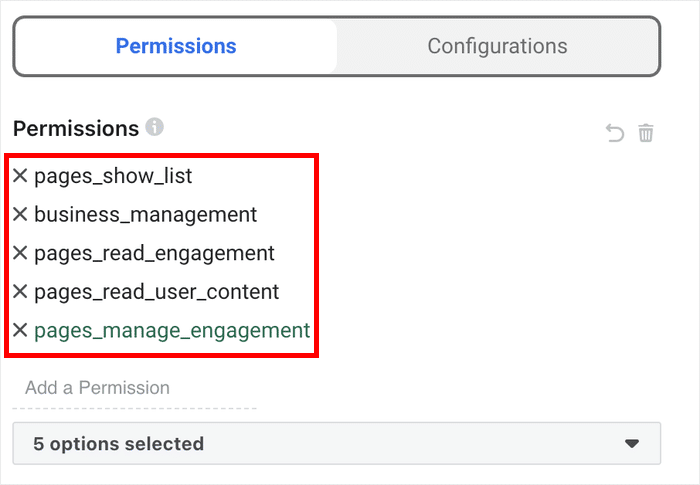
When you set up the app, pick the Manage everything on your Page use case. That includes pages_show_list and business_management for you.
Then add three more: pages_read_user_content, pages_read_engagement and pages_manage_engagement. All five need to be selected again when you generate your token.
The app can stay in development mode, since it only reads events from a Page you already manage.
Our step-by-step guide walks through each screen with screenshots.
Step 2: Collect your App ID, App Secret, and a User Access Token
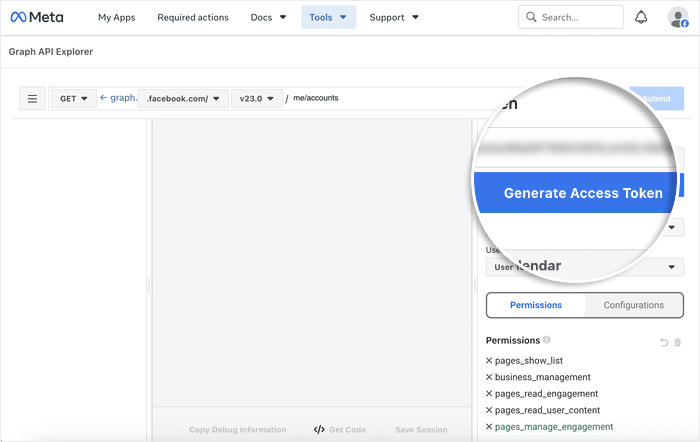
The App ID and App Secret come from your app’s settings. For the token, use Facebook’s Graph API Explorer with your app selected, and select all five permissions again before you generate it.
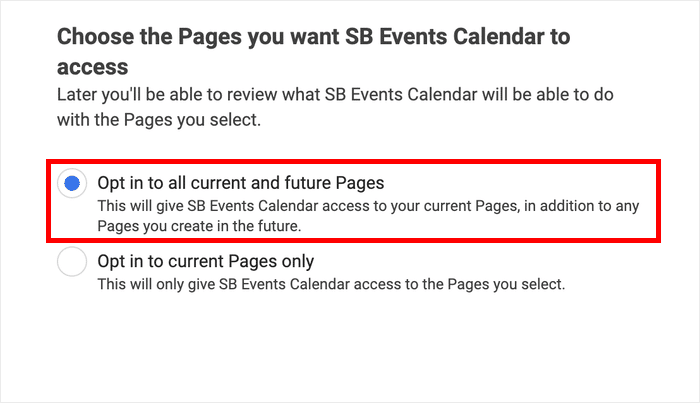
When Facebook asks which Pages to grant access to, choose to opt in to all current and future Pages.
That way a Page you create later is covered without you going back to Facebook for a new token.
Two things before you generate it:
- The token lasts about an hour, so finish the setup in the same sitting
- You need to be an admin of the Page whose events you want, since Facebook only returns events to someone with full access to it
Click Generate Access Token, work through the dialog Facebook opens, and copy the token it gives you.
Step 3: Connect it in WordPress
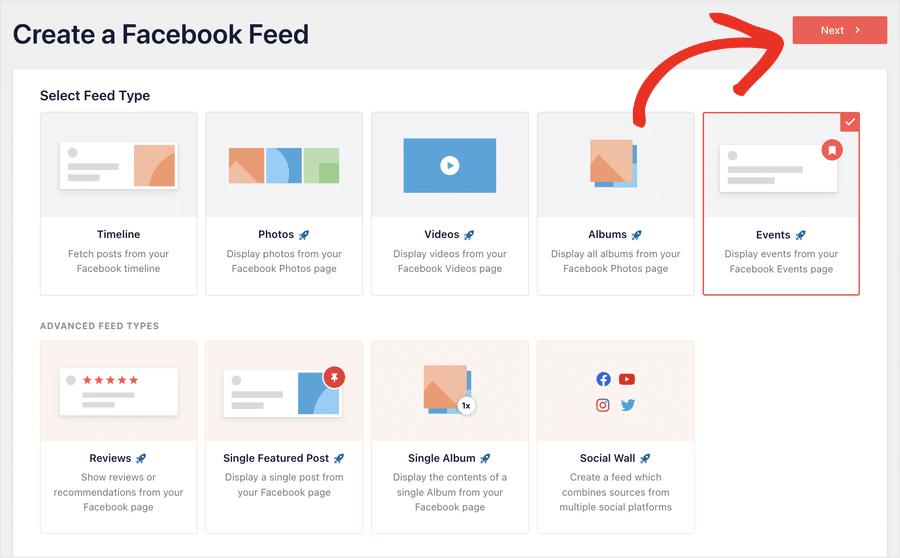
Go to Facebook Feed » All Feeds and click on the Add New button.
From the available feed types, select Events and click on Next.
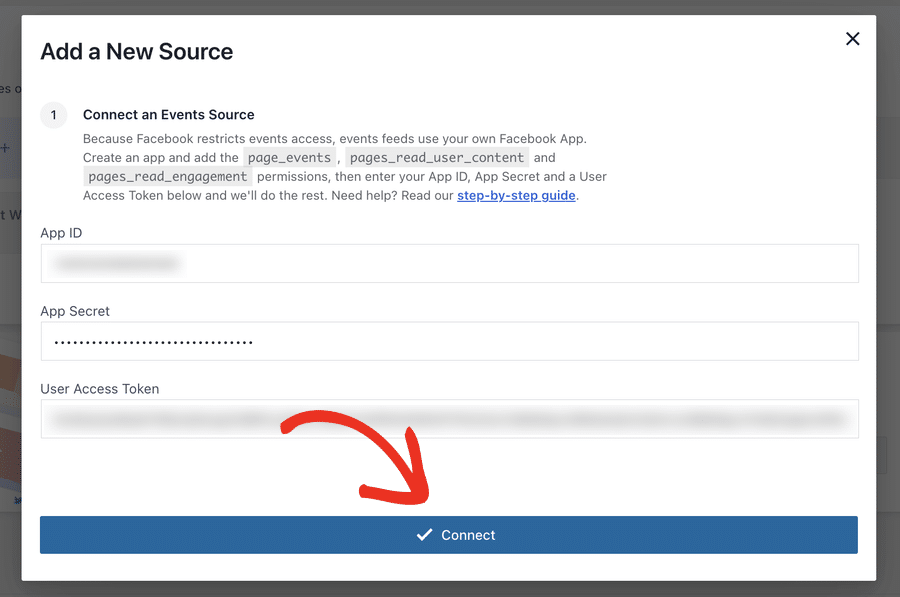
Doing that will open a new popup where you can enter the info from step 2.
Paste your App ID, App Secret and User Access Token, then click Connect.
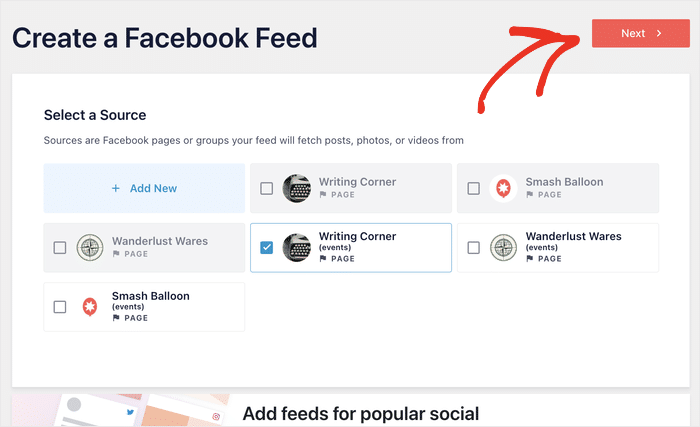
Step 4: Pick your Page
Every Page your app can reach comes back in a list. Select the one your events are on and click Add.
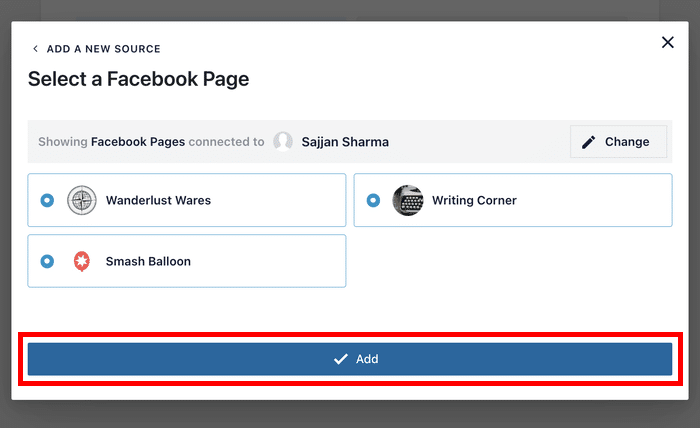
From here, you can use all the connected pages as the source for your events feed.
Pick the source for your feed and click on Next to continue.
Step 5: Customize and embed the feed
Pick a theme and a template to start from, and the feed opens in the visual customizer with your events in a live preview.
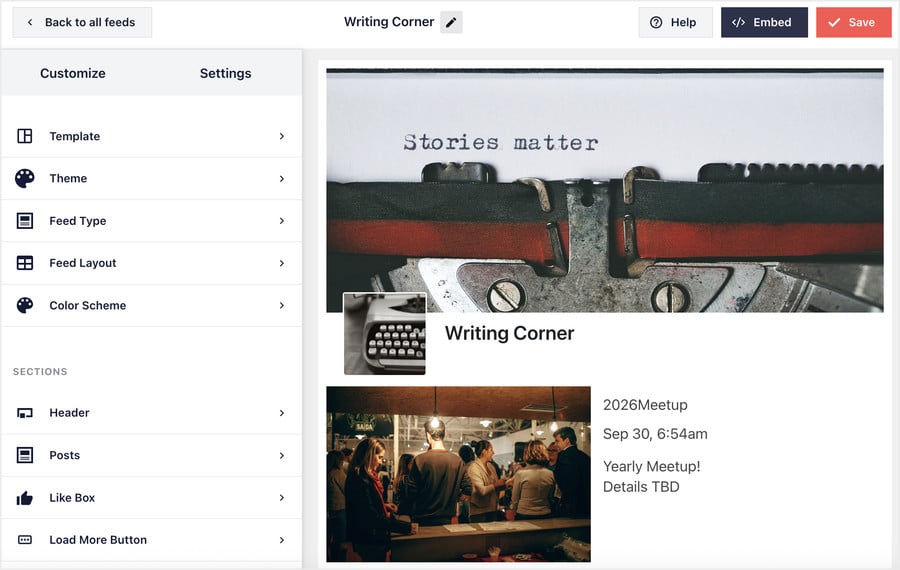
From there you can set the layout, colors, header and post style, and choose how many events to show.
When it looks right, click Embed and choose where it goes, whether that’s a page, a post, or a widget area.
A Few Questions You Might Have
Do I need to change anything if my events feed uses an iCal URL?
No. It keeps displaying your events the way it always has, with nothing to redo. An iCal URL can’t be added or edited from the feed builder or Manage Sources, so if that feed ever stops pulling events, reconnect it through your Facebook App instead.
Why do Events feeds need a Facebook App when other feeds don’t?
Facebook restricts access to events data more tightly than posts, photos, or videos. Those connect with a login; events need an app you create in your own Facebook account, so the access stays yours.
Does Facebook have to review or approve my app?
No. It can stay in development mode the whole time, since it only reads events from a Page you already manage. There’s no review step and nothing to publish, so you’re not waiting on Facebook to sign anything off.
Is my Facebook information safe?
Your App ID and App Secret are used to set up the connection, and the Page access token that comes out of it is stored encrypted. Nothing is shared with anyone else, and the app stays in your own Facebook account under your control.
My token stopped working before I finished setting up.
The token from Graph API Explorer lasts about an hour. Generate a fresh one and paste it straight in. Once the connection is made, the plugin holds a long-lived token, and you won’t need to repeat this.
Which Facebook Feed Pro plan do I need for Events feeds?
Events feeds are available on Facebook Feed Pro Elite and the All Access Bundle. Elite covers Events alongside every other feed type in the plugin, including timelines, photos, videos, albums, and reviews.
The All Access Bundle includes Elite and adds the rest of the Smash Balloon plugins. On Basic or Plus, you can upgrade from your account at any time, and every feed you’ve already built carries over untouched.
Start Showing Your Facebook Events Today
Your events are already on Facebook, updated every time a date moves or a new one goes up. The people who’d come to them are on your site, where none of that reaches them.
An events feed closes that gap and then looks after itself. Connect your Facebook App, pick the Page your events are on, and the feed keeps pace with whatever you post.
And you can do it without:
- Copying event details across by hand
- Updating your site every time a date changes
- Keeping a separate calendar page in step with Facebook
Events feeds are available on Facebook Feed Pro Elite and the All Access Bundle.
Already on either? Open Facebook Feed » All Feeds » Add New, add your events source, and pick your Page.
On Basic or Plus? Upgrade to Elite from your account, and every feed you’ve built carries over.
Not running Facebook Feed Pro yet? Events feeds come with Elite and the All Access Bundle, alongside every other feed type in the plugin.
Put your events in front of the people already on your site
Facebook Feed Pro Elite brings your events onto any page, styled to match your site and updating as you post. Every other feed type comes with it, backed by a 14-day money back guarantee.
Get Facebook Feed Pro EliteDo you run recurring events like classes, shows, or weekly specials? Drop a comment below and let us know what you’re displaying.