Social Wall
  Feed Analytics


Does your product page have a single review on it? If you’re reselling or dropshipping something from AliExpress, chances are it doesn’t, even though hundreds of real buyers already wrote them, just not anywhere near your site.
Smash Balloon Reviews Feed Pro now brings those reviews home. AliExpress joins Google, WooCommerce, Easy Digital Downloads, and Trustpilot as a source you can add in one paste!
As a result, social proof that’s been sitting on someone else’s site can finally do its job on yours: convincing a first-time visitor to actually buy.
If you’re already running Smash Balloon for Instagram or Facebook but haven’t picked up Reviews Feed Pro, take a second look, especially if you resell or dropship physical goods.
Your social feed is great at getting someone to stop scrolling. What actually gets them to check out is proof that a real buyer got the exact thing they’re about to order.
AliExpress is Now a Source in Reviews Feed Pro
Getting AliExpress reviews onto your site used to mean screenshotting them by hand, copying the text into a testimonials page, or just linking out to the listing and hoping the shopper came back.
None of that holds up once you’re managing more than a handful of products, and linking out actually risks losing you the sale outright.
AliExpress now sits as its own tile in your Add Source modal, right next to Google, WooCommerce, and the rest.
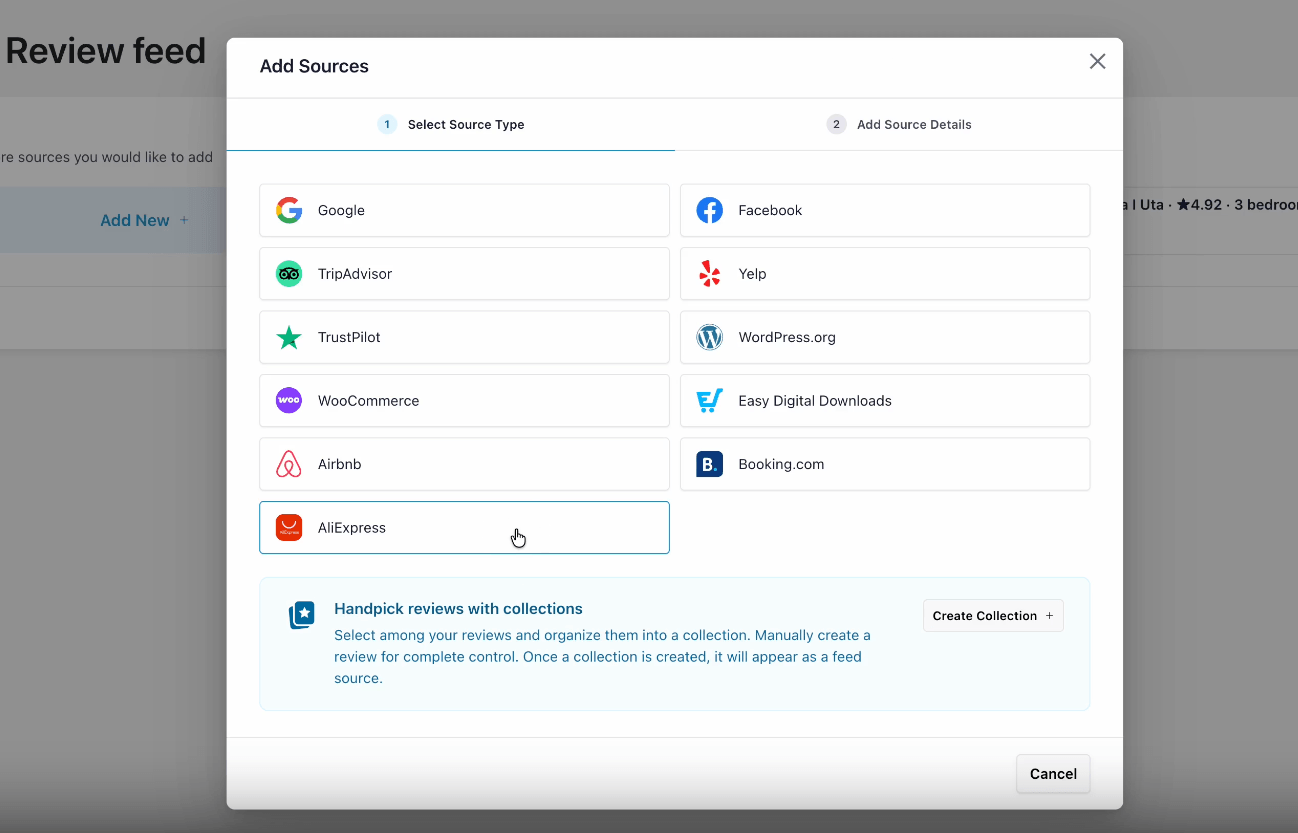
Paste your product’s AliExpress URL, or just its numeric item ID, and the plugin goes and grabs that product’s buyer reviews for you, dropping them straight into the same feed as every other source you’re already using. Visitors get real buyer proof to act on the moment they land on the page.
Here’s what that looks like depending on what you sell:
- Pull in reviews for each product straight from the AliExpress listing you’re sourcing from, so a dropshipper’s kitchen gadgets come with real buyer proof from day one
- Back up every recommendation with real buyer feedback instead of a plain description, so an affiliate site builds trust before a reader ever clicks through
- Show proof for each piece without writing a single testimonial yourself, so a jewelry reseller gets credibility without the extra work
Every AliExpress Review Shows More Than a Star Rating
A plain star count tells you a product is liked. It doesn’t tell you who liked it, what they actually bought, or what it looked like when it arrived.
That detail is a big part of why reviews work at all: over 90% of online shoppers read reviews before deciding to buy, and it’s usually the specifics, not the star average, that make up their mind.
AliExpress reviews carry all of that, and your card keeps it instead of flattening everything into a number.
See the Exact Product Option a Buyer Chose
Every AliExpress review shows the specific product option that the buyer chose, rendered as a clean pill right on your card: the color, the size, whatever variant applies.
So if you sell a phone case in two colors, a shopper deciding between them can read reviews for the exact one they’re considering, instead of guessing whether a five-star review even applies to their choice.
See Which Country the Buyer is Shopping From
Each card shows the buyer’s country too. Sell to an international audience, and you can point a visitor to a review from someone shopping in their own region.
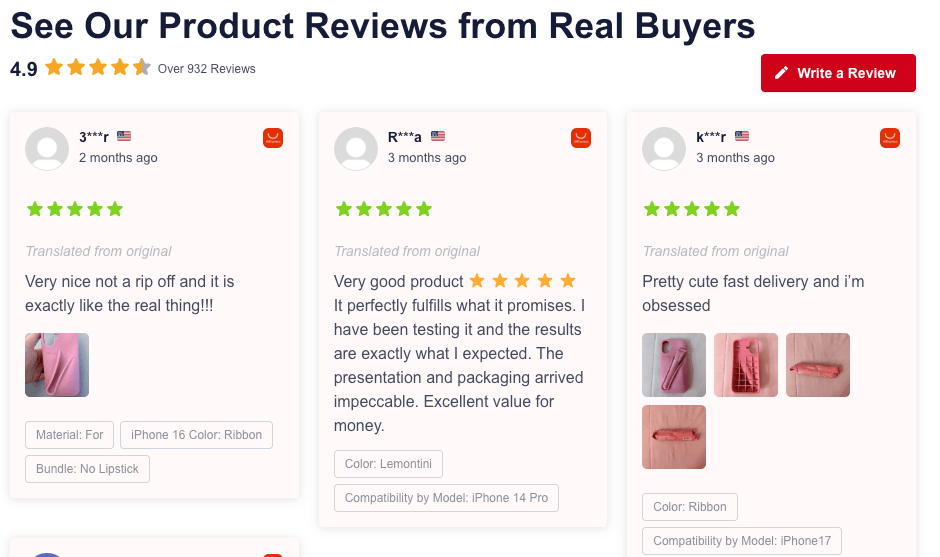
That’s the kind of proof that actually gets someone to click Add to Cart; an anonymous five-star average rarely does.
See the Photos Buyers Shared
When a buyer includes photos with their review, those photos show up right on your card.
If you sell clothes, for example, that means shoppers get to see how the item actually looks on a real person, not just on a hanger or a mannequin.
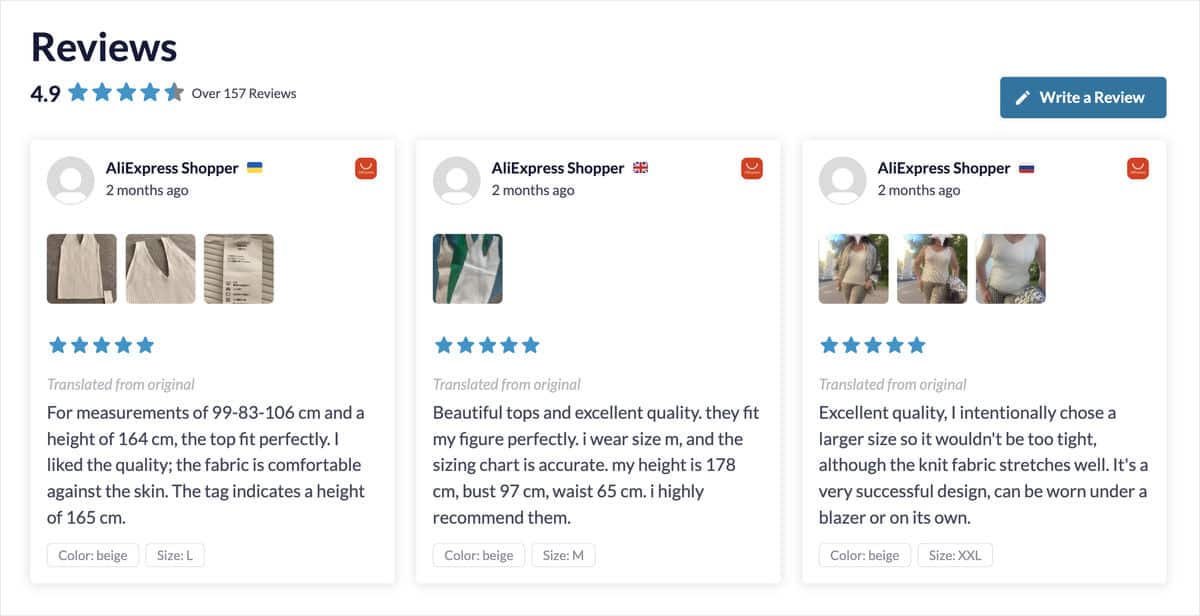
Not every review comes with photos, but when one does, it does more to close a sale than any product photo you took yourself, because a shopper trusts what another customer shows them far more than what you show them.
See When a Buyer Comes Back With a Follow-Up Review
Some AliExpress buyers come back weeks later and leave a follow-up review after they’ve actually used the product, and when they do, it shows up right alongside the original.
Selling gadgets, you can point to a review updated a month in confirming the thing still works, and that’s far more convincing to a skeptical shopper than a first impression alone.
AliExpress Details Show Up in Review Alert Popups Too
Already using Review Alert popups to show reviews on any page of your site? AliExpress works there too.
Pick an AliExpress source for a popup, and those same product-option pills render just as cleanly as they do in the feed, across all four themes: Light, Dark, Minimal, and Minimal Dark.
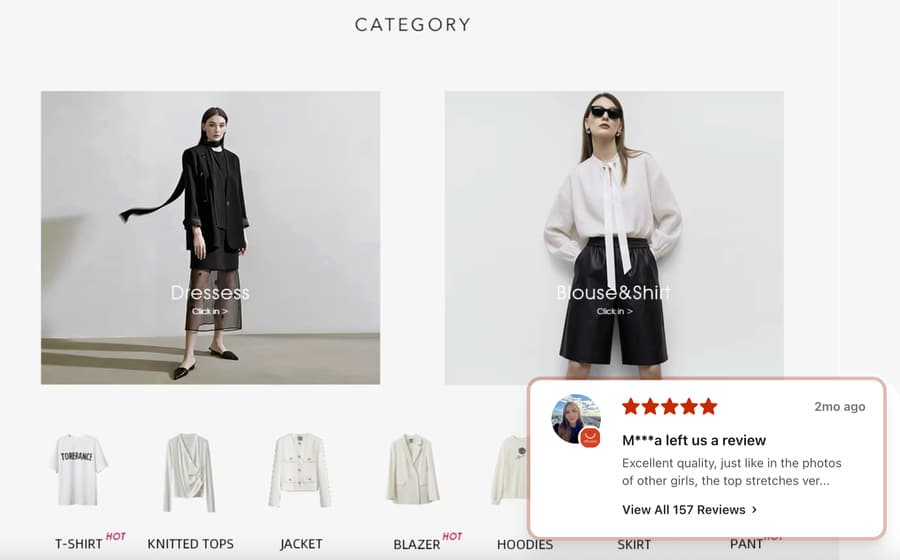
That’s another chance to make your case, right on your checkout or pricing page, wherever you actually want it to land.
Show Your AliExpress Reviews on Your Site Today
Reviews Feed Pro Plus adds AliExpress alongside Google, WooCommerce, and Trustpilot, all backed by a 14-day money back guarantee.
Add My AliExpress ReviewsNew Reviews Keep Arriving Without You Doing Anything
Your brand-new AliExpress source won’t sit there half-empty. Smash Balloon Reviews Feed Pro grabs a solid batch of reviews the moment you add the product, then quietly keeps pulling in more of that listing’s history in the background.
Add a source for a phone case with three years of buyer feedback on AliExpress, and just watch the count on your site climb on its own: no refresh button, no re-adding the source, nothing you need to go check. Your page keeps looking more credible over time, without you spending another minute on it.
Combine AliExpress With Every Source You Already Use
Reviews Feed Pro was built to mix sources together, not keep them apart.
Add AliExpress reviews to the same feed as Google, WooCommerce, Easy Digital Downloads, and Trustpilot, and every card gets badged by the provider so your visitors always know exactly where a review came from.
A few ways that plays out:
- Show AliExpress and WooCommerce reviews together in one feed on your homepage, so a reseller running both gets one unified trust signal instead of two separate ones
- Combine AliExpress and Trustpilot reviews on the same page without picking one source over the other, so a multi-marketplace review site covers more ground in a single feed
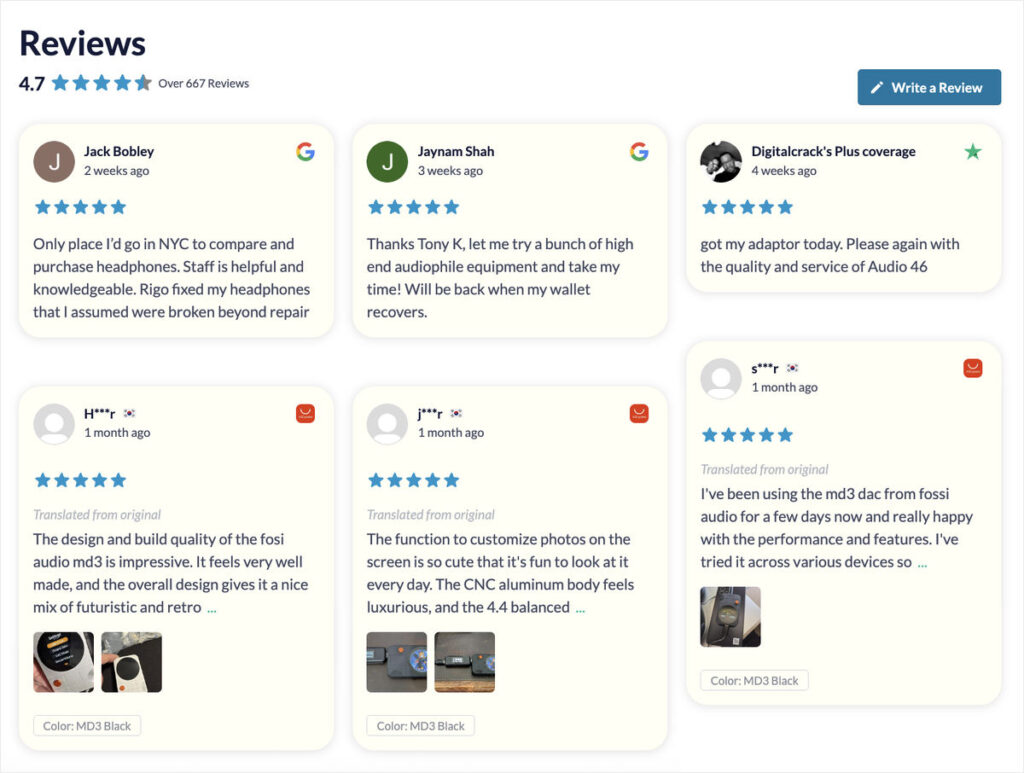
The same sorting, star rating filters, keyword filters, moderation, themes, and layouts you already rely on apply here too.
How to Add Your AliExpress.com Reviews in 4 Quick Steps
This feature is available on Reviews Feed Pro Plus, Elite, and the All Access Bundle, so if you’re on any of those plans, you’ve got everything you need to get started.
Step 1: Create a new reviews feed
In your WordPress dashboard, head to Reviews Feed » All Feeds and click Add New.
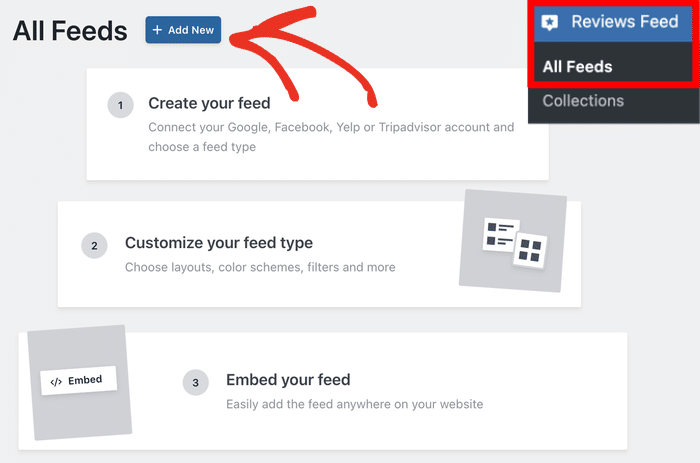
Select AliExpress as your source. Click Add Source and pick the AliExpress tile from the source picker, right next to Google, WooCommerce, and the rest.
Step 2: Add your AliExpress product URL
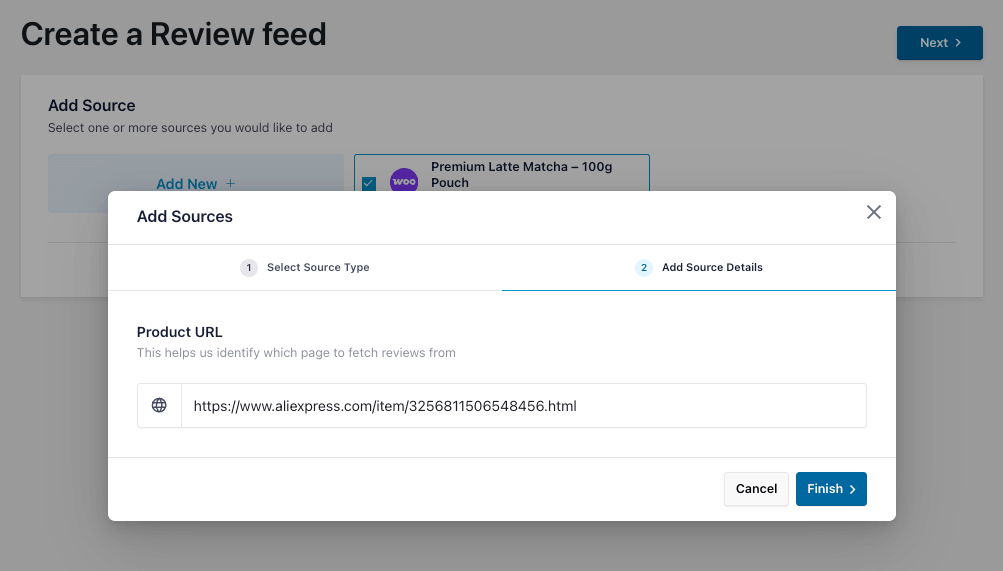
Paste your product’s AliExpress URL, or just its numeric item ID, and hit Finish. In this example, we’re pasting the AliExpress product URL of a phone case.
Step 3: Customize your AliExpress reviews feed
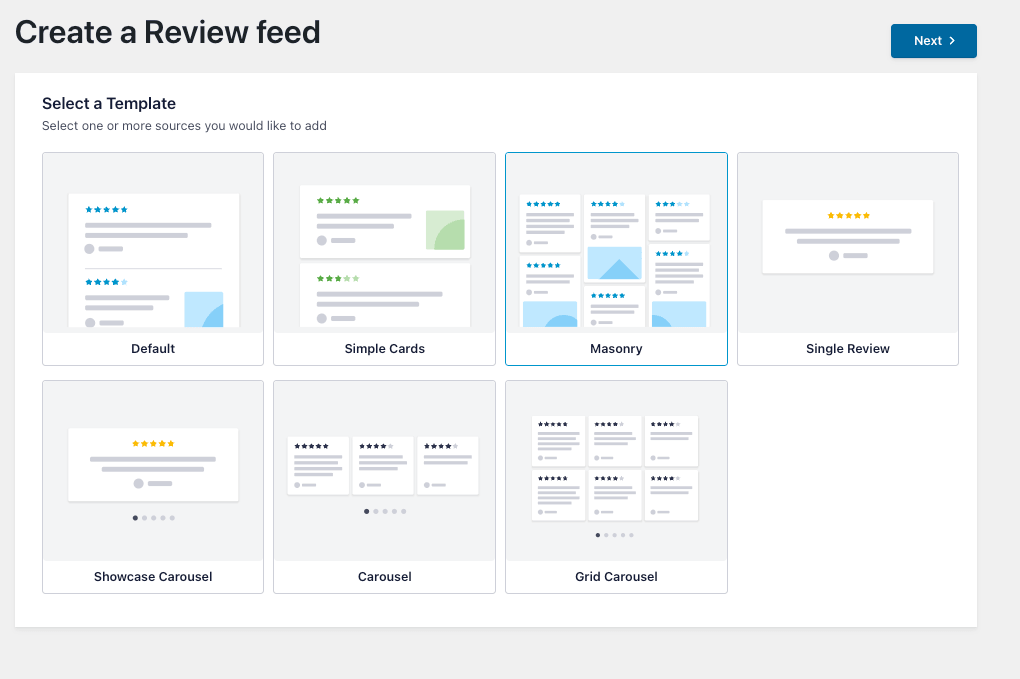
Start by choosing a template to set the overall look, then hit Next.
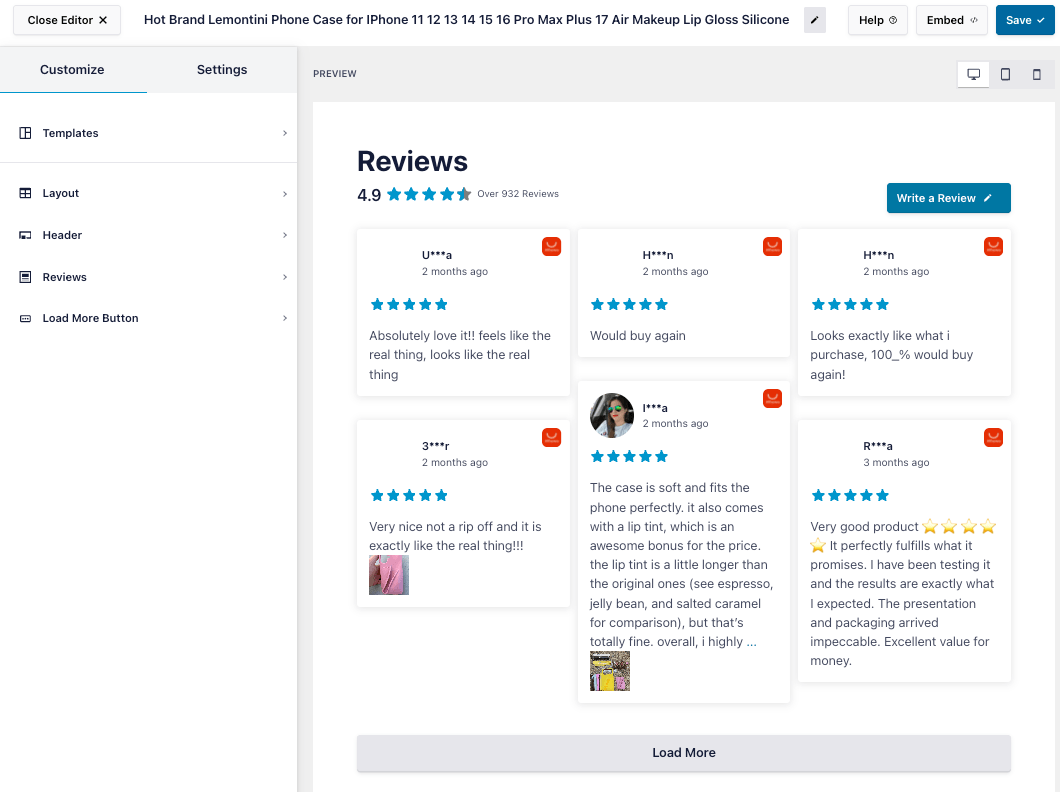
Your AliExpress reviews are already populating the live customizer by the time it opens.
The left side holds five panels: Templates, Layout, Header, Reviews, and Load More, and every change you make there shows up instantly in the preview on the right.
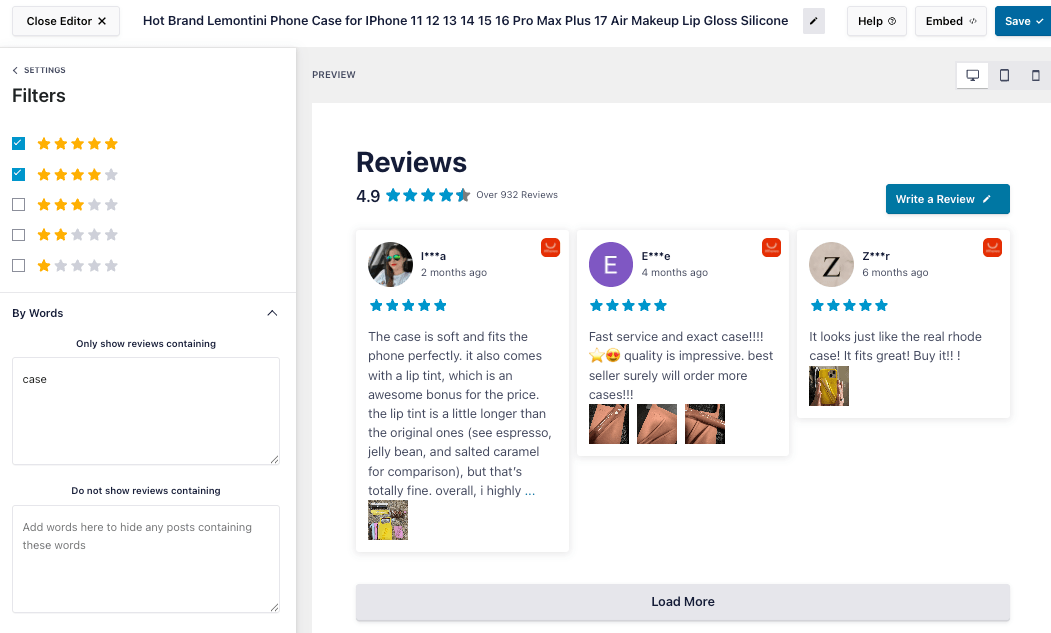
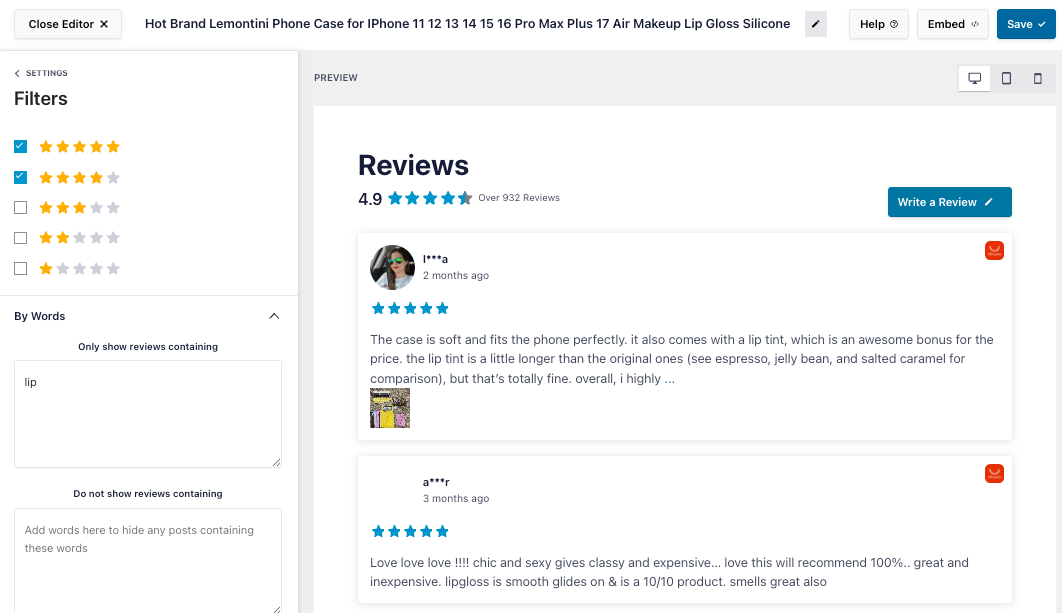
Need finer control? The Settings tab lets you filter out reviews below a certain rating, block specific keywords, or moderate what actually makes it onto the page.
Step 4: Embed your AliExpress reviews feed anywhere on your website
Click Save, then Embed to drop the feed onto any page, post, or sidebar using a Gutenberg block or shortcode.
Head to that page on the front end and you’ll see your AliExpress reviews live, with more of the product’s history filling in over the next several fetches.
Frequently Asked Questions on Embedding AliExpress Reviews
Do I need an AliExpress seller account or API key to use this?
Nope. All you need is a public AliExpress product page. Paste the product URL, or its numeric item ID, and Smash Balloon Reviews Feed Pro pulls in the buyer reviews that are already sitting there. Nothing to authenticate, no account to connect.
Will every review show buyer photos and a follow-up review?
Not every one, only when the buyer actually added them. Some AliExpress buyers include photos or come back with a follow-up after using the product, plenty don’t. When they do, though, it’ll show up right on the card.
Can I combine AliExpress reviews with my other sources?
Absolutely. AliExpress sits right in the same Add Source modal as Google, WooCommerce, Easy Digital Downloads, and Trustpilot, and you can mix any of them into one feed, with each card badged by provider.
What plan do I need for this?
You’ll want Reviews Feed Pro Plus, Elite, or the All Access Bundle. It’s not included on Basic or the free version.
Start Showing Your AliExpress Reviews Today
Right now your strongest AliExpress reviews are working for AliExpress, not for your store. Why not put them on your own product page?
That’s real buyer proof about the exact product you’re selling, sitting on someone else’s site instead of yours. Now it can work on the page where you actually want the sale to happen.
And you can do it without:
- A separate testimonials page to maintain by hand
- Copying and pasting reviews yourself
- An API key, developer account, or AliExpress login
- Reviews going stale once you stop checking back on them
AliExpress is available on the Plus plan and above.
So if you’re already on Plus, Elite, or the All Access Bundle, update the plugin from your dashboard and add your product, and the AliExpress source is ready to go.
On Basic? Upgrade to Plus to unlock AliExpress, along with every other source and feature the plan includes.
Not using Reviews Feed Pro yet? Now is the perfect time to get it and put those reviews to work on your own site.
Bring Your AliExpress Reviews Home Today
The proof that convinces new buyers is already sitting on AliExpress. Reviews Feed Pro Plus connects to it automatically, no manual copying of reviews, no screenshots, backed by a 14-day money back guarantee.
Try Reviews Feed Pro PlusSo where will your AliExpress reviews go first: your homepage, or the product page you’re actually trying to sell? Let us know in the comments.