


 Social Wall
  Feed Analytics

You pasted Twitter’s embed code onto your site. On desktop, it looks great. Then you check your phone.
Now it’s a mess. The feed overflows the screen, or it sits in a skinny 500px box with dead space all around it. So you try a quick CSS fix. It works for a day, then breaks again.
If that sounds familiar, you’re not alone. It’s one of the most common headaches with Twitter (now X) embeds, and most of the “fixes” online are brittle hacks from 2012 that stopped working years ago.
I dug through the developer forums, tested the CSS workarounds, and tracked down why they keep failing. It turns out Twitter’s own JavaScript is fighting you. There’s a much simpler path that skips the whole battle.
So here are two ways to make a Twitter feed responsive. First, the manual CSS method. Then the plugin method, which is responsive out of the box, needs no code, and won’t break the next time X updates.
In this Article:
Quick Answer: How to Embed a Responsive Twitter Feed
Short on time? Here’s the answer before the full tutorial.
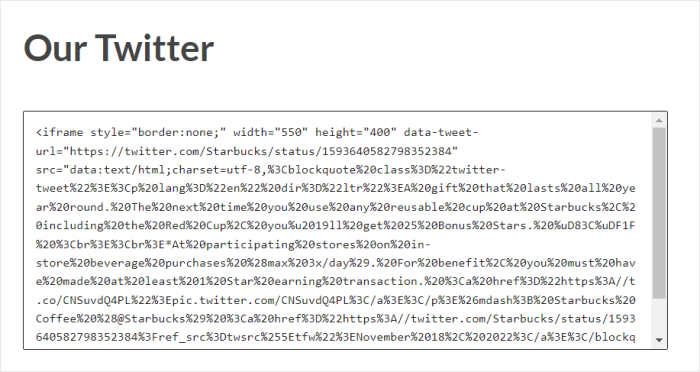
There are two ways to make a Twitter embed responsive. The first is manual. You wrap Twitter’s iframe in a container, force it to width: 100%, and fight its inline styles with CSS and media queries.
This works but takes a lot of time to apply and maintain. Plus, it tends to break when X updates its embed code.
The second way is a plugin. It renders the feed in your theme’s own markup, so it’s responsive by default. No code, no media queries, no override war.
For non-coders, the plugin wins. My pick is Twitter Feed Pro, which sidesteps the need for coding, makes your embeds responsive right out of the box.
Both approaches get you a responsive feed eventually, but the difference is the time you spend and how much maintenance you sign up for.
Here’s how the two stack up.
| Manual CSS | Twitter Feed Pro | |
|---|---|---|
| Coding needed | Yes | None |
| Survives X updates | No | Yes |
| Time to set up | 30+ minutes | About 5 minutes |
Why Won’t Your CSS Width Changes Stick?
You set the width to 100%, save, and reload. Nothing changes. So what keeps overriding you?
Twitter’s own JavaScript. It reapplies inline styles after your page loads, so your CSS gets wiped every time.
Here’s the part that trips people up. The embed isn’t really yours. It’s an iframe, a little window into Twitter’s servers, and you don’t control what’s inside it.
Fastest Way to Make X (Twitter) Embeds Responsive
If you’re looking for the best option, you can use the Twitter Feed Pro plugin and bypass all these issues.
Using the #1 Twitter feed plugin for WordPress, you’ll be able to create, customize, and embed X/Twitter content in a few simple clicks.
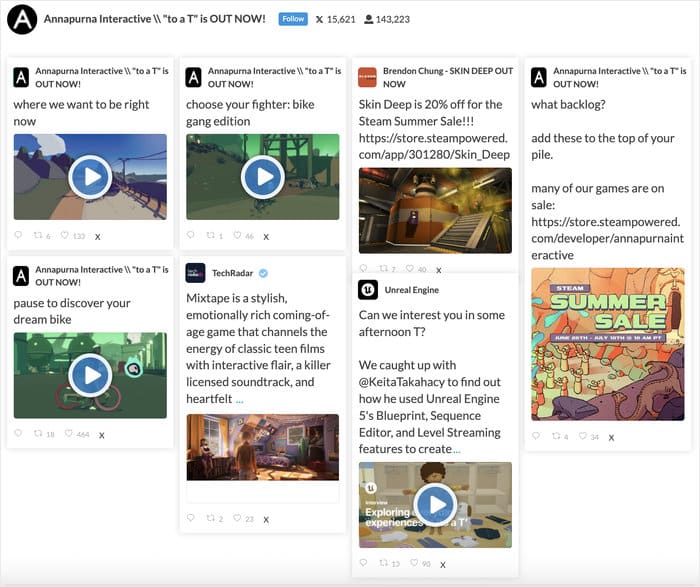
All of your embeds will automatically be responsive, so they’ll look right whether someone’s browsing on a phone, tablet, or desktop.
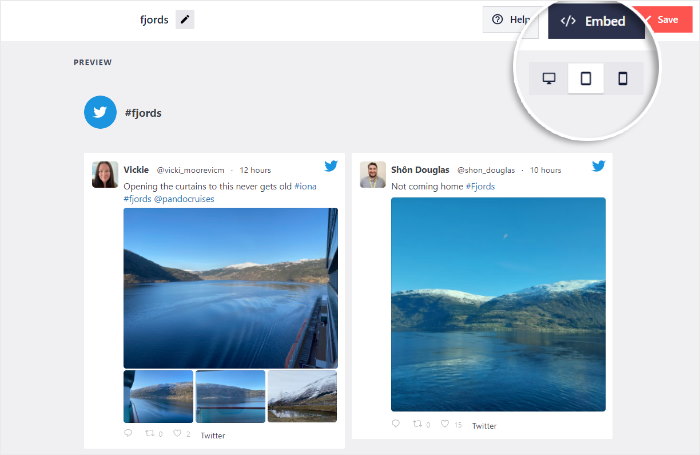
Unlike the manual method, Twitter Feed Pro doesn’t paste in an iFrame either. It pulls your posts and actually embeds them on your website properly.
Here’s how it changes things:
- It’s fluid by default. The feed is built from your theme’s markup, so it flexes with your layout instead of sitting in a locked 500px box.
- There’s no override war. No iframe means no Twitter JavaScript reaching in to reset your styles.
- There’s no height bug. With no iframe to guess its size, the feed is only ever as tall as its content.
On top of that, you get total control over the design of your X/Twitter embeds. You can even choose to import a pre-designed template for quick and easy customization.
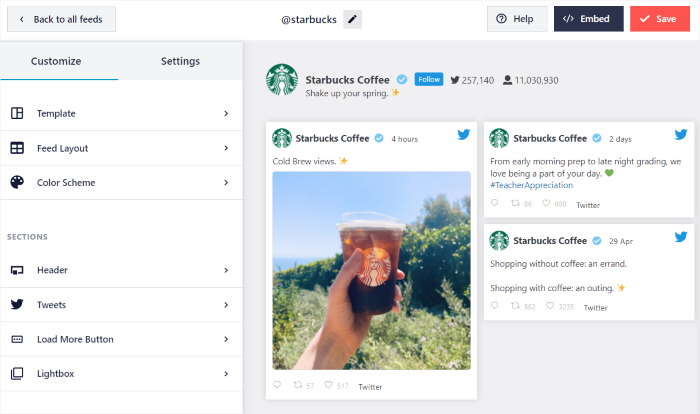
Using the live feed editor, you’ll be able to design your embeds in detail – no need for HTML, custom CSS, or any kind of code.
You’re also in good company. Smash Balloon plugins power more than 1.75 million active websites and hold a 4.9 out of 5 star rating.
Ready to embed responsive X (Twitter) content? Get your copy of Twitter Feed Pro here.
With that, let’s go ahead and look at the easiest way to make X (Twitter) widgets responsive with this plugin.
How to Embed Responsive X (Twitter) Widgets on Your Site (Easy Way)
If you follow the step-by-step instructions below, you can have a feed of mobile-friendly embeds on your website.
Let’s get started!
Step 1: Install the Twitter Feed Pro Plugin
You can get started by grabbing your copy of Twitter Feed Pro here. Once you have the plugin file, install and activate it on your computer.
If you want a quick refresher on how to do that, we’ve got a beginner-friendly tutorial on how to install a WordPress plugin.
Step 2: Create a New Widget
Since the plugin has a 3-step guided flow, you’ll have an easy time creating a new widget to display responsive embeds.
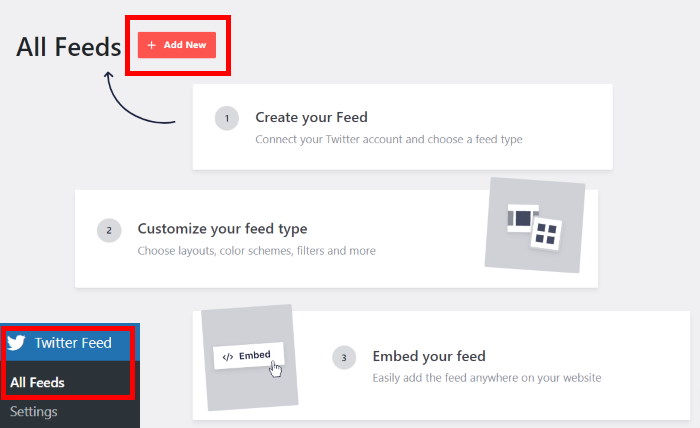
First, open the Twitter Feed » All Feeds menu from your admin dashboard and click on the Add New button.
Next, you can choose the type of Twitter widget you’d like to embed. There are 4 different options to choose from here:
- User Timeline: Select a Twitter account and embed the tweets there
- Hashtag: Display Twitter embeds with your chosen hashtags
- Search: Choose a search term and embed the matching tweets
- Lists: Select a Twitter list and embed all the tweets from there
Once you select the widget type you want, click on the Next button.
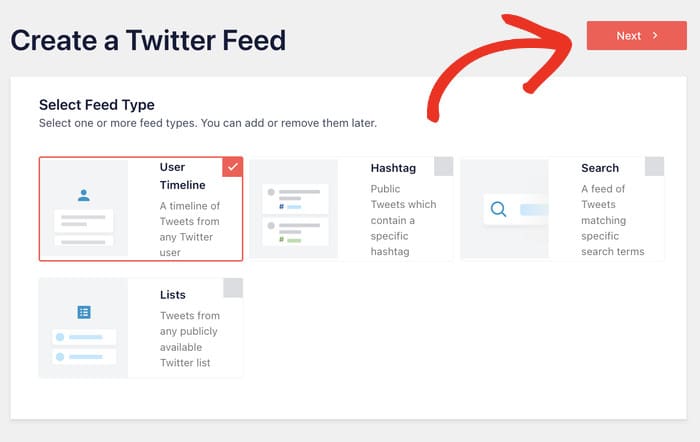
For our example, we’ll go ahead and select a hashtag widget type.
Step 3: Connect Your X (Twitter) Account
Once you connect your X account, your widget can start displaying responsive embeds on your site.
Ready to get started? First, click on the Connect button on the popup.
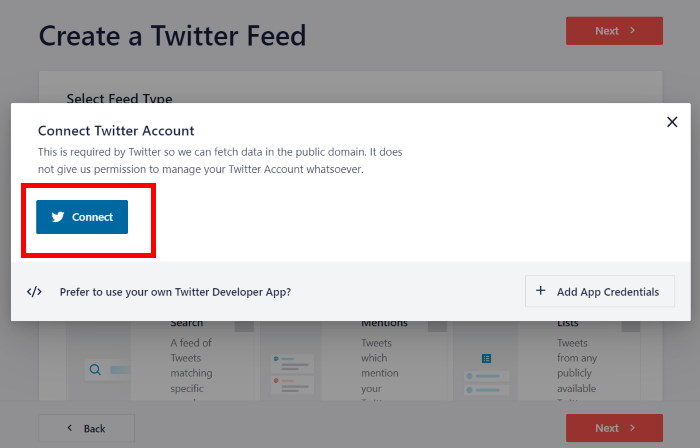
Doing that will redirect you from your website to www.x.com on your browser. Here, you can give the plugin read-only access to your account.
Since Smash Balloon is totally safe, Twitter Feed Pro can view your information and won’t have permission to make any changes with this access.
To continue, click on the Authorize app button here.
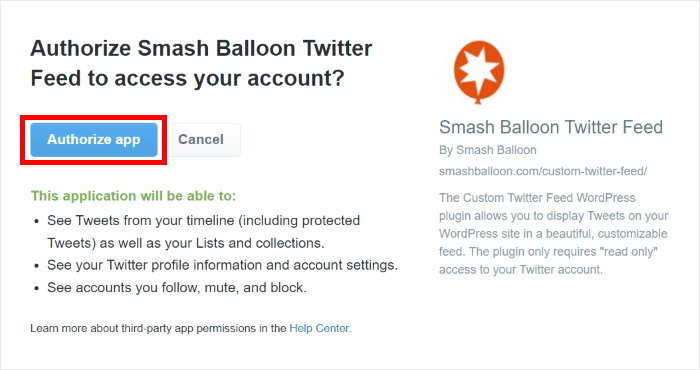
Clicking on that will send you back to your WordPress website once more.
Here, you can select the source for your embeds. Depending on your widget type, this can be a X (Twitter) handle, hashtag, search term, and more.
For now, we’ll enter the hashtag “KEEB_PD” on the popup and display all the tweets with that hashtag.
To continue, you can enter your source and then click on Next.
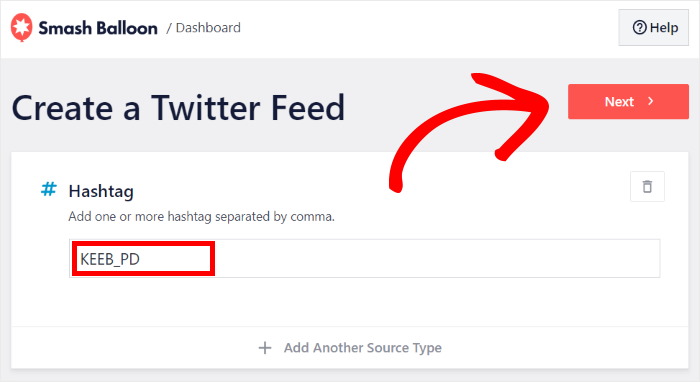
With that, you’ve added a new source for your widget. In the future, you can reuse this source with a single click whenever you make new X (Twitter) widgets.
Step 4: Customize Your X (Twitter) Embeds
The great thing about Twitter Feed Pro is that the plugin automatically makes the embeds responsive and copies your website’s design.
On top of that, you also have a collection of pre-built templates that you can import for your widget:
- Default
- Masonry Cards
- Simple Carousel
- Simple Cards
- Showcase Carousel
- Latest Tweets
- Widget
All you have to do is select a template you want to use and then click on Next.
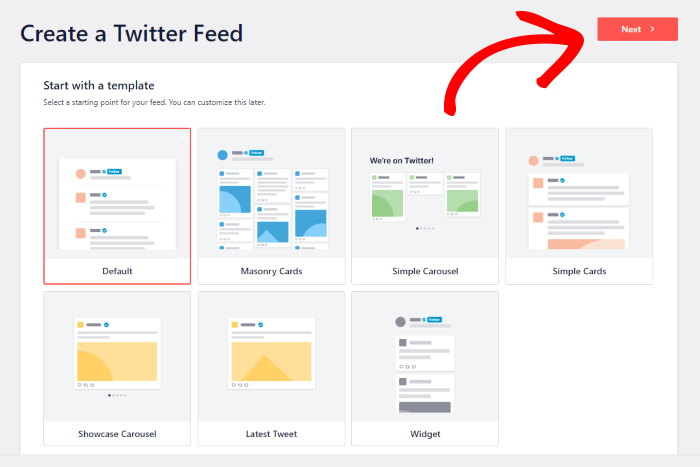
Once you’ve imported a template, Twitter Feed Pro will open the live feed editor, where you can customize your mobile-friendly embeds in detail.
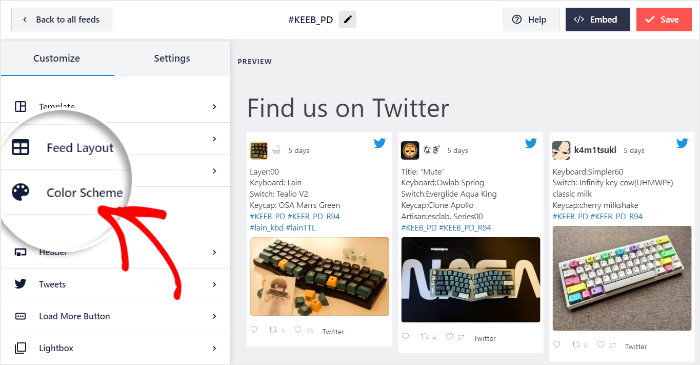
On the left, you have the option to change your feed layout, color scheme, header, load more button, and much more.
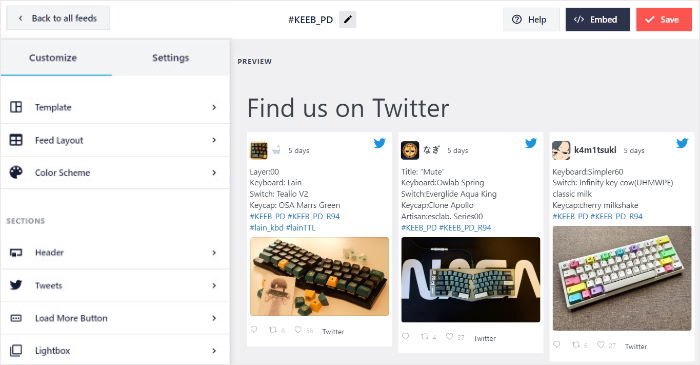
Plus, you can track all of your changes in real-time using the live feed preview on the right. So, customization is user-friendly, quick, and accurate.
To start designing your embeds, first, click on the Feed Layout option on the left.
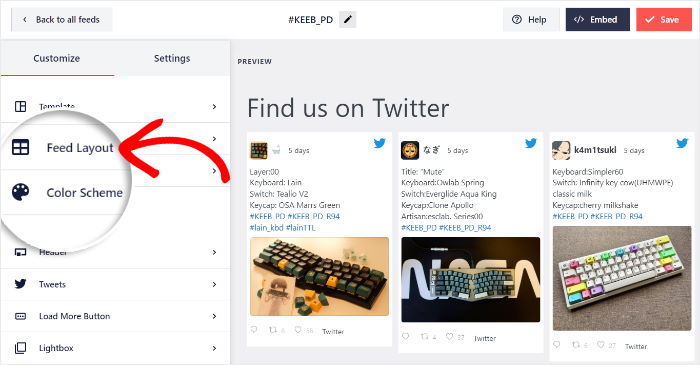
After that, you can choose the layout of the tweets that show up on your website. In fact, you can choose from 3 different layouts:
- List
- Masonry
- Carousel
Let’s look at these layouts in detail below.
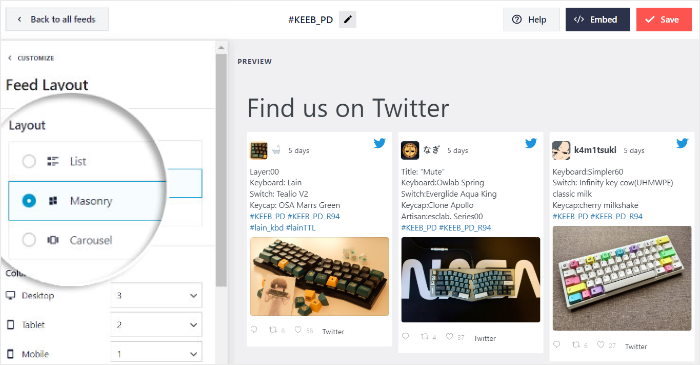
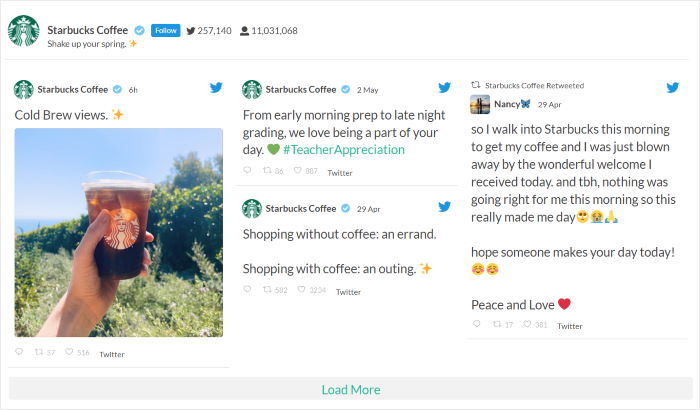
If you want X (Twitter) embeds to be easily visible on your website, you can use the list layout.
This layout will show the tweets in a single widget. It’s a great option for video embeds as well.

Next, you have the masonry layout that can display your embedded tweets in lots of columns.
As a result, you can engage your website visitors by showing tons of different tweets at once.
Want to make your website more interactive?
Just select the carousel layout and show a slideshow carousel with your X (Twitter) embeds.
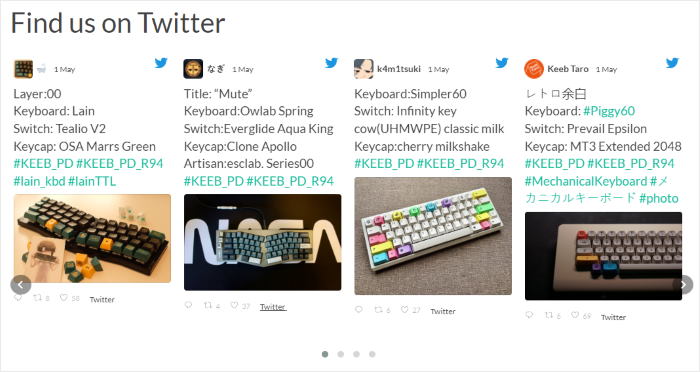
After selecting your layout, you can save your changes by clicking on Save.
If you want more ways to personalize your X (Twitter) embeds, click on the Customize button.
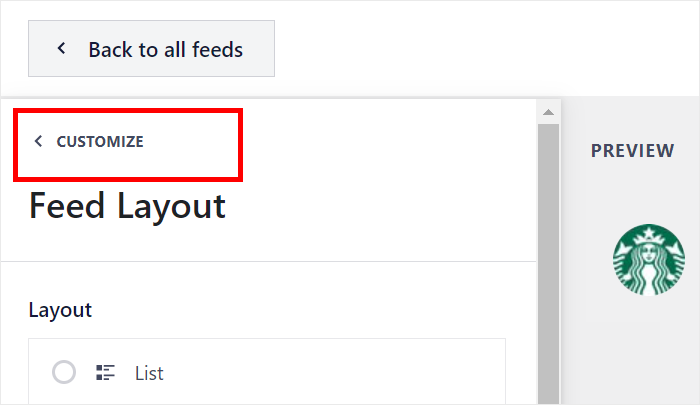
Next, you can use the plugin’s live feed editor to change the colors of your embeds.
Just click on the Color Scheme option on the left to do that.
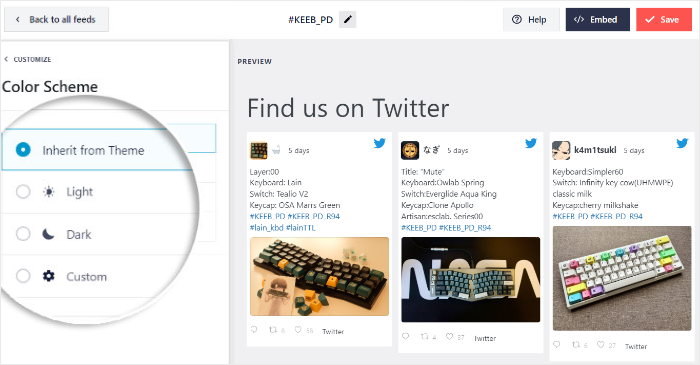
Now, you can simply select the color scheme that you prefer to change all the colors of your feed at once.
Here are the color schemes you can choose from:
- Inherit from Theme: Automatically copy the colors of your WordPress theme
- Light: Select a bright background and a dark font color
- Dark: Display a dark background and a fitting light instead
- Custom: Choose all the colors of your widget manually
After selecting your color scheme, click on Save once more.
Now, you can use the rest of the plugin’s customization options to personalize your tweet box style, header, load more buttons, feed size, and much more.
As you can see, this plugin makes it easy to customize and embed X (Twitter) feeds — CSS or HTML is not needed at all!
Finally, click on Save to save your changes before moving to the final step.
Step 5: Add Responsive X (Twitter) Embeds to WordPress
Since this plugin automatically makes your embeds responsive, you can go ahead and embed your X (Twitter) widget.
With Twitter Feed Pro, you can choose between 2 different ways of embedding your responsive widgets:
- Add X/Twitter embeds to your web page
- Add X/Twitter embeds on your website’s sidebar or footer
Let’s look at both of these methods below.
Add X/Twitter Embeds to Your Web Page
Ready to add the responsive widgets to your website?
First, click on the Embed button in the top right corner.
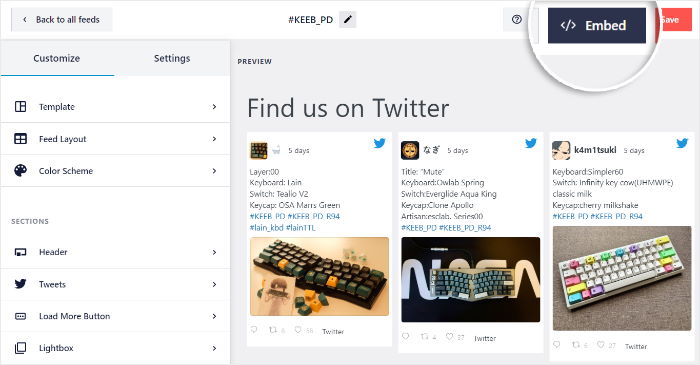
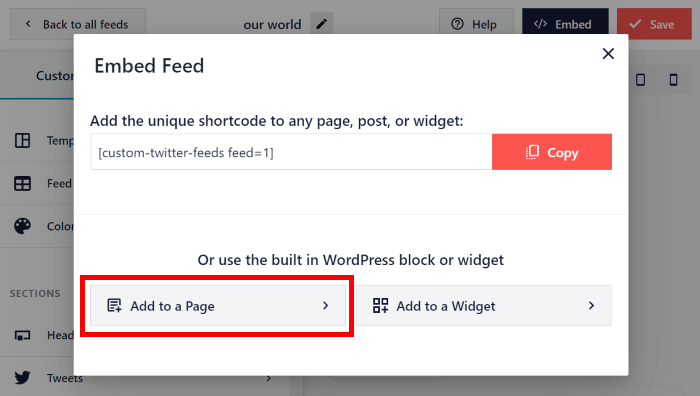
Clicking on that will bring up the embed options for this widget. You can embed it on a WordPress page, sidebar, or footer.
This time, you can click on the Add to a Page option.
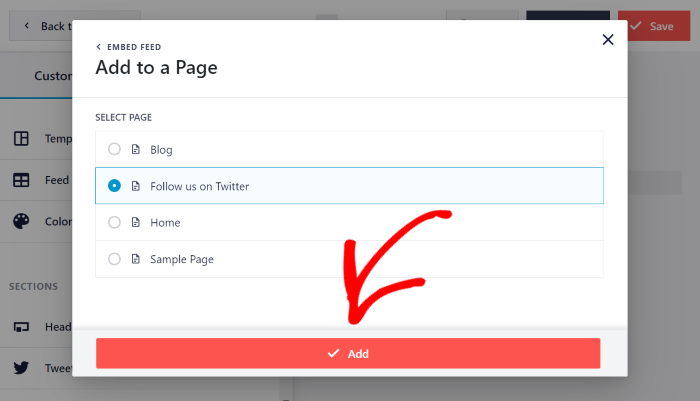
You can now see a list of all the WordPress pages on your website.
To continue, simply click on the page where you want to add the responsive X/Twitter widget and click on Add.
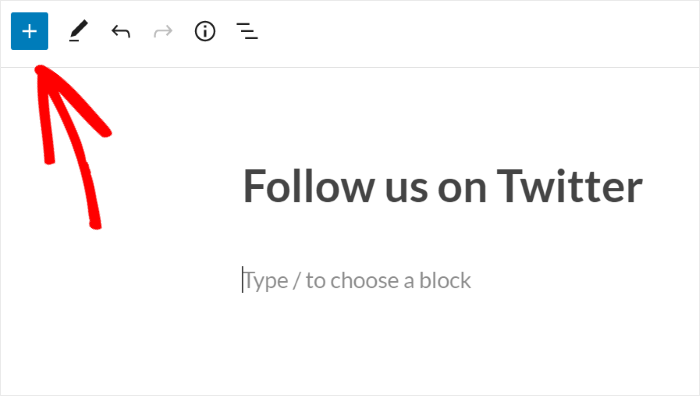
Twitter Feed Pro will now redirect you to this page in the WordPress editor.
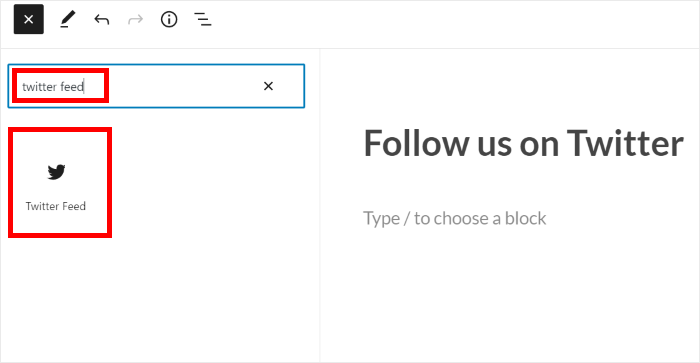
Here, you can add a new content block by clicking on the plus (+) icon.
Next, enter “twitter feed” in the search bar at the top and then click on the Twitter Feed block below.
With that, the plugin will automatically add the X/Twitter widget to your page.
To confirm your new widget, click on the Update button at the top.
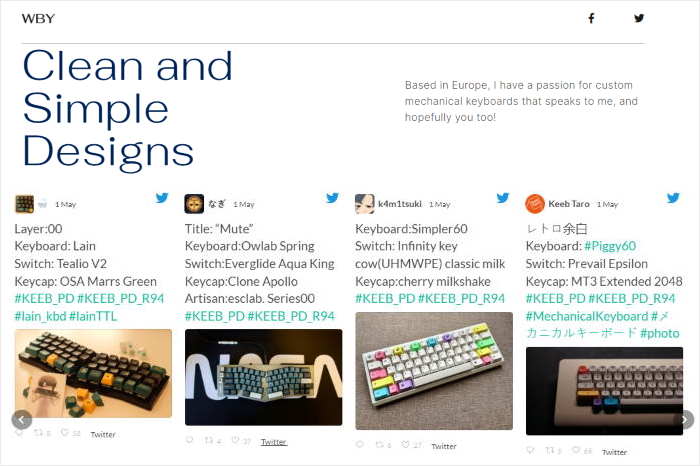
As you can see, it’s super easy to make your X/Twitter embeds responsive and add them to your site. Now, you can open the web page and see how your Twitter embeds look.
Add X/Twitter Embeds on Your Website’s Sidebar or Footer
From the live feed editor, you can add X/Twitter content to your website’s widget-ready areas as well.
In case your editor isn’t open yet, first, open the Twitter Feed » All Feeds menu from your dashboard.
Here, click on the X/Twitter widget that you want to embed.
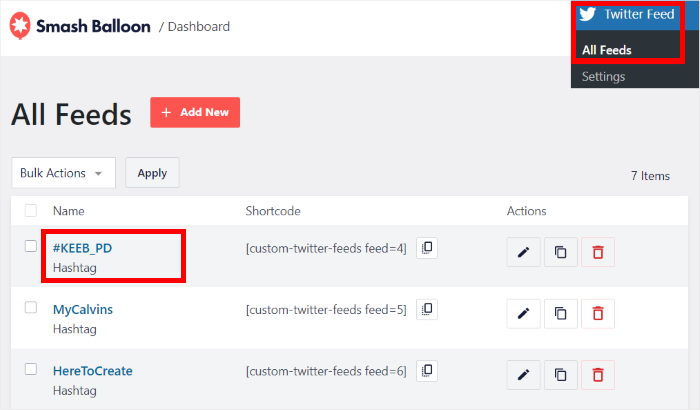
Just like that, your widget will be open in the live feed editor.
Like earlier, you can click on Embed to proceed.
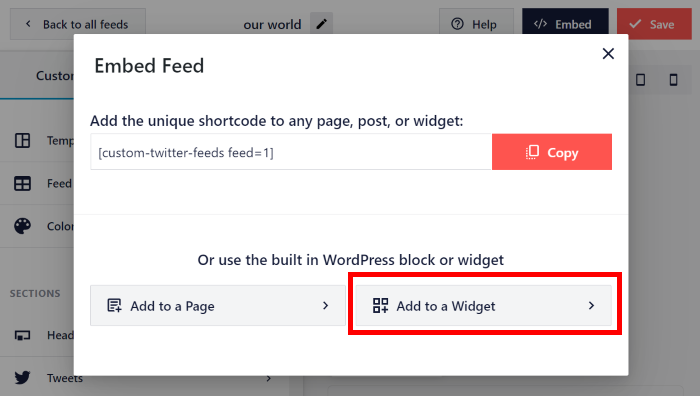
You’ll then see the popup with the embed options once more.
You can click on Add to a Widget to continue.
Twitter Feed Pro will now redirect you to your website’s Widgets page, where you can manage your existing widgets and add new ones.
Here, you can choose between the Sidebar or Footer to display your widget.
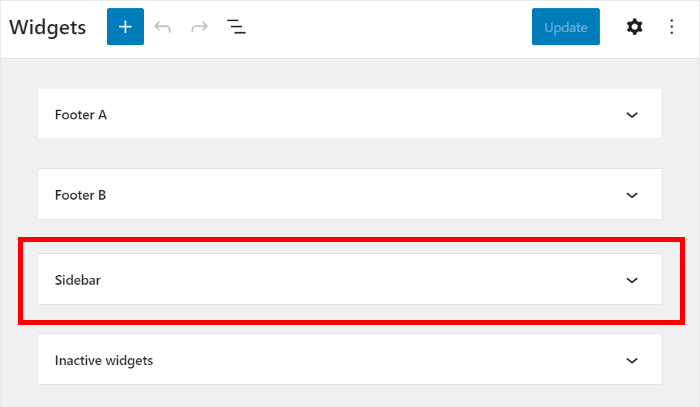
We’ll go ahead and use the Footer for our example.
Finally, click on the plus icon (+) at the bottom and then select the Twitter Feed widget.
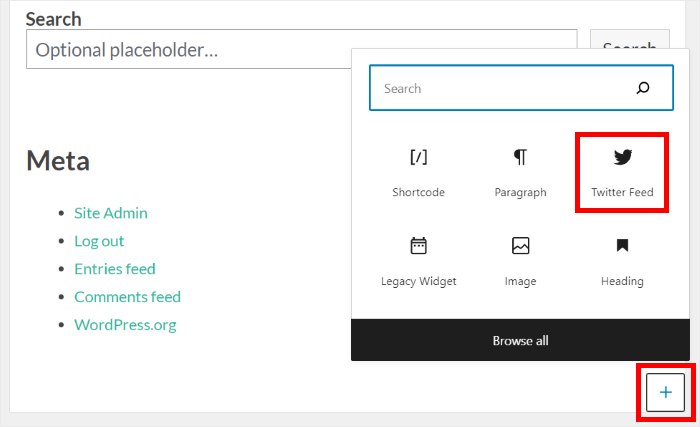
If you click on the Update button, your new X/Twitter widget will be live on your website.
That way, anyone visiting your website will be able to see your responsive embeds on your website’s footer:
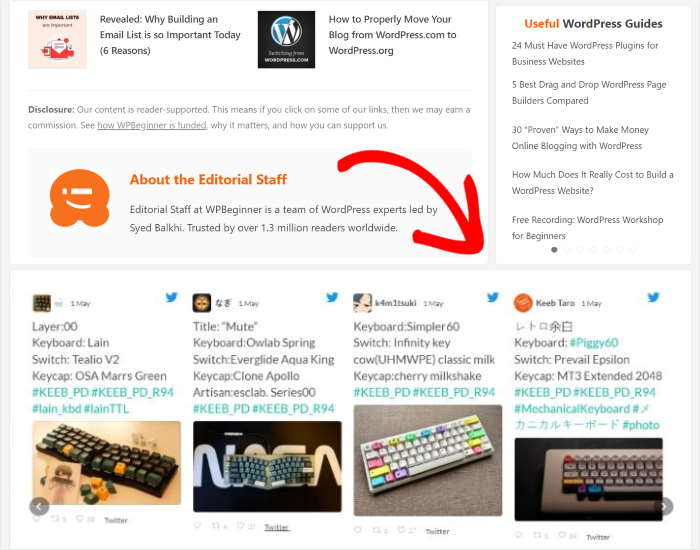
And there you have it!
In just a few easy steps, you can have a feed of responsive X (Twitter) embeds to engage visitors, boost conversions, and grow your social following.
With the help of Twitter Feed Pro, you can easily show beautiful widgets that load perfectly on all screen sizes – no need to touch a single line of code.
Want to make X (Twitter) embeds responsive? Grab Twitter Feed Pro for your website here.
For an easy way to boost your sales, you can follow our guide on how to embed Google reviews widgets in WordPress.
And if you enjoyed this article, feel free to follow us on X (Twitter) and Facebook for more social media marketing tutorials.








Is this up to date – with Twitter having removed access to the API
Hi Sam,
Thank you for contacting us! For Pro users, we have created a new API that we are slowly rolling out. For our free users, we are still investigating how we can best resolve this issue. For additional updates, please see our FAQ here.
Thanks! 🙂