Social Wall
  Feed Analytics

![[UPDATE] Add Any Smash Balloon Feed as a Native Gutenberg Block or Elementor Widget](https://cdn.smashballoon.com/wp-content/uploads/2026/08/05141643/UPDATE-Add-Any-Smash-Balloon-Feed-as-a-Native-Gutenberg-Block-or-Elementor-Widget-.png "UPDATE Add Any Smash Balloon Feed as a Native Gutenberg Block or Elementor Widget - Smash Balloon")
You’re building a new page in the WordPress block editor. You drop your Instagram feed in. You want to see it on the page before you publish.
WordPress 7 changed that part. Moving the editor into an iframe changed how previews get drawn, so blocks had to be updated to match.
Your feeds draw correctly inside it, across all six Smash Balloon plugins. What you build on the canvas is what your visitors get.
Every Smash Balloon feed plugin now adds to a page as a native Gutenberg block or Elementor widget, and works correctly on WordPress 7. Add a feed the same way you add a heading, an image, or a button.
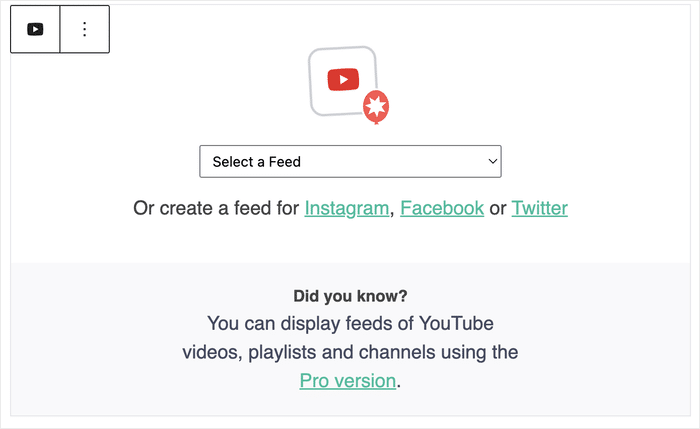
Search for it, drop it in, and pick your feed from the dropdown. It works the same way with whichever plugins you run.
In Gutenberg, it sits in the inserter with your paragraph, image, and gallery blocks. In Elementor, it’s in the widget panel with everything else you build with.
Here’s what you can do:
- Search your feed by name in the inserter and drop it on the page
- Drag a Smash Balloon widget into any Elementor section or column
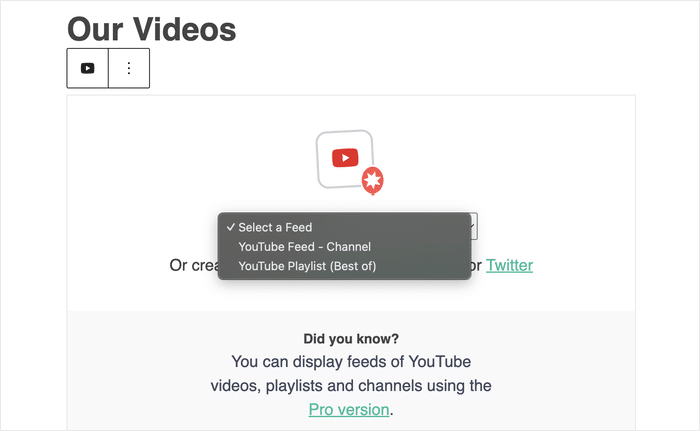
- Pick which saved feed to show from a dropdown inside the block or widget
- See your feed draw correctly on the canvas before you publish
- Start a new feed or edit the one you’re showing, from the Elementor panel
Add Your Feed the Way You Add Everything Else
Every Smash Balloon feed plugin already had a way to add a feed to a page, either through the classic embed block or a shortcode. That hasn’t changed, and nothing you built before stopped working.
For Instagram Feed, Custom X (Twitter) Feeds, TikTok Feeds, and Reviews Feed, what’s new is a native block and widget added this round. Custom Facebook Feed and YouTube Feed Pro already had one in place, and this update made sure both keep working correctly on WordPress 7.
Now, your feed goes on the page as a block or a widget, and it shows up there while you build. You pick which feed to display from a dropdown, and it draws on the page in the spot you put it.
Whichever of the six you run, and whether you’re on free or Pro, adding a feed now works the same way.
Add Any Feed Straight from the Block Editor
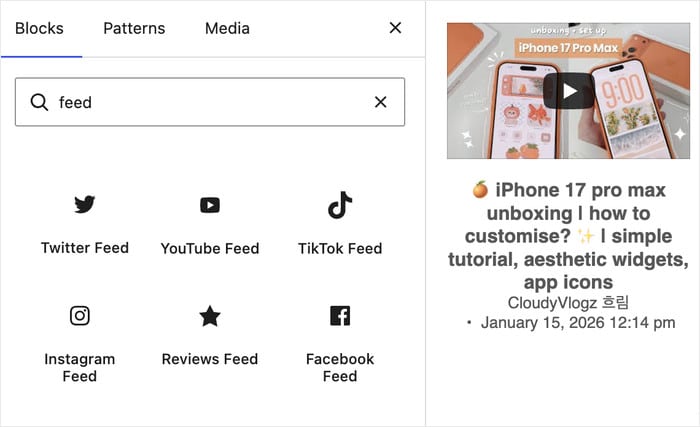
Open the inserter, type the name of the plugin you run, and your feed block is there alongside your paragraph, image, and gallery blocks.
Drop it in and pick your feed from the Select a Feed dropdown. Your posts, videos, or reviews fill the block right on the page.
From there you’re looking at the real thing in its real spot, at the width it will have, with your heading above it and your button below it. You can see how much room it takes on the page before a visitor ever loads it.
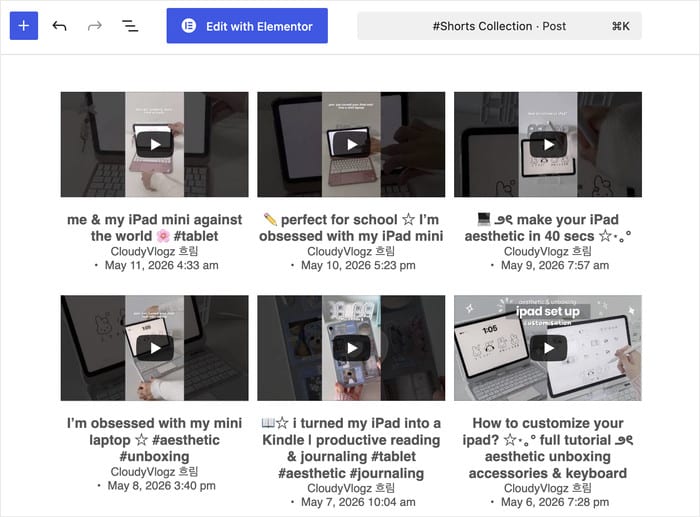
Here’s how that plays out:
- A florist adds her Instagram feed to a Weddings page, sees how much space it takes above the booking form, and publishes knowing the form is still in view
- A gym puts its member reviews above the class timetable and checks the timetable is still on screen before the page goes live
- A bakery drops its TikTok feed above the order button and confirms the button is still easy to reach
Drop a Feed Into Any Elementor Section
If you build in Elementor, your Smash Balloon feed widget is right there in the widget panel.
Search the widget panel for your plugin, then drag the widget into any section or column you’re working in.
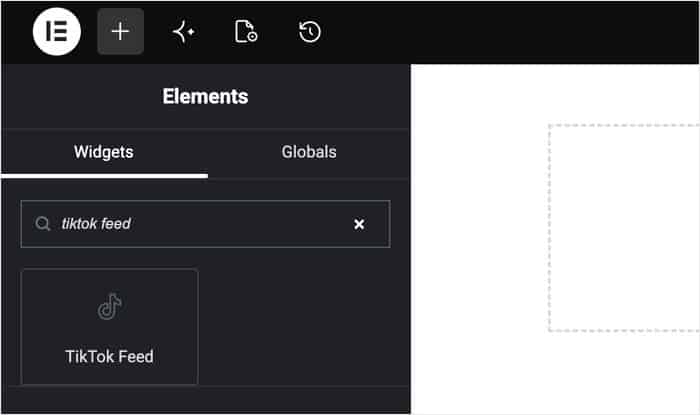
Pick your feed from the dropdown, and it fills the preview beside you, in the column you placed it in.
Width and spacing come from Elementor’s own controls, the same ones you use on a heading or a button, so the feed lines up with the rest of the section instead of sitting apart from it.
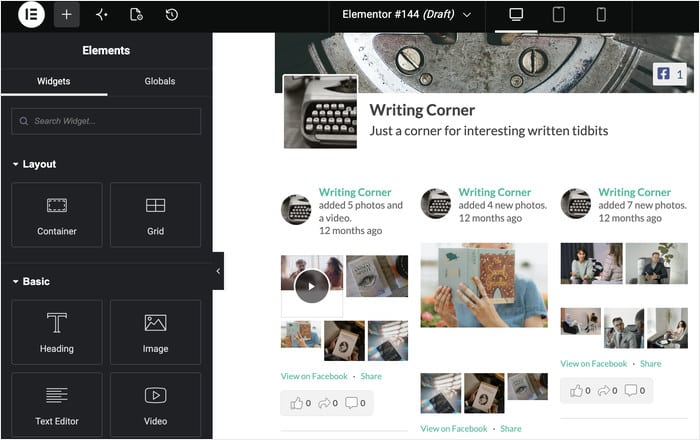
If you want to change the feed itself, the panel has links to start a new one or edit the one you’re showing. Both open in a new tab, so the page you’re designing stays where you left it.
- A yoga studio puts its Instagram feed beside the class schedule, so new students see the room and the people before they pick a class
- A restaurant runs its Google reviews under the menu at matching width, so diners hit the reviews at the moment they’re deciding where to eat
- A boutique sets its TikTok videos level with the product photos, so shoppers see the product in use without scrolling past the buy button
Your Feeds Draw Correctly in WordPress 7
WordPress 7 moved the block editor inside an iframe, which changed how blocks get drawn while you’re editing. Every Smash Balloon plugin has been updated to match, so all six are fully compatible with it.
Your feed draws in the editor the same way it will on the live page. That holds whether you’re using the new block, the legacy block, or a legacy Elementor widget, so pages you built before carry on exactly as they are.
Seeing the real feed while you work is what lets you finish a page in one sitting:
- Set a reviews feed under a salon’s price list and see both on screen, so the list stays easy to read once it’s live
- Size an Instagram feed above a guesthouse’s booking form while you build, so the form is still in view when someone lands on the page
- Watch a TikTok feed draw at its real width on a brewery’s events page, so the gig dates underneath don’t get pushed out of sight
Every Feed You’ve Already Built Keeps Working
Nothing here asks you to go back over old pages. A feed placed with the legacy block or the legacy Elementor widget keeps running exactly as it is.
Those older placements draw correctly in the WordPress 7 editor too, so a page you built a year ago opens and previews the way you’d expect. You get that by updating, with nothing to set up.
Shortcodes are unchanged as well. If that’s how you place your feeds, carry on.
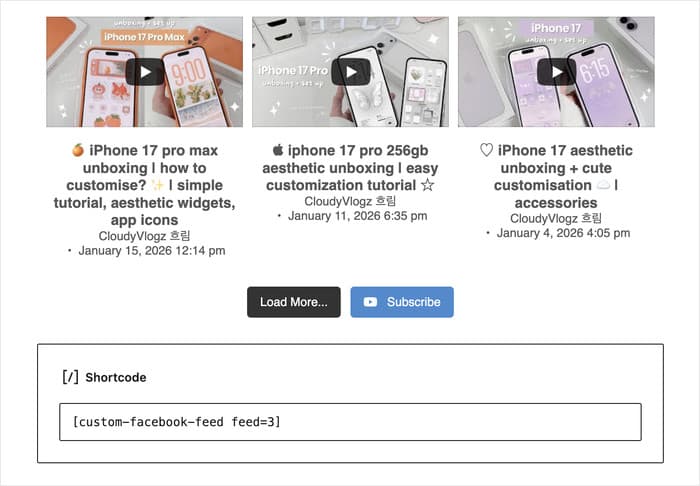
The new block and widget are there for the next feed you place, and for any older one you feel like moving across.
The Same Upgrade, Whichever Platform You Run
Every Smash Balloon plugin adds a feed to a page the same way, as a block in Gutenberg or a widget in Elementor. Search the plugin name, drop it in, pick your feed from the dropdown.
Run three of them, and there’s still only one way to place a feed. What you learn on your Instagram feed is what you already know when you add reviews to a page six months later.
It’s the same on Elementor, and the same on free and Pro, so a site running the free plugin and a site running Pro get placed the same way.
Let’s say you have a marketing agency with an Instagram feed on one client site and a Facebook feed on another. You’re still building the same way on each website, saving you the time and cost of a fresh set of instructions.
How to Add Your Instagram Feed to Any Page in Minutes
This works on Instagram Feed free and Pro. Every other plugin here works the same way, so if you’re running Custom X (Twitter) Feeds, Custom Facebook Feed, YouTube Feed Pro, TikTok Feeds, or Reviews Feed, the steps below match one to one.
Using the Gutenberg Block
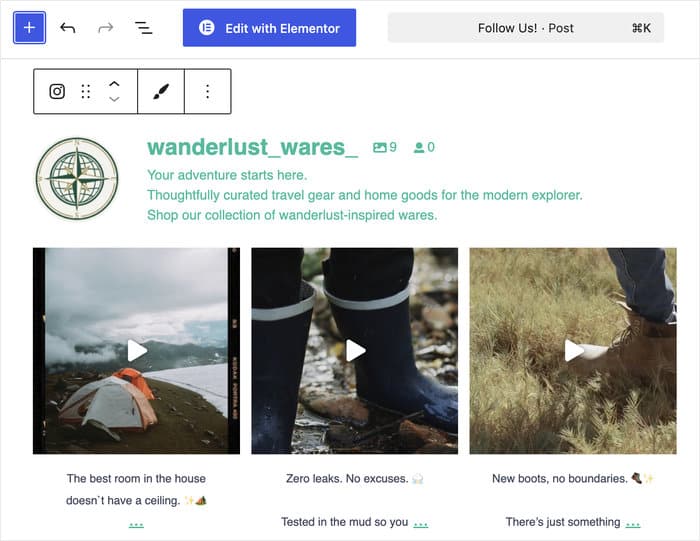
Open the page or post you want to add a feed to, and click the plus icon to open the block inserter. Search for “Instagram Feed” and select the Instagram Feed block.
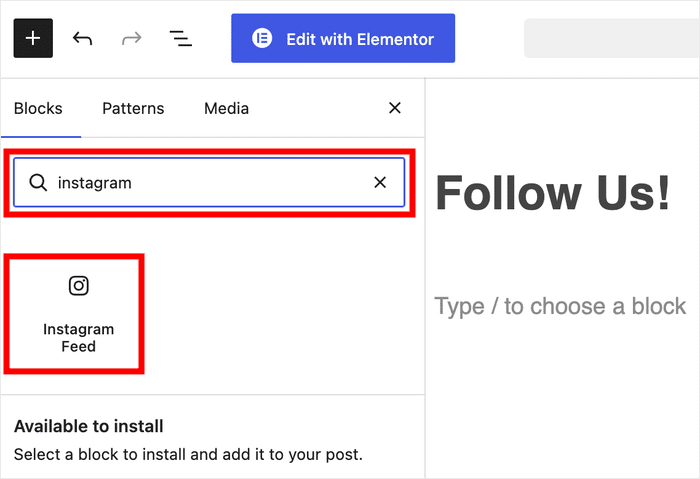
Pick the feed you want from the Select a Feed dropdown, and it renders right there on the page.
After that, you can preview the page to confirm it looks the way you want, then publish as usual.
Using the Elementor Widget
Open your page in Elementor and search “Instagram Feed” in the widget panel on the left. Drag the widget into any section or column on your page.
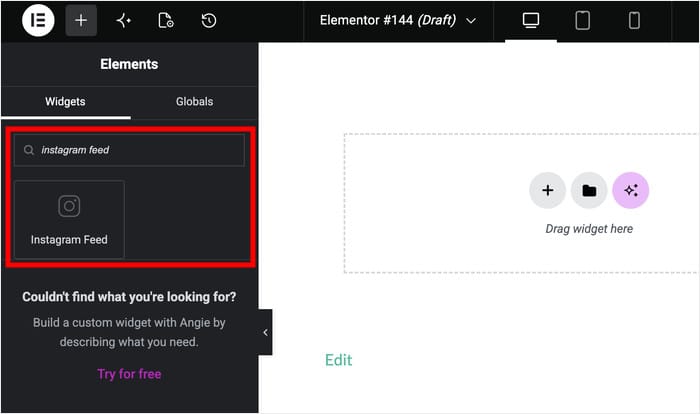
In the widget settings, pick the feed you want from the dropdown.
Haven’t built one yet? Click Create New Feed and set it up the same way you would from the plugin’s dashboard, choosing your source, layout, and style.
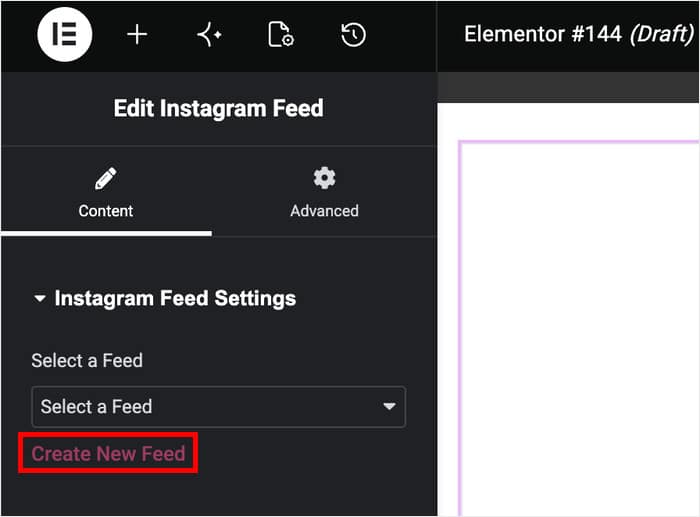
If you need to change the feed you’re showing, clicking on Edit this Feed sends you straight to the customizer in a new tab while Elementor stays open.
Adjust column width and spacing the same way you would for any other Elementor widget, then update the page.
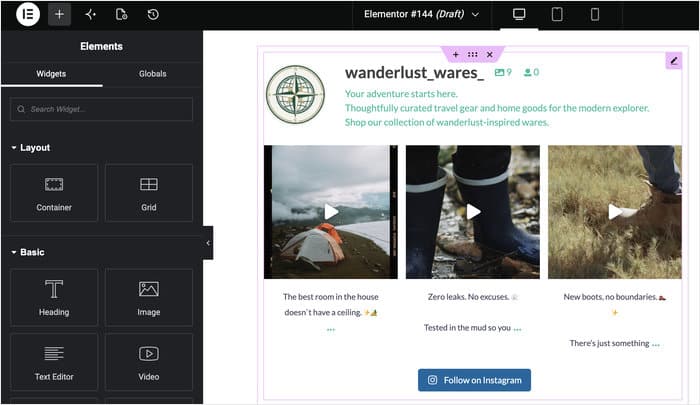
Once you’ve published, visit the page on the front end to confirm your feed loads and looks the way it did in the editor.
If you’re running a legacy block or widget on another page, you don’t need to change anything there. It keeps working exactly as it does now.
Frequently Asked Questions
Do I need to rebuild my existing feeds?
No. Any feed using the legacy block or legacy Elementor widget keeps working exactly as it did before. The new block and widget are only for feeds you add going forward, or ones you choose to rebuild.
Is this available on the free version?
Yes. The native block, Elementor widget, and WordPress 7 compatibility are available on every plan across all six plugins, free and Pro alike.
Do I need WordPress 7 to use the new block or widget?
No. Both work on earlier versions of WordPress too. The WordPress 7 work is a separate thing: it’s what lets your feed draw correctly inside its new iFrame editor, so you see the real feed on the page while you build. The block and the widget don’t depend on it.
Do I need Elementor Pro to use the widget?
No. The widget is added by the Smash Balloon plugin itself, not by Elementor, so it shows up in the panel whether you’re on Elementor or Elementor Pro.
Can I create a feed from inside the block or widget?
The block and the widget show feeds you’ve already built, so it’s worth creating your feed first. In Elementor, the panel links straight through to the feed builder and the customizer, both opening in a new tab so the page you’re designing stays where you left it.
Your Feeds Are Ready to Build Into Any Page
Did you know you can add a feed to a brand new page in under a minute now, using either the block or the widget?
The shortcode option hasn’t gone anywhere if you prefer it, but for most new pages, the native block or widget is the quicker way to get there.
- No shortcode to copy for new feeds
- No separate steps between Gutenberg and Elementor
- No guessing how a feed will look until you publish
If you’re already running a Smash Balloon plugin, update to the latest version and try the new block or widget on your next page. If you’re not running one yet, get started with Smash Balloon and build your first feed using the native block from day one.
Finally, a huge thank you to our community. Your feedback shapes what we build, and how feeds get onto a page is something we hear about often.
Which platform are you adding first, Instagram, Facebook, or something else? Drop a comment below and let us know.