Social Wall
  Feed Analytics


Spending too many hours each week making content for two or three platforms? You’re not alone.
AI tools can hand marketers back around five hours a week on content tasks. That’s nearly three full workdays every month you could spend elsewhere.
If you’ve ever opened a “25 best AI tools” roundup and bounced halfway through, you already know the problem. Most lists bury the right tool for your platform under twenty you’ll never touch.
If you only post Reels, you don’t need a YouTube thumbnail tester. You need a short, clear answer.
I’ve spent my time at Smash Balloon helping thousands of businesses put their social content to work, and I’ve sorted through these tools the way you use them: by platform.
So instead of one giant pile, this guide is split by channel. Find yours, pick two or three tools, and skip the rest.
I’ll also clear up which tools are genuinely free, show you how to make your content work twice by putting it on your own website, and explain how to track which platform is driving results.
- Which AI Social Media Tools Should You Actually Use in 2026?
- First, Why AI Tools Are Worth It (And Who's Already Using Them)
- AI Tools for Instagram
- AI Tools for TikTok
- AI Tools for YouTube
- AI Tools for Facebook
- AI Tools That Work Across Every Platform
- Which of These AI Tools Are Actually Free?
- One More Step — Get Your AI-Created Content on Your Website
- How to Know If Any of This Is Actually Working
- Start Building Your AI Workflow Now
Which AI Social Media Tools Should You Actually Use in 2026?
Use Canva Magic Studio and Buffer AI to start, then add a paid pick like Opus Clip or SocialBee when you outgrow the free ones. That’s the honest answer for most people. You don’t need 25 tools. You need the two or three that fit the platform you actually post on.
So here’s the short version before the long one. Pick your platform from the table below, grab a free pick to start, and add a paid pick only when you outgrow it.
| Platform | Top free pick | Top paid pick | Best for |
|---|---|---|---|
| Canva Magic Studio | Flick | Hashtags + visuals | |
| TikTok | CapCut | Opus Clip | Repurposing long video |
| YouTube | YouTube Studio (native AI) | Descript / TubeBuddy | Editing + growth |
| Meta AI | Hootsuite OwlyWriter | Multi-platform posting | |
| All platforms | Buffer AI (3 channels) | SocialBee | Scheduling everywhere |
Read the table this way. The free pick gets you results today without a card on file. The paid pick is the upgrade for when you’re posting daily and want more.
Each platform section below explains what every tool does, what it costs, and when it’s worth paying. I also flag which tools you can skip if a free one already covers the job.
Don’t worry, you don’t need all of these. You need two or three for the platform you’re actually on.
First, Why AI Tools Are Worth It (And Who’s Already Using Them)
You don’t have to take that leap of faith. The data shows AI has gone from a nice-to-have to the standard way social teams and small businesses get work done.
Most of your competitors already lean on it daily, and the ones who don’t are starting to fall behind. Here’s who’s using it and how much:
- 82% of small businesses have invested in AI tools (SBE Council, 2026 Small Business Tech Use Survey).
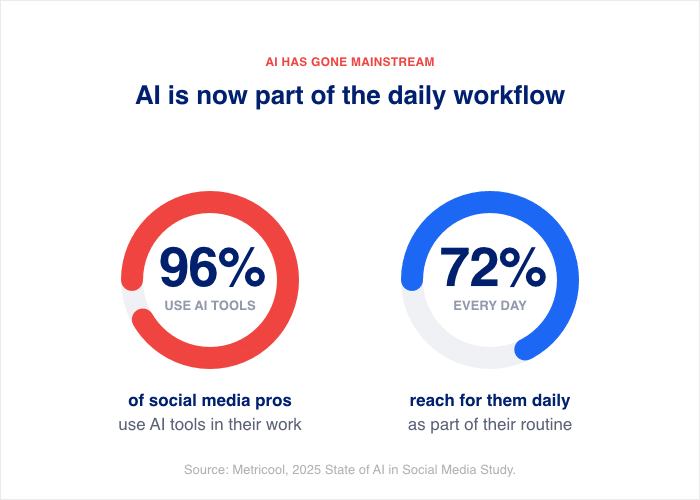
- 96% of social media professionals now use AI tools, and 72% use them every day (Metricool, 2025 State of AI in Social Media Study).
- Marketing is the #1 use case among small businesses with a typical businesss using about five AI tools (SBE Council).
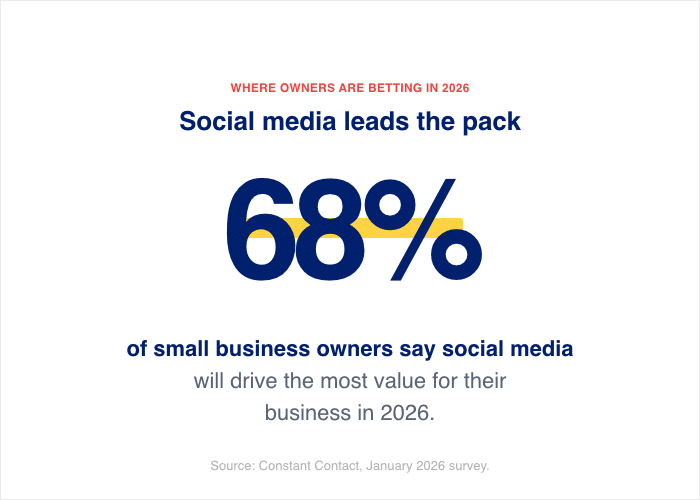
- 68% of small business owners say social media will drive the most value for their business in 2026 (Constant Contact, January 2026 survey).
So this isn’t an early bet anymore. It’s where most of your peers already work. You can just pick your platform below, grab a couple of tools, and start small.
AI Tools for Instagram
Designing posts and hunting for the right hashtags can eat your whole afternoon. If Instagram is your main channel, you need tools that handle both fast.
Three tools cover most of what you’ll do: making the visuals, writing the captions, and finding hashtags that actually get seen.
Here’s the quick comparison before the details:
| Tool | Price | Best for | Standout feature |
|---|---|---|---|
| Canva Magic Studio | Free–$15/mo | Non-designers | AI image generation + Magic Write captions |
| Later AI | $18.75–$37.50/mo | IG-first all-rounder | Caption writing, analytics, and scheduling in one place |
| Flick | £14–68/mo | Serious hashtag research | Search volume and competitiveness for every tag |
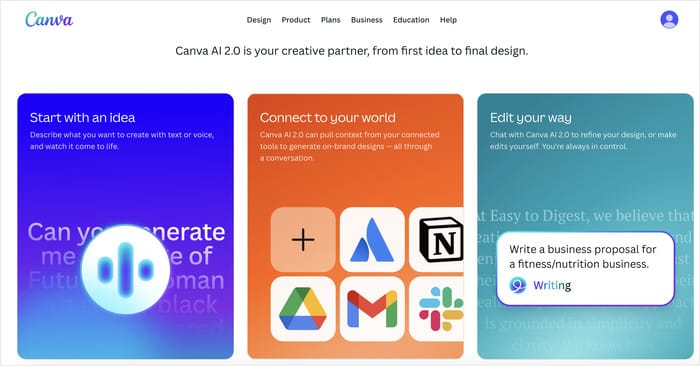
Canva Magic Studio (free–$15/mo) is where most beginners should start.
- Drag-and-drop Instagram templates
- AI image generation and one-click background removal
- Magic Write to draft captions (25 free prompts a month; the Pro plan unlocks the full toolkit)
If you’ve never opened a design tool in your life, this is the friendliest place to begin.
Later AI ($18.75–$37.50/mo) is the best all-rounder for an Instagram-first account.
- Writes captions from a short description
- Suggests hashtags and the best time to post
- Schedules everything from one dashboard
Plan a week of content in one sitting. The free plan covers 30 posts per profile a month, which is plenty to test it.
Flick (£14–68/mo) does hashtag research better than anything else on this list.
- Shows search volume and how competitive each tag is
- Surfaces niche tags your bigger competitors are missing
- Writes captions trained on your existing posts, so they sound like you

Reach for Flick once hashtags become the thing holding your growth back.
Worried AI captions will sound generic and off-brand? That’s a fair concern, and it’s exactly why Jasper AI exists: you train it on your brand voice so every caption sounds like you wrote it, not a robot.
AI Tools for TikTok
Posting on TikTok means making a lot of videos fast. Editing eats more time than filming ever does. If TikTok is your main channel, you need tools that cut, caption, and repurpose video without a learning curve.
Three tools cover the heavy lifting: polishing clips, turning long videos into short ones, and making video without filming at all.
Here’s the quick comparison before the details:
| Tool | Price | Best for | Standout feature |
|---|---|---|---|
| CapCut | Free | Editing every clip | Auto-captions, background removal, native TikTok export |
| Opus Clip | Free tier–$29/mo | Repurposing long video | Virality Score on every clip it makes |
| InVideo | Free–$25/mo | Making video without filming | Text-to-video from a single prompt |
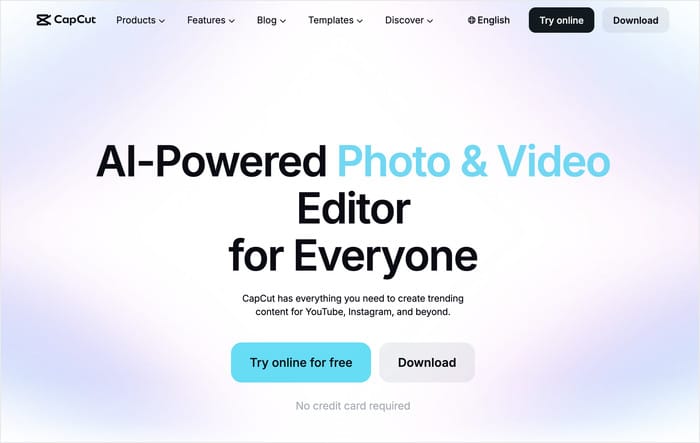
CapCut (free) is the editor most TikTok creators already lean on, and it’s hard to justify not using.
- Auto-captions that sync to your audio in a click
- One-tap background removal, no green screen needed
- AI voice effects and a library of trending templates
- Native TikTok export, so your edits move over clean
If you edit on your phone, this is the friendliest place to start.
Opus Clip (free tier–$29/mo) is the one to grab if you already make long video.
- Turns a webinar, tutorial, or demo into short vertical clips
- Picks the best moments and adds captions automatically
- Scores each clip with a Virality Score, trained on a large set of high-performing videos, so you know which to post first
One hour-long recording can become ten ready-to-post clips. For a business already sitting on long content, that’s the biggest time-saver on this list.
InVideo (free–$25/mo) makes finished video when you have nothing to film.
- Type a script or a simple prompt and it builds the video
- Adds an AI voice, stock footage, and a matching template
- Exports a vertical clip sized for TikTok
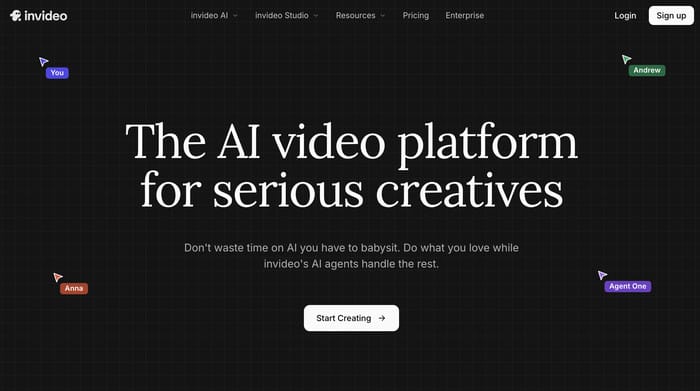
Here’s how that looks in practice. Say you run a small bakery and want a TikTok on “three signs your sourdough is ready.” You type those three tips into InVideo, pick a template, and let it add the voice and footage.
Five minutes later, you have a postable clip, no camera required.
Posting on Instagram and TikTok and wondering if you need one tool or two? Good question, and the cross-platform section below has the short answer.
Start with CapCut, and add Opus Clip the moment you have a long video worth cutting up.
AI Tools for YouTube
Editing a single YouTube video can swallow an entire day. And when the ideas run dry, you stare at a blank upload screen. If YouTube is your main channel, you need tools that cut your editing time and feed you fresh ideas.
Four tools cover the work: editing, growing the channel, finding topics, and turning written content into video.
Here’s the quick comparison before the details:
| Tool | Price | Best for | Standout feature |
|---|---|---|---|
| Descript | Free–$50/mo | Talking-head and tutorials | Edit video by editing the transcript |
| TubeBuddy AI | Free–$23.19/mo | Growing an existing channel | Title and thumbnail A/B testing in YouTube Studio |
| VidIQ | Free–$39/mo | Channels finding a niche | Daily AI idea suggestions |
| Pictory | Free trial–$25/mo | Repurposing written content | Blog post to video with AI voiceover |
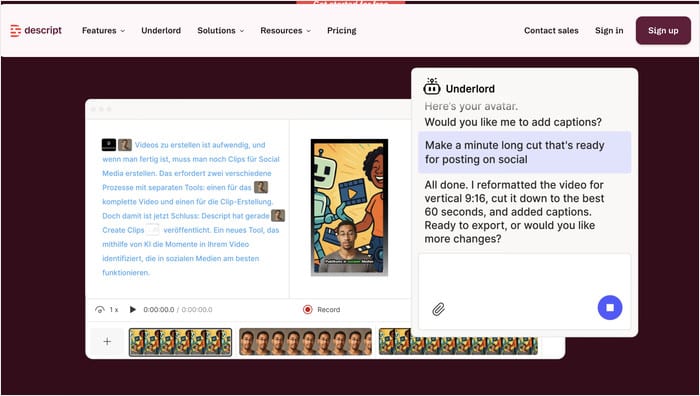
Descript (free–$50/mo) is the editor for anyone who talks to the camera.
- Turns your video into a text transcript you can edit like a document
- Delete a word in the text and it cuts that moment from the video
- Removes “ums” and filler in one click
Best for talking-head videos and educational content. If you hate dragging clips around a timeline, this is the friendliest place to start.
TubeBuddy AI (free–$23.19/mo) lives right inside YouTube Studio and helps you grow what you already have.
- Tests titles against each other to see which earns more clicks
- Runs A/B tests on your thumbnails
- Handles keyword research and coaches your growth with AI
Reach for this once your channel is rolling and you want more views from the videos you’re already making.
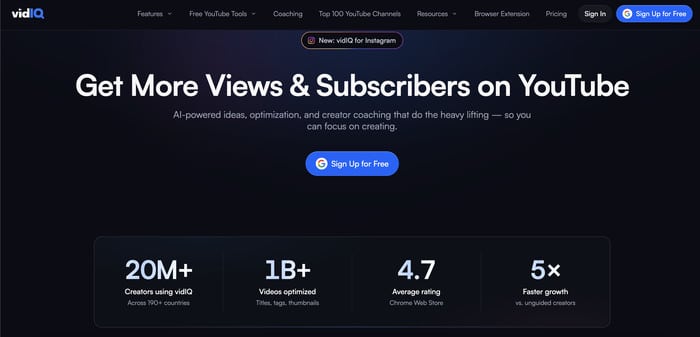
VidIQ (free–$39/mo) is the better pick if you’re still finding your niche.
- Keyword research to see what your audience searches for
- Daily AI idea suggestions so you’re never stuck for a topic
- Scores your videos against the competition
If the idea drought is your real problem, start here.
Pictory (free trial–$25/mo) turns writing you already have into video.
- Paste a blog post and it builds a video with visuals and transitions
- Adds an AI voiceover so you don’t have to record
- Sizes the finished video for YouTube
Say you’ve written a post on “five tips for first-time campers.” Drop it into Pictory, pick the key lines, and it builds a narrated video in minutes. Great for getting more out of content you’ve already published.
Should You Wait for YouTube’s Native AI?
Good question, and worth a pause before you pay for anything. YouTube announced a major creator-AI overhaul in late 2025, with features rolling out across 2026.
“We see AI as the next evolution of these tools – designed to empower human creativity and storytelling. But make no mistake – no studio, network, tech company, or AI tool will own the future of entertainment. That power belongs to you – the creators.”
– Neal Mohan, Chief Executive Officer, YouTube
So before you subscribe to a third-party tool, open YouTube Studio and check what’s already built in. Some of what TubeBuddy or VidIQ charge for may now be free inside the platform.
Here’s my take: use the free native tools for ideas and titles first. Only pay for a third-party tool when you hit a job YouTube still can’t do, like editing or repurposing. Check Studio, grab one tool for your biggest pain point, and build from there.
AI Tools for Facebook
Running a Facebook business page and watching your reach shrink? You’re not imagining it. Organic page reach keeps sliding, so every post you make takes more time for fewer eyes.
The easy part is that Facebook needs fewer standout tools than Instagram or TikTok. Three cover almost everything: posting inside Meta’s own apps, designing graphics, and writing captions across platforms.
Here’s the quick comparison before the details:
| Tool | Price | Best for | Standout feature |
|---|---|---|---|
| Meta AI | Free | Posting inside Business Suite | Caption and image help with no extra login |
| Canva | Free–$15/mo | Page graphics and events | Covers, carousels, and event graphics |
| Hootsuite OwlyWriter AI | Free trial–paid plans | Multi-platform posters | One caption repurposed across channels |
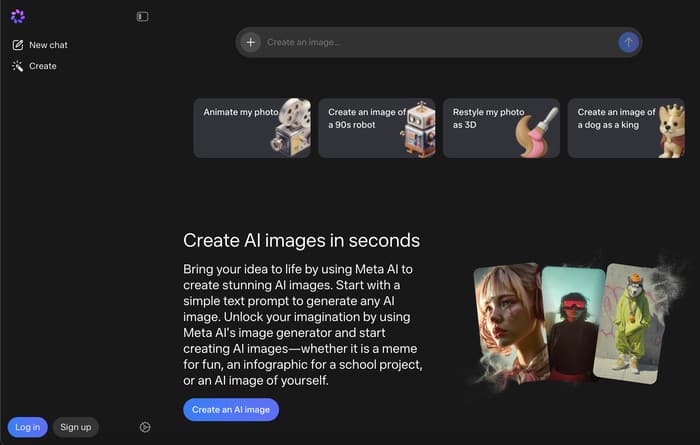
Meta AI (built in, free) lives right inside Meta Business Suite, so there’s nothing extra to install.
- Suggests captions for your posts
- Generates images and creative ideas on the spot
- Costs nothing and needs no second login
If you already post from Business Suite, this is the easiest place to start.
Canva (free–$15/mo) handles the visual side of your page.
- Facebook cover photos sized correctly the first time
- Event graphics for sales, launches, and openings
- Carousel posts that match your brand colors
Best part: it’s the same account you’d use for Instagram, so your designs stay consistent across both.
Hootsuite OwlyWriter AI (free trial–paid plans) is the pick if you post on more than one platform.
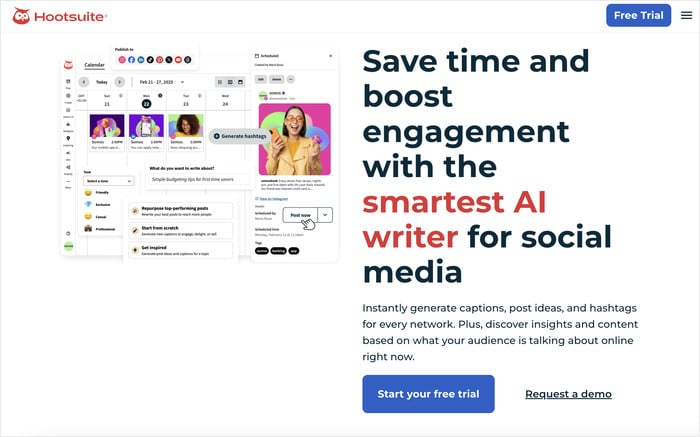
- Writes captions from a topic or a link
- Repurposes one post for Facebook, Instagram, and more
- Schedules everything from a single dashboard
Write once, post everywhere. For a business juggling Facebook alongside other channels, that’s the real time-saver.
Don’t worry if your reach feels stuck. Start with Meta AI since it’s free and already there, and add Canva the moment you need a clean cover or event graphic.
AI Tools That Work Across Every Platform
Posting on two platforms and wondering if you need separate tools for each? Here’s the short answer: no. Some AI tools sit above the platform layer and handle scheduling, captions, and analytics everywhere at once.
These are the tools that save you from logging into three apps a day. They draft your posts, plan your calendar, and show you what’s working across every channel from one screen.
Here’s the quick comparison before the details:
| Tool | Price | Best for | Standout feature |
|---|---|---|---|
| Buffer | Free (3 channels)–paid plans | Starting out on a budget | AI Assistant drafts and reshapes posts |
| Later | Paid plans | Visual planning | Drag-and-drop calendar and link-in-bio |
| SocialBee | Paid plans | Evergreen content | Category recycling and per-platform variations |
Buffer (free for 3 channels) is the most cost-effective place to start.
- The AI Assistant drafts captions and reshapes them for each channel
- Schedules posts across all your connected accounts
- Shows cross-channel analytics in one dashboard
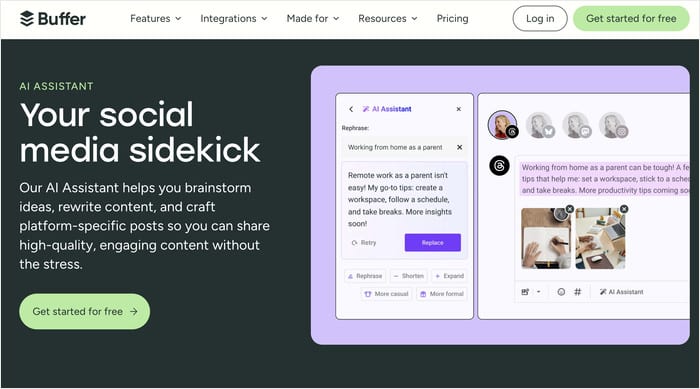
The free plan covers three channels, so you can run Instagram, TikTok, and Facebook without paying a cent.
Later (paid plans) is the pick if you think in visuals.
- A drag-and-drop calendar so you can see your whole month at a glance
- A link-in-bio page that turns your profile into a clickable storefront
- Caption AI that adjusts the tone for each platform
Best for creators who plan their grid by eye and want it to look right before it posts.
SocialBee (paid plans) is built for content you want to reuse.
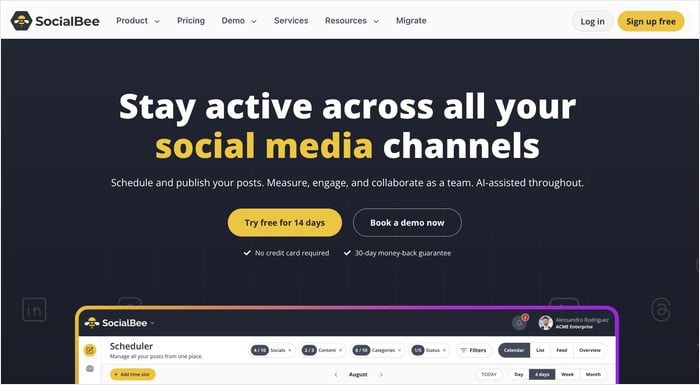
- Sorts posts into categories and recycles your evergreen ones automatically
- Generates post variations sized and worded for each platform
- Keeps your queue full so you never run dry
Reach for this once you have a library of posts worth recycling.
Here’s the rule I give every solopreneur: posting on two or more platforms? Start here with one cross-platform tool before you buy any platform-specific ones. You’ll cover most of your work for less money and fewer logins.
Which of These AI Tools Are Actually Free?
Worried that every tool on this list means another monthly bill? Here’s the honest answer: you can run a real workflow without paying for anything at first.
Plenty of the tools above have free tiers that do real work, not just a watered-down trial. Here’s what you get for $0 and when you’d actually need to pay.
| Tool | Free tier? | What you get free | When you’d need to pay |
|---|---|---|---|
| CapCut | Yes | Full mobile editor, AI captions, templates, trending audio | Premium effects and team features |
| Opus Clip | Yes | Limited monthly clips from long videos, auto-captions | More clips and longer videos each month |
| Meta AI | Yes | Caption and image help inside Meta Business Suite | Nothing, it’s free inside the app |
| Canva | Yes | Graphics, covers, carousels, and event designs | Brand kit, background remover, and premium assets |
| YouTube Studio AI | Yes | Native ideas, titles, and analytics inside YouTube | Nothing, it’s built into the platform |
| Buffer | Yes | 3 connected channels, scheduling, AI Assistant drafts | A fourth channel or advanced analytics |
A few notes on this list:
- Three of these cost nothing, ever. Meta AI and YouTube Studio AI are built into apps you already use.
- Buffer’s free plan covers three channels. That’s enough to run Instagram, TikTok, and Facebook from one screen.
- CapCut’s free editor is the real tool, not a trial. Most creators never hit the paywall.
So no, you don’t need a stack of subscriptions to begin. You can build a real workflow spending $0 to start, then pay only when one tool hits a job its free tier can’t handle.
One More Step — Get Your AI-Created Content on Your Website
You made all this content with AI. But where does it go when the app closes?
Here’s the problem most creators miss. Traffic from Instagram and TikTok vanishes the second someone leaves the app. And the people who find you through Google never see your social proof at all.
So your best posts only work in one place. That’s a lot of effort for a single window of attention.
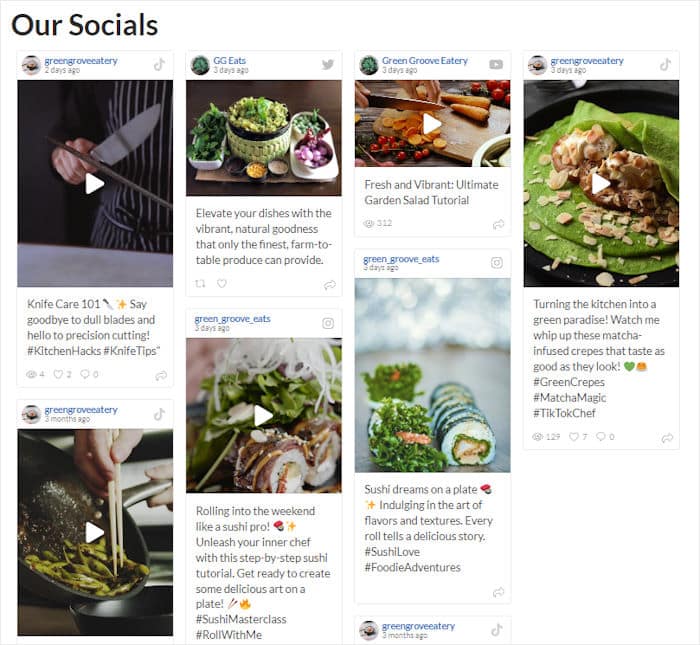
There’s a simple fix. You can embed your social feed on your WordPress site, so visitors who land there also see your posts. The feed updates on its own every time you publish, with no extra work from you.
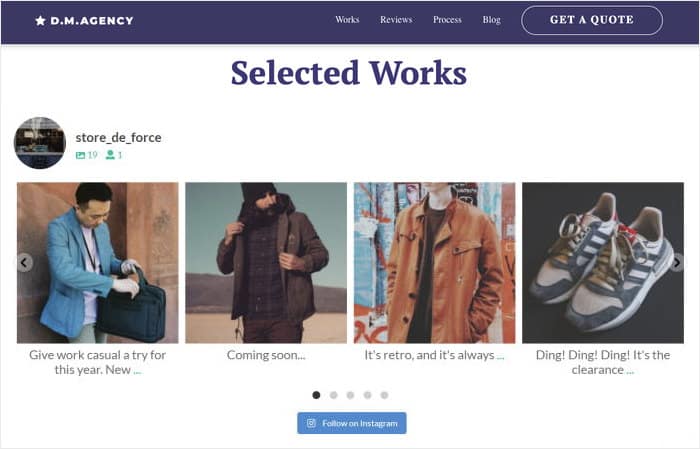
With my experience at Smash Balloon helping businesses put their feeds on their sites, here are the three tools that do it:
- Instagram Feed Pro displays your Instagram posts on any WordPress page, and updates automatically every time you post.
- TikTok Feed Pro does the same for your TikTok videos, so your short-form content keeps working on your own site.
- YouTube Feed Pro embeds your channel with smart lazy loading, so your page speed stays fast even with videos on it.
Each one takes under five minutes to set up. After that, there’s zero ongoing maintenance. New posts show up on your site on their own.
This is the easy answer to a question a lot of creators ask: how do I get my AI-made posts on my website without coding? You don’t need a developer, and you don’t need to touch a line of code.
You used AI to create the content. With the help of this tool, you can let it work in two places at once.
Make Your AI Content Work in Two Places
Smash Balloon puts your Instagram, TikTok, or YouTube feed on your WordPress site in under five minutes, then updates it every time you post.
Put My Feed on My SiteHow to Know If Any of This Is Actually Working
Posting every week but not sure it’s paying off? You’re not alone. Consistency means nothing if you can’t see which platform sends people to your site.
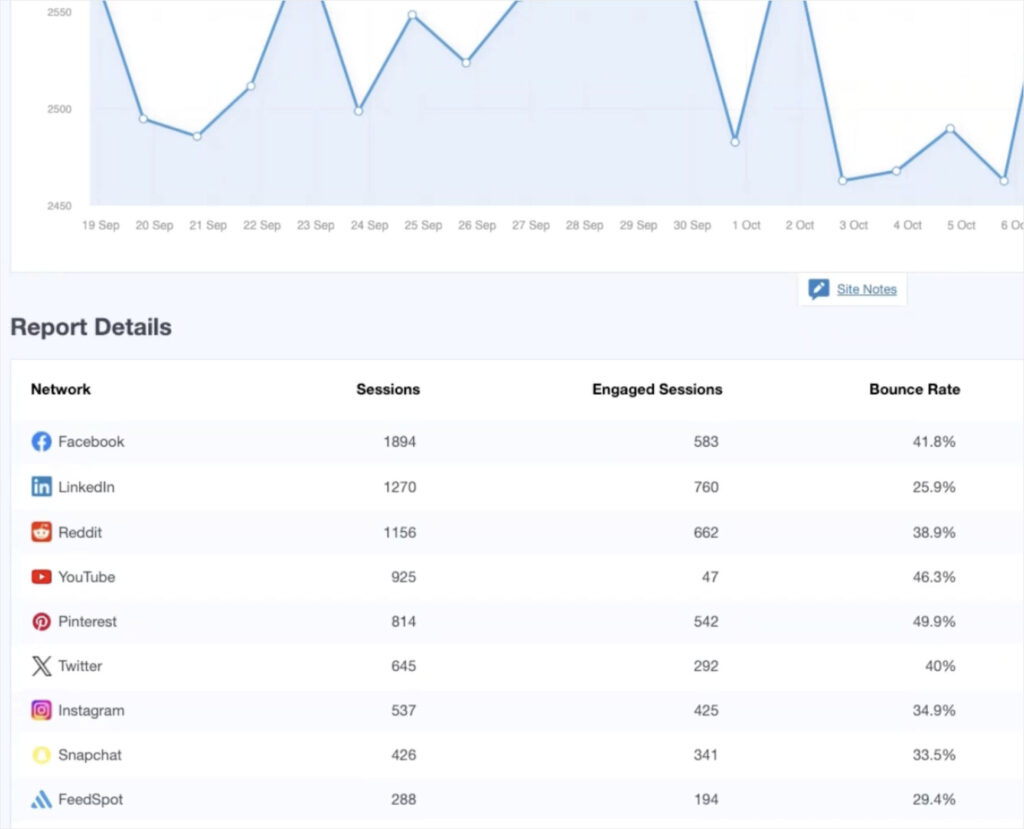
Here’s the gap. You make the content, you post it, and then the numbers live in five different apps. Instagram shows likes, TikTok shows views, but none of them tell you who actually visited your website and bought something.
That’s where MonsterInsights comes in. It puts your social traffic data right inside your WordPress dashboard, so you stop guessing.
- Social Media Report: see traffic per platform, sessions, engagement, and revenue in one view, without opening Google Analytics.
- Built-in UTM tracking URL builder: tag and track every social post you share, all without leaving WordPress.
- Ad integrations: connect Meta Ads and TikTok Ads to see which campaigns bring real results.
I tell every small business owner the same thing: track first, then decide. Once you see that Instagram sends ten times the traffic TikTok does, you know exactly where to spend your next hour.
One more tool worth a look. OptinMonster uses exit-intent popups and behavior-based targeting, so you can show a different offer to someone arriving from Instagram than from TikTok. That way you catch the bio-link visitor before they bounce and leave for good.
Now you’ll know exactly what’s working, and what to drop.
Start Building Your AI Workflow Now
You don’t need 25 tools. Pick the 2 or 3 that match your platform, skip the rest, and you’ll get hours back every week.
Remember the payoff. The right AI tools hand you back hours every week on content tasks. That’s nearly three full workdays a month you can spend growing your business instead.
Here’s your next move. You made the content the smart way, so now make it work in two places at once.
Put your Instagram posts on your website with Smash Balloon Instagram Feed Pro. Your feed updates on its own every time you post, so Google visitors see your social proof and follow you too. It takes under five minutes, with zero coding.
Post mostly on TikTok or YouTube? TikTok Feed Pro and YouTube Feed Pro do the same job for those channels.
You’ve got this. Pick your tools, set up your feed, and let your content keep working long after the app closes.