Social Wall
  Feed Analytics

If you’re wondering if social media feeds slow down your WordPress site, you’re not alone.
It’s a question I hear all the time. Just a 1-second delay in page load can drop your conversions by 7%.
The moment you think a feed is dragging your site speed down, the panic sets in fast. But here’s the thing: not all social media feeds are built the same.
Native platform embeds like Instagram’s oEmbed code or Twitter’s widget.js fire third-party scripts on every single page load.
That blocks rendering and can hurt your site’s speed. But that’s a plugin problem, not a social feed problem.
In this post, I’ll break down exactly why some feeds slow your site down, what separates a fast feed plugin from a slow one, and how to test whether your current setup is the culprit.
Do Social Media Feeds Slow Down WordPress?
The short answer is that it depends entirely on how the plugin is built.
Some plugins genuinely do cause slowdowns, and it’s worth being honest about that. But the problem isn’t social media feeds as a concept.
The issue is the way certain plugins fetch and display that feed data.
Well-built plugins like Smash Balloon use something called local caching.
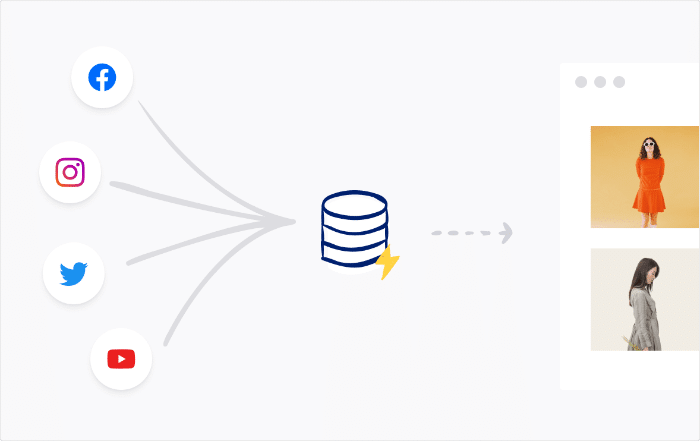
Here’s what that means in plain English:
Instead of reaching out to Instagram or Facebook every single time someone visits your page, the plugin saves a copy of your feed directly on your server.
When someone visits your site, they see a saved copy without waiting for an outside service to respond.
Poorly built plugins skip this step entirely. Every page load triggers a fresh call to the social platform’s servers, which adds delays your visitors feel every time.
Why Some Social Media Feeds Do Slow Down Sites
Some social media feed plugins genuinely do hurt your site’s load time. Here’s exactly what causes it.
- No caching means a live request on every page load:
When a plugin doesn’t store feed data locally, it fires a fresh request to the social platform’s API every time a visitor loads your page. Your visitor’s browser has to wait for that response before the page can finish loading.
- Heavy JavaScript files loaded site-wide add unnecessary weight:
Some plugins load their JavaScript across your entire site, not just on pages that actually display a feed. Every visitor carries that extra load, regardless of which page they’re on.
- Render-blocking scripts delay what your visitor sees:
These are code files that must finish loading before the browser is allowed to display the page at all. The result is a longer wait before anything appears on screen.
- Full-resolution images slow things down fast:
Some plugins pull in unoptimized images straight from Instagram or Facebook with no resizing or compression.
A feed showing twelve of those images can add several megabytes to a single page load.
So, using plugins with even one of these issues will hurt your load time. A plugin with all four will cause real, noticeable slowdowns that your visitors and your PageSpeed scores will both feel.
What Makes a Social Media Feed Plugin Fast
Not every feed plugin is built the same way. Here’s a checklist you can use to evaluate any plugin before you install it.
- Local Caching: The plugin stores a copy of your feed data on your own server instead of fetching it live from the social platform on every page load.
- Lazy Loading Images: Images only load when a visitor scrolls down to where the feed actually appears. Since your page doesn’t have to load every image upfront, the load time is fast.
- Optimized Images: On top of lazy loading, a good social feed plugin will optimize and reduce the size of images on your website.
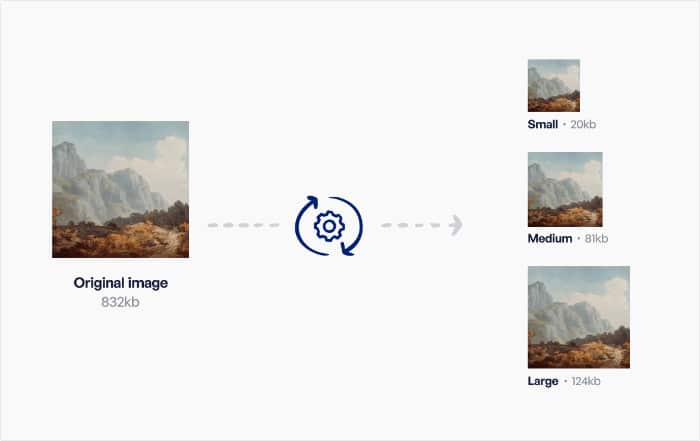
- Minimal JavaScript: The plugin only loads the scripts it needs, and only on pages where a feed is actually displayed. No unnecessary code running in the background.
- No Render-Blocking Scripts: Your visitor sees content faster because the feed assets don’t get in the way of the initial page render.
If a plugin checks all four of these boxes, it’s built with performance in mind. If it’s missing even one, that gap will show up in your load times.
How Smash Balloon Social Feeds Handles Speed
Smash Balloon is built around the same caching architecture across all of its plugins, including Instagram Feed, Facebook Feed, Twitter/X Feed, YouTube Feed, and Reviews Feed.
Here’s specifically how that works.
When you first set up a feed, Smash Balloon fetches your posts from the social platform and stores that data directly on your own server.
From that point on, your visitors are served that locally cached version, not a live feed pulled from an external API.
By default, Smash Balloon automatically refreshes that cache, so your feed will still be up to date without triggering constant API requests.

On the initial page render, Smash Balloon loads only what’s needed to display the feed in its basic form.
Images are lazy loaded, meaning they only load as a visitor scrolls toward them rather than all at once when the page first opens.
The plugin also loads its JavaScript only on pages where a feed is actually embedded.
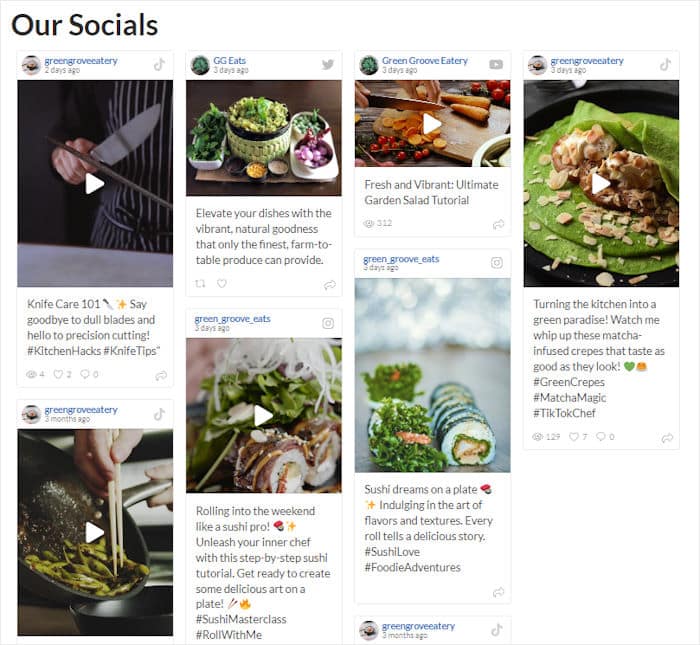
There are no scripts running site-wide on pages that don’t need them, and nothing in the page header that would block your content from displaying.
For a full comparison of how Smash Balloon stacks up against other options, see our guide to the best social media feed plugins for WordPress.
How to Check If a Feed Is Slowing Down Your Site
If you suspect your feed is affecting your load time, the good news is that you can confirm it quickly with free tools:
- GTmetrix gives you a detailed waterfall report showing exactly how long each resource on your page takes to load.
- Google PageSpeed Insights scores your page against Core Web Vitals and flags specific issues affecting performance.
To find a feed-related problem, look at the waterfall report in GTmetrix.
You’re looking for external requests to social platform domains, any resources with unusually long load times, and scripts flagged as render-blocking.
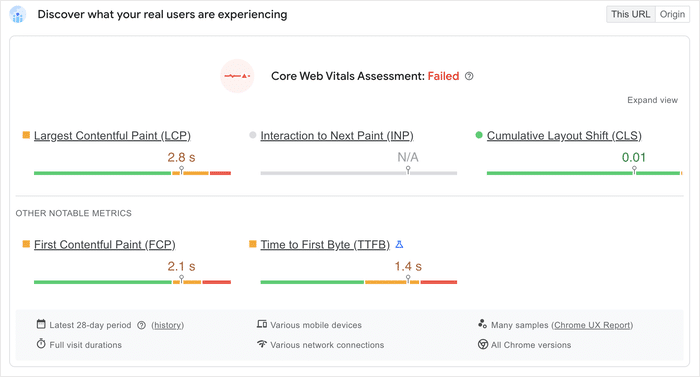
The most reliable way to confirm a feed is the culprit is a before and after test.
Disable your feed plugin, run the test again, and compare the two scores. If your load time drops or your PageSpeed score improves, the feed was contributing to the slowdown.
Add a Fast, Lightweight Feed to Your Site
Your concern is valid here. Some social media feed plugins do hurt your load time, and it’s smart to think carefully before adding one to your site.
But the problem is never social media feeds as a concept. It’s always the plugin behind them.
The good news is you don’t have to choose between showing social proof and keeping your site fast.
A plugin built on a solid caching architecture handles both without compromise. If you follow the checklist in this guide, you’ll be able to evaluate any feed plugin before you install it.
If you’re ready to add a feed that’s built for performance, get started with Smash Balloon’s All Access Bundle today!
More Social Media Marketing Guides and Tutorials
- Best Customer Review Plugins for WordPress [Compared]
- Proven TikTok Strategies Every Small Business Owner Needs to Know
- How to Integrate Telegram Chat into Your WordPress Website
- How to Use Instagram for Your Business (Expert Tips That Work)
Frequently Asked Questions
Will adding an Instagram feed affect my Core Web Vitals?
Core Web Vitals are three metrics Google uses to measure how fast your page loads, how quickly it responds to clicks, and how stable the layout is as it loads. A poorly built plugin can hurt all three, but a feed that uses local caching and lazy loading has minimal measurable impact. For more details, see our guide on how to embed an Instagram feed for free.
Does Smash Balloon refresh the feed cache automatically?
Smash Balloon refreshes its cached feed by default. That keeps your feed current without triggering constant requests to the social platform’s API. You can adjust that interval directly in the plugin settings if your needs are different.
Can I lazy-load social media feeds in WordPress?
Yes. Lazy loading means images only load when a visitor scrolls to where they appear on the page, rather than all at once when the page first opens. Smash Balloon handles this natively across all of its feed plugins, with no extra configuration needed.
What’s the fastest social media feed plugin for WordPress?
The fastest option is whichever plugin is built on a solid caching architecture. Using the checklist from the section above, look for local caching, lazy loaded images, minimal JavaScript loaded only where the feed appears, and no render-blocking scripts. Smash Balloon checks all four of those boxes across its full plugin suite.