Social Wall
  Feed Analytics

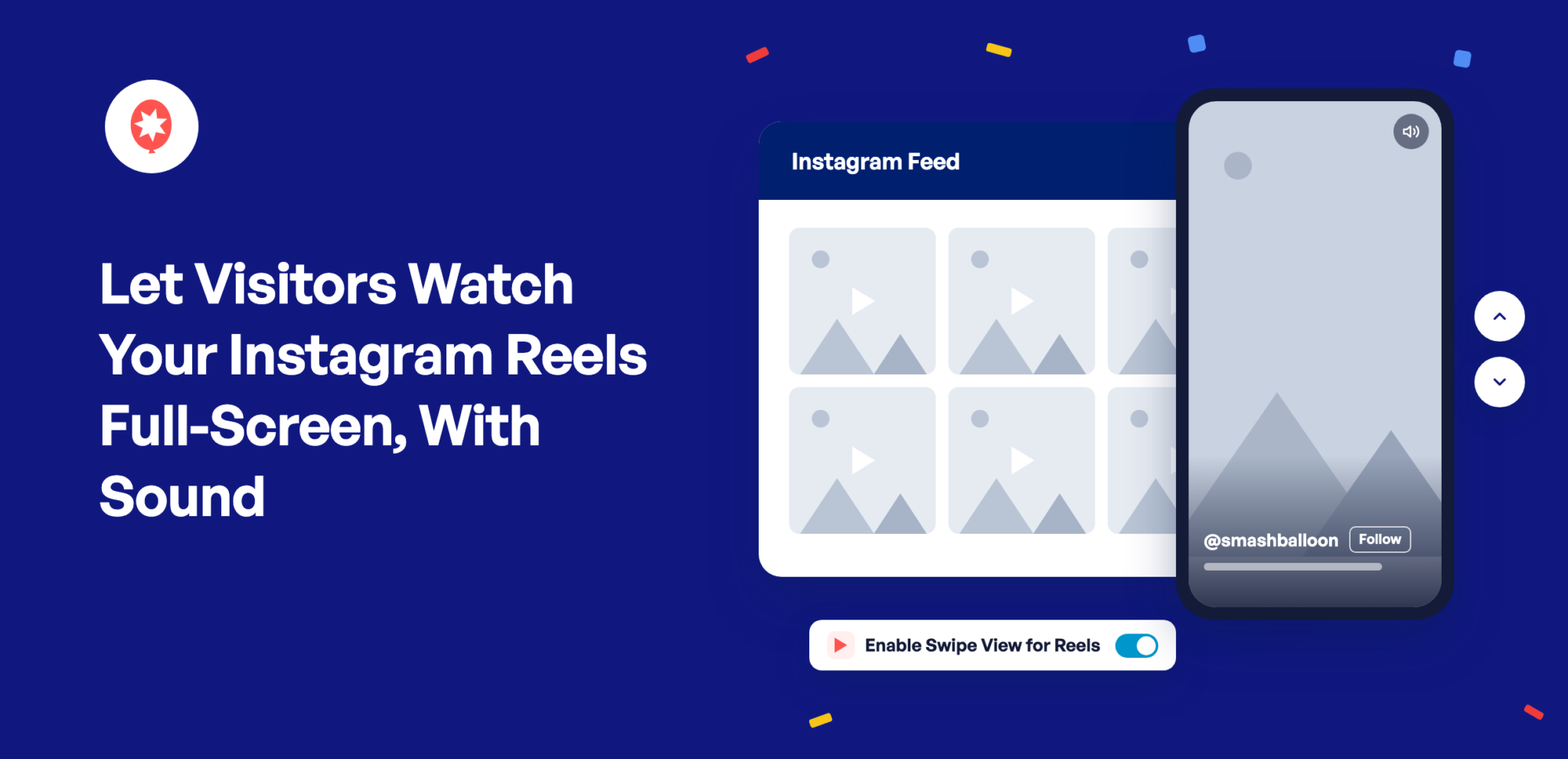
Reels are made to be watched on a phone, full-screen, with the sound on. When someone taps one on your website, that’s how it should play.
Smash Balloon Instagram Feed Pro 6.14.0 plays them that way. Tap a Reel in your feed and it fills the screen, starts playing with sound, and a swipe brings up the next one. Visitors can watch every Reel showing in your feed without leaving your site, and there’s nothing for you to set up.
New to Instagram Feed Pro? It’s the Smash Balloon plugin that shows your Instagram posts, Reels, and stories on your WordPress site, with no code. The full-screen viewer, called Swipe View, comes with every Pro plan, Basic, Plus, and Elite, and with the All Access Bundle.
Here’s what you can do starting today:
- Let visitors watch your Reels full-screen, with sound, right on your site
- Give them a swipe to move from one Reel to the next
- Keep your @username and a Follow button on screen while they watch
- Switch it off any time if you’d rather keep the regular lightbox
The same update also lets you manage your feeds by asking ChatGPT or Claude. That has its own post: manage your Instagram feed from ChatGPT or Claude.
Your Reels Play Full-Screen, With Sound
When a visitor taps a Reel in your feed, it opens edge to edge and starts playing. The viewer tries to play with sound from the very first Reel. If their browser starts it muted, a Tap to unmute label shows up so they can turn the sound on with one tap.
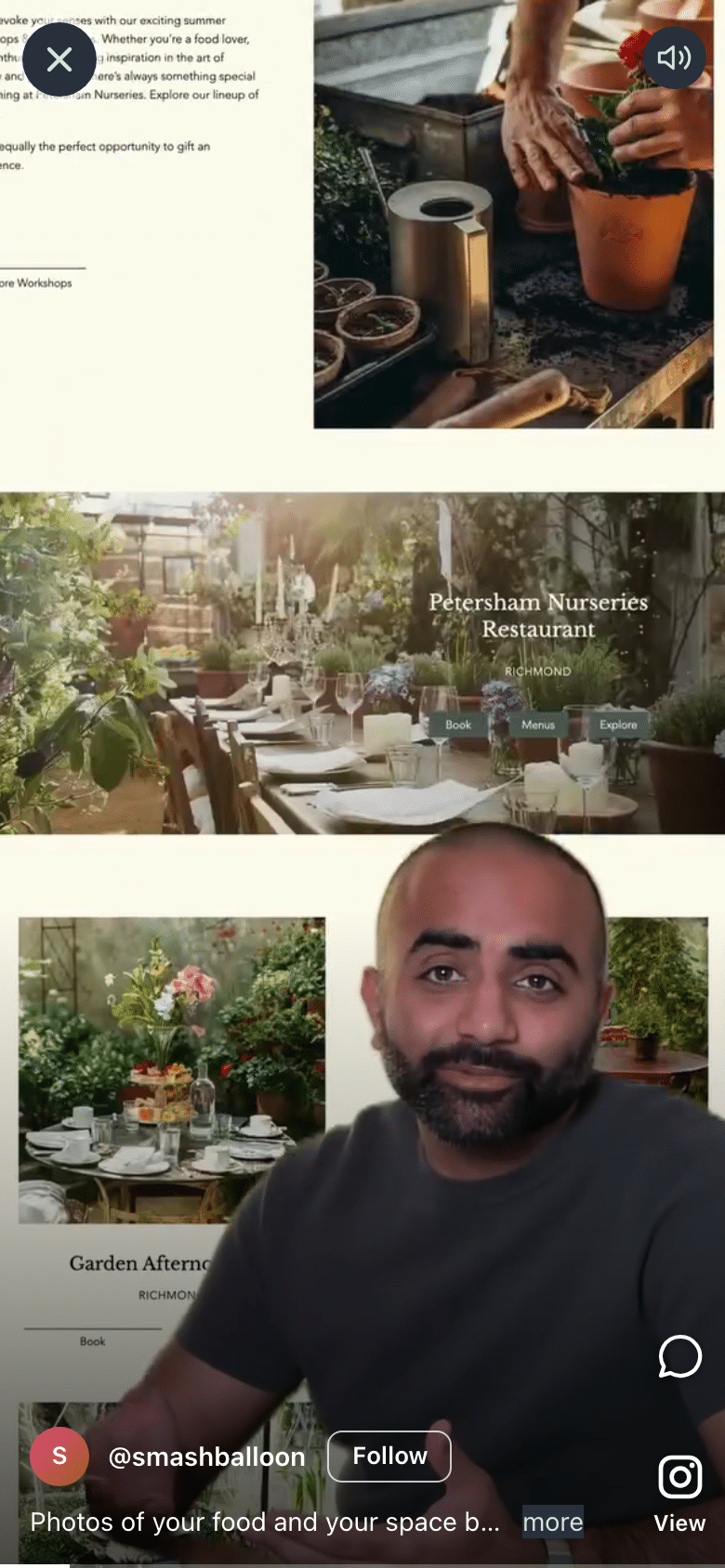
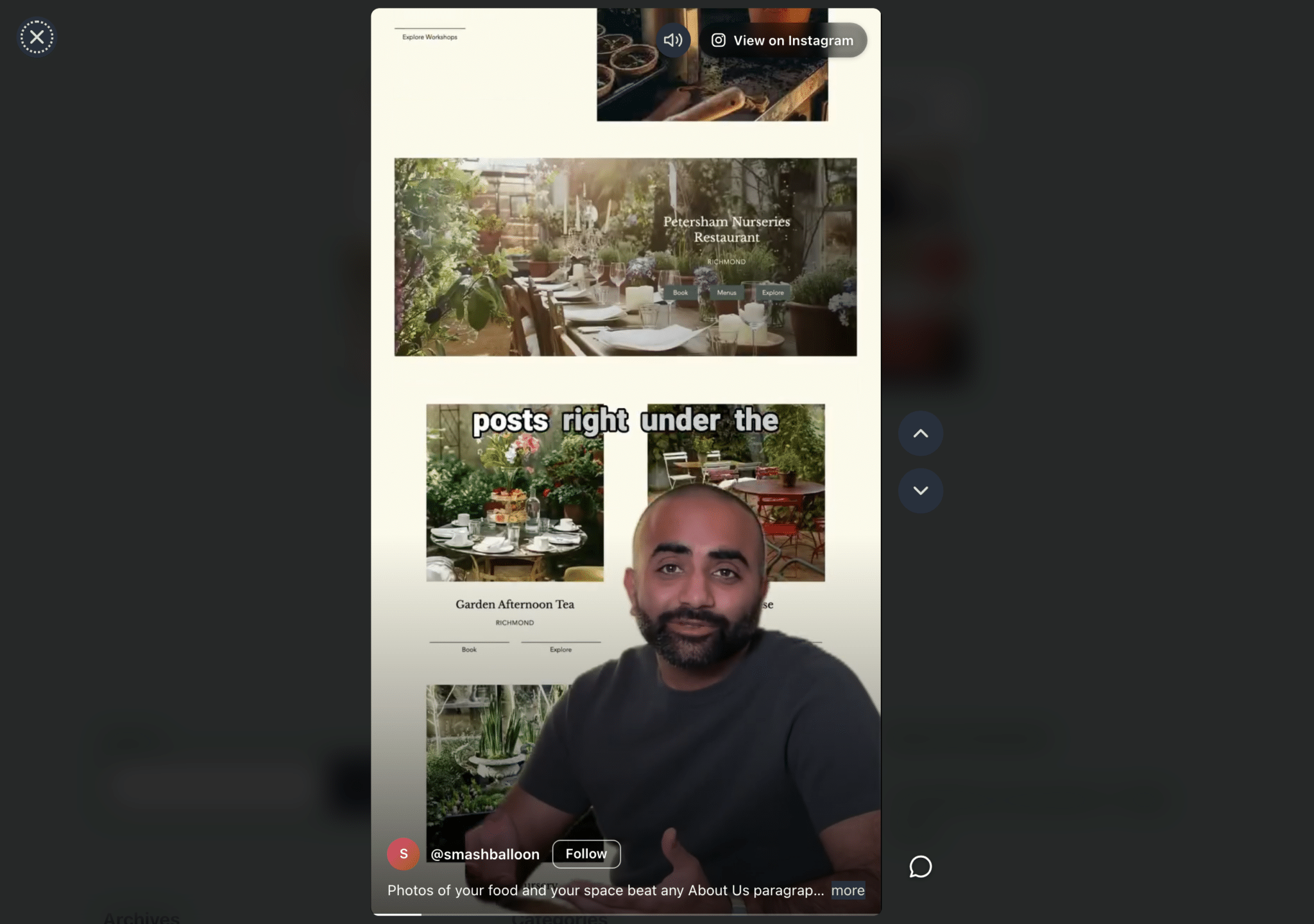
Your caption sits at the bottom of the screen, with a more link for the full text, and your @username and a Follow button stay right there too. So someone who enjoys the video can find you on Instagram in one tap, and View on Instagram opens that exact Reel if they want to leave a comment.
One Swipe Brings Up the Next Reel
Once someone’s watching, the next Reel is a swipe away, the same way they’d move through Reels in the Instagram app. The viewer moves through every Reel showing in that feed, in the order your feed shows them, and on a phone, first-time visitors get a quick Swipe up for next hint.
- On a phone, swipe up for the next Reel and down to go back. Tap the X to close it.
- On a computer, click the up and down arrows beside the video, use the scroll wheel, or press the arrow keys.
- Somebody browsing with only a keyboard can move between Reels, pause with the space bar, mute with M, and close the viewer with Escape.
Made for Businesses That Post Reels
If you post Reels, your visitors get to watch them the way you made them. A few places it earns its keep:
- Run a restaurant that films its specials? Visitors can swipe through this week’s dishes on your menu page, with the sizzle turned up.
- Salon before-and-afters look best big. Put a feed of your Reels on your booking page, and people can watch a few transformations before they pick a time.
- Walkthrough Reels of a listing, a venue, or a rental play full-screen on the page where people decide whether to get in touch.
Want a feed of only Reels? In the feed editor, open Settings, then Filters and Moderation, and under Show specific types of posts, leave only Reels ticked.
Ready to show your Reels full-screen?
Swipe View comes with every Instagram Feed Pro plan, Basic, Plus, and Elite, and with the All Access Bundle. Update to 6.14.0 and it’s already on. Backed by a 14-day money back guarantee.
Get Instagram Feed ProYour Feed Stays the Same Until Someone Taps a Reel
Nothing about your feed’s layout changes. It looks exactly as it does now, and only Reels open in Swipe View. Photos, posts with several photos, and regular videos still open in the regular lightbox, the pop-up that opens when someone clicks a post. And if you’ve turned the lightbox off for a feed, that feed stays exactly as it is.
How to Show Your Reels Full-Screen (in 2 Minutes)
Swipe View is available on every Instagram Feed Pro plan and the All Access Bundle, so if you’re on any of them, you already have it.
Step 1: Update Instagram Feed Pro. In your WordPress dashboard, go to Dashboard » Updates, or Plugins » Installed Plugins, and update Instagram Feed Pro to 6.14.0.
Step 2: Check that Swipe View is on. Go to Instagram Feed » Settings » Advanced and find Enable Swipe View for Reels. It’s on by default. Leave it on, or switch it off and click Save Changes to keep the regular lightbox for Reels.

Step 3: Tap a Reel on your site. Open any page with your Instagram feed and tap a Reel. It opens full-screen, and you can swipe to the next one.
Frequently Asked Questions
Which plan do I need?
Any Instagram Feed Pro plan, Basic, Plus, or Elite, or the All Access Bundle.
Will my photos open in Swipe View too?
No. Only Reels do. Photos, posts with several photos, and regular videos keep opening in the regular lightbox.
Do Reels always play with sound?
The viewer tries to play with sound. Some browsers start videos muted, and when that happens a Tap to unmute label shows up so visitors can turn the sound on.
Can I turn it off?
Yes. Switch off Enable Swipe View for Reels under Instagram Feed » Settings » Advanced.
Update Today and Let Your Reels Play Full-Screen
Did you know that if you update today, the next person who taps one of your Reels will watch it full-screen without leaving your site?
And you can do it without:
- Changing a single setting
- Rebuilding your feed
- Sending visitors off to the Instagram app to watch
If you’re on any Instagram Feed Pro plan, update to 6.14.0 and tap a Reel on your site to see it.
If you’re using the free Smash Balloon Instagram Feed, upgrading to Instagram Feed Pro adds Swipe View for your Reels on top of everything you already have.
And if you’re new to Smash Balloon, Instagram Feed Pro puts your Instagram posts and Reels on your site in a few clicks, and now your Reels play the way you filmed them.
Show your Reels full-screen, with sound
Swipe View comes with every Instagram Feed Pro plan and the All Access Bundle. Update to 6.14.0 and your Reels are ready. Backed by a 14-day money back guarantee.
Get Instagram Feed ProWant to manage your feed without opening WordPress? See how to connect your Instagram feed to ChatGPT or Claude.
Which page will your Reels go on first? Drop a comment below and let us know.