


 Social Wall
 Feed Analytics


Would you like to see what a setting on the Reviews Feed Settings page does before you change it?
In this guide, we’ll go through every tab and setting on the page, with each setting’s default and where to learn more about it. All you need is access to your WordPress dashboard.
Before you get started, make sure Reviews Feed is installed and activated on your WordPress site. If you use the free version, our guide on installing the free version covers it.
Note: This guide shows the paid version of Reviews Feed. The free version also has a Data Sharing tab.
- Finding Your Way Around the Settings Page
- Using the General Tab
- Using the Feeds Tab
- Using the Advanced Tab
- Using the Language & Translation Tab
- Using the Data Sharing Tab in the Free Version
- Frequently Asked Questions
Finding Your Way Around the Settings Page
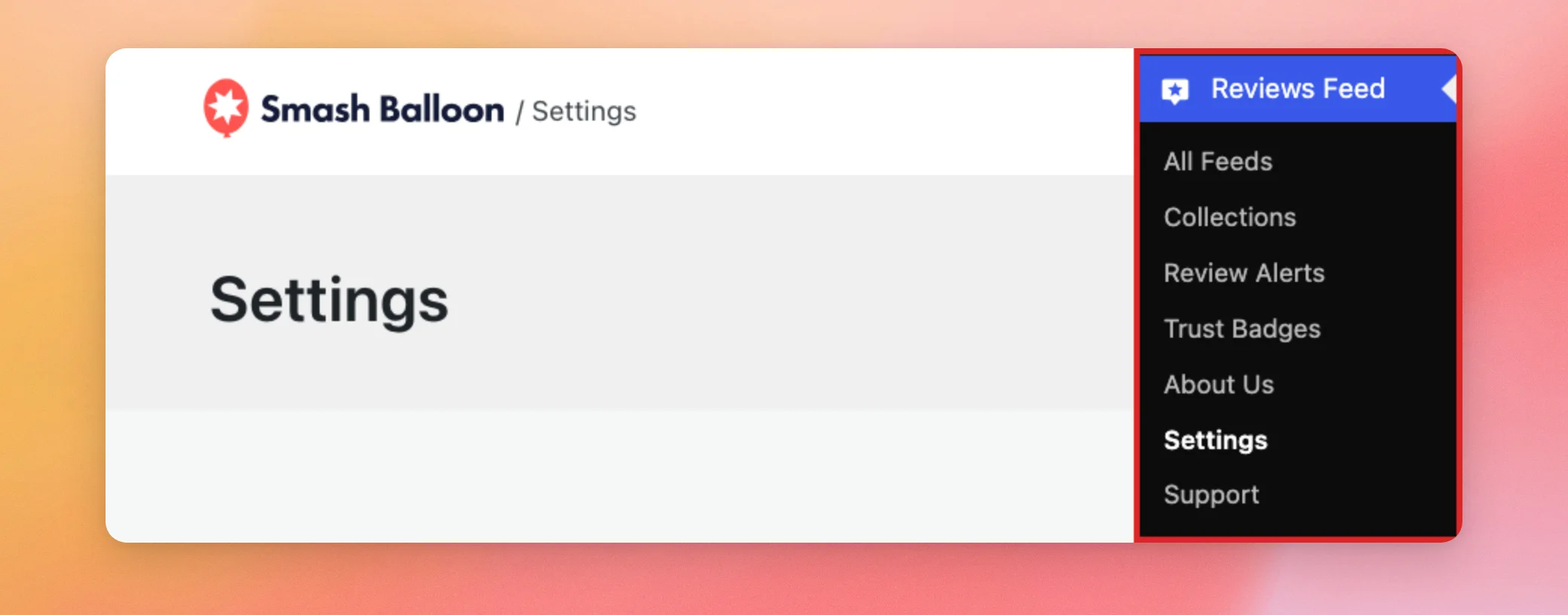
To open your settings, go to Reviews Feed » Settings in your WordPress dashboard.
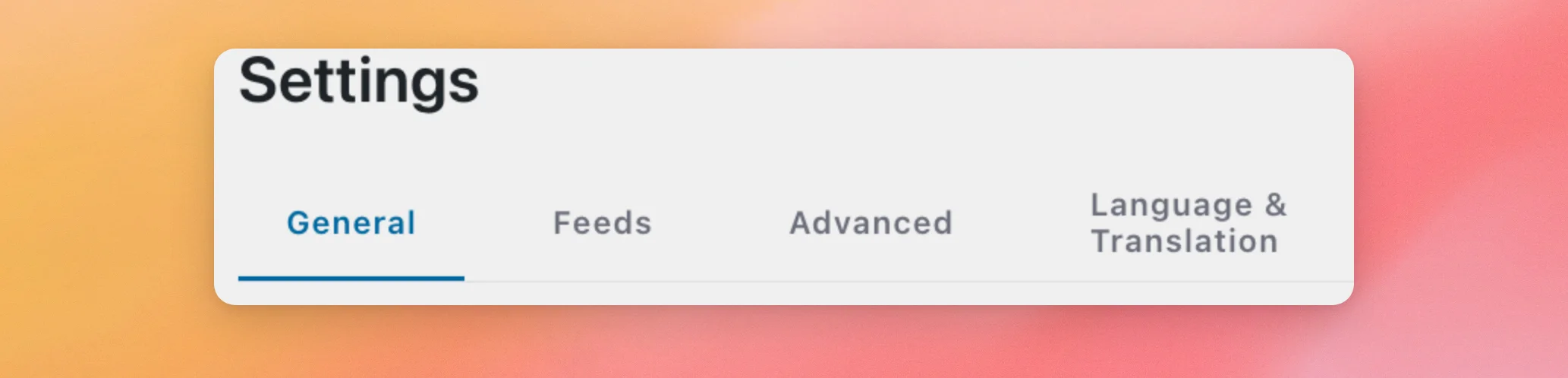
The page has four tabs called General, Feeds, Advanced, and Language & Translation. We’ll go through them in that order.
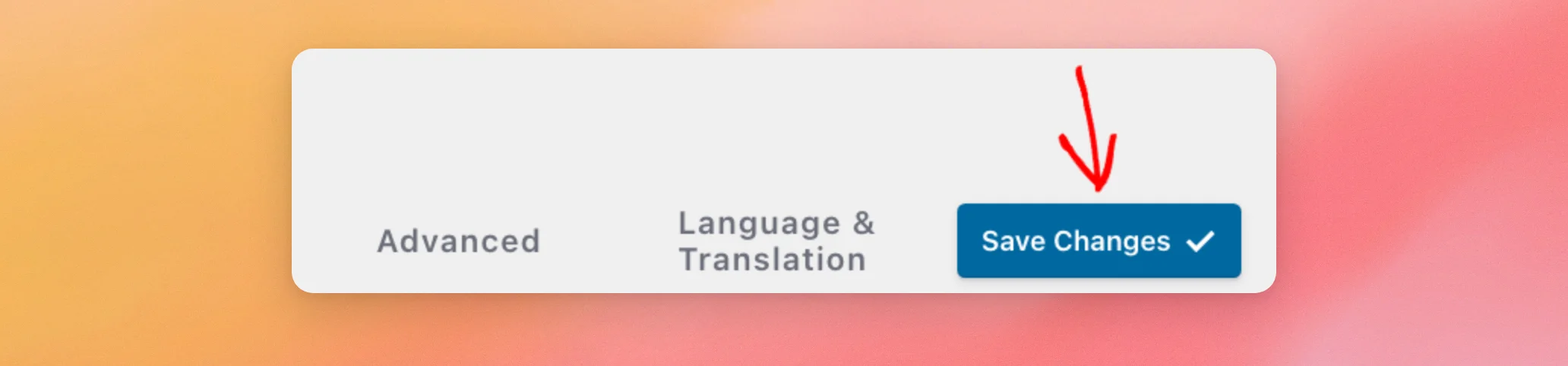
After you change a setting, click Save Changes at the top right of the page. Each tab also has a Save Changes button at the bottom. Buttons that act right away, such as Export or Clear All Caches, don’t need a save.
Using the General Tab
The General tab opens first. It holds your license, your AI agent access, your review sources and API keys, and the tools for exporting and importing feeds.
License Key
This section shows whether your license is active. When it is, the section reads “Your Reviews Feed Pro License is Active!”.
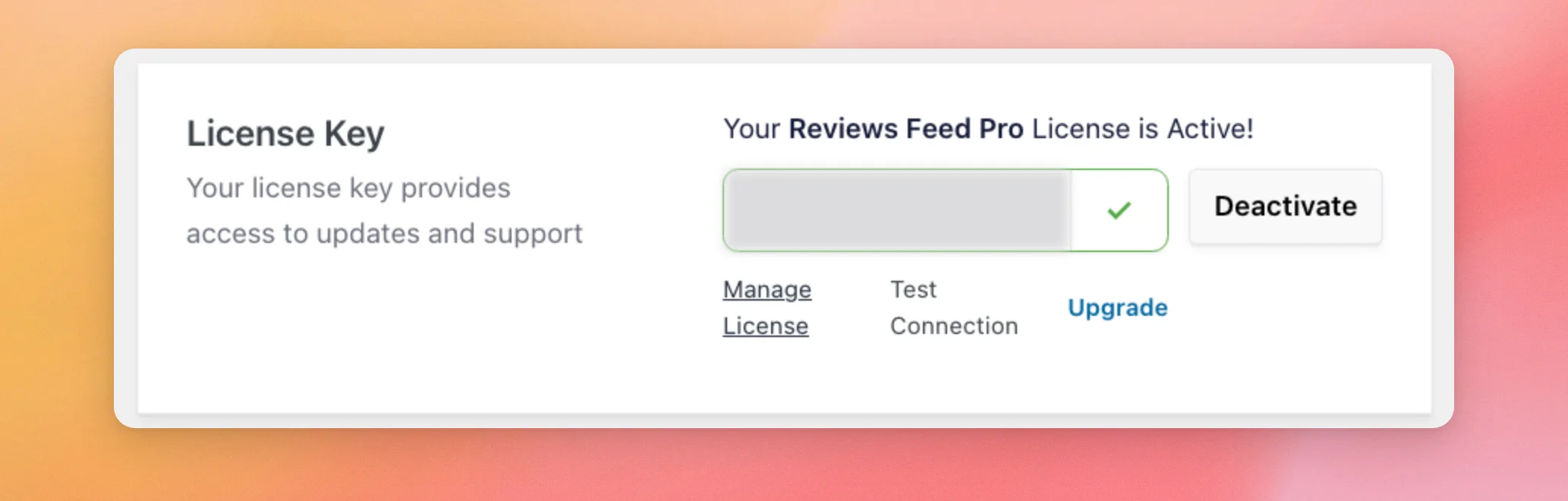
The section has four controls:
- Manage License opens your account page on smashballoon.com.
- Test Connection checks that your site can reach Smash Balloon’s servers. It then shows “Connection successful” or “Connection Error”.
- Upgrade opens the Reviews Feed pricing page, where you can move to a higher license level.
- Deactivate removes the license from this site. When no license is active, this button reads Activate instead.
To learn how license levels and site limits work, see our guide on licenses. To activate a license, see the section on activating your license key in our installation guide.
AI Agents
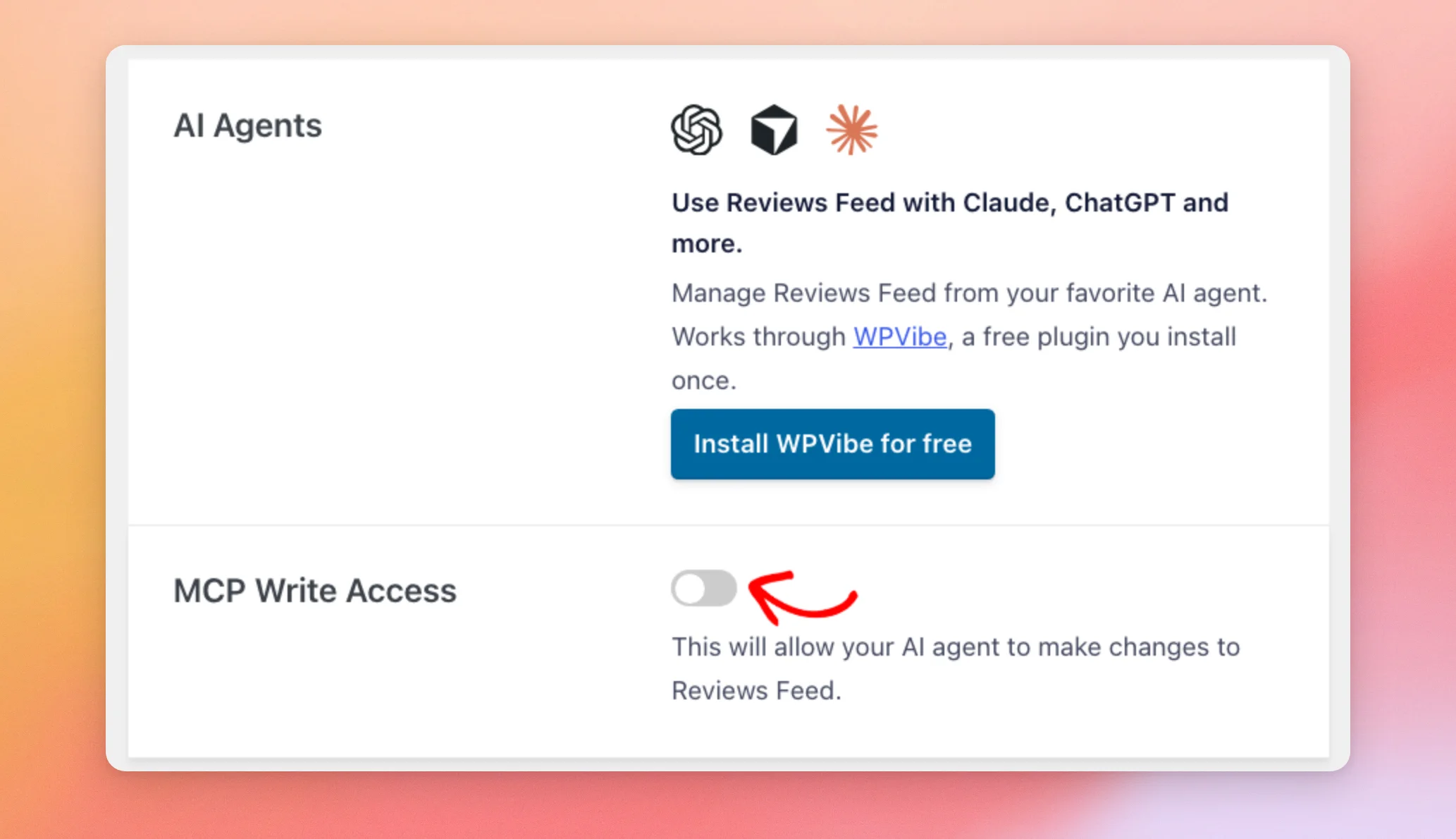
This card lets you manage Reviews Feed from an AI agent such as Claude or ChatGPT. It works through WPVibe, our free plugin that you install once. The card has an Install WPVibe for free button. Our guide on managing Reviews Feed with AI assistants walks you through connecting your assistant.
Note: The AI Agents and MCP Write Access sections show only on WordPress 6.9 or later.
MCP Write Access
This switch decides whether an AI agent can change Reviews Feed. It’s off by default. While it’s off, an AI agent can read your feeds and settings but can’t change them.
An agent can’t turn this switch on by itself. Only you can give it write access.
To let your AI agent make changes, turn on the MCP Write Access switch and save your changes.
Manage Sources
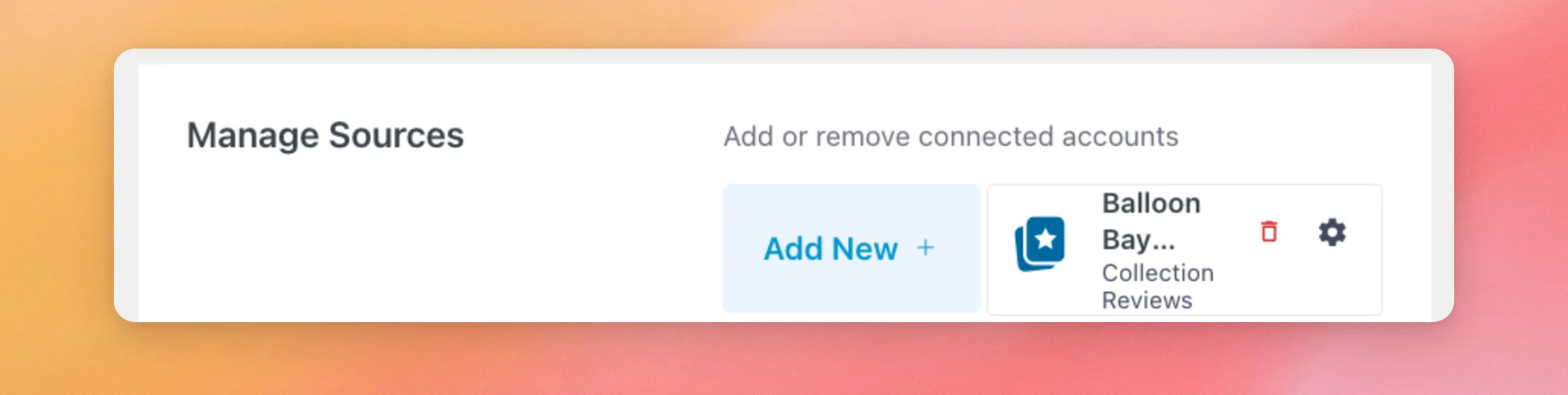
Manage Sources lists every review source you’ve connected, such as a Google business or a collection. Each source has its own card with its name, its type, a delete icon, and a settings icon.
To connect another source, use the Add New button. Before you’ve connected any source, it reads Add Source.
For the full steps to connect a Google business, see our guide on finding your Google Place ID. To connect a Facebook Page on the Plus license level or higher, see our guide on adding a Facebook reviews source.
Manage API Keys
The review sites that take your own API key are Google, TripAdvisor, and Yelp. Each review site has its own button for adding or updating that site’s key.
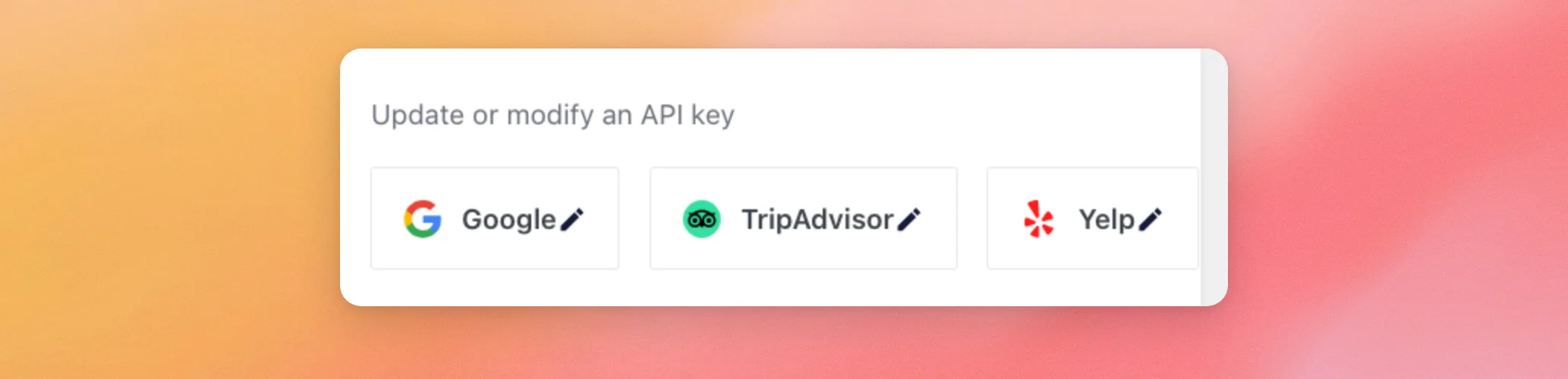
In the paid version, you can add up to two Google and five Yelp sources without a key. Your own key lets you add more sources than that.
To get a key, see our guides on creating a Google API key, a Yelp API key, and a TripAdvisor API key.
Preserve Settings If Plugin Is Removed
This switch is off by default. While it’s off, deleting Reviews Feed cleans up its feeds and settings too.
If you plan to reinstall the plugin later, turn it on before you delete Reviews Feed. Your feeds and settings are then still there when you install it again.
Exporting and Importing Feed Settings
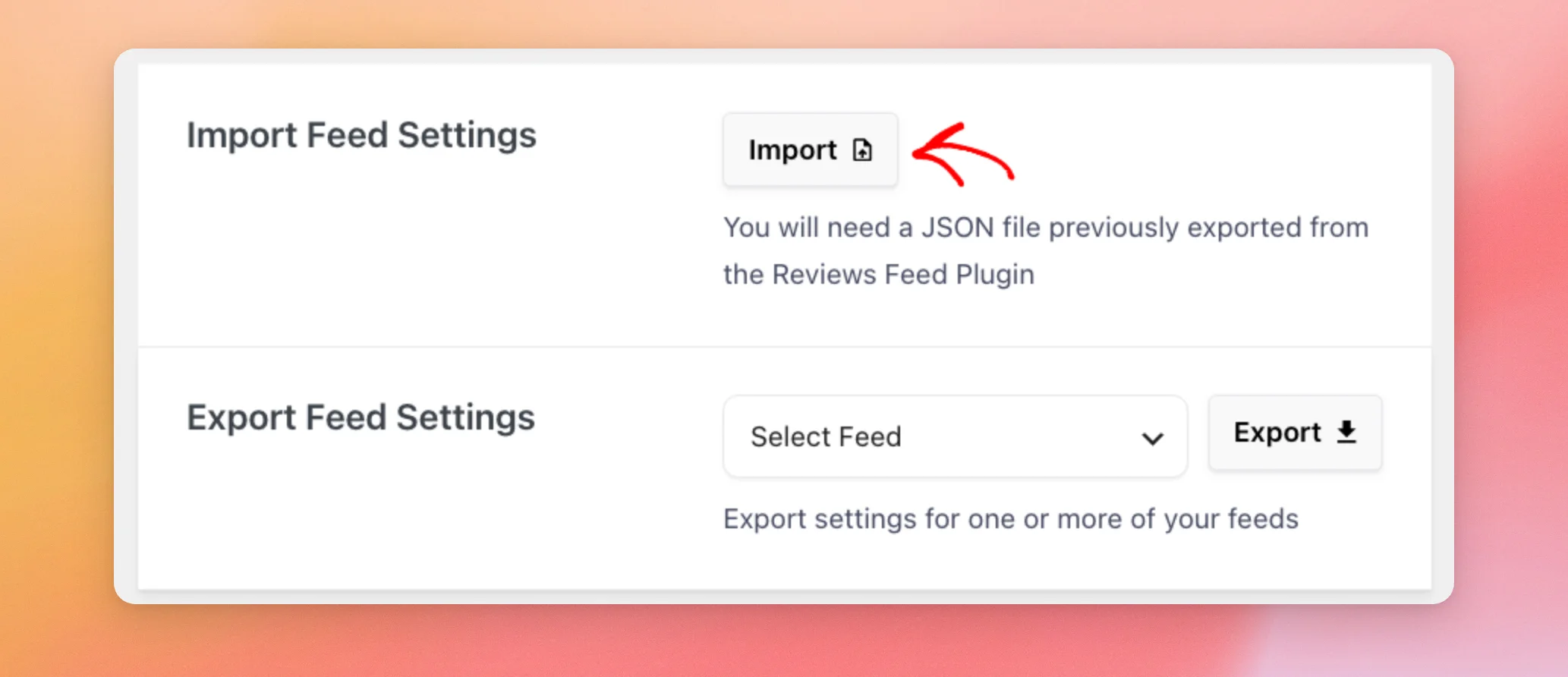
Export Feed Settings saves one feed’s settings as a .json file. Import Feed Settings reads that file and makes a new feed with the same settings. This is handy for keeping a copy of a feed’s settings or for starting a new feed from one you’ve already set up. Our guide on using the Support page shows the same export, for sending a feed’s settings to our team.
To export a feed, pick it from the list under Export Feed Settings. Then, click Export. Your browser downloads a file named after the feed’s ID, such as sbr-feed-3.json.
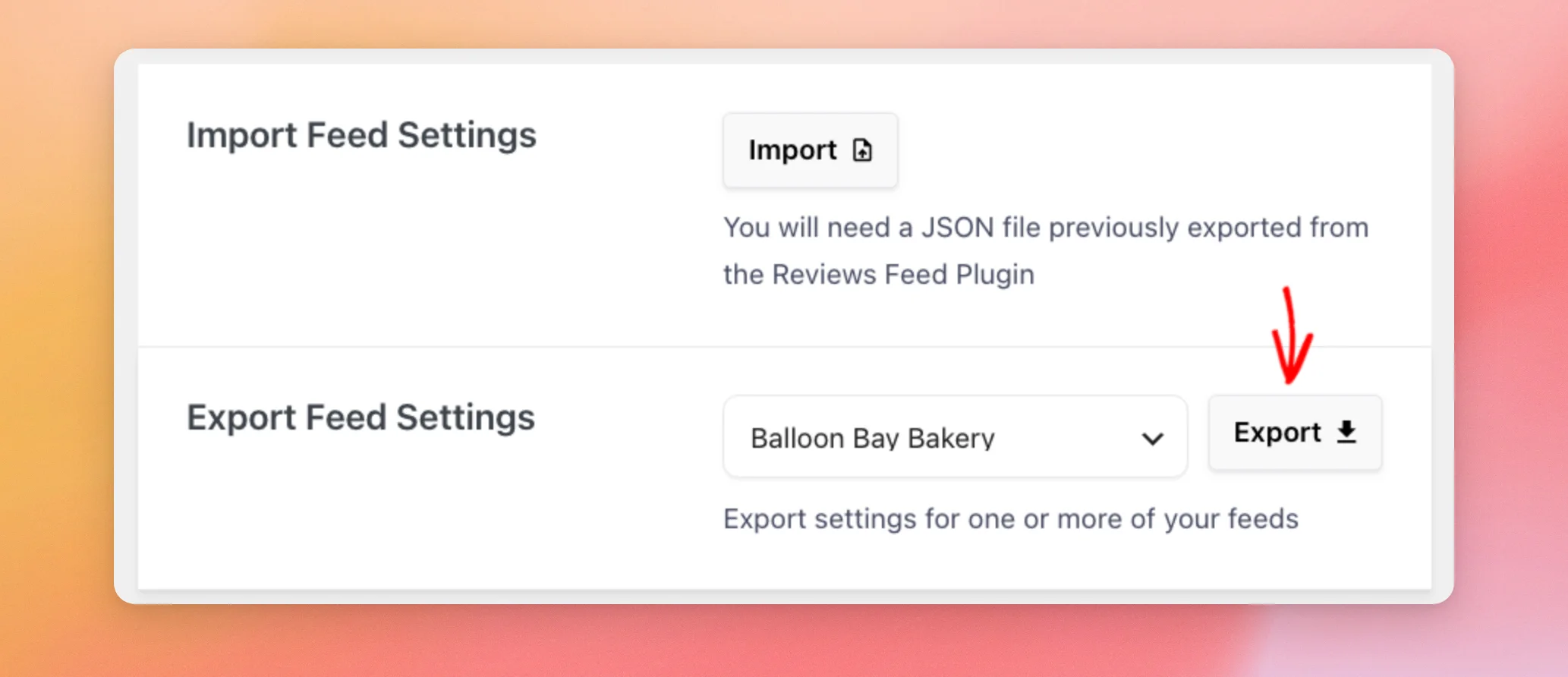
To import a feed, click Import under Import Feed Settings and choose the .json file. Reviews Feed creates a new feed from the file, with the same name as the exported one. Your other feeds stay as they are.
Exporting and Importing Collections
Export Collection and Import Collection do the same for collections. Export Collection exports a collection’s reviews. Import Collection adds them on another WordPress site that runs Reviews Feed.
Our guide on using collections walks you through both.
Data Sharing
This section explains the limited usage data Smash Balloon collects to keep its plugins secure and up to date. That data never includes your feed content or your visitors’ personal information. Smash Balloon also sends occasional in-plugin notifications about updates, fixes, and new features.
The section shows when a paid Smash Balloon plugin is active. There’s nothing to change in it.
To see what’s collected, visit our data sharing page.
Using the Feeds Tab
The Feeds tab has two settings, Caching and GDPR. Both apply to all your feeds.
Caching
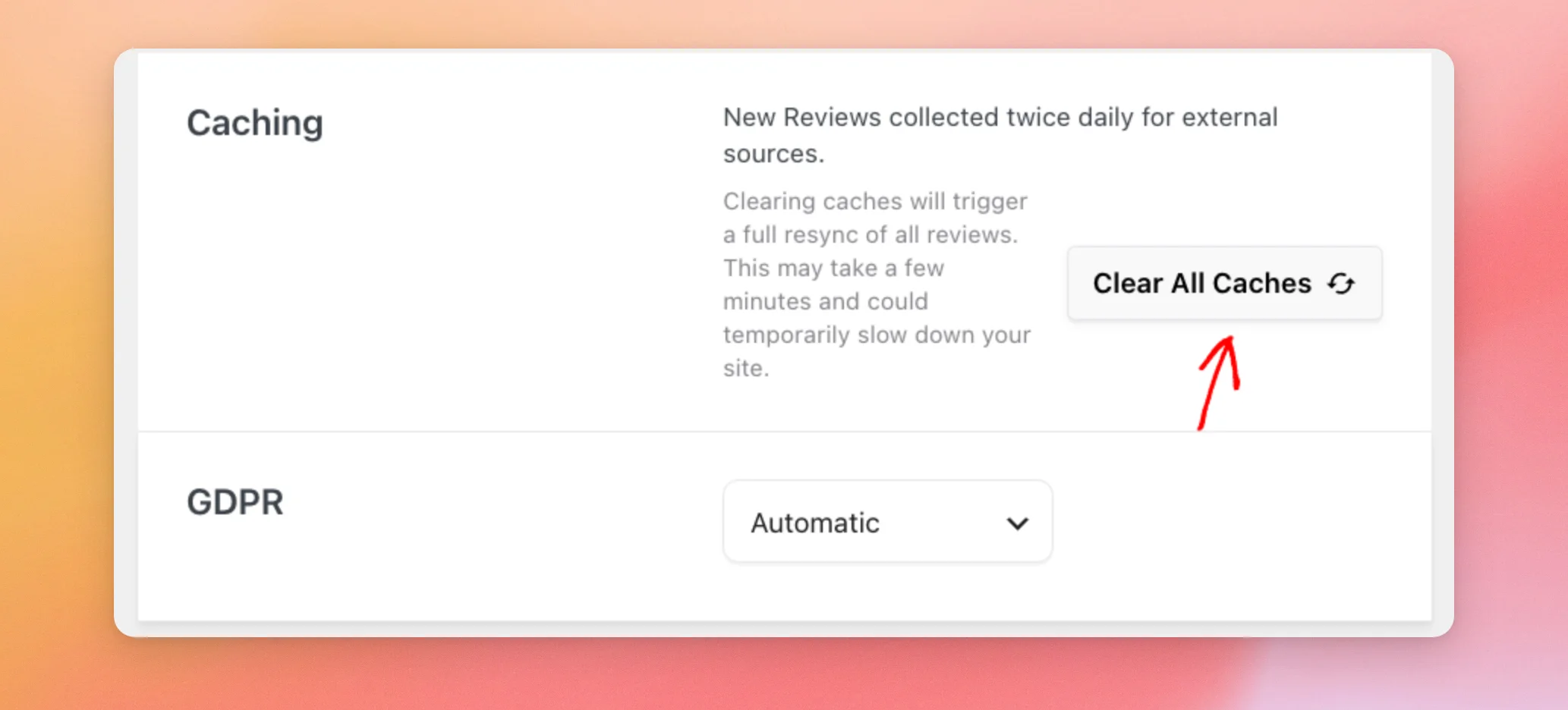
Caching shows how often Reviews Feed collects new reviews on your license level. On the Elite license level, it reads “New Reviews collected twice daily for external sources.” On other license levels, it reads “New Reviews collected daily.”
Clearing the caches makes Reviews Feed fetch all your reviews again. This may take a few minutes and can temporarily slow down your site. The reviews already saved on your site are kept.
On a paid license level, clearing the caches also starts the import of older reviews for Google and Yelp sources that have an API key.
To start that fresh fetch, click Clear All Caches.
If your feed shows fewer reviews than you expect, see our guide on why you only see a few reviews.
GDPR
GDPR mode makes your feeds follow your visitors’ cookie consent. While it’s on, a feed waits for the visitor’s consent before it turns on features such as the lightbox. The list has three options:
- Automatic (default): GDPR mode turns on when Reviews Feed detects a supported cookie consent plugin.
- Yes: GDPR mode is always on.
- No: GDPR mode is always off.
The supported plugins are WPConsent, Complianz, Cookiebot, CookieYes, Cookie Notice, GDPR Cookie Compliance, GDPR Cookie Consent, Real Cookie Banner, and Borlabs Cookie.
To add a cookie consent banner to your site, see How to Add a Cookies Popup in WordPress for GDPR/CCPA.
Using the Advanced Tab
The Advanced tab holds settings for images, search results, usage data, and where the plugin loads its script.
Optimize Images
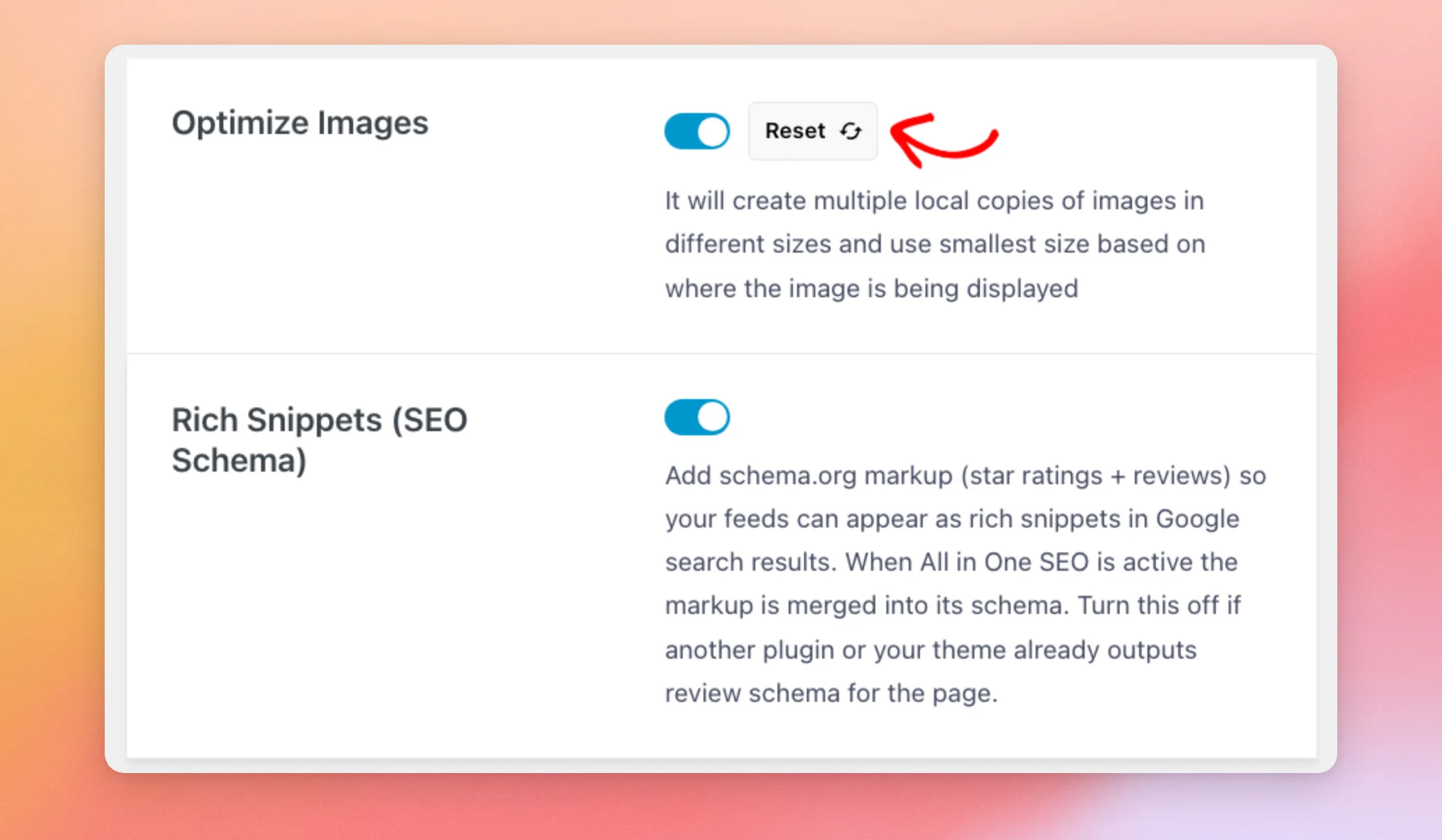
This switch is on by default. Reviews Feed saves copies of review images on your site in several sizes.
It then shows the smallest size that fits where each image appears.
To delete the saved copies, click Reset next to the switch. Reviews Feed then makes them again from the original images.
Rich Snippets (SEO Schema)
This switch is on by default. It adds schema markup with your star ratings and reviews to your feeds. Your feeds can then appear as rich snippets in Google search results.
If our SEO plugin, All in One SEO, is active, the markup joins its schema. If another plugin or your theme already adds review schema to the page, turn this switch off.
Our guide on rich snippet schema in Reviews Feed explains what the markup holds and how to test it.
If you’re new to rich snippets, see How to Use Rich Snippets in WordPress for a beginner-friendly overview.
Usage Tracking
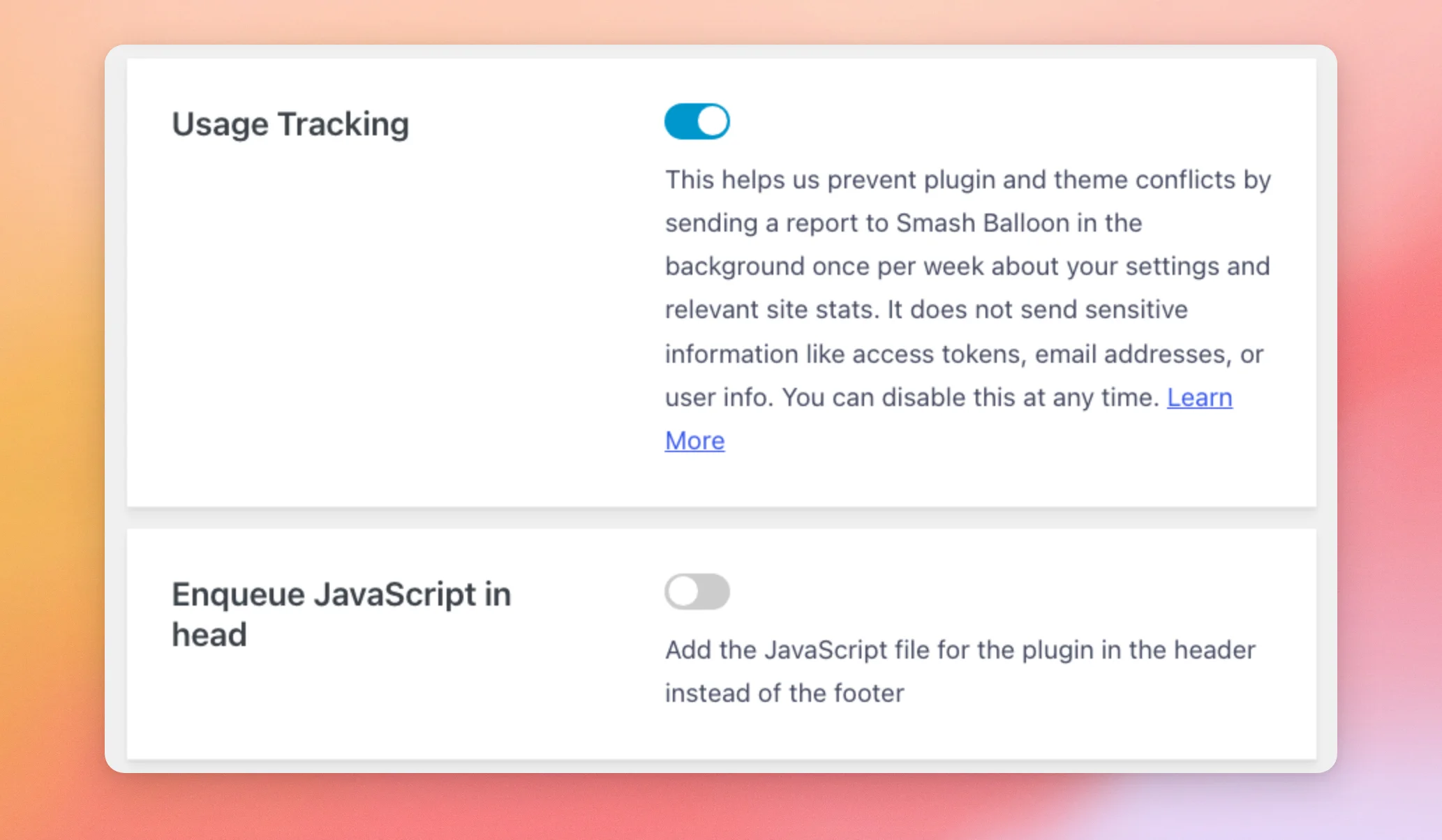
Usage Tracking sends Smash Balloon a report about your settings and site stats once a week. We use it to prevent plugin and theme conflicts. The report never includes sensitive information like access tokens, email addresses, or user info.
It’s on by default in the paid version and off in the free version. In the paid version, you can turn it off at any time.
To learn more, visit our data sharing page.
Enqueue JavaScript in Head
This switch is off by default. Reviews Feed then adds its JavaScript file in your pages’ footer. When you turn it on, the file loads in the page’s head instead.
Using the Language & Translation Tab
The Language & Translation tab sets the language and wording your feeds use. It has two settings:
- Language sets the language your Google reviews show in, for all your feeds. The default is No Translation. Each feed can override this setting.
- Custom Text/Translate is a table where you enter your own words for the text your feeds show. Its rows cover the Write a Review button, the words in “Posted a day ago”, and the review count in the feed header.
Our guide on changing the language of your reviews feed walks you through both settings.
Using the Data Sharing Tab in the Free Version
The free version has a fifth tab, Data Sharing. Its two switches, Data sharing and In-Plugin Notifications, let you choose whether to share usage data and get in-plugin notifications.
When any paid Smash Balloon plugin is active on your site, this tab doesn’t show. The General tab shows the Data Sharing section instead.
That’s it! You now know what each setting on the Reviews Feed Settings page does. Next, to put a feed on your site, see our guide on displaying your reviews feed.
Frequently Asked Questions
Here are answers to some of the top questions about the Reviews Feed settings.
Where do I find the Review Alerts settings?
Review Alerts have their own page at Reviews Feed » Review Alerts, not on the Settings page. Our guide on Review Alerts walks you through creating one.
Where do I change how a feed looks or which reviews it shows?
Those settings live in each feed’s editor, not on the Settings page. You can open the editor from Reviews Feed » All Feeds by clicking the feed’s name. Our guide on creating a feed covers the editor.
Does clearing the caches delete my saved reviews?
No. Clearing the caches makes Reviews Feed fetch your reviews again, and the reviews already saved on your site are kept. For more, see the Caching section above.
Does importing a feed replace one of my feeds?
No. Importing a file creates a new feed with the same name, and your other feeds stay as they are. For more, see the Exporting and Importing Feed Settings section above.
How do I export several feeds?
Export each feed on its own. Export Feed Settings saves one feed per file, named after the feed’s ID.
Why don’t I see the AI Agents section?
The AI Agents and MCP Write Access sections need WordPress 6.9 or later. After you update WordPress, they show on the General tab.
What if I see an error message on the Settings page?
Our error message reference lists the messages Reviews Feed shows, including the ones in the API key windows, and how to fix each one.




