Social Wall
  Feed Analytics

Every review feed has its own shortcode. The quick ways to grab it and place the feed on any page or post.
Would you like to show the reviews feed you created on your website? Every feed you build with Reviews Feed has its own unique shortcode. The plugin gives you a couple of quick ways to grab it and place your feed on any page, post, or widget.
This guide will walk you through the steps to find your feed’s shortcode and add it to your site.
Before you get started, make sure Reviews Feed is installed and activated on your WordPress site. You will also need to have already created the feed you want to display.
Note: Prefer a fully visual way to add your feed? Reviews Feed also includes a Reviews Feed block for the WordPress block editor and a Reviews Feed widget for Elementor. Both let you pick your feed from a dropdown, with no shortcode needed. See our companion guides, Adding a Reviews Feed to a Page Using the Block Editor and Adding a Reviews Feed to a Page Using the Elementor Widget.
Here is what we will cover:
- Copying Your Feed’s Shortcode
- Using the Embed Button
- Adding the Shortcode to a Page
- Frequently Asked Questions
Copying Your Feed’s Shortcode
To get started, we’ll find the unique shortcode that Reviews Feed created for your feed.
From your WordPress admin sidebar, go to Reviews Feed » All Feeds.
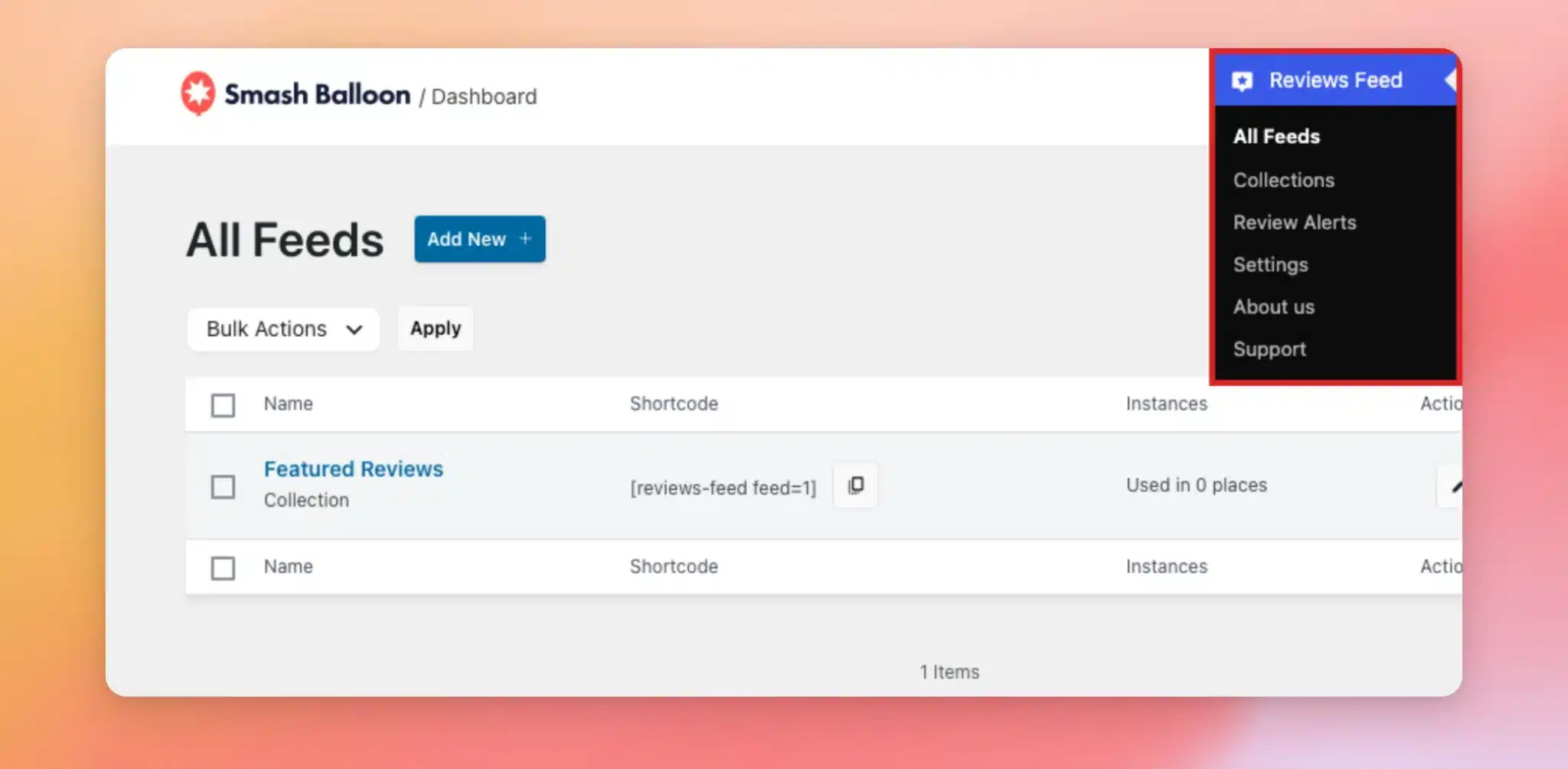
Each feed’s unique shortcode appears in the Shortcode column, right next to the feed’s name. Whenever you need the shortcode, click the copy icon beside it to copy it to your clipboard.
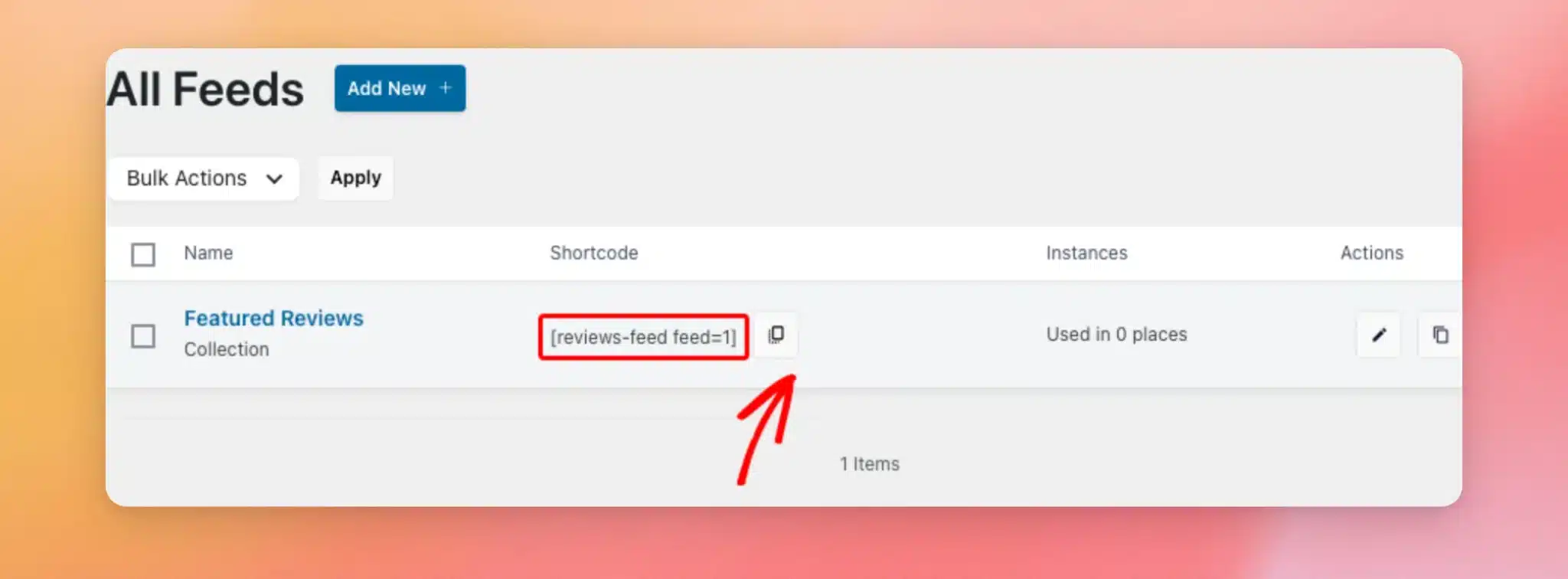
Now that you know where your shortcode lives, let’s look at a second way to grab it without leaving the feed editor.
Using the Embed Button
You can also grab the shortcode while you are customizing your feed.
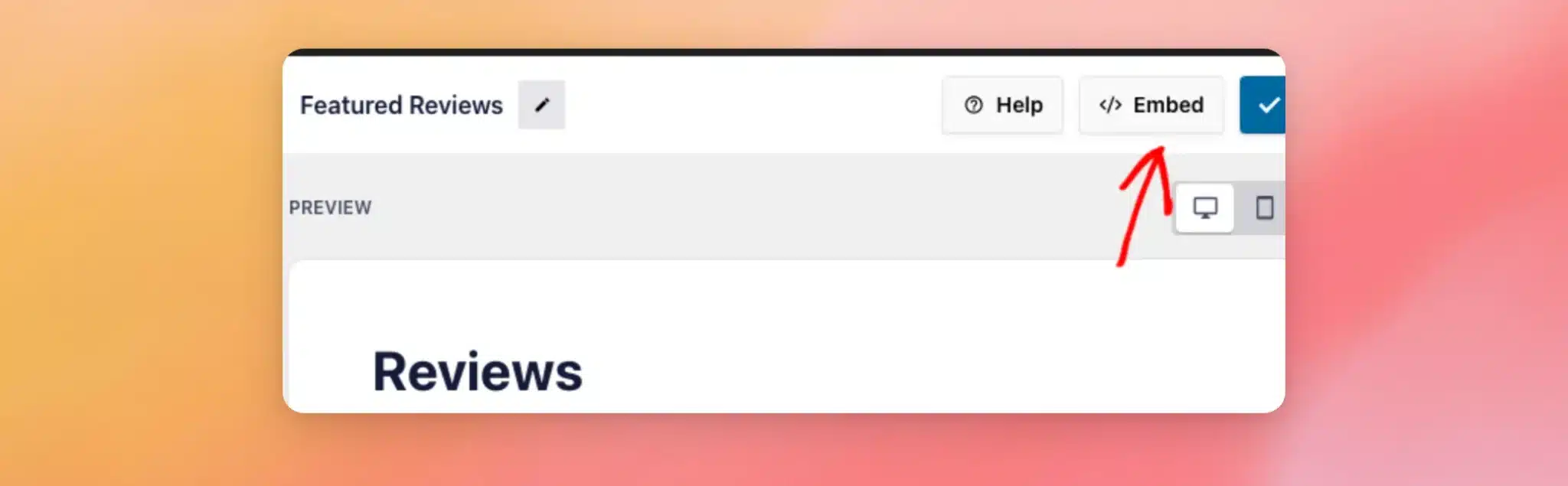
To do this, open your feed from the All Feeds page. Then click Embed in the top-right corner of the feed editor.
This opens the Embed Feed window. Next, click Copy to copy your feed’s shortcode to the clipboard. You can also use the Add to a Page option to place the feed on an existing page with the built-in WordPress block instead.
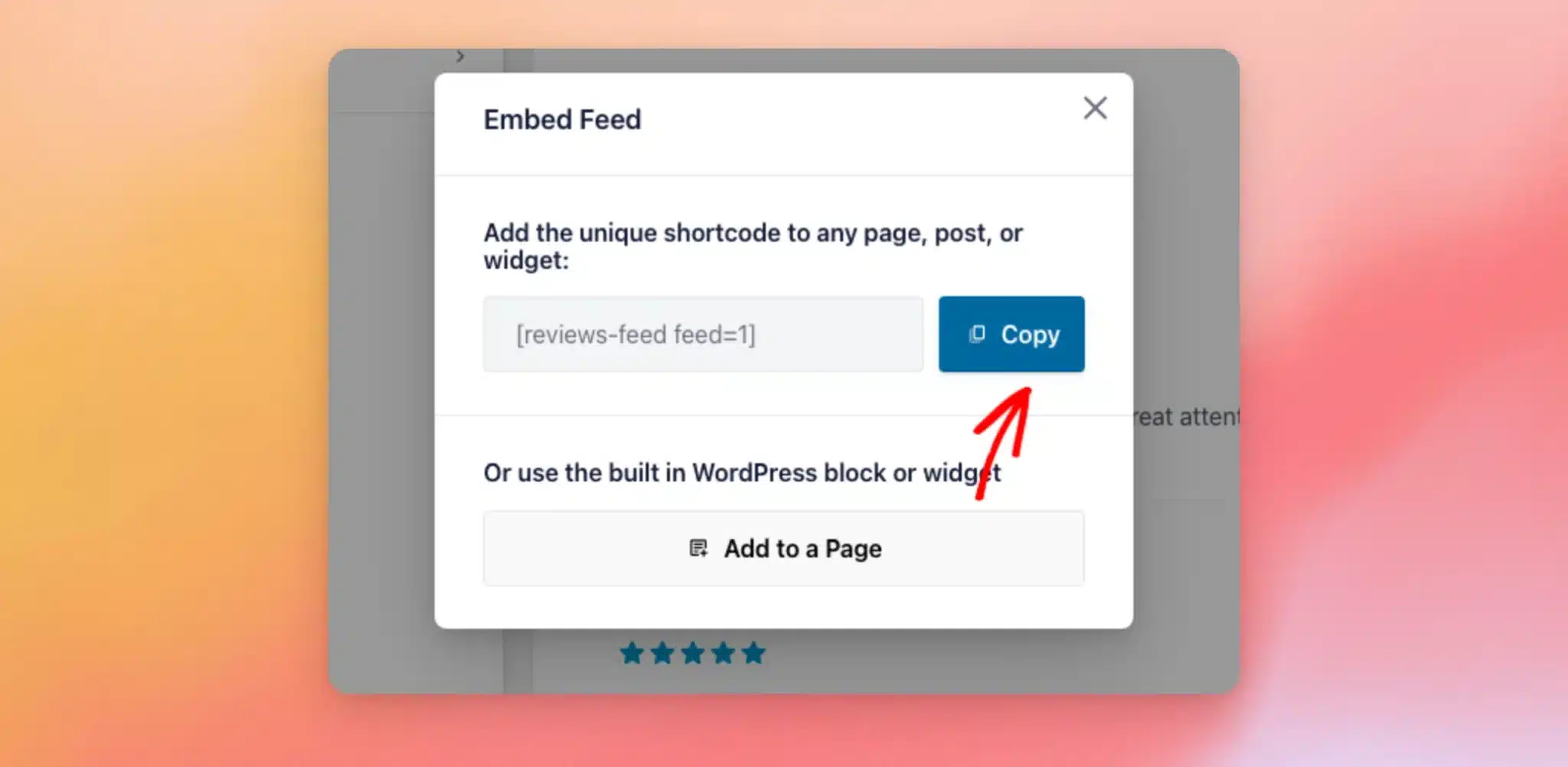
Whether you copy the shortcode from the All Feeds page or from the Embed Feed window, it is the same shortcode. You can use whichever way is more convenient.
Adding the Shortcode to a Page
Once you have copied the shortcode, open the page or post where you want your reviews to appear. In the editor, add a Shortcode block. Then paste your feed’s shortcode into the block.
If you are new to shortcodes, see How to Add a Shortcode in WordPress for a step-by-step guide.
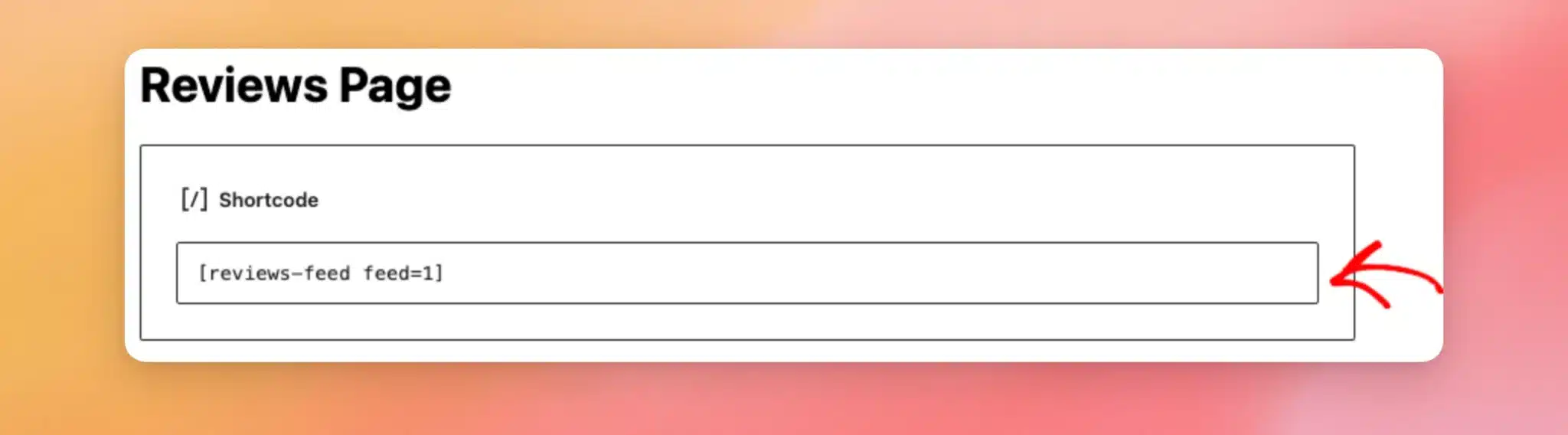
Note: Using the Classic Editor instead? You can paste the shortcode directly into your post content, with no block needed.
Once the page is published, your reviews feed appears right where you placed the shortcode, exactly as your visitors will see it.
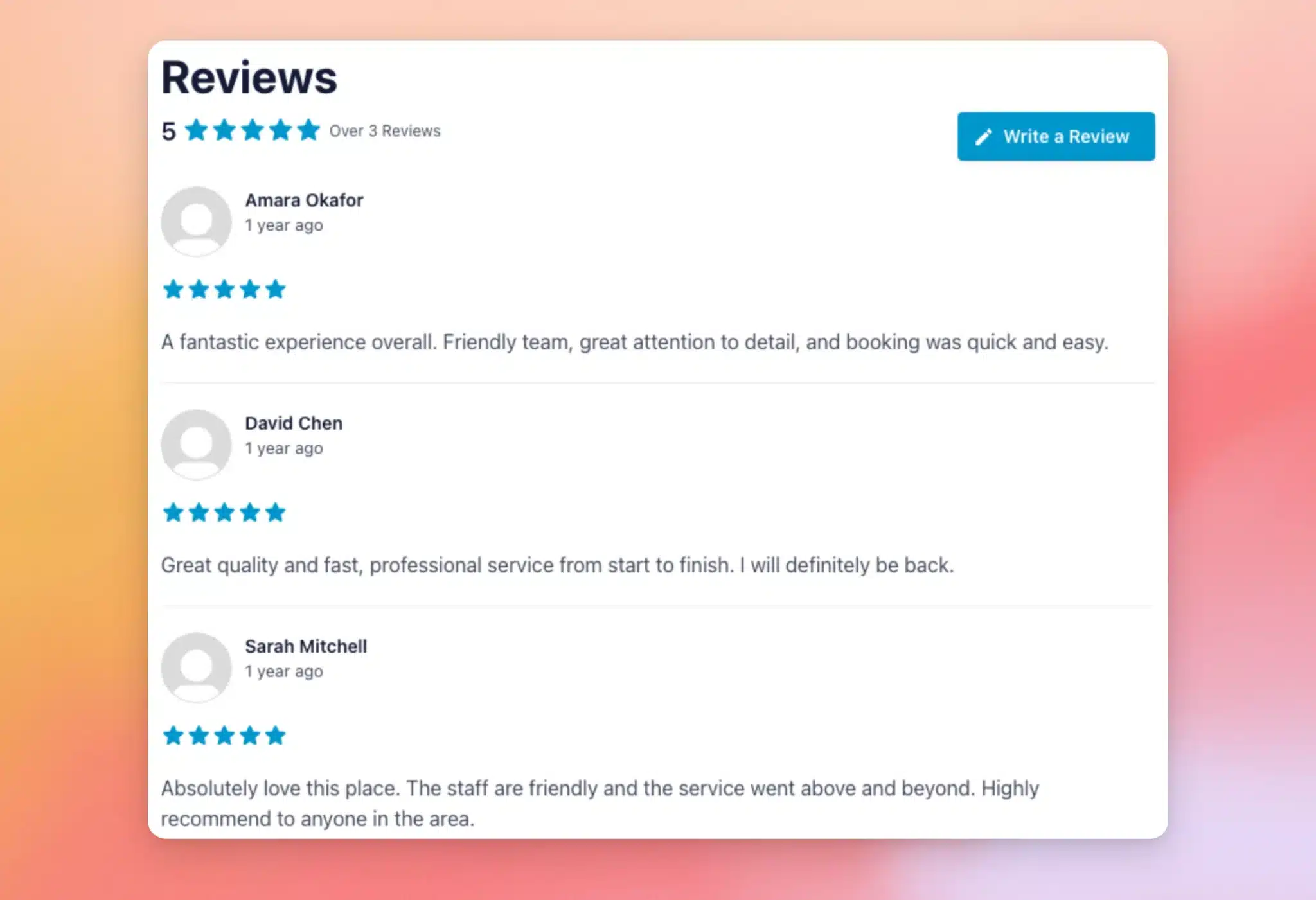
Note: Your feed displays your own reviews with the layout and colors you chose in the feed customizer, so it will look a little different from our example above.
That’s it! You can now place your reviews feed on any page, post, or widget using its shortcode or the Embed button. Prefer a fully visual way to add your feed? Reviews Feed also includes a Reviews Feed block for the WordPress block editor and a Reviews Feed widget for Elementor. Both let you pick your feed from a dropdown without copying any shortcode.
Frequently Asked Questions
Below, we’ve answered some of the most common questions about displaying your reviews feed.
Where do I find my feed’s ID?
The feed ID is part of the shortcode itself. For example, in [reviews-feed feed=1], the feed ID is 1. You can see each feed’s shortcode in the Shortcode column on the All Feeds page.
Can I use the shortcode outside of a page or post?
Yes. The shortcode works in any page, post, or widget. You can place your feed in a sidebar or footer by adding it to a shortcode-compatible widget.
See How to Use Shortcodes in Your WordPress Sidebar Widgets for a step-by-step guide.
Do I have to use the shortcode to display my feed?
No. Reviews Feed also includes a Reviews Feed block for the WordPress block editor and a Reviews Feed widget for Elementor. Both let you select your feed from a dropdown, with no shortcode needed.