


 Social Wall
 Feed Analytics


How to place a review feed on an Elementor page with the Reviews Feed widget, without copying a shortcode.
Would you like to display your customer reviews on a page built with Elementor?
Reviews Feed has its own Elementor widget. You choose one of your feeds from a list and see it on the page while you build, without copying a shortcode.
In this guide, we’ll show you how to add the widget to a page, choose your feed, and publish the page.
Requirements: The Reviews Feed widget for Elementor requires Reviews Feed version 2.6.3 or higher.
Before you get started, make sure Reviews Feed is installed and activated on your WordPress site, along with the free Elementor plugin.
For help installing Elementor, see this guide on how to install a WordPress plugin.
You’ll also need a feed to display. If you haven’t made one yet, see our guide on creating a feed.
- Adding the Reviews Feed Widget
- Selecting Your Feed
- Publishing and Viewing Your Feed
- Frequently Asked Questions
Adding the Reviews Feed Widget
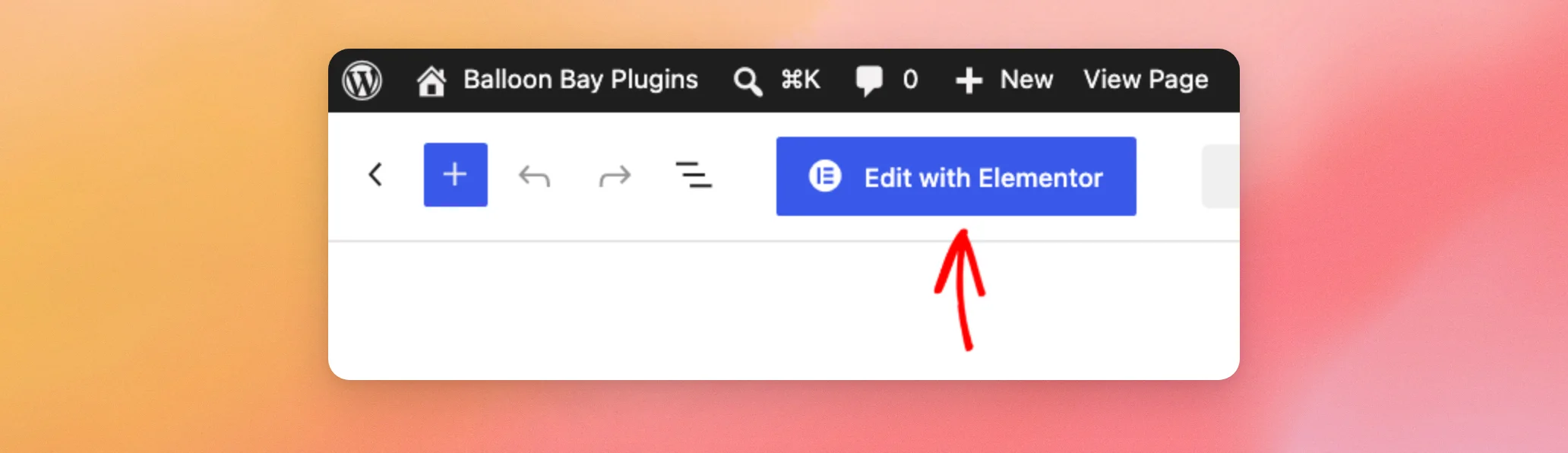
To get started, open the page where you want your reviews to appear in the WordPress editor, or create a new one. Then click Edit with Elementor at the top of the editor.
Elementor opens with its widget panel on the left.
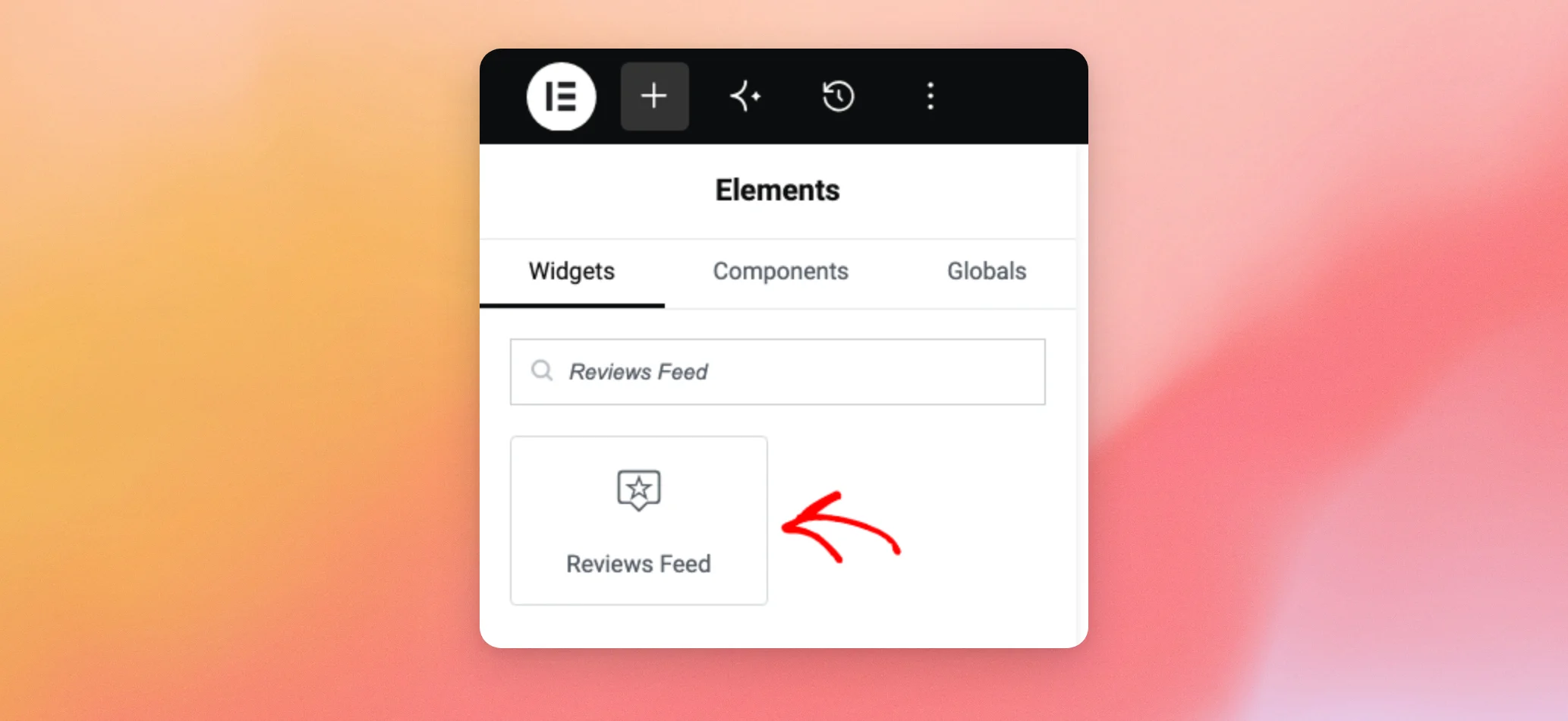
At the top of the panel, type “Reviews Feed” into the Search Widget box. The Reviews Feed widget then appears in the results.
Next, drag the Reviews Feed widget onto the page, to the spot where you want your reviews to show.
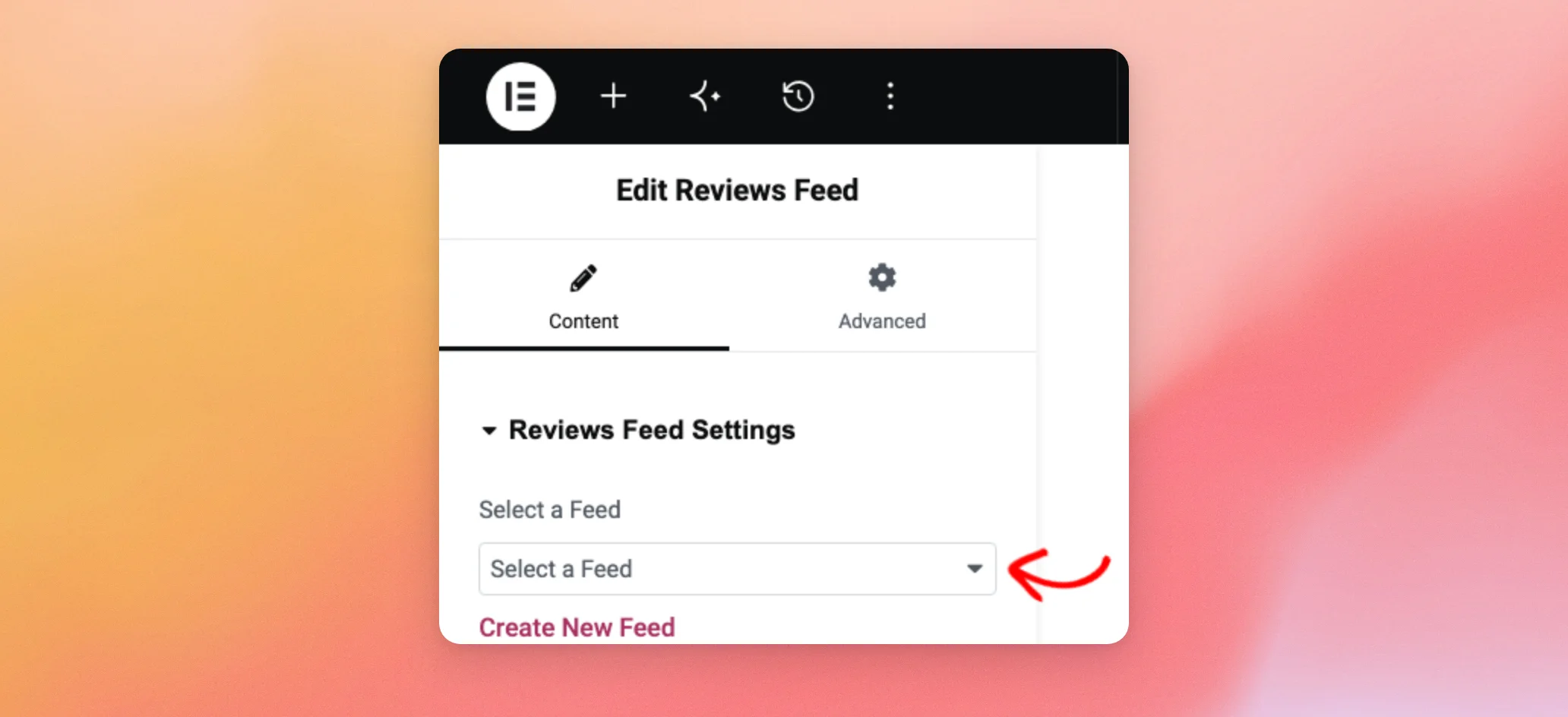
The widget’s settings open in the panel on the left. On the page, the widget shows a placeholder until you choose a feed.
Selecting Your Feed
The widget can display any feed you’ve created in Reviews Feed.
In the widget’s settings under Reviews Feed Settings, open the Select a Feed dropdown and choose the feed you want to display. The placeholder on the page has the same list. You can choose your feed there too.
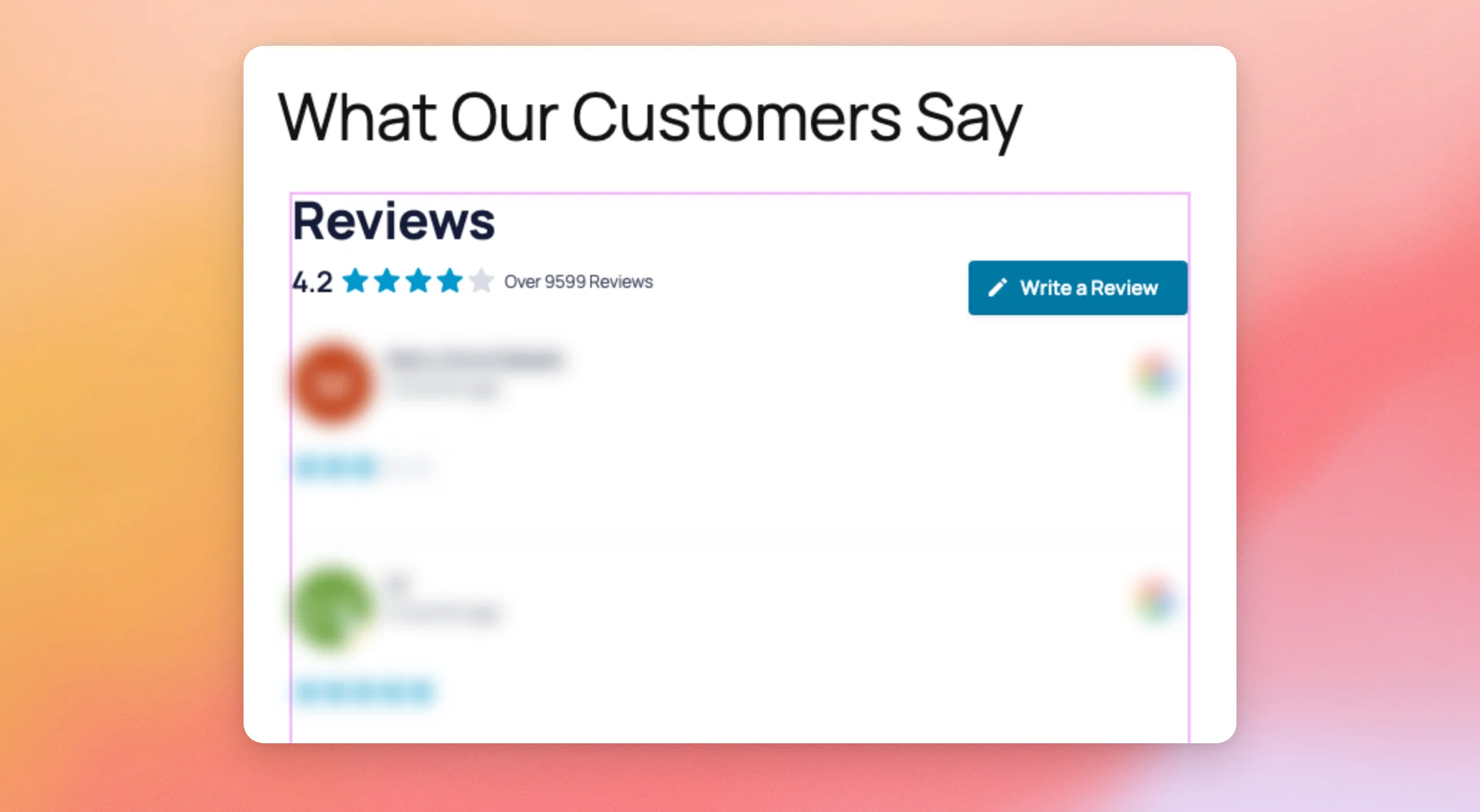
As soon as you choose a feed, Elementor shows a live preview of your reviews on the page. That way, you can check that you picked the right feed before you publish.
Once a feed is selected, an Edit this Feed link appears under the dropdown. To change the feed’s layout or design, click it to open that feed in the feed editor in a new tab. The Create New Feed link beside it opens Reviews Feed in a new tab, where you can build another feed.
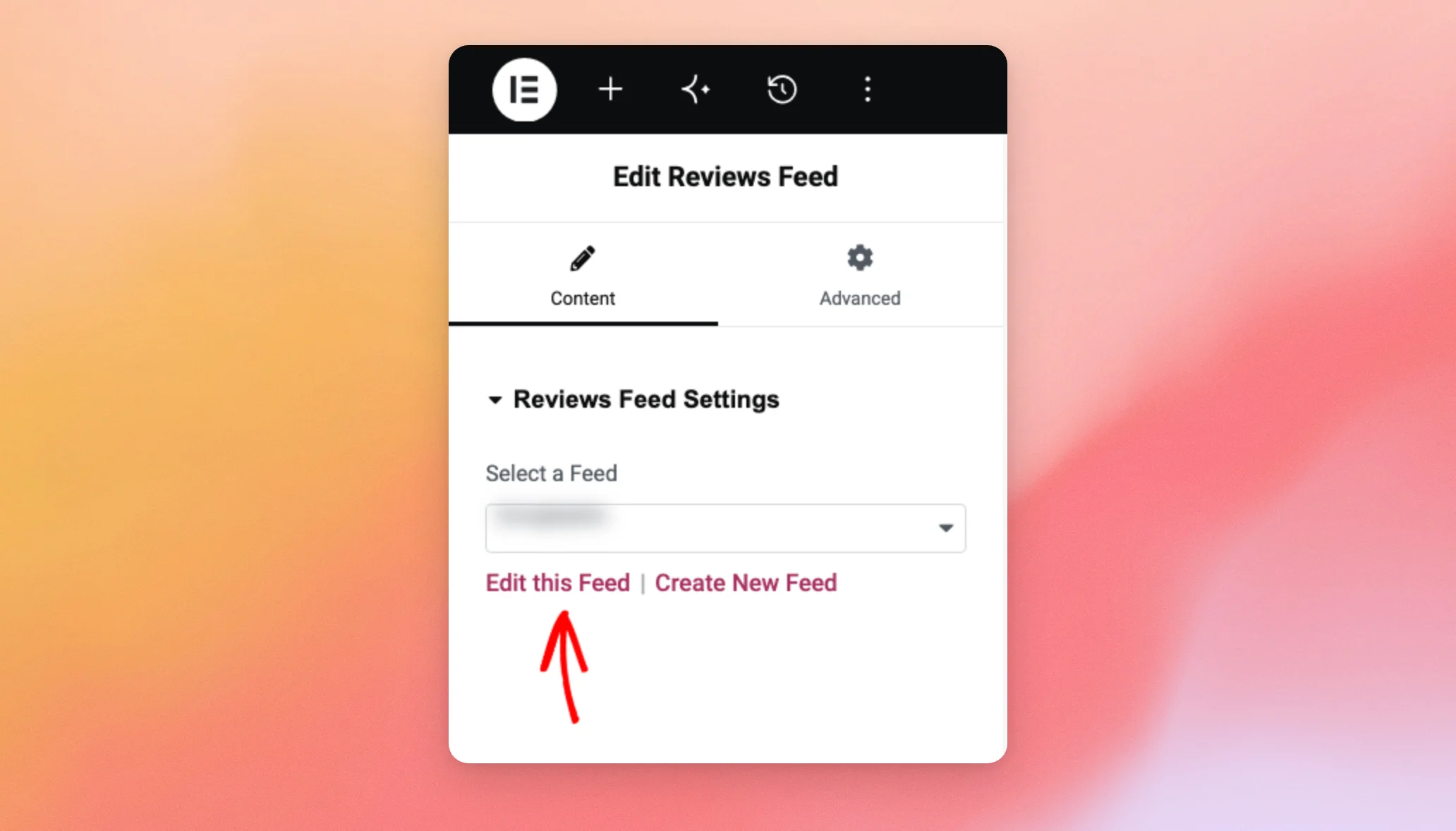
With the right feed selected, your page is ready to publish.
Publishing and Viewing Your Feed
When your feed looks the way you want, click Publish in the top-right corner of the Elementor editor.

Your reviews feed is now live. When you visit the page on your site, you’ll see your reviews just as your visitors do.
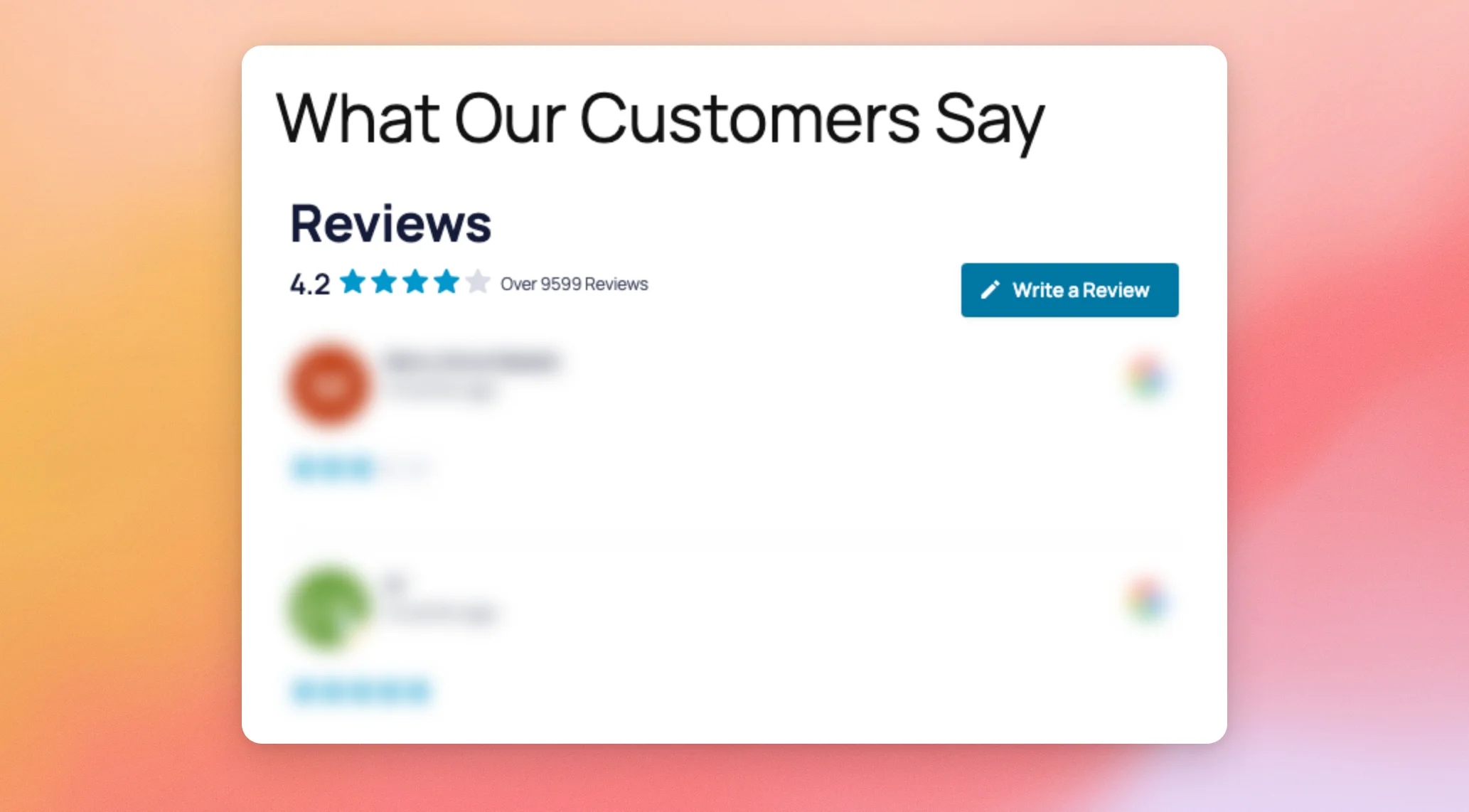
That’s it! You now know how to add a reviews feed to a page with the Elementor widget, without a shortcode. Next, would you like to add a feed to a page that doesn’t use Elementor? See our guide on adding a reviews feed with the block editor.
Frequently Asked Questions
Below, we’ve answered some of the most common questions about the Reviews Feed widget for Elementor.
I don’t see the Reviews Feed widget in Elementor. How can I fix this?
The widget is included in Reviews Feed version 2.6.3 and above. Older versions of the plugin must be updated to the latest version before the widget appears. The Elementor plugin also needs to be active on your site. Then type “Reviews Feed” into the Search Widget box in the Elementor panel to find it.
Do I still need a shortcode to display my feed?
No. The widget displays your feed without a shortcode. Feeds you’ve already added with a shortcode such as [reviews-feed feed=1] keep working as before.
Can I show more than one feed on the same page?
Yes. Add the Reviews Feed widget more than once and choose a different feed in each one.
For the other ways you can add your feeds to your site, see our guide on displaying your reviews feed.
How do I change which feed the widget displays?
In Elementor, click the widget on the page to open its settings. Then choose a different feed from the Select a Feed dropdown. The preview on the page updates right away.




