


 Social Wall
 Feed Analytics


How to hand-pick reviews from any source, add your own, and edit existing ones to build a curated collection to feed from.
Would you like to show your best reviews together in one feed, including reviews you add yourself?
In this guide, we’ll walk you through creating a collection, adding reviews by hand or from a source, and turning it into a feed. All you need is a paid license level of Reviews Feed and a few reviews you’d like to show.
Requirements: Collections are available on every paid license level of Reviews Feed. In the free version, the Collections menu item shows a PRO label.
Before you get started, make sure Reviews Feed is installed and activated on your WordPress site.
- Creating a Collection
- Adding Reviews by Hand
- Adding Reviews From a Review Source
- Editing the Reviews in Your Collection
- Creating a Reviews Feed From Your Collection
- Moving a Collection to Another Site
- Importing Reviews Into a Collection
- Frequently Asked Questions
Creating a Collection
To get started, we’ll create a collection. A collection is a list of reviews you choose yourself.
You can mix reviews you type in with reviews from Google, Yelp, or any other source you’ve connected. You can then show them in a feed like any other source.
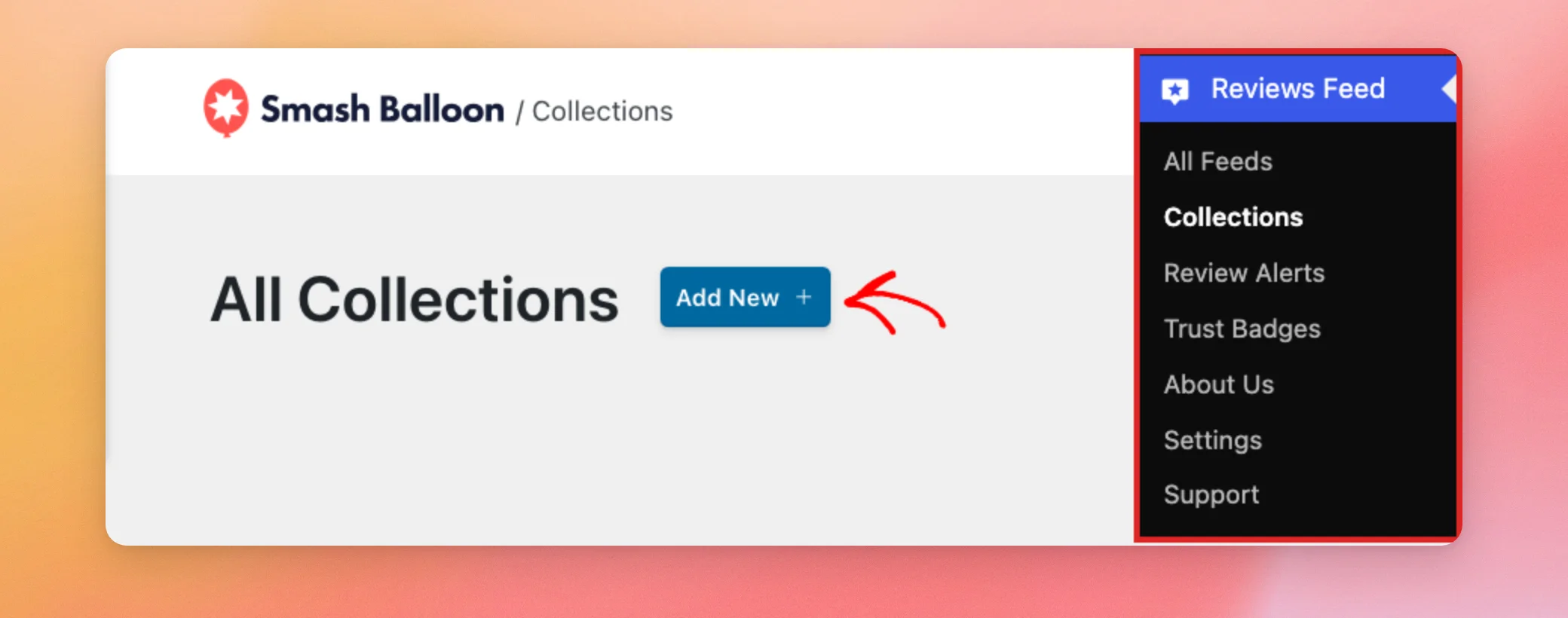
From your WordPress admin sidebar, go to Reviews Feed » Collections. On the All Collections page, click Add New.
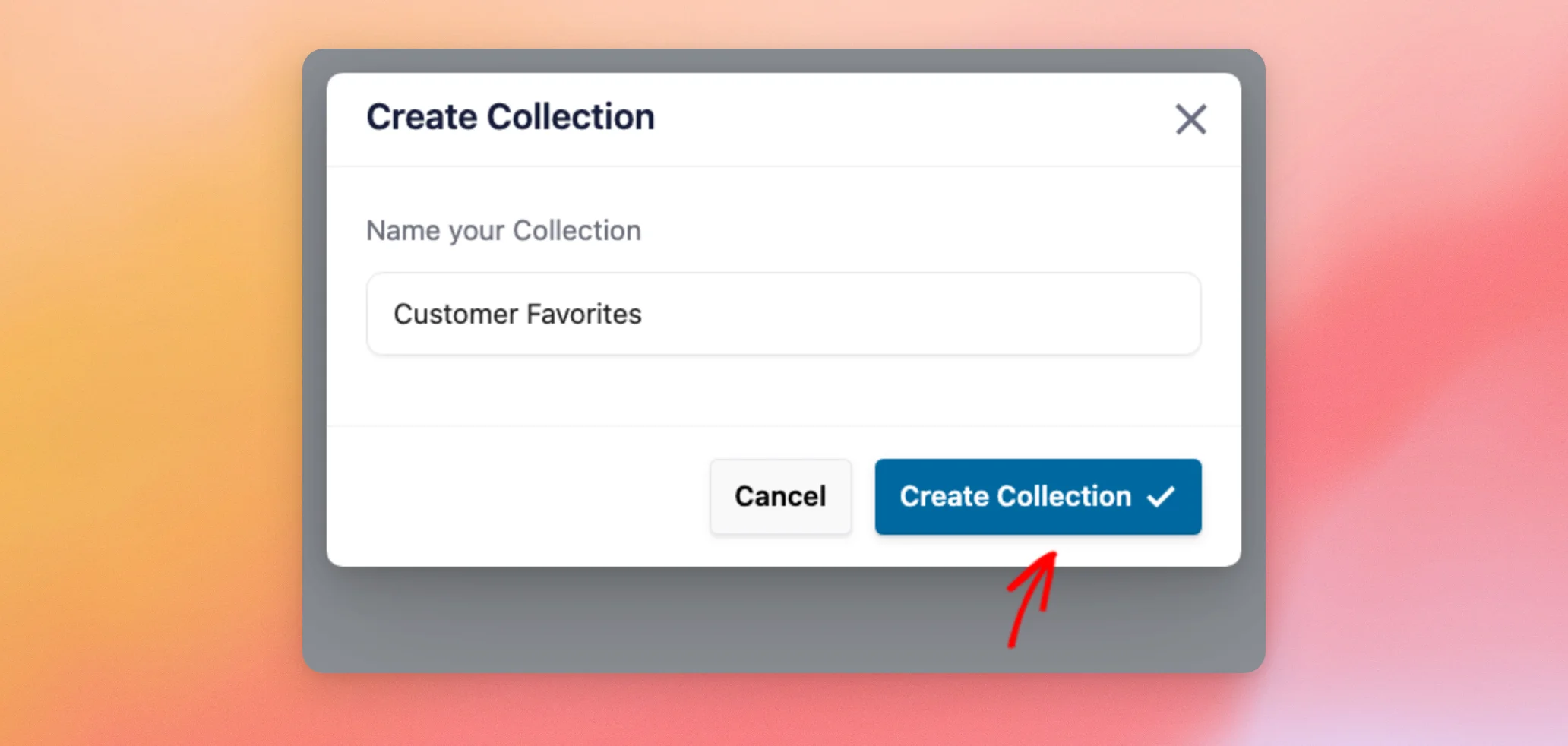
In the Create Collection window, type a name for your collection. A name that tells you what the collection is for makes it easy to find when you create a feed or export it later. Then click Create Collection.
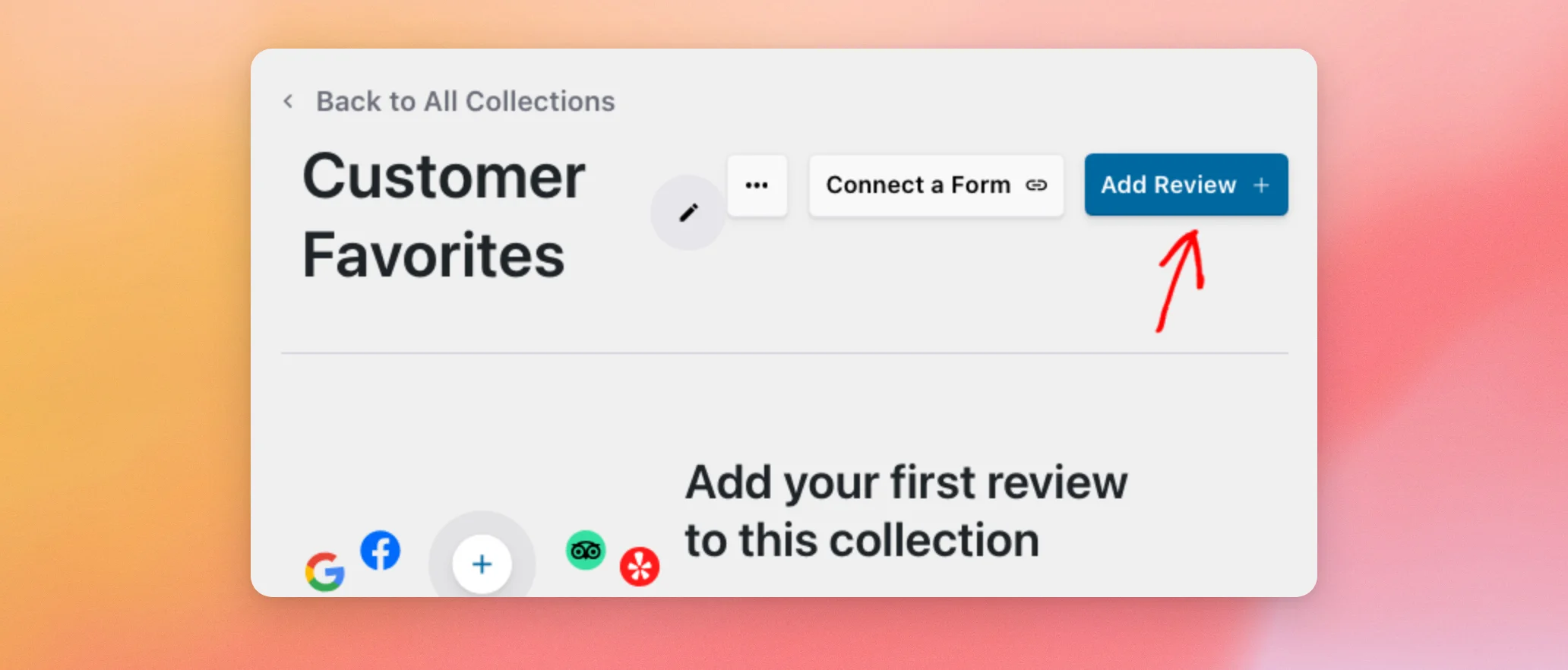
Reviews Feed creates the collection and opens it, ready for its first review.
Adding Reviews by Hand
You can type in a review you received somewhere else, such as by email or in person. To add one, click Add Review at the top of your collection.
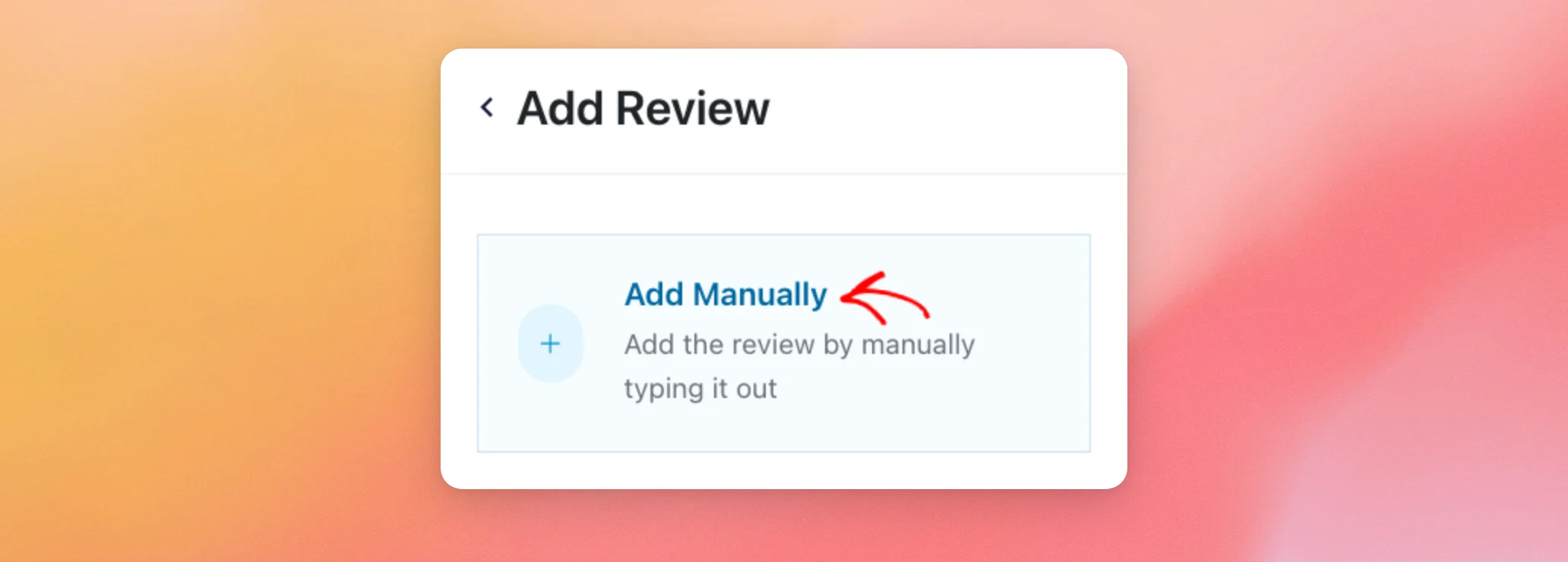
A panel opens on the right. To enter the review yourself, click Add Manually.
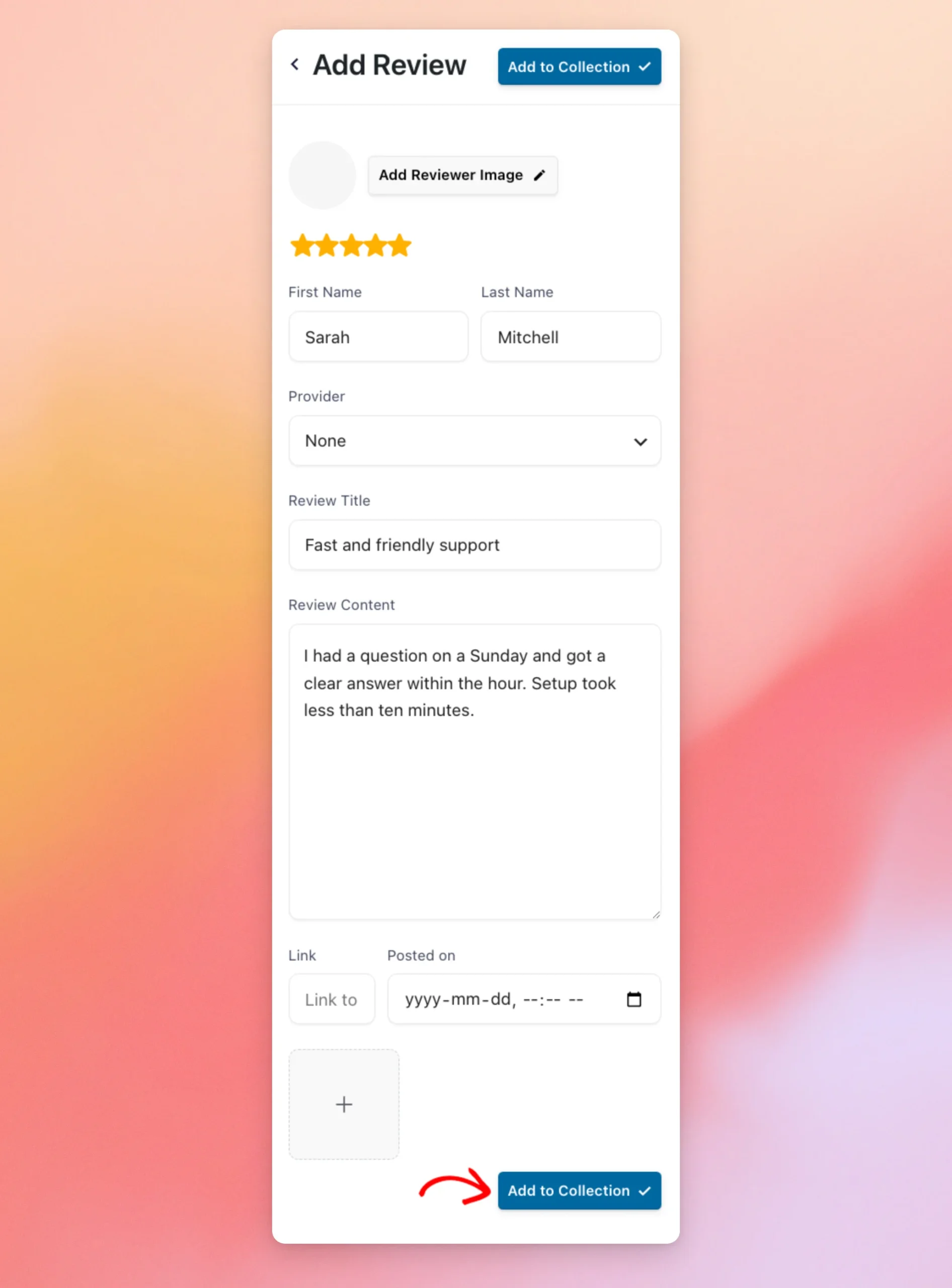
Next, fill in the review form:
- Add Reviewer Image: An optional photo of the reviewer from your media library.
- The stars: The review’s rating. All 5 stars are selected by default. To set a lower rating, click a star.
- First Name and Last Name: The person who wrote the review. Reviews Feed needs at least a first name to add the review.
- Provider: The site the review came from, such as Google or Facebook. The default is None. That suits a review you received directly.
- Review Title and Review Content: The heading and the main text of the review.
- Link: An optional web address for the original review.
- Posted on: The review’s date. If you leave it empty, Reviews Feed uses the date and time you add the review.
- The plus tile: Optional images to attach to the review.
When you’re done, click Add to Collection. The button appears at both the top and the bottom of the form.
The review now appears in your collection. Repeat these steps for each review you’d like to add by hand.
Adding Reviews From a Review Source
You can also pick reviews from a source you’ve already connected, such as your business on Google. To do this, click Add Review at the top of your collection again. Then, under Or Add from existing source, click the source you’d like to pick from.
Note: A source lists its reviews here once a feed that uses it has loaded them. If the panel says there are no reviews in a source, create a feed with that source first. Then come back to your collection.
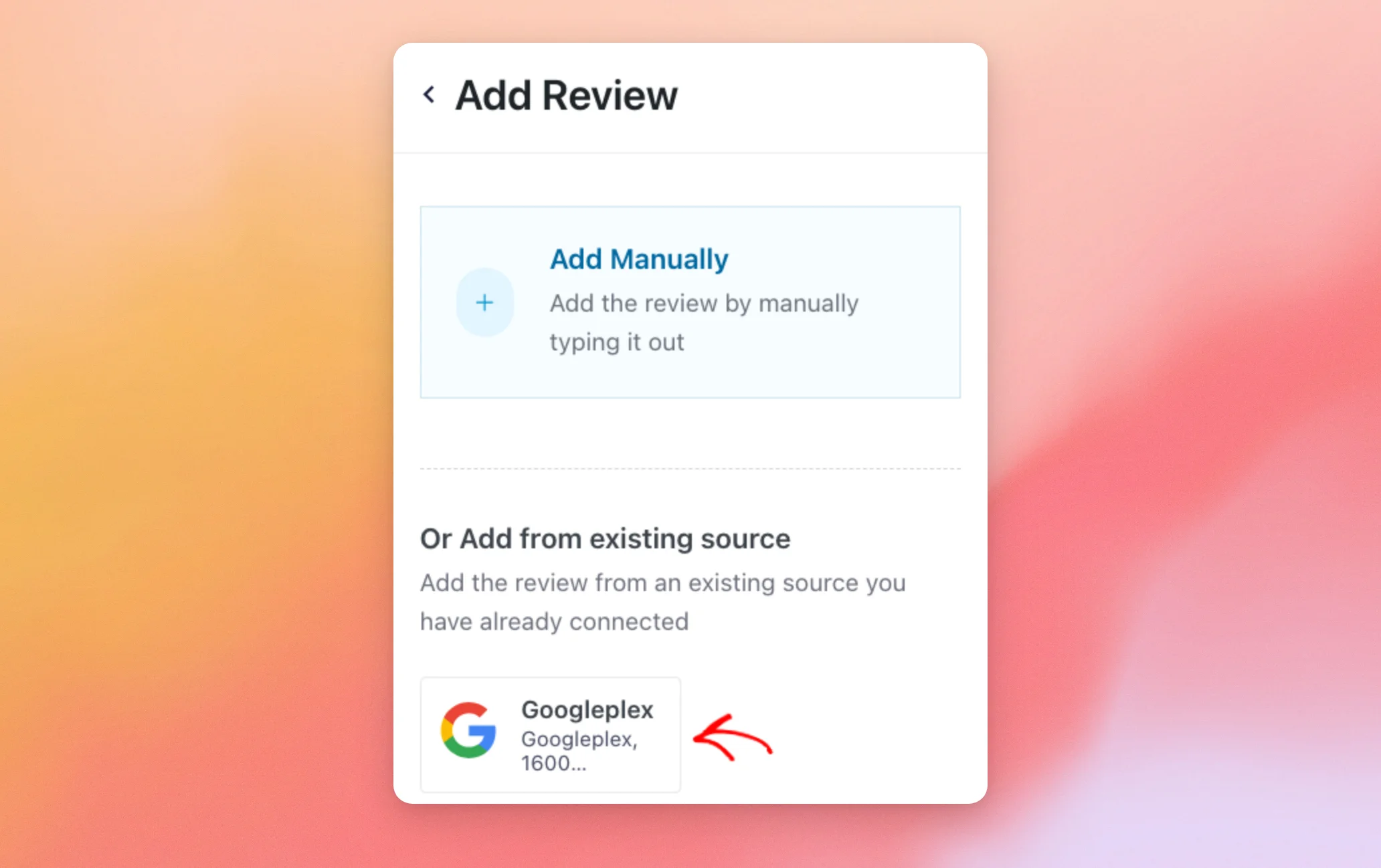
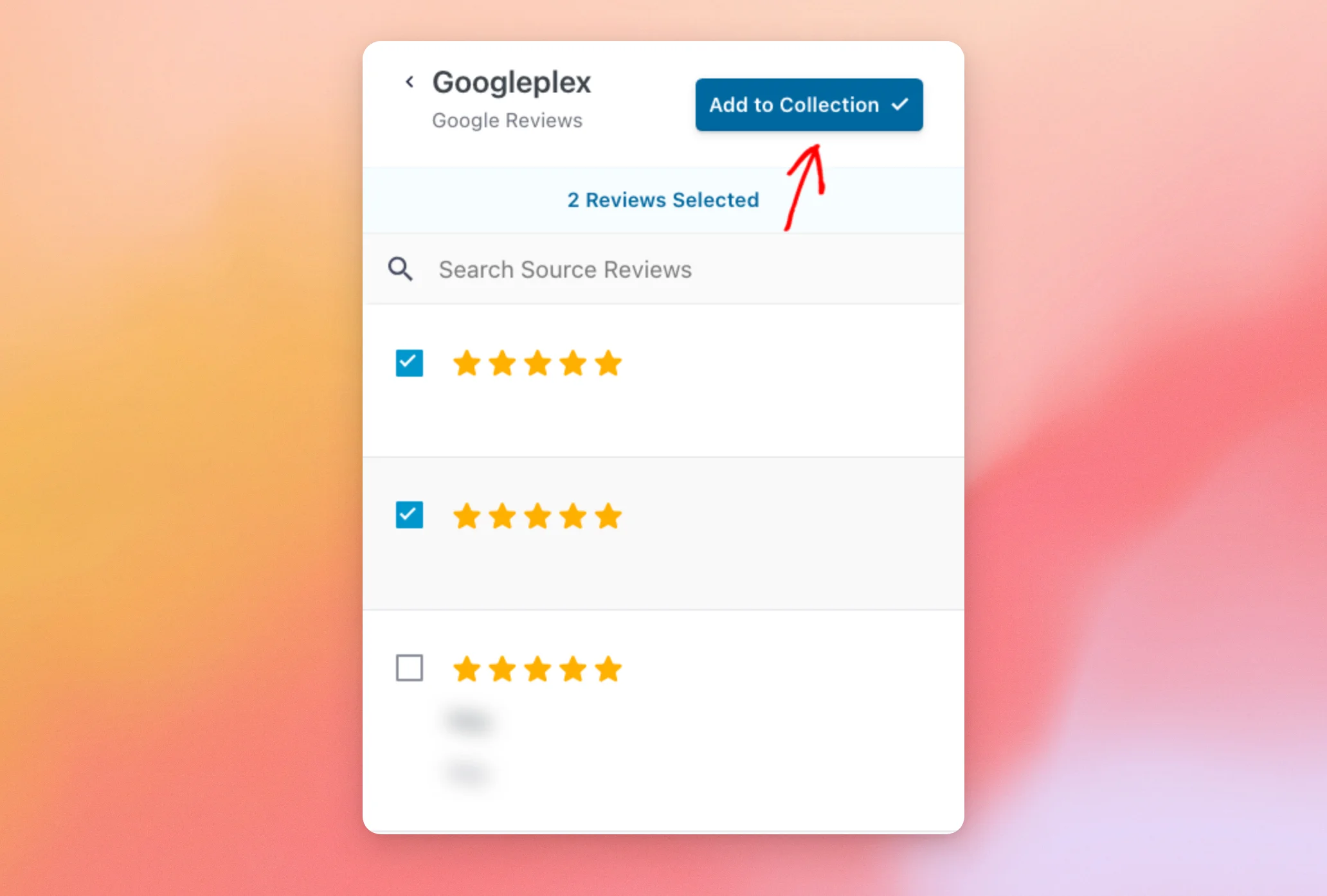
The source’s reviews appear with a checkbox next to each one. The panel shows 40 reviews at a time.
To see more, click Load More Reviews at the bottom of the list. To find a review by its words, use the search box.
Next, check every review you’d like to add. The line at the top of the panel counts how many you’ve selected. When you’re done, click Add to Collection.
The reviews you picked now appear in your collection.
Editing the Reviews in Your Collection
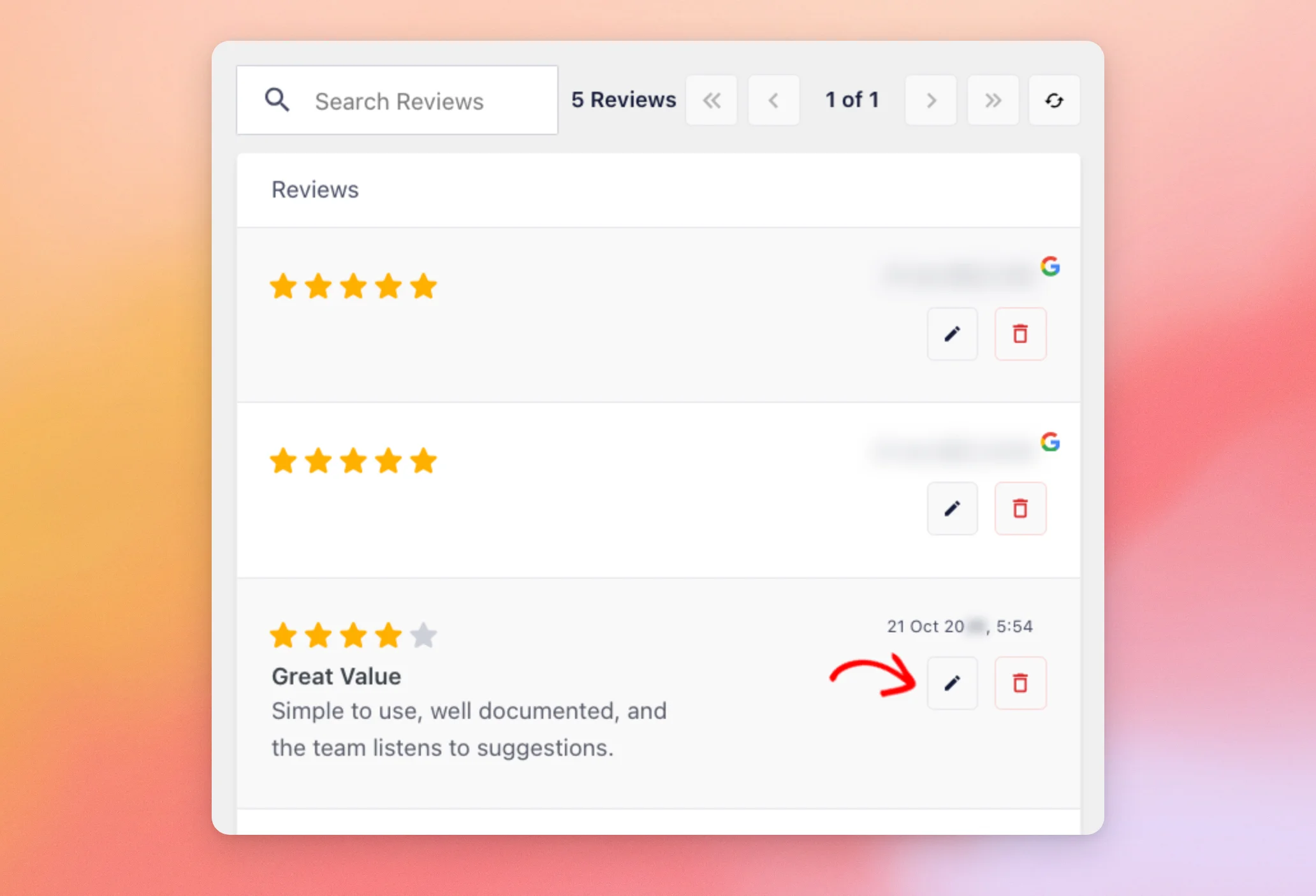
Every review you add is listed in your collection, with its stars, title, content, and date. Reviews you picked from Google show a Google icon. Above the list, you can search your reviews and move between pages.
To change a review, click the pencil icon next to it.
The review opens in the same form you used to add it. When you’ve made your changes, click Save and Exit.
To add a copy of the review instead, click Duplicate. The copy appears at the top of your collection’s list.
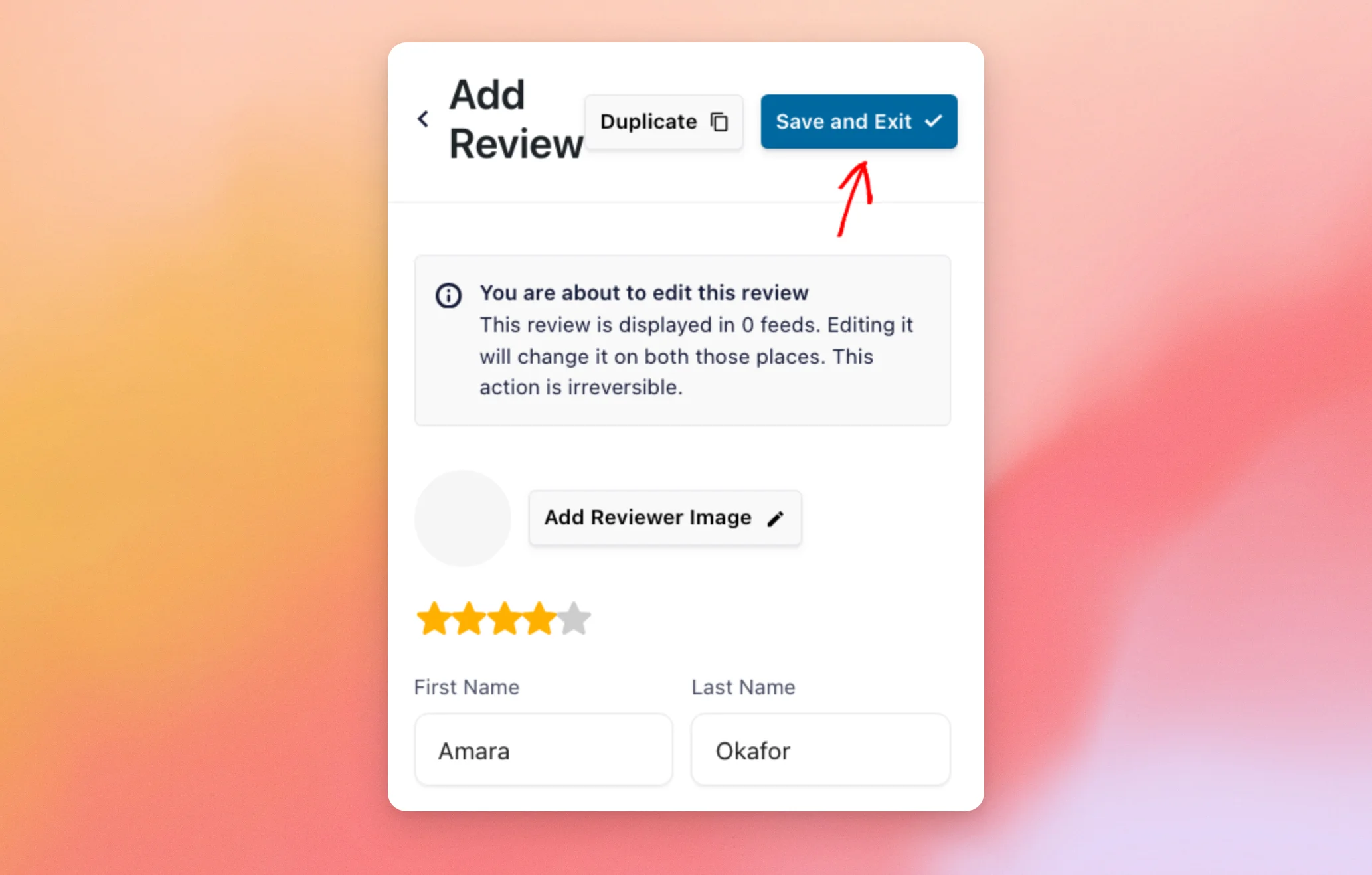
A change to a review shows in every feed that uses this collection.
To remove a review, click the trash icon next to it. Reviews Feed removes it from your collection right away.
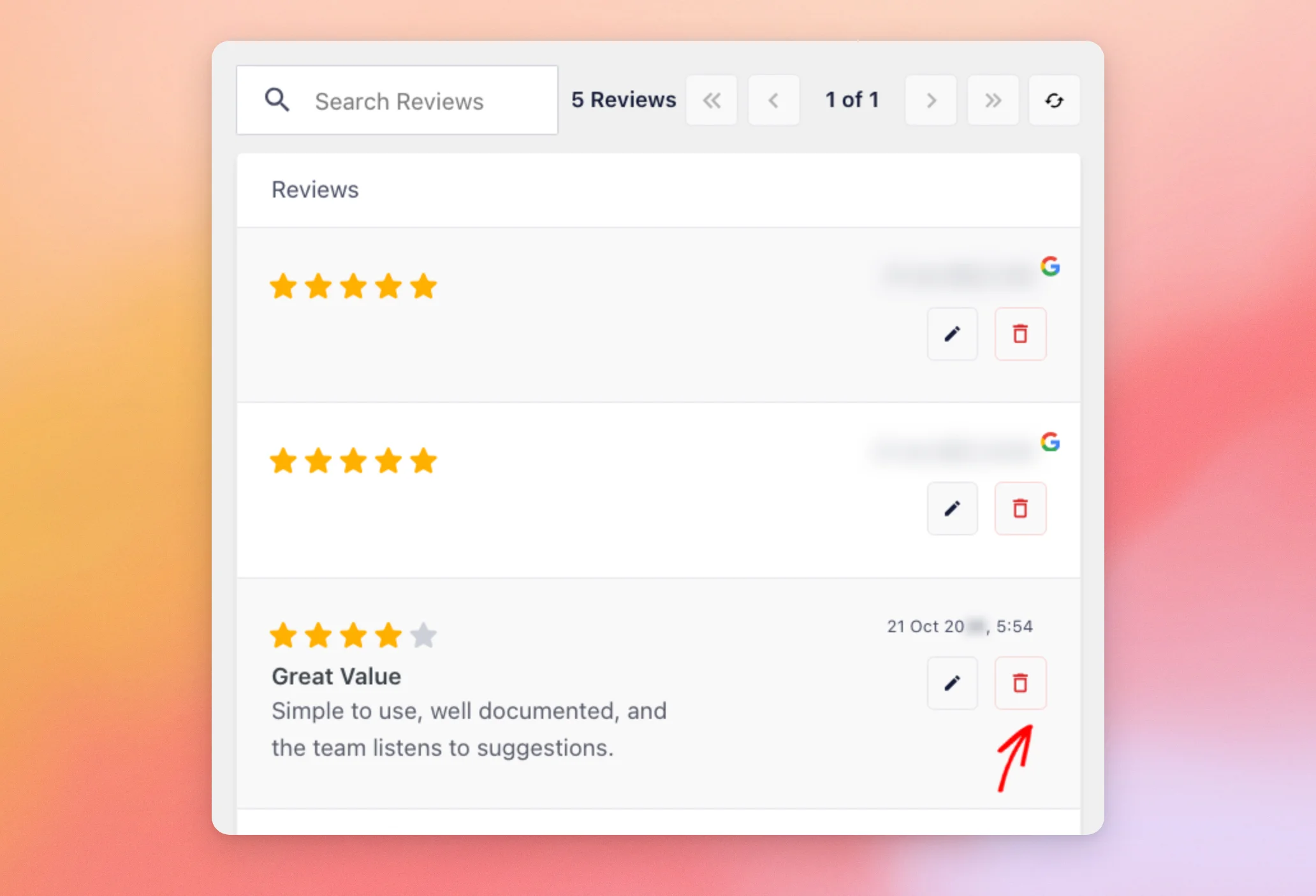
When you’re done editing, the next step is to show these reviews on your site.
Creating a Reviews Feed From Your Collection
Once your collection has the reviews you want, you can turn it into a feed. Next, click the three-dot button next to your collection’s name. Then click Create Feed.
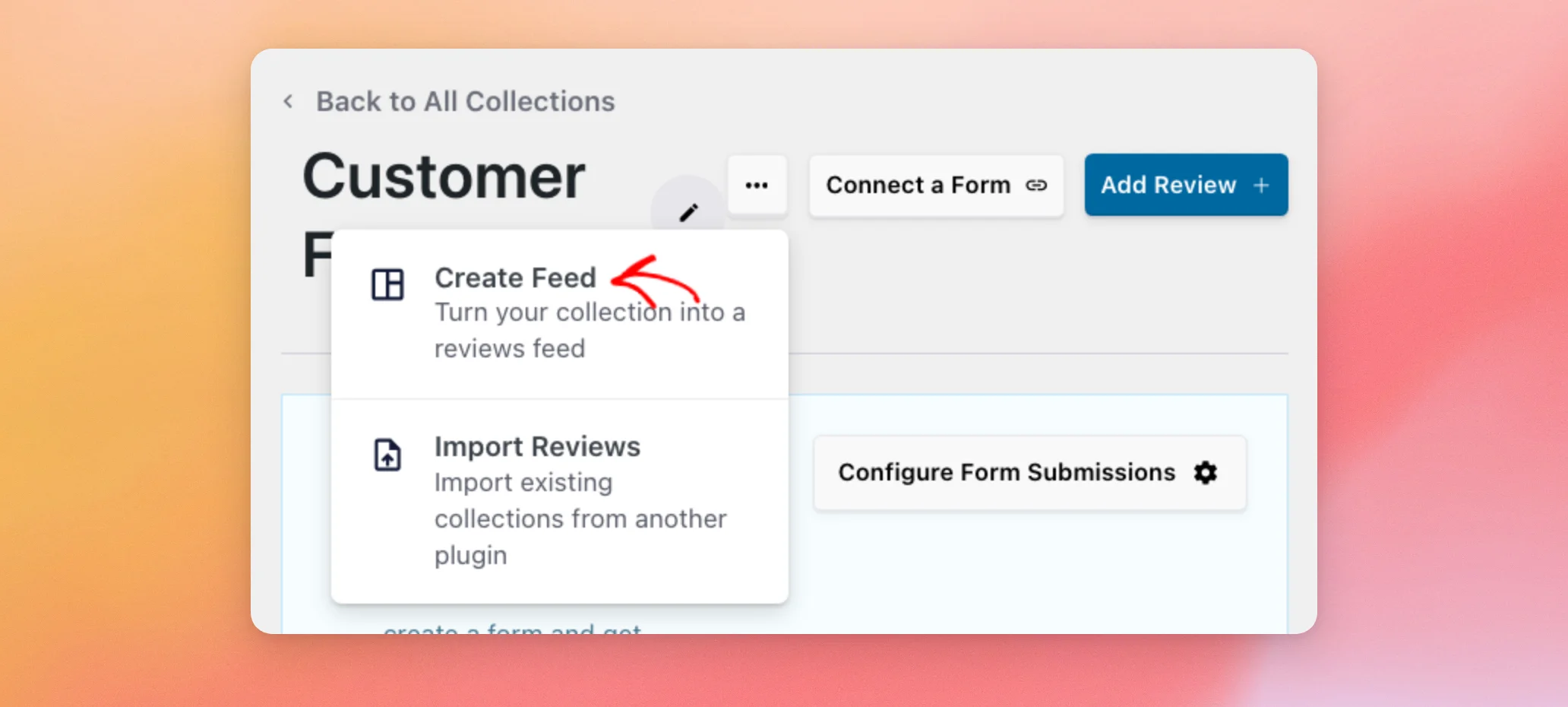
Reviews Feed creates a feed with your collection as its source and opens it in the feed editor. The feed takes your collection’s name. Its header shows the average rating of the reviews in your collection.
Next, customize your feed the same way as any other reviews feed. When you’re done, click Save.
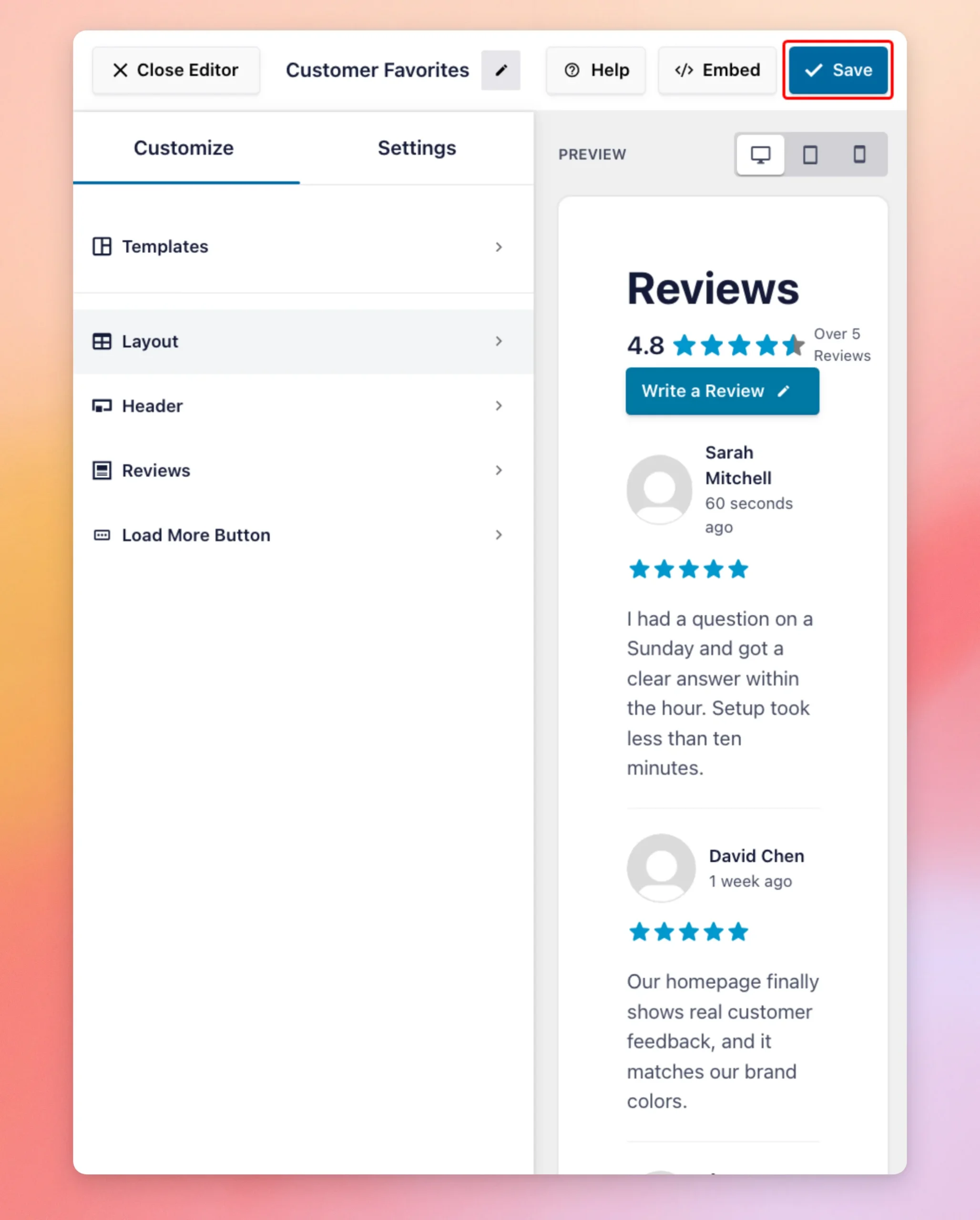
To add your new feed to a page, see our guide on displaying your reviews feed on your site.
Your collection also stays available as a source. When you create a feed later, you’ll find it in the list of sources next to your Google, Yelp, and other sources.
Moving a Collection to Another Site
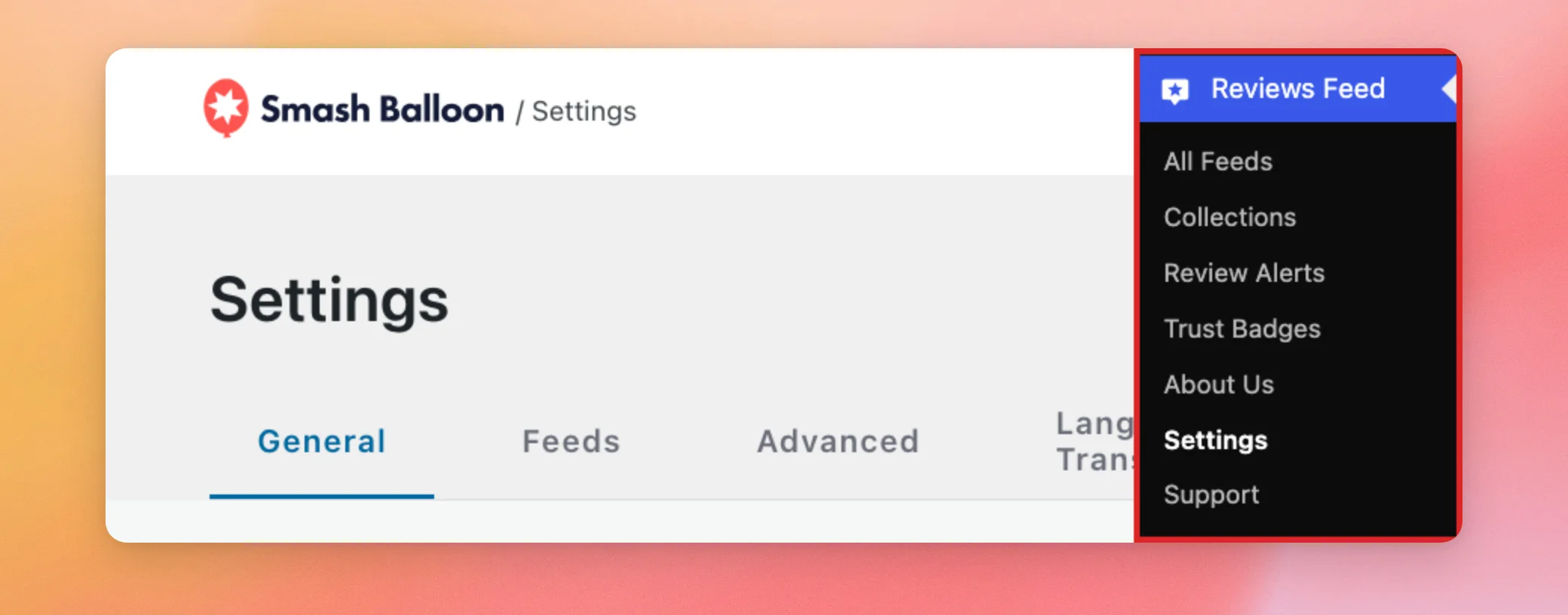
You can export a collection as a file and import it on another WordPress site that runs Reviews Feed. Both tools are on the General tab of the Settings page, as our settings reference shows.
From your WordPress admin sidebar, go to Reviews Feed » Settings.
On the General tab, scroll down to Export Collection. Next, select your collection in the dropdown. Then click Export.
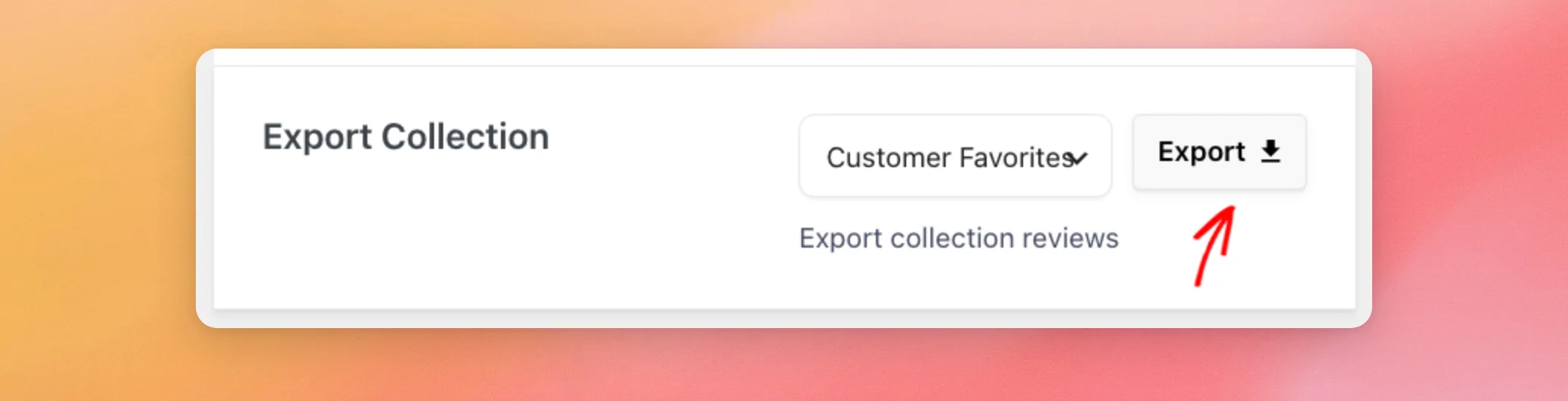
Your browser downloads a JSON file with the collection and its reviews.
On the other site, go to Reviews Feed » Settings. On the General tab, scroll down to Import Collection.
Next, click Import. Then choose the JSON file you exported.
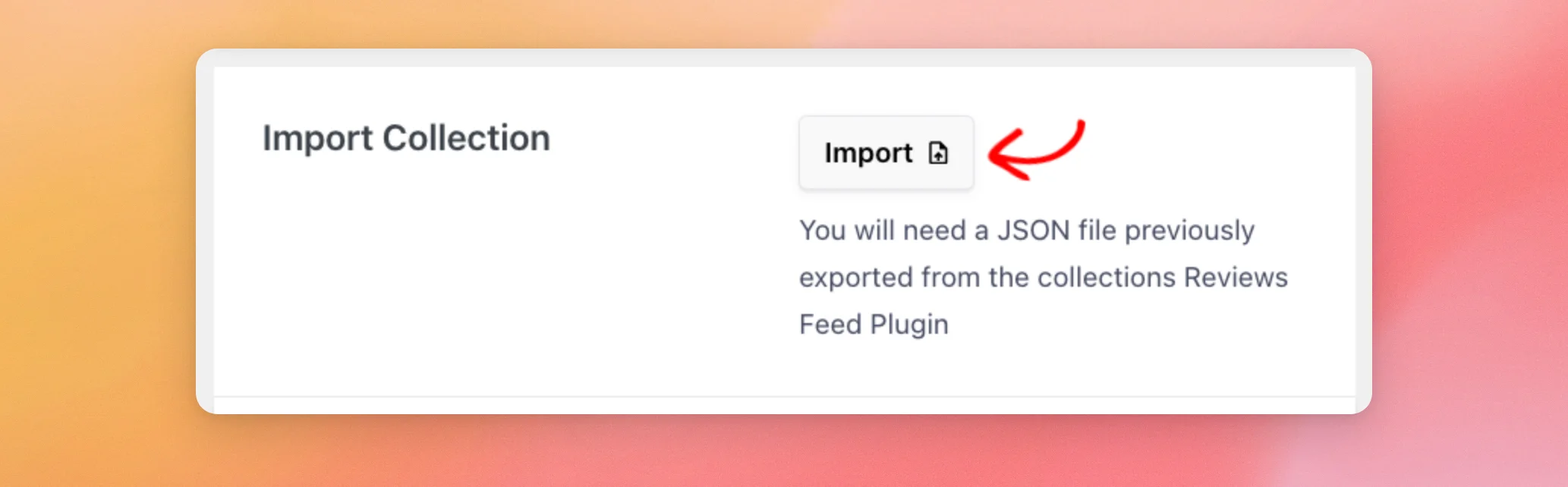
Reviews Feed adds the collection with all its reviews and shows the message Collection Imported!
Importing Reviews Into a Collection
To add the reviews from an exported collection to a collection you already have, open that collection. Next, click the three-dot button next to its name. Then click Import Reviews.
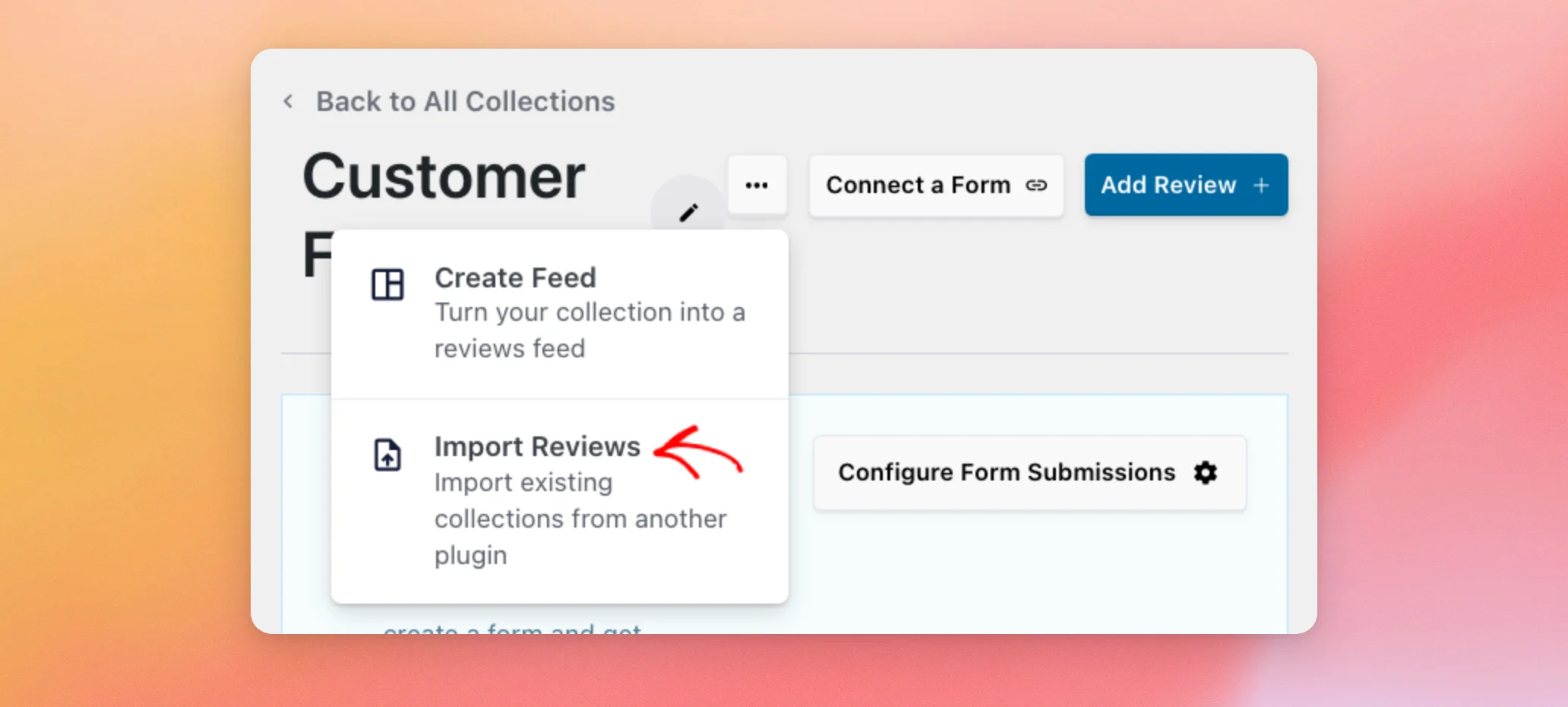
In the file chooser that opens, choose the JSON file of a collection you exported from Reviews Feed. Its reviews are added to the collection you have open, next to the reviews already there.
Note: To collect new reviews from your visitors with a form, use the Connect a Form button at the top of your collection. It works with a paid version of WPForms or Formidable Forms. See our guide on collecting reviews with WPForms or Formidable Forms.
That’s it! You’ve created a collection, filled it with handpicked reviews, and turned it into a reviews feed.
Next, would you like to choose which reviews your feed shows?
See our guide on filtering reviews by rating, keyword, or source.
Frequently Asked Questions
Below, we’ve answered some of the most common questions about collections.
If I edit a review I picked from Google, does it change on Google too?
No. When you pick a review from a source, Reviews Feed adds a copy of it to your collection. Your edits change only that copy.
The original review stays as it is on Google and in feeds that show your Google source.
Why doesn’t my source show any reviews in the Add Review panel?
Reviews Feed lists a source’s reviews in the panel only after a feed that uses the source has loaded them.
See the note in the Adding Reviews From a Review Source section above for how to load them.
Can I show a collection and another source together in one feed?
Yes. Your collection appears in the list of sources when you create a feed. You can select it together with your other sources.
How does Reviews Feed calculate my collection’s rating?
The feed header shows the average star rating of the reviews in your collection. For example, reviews of 5, 5, 5, 5, and 4 stars show as 4.8.
Do I need a source connected to use collections?
No. A collection can hold only reviews you add by hand. Sources are needed only when you want to pick reviews from Google, Yelp, or another site.




