


 Social Wall
 Feed Analytics


Would you like to check what a setting on the Custom Twitter Feeds Settings page does before you change it?
This guide walks through the Settings page one tab at a time, covering what each setting does and its default value.
Before you get started, make sure Custom Twitter Feeds is installed and activated on your site.
Note: This guide covers the paid version of the plugin. The defaults listed are the values a new site shows.
- Using the General Tab
- Using the Feeds Tab
- Translating Your Feed Text
- Using the Advanced Tab
- Frequently Asked Questions
Using the General Tab
From your WordPress admin sidebar, go to Twitter Feed » Settings. The page has 4 tabs: General, Feeds, Translation, and Advanced. The General tab opens first.
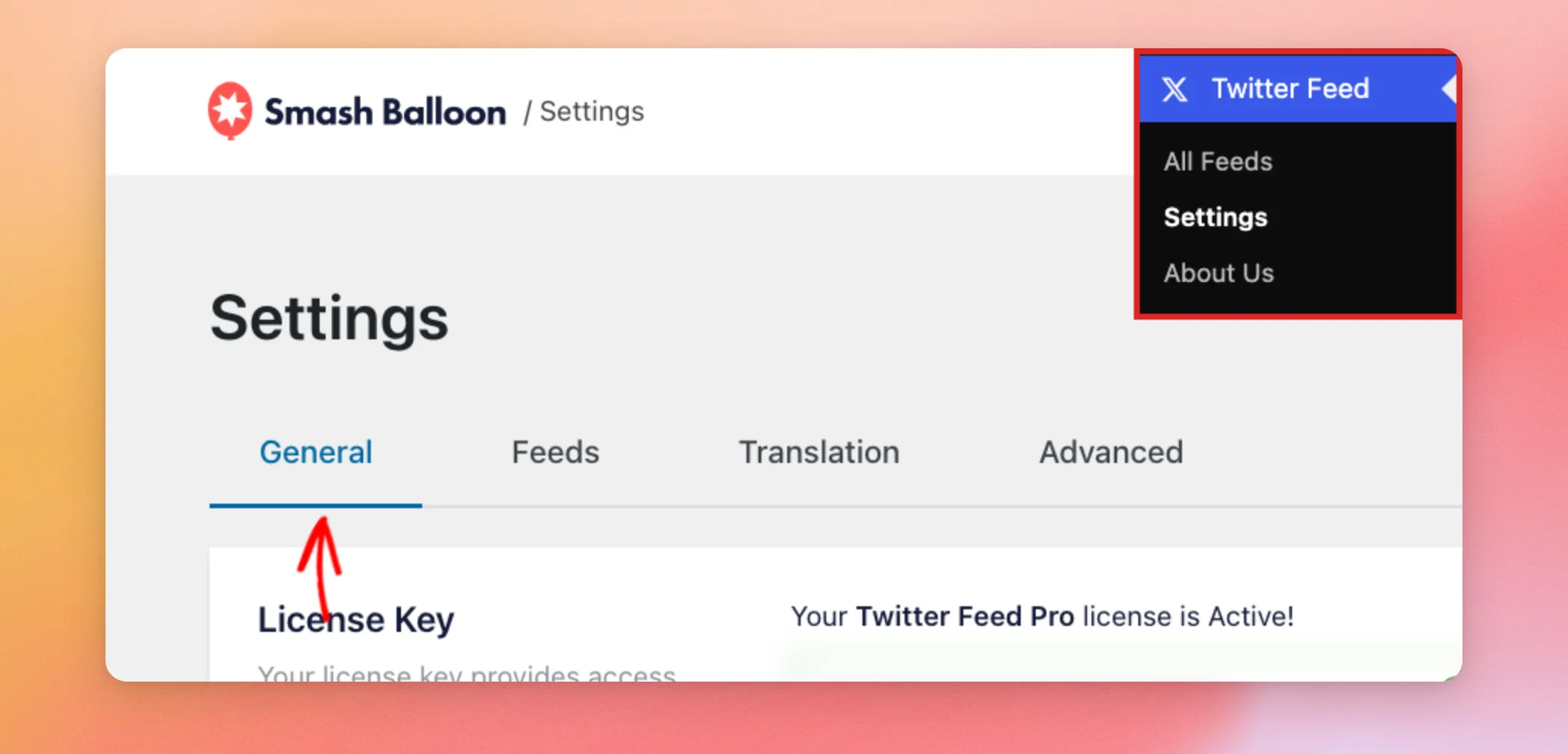
The first group of settings covers your license and the AI tools.
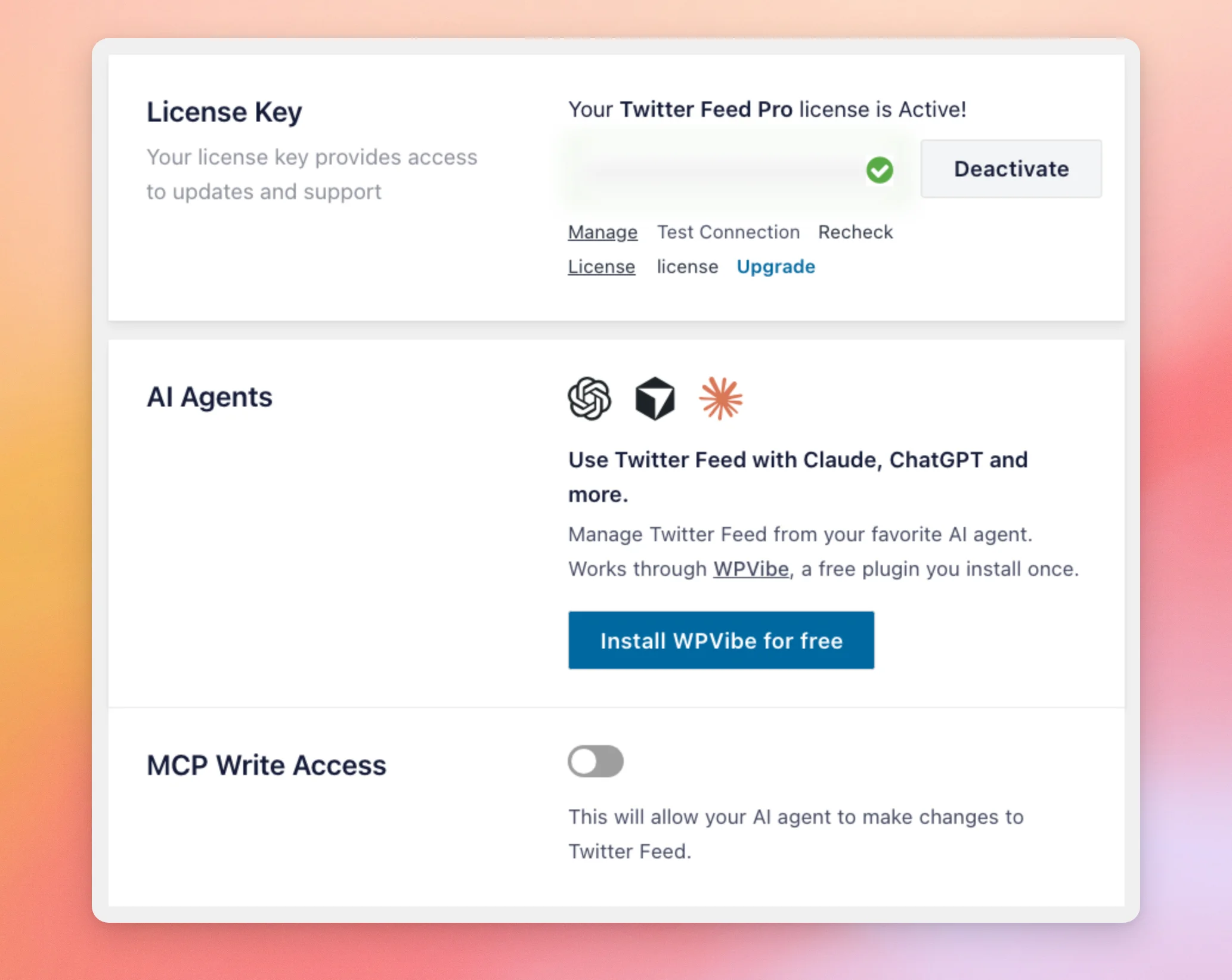
| Setting | What it does | Default |
|---|---|---|
| License Key | Your license key gives you access to updates and support. The box shows whether your license is active. The key itself is hidden in a password field. Deactivate deactivates the license on this site. Manage License, Test Connection, Recheck license, and Upgrade help you check or change your plan. | Your active license |
| AI Agents | Lets you manage your feeds from an AI agent such as Claude or ChatGPT. It works through WPVibe, a free plugin that you install once with the Install WPVibe for free button. | Not installed |
| MCP Write Access | Lets your AI agent make changes to your feeds instead of only reading them. | Off |
Next is the Twitter Integration box. It tells you that your feeds update automatically several times a day. It also has a button for connecting your own X app.
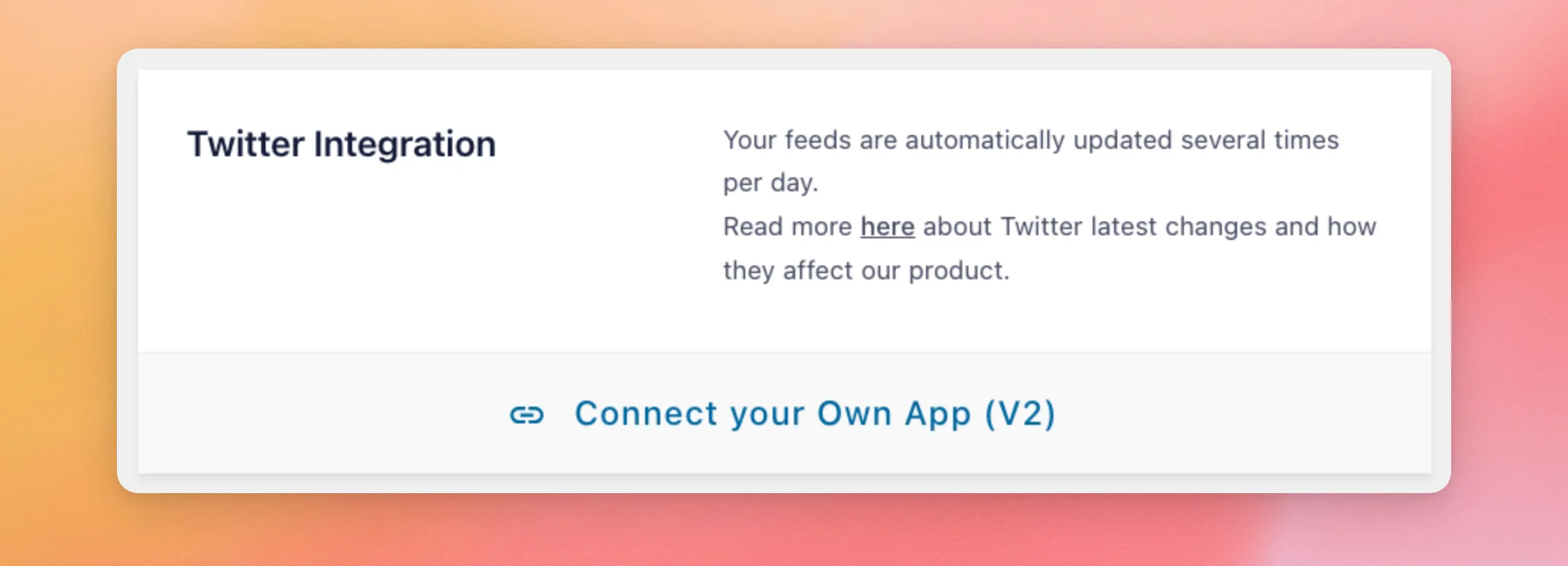
The Connect your Own App (V2) button opens a window with 5 fields. They are Name, Consumer Key, Consumer Secret, Access Token, and Access Token Secret. The window is empty until you add an app.
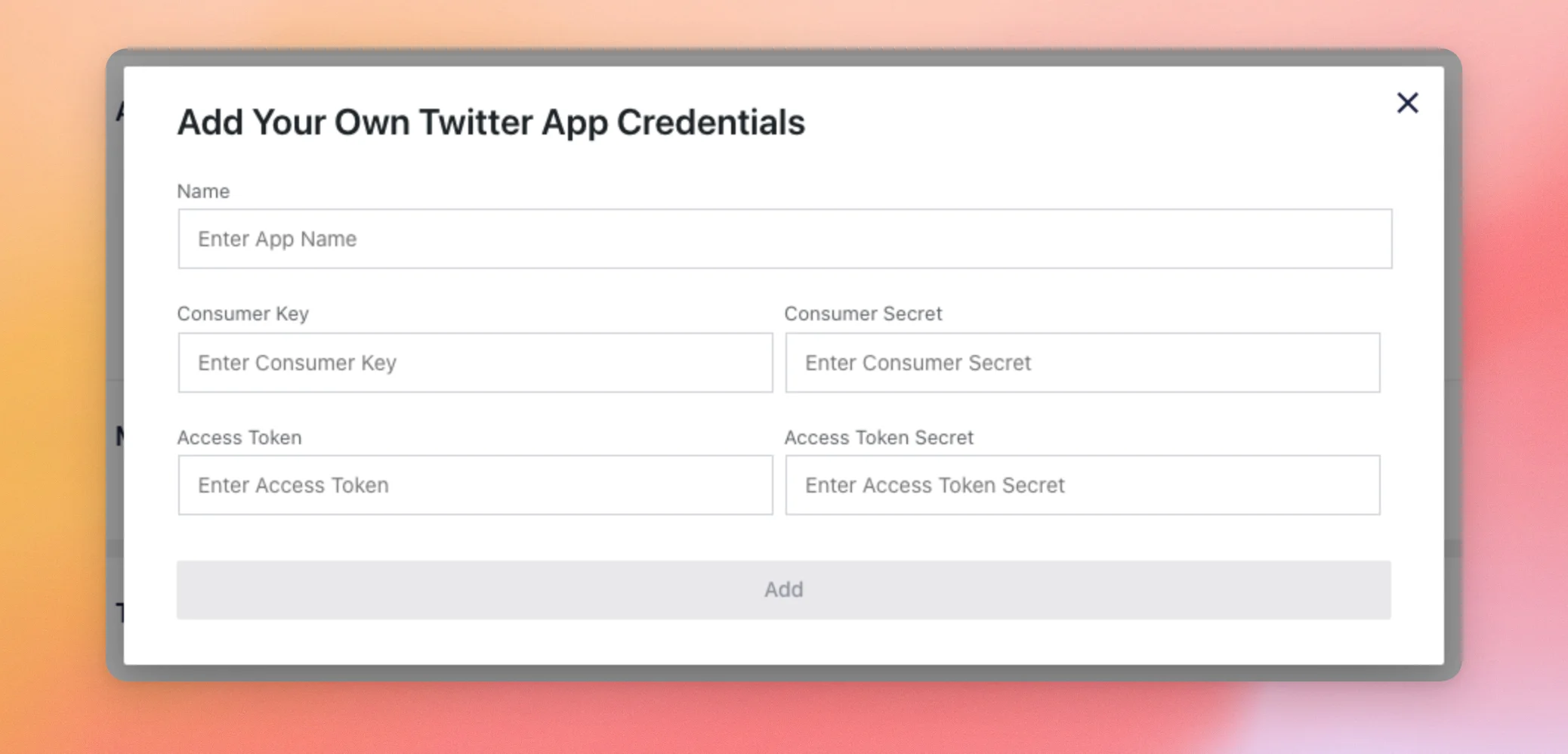
Most sites don’t need it because the plugin updates your feeds on its own. If you want to use your own app, see our guide on creating your own X app.
The rest of the General tab holds the settings for keeping and moving your feeds.
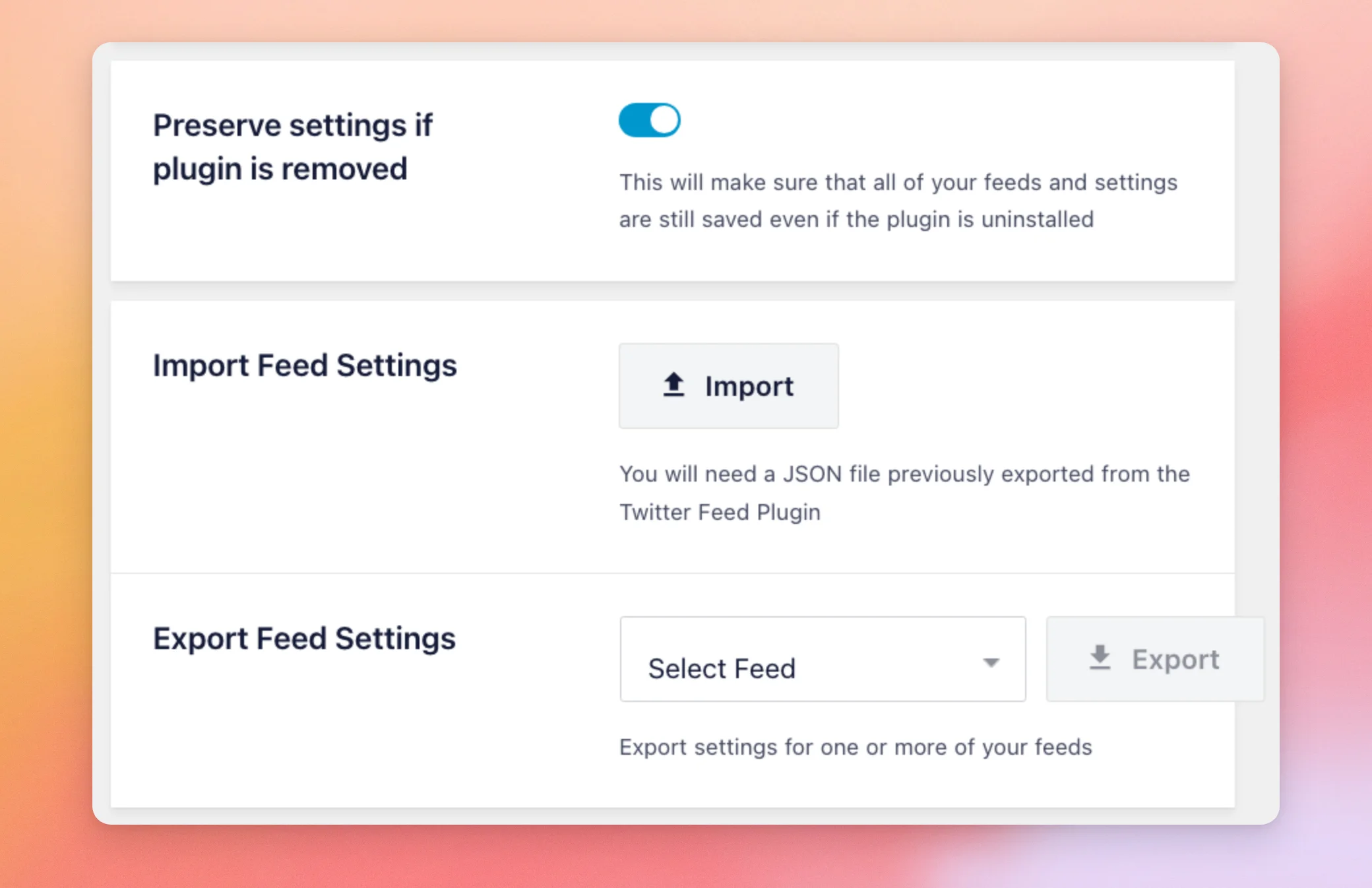
| Setting | What it does | Default |
|---|---|---|
| Preserve settings if plugin is removed | Keeps all of your feeds and settings saved if you uninstall the plugin. If you install it again later, they’re still there. When it’s off, uninstalling the plugin deletes your feeds and settings. | Off |
| Import Feed Settings | Takes a JSON file that you exported earlier from the Twitter Feed plugin. | No file |
| Export Feed Settings | Lets you choose a feed with the Select Feed list and then use the Export button. The box says it exports settings for one or more of your feeds. | No feed selected |
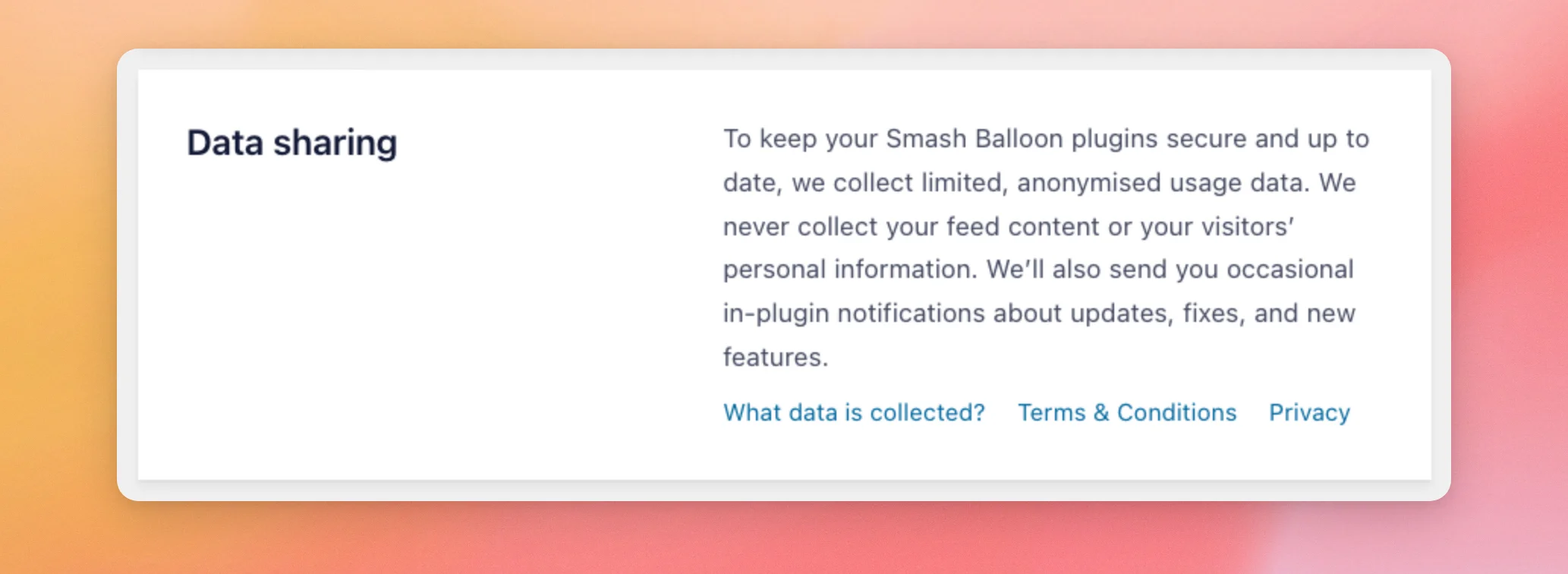
The last box on the tab, Data sharing, is text only, with no switch or button of its own. It says that Smash Balloon collects limited, anonymized usage data and never collects your feed content or your visitors’ personal information.
Using the Feeds Tab
The Feeds tab controls how often your feeds update, how they handle visitor consent, and any custom code you add.
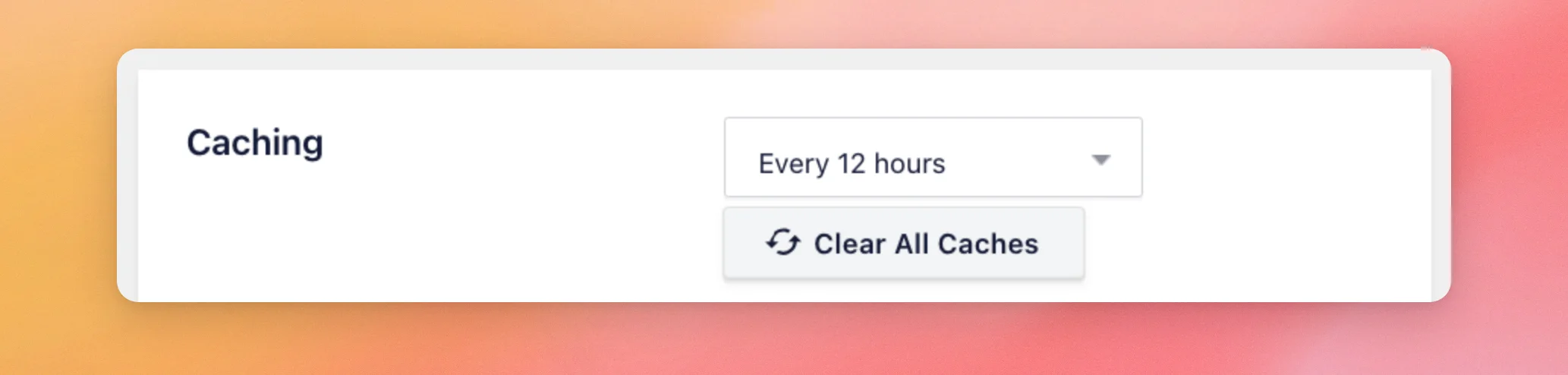
The Caching setting decides how often the plugin checks X for new posts. How many source updates your site can receive a day depends on your license level, whichever interval you choose. It is 12 on the basic license level, 18 on the plus license level, and 24 on the elite license level.
The Clear All Caches button empties your stored feed caches and resets the update schedule. A line below it shows how many cache credits you have left and when they reset.
To learn more about what the caches hold, see our guide on why your database has a lot of feed caches. If your updates don’t run on time, see our guide on working around WordPress cron problems.
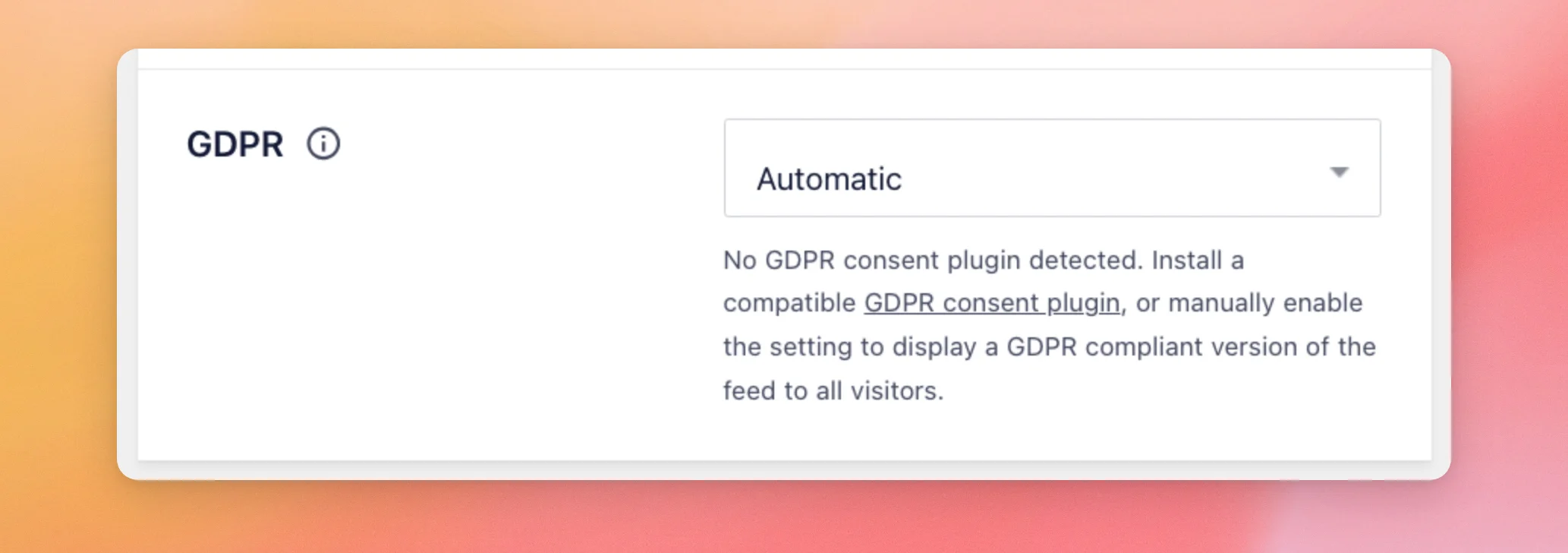
The GDPR setting controls how your feeds handle visitor consent.
The Custom CSS and Custom JS boxes hold your own code.
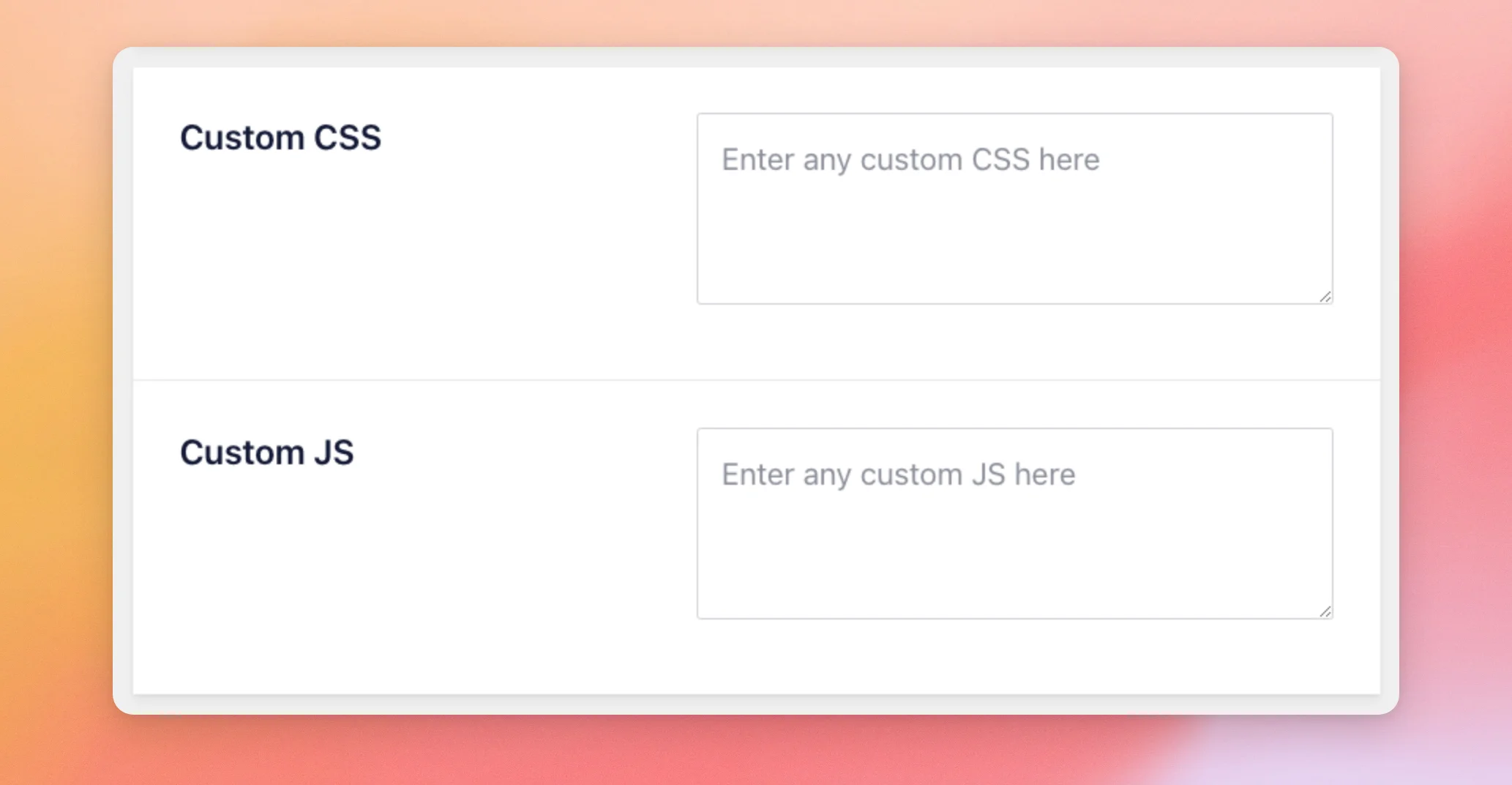
| Setting | What it does | Default |
|---|---|---|
| Caching | Sets how often the plugin checks X for new posts. The options are Every 2 hours, Every 12 hours, and Every 24 hours. | Every 12 hours |
| GDPR | Decides whether visitors see a limited version of your feed until they give consent. The options are Automatic, Yes, and No. If the plugin doesn’t detect a compatible GDPR consent plugin, the text under the setting suggests installing one or choosing Yes. The Yes option shows a GDPR compliant version of the feed to all visitors. For the details, see our GDPR guide. | Automatic |
| Custom CSS | Adds your own CSS to every feed on your site. If the font in your feed doesn’t match your site, see our guide on fonts that aren’t inherited from your website. | Empty |
| Custom JS | Adds your own JavaScript to every feed on your site. For examples, see our guide on adding custom JavaScript snippets. | Empty |
The wording of your feed is covered on the next tab, Translation.
Translating Your Feed Text
The Translation tab lets you change the words that the plugin adds to your feed. Each row has the original text, a field for your own text or translation, and the place where the text appears. The rows are grouped under Tweet Text, Date, and Thread Text.
The fields show the current text. To change a word, replace it in the field. For example, you can type a translation in your site’s language.
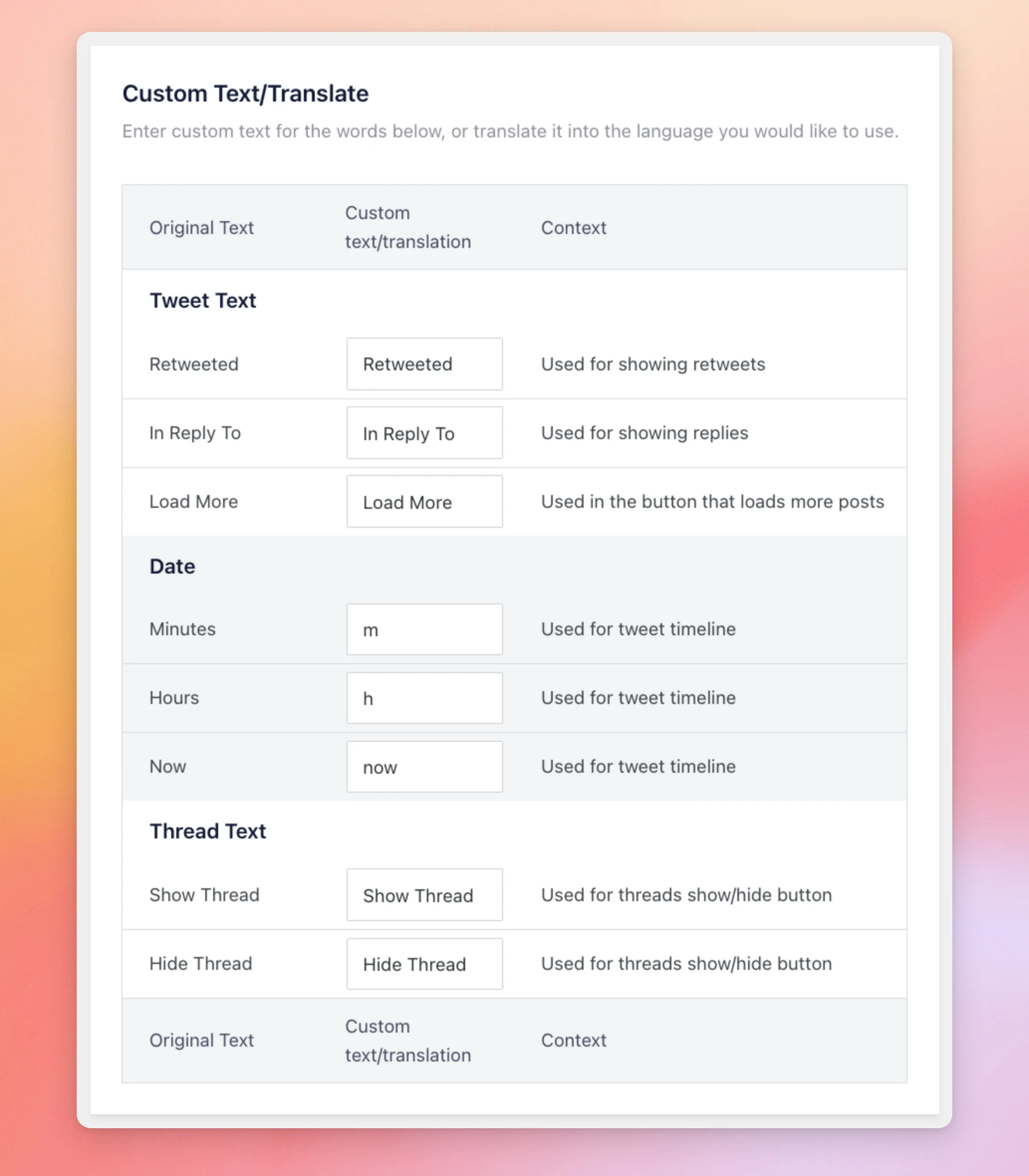
| Original text | What it changes on your site | Default |
|---|---|---|
| Retweeted | The label shown on posts that were retweeted. | Retweeted |
| In Reply To | The label shown on posts that are replies. | In Reply To |
| Load More | The text on the button that loads more posts. | Load More |
| Minutes | The short minutes label in a post’s age, for example the m in 5m. | m |
| Hours | The short hours label in a post’s age, for example the h in 3h. | h |
| Now | The text shown for a post that was published less than a minute ago. | now |
| Show Thread | The text on the button that opens a thread. | Show Thread |
| Hide Thread | The text on the button that closes a thread. | Hide Thread |
The Minutes, Hours, and Now fields only apply when a feed uses the default date format, which shows a post’s age. If a feed uses a fixed date format, those 3 fields don’t change anything.
After that, the Advanced tab holds the rest of the settings.
Using the Advanced Tab
The Advanced tab holds the settings for branding, images, videos, caching, and troubleshooting. The first group covers branding, usage tracking, and images.
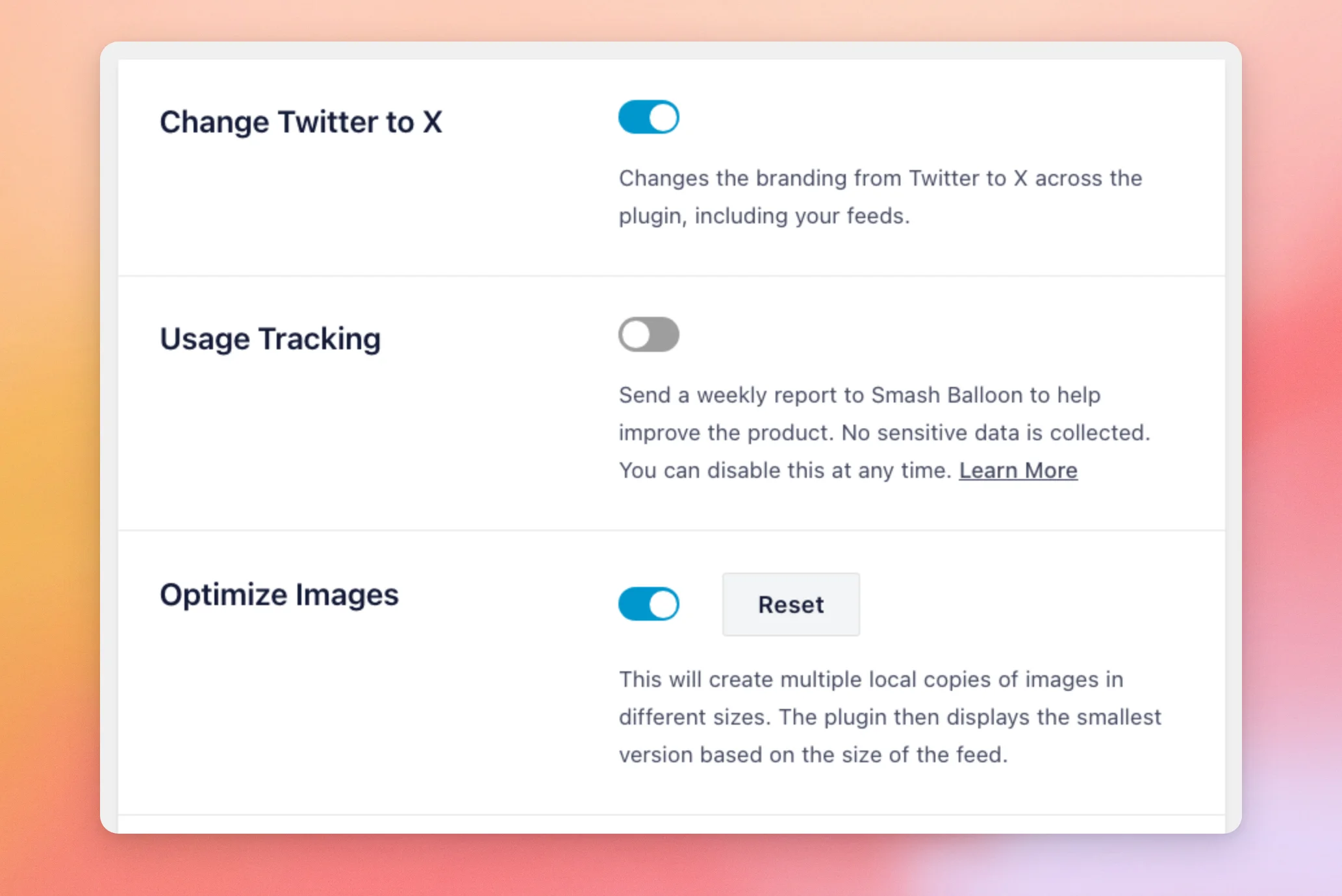
| Setting | What it does | Default |
|---|---|---|
| Change Twitter to X | Changes the branding from Twitter to X across the plugin, including your feeds. | On |
| Usage Tracking | Sends a weekly report to Smash Balloon to help improve the product. The box says that no sensitive data is collected and that you can turn it off at any time. It has a Learn More link. | On |
| Optimize Images | Creates several local copies of each image in different sizes. The plugin then shows the smallest copy that fits the size of the feed. The Reset button next to it clears the copies the plugin has stored. | On |
The next group covers videos and the stored caches.
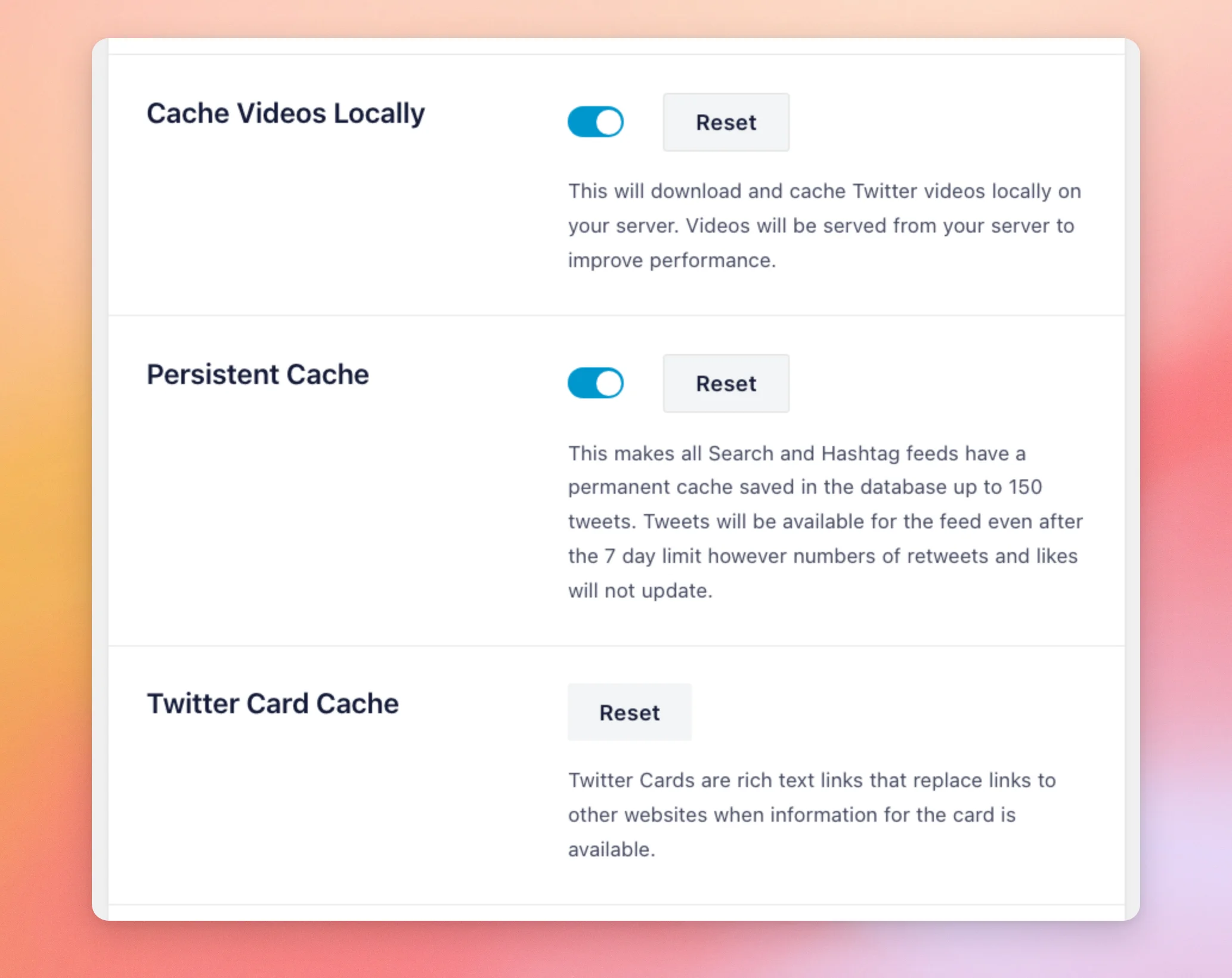
| Setting | What it does | Default |
|---|---|---|
| Cache Videos Locally | Downloads X videos to your server and plays them from there, to improve performance. It has a Reset button. | On |
| Persistent Cache | Gives every Search and Hashtag feed a permanent cache in your database, up to 150 posts. The text under it says posts then stay in the feed past the 7-day limit of X search. Their numbers of retweets and likes stop updating. It has a Reset button. | On |
| Twitter Card Cache | Stores the rich link previews, called Twitter Cards, that replace links to other websites when a preview is available. It has a Reset button. | No toggle |
The third group has fixes for themes and for how the plugin loads its code.
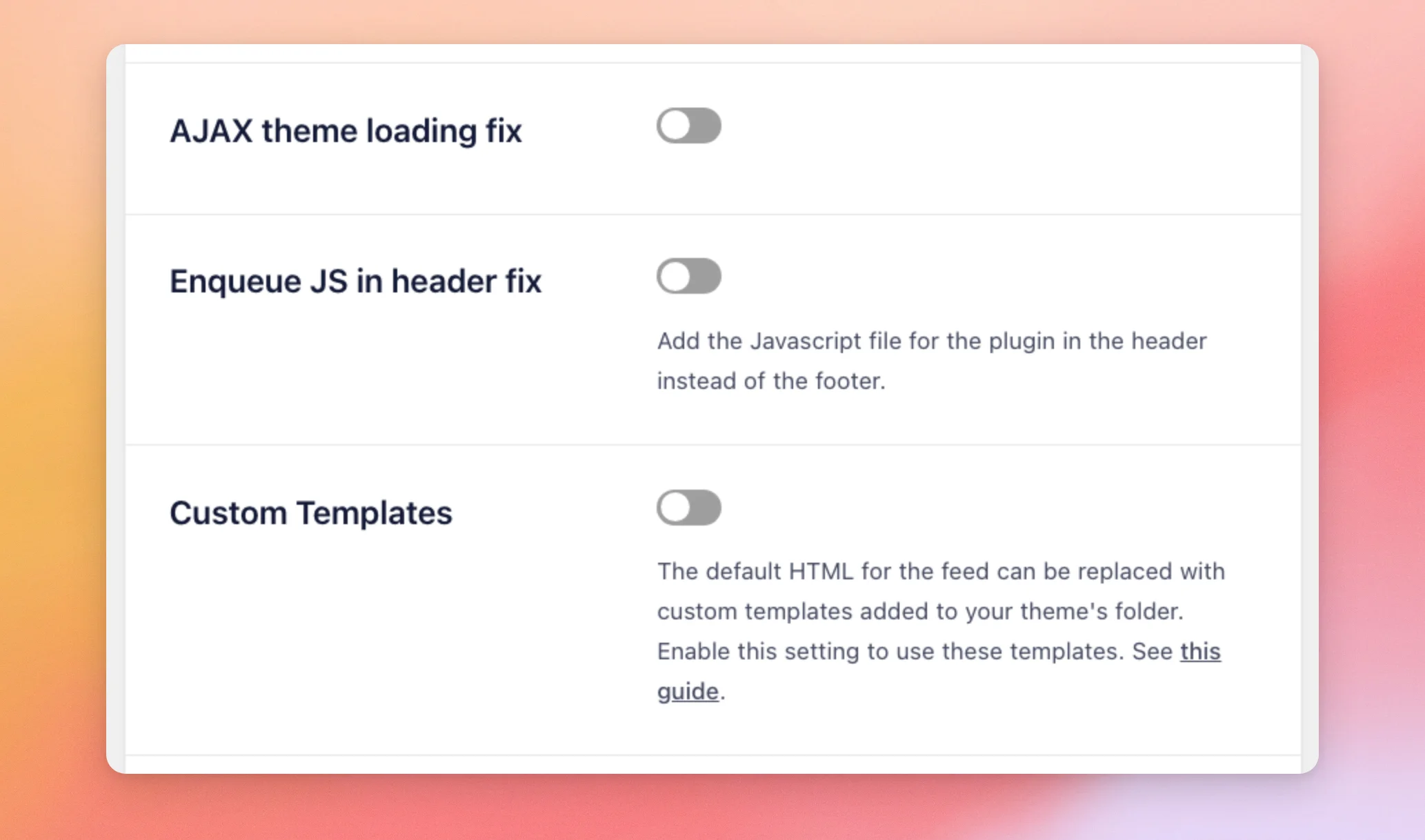
| Setting | What it does | Default |
|---|---|---|
| AJAX theme loading fix | Loads the plugin’s JavaScript together with each feed, the way themes that load page content with AJAX need. | Off |
| Enqueue JS in header fix | Adds the plugin’s JavaScript file to the header of your pages instead of the footer. | Off |
| Custom Templates | Lets you replace the default HTML of the feed with custom templates in your theme’s folder. For the steps, see our guide on custom templates. | Off |
The fourth group covers the credit link, image resolution, and the reply, retweet, and like buttons.
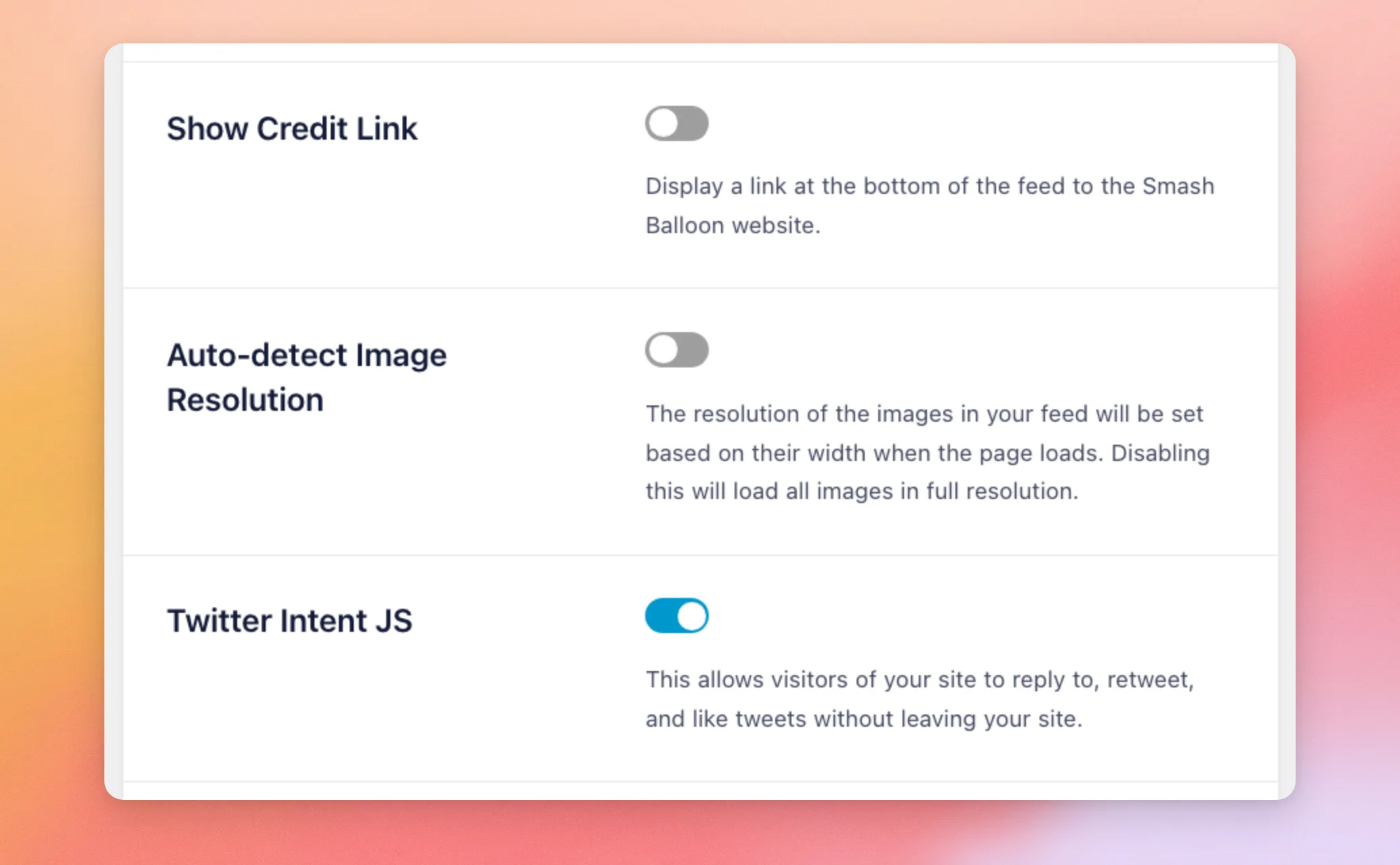
| Setting | What it does | Default |
|---|---|---|
| Show Credit Link | Displays a link to the Smash Balloon website at the bottom of the feed. | Off |
| Auto-detect Image Resolution | Sets the resolution of each image from its width when the page loads. When this is off, every image loads in full resolution. | Off |
| Twitter Intent JS | Lets your visitors reply to, retweet, and like posts without leaving your site. | On |
The last group has the settings for how your site connects to X and for Twitter Cards.
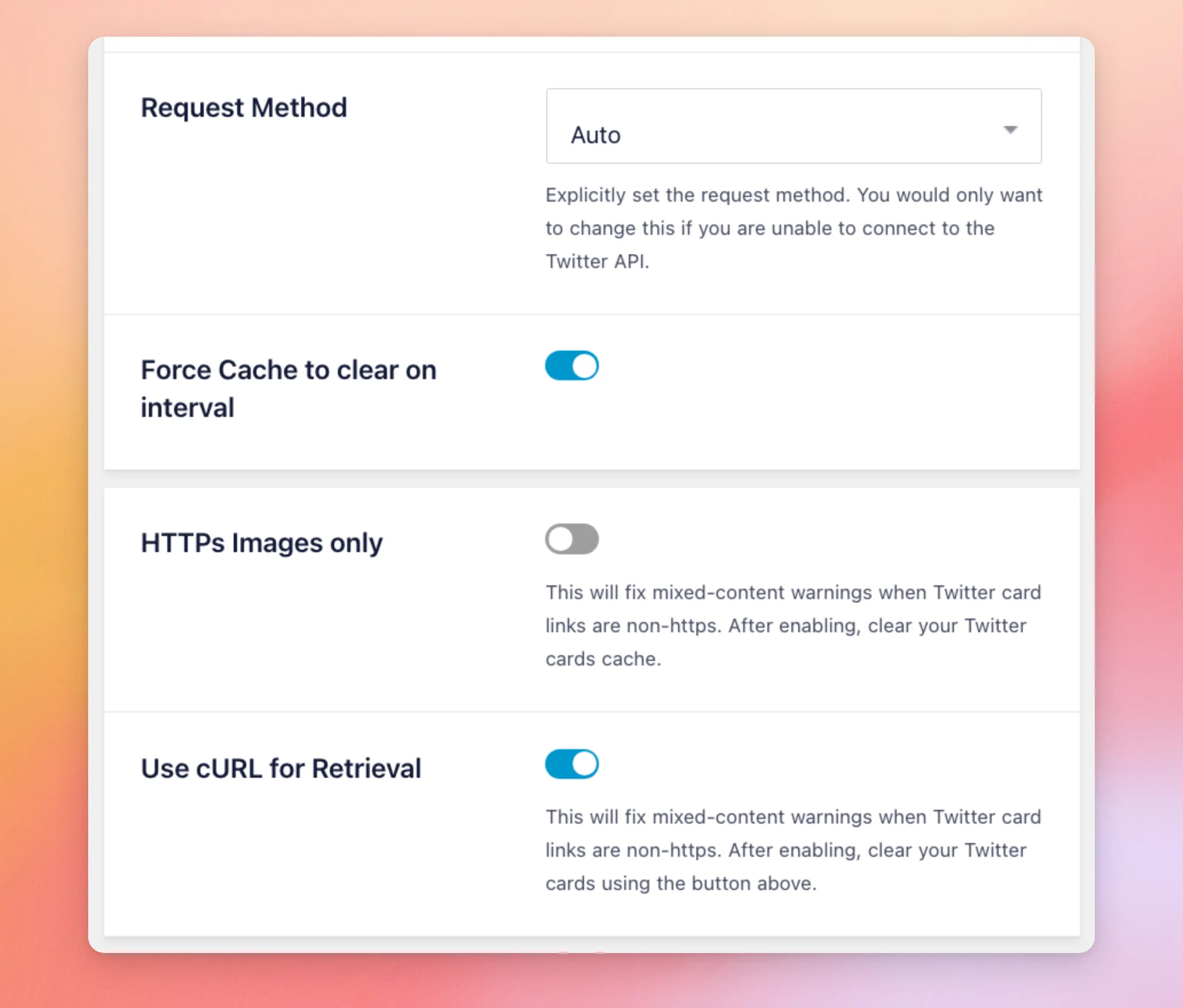
| Setting | What it does | Default |
|---|---|---|
| Request Method | Sets how your site sends requests to the X API. The options are Auto, cURL, file_get_contents(), and WP_Http. Change it only if your site can’t connect. If it can’t, our System Info guide shows what to send to support. | Auto |
| Force Cache to clear on interval | Leave this toggle at its default. | On |
| HTTPs Images only | Fixes mixed-content warnings when Twitter Card links aren’t HTTPS. After you turn it on, clear your Twitter Card Cache. | Off |
| Use cURL for Retrieval | Uses cURL to retrieve the pages behind Twitter Cards, when your server has it. | On |
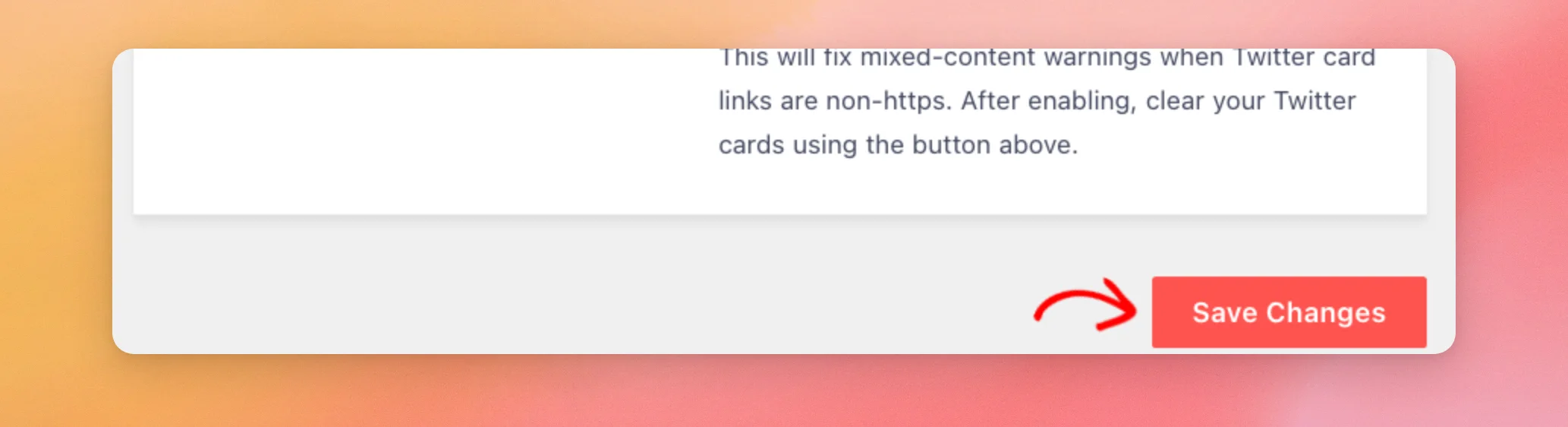
After you change a setting on any tab, click Save Changes. The button is at the top and at the bottom of every tab. It saves the settings on all 4 tabs at once.
That’s it! You now know what every setting on the Settings page does and what its default is. Next, see our guide on what to do when images and videos aren’t showing in your feed.
Frequently Asked Questions
Below, we’ve answered some of the most common questions about the Settings page.
Do I need to save each tab separately?
No. The Save Changes button saves the settings on all 4 tabs at once. See the Advanced tab section above.
Where do I connect my own X app?
On the General tab, in the Twitter Integration box, click Connect your Own App (V2). For the steps, see our guide on creating your own X app.
How do I change the words in my feed, such as Load More?
You change it on the Translation tab. There, you type your own text in the field next to the original word. Then you save with Save Changes.




