


 Social Wall
 Feed Analytics


How to add custom JavaScript alongside an X (Twitter) feed using WPCode, rather than editing theme files.
Would you like to add your own JavaScript to your X (formerly Twitter) feed?
In this guide, we’ll show you 2 ways to do it. The first uses the Custom JS box that’s built into the Custom Twitter Feeds plugin. The second uses WPCode, a free plugin from the makers of WPForms and All in One SEO. Both examples add a short note under your feed.
Before you get started, make sure the Custom Twitter Feeds plugin is installed and activated on your site.
Using the Custom JS Box
To get started, we’ll open the Custom JS box. It’s the simplest way to add JavaScript, because it’s part of the plugin.
In your WordPress dashboard, go to Twitter Feed » Settings. The plugin’s menus and screens still use the name Twitter. Then, click the Feeds tab.
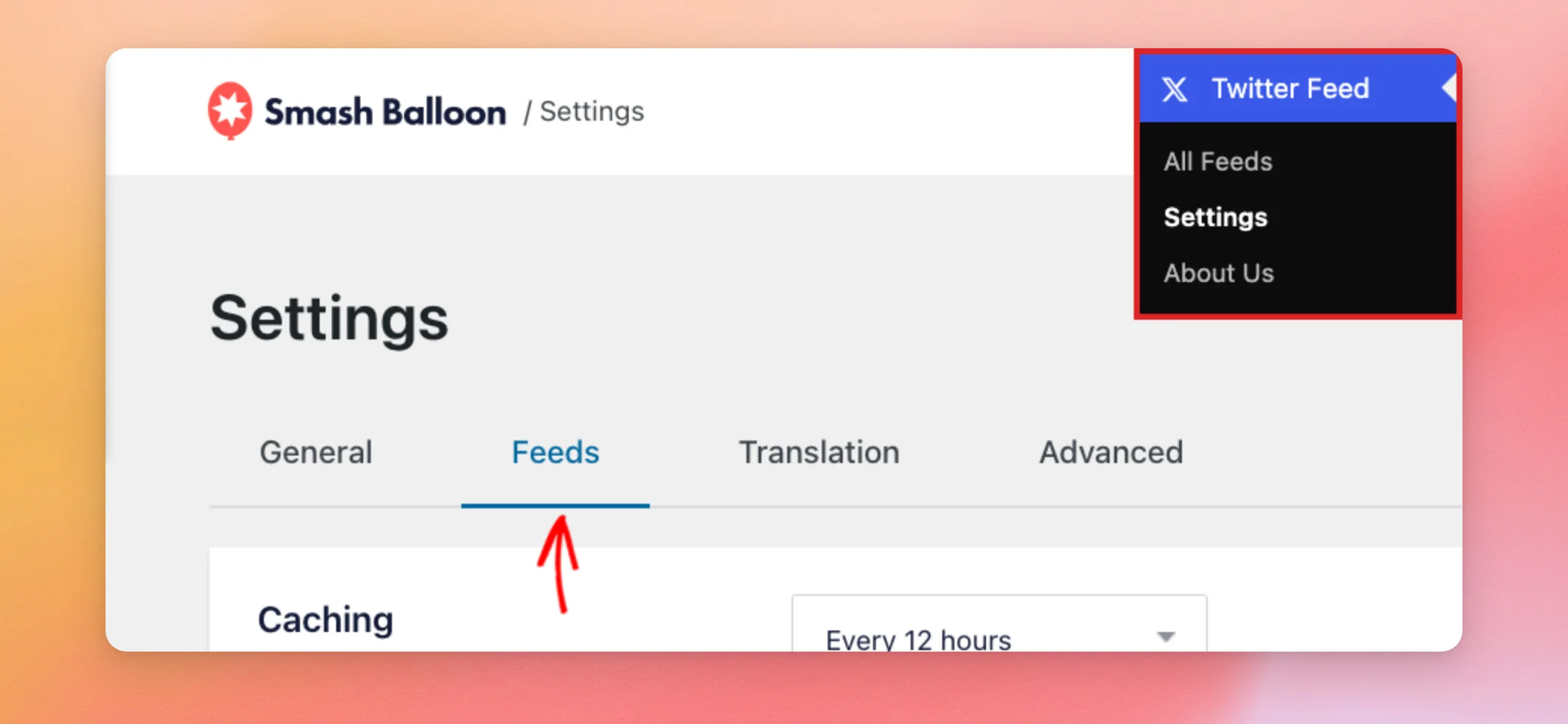
On the Feeds tab, scroll down to the Custom JS box. Next, paste your code into it. For this example, we’ll paste code that adds a short note under your feed.
$( '.ctf' ).not( ':has(.my-feed-note)' ).append( '<p class="my-feed-note">Thanks for stopping by!</p>' );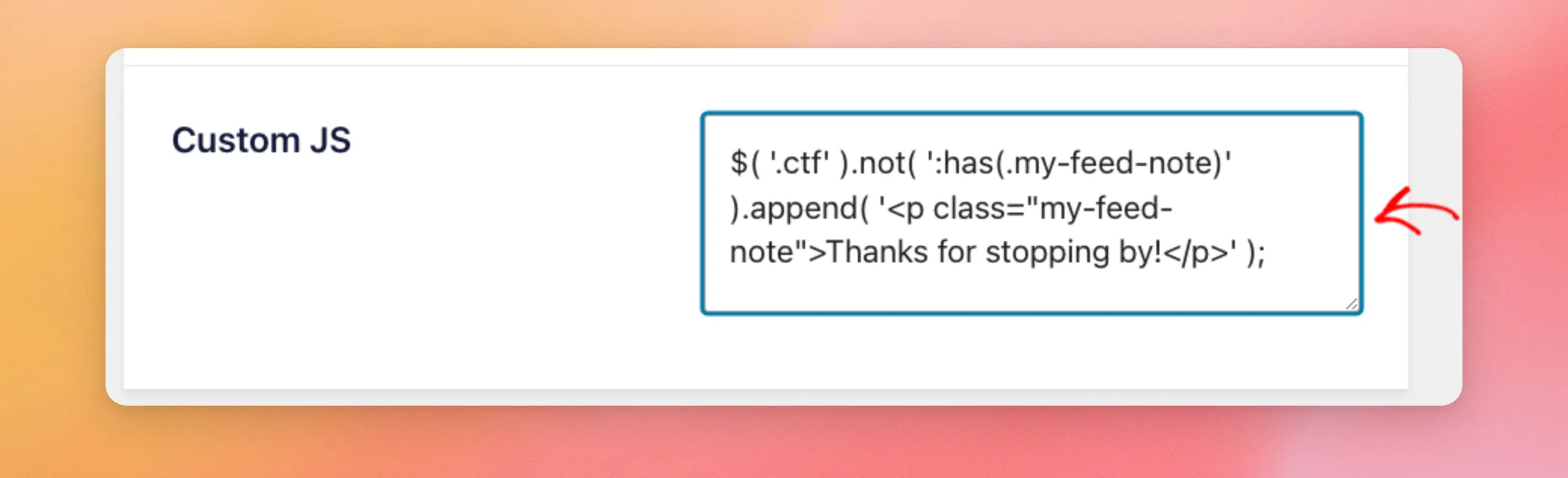
You don’t need to add any script tags. The plugin adds your code to the page for you. The $ sign works as a shortcut for jQuery.
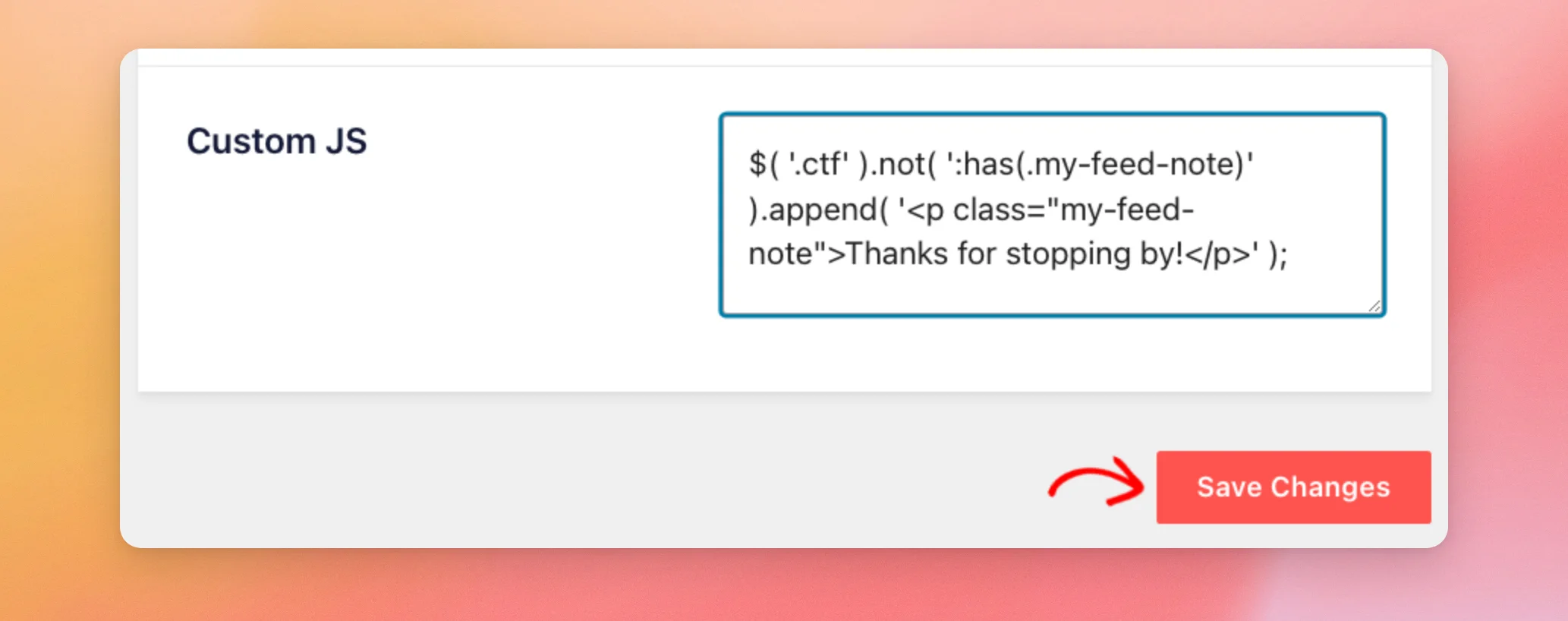
At the bottom of the page, click Save Changes.
Now, open a page that shows your feed. The note appears under it.

The plugin runs your code once the feed has loaded. It runs it again each time more posts are added, such as when a visitor clicks the Load More button.
That’s why the example checks for the note first. Without that check, the note is added again each time.
Using WPCode
You can also add your JavaScript with WPCode. It’s a free plugin that keeps all of your custom code snippets in one place.
To begin, install and activate the WPCode plugin. Then, go to Code Snippets » Add Snippet.
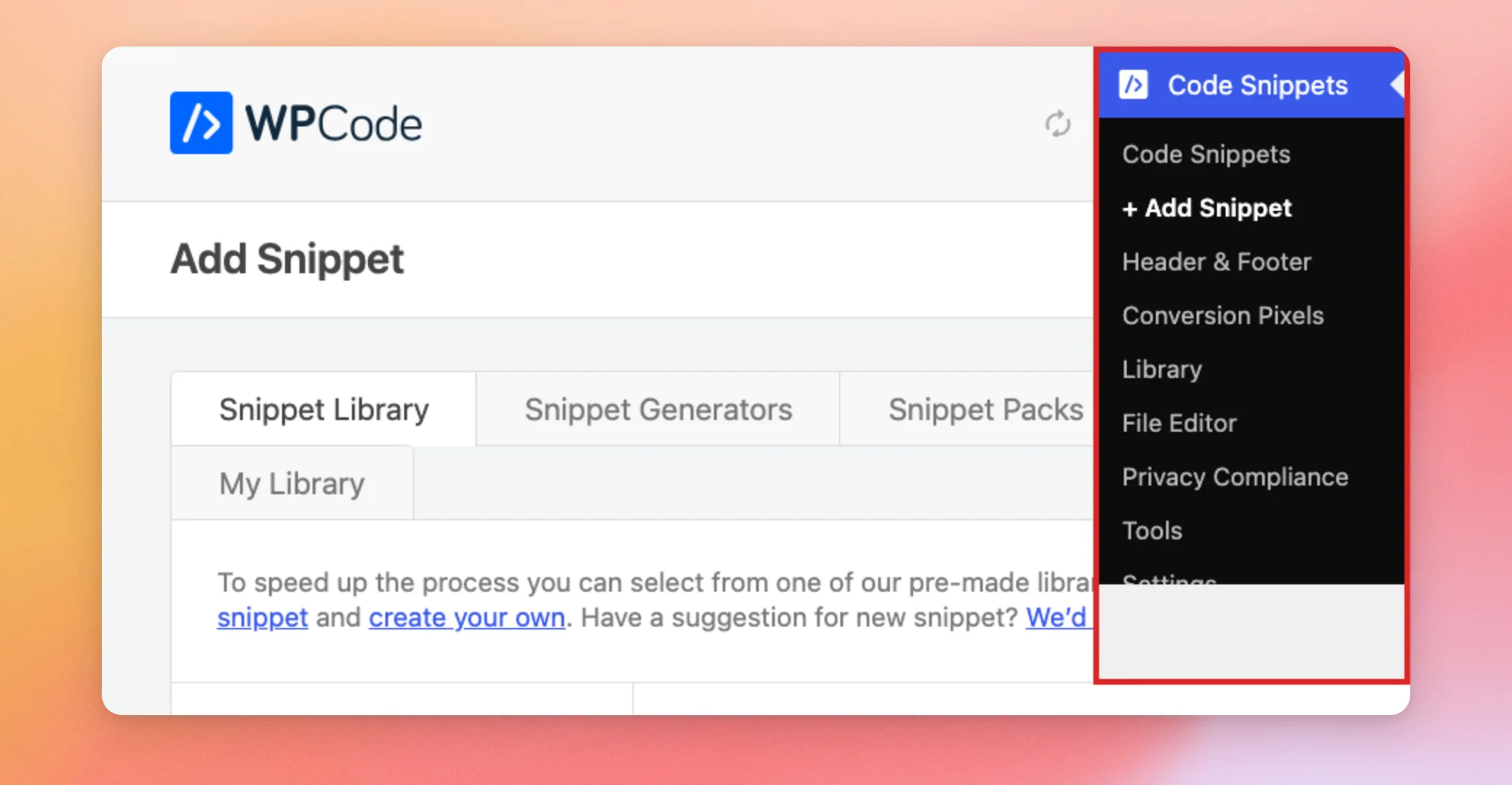
On the Add Snippet page, hover over the box named Add Your Custom Code (New Snippet). Then, click + Add Custom Snippet.

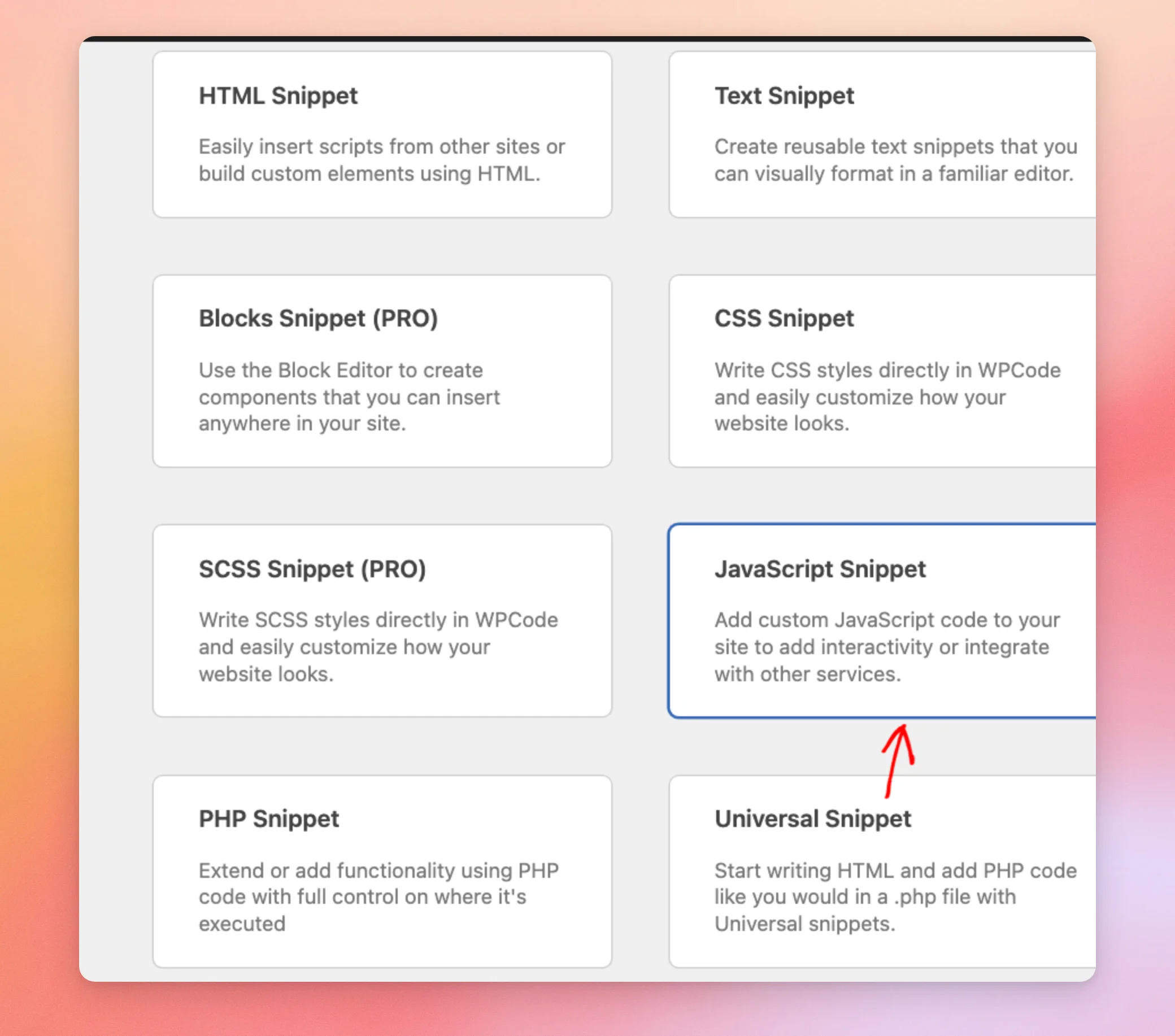
In the window that opens, choose JavaScript Snippet.
First, type a title for your snippet. Then, paste your code into the code box.
For this example, we’ll use code that adds the same short note under your feed. Unlike the first example, it doesn’t use jQuery. This makes it safe on pages that don’t load it.
document.addEventListener( 'DOMContentLoaded', function() {
	document.querySelectorAll( '.ctf' ).forEach( function( feed ) {
		var note = document.createElement( 'p' );
		note.className = 'my-feed-note';
		note.textContent = 'Thanks for stopping by!';
		feed.appendChild( note );
	} );
} );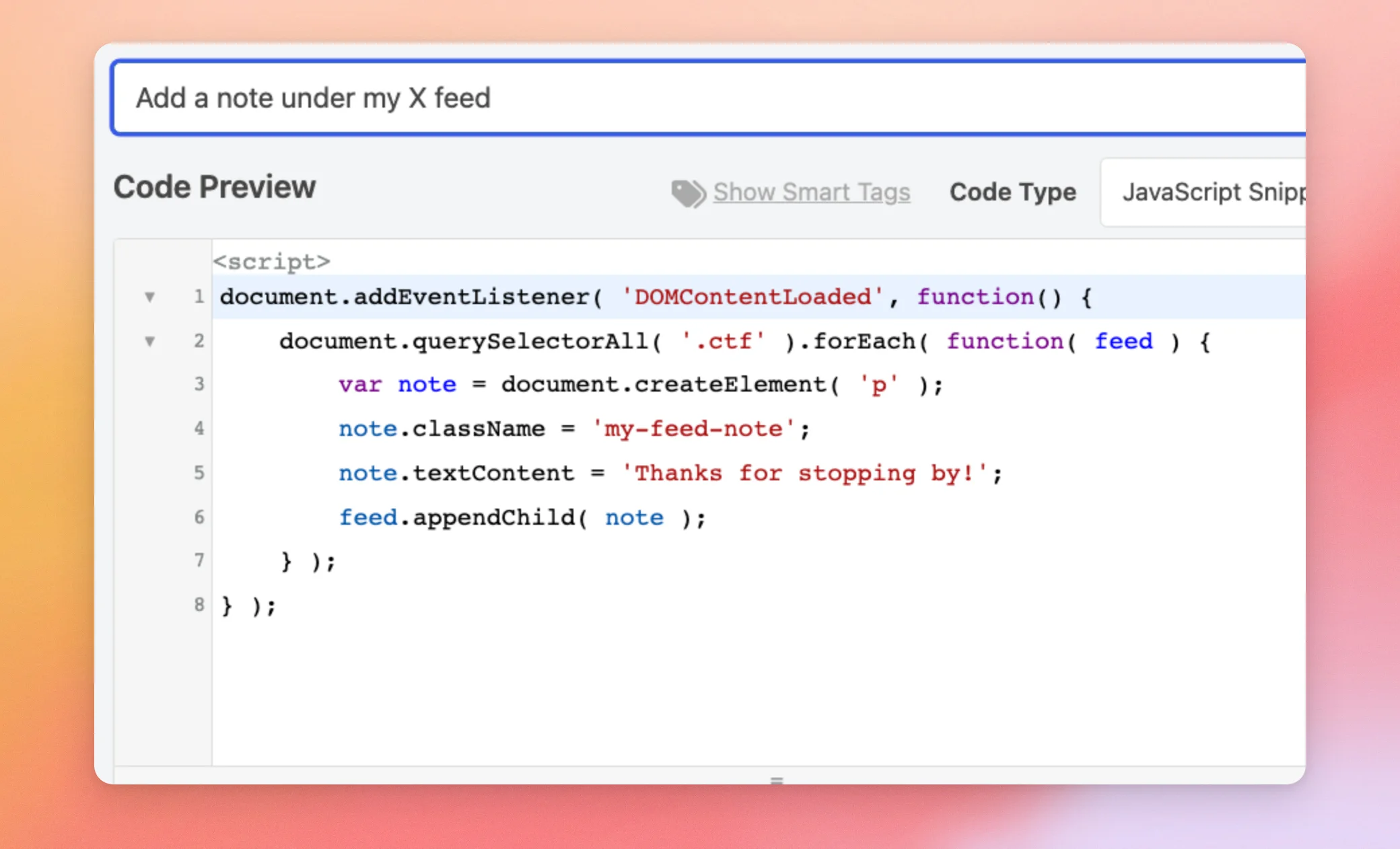
You don’t need to add any script tags. WPCode adds them for you. The code box starts with a script line you can’t edit.
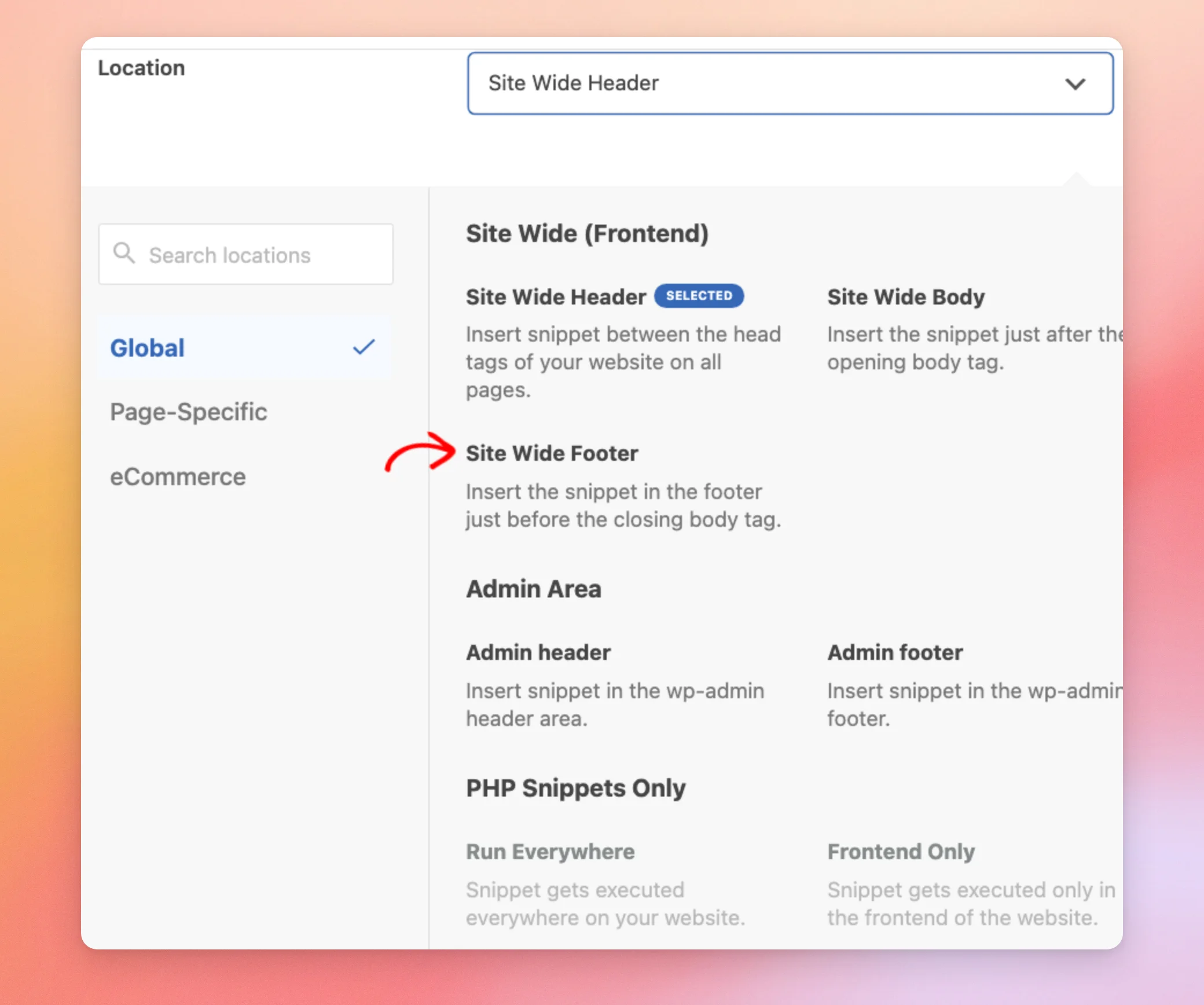
Next, find the Location field and click it. Then, choose Site Wide Footer. This adds your code at the bottom of your pages.
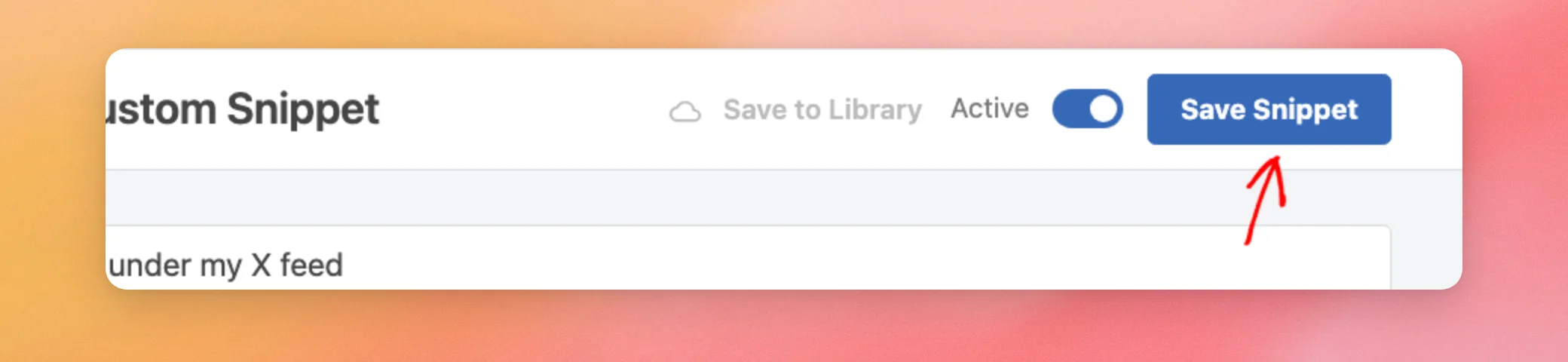
At the top of the page, click the toggle to switch the snippet from Inactive to Active.
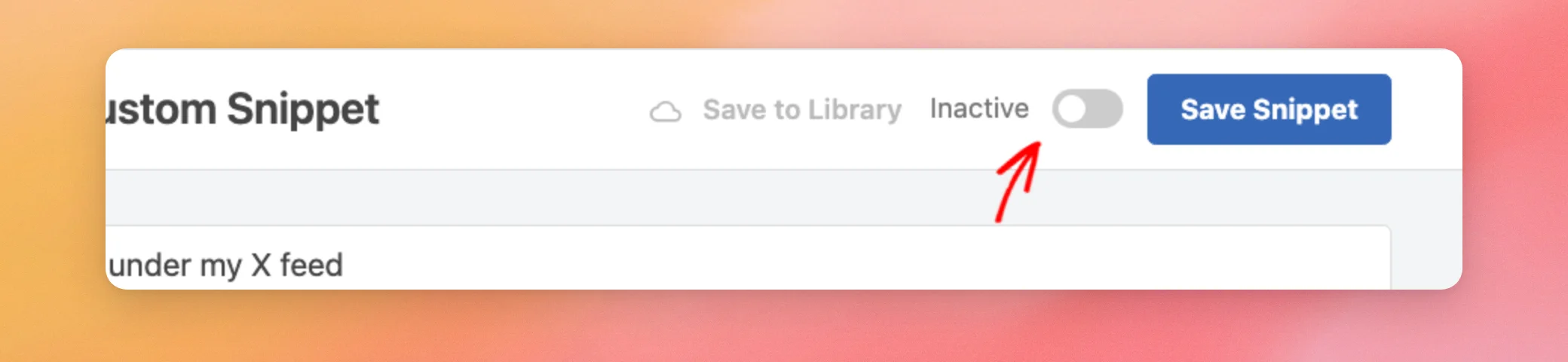
Then, click Save Snippet.
Once the snippet is active, the note appears under your feed on the pages that show it, just like in the first example.
That’s it! You can now add your own JavaScript to your X (formerly Twitter) feed with the Custom JS box or a WPCode snippet. Next, you may want to see how to set up the Custom Twitter Feeds Pro plugin.
Frequently Asked Questions
Below, we’ve answered some of the most common questions about adding custom JavaScript to your feed.
Does the Custom JS box run on every page of my site?
The plugin adds your code to the footer of every page. It only runs on pages where a feed is shown, though. On other pages, nothing happens.
Why won’t my code save in the Custom JS box?
The plugin only saves Custom JS for WordPress users who are allowed to post unfiltered HTML. If your code doesn’t save, check that your user account has that permission.
Can I use the Custom JS box in the free version?
Yes. The free version of the plugin also has a Custom JS box on the Feeds tab of its Settings page.




