


 Social Wall
 Feed Analytics


Creating your own X app is optional and needs a paid X API tier, Basic or higher. The free tier will not work.
Would you like your Twitter feeds to get posts straight from X with your own app’s keys?
In this guide, we’ll explain when you need your own X app, how to create one on X, and how to add its keys to Custom Twitter Feeds. All you need is an X account and access to your WordPress dashboard.
Requirements: An X developer account with API credits. X charges for what your app reads, so check the costs below before you start.
Before you get started, make sure the latest version of Custom Twitter Feeds is installed and activated on your WordPress site.
- Choosing the Default Connection or Your Own App
- Creating Your App on X
- Adding Your App’s Keys to the Plugin
- Frequently Asked Questions
Choosing the Default Connection or Your Own App
By default, Custom Twitter Feeds updates your feeds through our feed update system. It needs no X account and no keys.
With your own X app connected, the plugin gets posts directly from X with your app’s keys instead.
Your own app is most useful on the free version. There, the default connection updates your feed once a week. With your own app connected, your feed follows the plugin’s regular update schedule instead.
On the paid version, the default connection already updates your feeds several times a day. To learn more about how updates work, see our guide on the changes to the X API.
X charges for API use. As of November 2026, X’s pricing page says the X API uses pay-per-usage pricing with no subscriptions. You buy credits in the X Developer Console. X then charges for each resource your app reads, such as a post.
For current rates, see X’s API pricing page.
If you decide to use your own app, you’re ready to create it on X.
Creating Your App on X
To get started, we’ll create your app in the X Developer Console. These steps follow X’s own guide as of November 2026. If X’s screens look different, see X’s guide to getting access.
- Go to the X Developer Console and sign in with your X account.
- Accept the Developer Agreement and Policy. Then complete your profile.
- Click New App. Then enter a name, a description, and a use case for your app.
- Copy your app’s API Key, API Key Secret, Access Token, and Access Token Secret. Keep them somewhere safe. X only shows them once.
- Buy credits for your app in the Developer Console so it can make requests.
The plugin uses older names for two of these keys. The table below shows where each one goes.
| Name on X | Field in Custom Twitter Feeds |
|---|---|
| API Key | Consumer Key |
| API Key Secret | Consumer Secret |
| Access Token | Access Token |
| Access Token Secret | Access Token Secret |
With your keys saved and credits in place, you’re ready to add the app to the plugin.
Adding Your App’s Keys to the Plugin
Your app’s keys go into the Twitter Integration section of the plugin’s settings.
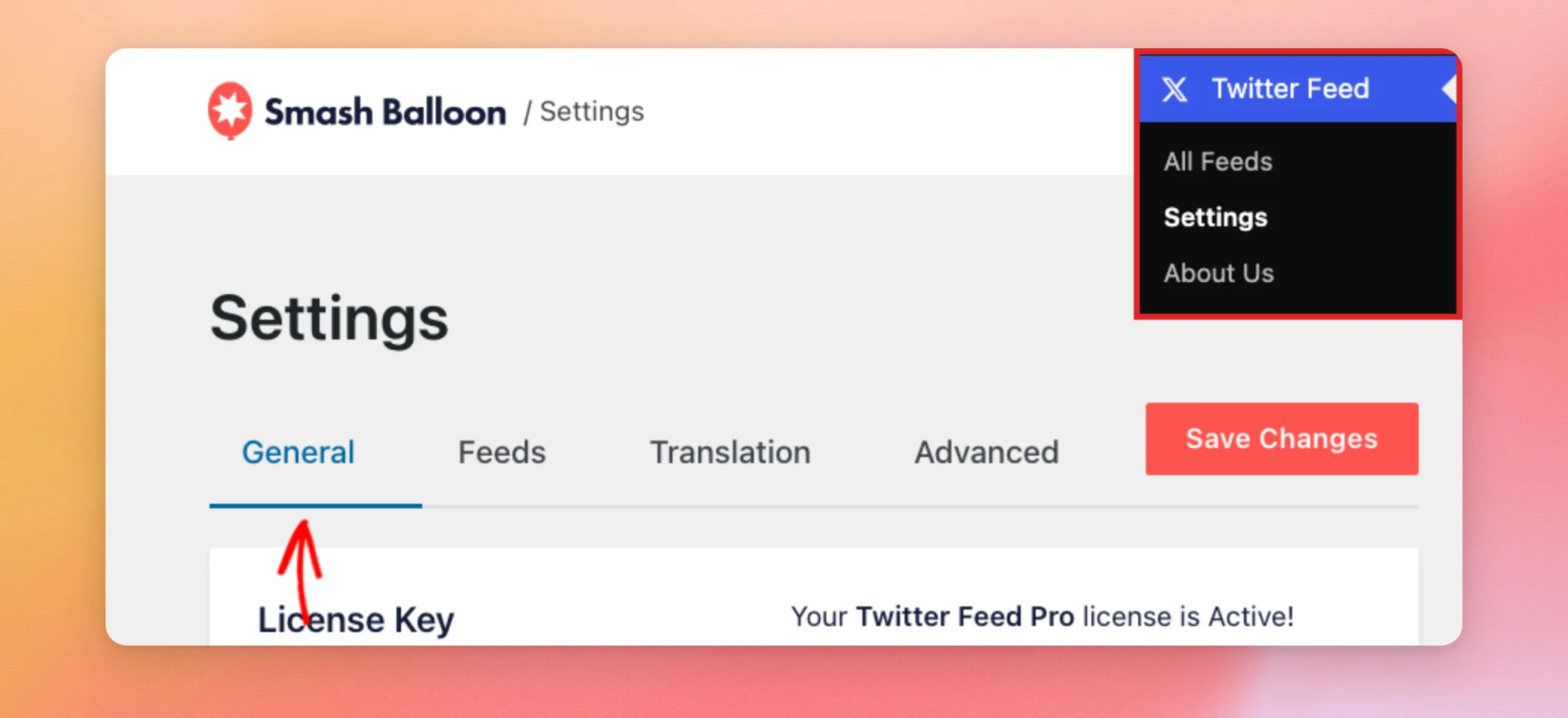
In your WordPress dashboard, go to Twitter Feed » Settings. The General tab opens first. On the free version, the menu is called Twitter Feeds.
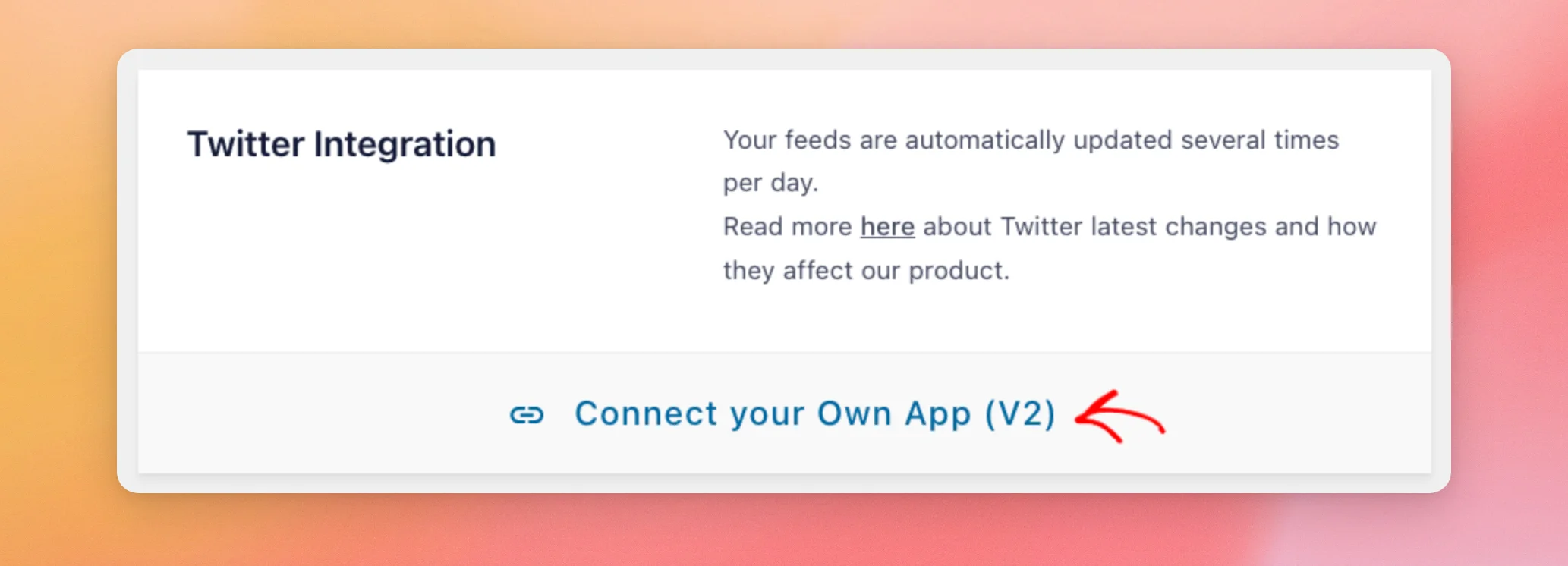
Next, scroll down to the Twitter Integration section. Then click Connect your Own App (V2).
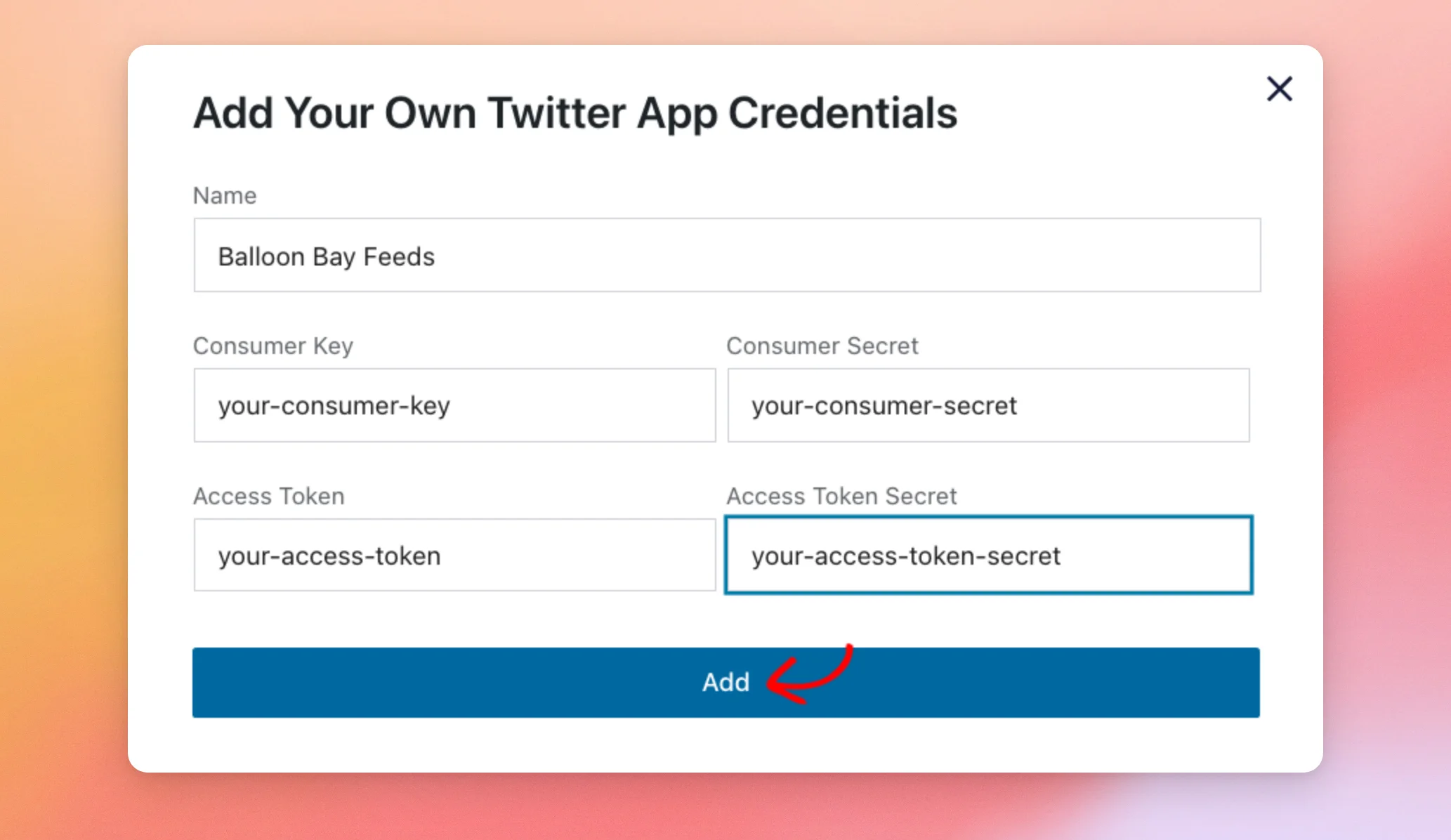
The Add Your Own Twitter App Credentials window opens. In the Name field, enter a name that helps you recognize your app. Then paste each key from X into its field, using the table above. When every field is filled, click Add.
The plugin then checks your keys with X. When X accepts them, you see “Account added successfully.” and the window closes. Your app then shows in the Twitter Integration section, under Connected Twitter App.
If you see “Something went wrong! Try with different credentials.” instead, X didn’t accept the keys. Next, check that each key is in the right field. Then click Add again.
That’s it! You now know how to connect your own X app to Custom Twitter Feeds. If your feed shows an error, see our guide to error messages.
Frequently Asked Questions
Below, we’ve answered some of the most common questions about using your own X app with Custom Twitter Feeds.
Which X account should I use to create the app?
The app doesn’t need to belong to the account your feed shows. With your own app connected, your feeds can still show posts from other accounts, not only the one that owns the app.
How much does it cost to use my own X app?
X charges for each post your app reads, paid from credits you buy in advance. Prices can change, so check X’s API pricing page for current rates. Our default connection needs no X account and no credits.
Can I use my own X app on the free version?
Yes. The free version has the same Connect your Own App (V2) button, under Twitter Feeds » Settings. With your own app connected, your feed follows the plugin’s regular update schedule instead of updating once a week.
How do I go back to the default connection?
In the Twitter Integration section, find your app under Connected Twitter App and use its delete icon. When the plugin asks “Delete App?”, confirm. The plugin removes your app’s keys. Your feeds then go back to our feed update system.
What if I lose one of my keys?
X only shows each key once. To replace one, regenerate it in the X Developer Console. This stops the old key from working. If you already added your app to the plugin, delete it there and add it again with the new keys.




