


 Social Wall
 Feed Analytics


How to gather reviews through a WPForms or Formidable form and display them in a Reviews Feed collection.
Would you like to collect reviews from your own customers and show them on your site?
With Reviews Feed, you can connect a WPForms or Formidable Forms form to a collection. Each review your visitors send arrives in the collection’s Form Submissions list. From there, you add it to your collection yourself, or let a rule approve it for you.
In this guide, we’ll walk you through building a review form, connecting it to a collection, setting rules, and managing the reviews your visitors send.
Requirements: Collecting reviews with a form is available on every paid license level of Reviews Feed. You also need a paid version of WPForms or Formidable Forms.
Before you get started, make sure Reviews Feed is installed and activated on your WordPress site, along with WPForms or Formidable Forms.
- Creating a Review Form
- Connecting Your Form to a Collection
- Approving and Archiving Reviews Automatically
- Managing Form Submissions
- Showing Form Reviews on Your Site
- Frequently Asked Questions
Creating a Review Form
To get started, you’ll need a form your customers can fill in. Reviews Feed turns each entry into a review by reading these WPForms fields:
- Name: The reviewer’s name.
- Email: The reviewer’s email address.
- Rating: The review’s star rating.
- Single Line Text: The review’s title.
- Paragraph Text: The review itself.
In your form, use one field of each type.
When your form is ready, add it to a page your customers can reach.
To learn how, see WPBeginner’s guide on how to embed forms in WordPress.
If you’re new to WPForms, see their guide on creating your first form.
Note: Formidable Forms works a little differently. Reviews Feed reads each Formidable field by its field key instead of its type. For Reviews Feed to read your fields, use field keys that contain name, mail, rating, title, and content. You connect a Formidable form in the same Connect a form window as a WPForms form.
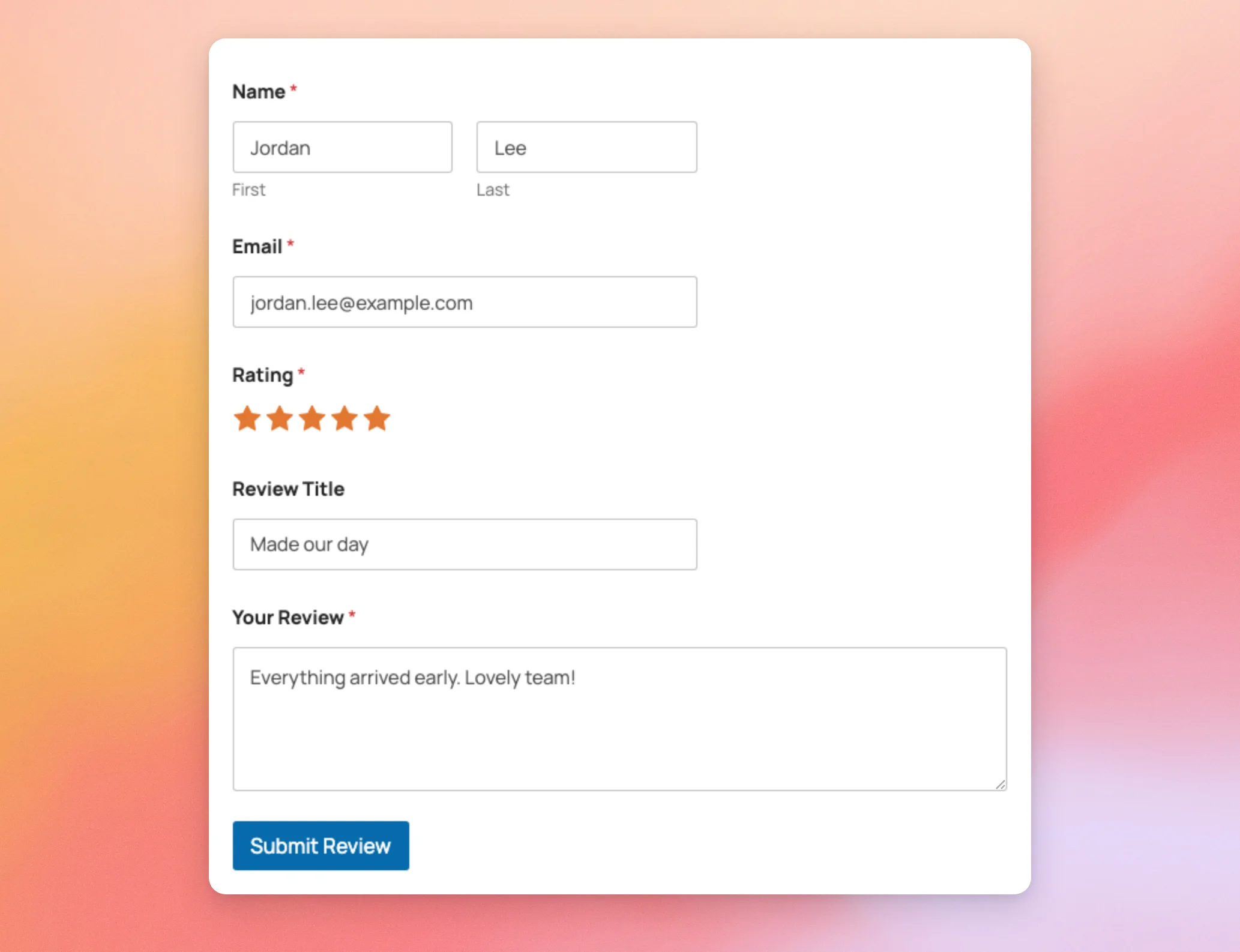
Here’s the review form we’ll use in this guide, on a page called Leave a Review. Reviews Feed goes by the field type, not the label. This means you can name your fields however you like.
In our form, Review Title is a Single Line Text field. Your Review is a Paragraph Text field.
With your form on a page, you’re ready to connect it to a collection.
Connecting Your Form to a Collection
Reviews from your form are saved in a collection. You can connect your form to a collection you already have, or create a new one for your form reviews.
To learn more about collections, see our guide on how to use collections.
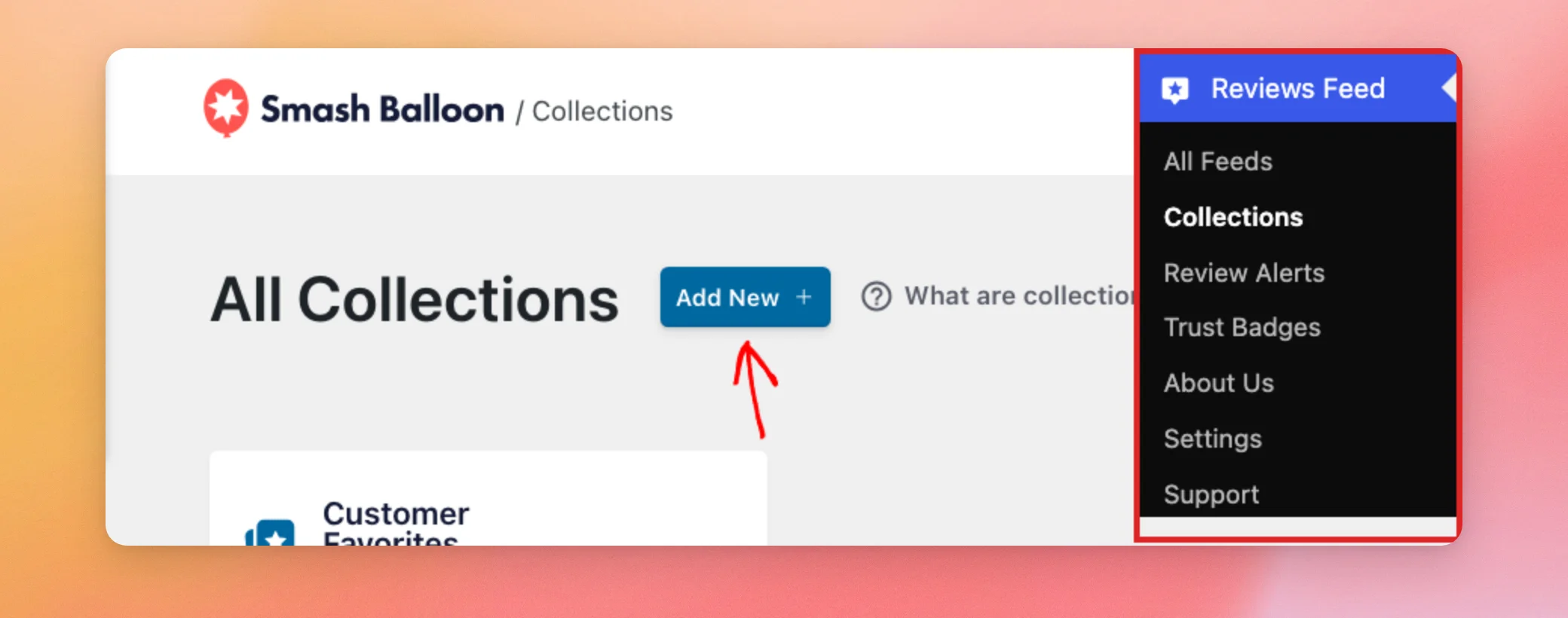
To create a new collection, go to Reviews Feed » Collections in your WordPress admin sidebar. Then click Add New.
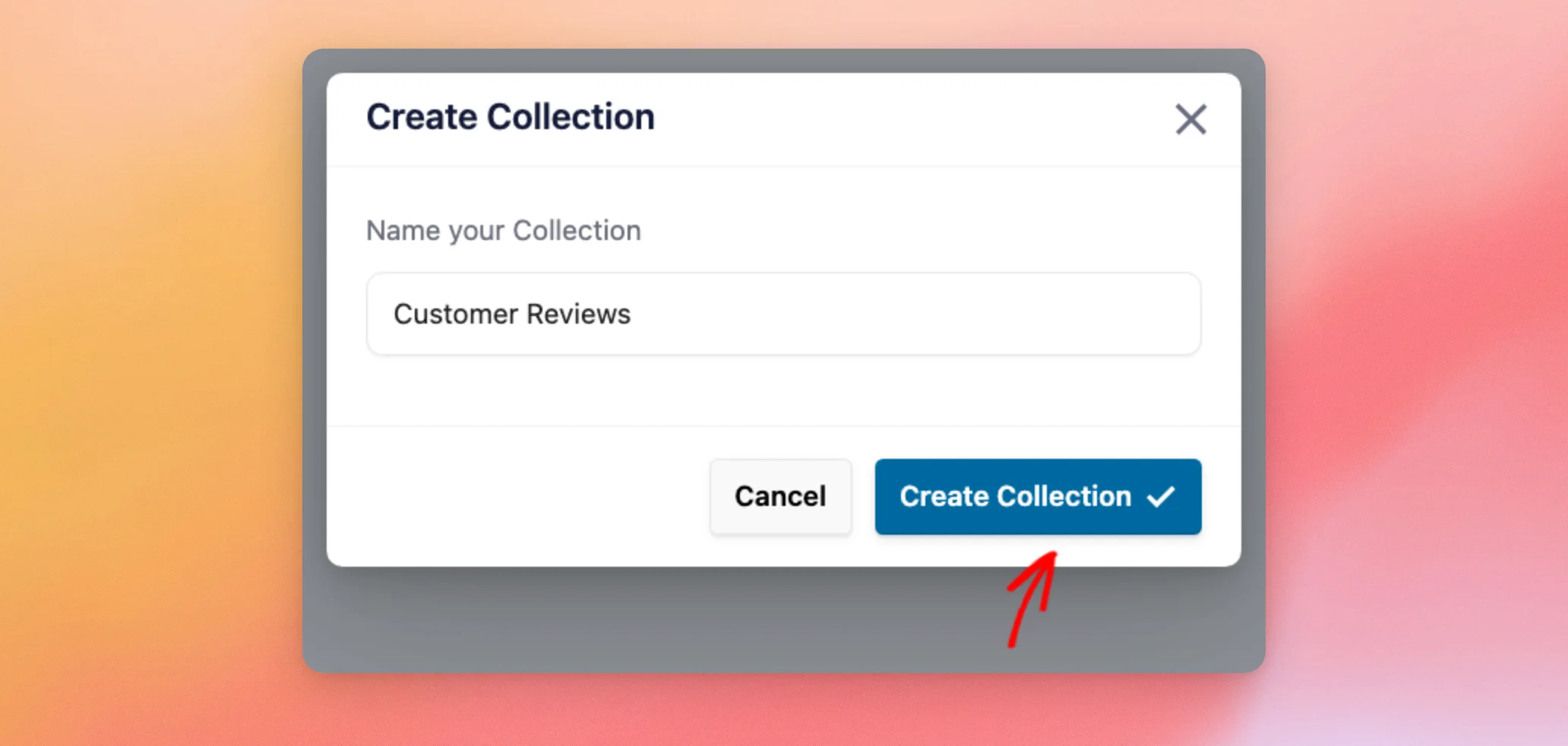
In the window that opens, type a name for your collection, such as Customer Reviews. Then click Create Collection.
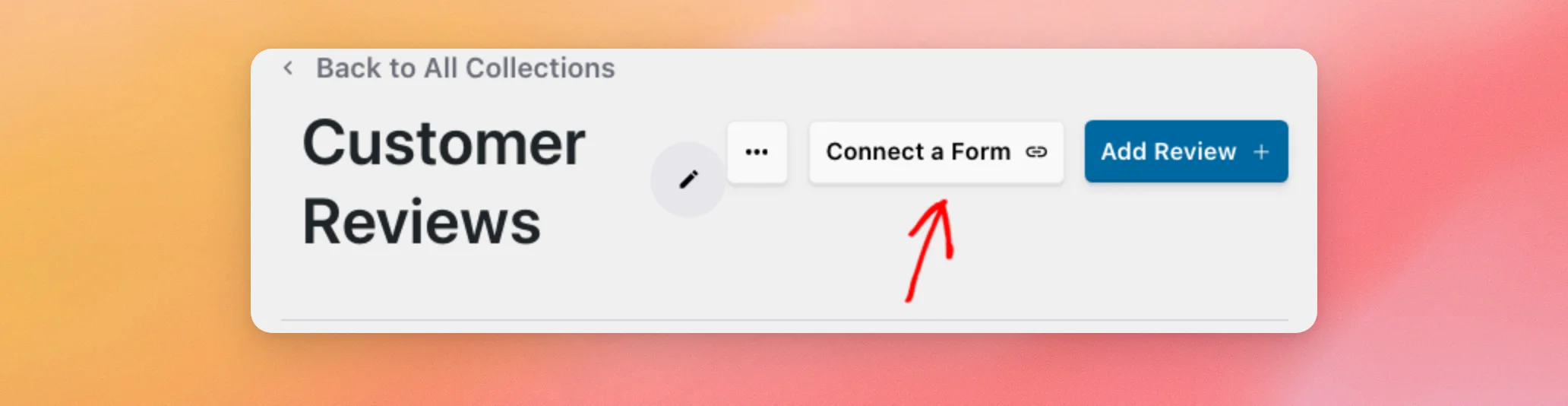
Your new collection opens. At the top, click Connect a Form.
In the Connect a form window, choose your review form from the Form dropdown. Your forms are listed under the name of their form plugin. Then click Connect.
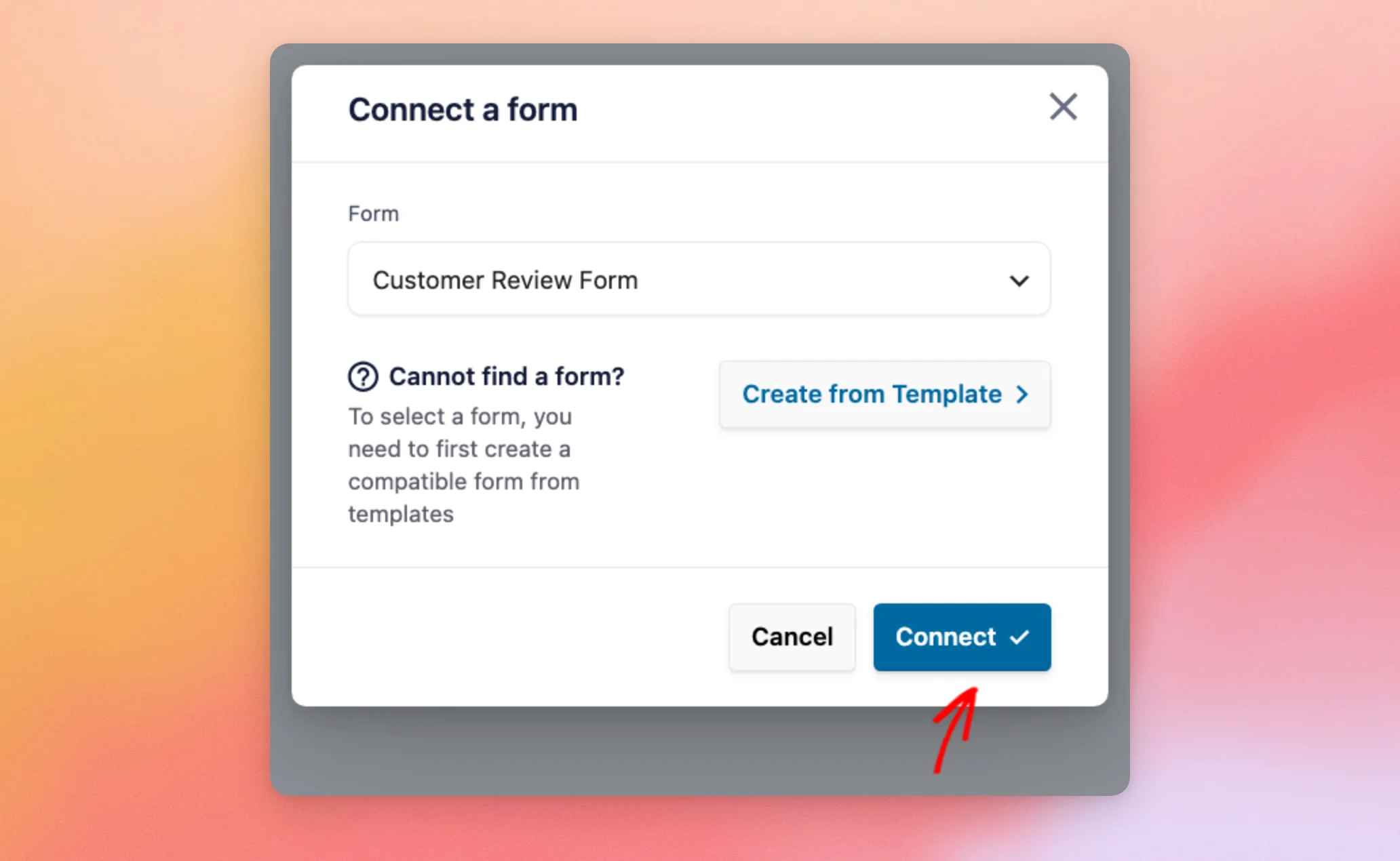
Don’t have a review form yet? The Create from Template button in the same window opens your form plugin’s templates in a new tab. In WPForms, the template search is already filled in with User Review.
Reviews Feed connects the form and opens the Settings tab of your collection’s Form Submissions screen.
The entries your form received before you connected it are imported too. This runs in the background. The entries can take a moment to show up.
To collect reviews from another form in the same collection, click Add Form under Connected Forms. In the window that opens, choose the form. Then click Connect.
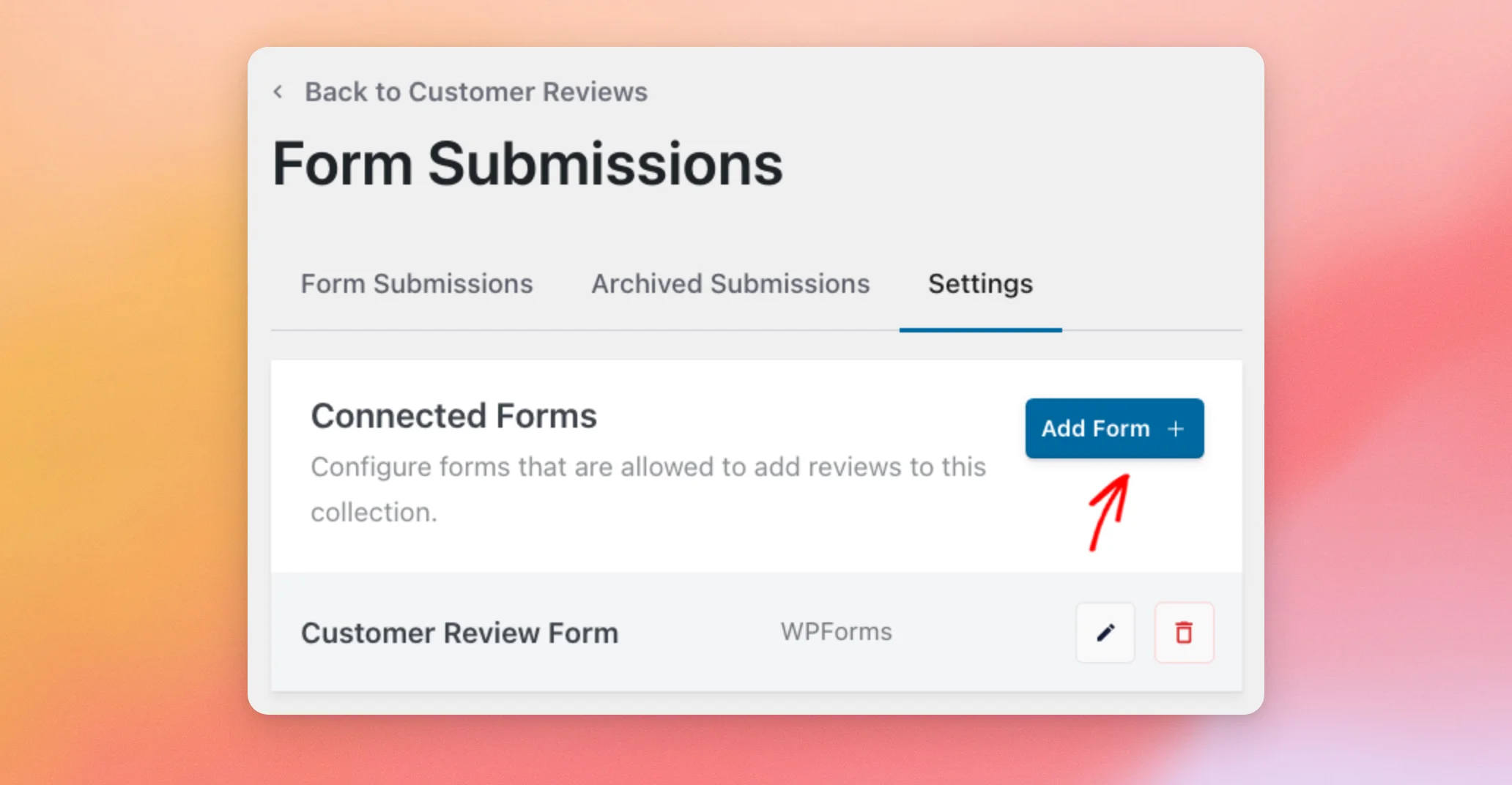
Each connected form has two icons. The pencil icon opens the form in the WPForms form builder in a new tab. The trash icon disconnects the form.
With your form connected, you can set rules that approve or archive its reviews for you.
Approving and Archiving Reviews Automatically
By default, new submissions wait in the Form Submissions tab until you add them to your collection. That way, you decide which reviews your collection shows. To save time, you can set rules in the Rules box, below Connected Forms on the Settings tab:
- Auto Approve: Adds a submission to your collection as soon as it arrives, if it meets the rule. The options are has 3 stars or more, has 4 stars or more, and has 5 stars or more.
- Auto Archive: Moves a submission to the Archived Submissions tab if it meets the rule. The options run from has 1 star or less up to has 5 stars or less.
Each rule also has an AND line for the review’s length. In the AND line, choose is longer than or is shorter than. Then type a number of characters.
If you only want a star rule, leave the number empty. The gray 200 in the number box is only a hint, not a value.
Submissions that meet neither rule stay in the Form Submissions tab for you to look over.
In our example, Auto Approve is set to has 4 stars or more. Auto Archive is set to has 2 stars or less. We left both numbers empty.
A review with five or four stars is added to the collection when it arrives. A review with three stars waits in the Form Submissions tab. A review with two stars moves to the Archived Submissions tab.
When your rules are set, click Apply rules.
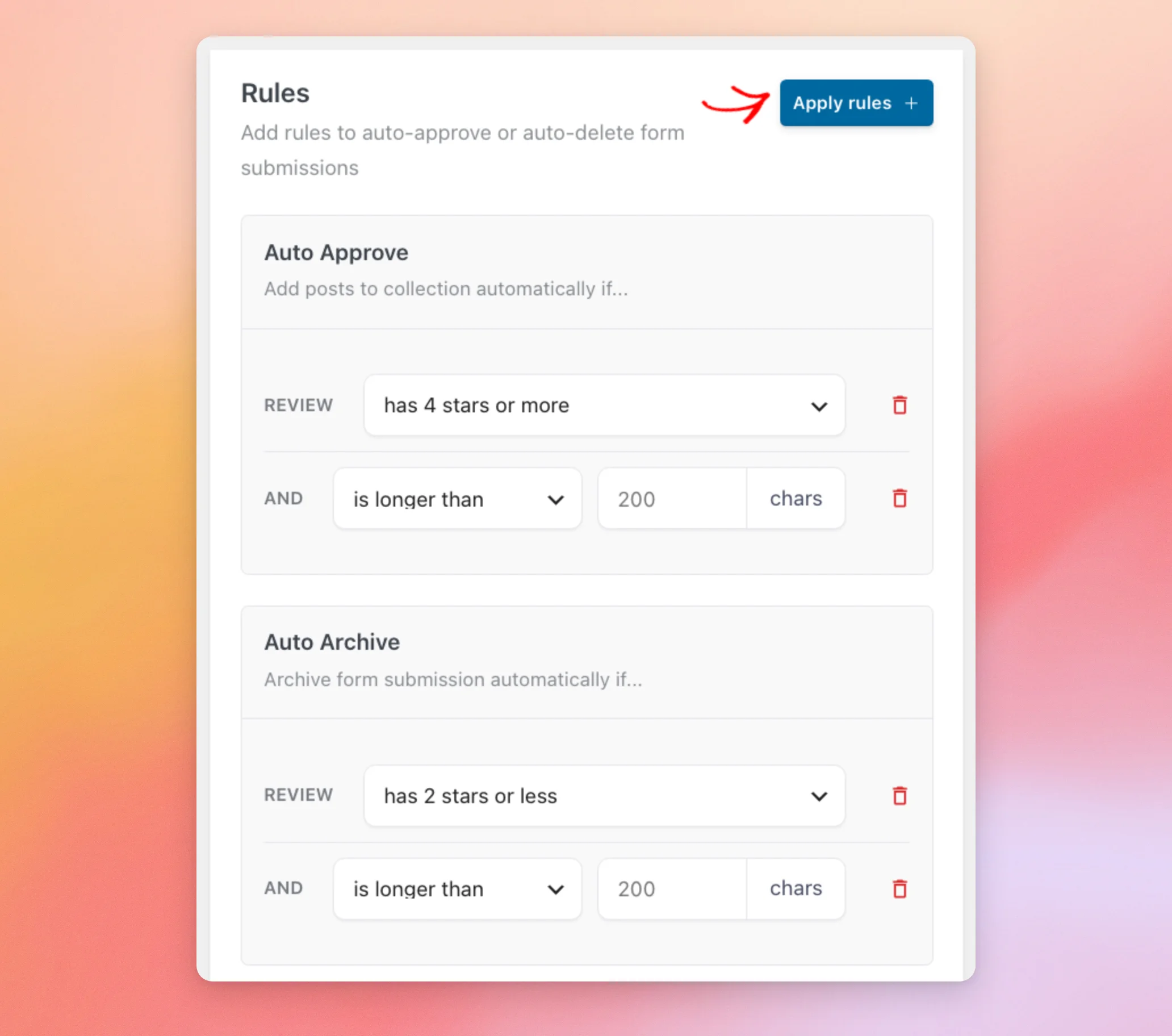
Reviews Feed saves your rules and shows the message Collection form rules updated! It also checks the submissions you already have. A past entry that meets the Auto Approve rule is added to your collection right away.
Applying rules also sorts the form reviews already in your collection. A review that doesn’t meet the Auto Approve rule is taken out of the collection, even one you added yourself. A submission that meets it is added, even one you removed yourself.
For this reason, apply your rules first when you set or change them. Then add any other reviews you’d like to show by hand.
Note: Your form doesn’t need a Rating field. Reviews from a form without one come in with no stars. This means an Auto Approve rule doesn’t add them. They wait in the Form Submissions tab until you add them yourself.
With your rules in place, you’re ready to look over the submissions your form receives.
Managing Form Submissions
To look over what your visitors sent, open the Form Submissions tab. Each submission shows its stars, title, and text, newest first. A submission without a title shows the start of its text in the title’s place.
To show a submission in your collection, click Add to Collection on its row. Once the review is in your collection, the button changes to Remove from Collection. Clicking it takes the review out again.
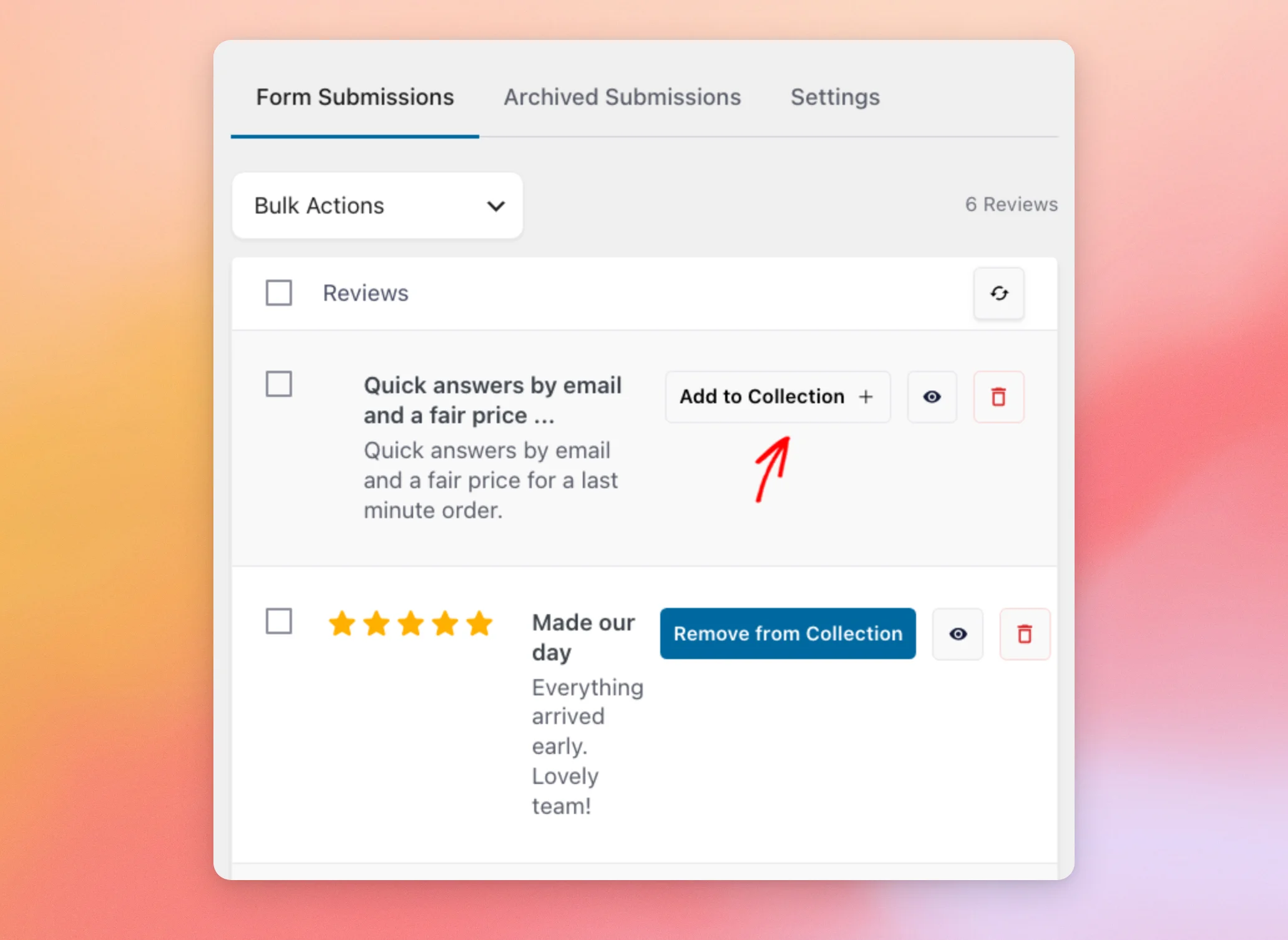
Each row also has two icons. The eye icon opens the full entry in WPForms. The trash icon moves the submission to the Archived Submissions tab.
Note: Archiving a submission doesn’t take its review out of your collection. To take a review out of your collection, use Remove from Collection.
Archived submissions are kept in the Archived Submissions tab, along with the ones your Auto Archive rule moved there.
To move one back, open the Archived Submissions tab. Then click Unarchive on its row.
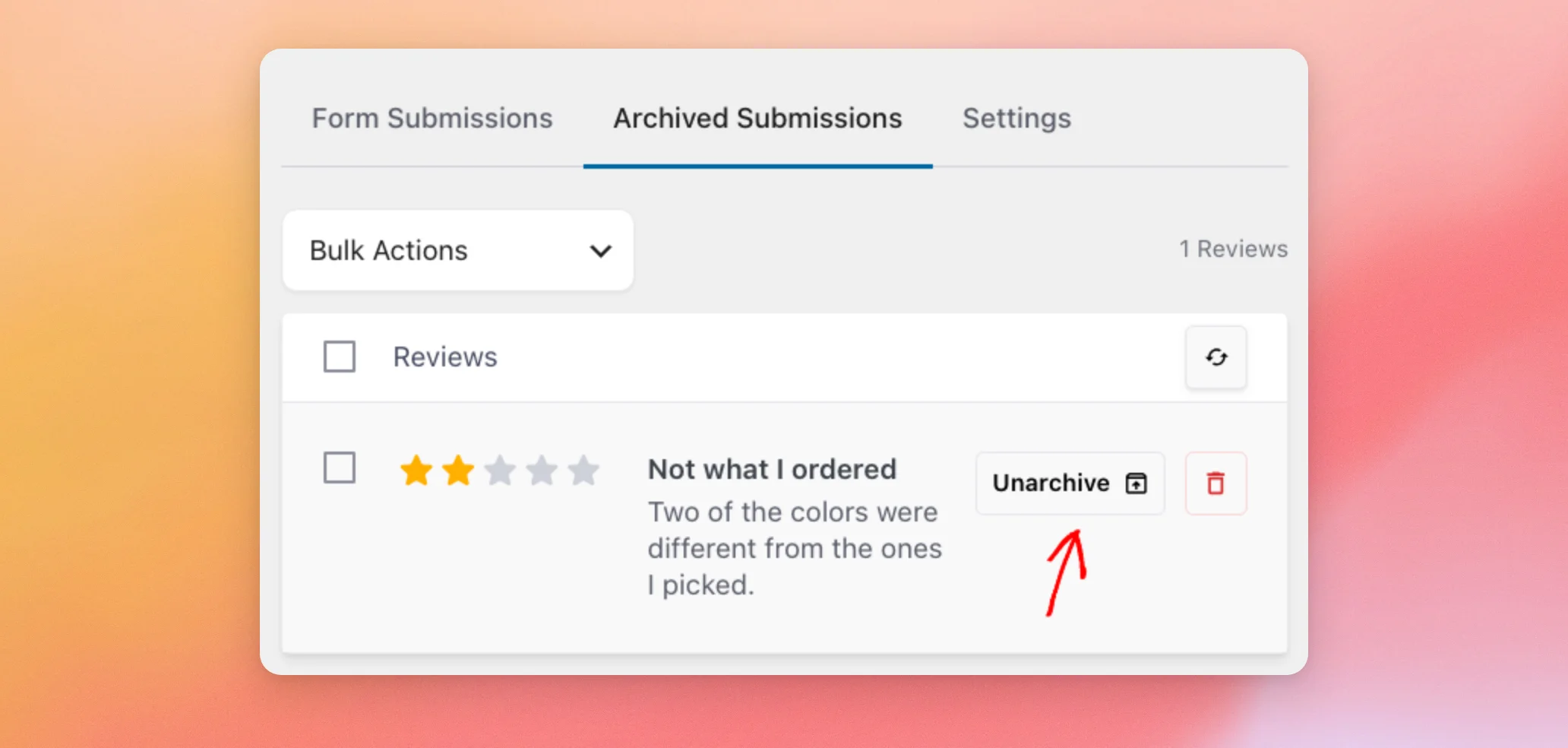
The submission goes back to the Form Submissions tab, where you can add it to your collection.
Once your reviews are in your collection, you’re ready to show them on your site.
Showing Form Reviews on Your Site
The reviews you approve appear in your collection, next to any other reviews it holds. Reviews from a form without a Rating field show no stars.
Under its name, your collection now shows how many forms are connected to it.
To get back to your form submissions later, open your collection. Then click Configure Form Submissions above its reviews. This button shows once your collection has reviews.
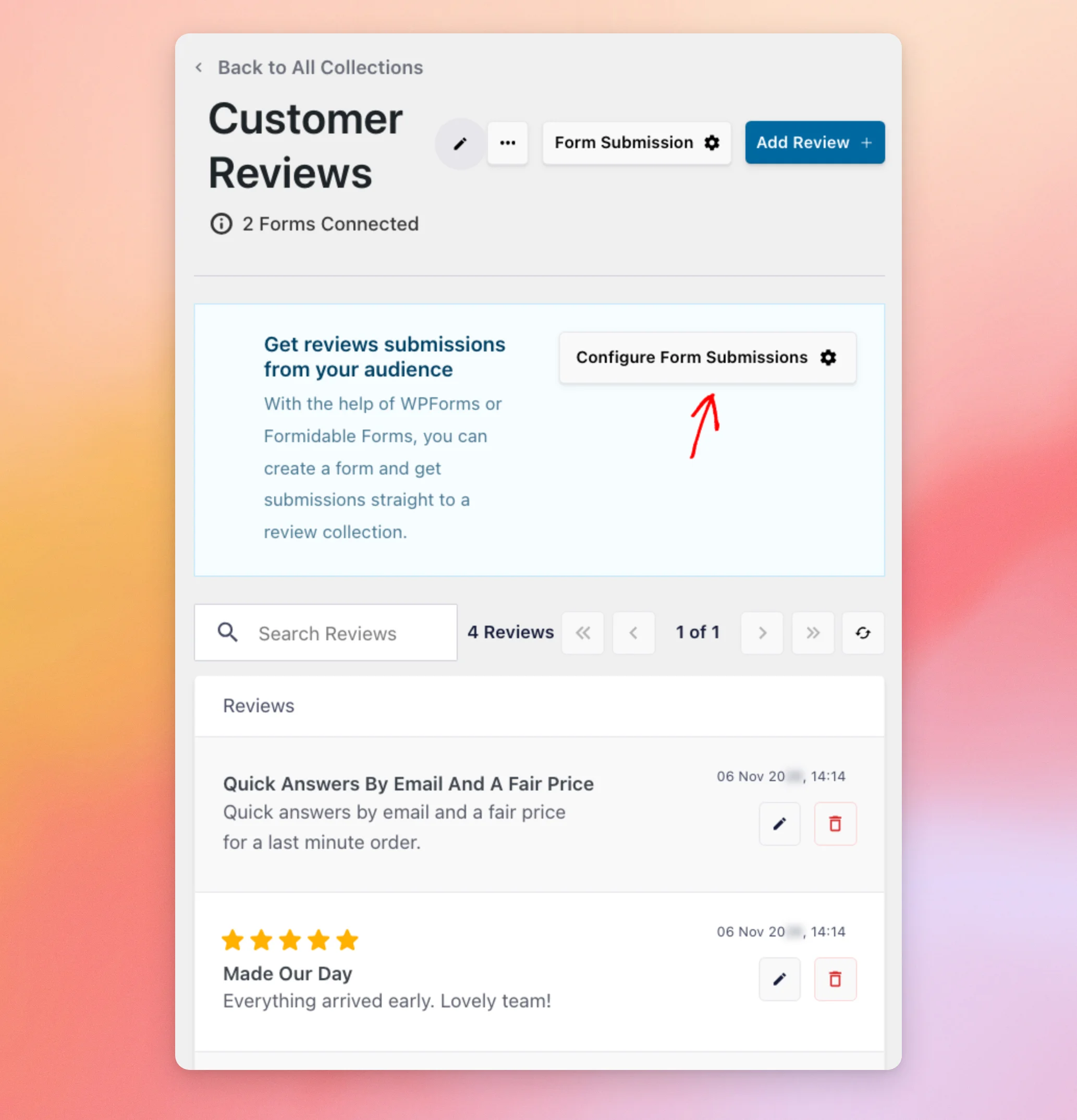
To show your form reviews on your site, turn your collection into a feed.
See our guide on creating a reviews feed from your collection. Then follow our guide on displaying your reviews feed on your site.
That’s it! You’ve connected a review form to a collection, set rules to approve reviews for you, and learned how to manage the reviews your visitors send.
Next, would you like to choose which reviews your feed shows?
See our guide on filtering reviews by rating, keyword, or source.
Frequently Asked Questions
Below, we’ve answered some of the most common questions about collecting reviews with a form.
Which version of WPForms or Formidable Forms do I need?
You need a paid version of WPForms or Formidable Forms. With only WPForms Lite or the free version of Formidable Forms active, the Connect a Form button opens a window that suggests getting a paid form plugin. That window doesn’t list your forms.
Does Reviews Feed import the entries my form received before I connected it?
Yes. When you connect a form, Reviews Feed imports its earlier entries in the background. They wait in the Form Submissions tab until you add them, or until you apply a rule they meet.
Do my rules apply to submissions I already have?
Yes. Each time you click Apply rules, Reviews Feed adds the stored submissions that meet your Auto Approve rule to your collection, not only new ones.
It also takes out of your collection the form reviews that don’t meet the rule, including ones you added yourself. You can add them back from the Form Submissions tab.
What happens to reviews from a form without a Rating field?
They come in with no stars. This means an Auto Approve rule doesn’t add them to your collection. They wait in the Form Submissions tab for you. Once you add one to your collection, it shows without stars.
If I delete a submission for good, is the WPForms entry deleted too?
No. The Archived Submissions tab has a permanently delete icon on each row. After you confirm, Reviews Feed removes the submission from its lists. The entry stays in WPForms. A review that’s already in your collection stays there too.
What happens if I disconnect a form?
Disconnecting a form with its trash icon under Connected Forms takes that form’s reviews out of your collection. Its submissions also no longer show in the Form Submissions tab. Reviews Feed asks you to confirm first.




