Social Wall
  Feed Analytics

How to filter a review feed by star rating, keyword or source, so your best reviews get the prominent placement.
Not every review on your business deserves equal billing on your website. Five-star comments about your fast shipping deserve to be in the hero block on your homepage; a single one-star outlier with a typo in it probably doesn’t. Reviews Feed Pro lets you filter the reviews pulled into a feed by minimum star rating, by keyword (include or exclude), and by source. The filters apply at the feed level, so the same connected sources can power one curated “best reviews” block and another raw “all reviews” page from the same underlying data.
This guide walks through the three filter controls and where to find them in the customizer.
This feature is part of Reviews Feed Pro. The free Reviews Feed plugin does not include the filter controls. If you’re on the free version, upgrade from your account dashboard before continuing.
Before You Start
Filters only affect what’s displayed in a feed. They don’t delete reviews or change anything on the source platform (Google, Yelp, Trustpilot, WooCommerce, EDD, etc.). A filtered feed will still re-fetch the full review list on its normal schedule, and any review that matches the filter will appear in the feed automatically.
If you’re filtering by source, you’ll need a feed with at least two connected sources to see a meaningful difference. With a single source, the source filter just hides everything or shows everything.
Step 1. Open Your Feed In The Customizer
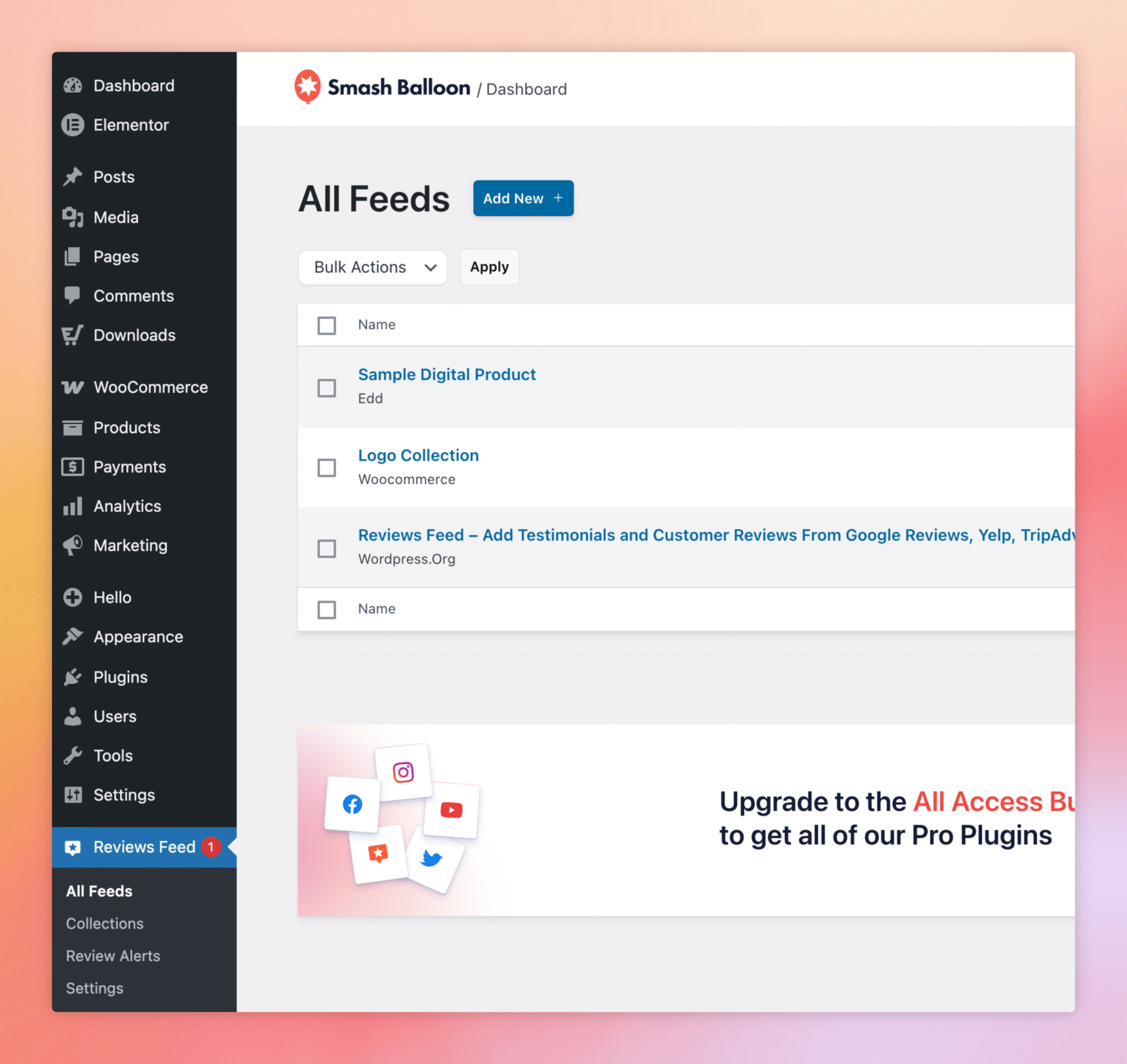
From the WordPress admin sidebar, click Reviews Feed, All Feeds, then click the name of the feed you want to filter. The feed opens in the customizer with the Customize tab open by default.
Step 2. Switch To The Settings Tab
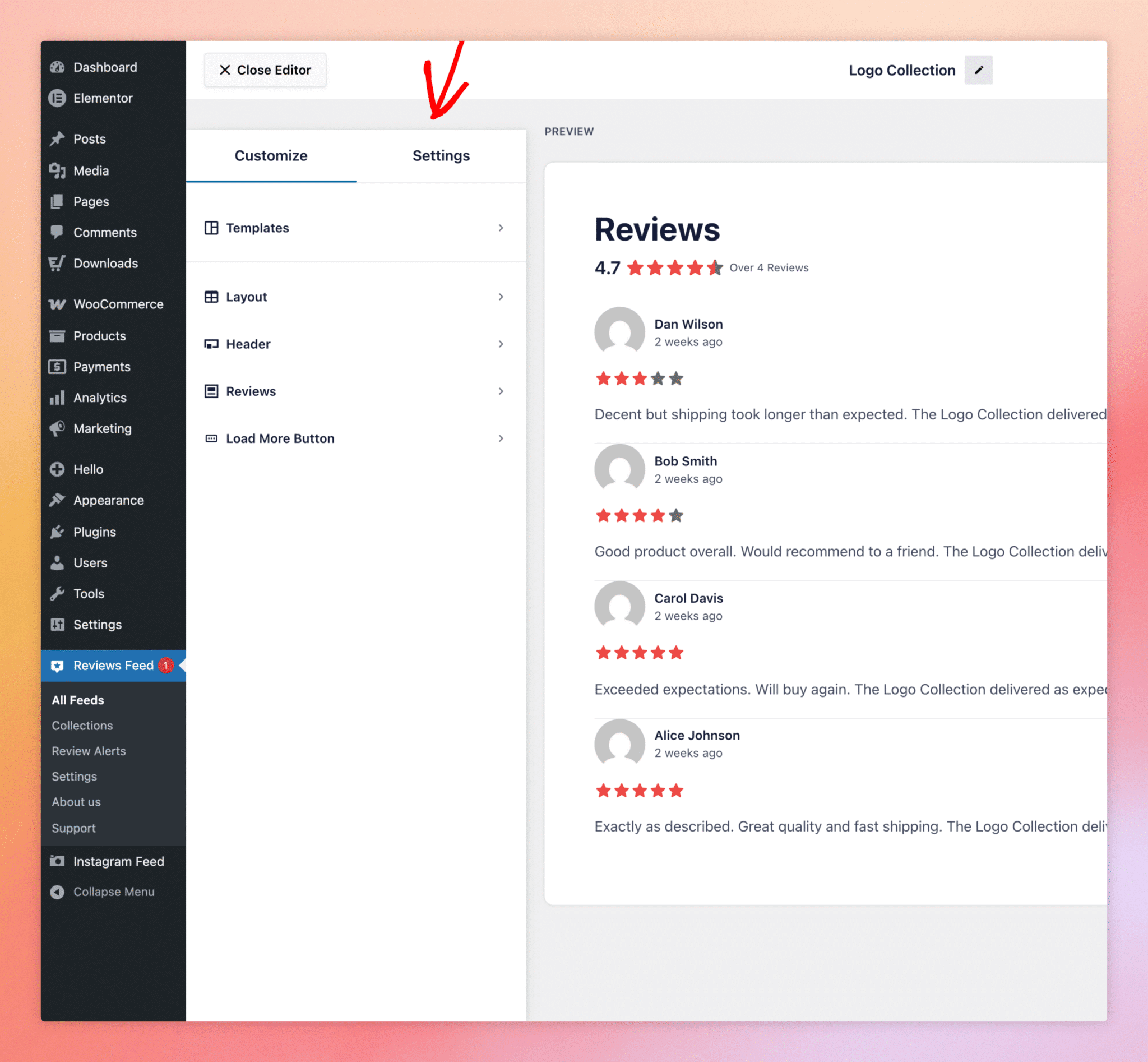
The customizer sidebar has two tabs at the top: Customize (visual styling like layout, header, colours) and Settings (behaviour like sources, sort order, filters, and moderation). Filters live under Settings, so click the Settings tab to switch the sidebar.
Step 3. Open The Filters Section
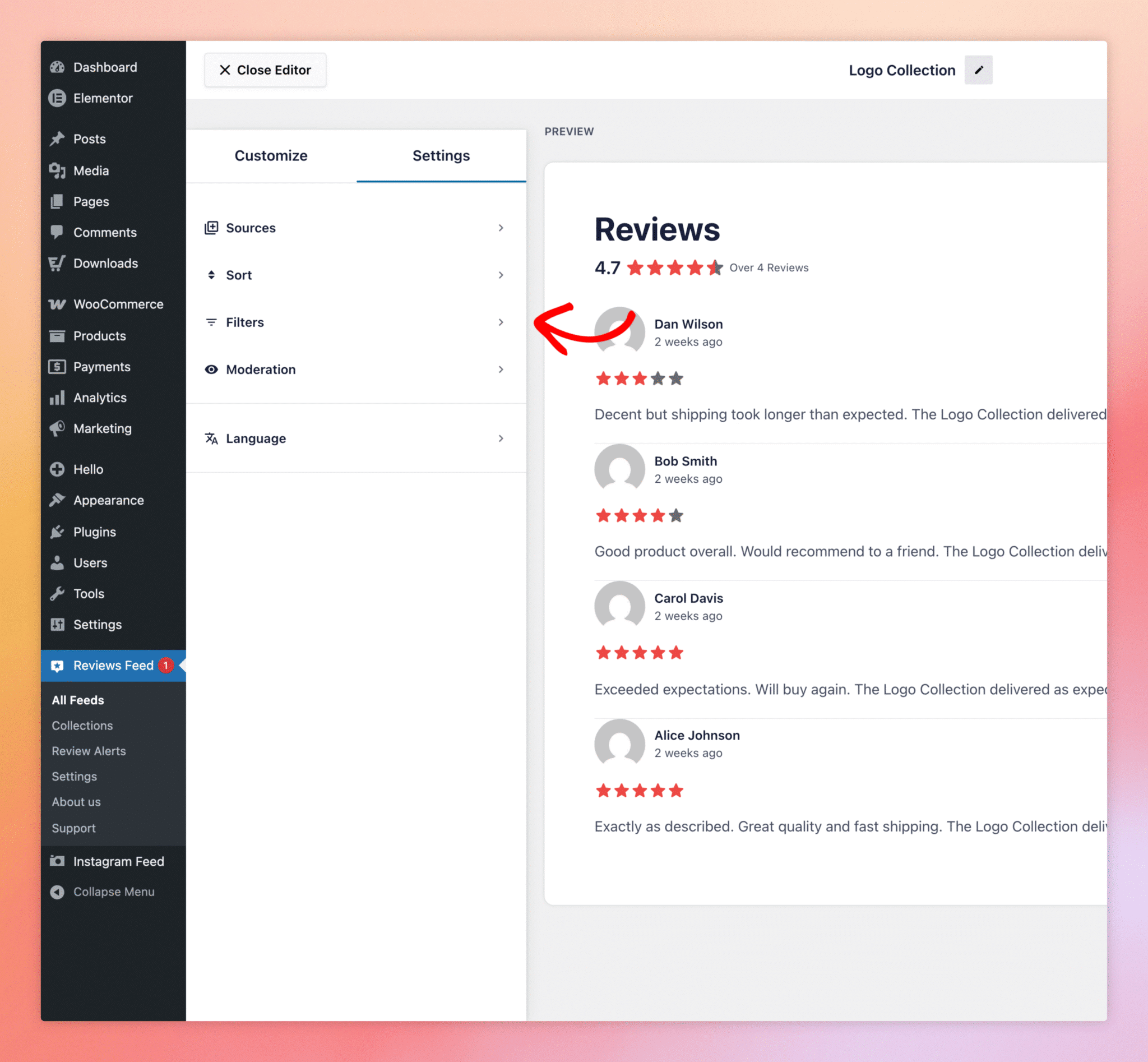
The Settings tab lists five sections: Sources, Sort, Filters, Moderation, and Language. Click Filters to open the panel where the rating, keyword, and source filters live.
Step 4. Configure The Filters
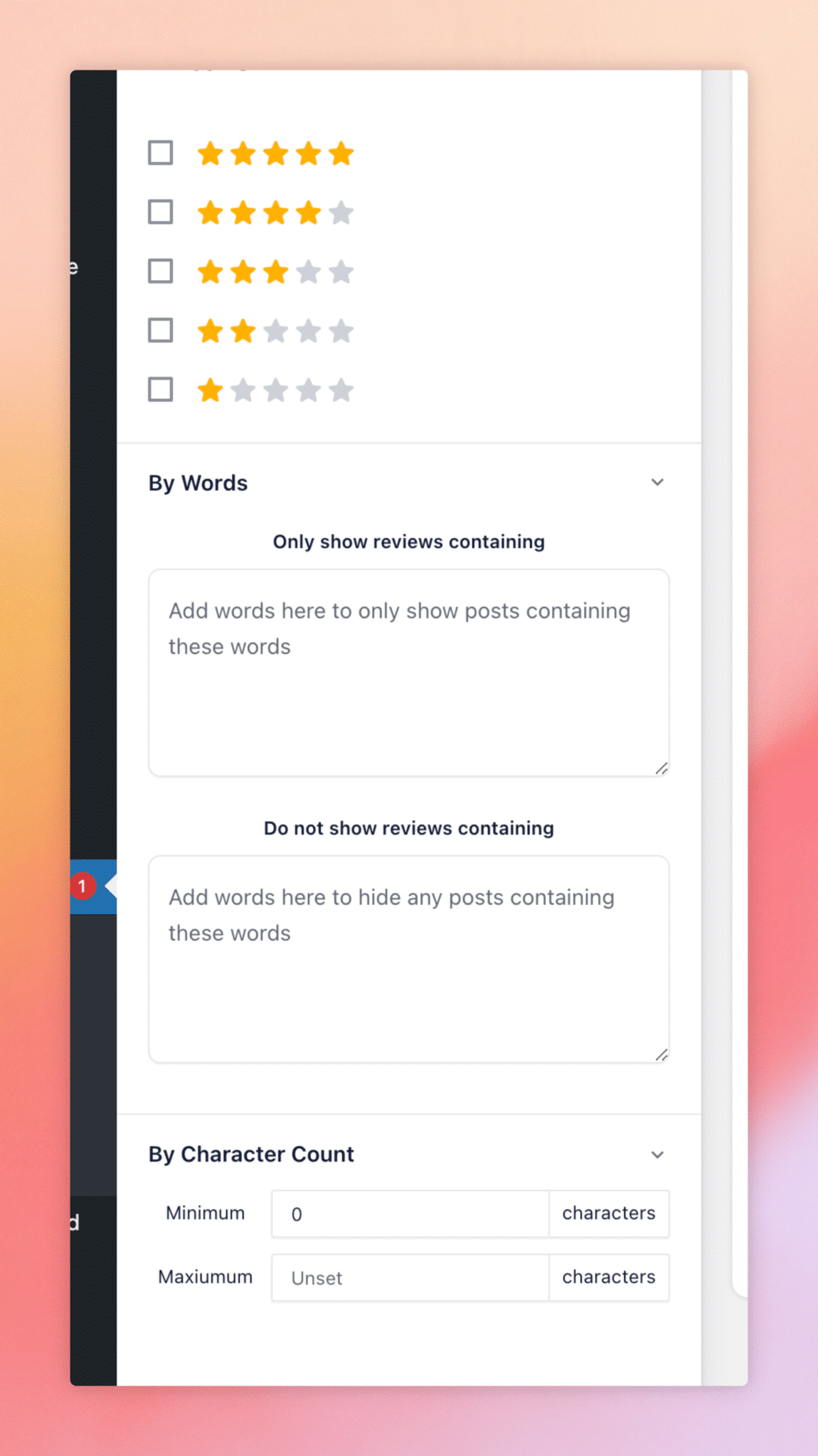
The Filters panel groups three filter types together:
- By Rating. A checkbox for each star level (1 through 5). Tick the levels you want included in the feed and untick the ones you don’t. Untick the 1 and 2 boxes to show only 3-star and above, leave all five ticked to show everything, and so on.
- By Words. Two text fields for include and exclude phrases. The “Only show reviews containing” field shows reviews that mention at least one of the words you list; the “Do not show reviews containing” field hides reviews that mention any of them. Separate multiple words with commas. Helpful for promoting reviews that mention a specific product feature, or for hiding reviews that mention a discontinued product.
- By Character Count. Minimum and maximum character lengths. Useful for filtering out one-word reviews (“good”, “ok”) or capping the feed at digestible review lengths.
Filter changes apply to the preview immediately, so you can see exactly which reviews stay and which disappear before you save. When you’re happy with the result, click Save at the top-right of the customizer.
Filtering By Source
If your feed pulls from more than one source (for example, Google + Trustpilot + WooCommerce) and you want a particular feed to show reviews from only some of them, that control lives in the Sources section, not Filters. Each connected source has a checkbox; untick the ones you don’t want this feed to display.
Do filters affect the original reviews on Google, Trustpilot, or my other sources?
No. Filters are display-only. The original reviews on the source platform are untouched.
Can I use multiple keywords or phrases in the include or exclude fields?
Yes. Separate them with commas. For example, shipping, delivery, fast matches any review that contains “shipping”, “delivery”, or “fast”.
Are keyword filters case-sensitive?
No. Case is ignored, so Shipping and shipping match the same reviews.
Can I filter by date?
Date-based filtering isn’t a direct Filters-panel option. Use the Sort section (newest first or oldest first) and the post-count limit in Layout to focus on recent reviews.
Will filters interact with moderation?
Yes. A review hidden by moderation is gone from the feed regardless of filter settings. A review excluded by a filter is hidden by that filter even if moderation has it marked visible. Filters and moderation are independent layers.
Can different feeds on the same site have different filter settings?
Yes. Each feed has its own filter settings, even if multiple feeds share the same connected sources. That’s the main use case for filters: one source list, multiple curated views.