Social Wall
 Feed Analytics


Why a Facebook feed stops updating or drops posts, usually because they were shared from a personal profile or a restricted page.
Would you like to find out why your Facebook feed stopped updating, or why some posts from your Facebook Page are missing?
In this guide, we’ll walk you through the most common causes and how to fix each one. All you need is Custom Facebook Feed and a connected Facebook Page.
Before you get started, make sure Custom Facebook Feed is installed and activated on your WordPress site. If you’re using the free version, see our guide on setting up the free Custom Facebook Feed plugin.
If posts are missing from your feed, start with the first three sections. If your feed isn’t showing any new posts, start with the last two. Here is what we will cover.
- Checking for Shared or Non-Public Posts
- Checking for Filtered Posts
- Checking for Audience Restrictions
- Using Custom Facebook Feed With W3 Total Cache or Other Caching Plugins
- Getting Alerts When Your Feed Stops Updating
- Frequently Asked Questions
Checking for Shared or Non-Public Posts
If some posts from your Facebook Page are missing, the most likely reason is that Meta only sends the original posts a Facebook Page creates. Posts that others share to your Page don’t come through.
The same applies to posts shared from a user’s personal profile or from a non-public Facebook Page. Facebook’s privacy policy doesn’t allow these posts to be shown outside of Facebook, because they don’t belong to your Page. They belong to the user, or to the non-public Page, that posted them. A non-public Page has an age or location restriction on it. Its posts aren’t publicly available through Facebook’s API.
This isn’t a limitation of our plugin. It’s a restriction Facebook places on its content to protect the privacy of its users.
To get one of these posts into your feed, re-post the content as your own post on your Facebook Page instead of sharing it. The post then comes from your Page, so it shows up in your feed.
If the missing posts are original posts from your Page, check whether a filter is hiding them.
Checking for Filtered Posts
A feed can hide posts on purpose. Filtering posts is part of the Plus license level or higher. The filter controls are dimmed when your license doesn’t include them.
To see whether a filter is hiding your posts, follow the steps below.
- In your WordPress dashboard, go to Facebook Feed » All Feeds.
- Next, find your feed. Then, click its edit icon.
- In the feed builder, click the Settings tab. Then, click Filters.
- If you have a timeline feed, look at the Show setting. When Only specified posts is selected, the post types you want must be checked under Display posts with.
- Next, look at the Only show posts containing box. A feed with words in this box only shows posts that contain them.
- Next, look at the Do not show posts containing box. A feed with words in this box hides every post that contains them.
- When you’re done, click Save.
Filters work on the posts the plugin gets from Facebook. A filter can therefore leave you with only a few posts, or none. If that happens, you may need to raise the API Post Limit.
- While you are still editing the feed, click the Settings tab. Then, click Advanced.
- Next, set API Post Limit to Manual and enter a higher number, up to 100.
- Then, click Save.
If your timeline feed shows no posts at all, look at the Show setting again. Before Custom Facebook Feed 4.16.0, a feed set to Only specified posts with no post types checked hides every post. To fix it, check at least one post type, or update to 4.16.0 or later.
If your feed still uses an older shortcode, also check it for the type, filter, and exfilter options. They limit which posts show too.
If filters aren’t the cause, check whether the missing posts have an audience restriction.
Checking for Audience Restrictions
When you create a post on Facebook, you can choose to show it only to a certain audience. Facebook doesn’t allow a post with an audience restriction to be shown outside of its platform, because the post isn’t publicly visible.
To show the post in your feed, remove the audience restriction on Facebook so the post is Public. You can tell a post is public by the globe icon at the top of the post. A gear icon means the post has a custom audience restriction.
If your posts are public and your feed still isn’t showing the latest ones, your caching setup is the next thing to check.
Using Custom Facebook Feed With W3 Total Cache or Other Caching Plugins
Custom Facebook Feed works with most caching plugins. You may need to change their settings so your feed can show your latest posts. A caching plugin that saves a copy of the whole page keeps showing the old copy, even after the plugin has new posts.
If your feed isn’t updating, follow the steps below in W3 Total Cache, or in any similar caching plugin.
- In the caching plugin’s settings, turn off Page Caching or Object Caching.
- Next, clear the caching plugin’s own cache.
- Then, reload the page that shows your feed. If new posts appear, the caching plugin was the cause.
If you don’t want to turn these options off, set the caching plugin’s cache timeout, also called the TTL, to match your feed’s update interval. For example, 3600 seconds updates the page once an hour.
Custom Facebook Feed also keeps its own cache of your posts. To make your feed get new posts from Facebook right away, follow the steps below.
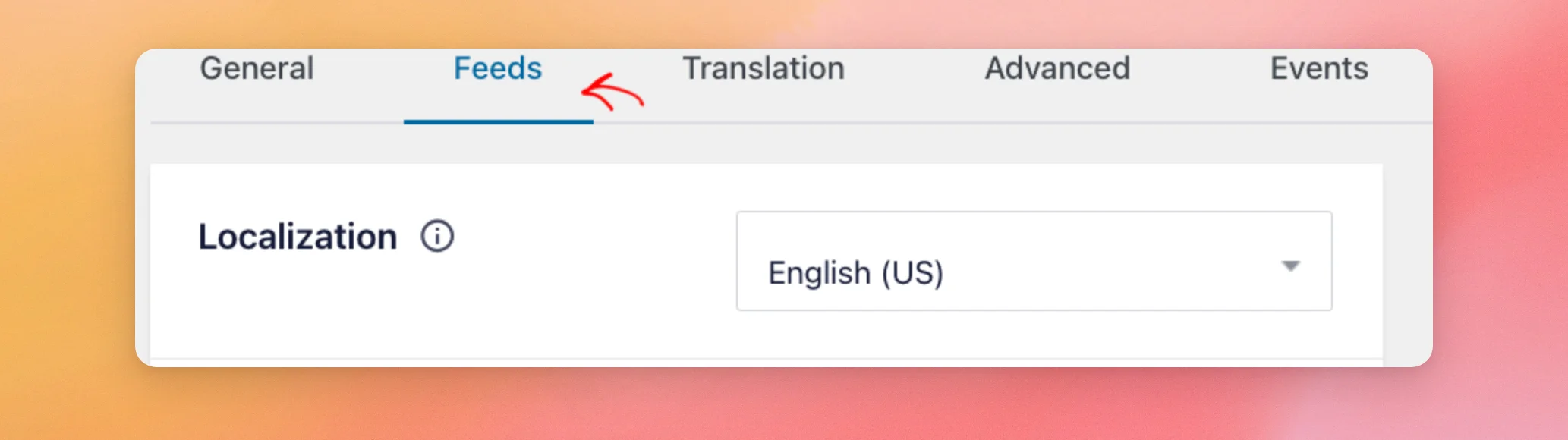
- In your WordPress dashboard, go to Facebook Feed » Settings.
- Next, click the Feeds tab.
- In the Caching box, click Clear All Caches.
- Then, visit a page that shows your feed. The plugin gets your latest posts from Facebook on that page view.
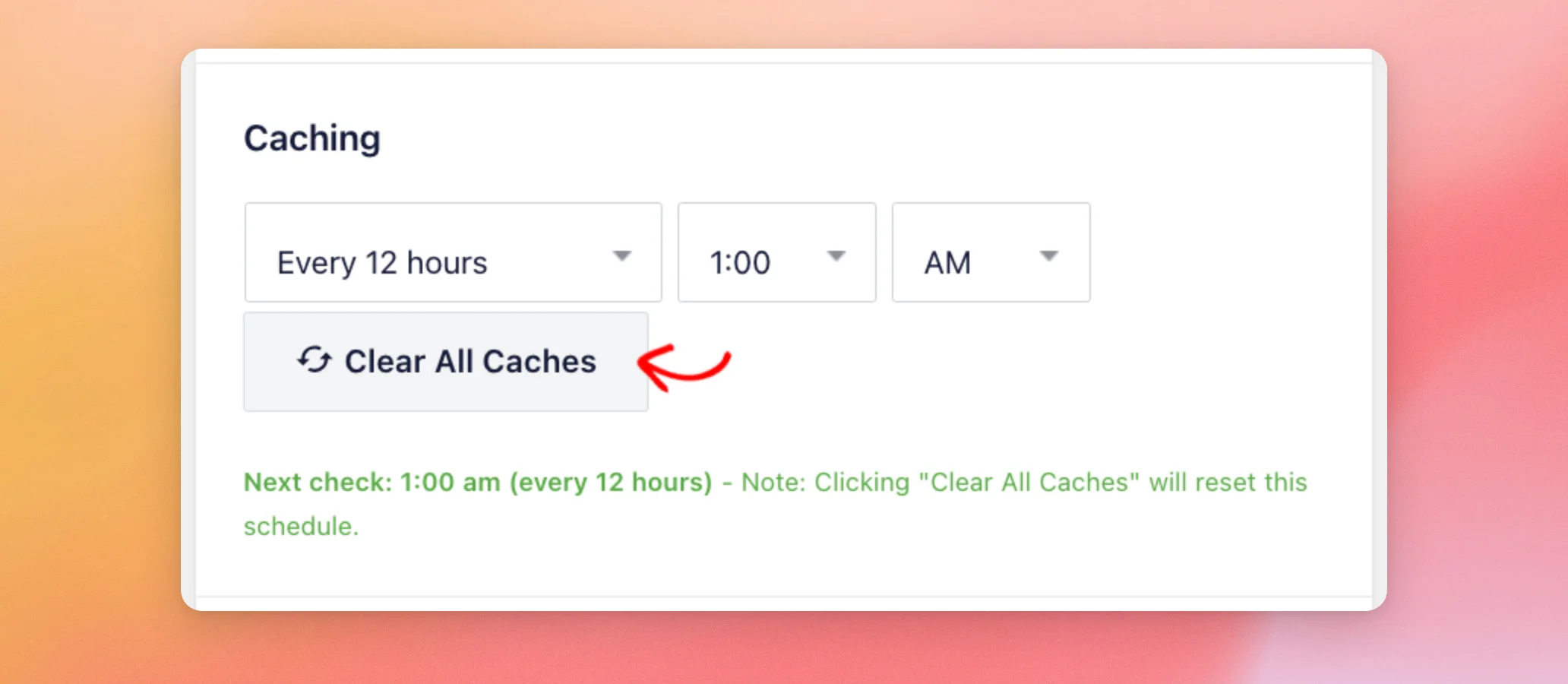
In the paid version, the plugin checks for new posts in the background. In the Caching box, you can choose every 30 minutes, every hour, every 12 hours, or every 24 hours. The default is every 12 hours.
In the free version, the Caching box has a number and a unit of minutes, hours, or days. The default is one hour. The free version checks again when someone visits a page that shows your feed after that time.
If your feed still shows old posts, the next step is to check whether the plugin can still connect to Facebook.
Getting Alerts When Your Feed Stops Updating
When Custom Facebook Feed can’t get new posts from Facebook, it shows visitors a saved copy of your feed. Your website looks normal. However, the posts get older. Custom Facebook Feed 4.14.0 and later alert you in two ways.
- A notice appears at the top of your WordPress admin pages after your feed has shown the saved copy for seven days. It says how many days the feed hasn’t updated. The message becomes more urgent after 21 days.
- The weekly Feed Issue Email Report also covers this. It’s on by default and goes to your site’s admin email address. When it’s turned off, no report is sent. You can change it on the Advanced tab of Facebook Feed » Settings.
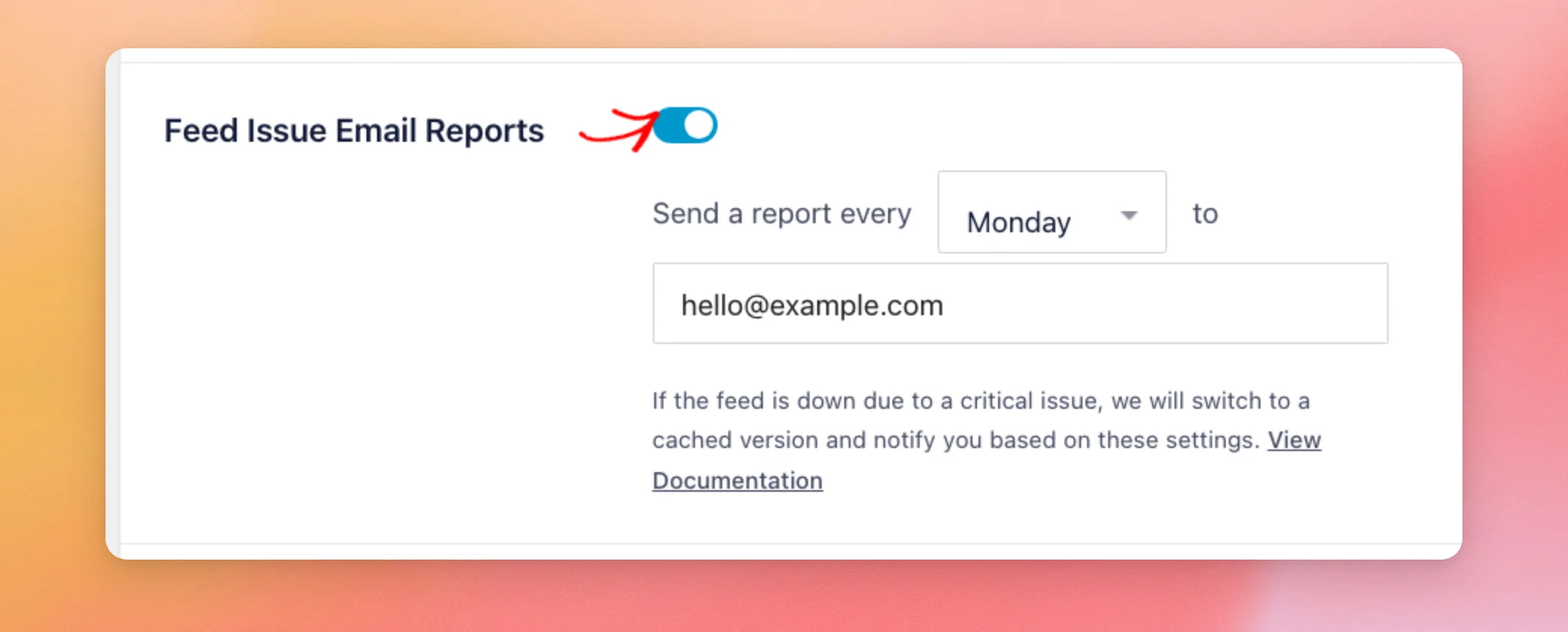
For a step-by-step look at both alerts, read our guide on getting alerts when your Facebook feed stops updating.
The most common reason a feed stops updating is a problem with the connection to Facebook. To find out, check the top of your plugin settings page.
- In your WordPress dashboard, go to Facebook Feed » Settings.
- On this page, look at the top. When the plugin finds a critical error, it shows a message about it there.
The same critical error also shows in WordPress Site Health. For details, see our guide on checking Facebook Feed errors in WordPress Site Health.
Next, find your Facebook Page in the Manage Sources section of the same page. If it shows Connection Error in the paid version or Source Invalid in the free version, it needs to be reconnected. To do this, use the link next to the error. It says Reconnect Account in the paid version and Reconnect in the free version.
In Custom Facebook Feed 4.16.0 and later, every feed uses its own connected source. Reconnecting a source therefore fixes every feed for that Page.
If your Page isn’t listed when you reconnect, see our guide on Facebook Pages you manage that aren’t listed after authorizing the plugin.
That’s it! You now know the most common reasons a Facebook feed stops updating or misses posts, and how to fix each one. Next, if your feed shows an error message, take a look at our Facebook API error message reference.
Frequently Asked Questions
Below, we’ve answered some of the most common questions about Facebook posts that are missing or not updating.
Can I show posts that other people share to my Facebook Page?
No. Meta only sends the original posts a Page creates itself, so posts that others share to your Page don’t come through. No plugin setting changes this. For the reasons and a workaround, see the Checking for Shared or Non-Public Posts section above.
Do I need to turn off my caching plugin?
Not always. If you’d rather keep it on, set its cache timeout, also called the TTL, to match your feed’s update interval. For the steps, see the Using Custom Facebook Feed With W3 Total Cache or Other Caching Plugins section above.
Does Clear All Caches delete my feeds or sources?
No. It only empties caches, such as the plugin’s cached posts. The next time someone visits a page that shows your feed, the plugin gets posts from Facebook again.