Social Wall
  Feed Analytics

Would you like to know when your Facebook feed stops showing new posts?
In this guide, we’ll walk you through Custom Facebook Feed’s alerts for when your feed stops updating and what to do when you get one. All you need is Custom Facebook Feed and a connected Facebook Page.
Requirements: These alerts require Custom Facebook Feed version 4.14.0 or higher. They’re included in both the free and paid versions.
Before you get started, make sure Custom Facebook Feed is installed and activated on your WordPress site. If you’re using the free version, see our guide on setting up the free Custom Facebook Feed plugin.
Custom Facebook Feed keeps a saved copy of your feed’s posts. If it can’t get new posts from Facebook, it shows visitors that saved copy. Since your feed keeps showing posts and your site looks normal, the alerts let you know when this happens.
Here is what we will cover:
- Reading the Feed Update Notice
- Checking Your Feed Connection
- Getting the Weekly Email Report
- Frequently Asked Questions
Reading the Feed Update Notice
To get started, we’ll look at the alert you’ll see while you’re logged in to your site.
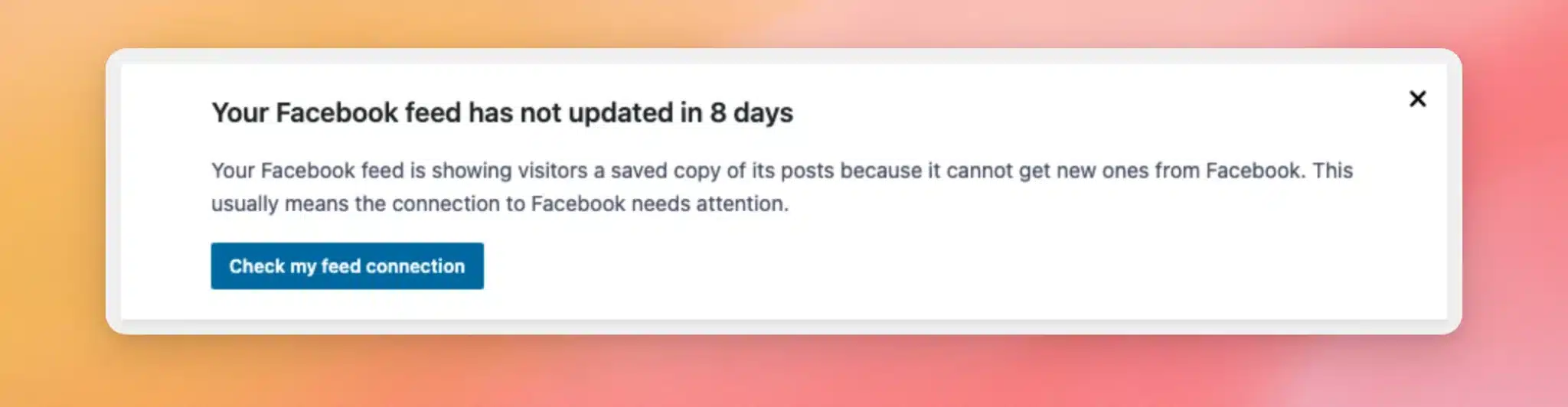
When Custom Facebook Feed can’t get new posts from Facebook for 7 days, a notice appears at the top of your WordPress admin pages. It tells you how many days your feed hasn’t updated. The most common cause is a problem with the connection to Facebook.
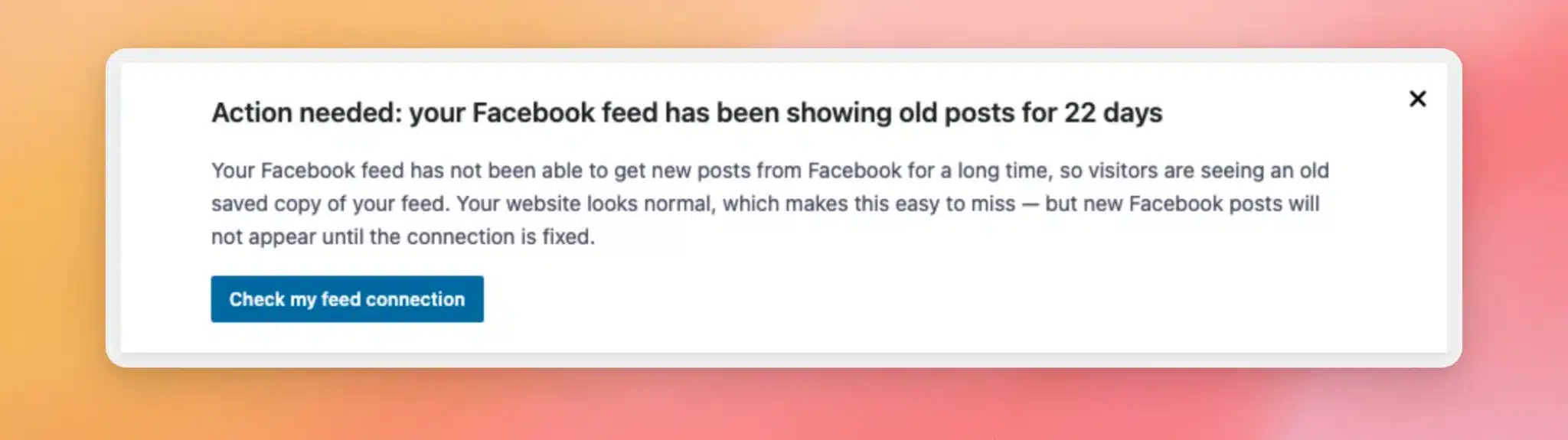
If the feed still isn’t updating after 21 days, the notice changes to a more urgent message.
When more than one feed is affected, the notice also says how many.
Checking Your Feed Connection
To find out what’s wrong, click Check my feed connection in the notice.
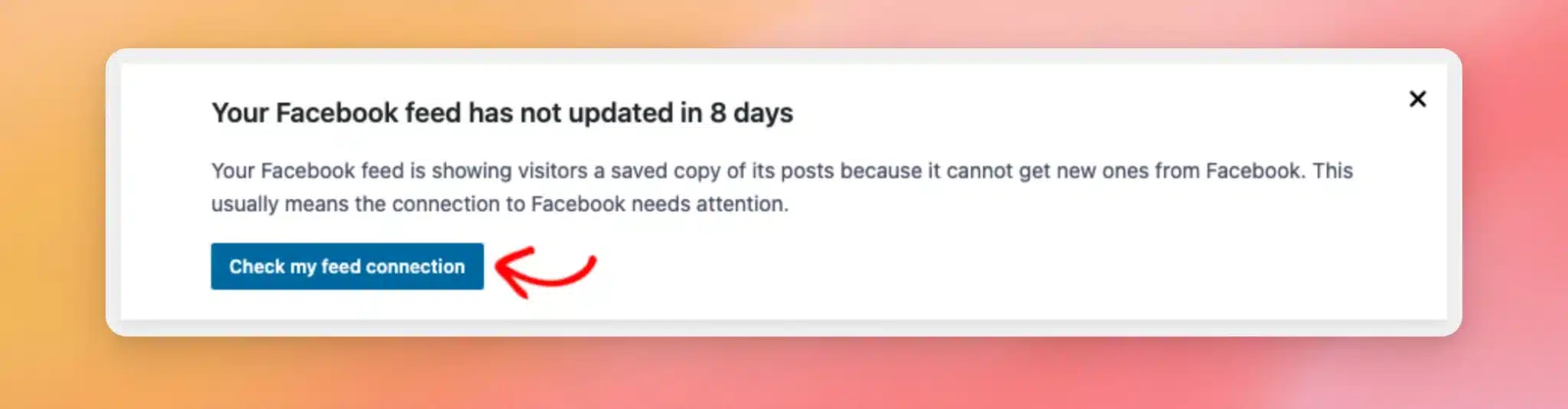
This opens the Custom Facebook Feed settings.
In the Manage Sources section, check the Facebook Page your feed uses.
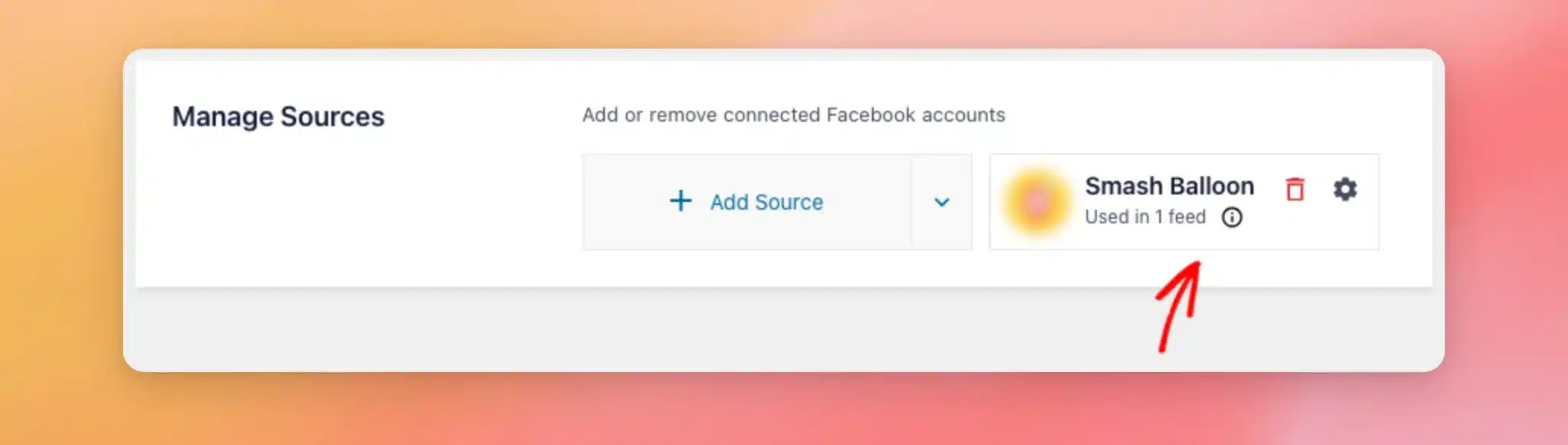
If your Page shows a Connection Error, reconnect it.
Note: In the free version of Custom Facebook Feed, your Page shows Source Invalid instead of Connection Error.
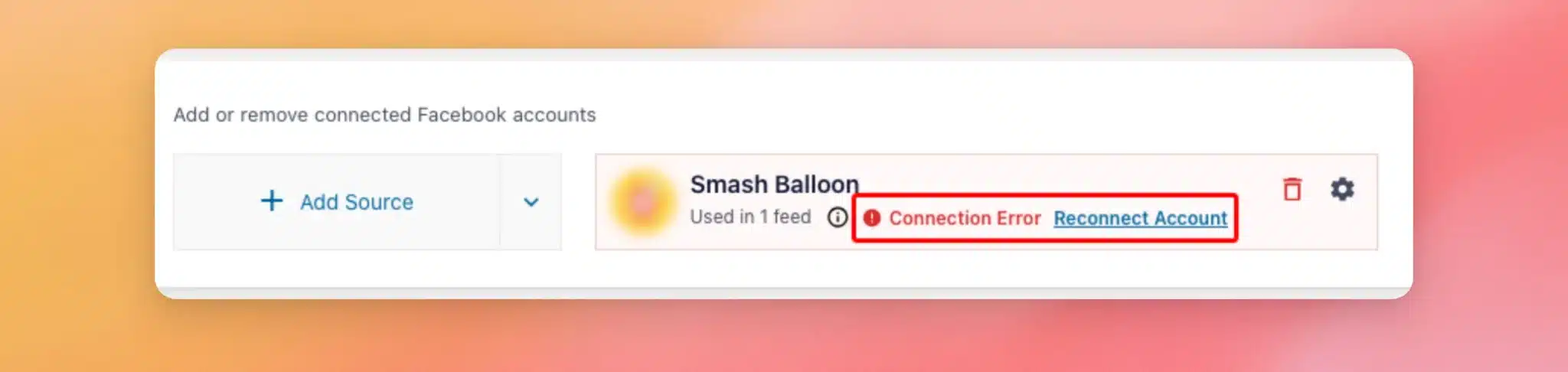
For step-by-step help, see our guide on reconnecting your Facebook Page.
If your Page looks fine, see our Facebook API error message reference for other causes.
Once your feed gets new posts from Facebook again, the notice goes away on its own.
Getting the Weekly Email Report
Custom Facebook Feed can also email you a weekly report when one of your feeds has a problem. This includes feeds that have been showing their saved copy for 7 days or more. Unlike the notice, the email reaches you even when you’re not logged in to WordPress.
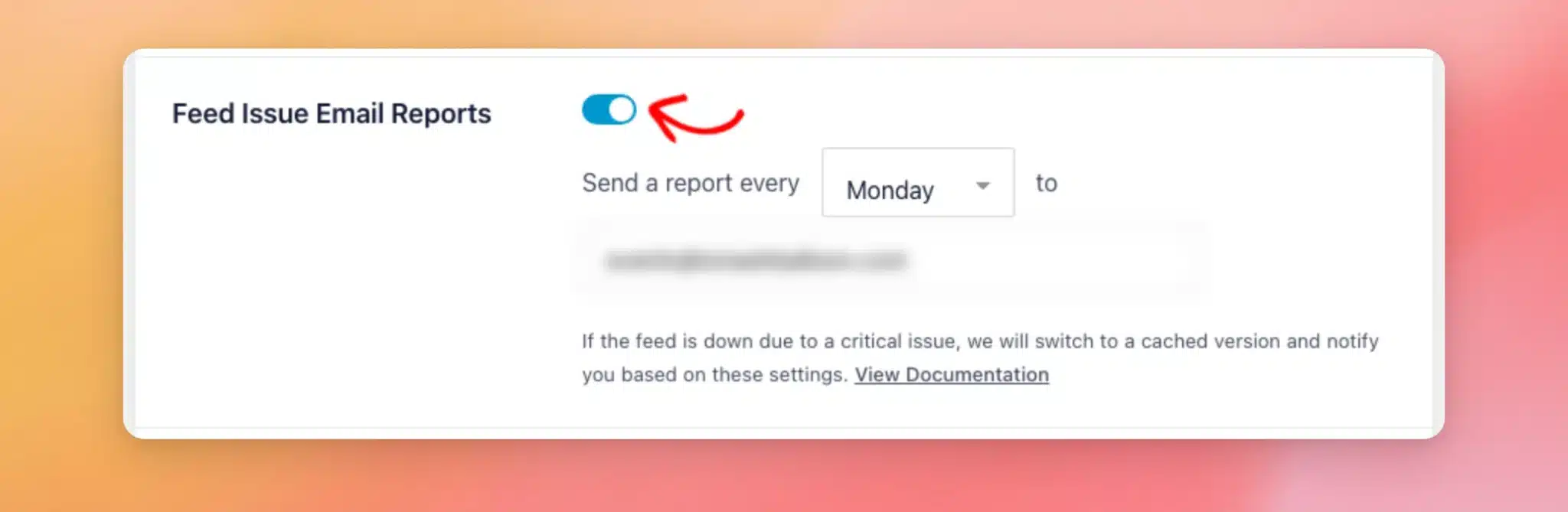
The report is on by default and goes out once a week to your site’s admin email address.
If that isn’t an inbox you check often, you can send the report to a different address.
To check your report settings, go to Facebook Feed » Settings. Then, click the Advanced tab.
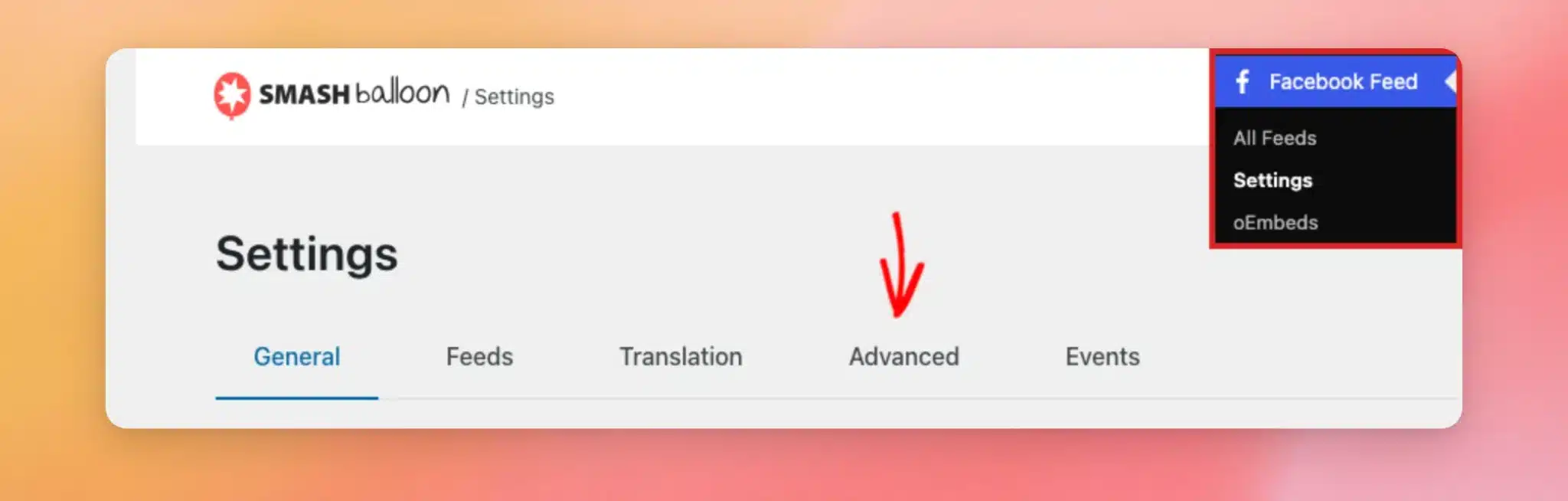
On this tab, the Feed Issue Email Reports toggle must be on for Custom Facebook Feed to send the report.
To change who gets it, edit the email addresses in the field below the report day. Separate each address with a comma.
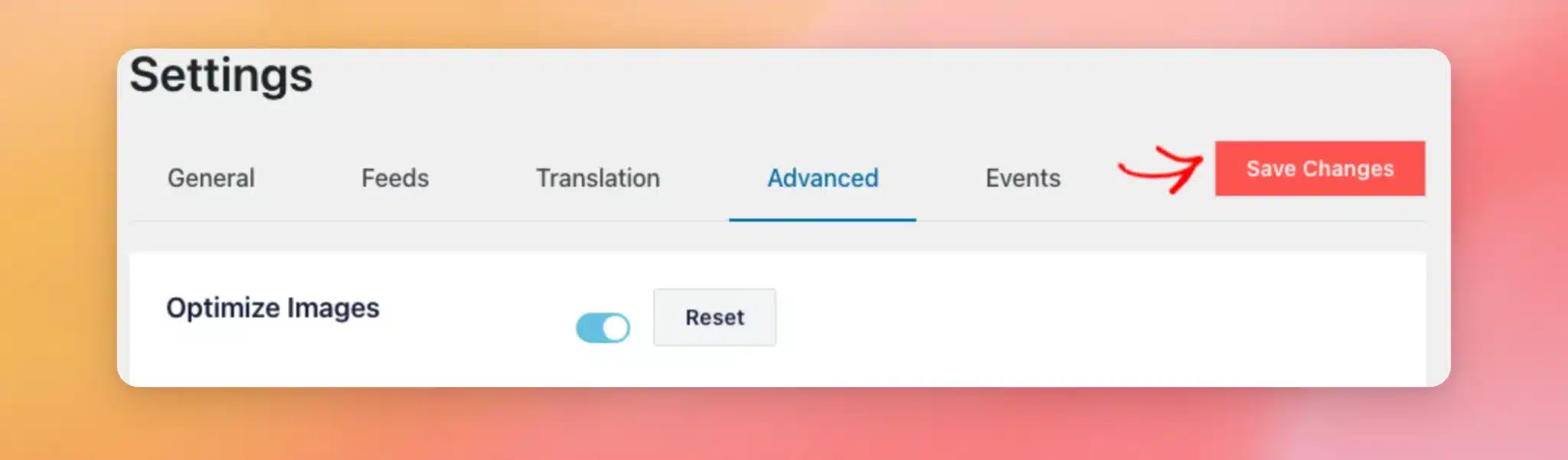
When you’re done, click Save Changes.
Custom Facebook Feed only sends the report when a feed has a problem. For a feed that’s showing its saved copy, the report says how many days it hasn’t been able to get new posts from Facebook.
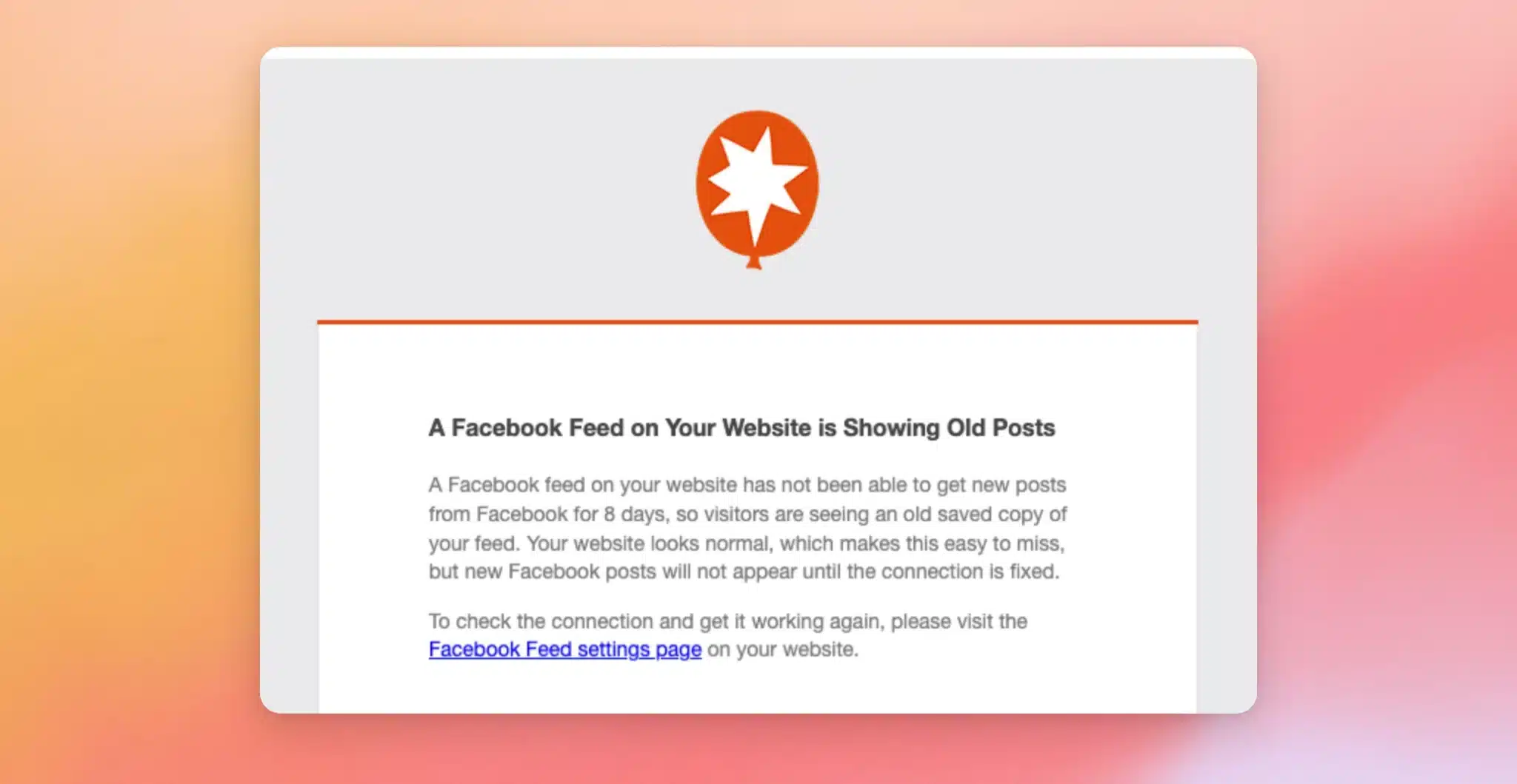
If your feed also has a connection error, the report says it can’t connect to Facebook instead.
The email links to your Facebook Feed settings.
From there, follow the steps in Checking Your Feed Connection.
That’s it! You now know how Custom Facebook Feed alerts you when your feed stops updating and what to do when you get an alert. Next, take a look at our guide on why some posts can be missing from your Facebook feed.
Frequently Asked Questions
Below, we’ve answered some of the most common questions about Custom Facebook Feed’s feed update alerts.
Why does my feed look normal if it isn’t updating?
While Custom Facebook Feed can’t get new posts, it shows visitors the saved copy of your feed. Your feed keeps showing posts. New posts from Facebook won’t appear until the connection is fixed.
Can I dismiss the notice?
Yes. In the top-right corner of the notice, click the X. This only hides it for you.
If the feed still isn’t updating after 21 days, the urgent notice appears, even if you dismissed the first one. If you dismiss the urgent notice, it comes back within a week as long as your feed still isn’t updating.
Will the notice go away on its own?
Yes. Once your feed gets new posts from Facebook again, the notice goes away.
Your feed checks Facebook for new posts on a schedule, every 12 hours by default. In the free version, it checks when someone visits a page that shows your feed, up to once an hour by default. After you reconnect your Page, the notice can stay until the next check.
To have your feed check right away, go to Facebook Feed » Settings. Then, click the Feeds tab. Next, click Clear All Caches. After that, visit a page that shows your feed.
Who can see the notice?
Only users who can manage your site’s settings, such as administrators.
Do I need to reconnect when Facebook limits my site’s requests?
No. A temporary limit from Facebook doesn’t mark your Page with a Connection Error. Your feed keeps showing its saved posts until it can get new ones.
What if reconnecting my Page doesn’t fix the error?
To find out why, go to Facebook Feed » Settings. The error message at the top of the page says what’s wrong and what to do about it.
For example, Page Access Lost means the Facebook account you connected with lost its role on your Page. It can also mean your Page now requires two-factor authentication that the account hasn’t turned on.
Reconnecting doesn’t restore the role or turn on two-factor authentication. To fix it, restore the account’s role on your Page or turn on two-factor authentication for it.
Why didn’t I get the email report?
Custom Facebook Feed only sends the report when a feed has a problem. In a week with no problems, there’s no report.
Emails sent from your website can also end up in spam or get blocked. See our guide on what to do when the email report isn’t in your inbox.
For step-by-step help fixing your site’s emails, see How to Fix WordPress Not Sending Email Issue.
Can I send the report to more than one person?
Yes. In the email field of the Feed Issue Email Reports setting, enter each address separated by a comma.
How do I stop getting the email report?
In your WordPress dashboard, go to Facebook Feed » Settings. Then, click the Advanced tab. Next, turn off the Feed Issue Email Reports toggle. When you’re done, click Save Changes.
The notice at the top of your WordPress admin pages still appears when a feed stops updating.