


 Social Wall
 Feed Analytics


Would you like to check whether Custom Facebook Feed has found an error, right from your WordPress Site Health screen?
In this guide, we’ll walk you through the Custom Facebook Feed check in WordPress Site Health and what to do when it reports an error. All you need is the paid version of Custom Facebook Feed.
Requirements: The Custom Facebook Feed check in Site Health is part of the paid version of Custom Facebook Feed.
Before you get started, make sure Custom Facebook Feed is installed and activated on your WordPress site.
Site Health is a WordPress screen that runs checks on your site and lists any problems it finds. Custom Facebook Feed adds its own check there. It tells you when the plugin has a critical error, such as a Facebook Page that needs to be reconnected.
Here is what we will cover.
Finding the Custom Facebook Feed Check
To get started, we’ll find the check in Site Health.
In your WordPress dashboard, go to Tools » Site Health.
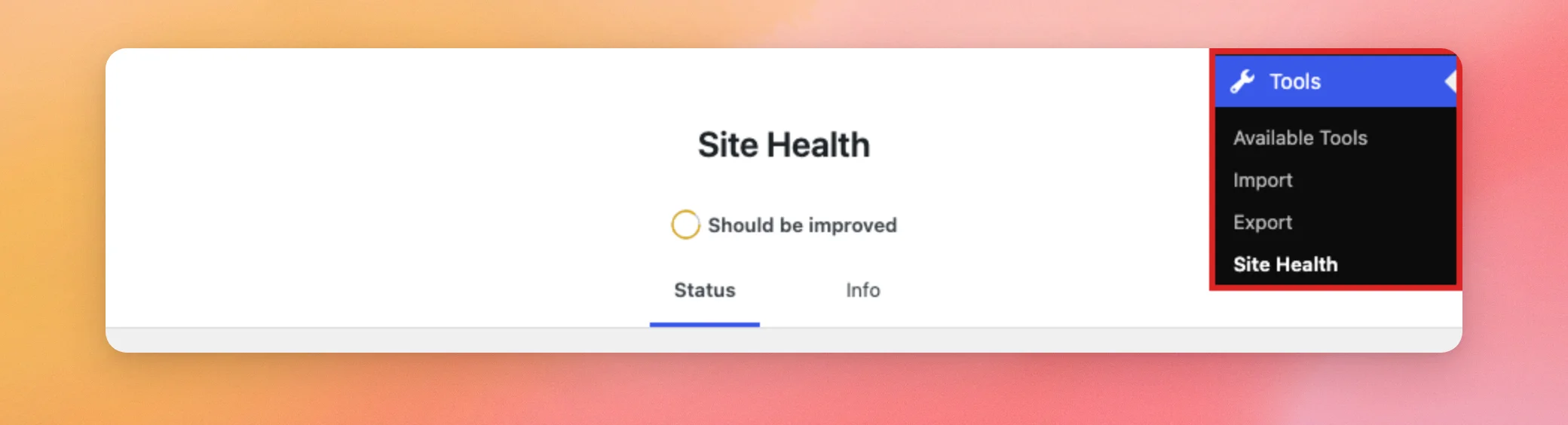
At the top, the Status tab lists any issues WordPress found. Checks that found no problem are grouped under Passed tests. To see them, click Passed tests.
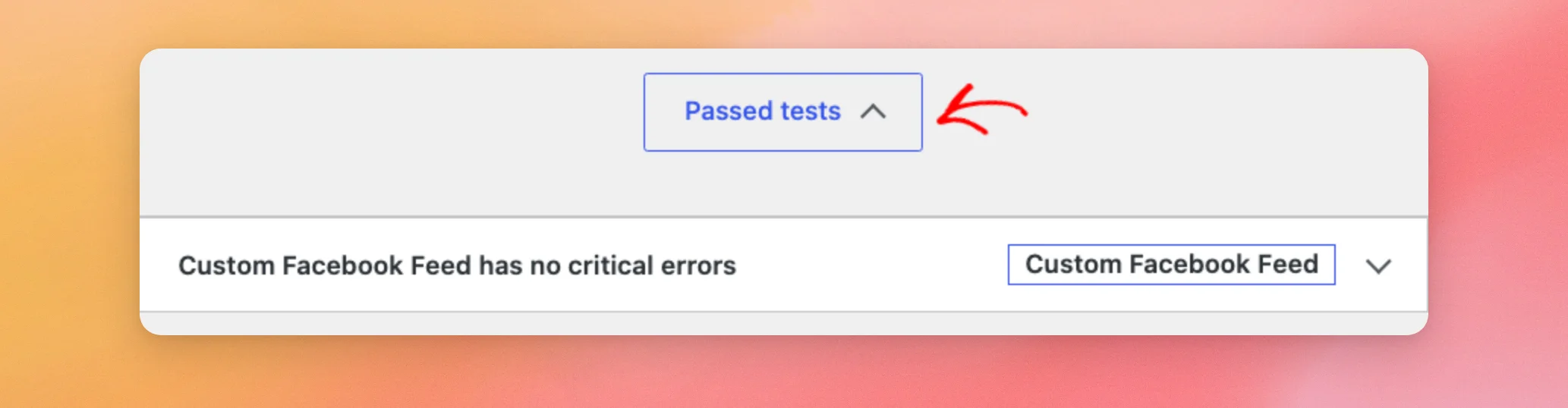
Next, click Custom Facebook Feed has no critical errors to open the check.
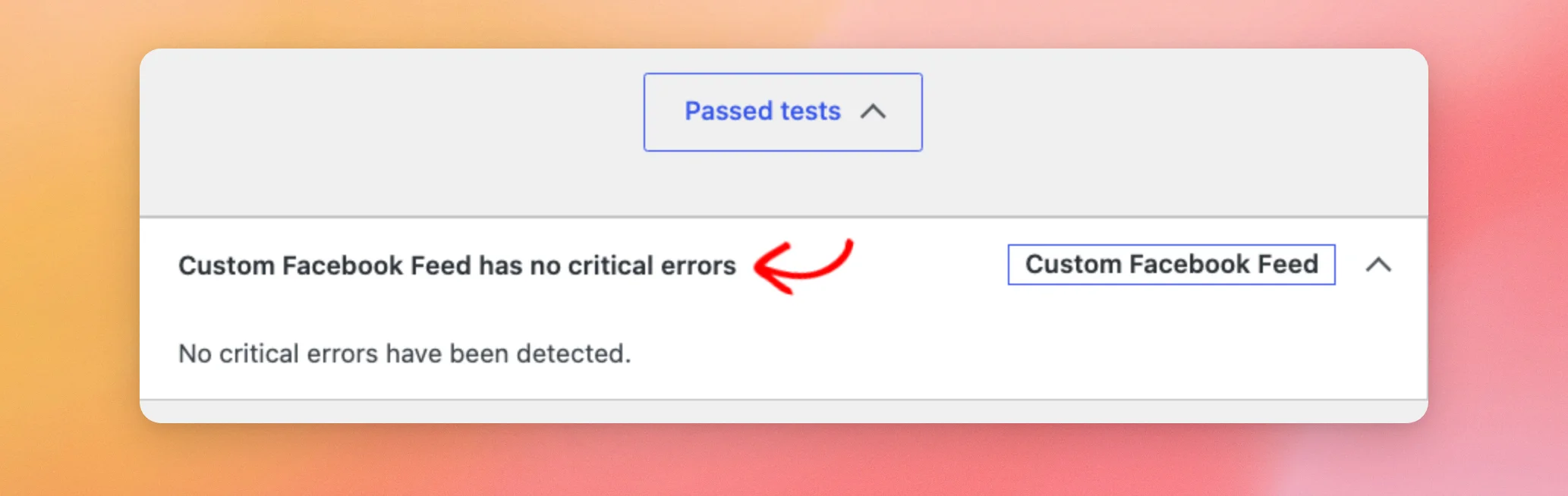
When the check passes, it says No critical errors have been detected.
Now that you know where the check is, we’ll look at what to do when it finds an error.
Fixing a Critical Error
When Custom Facebook Feed has a critical error, its check moves from Passed tests to the critical issues at the top of the Status tab. The check’s title then says Your Custom Facebook Feed is experiencing an error.
When you open the check, its description says a critical issue has been detected. It also links to the Custom Facebook Feed settings page. To find out what’s wrong, follow that link.
Unless the error is about a Facebook Group, a notice at the top of the settings page says Custom Facebook Feed is encountering an error and your feeds may not be updating. Below that, it names the error and tells you what to do about it.
Depending on the error, the notice can have these buttons.
- Reconnect Account appears when reconnecting your Facebook Page fixes the error.
- Learn More opens our help guide for that error.
- View Feed and Retry opens a page on your site that shows the affected feed.
For the steps to fix each error message, see our Facebook API error message reference.
Once Custom Facebook Feed gets posts from Facebook again, it clears the error on its own. When no other critical error is left, the check is back under Passed tests the next time you open Site Health.
Custom Facebook Feed also tells you about a critical error in these places.
- An exclamation mark (!) appears next to Facebook Feed and its Settings item in your WordPress admin menu.
- A Facebook Feed Critical Issue box can appear in the bottom-right corner of your site’s pages. Only logged-in users who can edit posts see it. Its View details and resolve link opens the settings page.
- When the Feed Issue Email Reports setting is on, the weekly email report says a feed can’t connect to Facebook and links to the settings page. To learn more, see our guide on getting the weekly email report.
That’s it! You now know where to find the Custom Facebook Feed check in Site Health and what to do when it reports an error. Next, take a look at our guide on getting alerts when your Facebook feed stops updating.
Frequently Asked Questions
Below, we’ve answered some of the most common questions about the Custom Facebook Feed check in Site Health.
Does the Site Health check contact Facebook?
No. The check reads the errors Custom Facebook Feed saved the last time it requested posts from Facebook. It reports the same critical errors as the notice on the Custom Facebook Feed settings page.
Why does the check still show an error after I reconnected my Page?
The error clears the next time your feed gets posts from Facebook. Until then, the check keeps showing it.
To have your feed check right away, go to Facebook Feed » Settings. Then, click the Feeds tab. Next, click Clear All Caches. After that, visit a page that shows your feed, and open Site Health again.
If your site runs a version of Custom Facebook Feed older than 4.14.0, update it to the latest version. In older versions, the error can stay on after the problem is fixed.
Does a rate limit from Facebook make the check fail?
No. When Facebook temporarily limits your site’s requests, Custom Facebook Feed doesn’t treat it as a critical error. Your feed keeps showing its saved posts until it can get new ones.
Why does the check show an error when my feed looks fine?
The check covers every source you’ve connected. A critical error on another connected Page makes it fail too. On the Custom Facebook Feed settings page, look in the Manage Sources section. A source that needs to be reconnected shows Connection Error.
A Facebook Group that is still connected as a source also makes the check fail, because group feeds stopped updating in April 2024. To clear it, dismiss the notice about group feeds at the top of your WordPress admin pages. For more details, see our guide on Facebook API changes affecting groups.




