


 Social Wall
 Feed Analytics


Would you like to change what happens when visitors click a post in your Instagram feed?
When someone clicks a post, Instagram Feed Pro opens it in a lightbox. This is a pop-up that shows the post at a larger size, with its caption and comments next to it. In this guide, we’ll show you how to turn the lightbox on or off, show comments in it, and choose how many comments it shows.
Before you get started, make sure Instagram Feed Pro is installed and activated on your WordPress site.
Requirements: The lightbox needs Instagram Feed Pro with an active license. It works with any license level.
Here is what we will cover.
- Turning the Lightbox On or Off
- Showing Comments in the Lightbox
- Saving Your Changes
- What Visitors See in the Lightbox
- Frequently Asked Questions
Turning the Lightbox On or Off
The lightbox is on by default for every feed. This lets visitors see your posts at a larger size right on your site. You can turn it on or off for each feed separately. To do that, follow these steps.
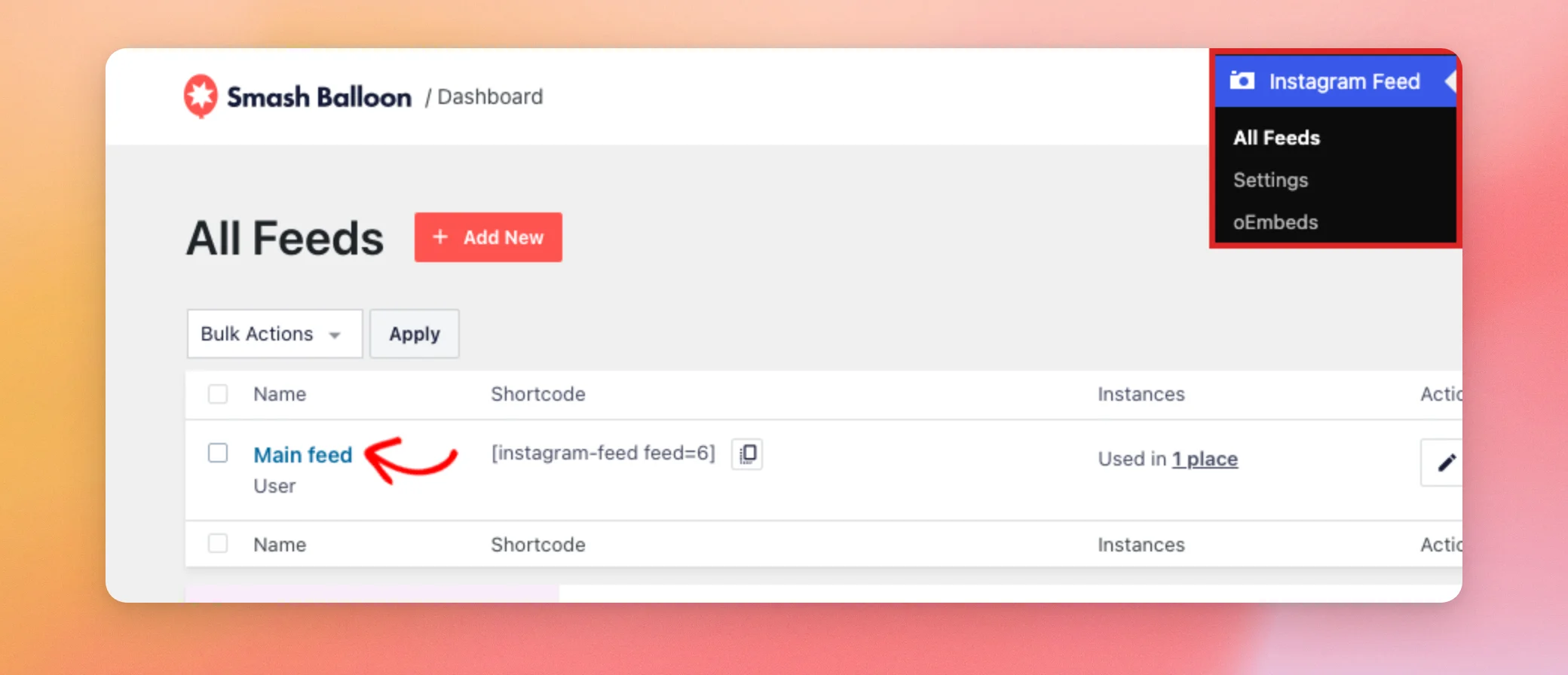
- In your WordPress dashboard, go to Instagram Feed » All Feeds and click the name of the feed you want to change.
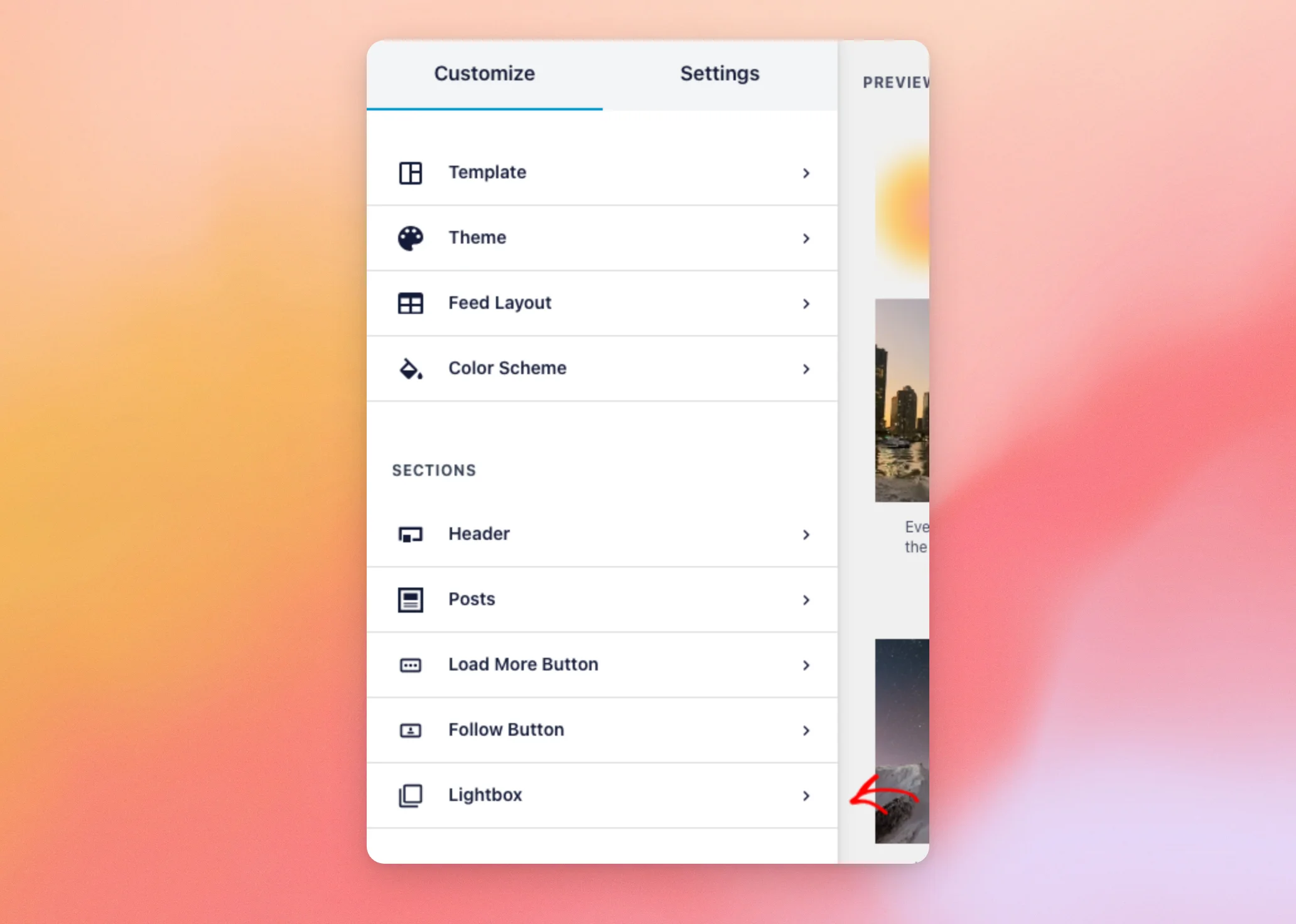
- The feed editor opens on the Customize tab. Under Sections, click Lightbox.
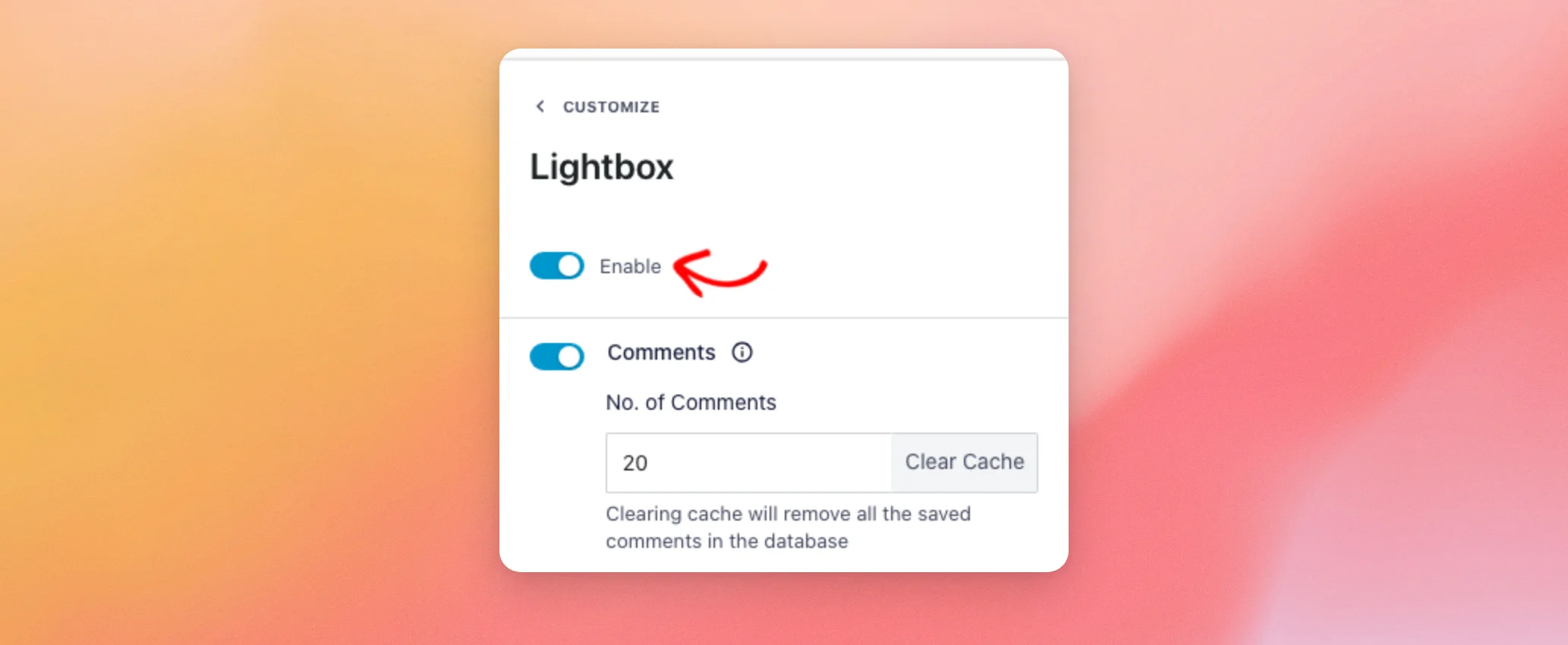
- Then, use the Enable toggle to turn the lightbox on or off.
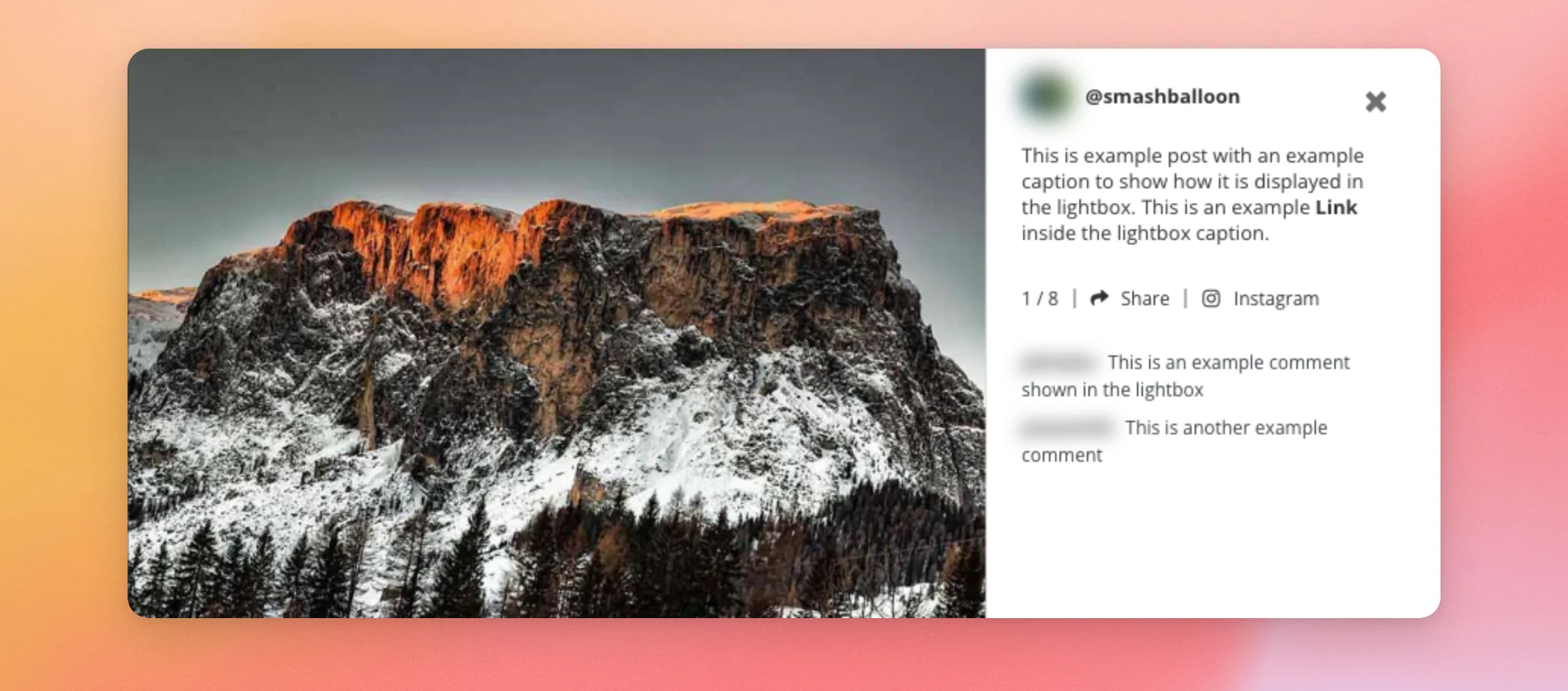
While the Lightbox section is open and the lightbox is on, the preview shows a sample lightbox with example content. This way, you can see how the lightbox looks before you save.
When the lightbox is off, clicking a post opens it on Instagram in a new tab. The feed also doesn’t show the hover effect on posts. To keep the hover effect, see how to turn off the lightbox but keep the hover effect.
Next, we’ll show you how to set up comments in the lightbox.
Showing Comments in the Lightbox
The lightbox can show each post’s comments next to the post. Comments are on by default.
Comments show for User feeds that use a Business Advanced source.
To set up comments, follow these steps.
- In the Lightbox section, use the Comments toggle to show or hide comments. When comments are on, type how many comments to show for each post in No. of Comments. The default is 20.

Instagram Feed saves the comments it gets from Instagram on your site. This lets the lightbox show them quickly. The Clear Cache button next to No. of Comments removes the saved comments for all your feeds. The lightbox then gets them from Instagram again the next time a visitor opens a post.
On screens 640 pixels wide or smaller, such as most phones, the caption and comments show below the post instead of next to it.
Next, we’ll save your changes.
Saving Your Changes
When you’re done, click Save at the top of the feed editor.
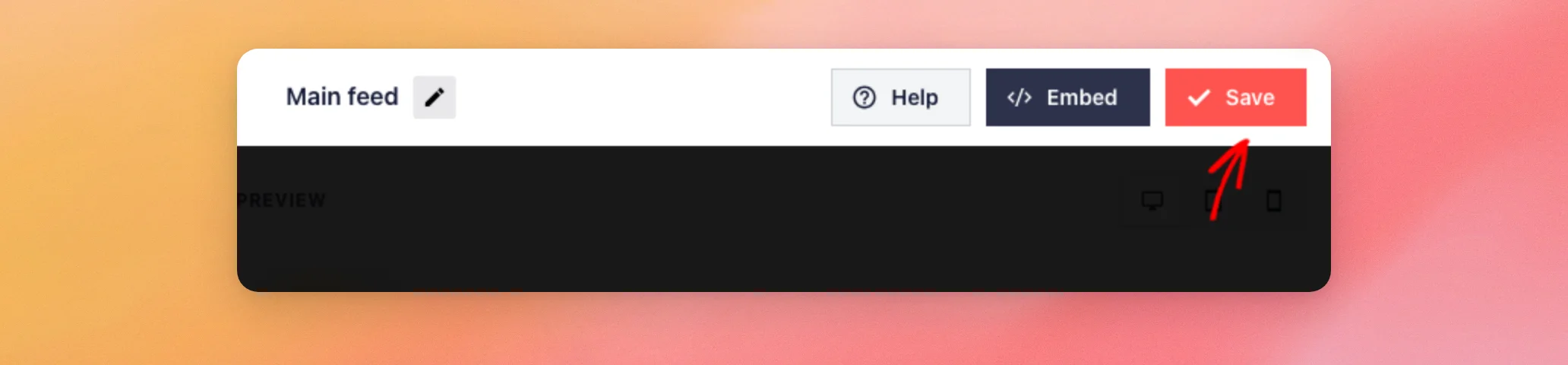
Your feed now uses your new lightbox settings on every page where it appears.
What Visitors See in the Lightbox
On your page, visitors open the lightbox by clicking a post in your feed.
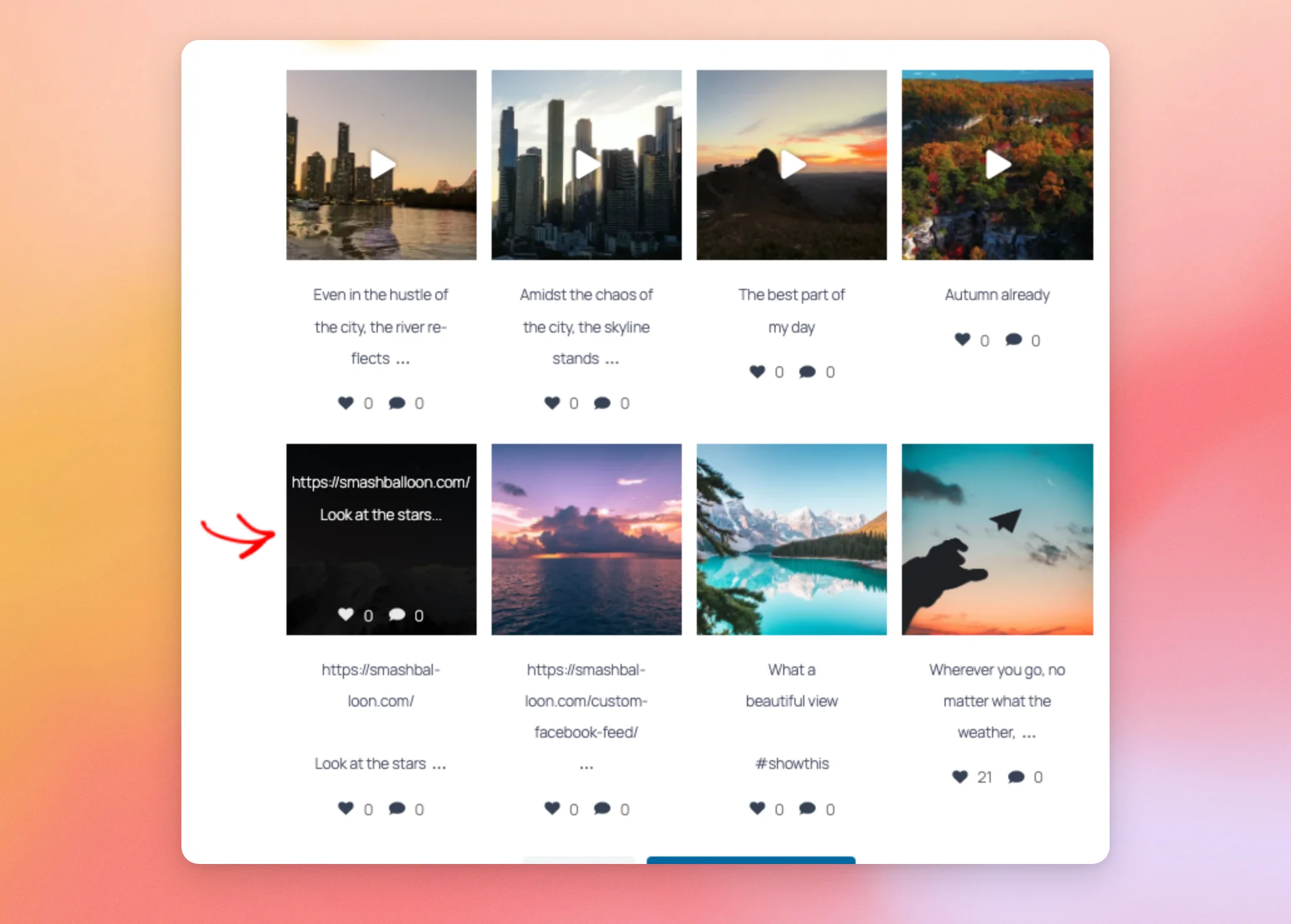
The lightbox shows the post at a larger size, with these details.
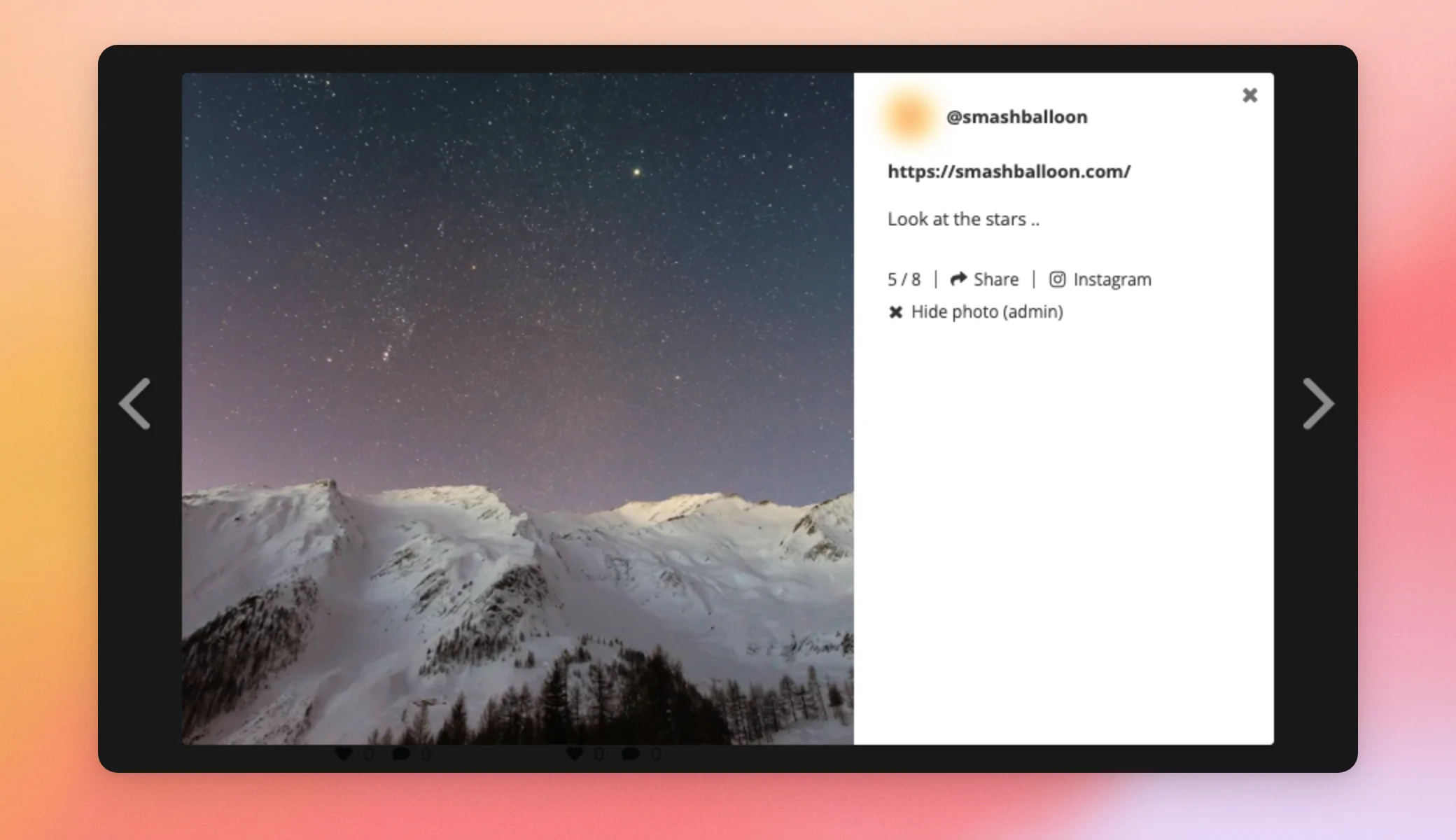
- The account’s username and profile picture. Both link to the account on Instagram.
- The caption. Hashtags and @mentions in it link to Instagram.
- The post’s place in the feed, such as 5 / 8.
- A Share button for Facebook, Twitter, LinkedIn, Pinterest and email.
- An Instagram link that opens the post on Instagram.
- The post’s comments, when comments are on and the post has any.
To move between posts, visitors can click the arrows on each side or swipe left or right on a touch screen. They can also use the left and right arrow keys on their keyboard. To close the lightbox, they can click the X, click outside the lightbox or press Esc.
Note: While you’re logged in, you’ll also see a Hide photo (admin) button. Only logged-in users who can edit posts see it. Your visitors don’t see it. To hide a post from your feed, see our guide to moderation mode.
When the lightbox is on, Reels open in Swipe View by default. Swipe View is a fullscreen viewer that plays Reels with sound. To learn more, see our guide on viewing Instagram Reels in Swipe View.
That’s it! You can now turn the lightbox on or off for each feed and choose how many comments it shows. Next, you might want to add like and comment counts to the lightbox.
Frequently Asked Questions
Here are answers to some of the most common questions about the Instagram Feed lightbox.
Why don’t comments show in my lightbox?
Comments show for User feeds that use a Business Advanced source. To find the cause, check that the feed uses a Business Advanced source and that the Comments toggle is on in the feed’s Lightbox section. To learn more, see our guide to Instagram Business Advanced sources.
Why does clicking a post open Instagram instead of the lightbox?
The lightbox is off for that feed. To turn it back on, follow the steps in Turning the Lightbox On or Off. If the feed is a shoppable feed, clicking a post opens the link you added to it instead of the lightbox. To learn more, see how to make a shoppable feed.
Can I open Reels in the lightbox instead of Swipe View?
Yes. In your WordPress dashboard, go to Instagram Feed » Settings and open the Advanced tab. There, turn off Enable Swipe View for Reels and click Save Changes. Reels then open in the lightbox like other posts.
Why does my lightbox show only the first image of a carousel post?
This happens when the GDPR setting stops your site from loading images from Instagram. The lightbox then shows only the first image of a carousel post, at up to 640 pixels wide. To learn more, see our guide on Instagram Feed and GDPR.




