


 Social Wall
 Feed Analytics


Would you like to find answers to your Reviews Feed questions or get help from our support team?
In this guide, we’ll walk you through the Reviews Feed Support page, from searching our docs to creating a temporary login link. All you need is access to your WordPress dashboard.
Before you get started, make sure Reviews Feed is installed and activated on your WordPress site. If you use the free version, our guide on installing the free version covers it.
Note: In the paid version, the Support page shows once your license key is active. This guide shows the paid version and points out where the free version differs.
- Finding Answers in Our Docs
- Submitting a Support Ticket
- Sharing Your System Info
- Exporting Your Feed Settings
- Creating a Temporary Login Link
- Deleting a Temporary Login Link
- Frequently Asked Questions
Finding Answers in Our Docs
To get started, we’ll look at how the Support page helps you find answers on your own.
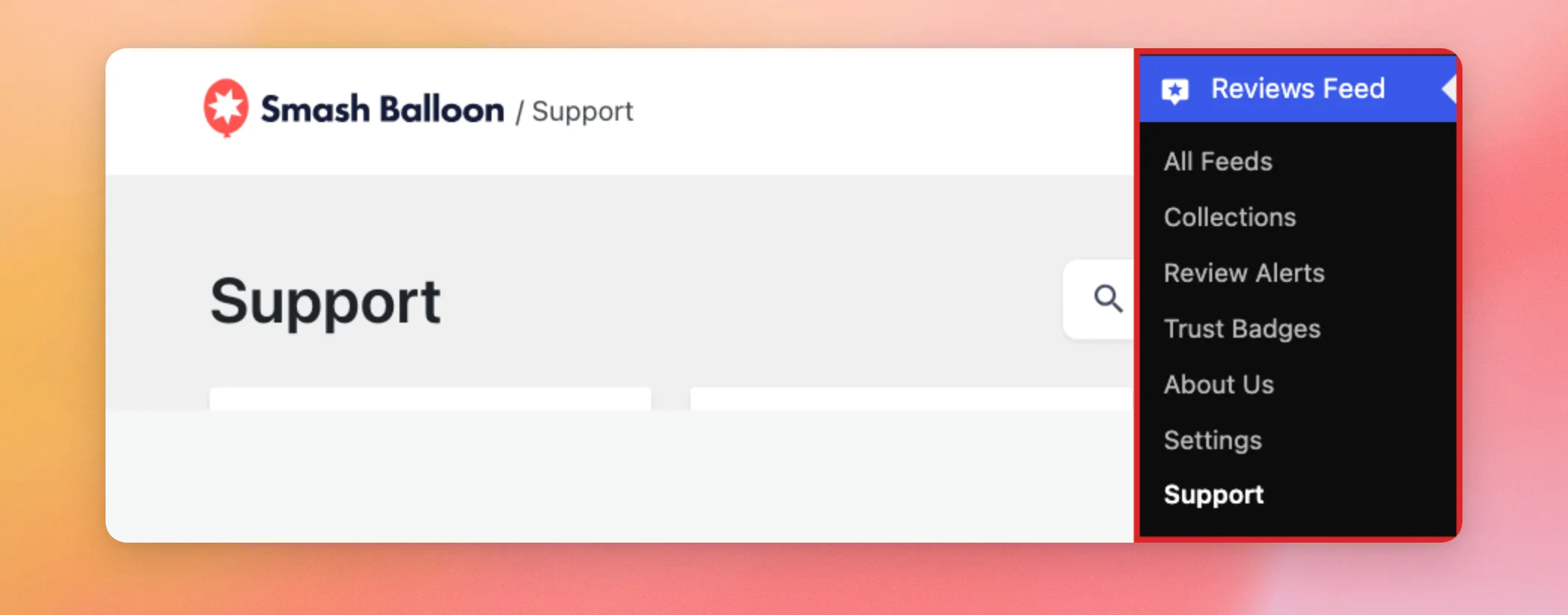
From your WordPress admin sidebar, go to Reviews Feed » Support.
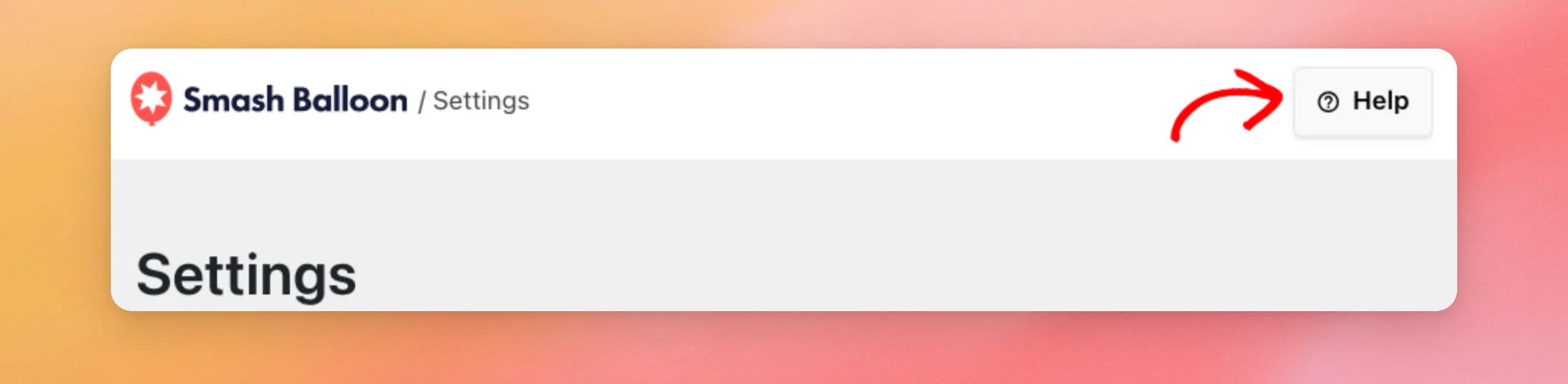
You can also click Help at the top right of other Reviews Feed pages, such as Settings. It opens the same Support page.
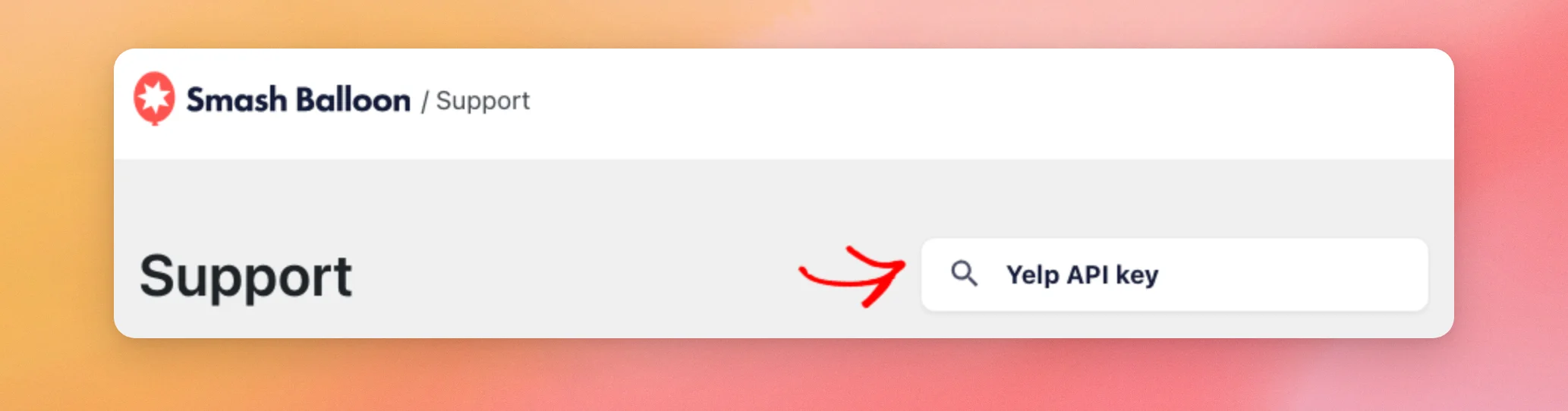
At the top of the Support page, type a few words in the Search Documentation field and press Enter. Our docs search opens in a new tab with matching Reviews Feed docs.
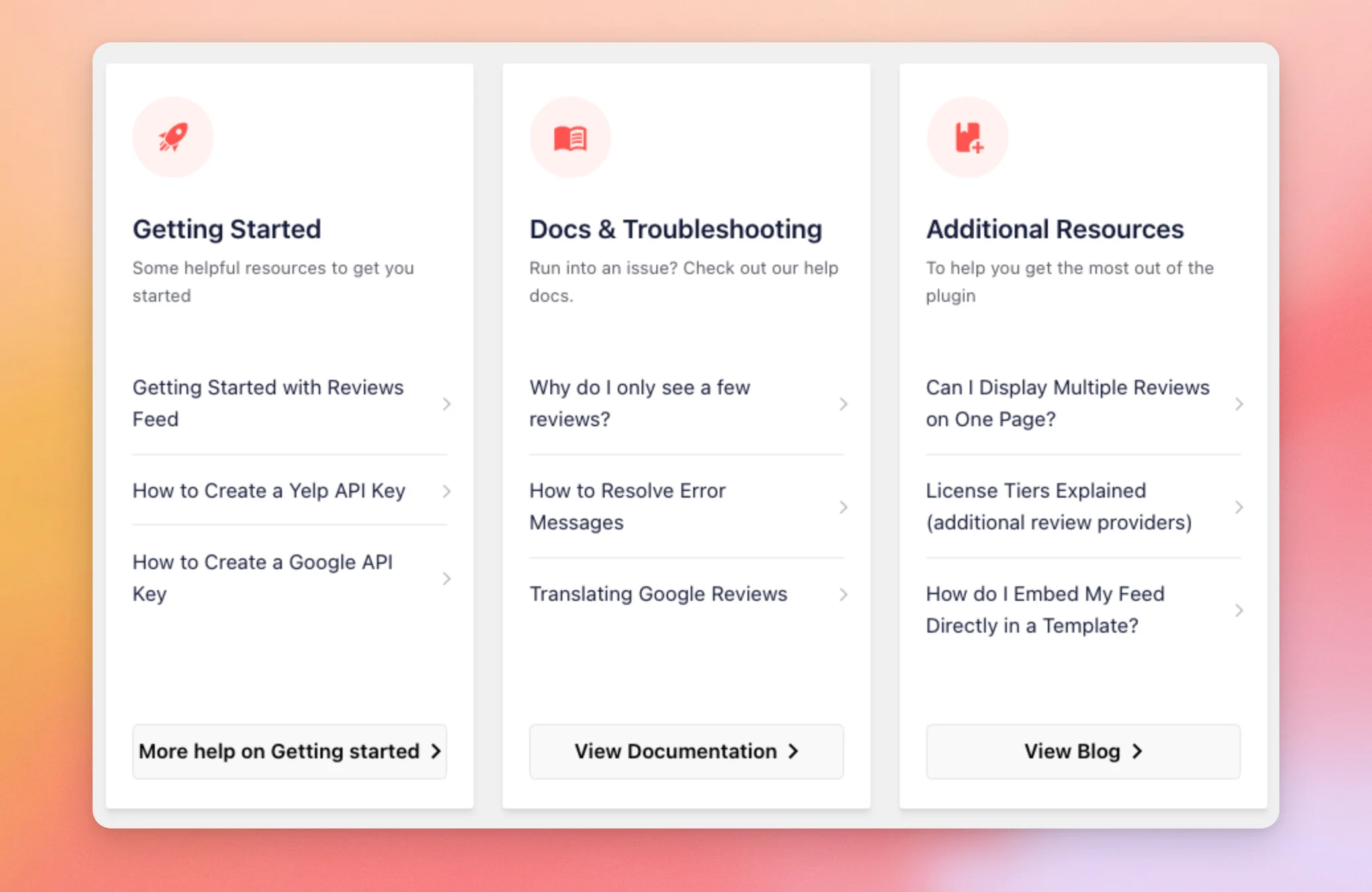
Below the search field, three cards link to Reviews Feed docs.
- Getting Started links to our docs for new users and to guides on creating a Yelp API key or a Google API key. Its More help on Getting started button opens all of our docs for new users.
- Docs & Troubleshooting links to our guides on why you only see a few reviews, fixing error messages, and translating Google reviews. Its View Documentation button opens all our docs.
- Additional Resources links to docs about showing multiple reviews feeds on one page, license levels, and adding a feed to a theme template. Its View Blog button opens our blog.
If you’re new to Reviews Feed, start with Getting Started. If something isn’t working, try Docs & Troubleshooting first. Additional Resources helps you get more out of the plugin.
That covers where to find answers on your own. Next, we’ll look at contacting our support team.
Submitting a Support Ticket
If our docs don’t answer your question, our support team can help.
In the “Need more support? We’re here to help.” card, click Submit a Support Ticket to open our support page on smashballoon.com.
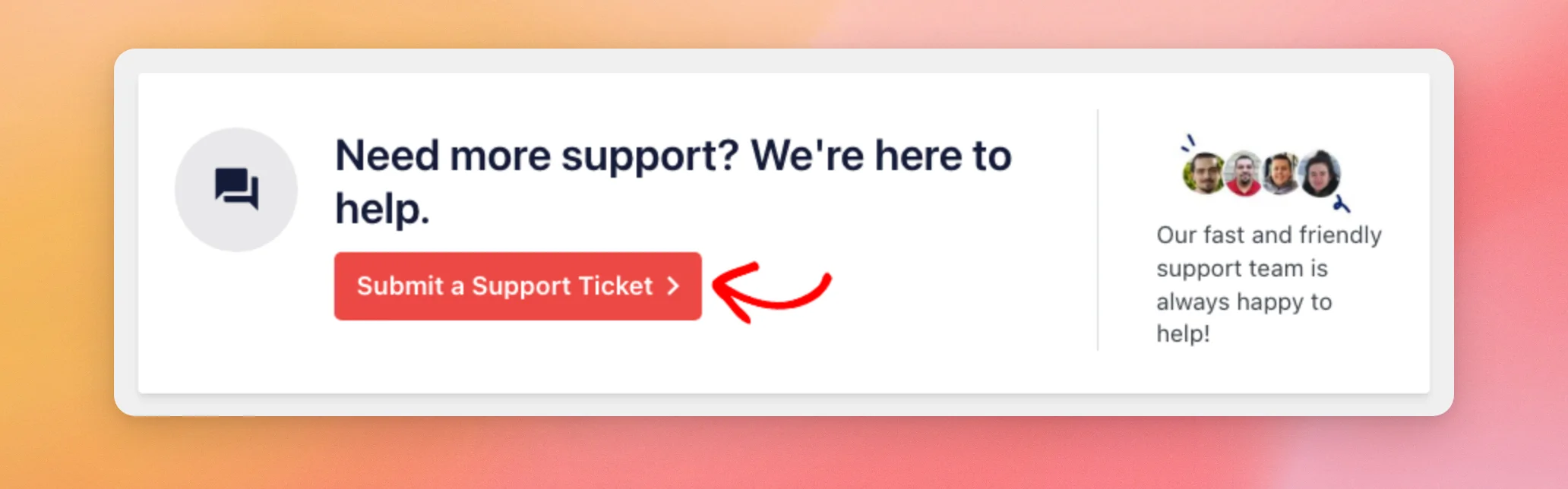
In the free version, this button reads Get Help in the WordPress.org Forum and opens the Reviews Feed support forum on WordPress.org.
When you submit a ticket, include your System Info. The next section shows how to copy it.
Sharing Your System Info
System Info is a summary of your site, your server, and your Reviews Feed setup. It gives our support team the details they need to look into a problem. That way, we don’t have to ask you for each one.
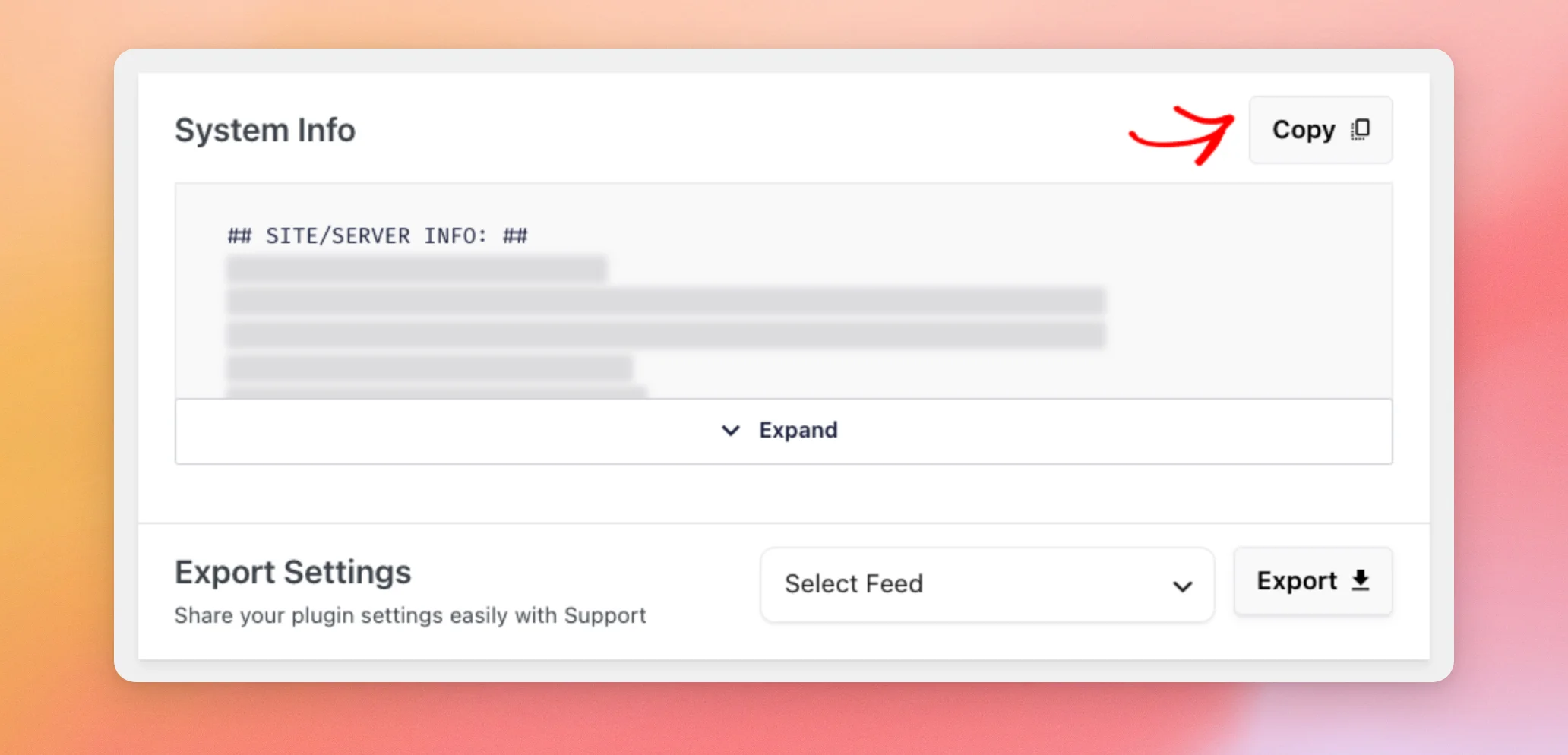
At the top right of the System Info card, click Copy. Then paste the summary into your support ticket.
Note: System Info includes the API keys you’ve added and, in the paid version, your license key. Share it only in a support ticket, not in a public forum post.
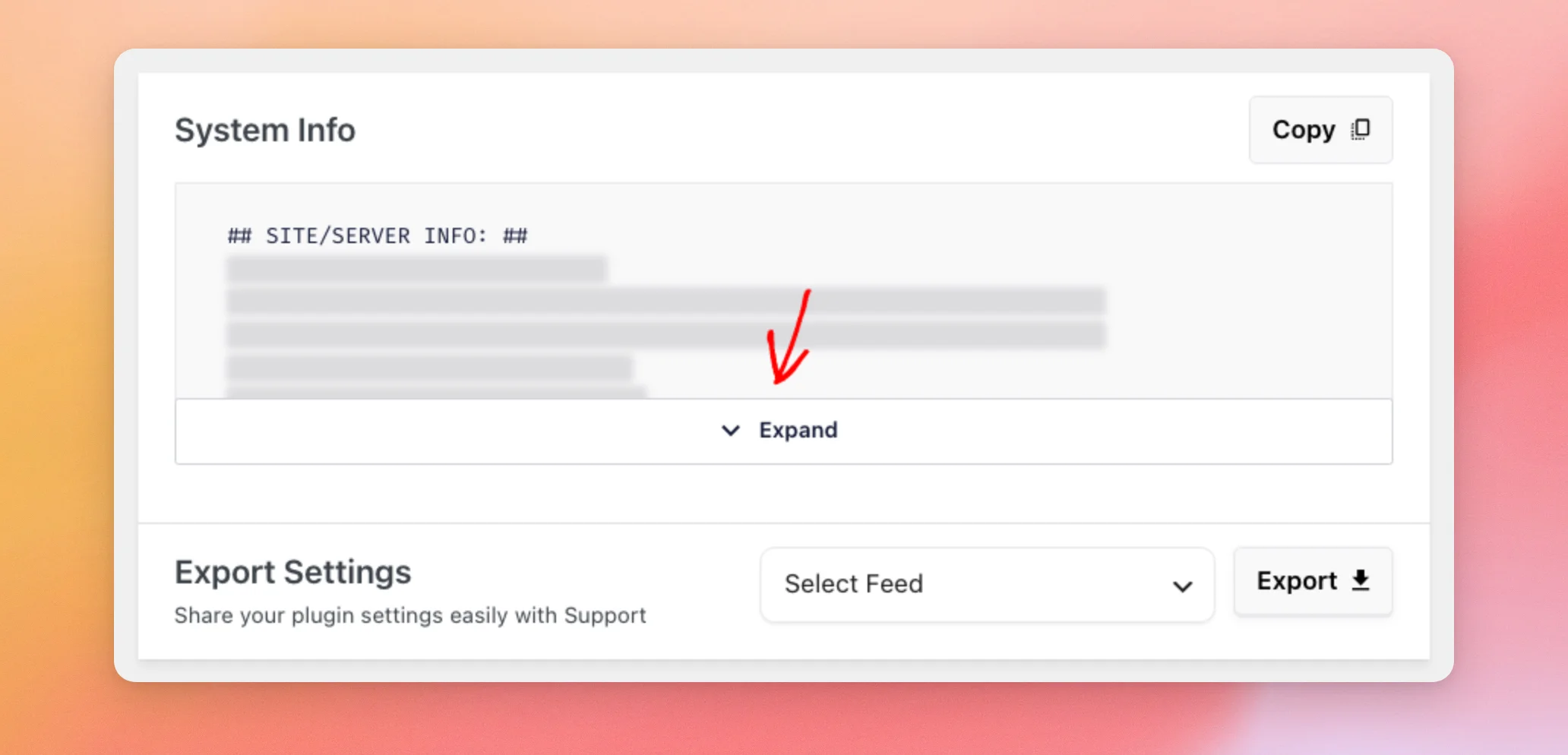
To read the whole summary on the page, click Expand below the text box. The button then reads Collapse.
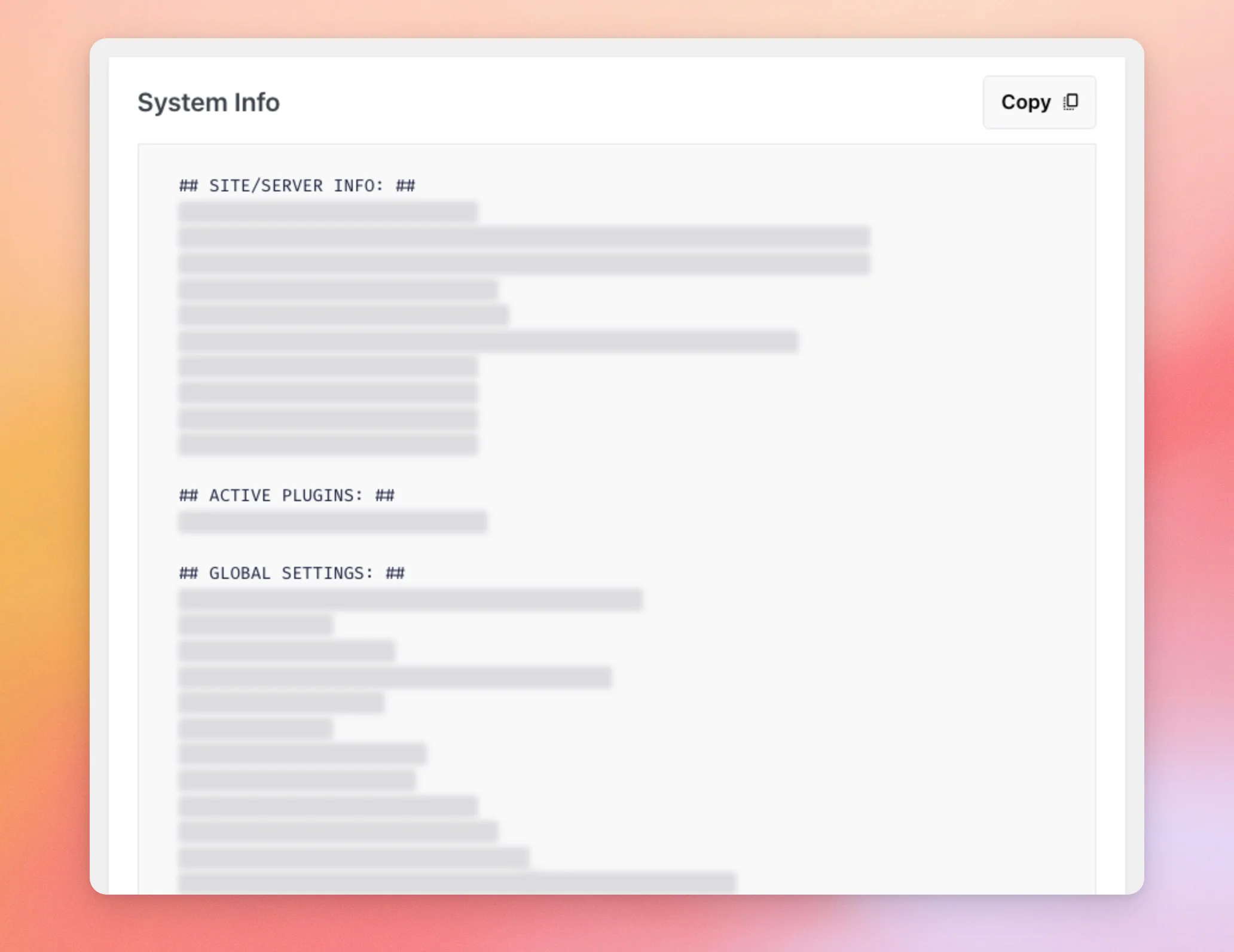
The summary is split into sections called Site/Server Info, Active Plugins, Global Settings, Sources, API Keys, Feeds, Posts, and Error Logs.
If Reviews Feed has logged any errors, an Error Logs card also shows below the other cards while System Info is expanded. Its Download button saves the errors to a file. Its Clear Log button empties the list.
Our guide on getting your System Info shows where to find it in our other plugins.
Next, we’ll look at sending our team the settings of a single feed.
Exporting Your Feed Settings
When our team asks how a feed is set up, you can send its settings as a file.
In the Export Settings section at the bottom of the System Info card, pick the feed you need help with from the Select Feed list. Then click Export. Reviews Feed downloads that feed’s settings as a JSON file named after the feed’s ID.
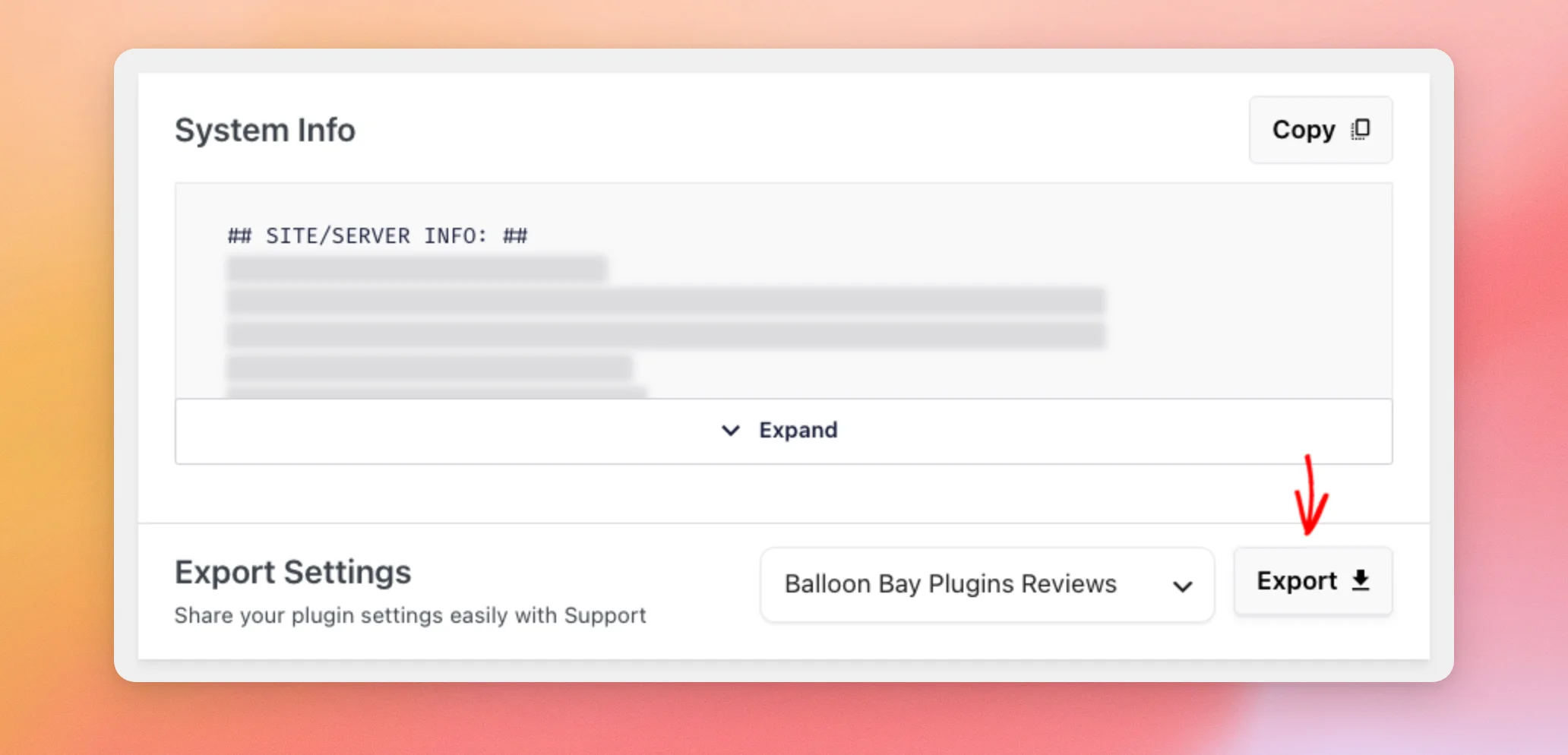
This is the same export as on the Settings page. It saves one feed per file.
Our settings guide covers exporting and importing feed settings.
The next section shows how to give our team temporary login access when a problem needs a closer look.
Creating a Temporary Login Link
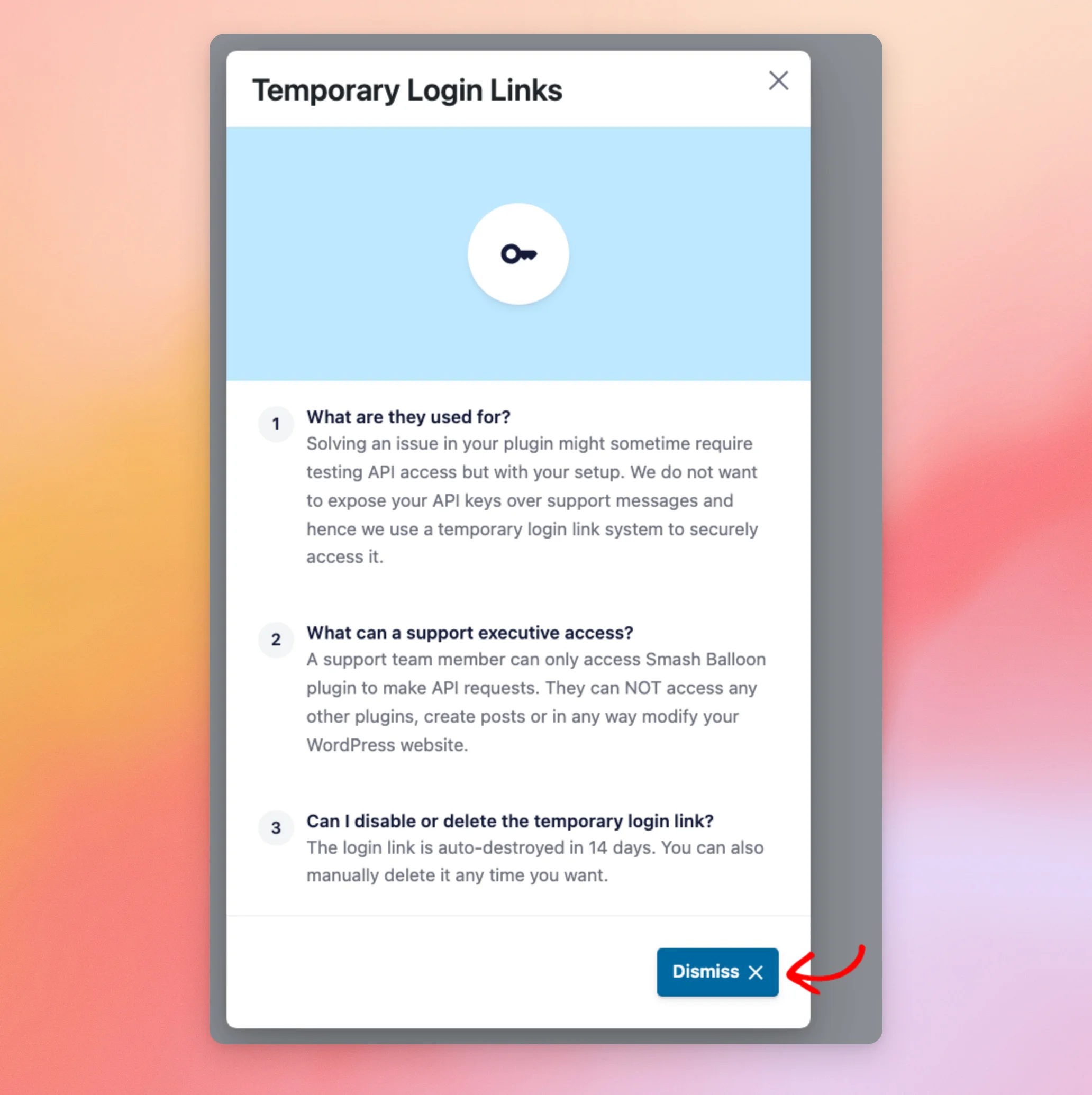
Sometimes our team needs to test API requests on your own site to fix a problem. A temporary login link lets us do that without your password, and without your API keys in a support message.
The link gives our team access to Reviews Feed only. It can’t open your other plugins, create posts, or change anything else on your WordPress site.
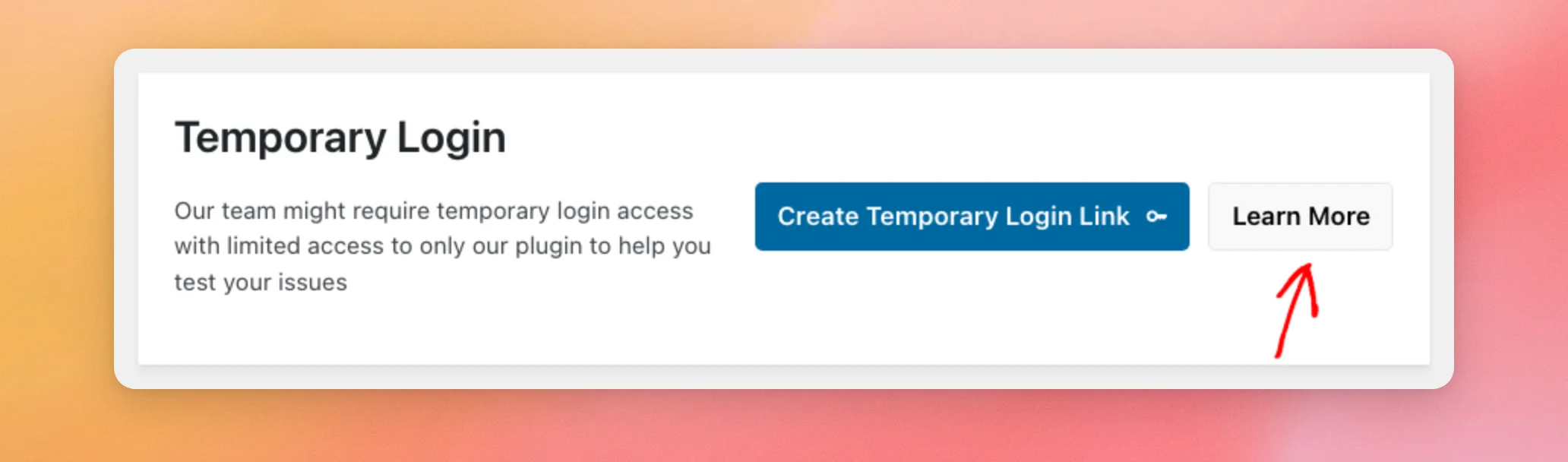
For these details on the page, click Learn More in the Temporary Login card.
A Temporary Login Links window opens with answers to three questions. When you’re done reading, click Dismiss.
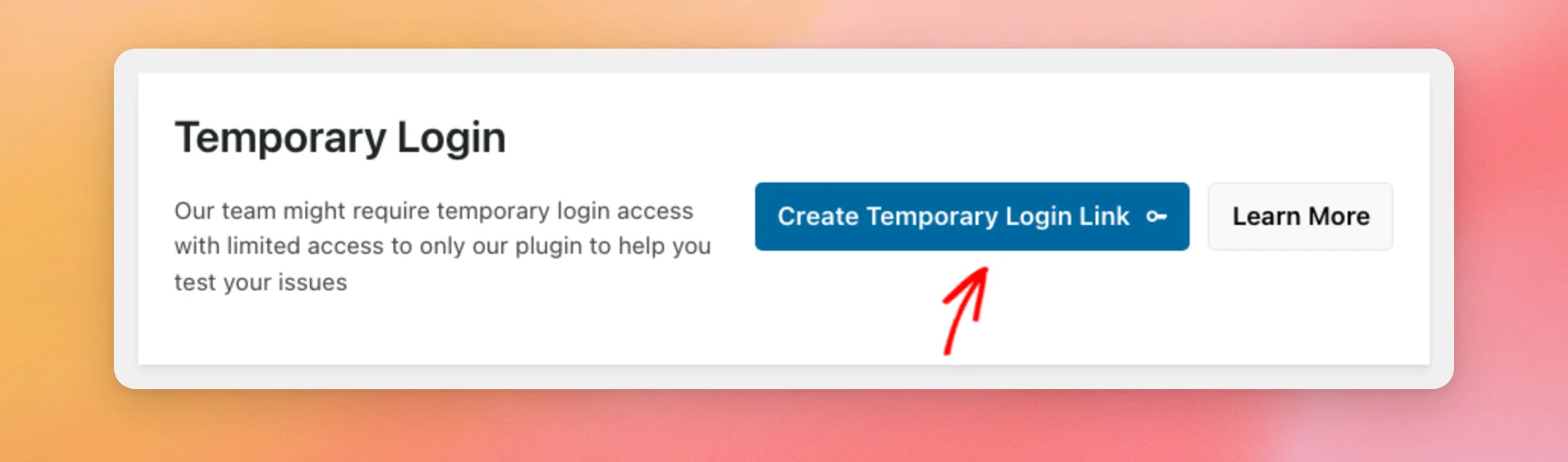
When our support team asks for a link, click Create Temporary Login Link.
The card now shows your link in a table. The Expires in column shows how many days the link has left.
To share the link, click Copy Link. Then paste it into your support ticket.
Note: Anyone with this link can sign in to your site as our support user. Share it only in your support ticket, not in a public forum post.
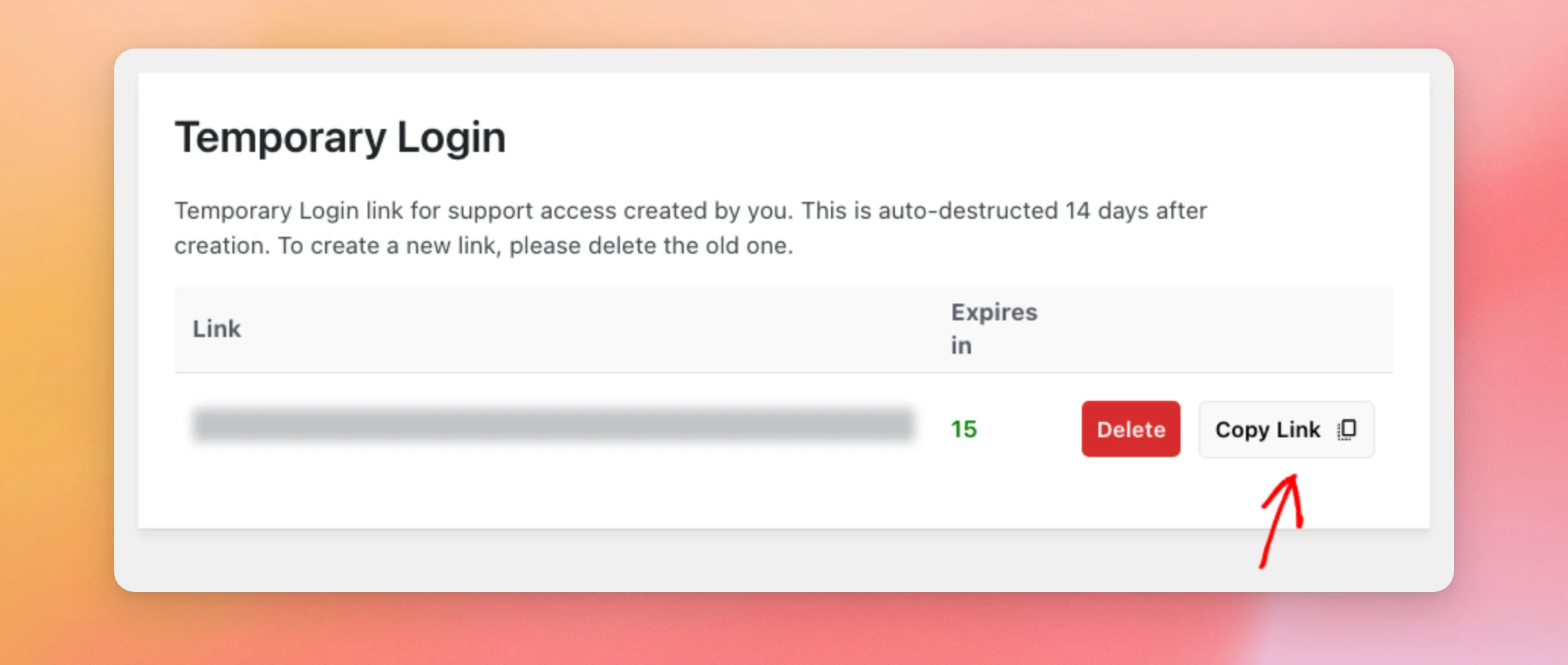
You can have one link at a time. To make a new one, delete the old link first.
Last, we’ll look at deleting a link.
Deleting a Temporary Login Link
Reviews Feed deletes the link on its own once the days under Expires in run out. You don’t need to wait, though. Once our team has fixed your issue, click Delete next to the link.
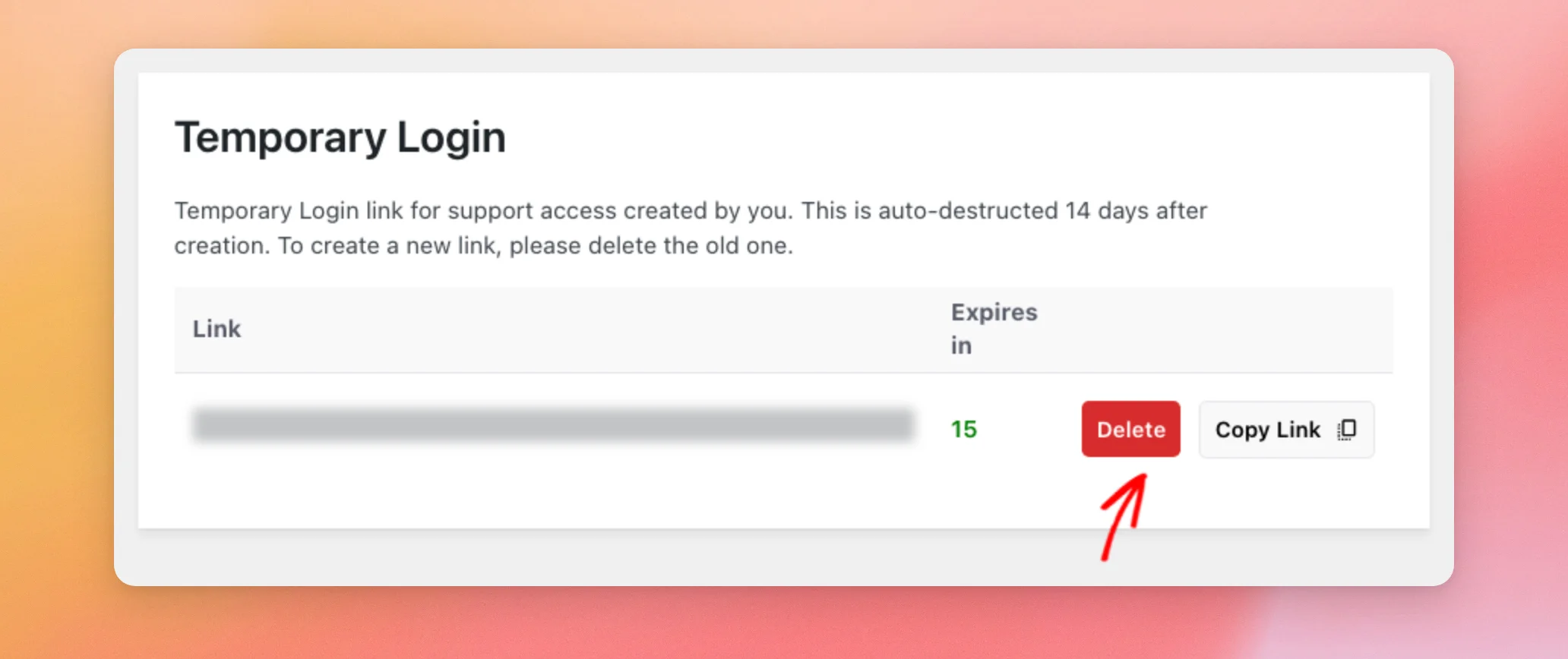
The link and its temporary support user are removed right away, with no confirmation step. The Create Temporary Login Link button then shows again.
That’s it! You now know how to find answers in our docs and how to give our support team the details they need. Next, if your feed shows an error, see our Reviews Feed error message reference.
Frequently Asked Questions
Below, we’ve answered some of the most common questions about the Reviews Feed Support page.
Why don’t I see Support in the Reviews Feed menu?
In the paid version, the Support page shows only once your license key is active. Our guide on installing the paid plugin shows how to activate your license.
How long does my temporary login link last?
It lasts until the days under Expires in run out, or until you delete it. Reviews Feed then removes the link and its temporary support user.
What can your team do with my temporary login link?
Our team can work with Reviews Feed only, to test API requests on your site. The link can’t open your other plugins, create posts, or change anything else on your site.
Can I create more than one temporary login link?
No. You can have one link at a time. To create a new one, delete the old link first.
Can I share my System Info in a public forum?
We recommend you don’t. System Info includes the API keys you’ve added and, in the paid version, your license key. If you post in a public forum, leave System Info out. You can also delete the API Keys section and the license key line before you paste it.
What does Export Settings save when I export a feed?
It saves one feed’s settings in a JSON file named after the feed’s ID. To save another feed, export it on its own.




