


 Social Wall
 Feed Analytics


An unstyled feed with no working lightbox or comments means the plugin assets are not reaching the page. How to check.
Would you like to fix a Facebook Feed that looks unstyled, or one whose buttons and links do nothing when you click them?
This guide shows how to check whether your site loads the plugin’s CSS and JavaScript files. It also covers how to fix the most common causes when it does not.
Facebook Feed adds a stylesheet and a script to your pages. Without the stylesheet, your feed looks plain and unformatted. Without the script, the comments box, the Share link, the lightbox and Load More do not respond. Sometimes a theme or another plugin stops them from loading or running.
Before you get started, make sure Facebook Feed is installed and activated and that your feed is on a page of your site.
Here is what we will cover.
- Checking the Plugin Files
- Adding wp_head and wp_footer to Your Theme
- The Comments Box and Share Link Don’t Expand When I Click Them
- Frequently Asked Questions
Checking the Plugin Files
To get started, we’ll look at the source code of the page with your feed to see whether the plugin’s files are on it. By default, the plugin adds its files to every page, not only to pages with a feed. To check, follow these steps.
- First, open the page with your feed in your web browser.
- Next, right-click the page and select View Page Source. The name of this option differs a little between browsers.
- Then press Ctrl + F (Cmd + F on a Mac) to search the source, and search for
cff-style. - Finally, search for
cff-scripts.
If your site loads the files correctly, you will find a line for each file. The first is a stylesheet in the head of the page, with an address like the one below. The second is the script, which WordPress prints near the bottom of the page, just before the closing body tag.
<link rel='stylesheet' id='cff-css' href='https://yourwebsite.com/wp-content/plugins/custom-facebook-feed-pro/assets/css/cff-style.min.css?ver=4.12.0' type='text/css' media='all' />
<script type='text/javascript' src='https://yourwebsite.com/wp-content/plugins/custom-facebook-feed-pro/assets/js/cff-scripts.min.js?ver=4.12.0' id='cffscripts-js'></script>
The files sit in the assets/css and assets/js folders of the plugin. Their names end in .min.css and .min.js. The free version of Facebook Feed uses the same file names. Its folder is custom-facebook-feed instead of custom-facebook-feed-pro. Your version number will differ from the one above.
Now compare what you found with the options below.
- If you find neither file, or only one of them, go to Adding wp_head and wp_footer to Your Theme. If you use a caching or optimization plugin, also clear its cache. Then check whether it combines, delays or removes scripts, because that can stop the files from loading too.
- If you find both files and the feed’s buttons and links still do nothing when you click them, go to The Comments Box and Share Link Don’t Expand When I Click Them.
- If you find both files and the feed still looks plain or out of place, see The formatting of my Facebook feed is incorrect or messed up.
Adding wp_head and wp_footer to Your Theme
The most common reason the files are missing is that your WordPress theme does not call two WordPress functions. Plugins rely on these functions to add their files to your page. The plugin’s stylesheet is added when WordPress builds the head of the page. Its script is set to load in the footer. These are the two functions.
- wp_head, which belongs in your theme’s
header.phpfile. - wp_footer, which belongs in your theme’s
footer.phpfile.
All WordPress plugins need these functions to add files to your page. If one is missing, other plugins on your site may not work correctly either.
A theme update replaces changes you make to the theme’s files. To keep your changes, make them in a child theme. See How to Create a WordPress Child Theme for a step-by-step guide. If your theme has no header.php or footer.php file, ask the theme’s developer where these functions belong.
To check for the functions and add any that are missing, follow these steps.
- First, open your theme’s
header.phpfile. You can use Appearance » Theme File Editor in your WordPress dashboard, or open the file over FTP. - Next, search the file for
wp_head. If it is not there, add<?php wp_head(); ?>immediately before the closing</head>tag. - Then open your theme’s
footer.phpfile and search it forwp_footer. If it is not there, add<?php wp_footer(); ?>immediately before the closing</body>tag. - Finally, save the files and clear your site’s cache if you use a caching plugin. Then view your page source again to check that the two files are now there.
If both functions were already in your theme, they are not the cause. In that case, check your caching or optimization plugin, as described in Checking the Plugin Files.
The Comments Box and Share Link Don’t Expand When I Click Them
The comments box and the Share link open when the plugin’s script runs. The script listens for clicks on them. When the file is missing, or something stops the script from running, nothing opens. Your page source may show the script file while the comments box or Share link still does nothing. In that case, a JavaScript error on your page is the most likely reason. One error from your theme or another plugin can stop other scripts on the page, including the plugin’s.
To find the error, follow these steps.
- First, open the page with your feed in your web browser.
- Next, open your browser’s Developer Tools. In most browsers, you can right-click the page and select Inspect.
- Then select the Console tab.
- Finally, reload the page and look for messages in red. They are the JavaScript errors on your page, and each one shows the file it came from.
If an error comes from a file that belongs to another plugin or to your theme, that plugin or theme is the likely cause. To confirm it, deactivate that plugin, or switch to a default theme, and check your feed again. Fixing the error, or removing what causes it, should let the plugin’s script run normally. If you are not sure how to fix it, contact the developer of that plugin or theme.
If you cannot remove the error, you can try the plugin’s own setting for this. To turn it on, follow these steps.
- In your WordPress dashboard, go to Facebook Feed » Settings.
- Next, select the Advanced tab.
- Then turn on AJAX theme loading fix. Its description says it fixes issues caused by AJAX-loading themes and can also work around JavaScript errors on the page.
- Finally, click Save Changes.
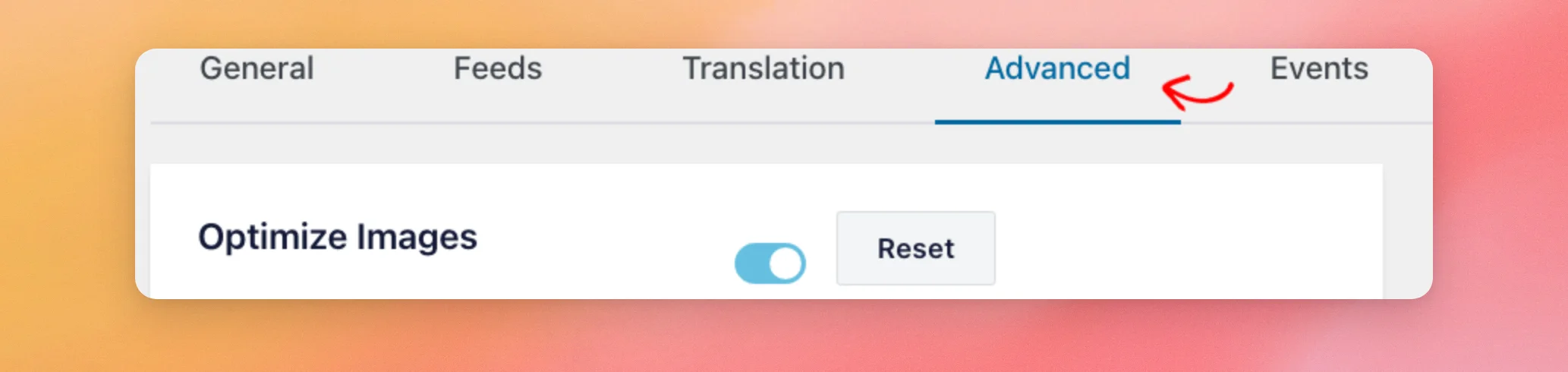
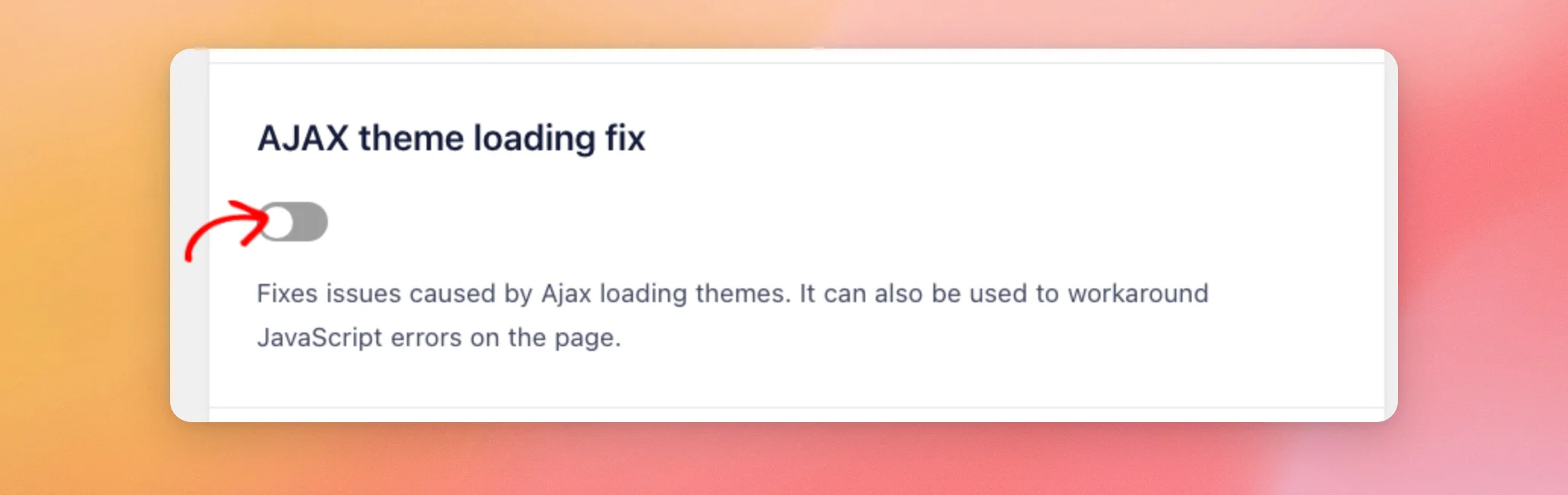

With this setting on, the plugin also adds its script directly inside the feed. If Load More then needs two clicks, or posts appear twice, turn the setting off again. Learn more in My Facebook feed won’t load in an AJAX-enabled theme, page, form, or plugin.
That’s it! You now know how to check whether your site loads Facebook Feed’s CSS and JavaScript files and how to fix the most common causes. If the files load but your feed’s layout still looks off, see The formatting of my Facebook feed is incorrect or messed up. If only the lightbox does not open, see The pop-up lightbox keeps directing/opening the raw image file.
Frequently Asked Questions
Below, we’ve answered some of the most common questions about the plugin’s files.
Which pages does the plugin add its files to?
By default, every page of your site, not only the pages with a feed. To see them on a page, follow the steps in Checking the Plugin Files.
Where does the plugin load its JavaScript file?
In the footer of your page, just before the closing body tag. This is why your theme needs the wp_footer function. To add it, see Adding wp_head and wp_footer to Your Theme.
Does the free version of Facebook Feed use the same files?
Yes. The stylesheet and the script have the same names and sit in the same folders. The plugin folder is custom-facebook-feed instead of custom-facebook-feed-pro.
Why does my feed look plain even though both files are on my page?
Another stylesheet on your page may override the feed’s styles. Learn more in The formatting of my Facebook feed is incorrect or messed up.




