Social Wall
  Feed Analytics

Would you like your Facebook events to show up on your WordPress calendar without adding them by hand?
In this guide, we’ll walk you through setting up Events Sync in Custom Facebook Feed Pro with our Sugar Calendar plugin or The Events Calendar. All you need is the elite license level and a Facebook events source connected to your site.
Requirements: Events Sync requires the elite license level of Custom Facebook Feed Pro and plugin version 4.13.0 or higher.
Before you get started, make sure Custom Facebook Feed Pro is installed and activated on your WordPress site. You’ll also need a Facebook events source. If you haven’t connected one yet, see our guide on creating a Facebook events access token.
Events Sync copies the upcoming events from your Facebook Page into your calendar plugin and keeps them up to date on a schedule. When you change an event on Facebook, your calendar picks up the change. When you cancel or delete one, it comes off your calendar.
Here is what we will cover:
- Setting Up Events Sync
- Checking Recent Syncs
- Keeping Your Calendar Up to Date
- Removing Imported Events
- Frequently Asked Questions
Setting Up Events Sync
To get started, go to Facebook Feed » Settings in your WordPress dashboard. Then, open the Events tab.
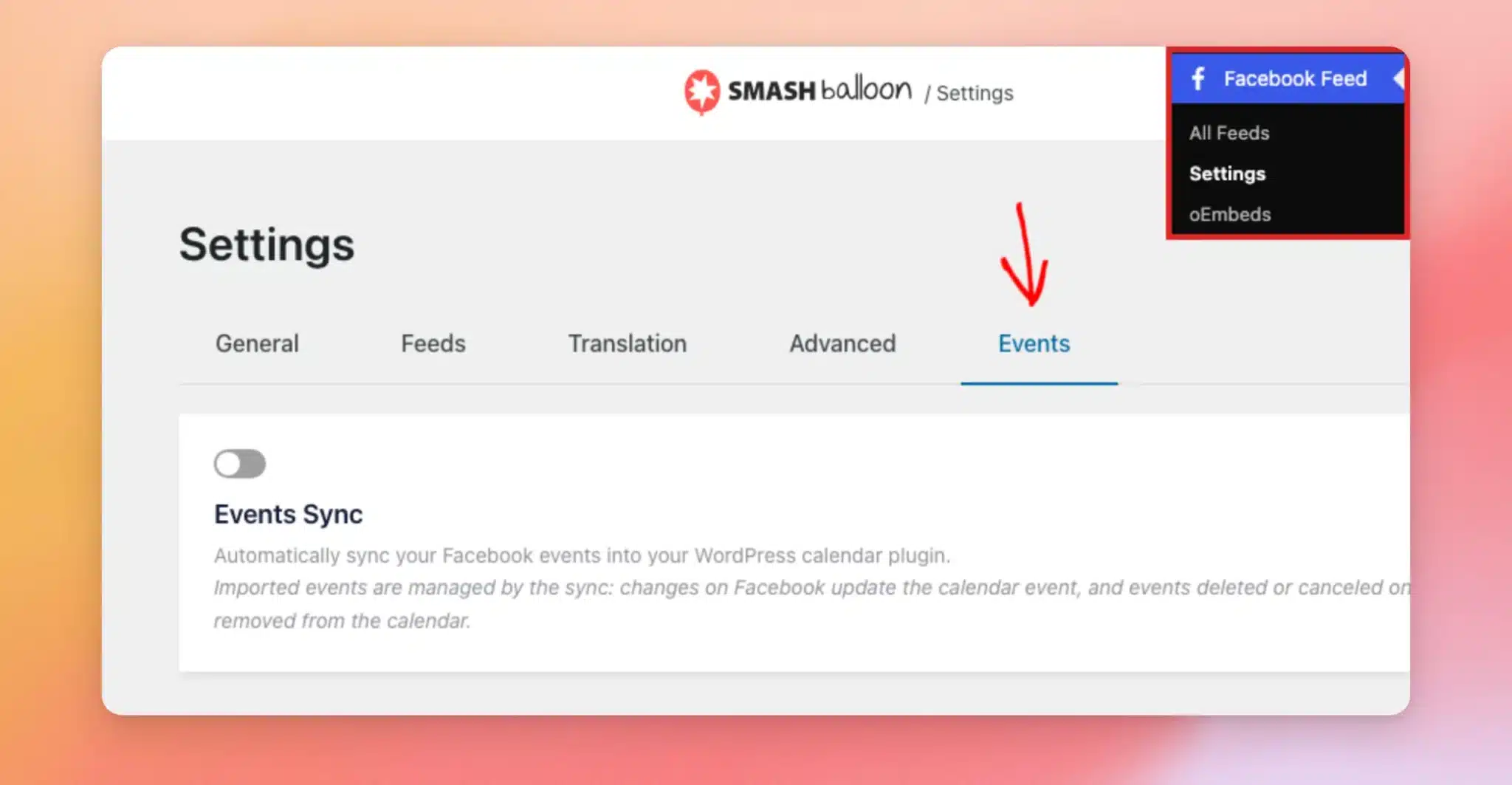
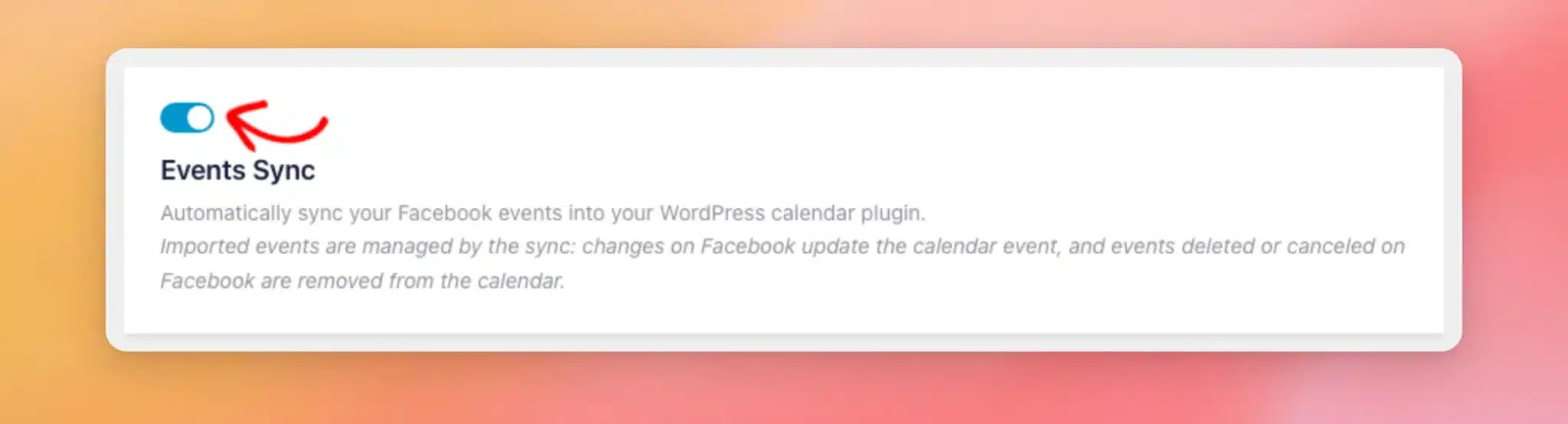
Next, turn on the Events Sync toggle. The calendar section appears first. The rest of the options show up after you select a calendar.
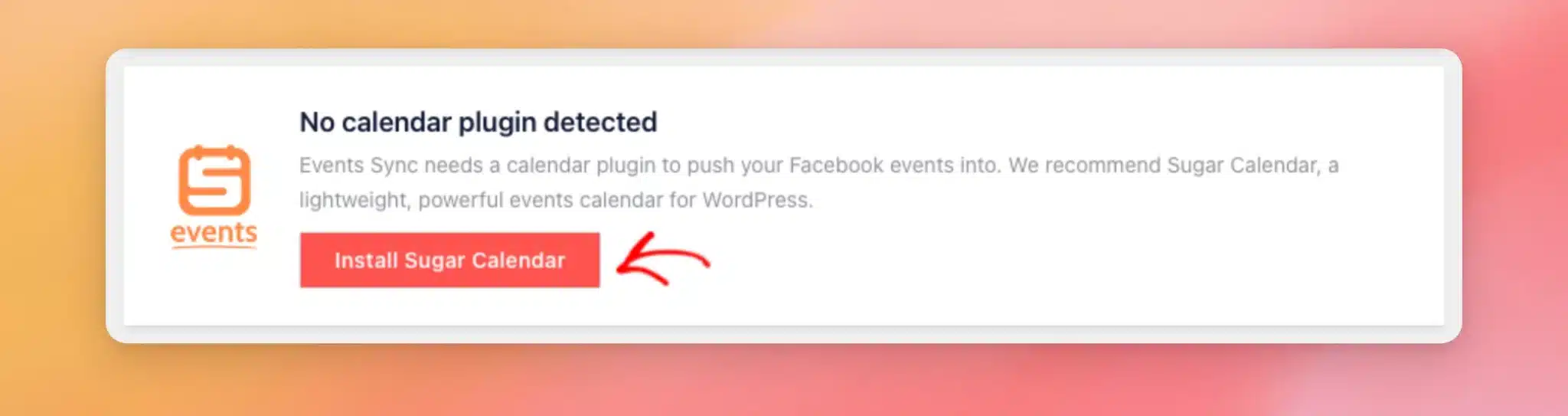
If you see “No calendar plugin detected,” click Install Sugar Calendar. This installs and activates the free version of Sugar Calendar in one click. If you already use Sugar Calendar or The Events Calendar, you won’t see this message.
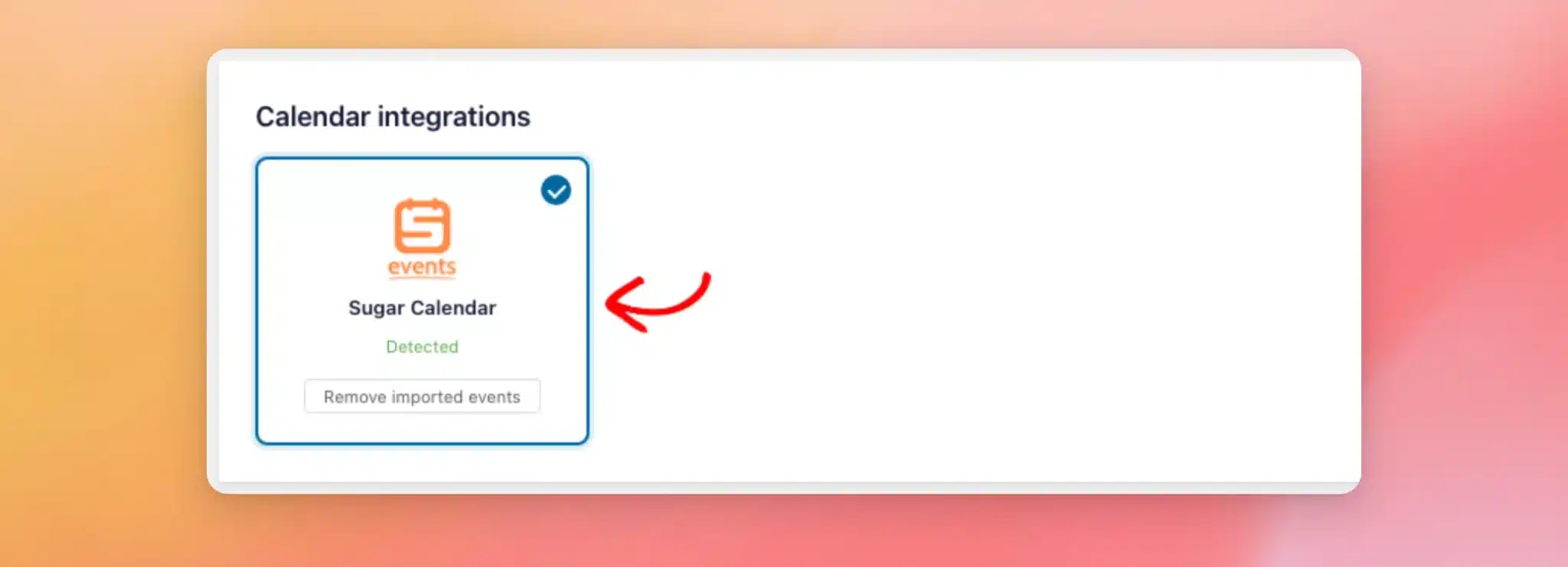
Each calendar plugin that’s active on your site shows up under Calendar integrations, marked Detected.
Now, click the card for the calendar you’d like your events added to. A checkmark appears on the card you select. If both Sugar Calendar and The Events Calendar are active, you can select both.
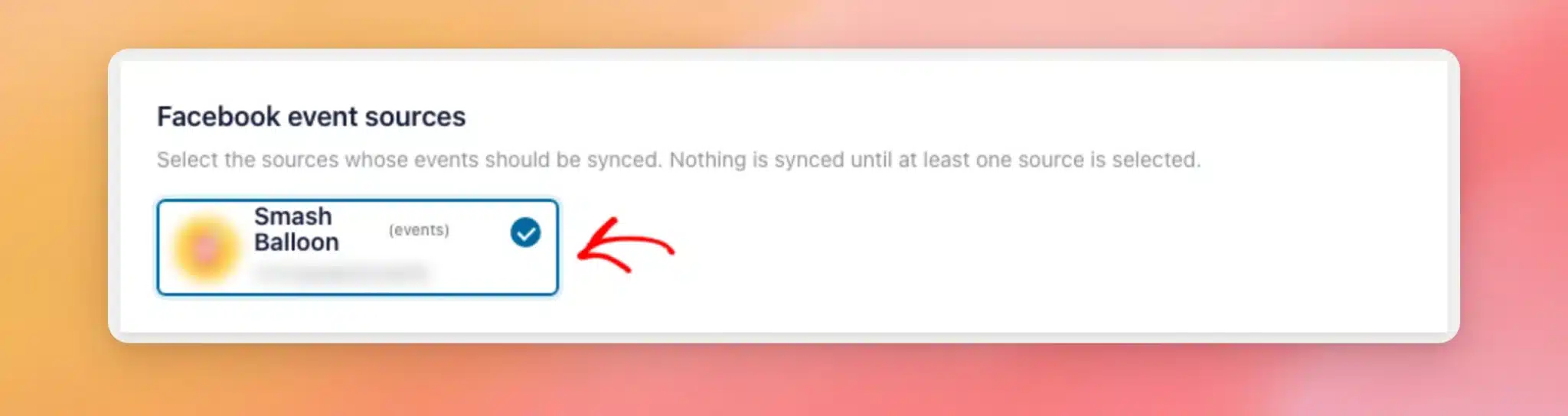
Then, under Facebook event sources, select each source whose events you’d like to sync. Nothing syncs until you select at least one source.
Under Sync schedule, choose how often Custom Facebook Feed Pro checks Facebook for new and changed events:
- Every hour — Choose this if your event details change often and you’d like your calendar to catch up quickly.
- Twice daily — The default. Choose this if you’re not sure which to pick, since it sits between the other 2 options.
- Daily — Choose this if your events rarely change after you post them.
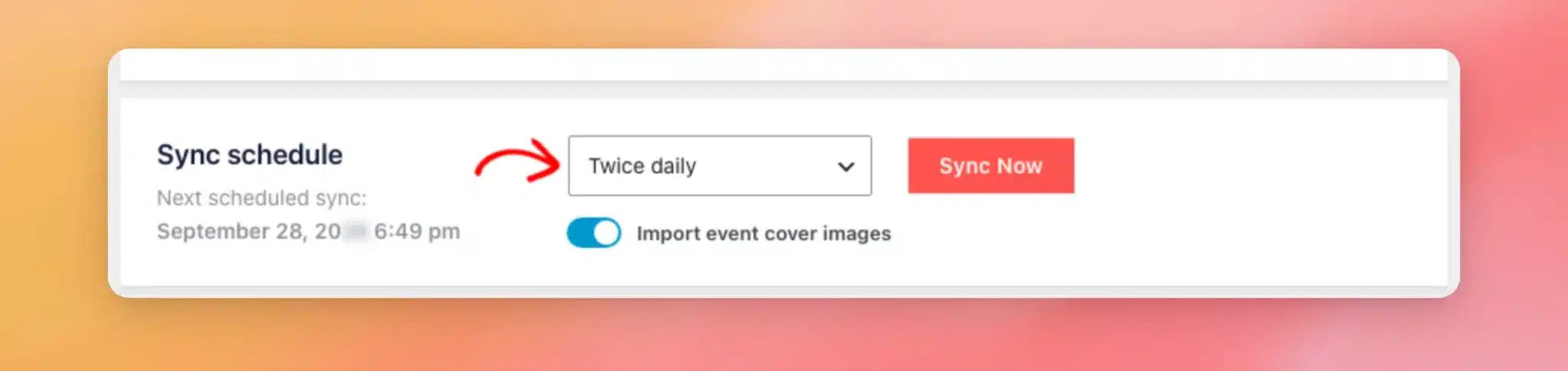
The Import event cover images option adds each event’s cover photo to your Media Library and uses it as the event’s image. Since it’s turned on by default, you only need to change it if you’d rather keep event photos out of your Media Library.
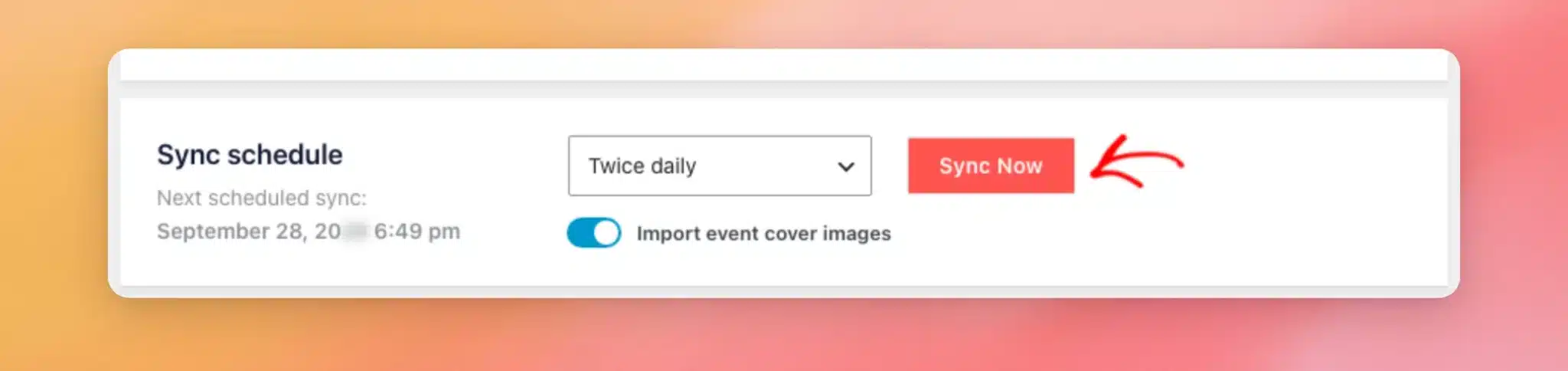
When you’re ready, click Sync Now. This saves your settings and runs the first sync right away.
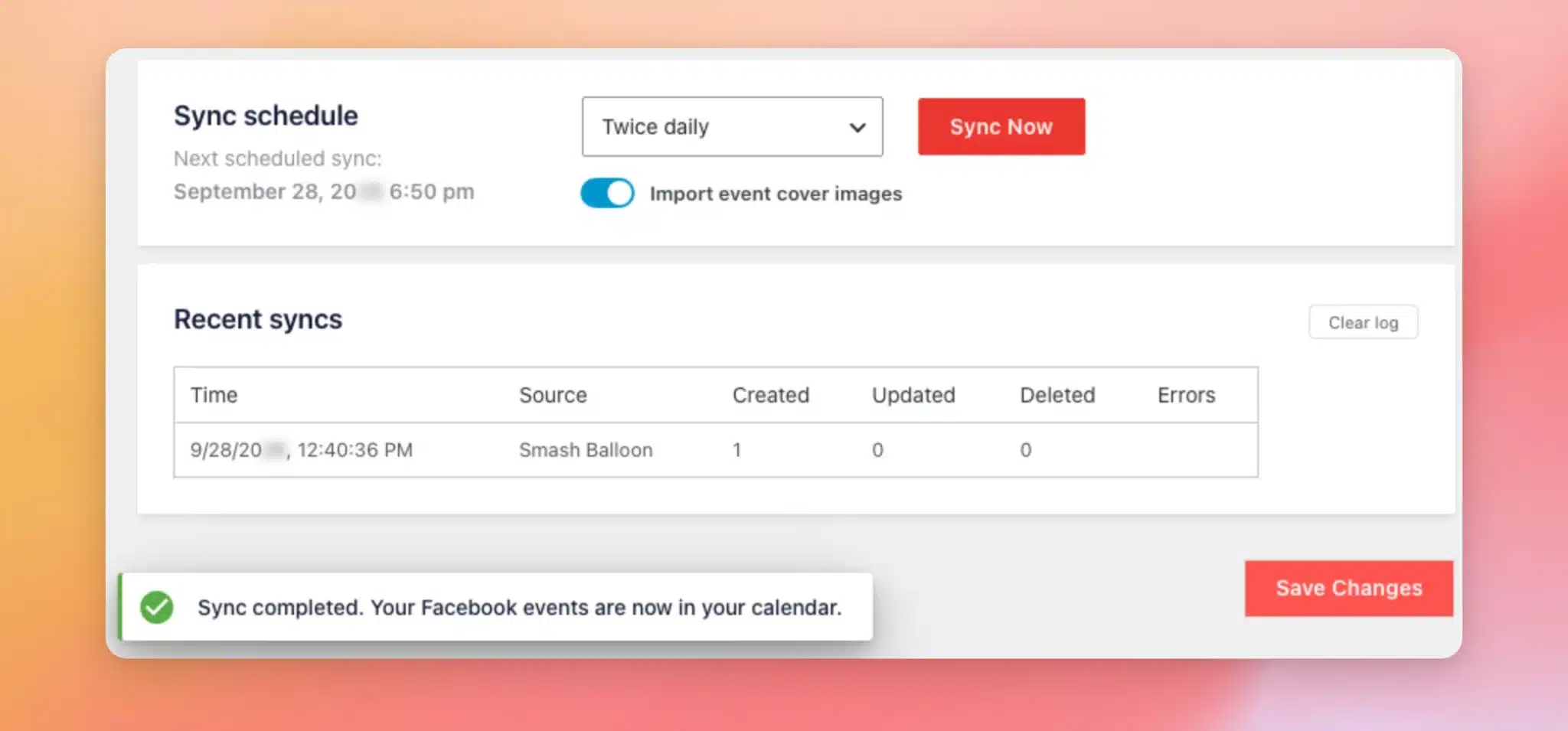
When the sync finishes, you’ll see “Sync completed. Your Facebook events are now in your calendar.” This first run also appears under Recent syncs at the bottom of the tab. If you selected more than one source, you’ll see a different message: “First source synced. The remaining sources will sync in the background over the next few minutes.”
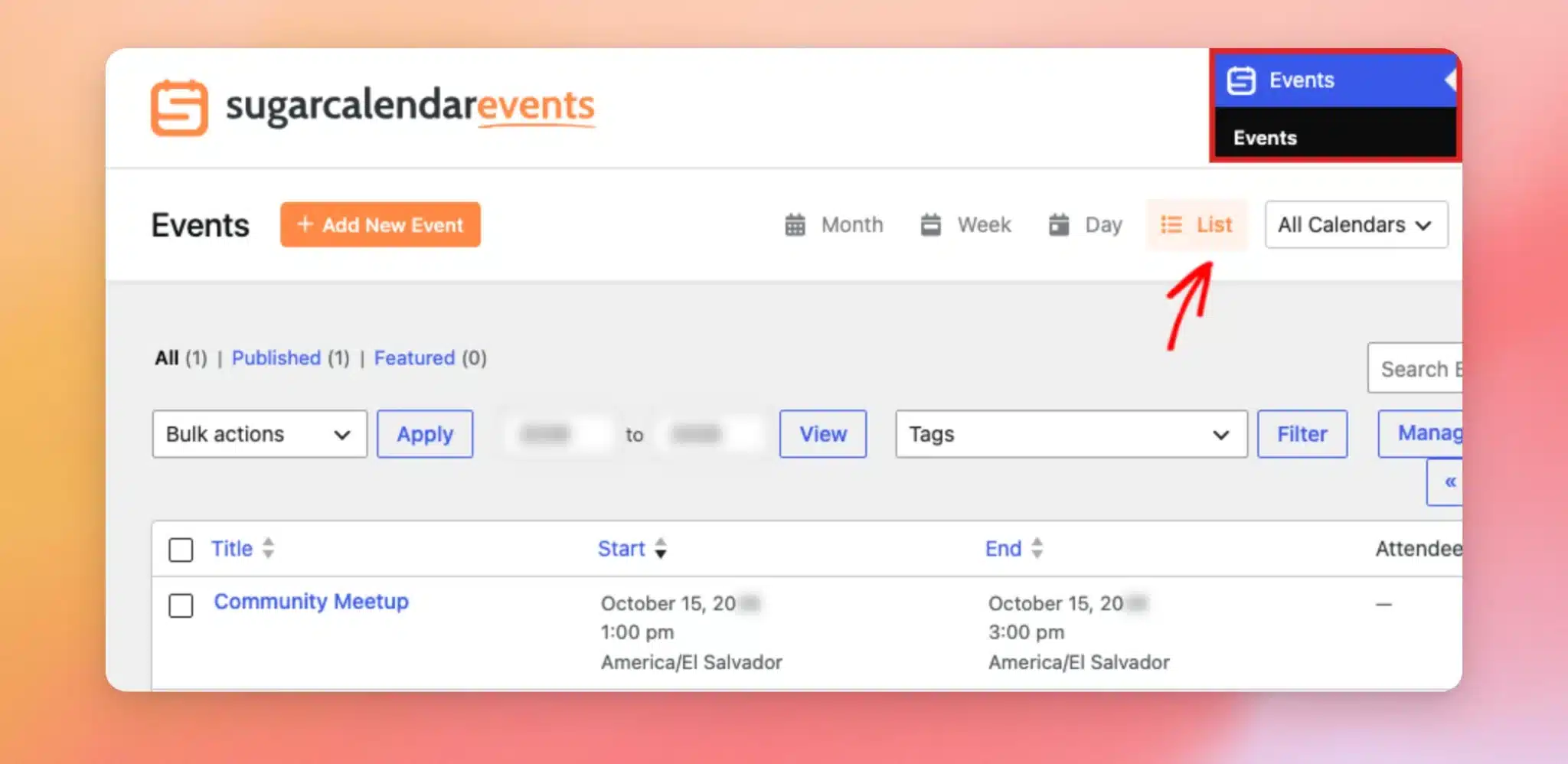
Your Facebook events now appear in your calendar alongside any events you’ve added yourself. To see them in Sugar Calendar, go to Events in your WordPress dashboard. Then, click List to see your upcoming events in one list.
If you change any Events Sync settings later, click Save Changes to keep them.
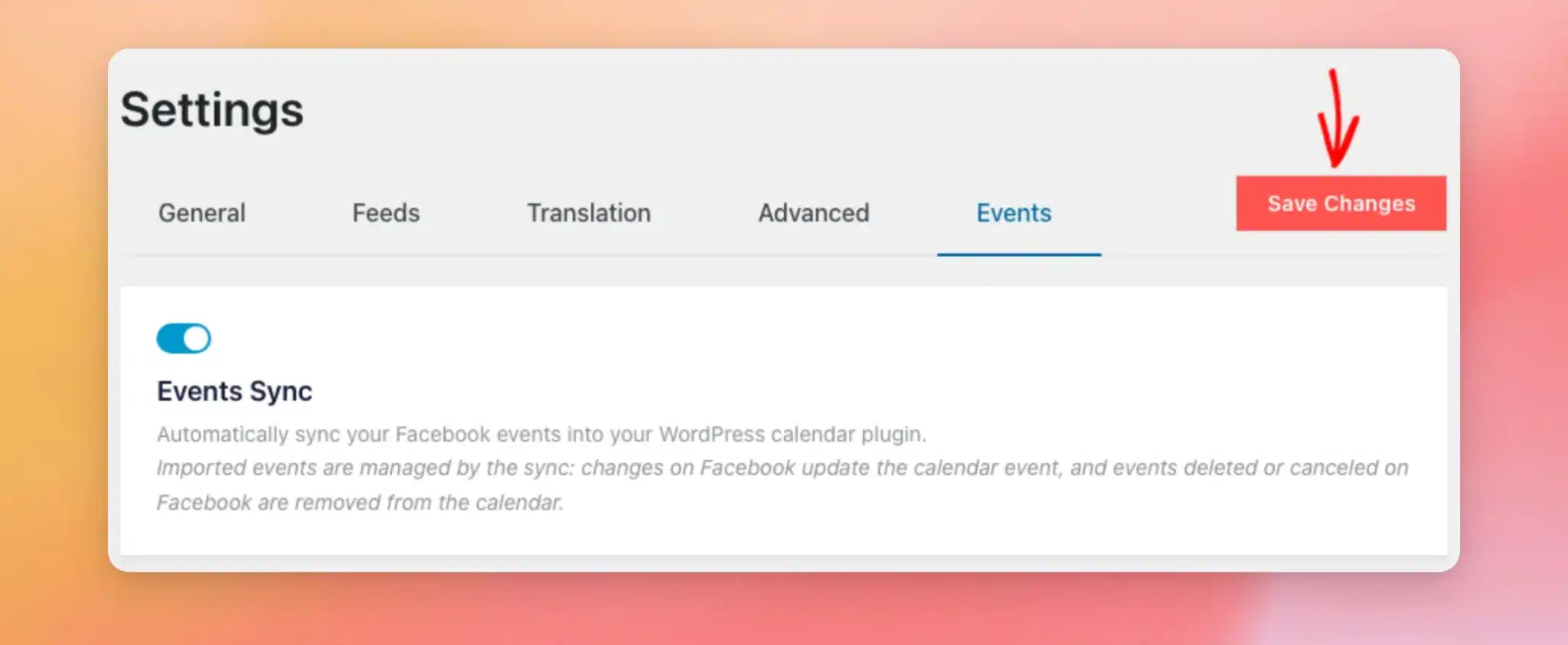
Once your settings are saved, the sync runs on the schedule you chose. Under Sync schedule, Next scheduled sync shows the date and time of the next sync.
Checking Recent Syncs
The Recent syncs table at the bottom of the Events tab lets you check how each sync went. For every run, it shows the time, the source, how many events were created, updated, and deleted, and any errors.
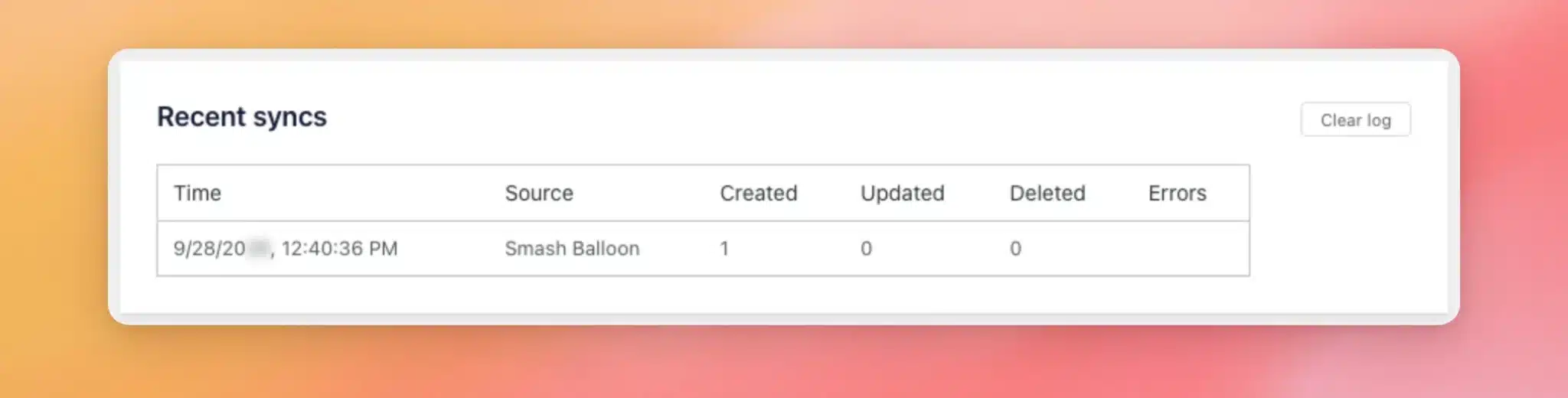
A run that finds nothing new or changed on Facebook still shows up, with 0 in the Created, Updated, and Deleted columns.
If your events don’t show up in your calendar, see the Frequently Asked Questions below for what to check.
Keeping Your Calendar Up to Date
Once your events are in your calendar, Events Sync keeps them matched to Facebook. Here’s how each kind of change is handled:
- When you add a new event on Facebook, it’s copied to your calendar on the next sync.
- When you change an event on Facebook, the calendar event is updated on the next sync.
- When you cancel or delete an event on Facebook, it’s removed from your calendar. Custom Facebook Feed Pro checks each one with Facebook before removing it.
- If you delete an imported event from your calendar, it stays deleted, even if it’s still on Facebook.
- If you edit an imported event in your calendar, your edits are replaced the next time that event changes on Facebook. That’s why it’s best to make your changes on Facebook.
Removing Imported Events
Each calendar card in the Calendar integrations section has its own button for removing the events the sync added. It removes only those events and leaves the events you created yourself in place.
Note: Removing imported events starts the sync over. Events you deleted from your calendar by hand come back on the next sync if they’re still on Facebook.
To use it, click Remove imported events on the calendar’s card.
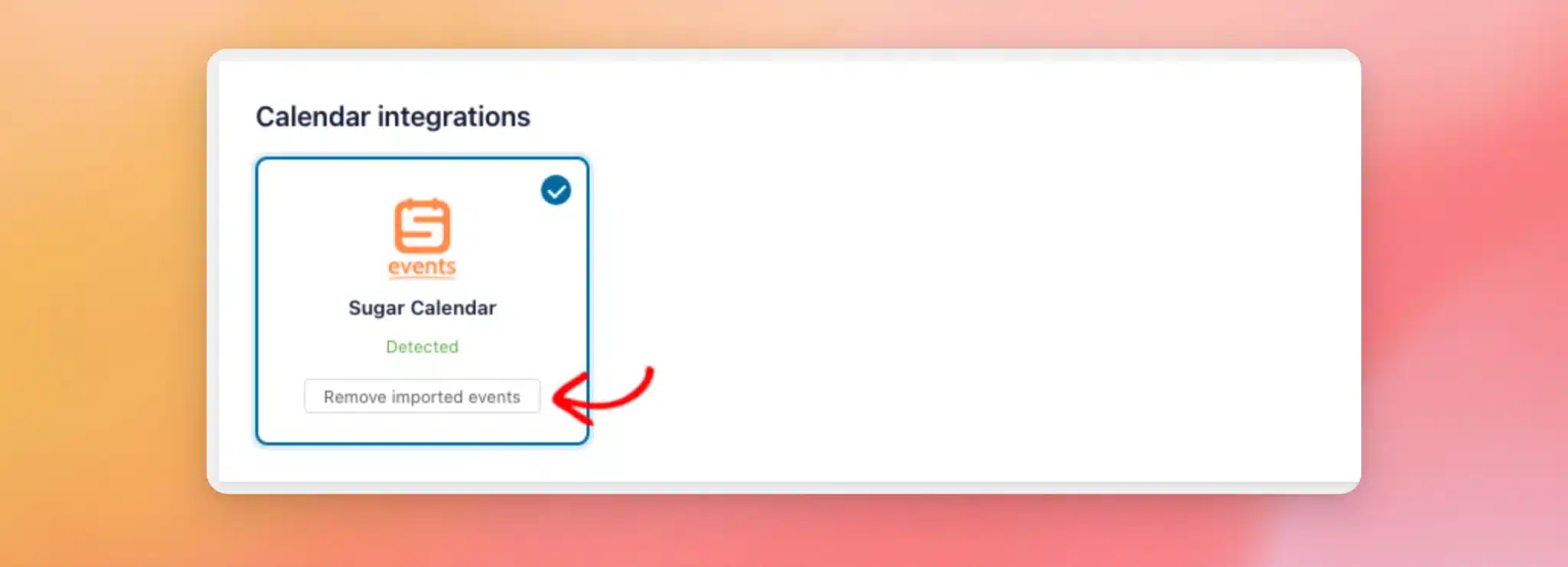
Custom Facebook Feed Pro asks you to confirm first. To go ahead, click Confirm.
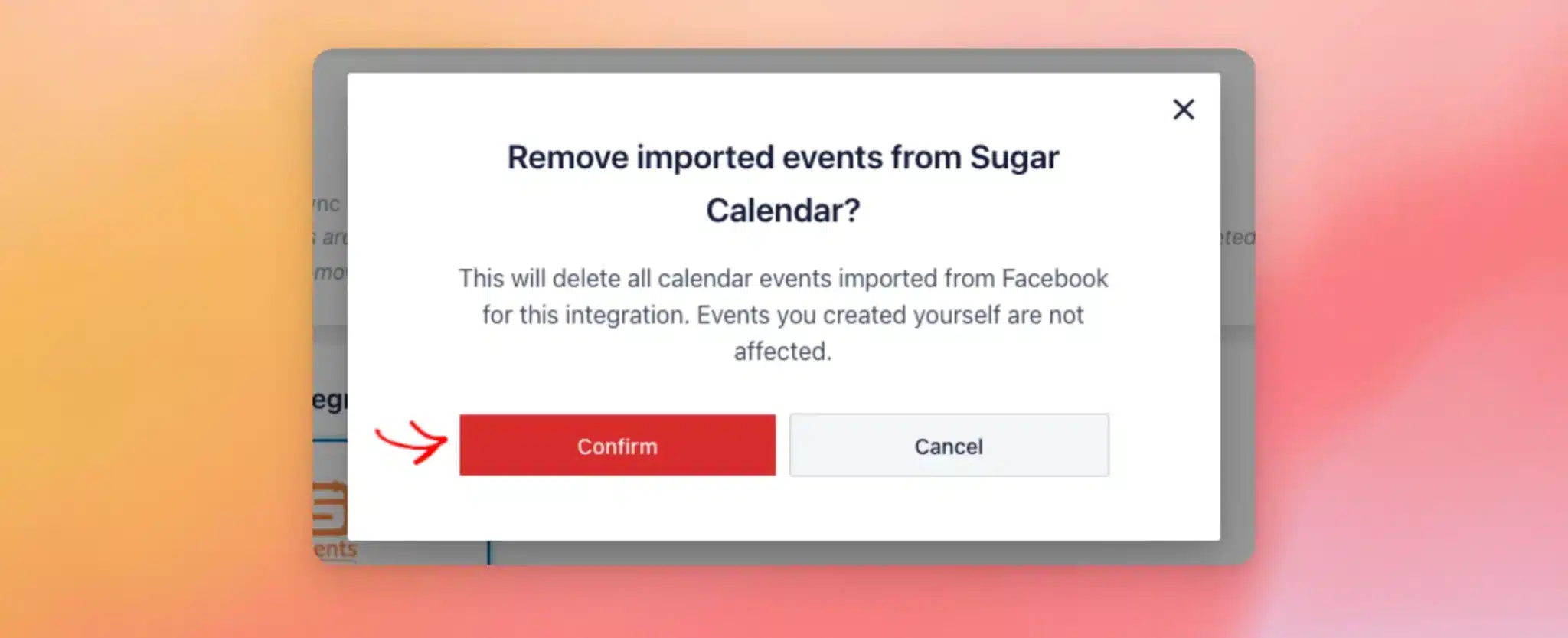
When the removal finishes, you’ll see “All imported events have been removed.”
Note: To keep the events off your calendar for good, also stop the sync, as described in the Frequently Asked Questions below.
That’s it! You now know how to use Events Sync to copy your Facebook events into your WordPress calendar and keep them up to date. Next, take a look at Sugar Calendar’s guide on displaying upcoming events to show your synced events on your site.
Frequently Asked Questions
Below, we’ve answered some of the most common questions about syncing your Facebook events to your WordPress calendar.
Which calendar plugins does Events Sync work with?
Events Sync works with Sugar Calendar and The Events Calendar. If both are active on your site, you can select both on the Events tab.
What gets copied to my calendar?
Each Facebook event becomes a calendar event with its title, description, and location. It also keeps its start and end date and time in the event’s time zone (or is added as an all-day event). Its cover photo is added too when Import event cover images is turned on. Imported events are published right away.
In The Events Calendar, the location is added as a Venue. The event also links to its ticket page, or to the event on Facebook if it has no ticket link.
Which Facebook events does Events Sync copy?
Events Sync copies the upcoming events from each source you select on the Events tab.
What happens with events that repeat on Facebook?
Each date of a repeating Facebook event is added to your calendar as its own event.
Why does the Events tab say “You have no event source connected”?
Events Sync uses the Facebook events sources connected to Custom Facebook Feed Pro. First, connect an events source. Then, come back to the Events tab.
For more details, see our guide on creating a Facebook events access token.
Why aren’t my events showing up in my calendar?
First, check that a calendar and at least one source are selected on the Events tab. Then, click Sync Now. When the sync finishes, look at the Errors column in the Recent syncs table.
Scheduled syncs run through WP-Cron. If they never seem to run, see our guide on how to force cron jobs to run on your server.
What if the Install Sugar Calendar button doesn’t work?
If you see “The plugin could not be installed,” install and activate Sugar Calendar from the Plugins page instead. Then, go back to the Events tab. If your WordPress user isn’t allowed to install plugins, the button opens the Sugar Calendar website instead. In that case, ask a site administrator to install Sugar Calendar for you.
To install and activate Sugar Calendar from the Plugins page, see How to Install a WordPress Plugin for a step-by-step guide.
What does “uses an iCal feed” mean in Recent syncs?
It means that source was connected with an iCal URL. Since Events Sync reads your events through a source’s access token, connect that Page as an events source with an access token. Then, click Sync Now again.
For more details, see our guide on creating a Facebook events access token.
Can I clear the Recent syncs table?
Yes. Above the Recent syncs table, click Clear log to empty it.
How do I stop syncing my Facebook events?
If you’d also like to remove the events the sync added, click Remove imported events on your calendar’s card first. Next, turn off the Events Sync toggle on the Events tab. Then, click Save Changes.
Why can’t I remove imported events from my calendar?
The calendar plugin needs to be active for its imported events to be removed. If you see “The calendar plugin for this integration is not active, so its imported events cannot be removed,” reactivate that calendar plugin. Then, click Remove imported events again.