


 Social Wall
 Feed Analytics


How to show Instagram Stories on your site with Instagram Feed Pro, and why they draw more engagement than grid posts.
Would you like visitors to watch your active Instagram Stories right from your website?
Instagram Feed Pro can open your active stories in a pop-up lightbox when visitors click the profile picture in your feed’s header.
This guide explains what stories need, how to turn them on, and how visitors view them.
Before you get started, make sure Instagram Feed Pro is installed, activated, and connected to an Instagram source.
- What You Need for Stories
- Showing Stories in Your Feed
- How Visitors View Stories
- Frequently Asked Questions
What You Need for Stories
Stories work when all of the following are in place.
- Instagram Feed Pro. Every license level (Basic, Plus, and Elite) includes Instagram Stories. The free plugin shows the Include Stories setting but keeps it locked, and it shows an upgrade prompt for it.
- A Business Advanced source as the first source in the feed. Stories are built only for a source connected through Facebook, which is the Business Advanced connection. If the feed has more than one source, Instagram Feed Pro looks at the first one only.
- At least one active story on that Instagram account.
- The feed’s header turned on, with the Standard, Boxed, or Centered header style.
A source connected as Business Basic doesn’t show stories. A Personal source can’t be used at all anymore, because Instagram ended API access for Personal accounts on December 4, 2024.
For the steps to reconnect a source, see our guide on Instagram Business Basic.
Next, we’ll turn stories on in a feed.
Showing Stories in Your Feed
Stories are a setting in the Header section of the feed customizer, so you can add them to a new feed or to a feed you already have.
Create or Open Your Feed
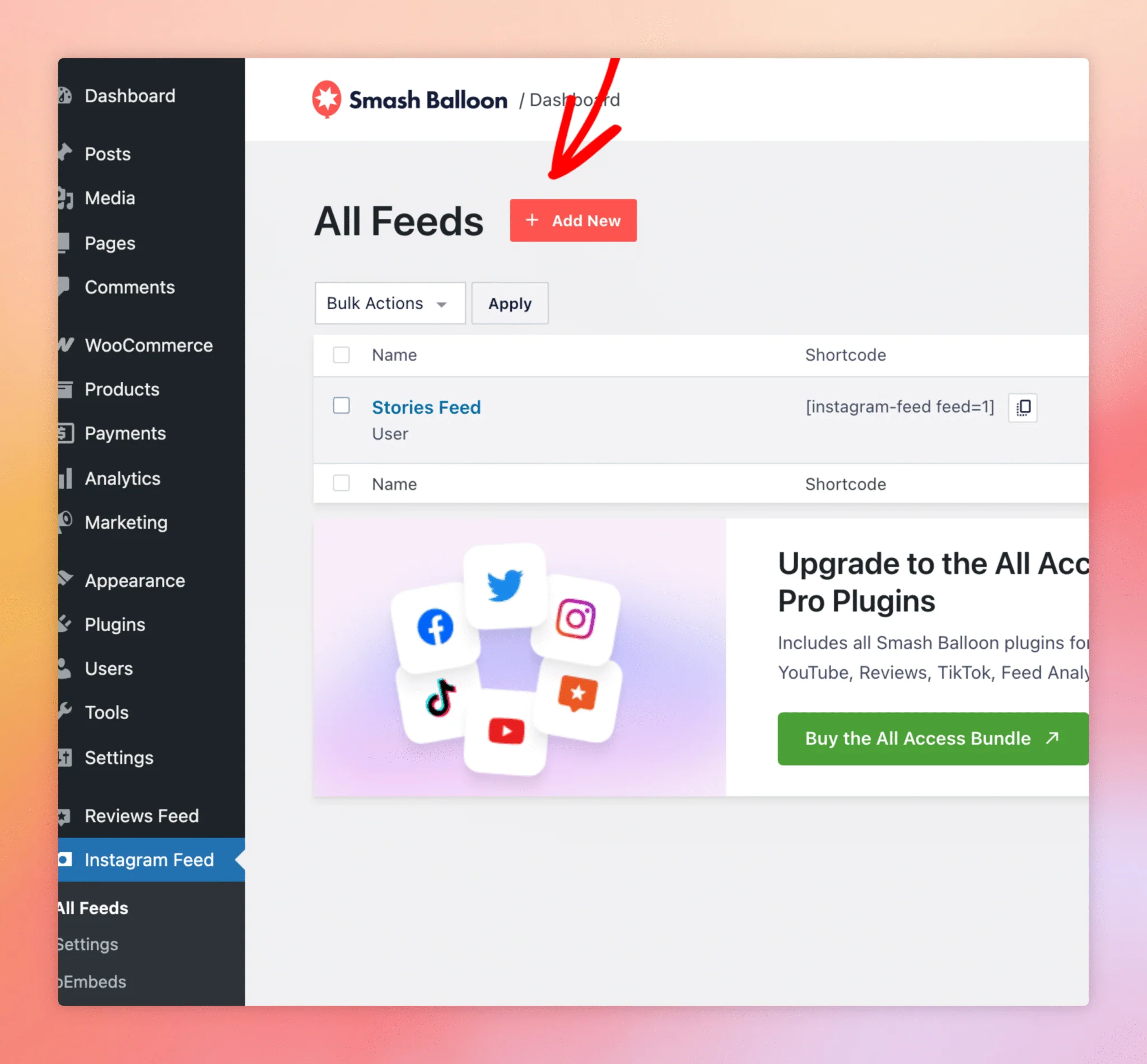
- In the WordPress dashboard, go to Instagram Feed » All Feeds.
- To make a new feed, click Add New. To use a feed you already have, click its name and skip to the next section.
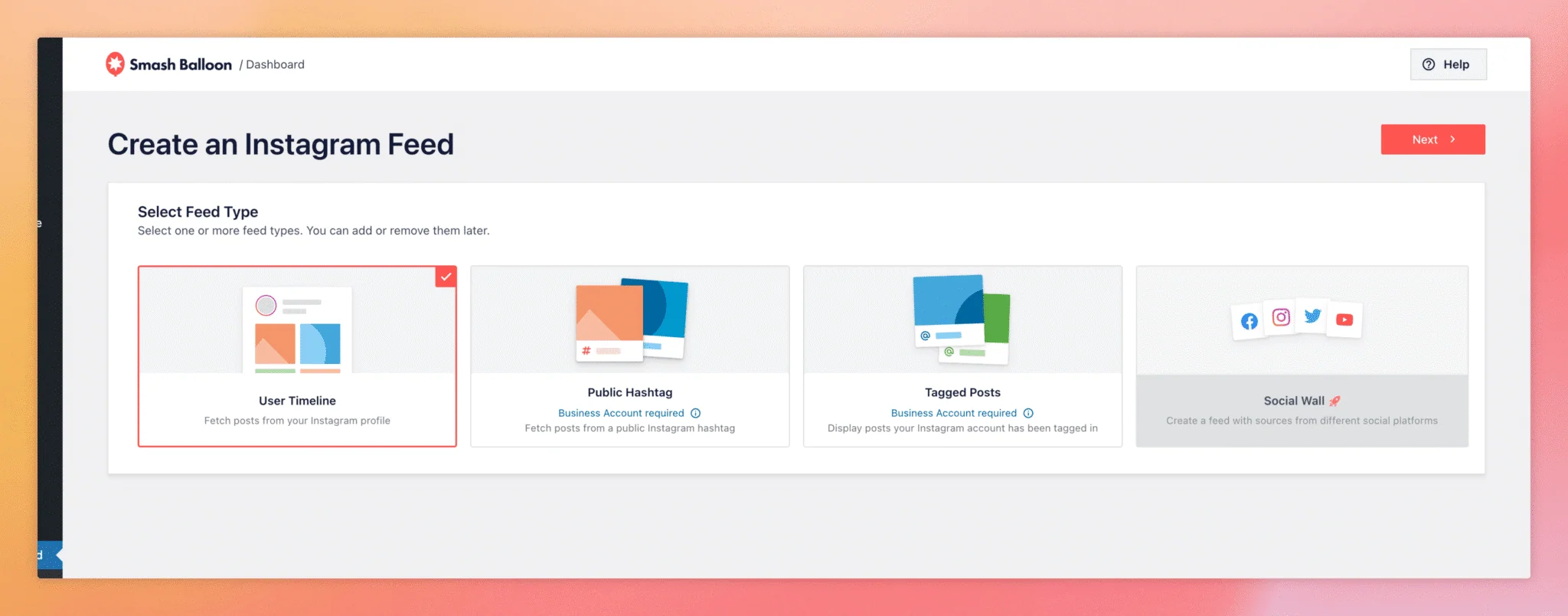
- On the Select Feed Type screen, choose User Timeline, then click Next.
- Choose the Business Advanced source for the feed, then click Next.
- If a Start with a Theme or Start with a template screen opens, pick a starting point for your feed and click Next. Do this on each screen until the feed customizer opens.
After you click Add New, the Select Feed Type screen opens.
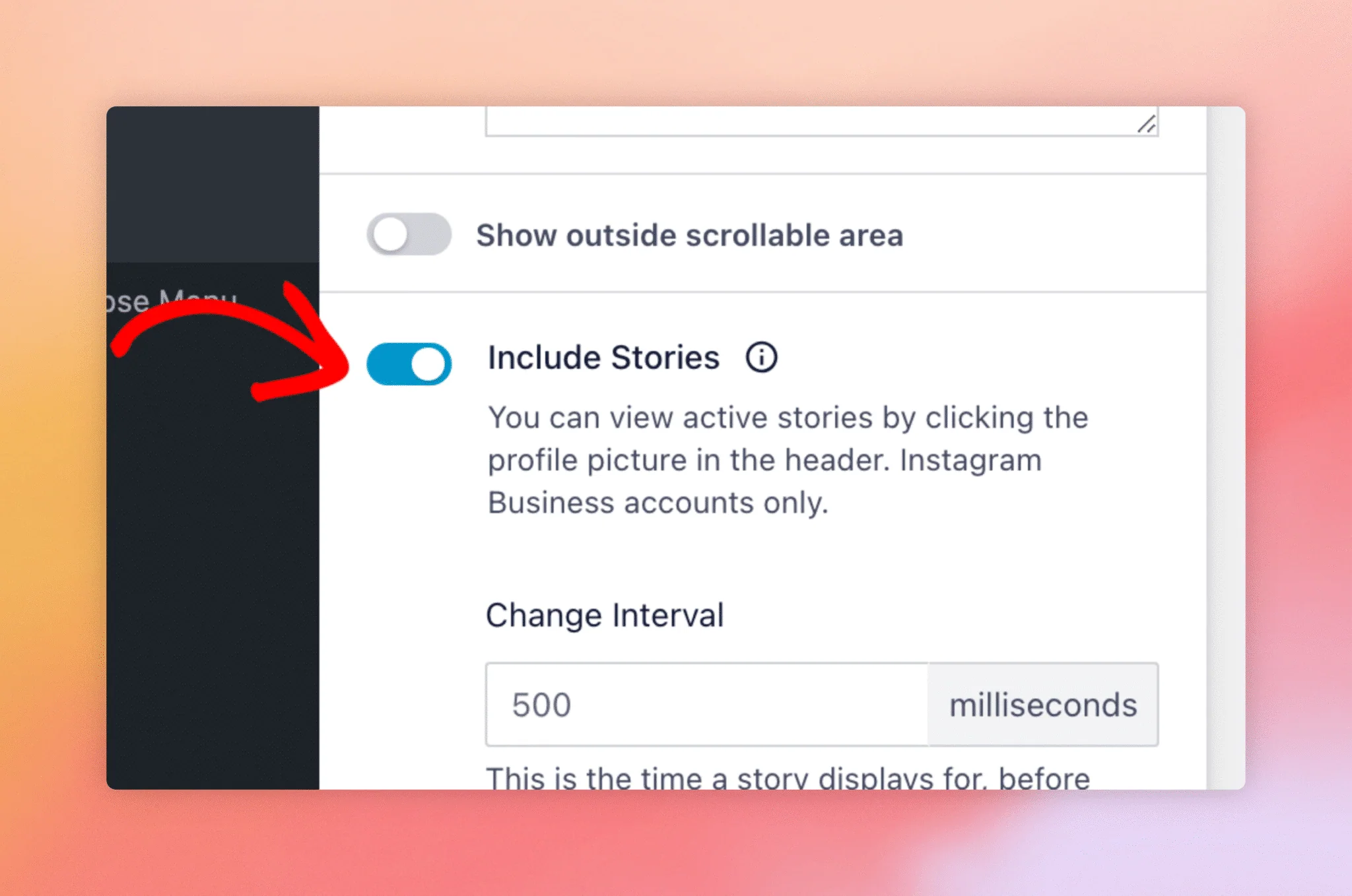
Turning On Include Stories
- In the feed customizer, on the Customize tab, click Header.
- Turn on the Enable switch at the top if it is off.
- If the Header Style is set to Text, choose Standard, Boxed, or Centered. The Include Stories setting doesn’t show with the Text style.
- Turn on Include Stories if it is off. A new feed has it on by default.
- Optional. In Change Interval, enter how long each photo story shows, in milliseconds. Leave it empty for 5000 (five seconds). The lowest value used is 500. The 500 inside the empty field is only a placeholder.
- Click Update to save the feed.
- To show the feed on a page, click Embed. Then choose Add to a Page, or copy the feed’s shortcode into your page.
Next, we’ll look at what visitors see.
How Visitors View Stories
When the feed’s first source has an active story, a colored ring appears around the profile picture in the header. Visitors click the profile picture, and the stories open one after another in the pop-up lightbox, oldest first. Each photo stays for the Change Interval, and a video moves on when it ends.
When Include Stories is off, or there’s no active story to show, the profile picture is a regular link. It opens your Instagram profile in a new tab.
Stories are saved with the feed’s header data, so a new story shows up after the feed’s cache refreshes. If your site uses the GDPR setting, stories open only after a visitor has given consent.
That’s it! Whenever your account has an active story, visitors can click the profile picture in your feed’s header to watch it in a pop-up lightbox. If you need to connect a source through Facebook, see our guide on Instagram Business Advanced.
Frequently Asked Questions
Below, we’ve answered some of the most common questions about Instagram Stories.
Why don’t I see the Include Stories setting?
In Instagram Feed Pro, the setting shows in the Header section only when the header is enabled and its style is Standard, Boxed, or Centered. The free plugin shows the setting locked, with an upgrade prompt.
Why does the profile picture not open my stories?
Instagram Feed Pro opens stories only when Include Stories is on, the feed’s first source is a Business Advanced source, and that account has an active story. Stories also wait for a visitor’s consent when your site uses the GDPR setting.
Which license levels include Instagram Stories?
All of them. Basic, Plus, and Elite each include Instagram Stories.
Can I show stories from more than one account in the same feed?
No. A feed shows the stories of its first source only, even when the feed has more sources.
Will stories from accounts that tag me also appear?
No. Instagram Feed Pro asks Instagram only for the connected account’s own stories.
How long do stories stay in the feed?
A story lasts 24 hours on Instagram. Your site saves the stories with the feed’s header data, so a new or expired story updates when the feed’s cache refreshes.




