


 Social Wall
 Feed Analytics


How to set up a WooCommerce reviews feed with Reviews Feed Pro, so product reviews appear anywhere on your site, not just one product page.
Would you like to show your WooCommerce product reviews anywhere on your WordPress site, not just on each product page?
In this guide, we’ll walk you through creating a reviews feed from your WooCommerce product reviews. We’ll go from turning on reviews in your store to embedding your feed. All you need is Reviews Feed and a WooCommerce store with at least one approved product review.
Requirements: WooCommerce reviews are available on the Plus license level or higher of Reviews Feed.
Before you get started, make sure the paid version of Reviews Feed and the WooCommerce plugin are installed and activated on your WordPress site.
- Turning On Product Reviews in WooCommerce
- Adding Your Products as a Source
- Choosing a Template
- Customizing and Saving Your Feed
- Embedding Your Feed
- Frequently Asked Questions
Turning On Product Reviews in WooCommerce
To get started, we’ll set up your store to collect product reviews. Reviews Feed shows the reviews your customers leave on your WooCommerce products.
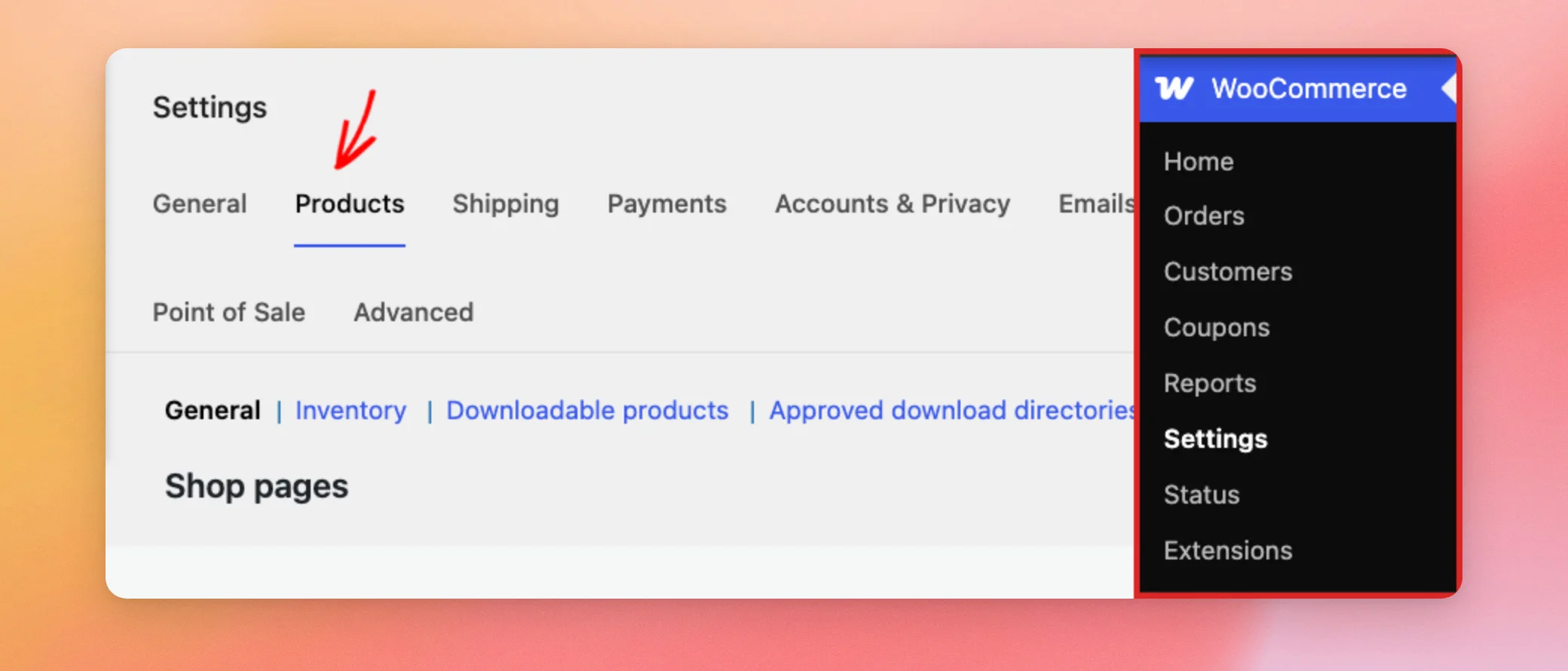
From your WordPress admin sidebar, go to WooCommerce » Settings and open the Products tab.
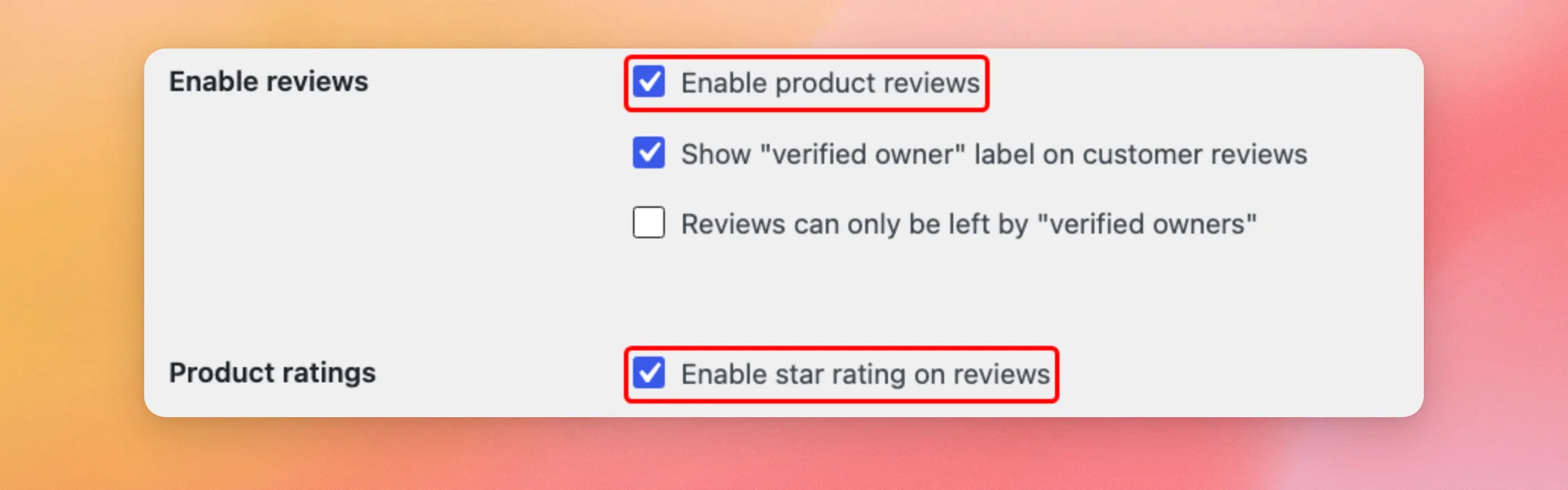
The Enable product reviews checkbox must be checked for your store to accept reviews. To let customers rate your products with stars, also check Enable star rating on reviews. Your feed shows these star ratings with each review.
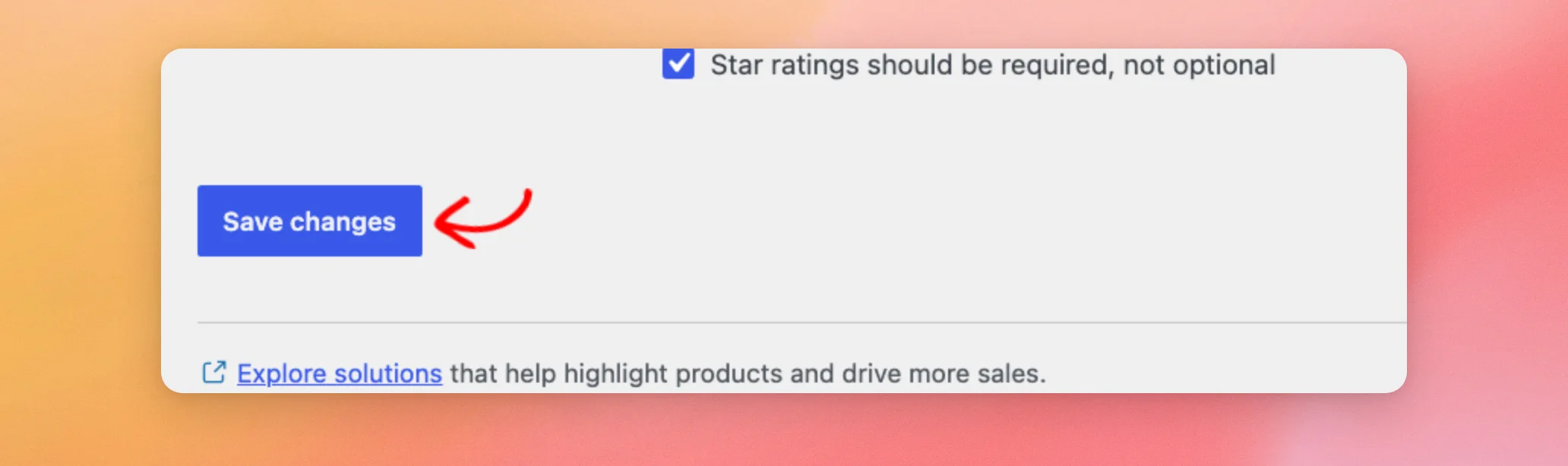
If you changed either option, click Save changes at the bottom of the page.
Reviews Feed only shows approved reviews. You can approve reviews that are waiting for moderation in Products » Reviews.
Your store is now ready to share its reviews. Next, we’ll add your products as a source.
Adding Your Products as a Source
Every feed shows reviews from one or more sources. For WooCommerce, a source is a group of products from your store.
From your WordPress admin sidebar, go to Reviews Feed » All Feeds.
At the top of the All Feeds page, click Add New.
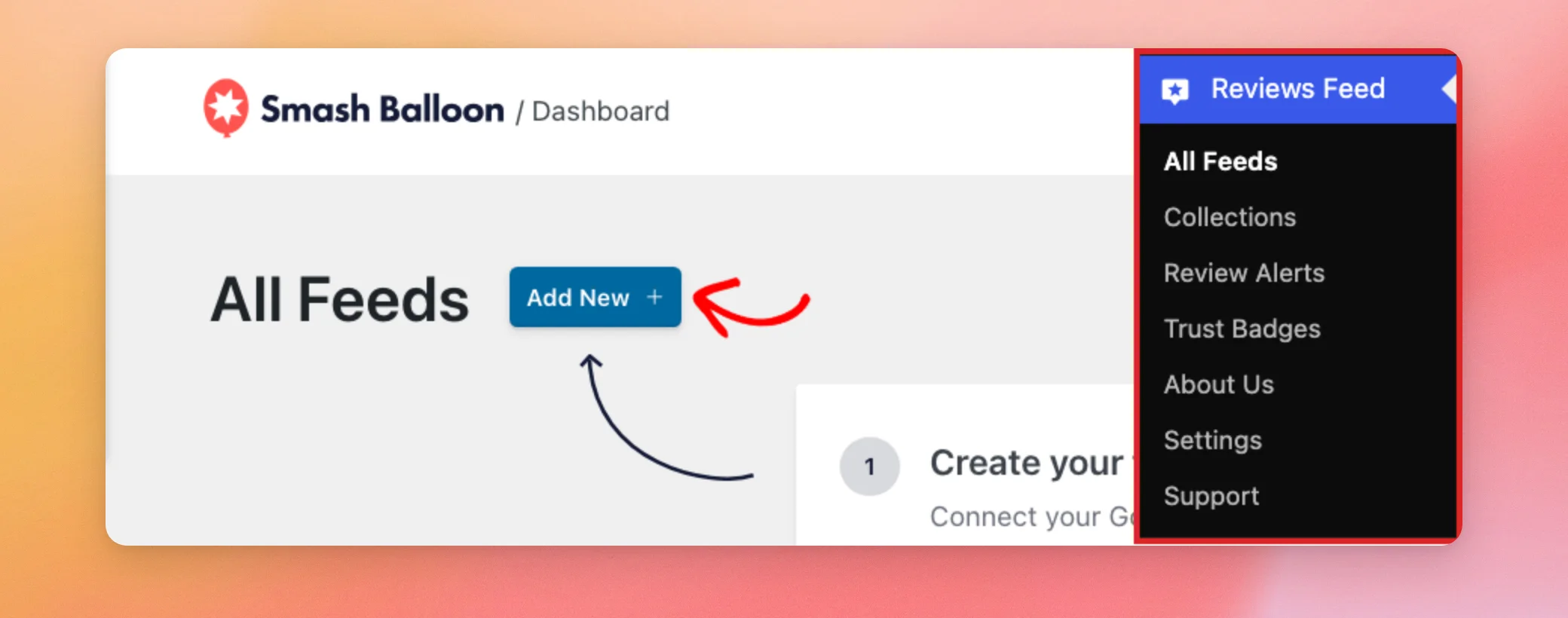
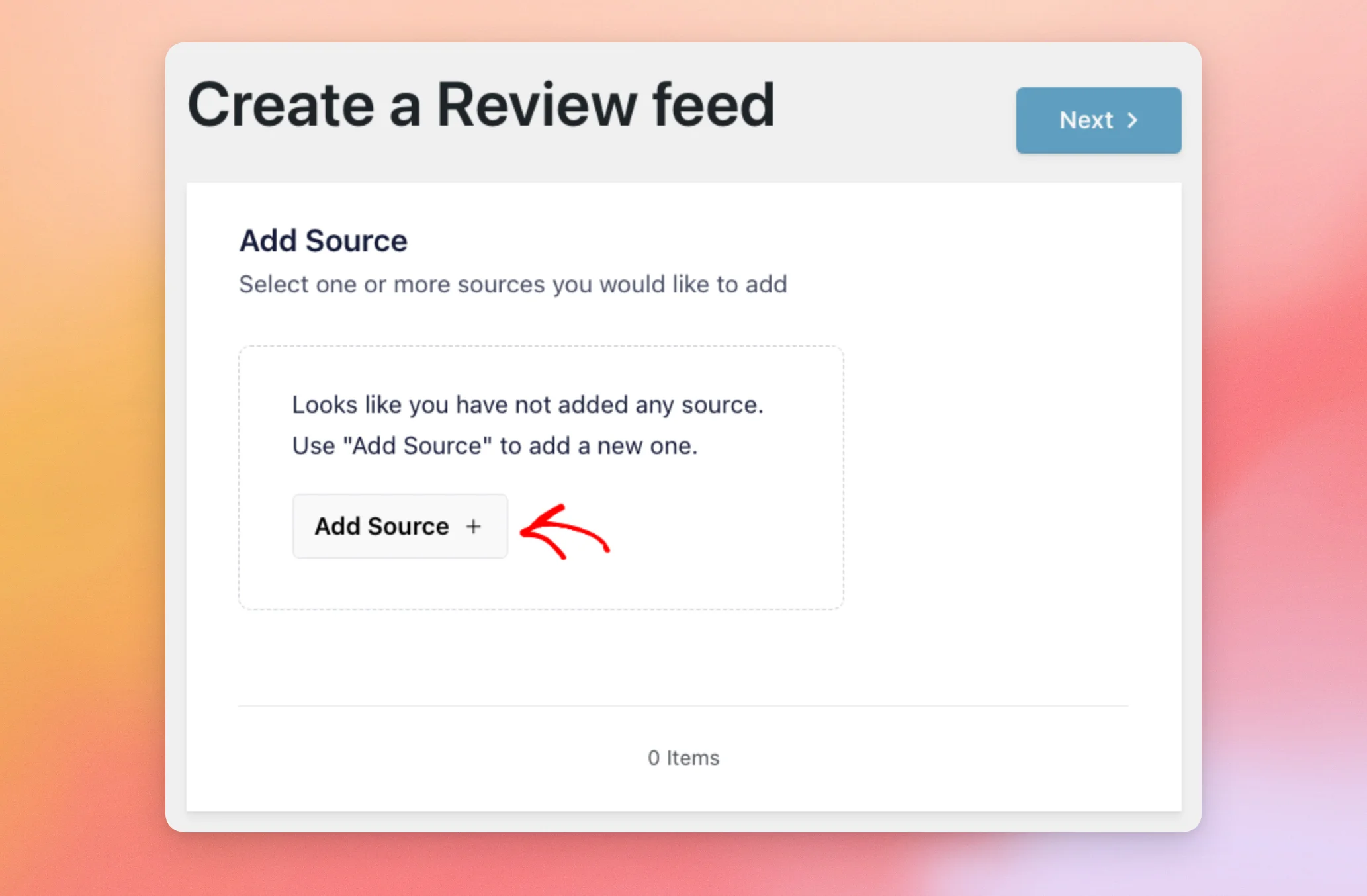
This opens the Create a Review feed screen. Its first step is where you choose the sources your feed shows.
Since you haven’t added a source yet, click Add Source. If you’ve already added other sources, this step lists them with an Add New tile that opens the same window.
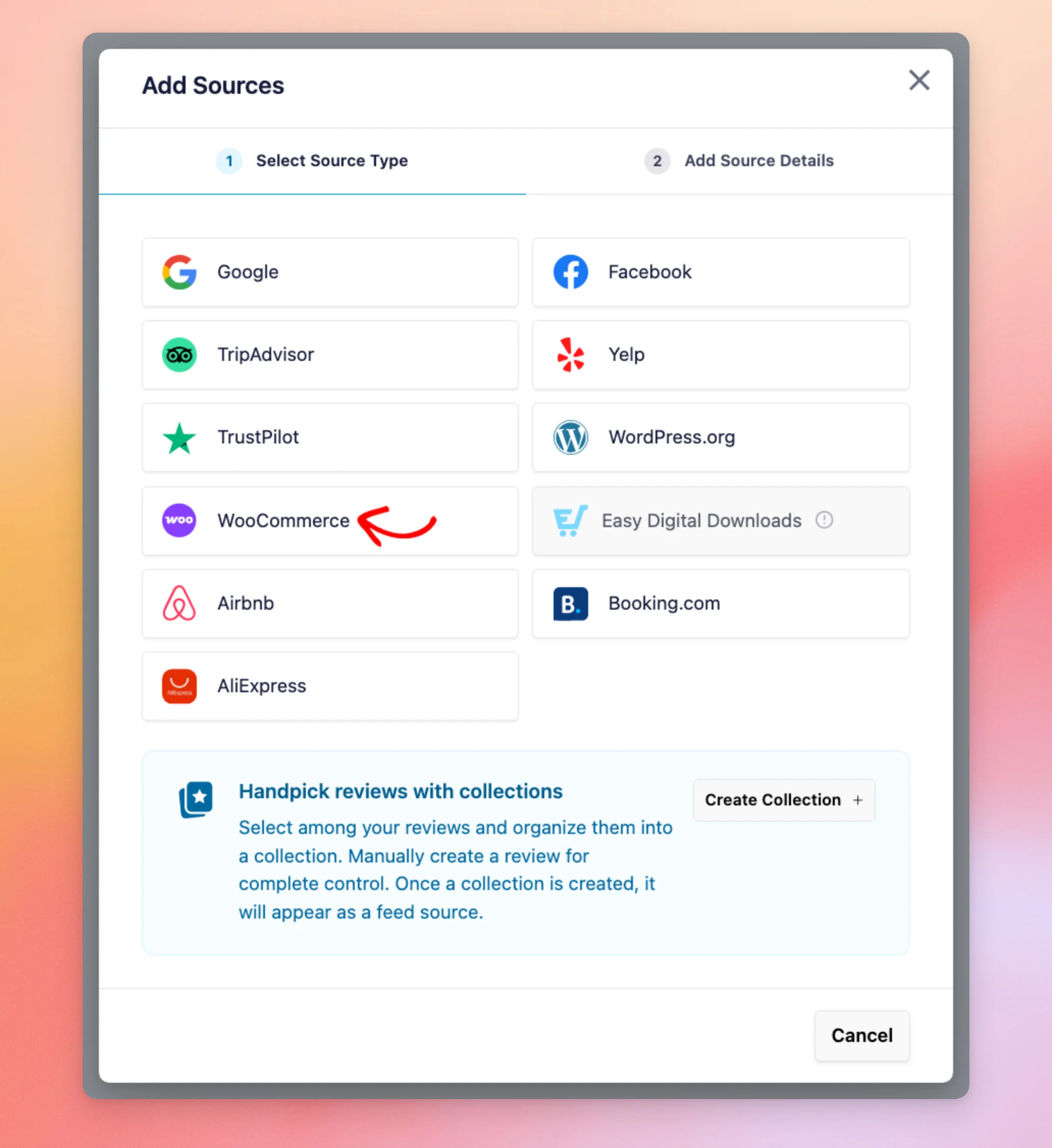
The Add Sources window opens with a tile for each review source. Next, click the WooCommerce tile.
Note: The WooCommerce tile stays unavailable until the WooCommerce plugin is active on your site.
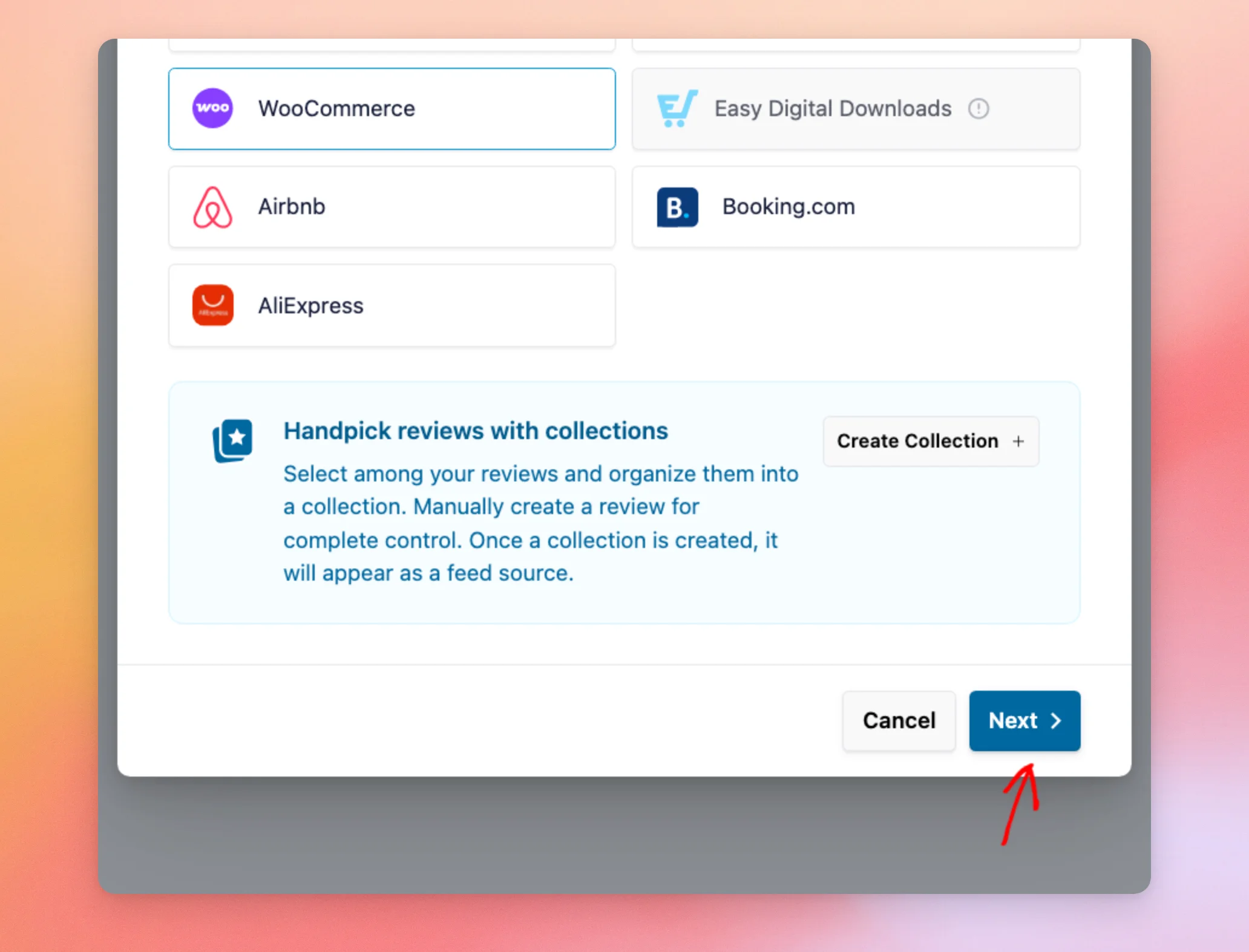
Once you’ve chosen the tile, click Next at the bottom of the window.
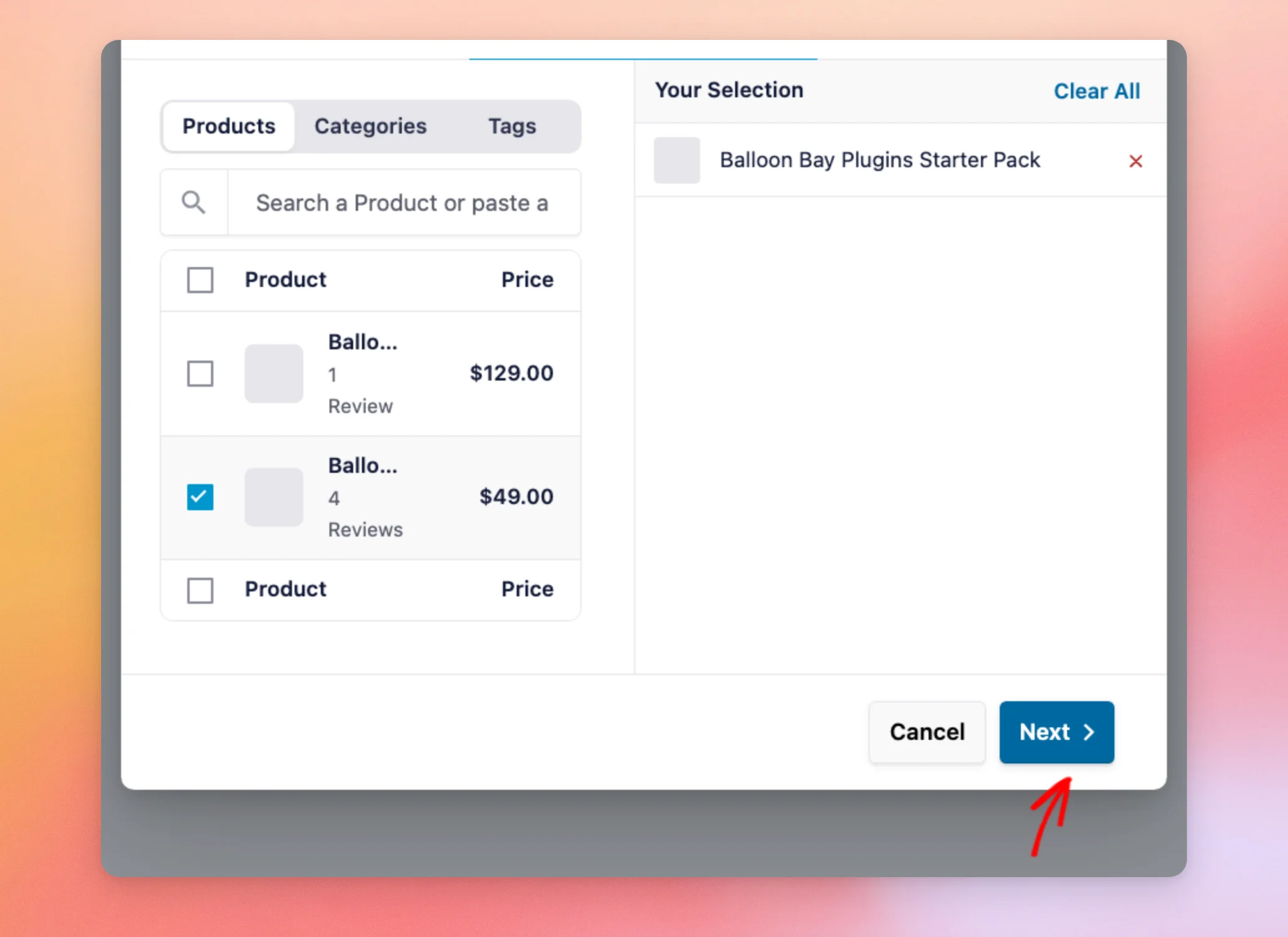
On the Add Products step, Reviews Feed lists the products in your store with their number of reviews and their price. You can also search for a product by name or paste a product’s URL.
From the list, check the box next to each product whose reviews you’d like to show. The products you select appear in the Your Selection panel on the right. You need to select at least one product to continue.
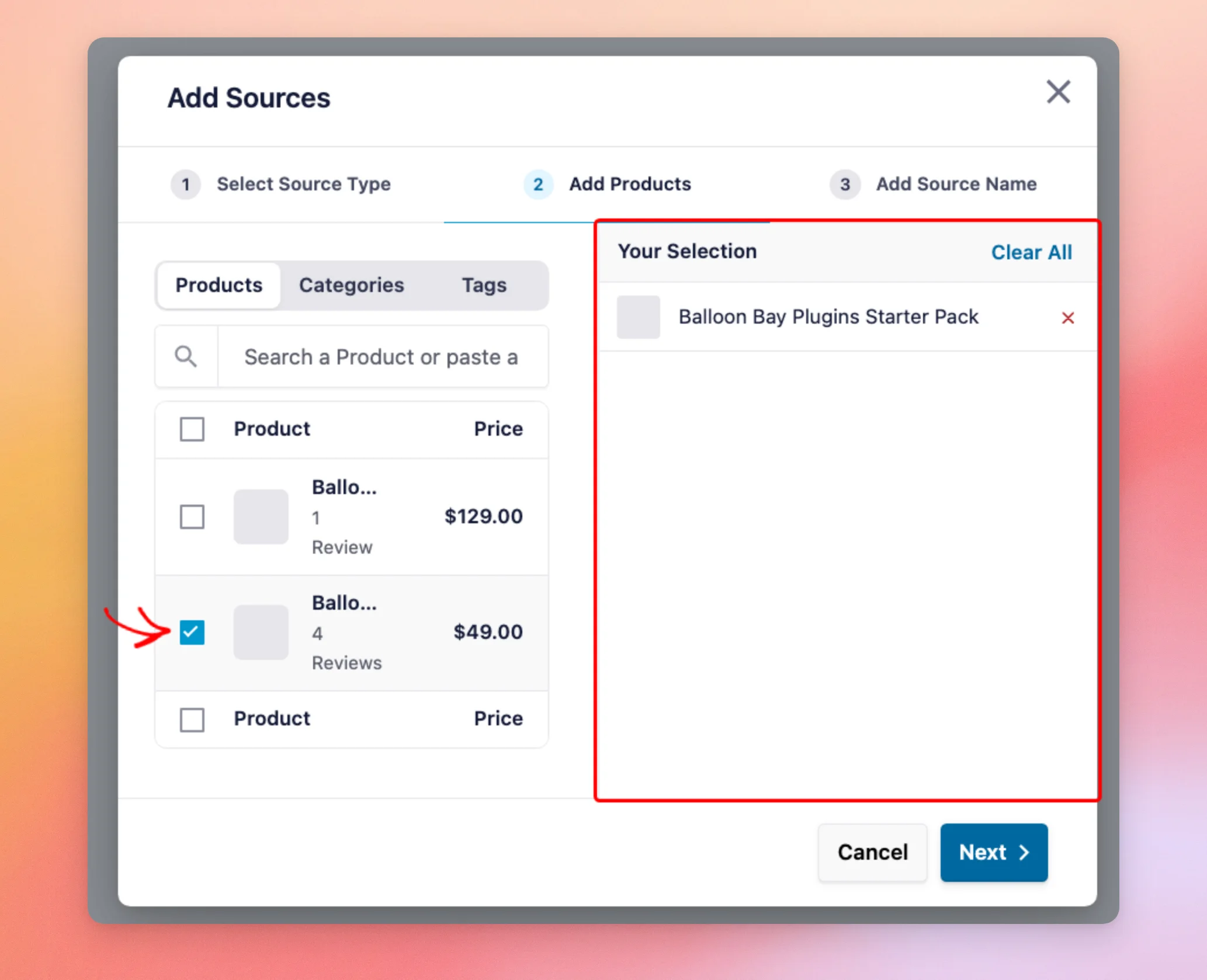
The Categories and Tags tabs work the same way. Selecting a category or tag adds the products in it to your source. You don’t have to pick them one by one.
When your selection is ready, click Next.
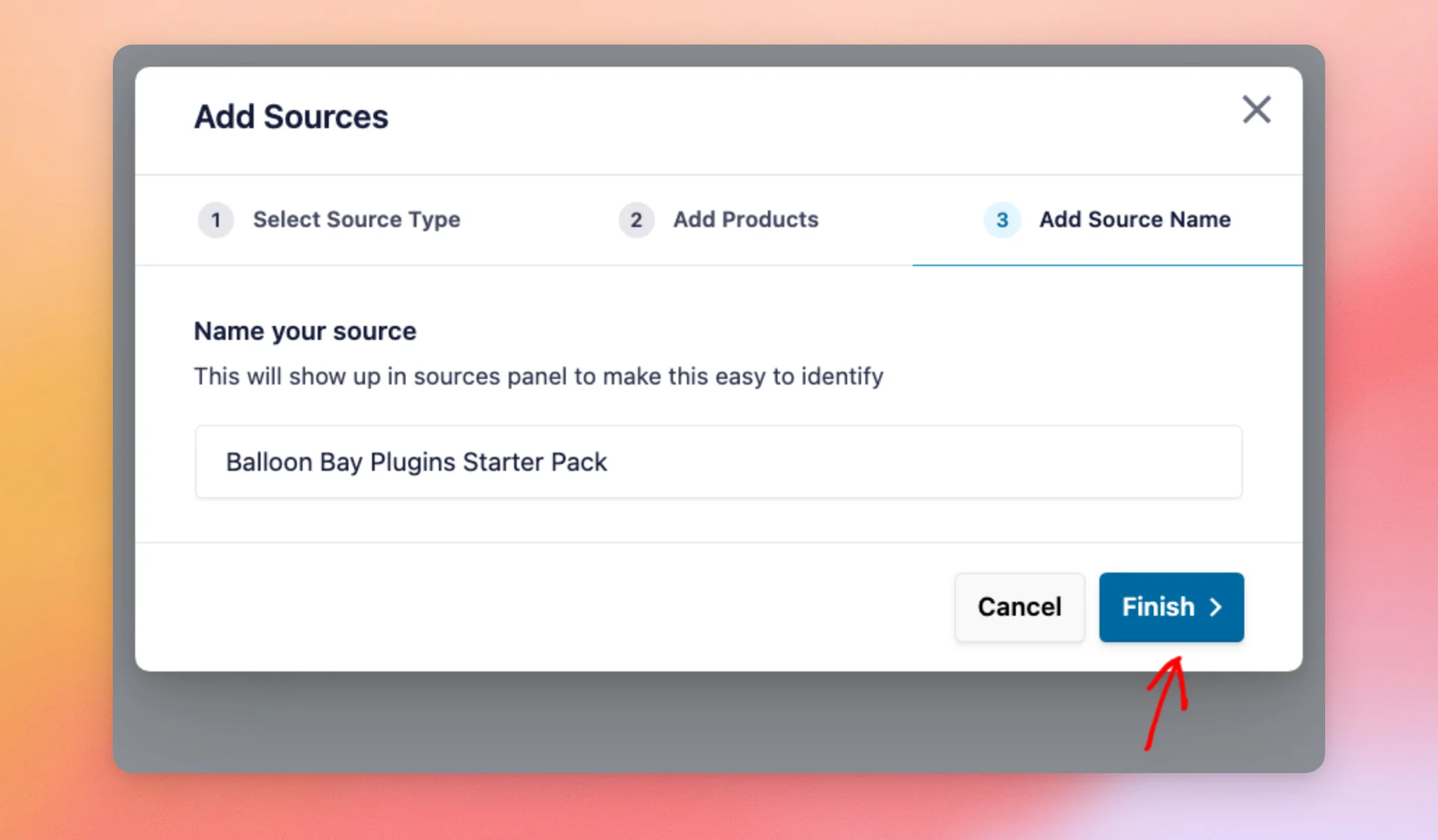
On the Add Source Name step, Reviews Feed fills in a name based on your selection. The name shows in your list of sources. You can change it to something that’s easy to recognize.
When you’re done, click Finish.
Reviews Feed adds your source and takes you back to the Add Source step. Your new source shows there with its number of products.
Your new source must be selected for your feed to show its reviews. If its box isn’t checked yet, click the source to select it. Then click Next at the top of the screen.
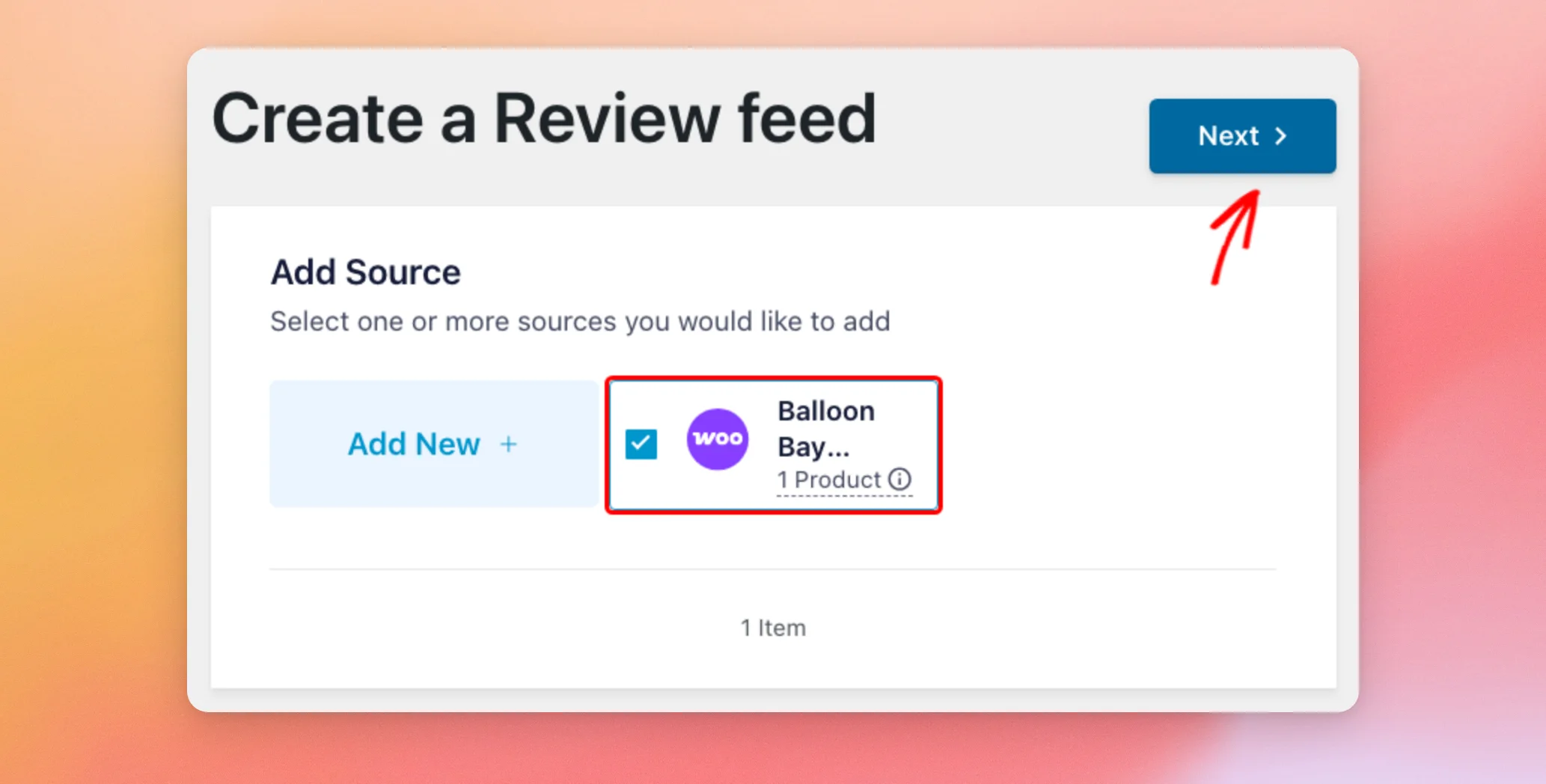
Your feed now has your products as its review source. Next, we’ll choose a template.
Choosing a Template
A template sets the layout for your reviews. Reviews Feed offers seven templates: Default, Simple Cards, Masonry, Single Review, Showcase Carousel, Carousel, and Grid Carousel.
Default is selected to start with. If you’re not sure which to pick, keep Default. You can change it later in the feed editor.
Once you’ve picked a template, click Next.
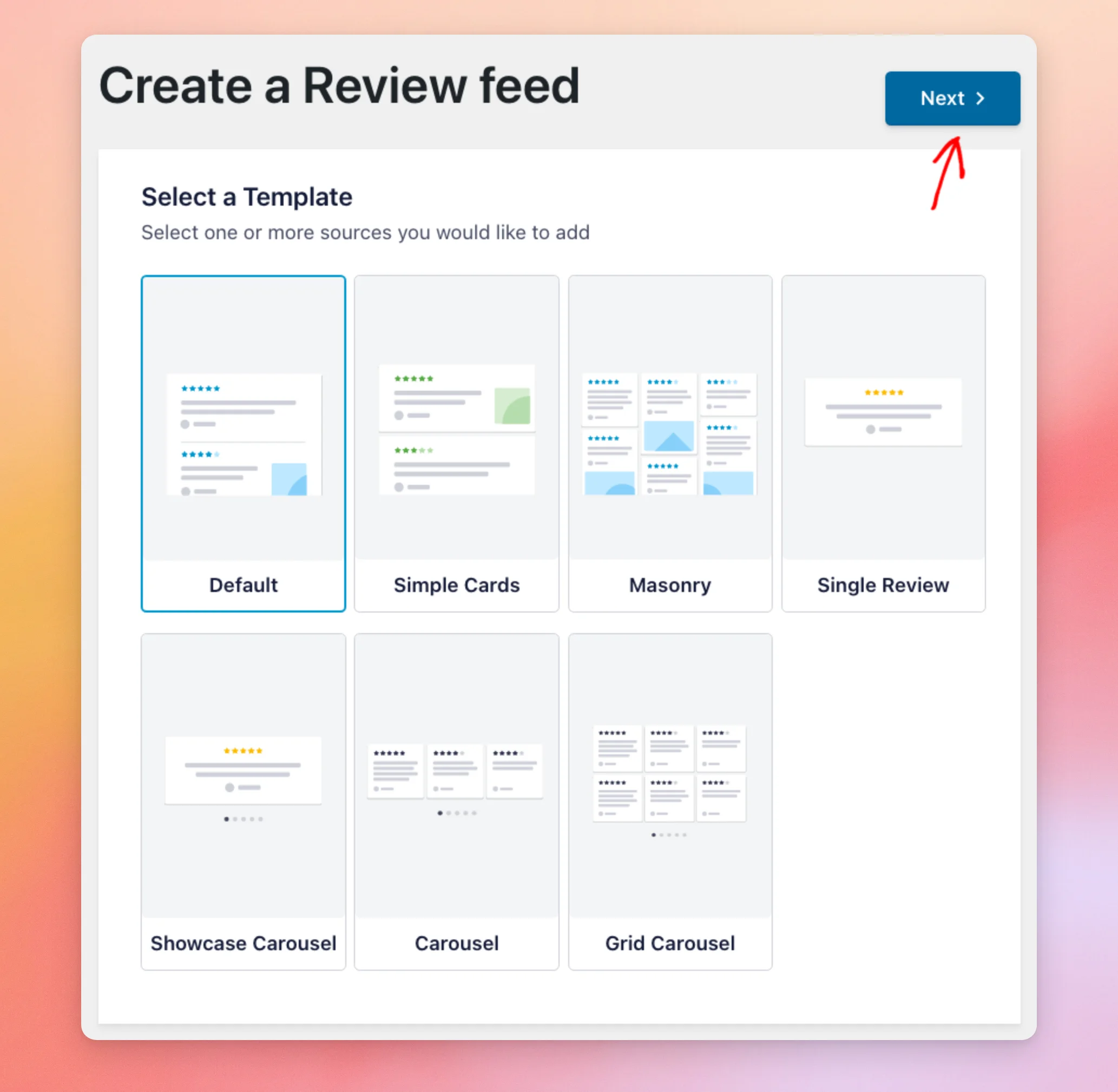
Your feed now has a layout to start from. Next, we’ll customize and save your feed.
Customizing and Saving Your Feed
Reviews Feed creates your feed and opens it in the feed editor. The preview on the right shows your product reviews, each with the reviewer’s name, star rating, and review text.
While you’re in the editor, use the Customize tab to change your feed’s template, layout, header, reviews, and Load More button. Our guide on customizing the look of your reviews feed walks you through each section.
When you’re happy with how your feed looks, click Save.
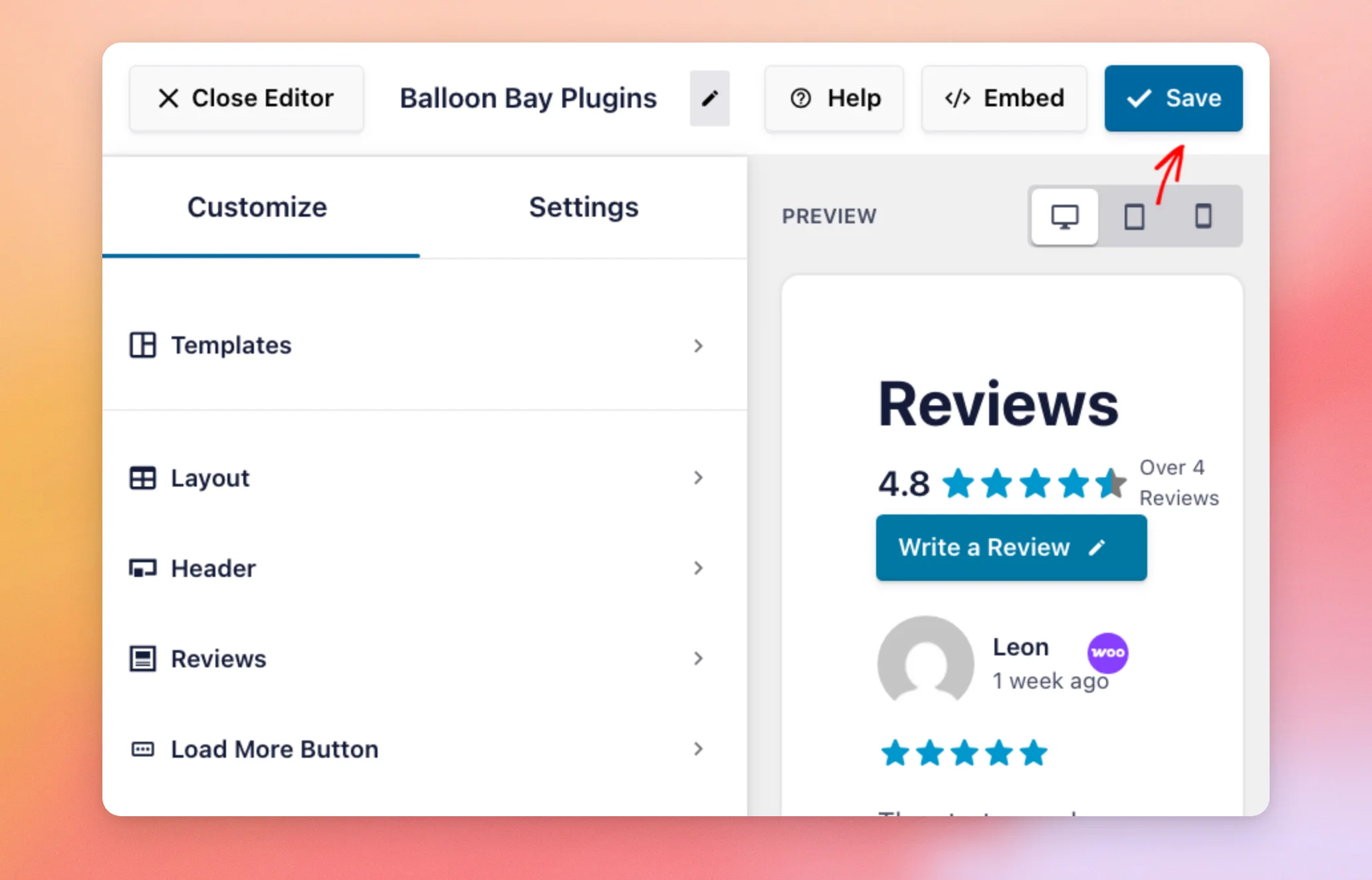
Your feed is now saved with your template and any changes you made. Next, we’ll look at how to display it.
Embedding Your Feed
Your feed is ready to add to your site. You can add it with the Reviews Feed block in the block editor or with its shortcode.
To copy your feed’s shortcode or add it to a page, click Embed at the top of the feed editor.
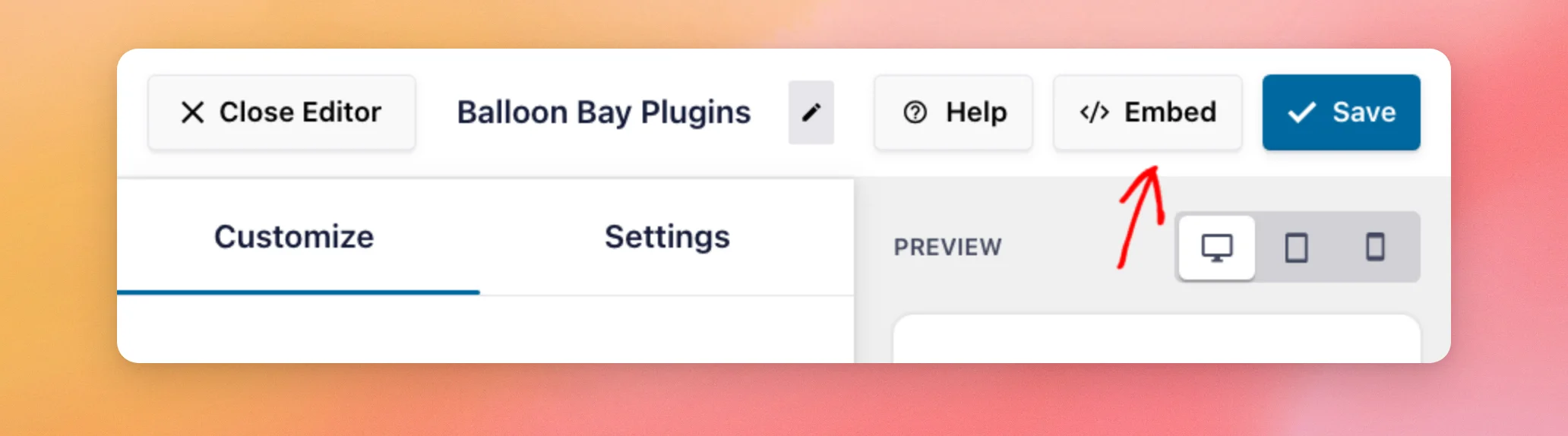
The Embed Feed window opens. Under Use a shortcode, it shows your feed’s shortcode with a Copy button. In this window, it looks like [reviews-feed feed="1"], where the number is your feed’s ID.
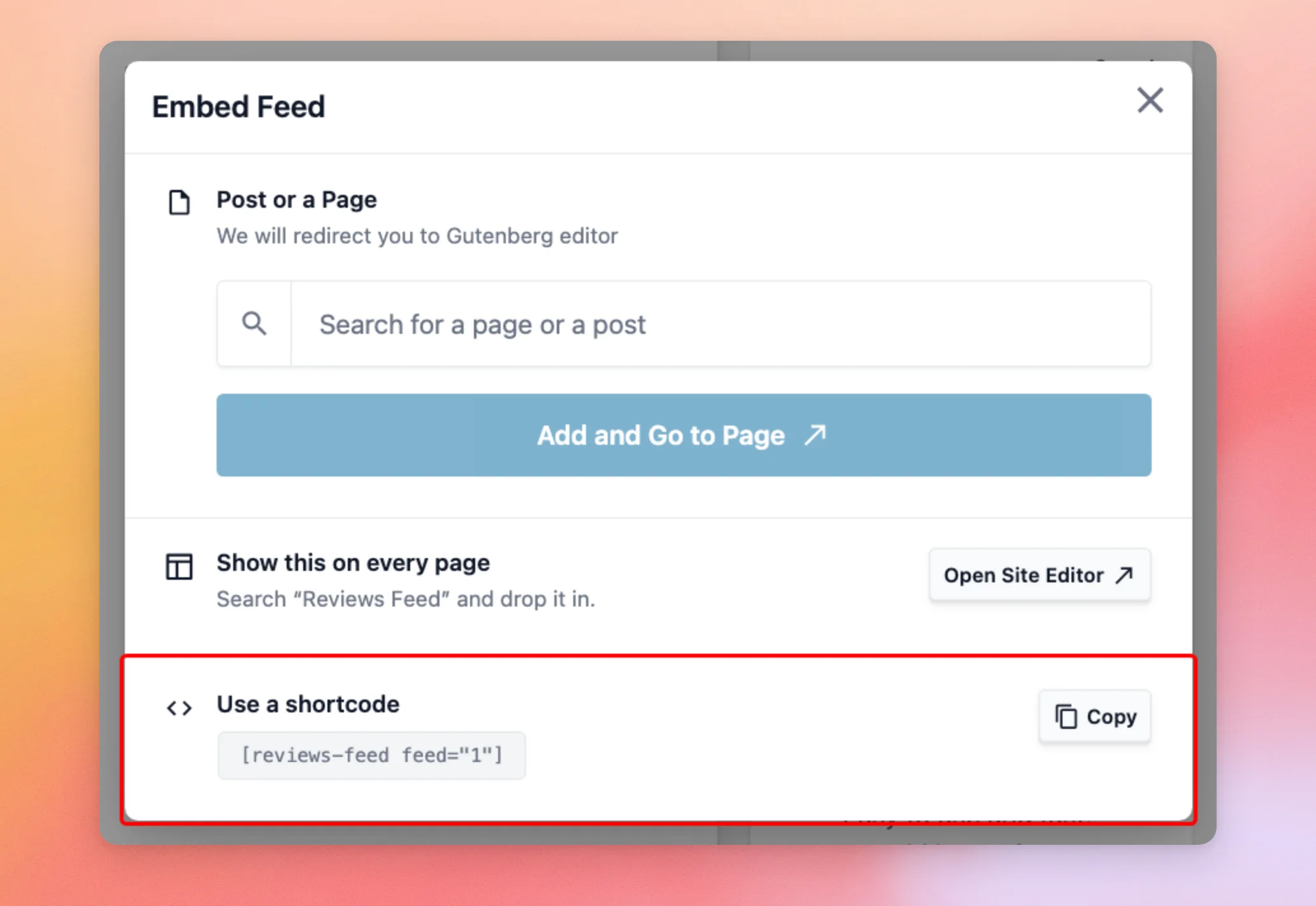
The window also has a Post or a Page option that adds your feed to a page for you.
If you’re new to shortcodes, see How to Add a Shortcode in WordPress for a step-by-step guide.
For every way to show your feed, see our guide on displaying your reviews feed.
That’s it! You’ve turned your WooCommerce product reviews into a reviews feed you can show anywhere on your site.
Next, would you like to choose which reviews your feed shows?
See our guide on filtering reviews by rating, keyword, or source.
Frequently Asked Questions
Below, we’ve answered some of the most common questions about WooCommerce reviews feeds.
Which license level do I need to show WooCommerce reviews?
WooCommerce reviews are available on the Plus and Elite license levels of Reviews Feed. On a lower license level, the WooCommerce tile is unavailable and shows a message about upgrading your license.
Will reviews that are waiting for approval show in my feed?
No. Reviews Feed only shows reviews that are approved in WooCommerce. When you approve a review in Products » Reviews, it shows in your feed right away.
Do new reviews show up in my feed automatically?
Yes. As soon as a review on one of your source’s products is approved, Reviews Feed adds it to your feed. If you unapprove a review, it’s removed from your feed right away.
Can I show reviews from more than one product?
Yes. On the Add Products step, check every product you’d like to include. You can also pick a whole category or tag. See the Adding Your Products as a Source section above.
Why can’t I select the WooCommerce tile?
The WooCommerce tile stays unavailable until the WooCommerce plugin is active on your site. It also needs the Plus or Elite license level of Reviews Feed.
What happens to my feed if I deactivate WooCommerce?
Your feed keeps showing the reviews Reviews Feed has already saved. It can’t fetch new ones while WooCommerce is deactivated. The next time Reviews Feed tries to update your feed, the All Feeds page shows a notice that some sources could not fetch new reviews.
Once you activate WooCommerce again, the notice clears after the next update.




