Social Wall
  Feed Analytics

Would you like to create and adjust your Instagram feeds just by asking an AI assistant like ChatGPT or Claude?
In this guide, we’ll walk you through connecting Instagram Feed Pro to your AI assistant and deciding whether it can make changes. All you need is Instagram Feed Pro and a WordPress site your assistant can reach.
Requirements: AI Agents requires Instagram Feed Pro version 6.14.0 or higher, available with any paid license level, and WordPress 6.9 or higher.
Before you get started, make sure Instagram Feed Pro is installed and activated on your WordPress site. You’ll also need at least one Instagram account connected.
Instagram Feed works with AI assistants through WPVibe, our free plugin that connects AI assistants to WordPress. Your assistant can always read your feeds and settings. It can only make changes after you turn on MCP Write Access.
Here is what we will cover:
- Connecting Your AI Assistant with WPVibe
- Letting Your AI Assistant Make Changes
- Prompts You Can Copy
- Deleting Feeds with Your AI Assistant
- Frequently Asked Questions
Connecting Your AI Assistant with WPVibe
To get started, go to Instagram Feed » Settings in your WordPress dashboard.
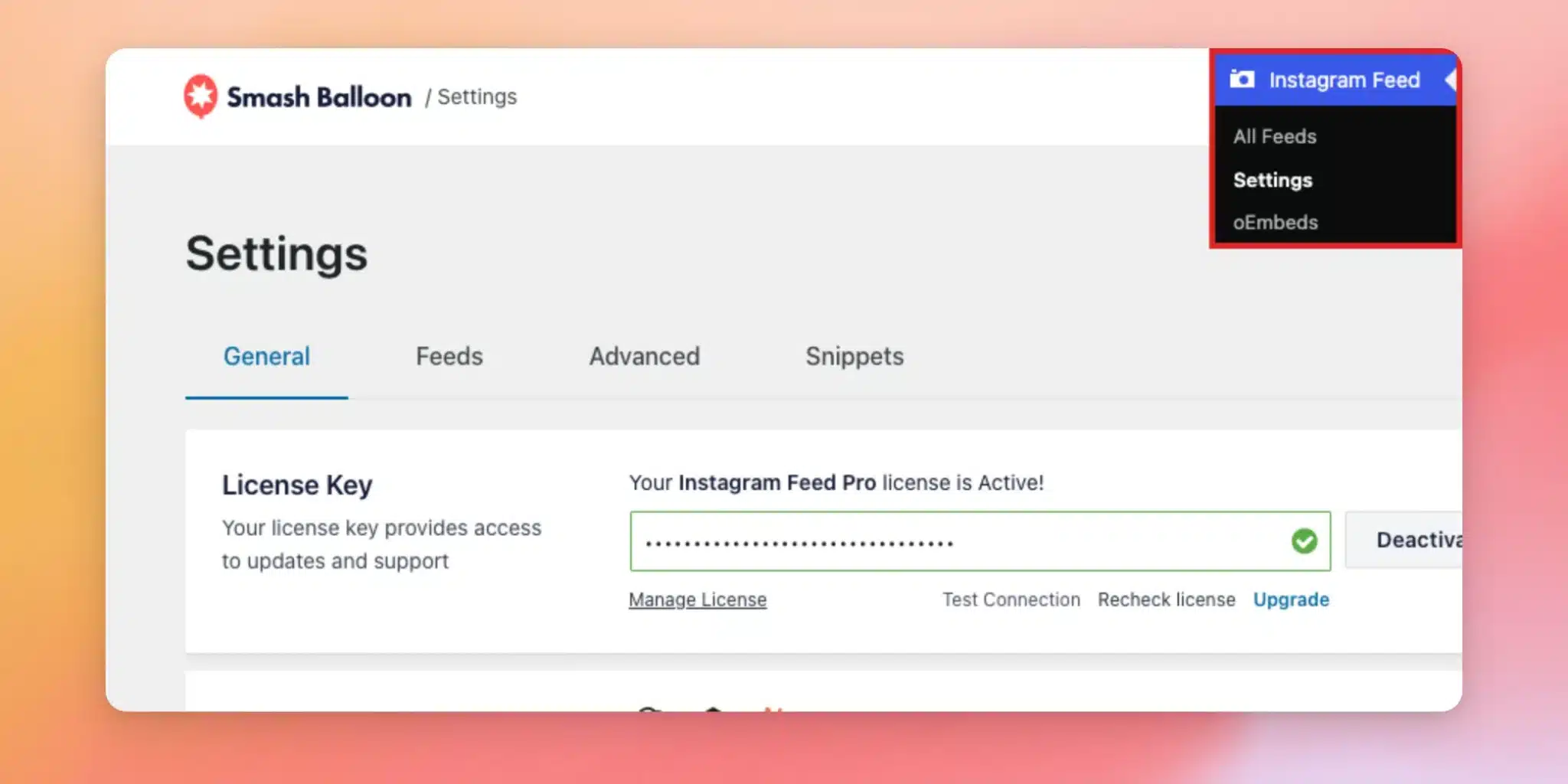
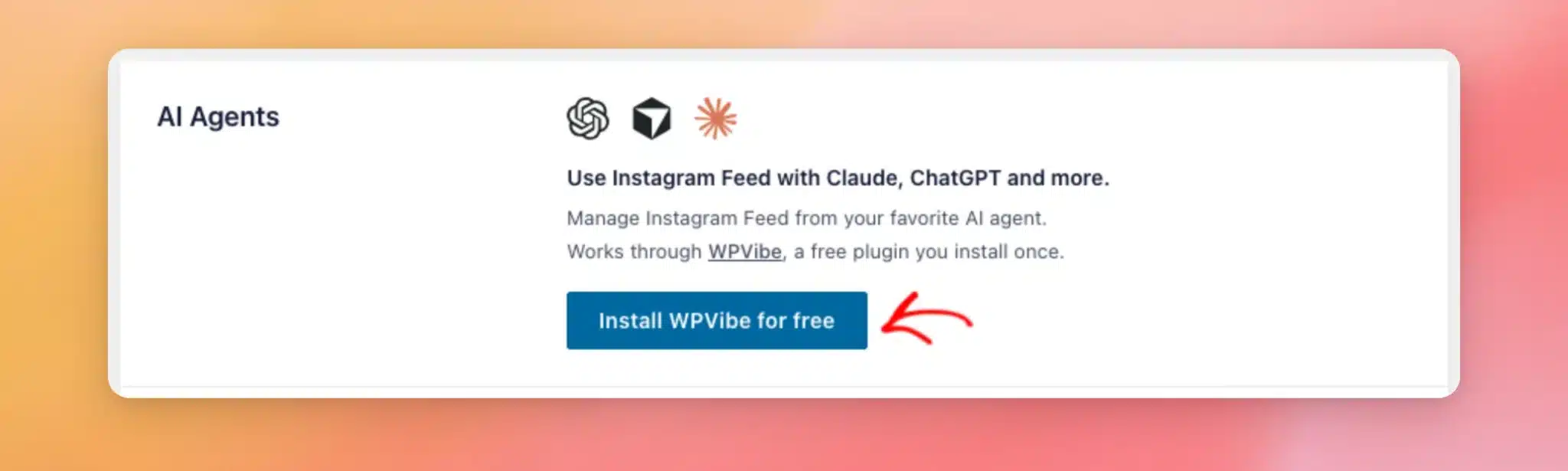
On the General tab, scroll down to the AI Agents section. If WPVibe isn’t installed yet, click Install WPVibe for free. If WPVibe is installed but not active, click the same button, which reads Activate WPVibe instead.
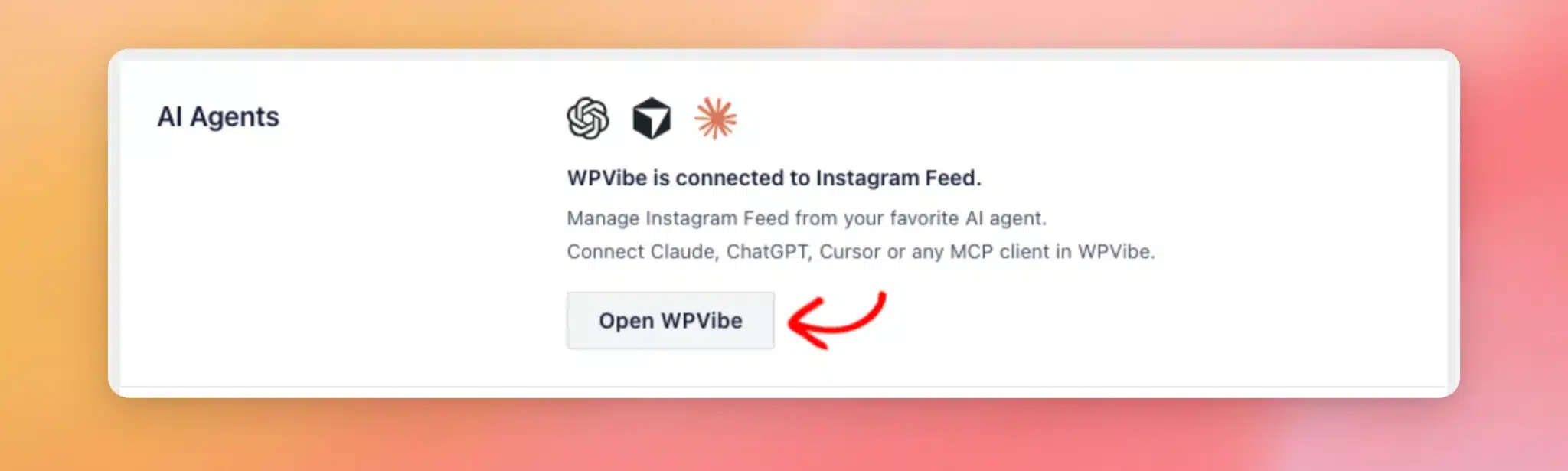
Once WPVibe is active, the section reads “WPVibe is connected to Instagram Feed.” Next, click Open WPVibe.
On the WPVibe page, follow the steps to add WPVibe to your AI assistant and connect your site.
For step-by-step instructions for each assistant, see WPVibe’s guide on setting up your AI client.
Note: Your site needs to be publicly reachable over HTTPS, because WPVibe connects to it over the internet. If your site doesn’t use HTTPS yet, see How to Properly Move WordPress from HTTP to HTTPS for a step-by-step guide.
To test the connection, ask your assistant which Instagram accounts are connected to your site.
Letting Your AI Assistant Make Changes
By default, your AI assistant can read your feeds, settings, and connected accounts. It can’t change them.
To let it make changes, such as creating and editing feeds, go back to the Instagram Feed Settings page. Just below the AI Agents section, turn on the MCP Write Access toggle.
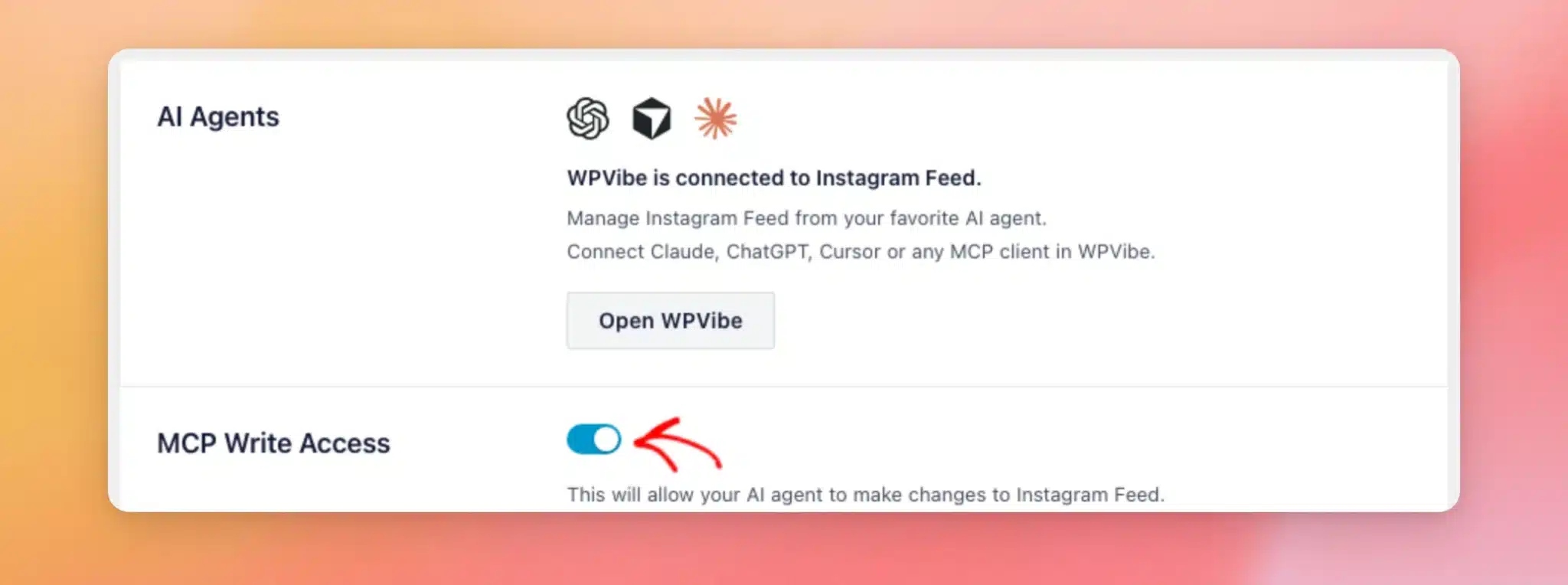
Then, click Save Changes at the top of the page.
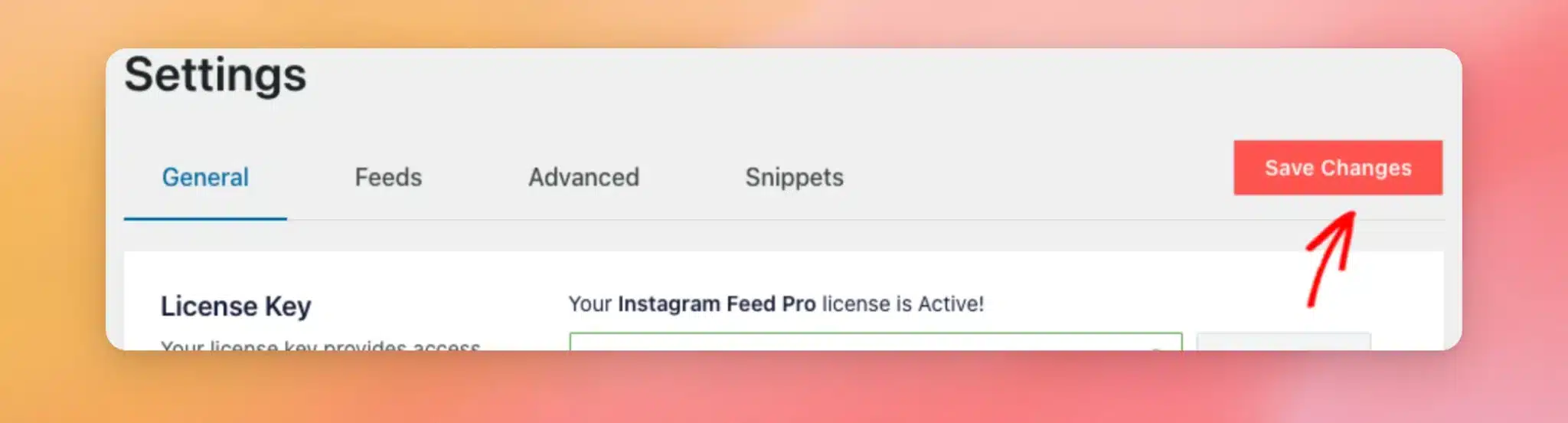
While MCP Write Access is off, Instagram Feed turns down any change your assistant asks for. Your feeds and settings stay as they are.
Prompts You Can Copy
Once your assistant is connected, you can ask it for things in plain language. Here are a few requests to try:
- See which accounts are connected —
Which Instagram accounts are connected to my site? - List your feeds —
List my Instagram feeds. - Create a feed —
Create an Instagram feed called Homepage Carousel using the carousel template. - Change a feed —
Change my Homepage Carousel feed to show 6 posts. - Connect another account —
Give me a link to connect another Instagram account.
To see the feeds your assistant creates, go to Instagram Feed » All Feeds. Each feed is listed with its shortcode.
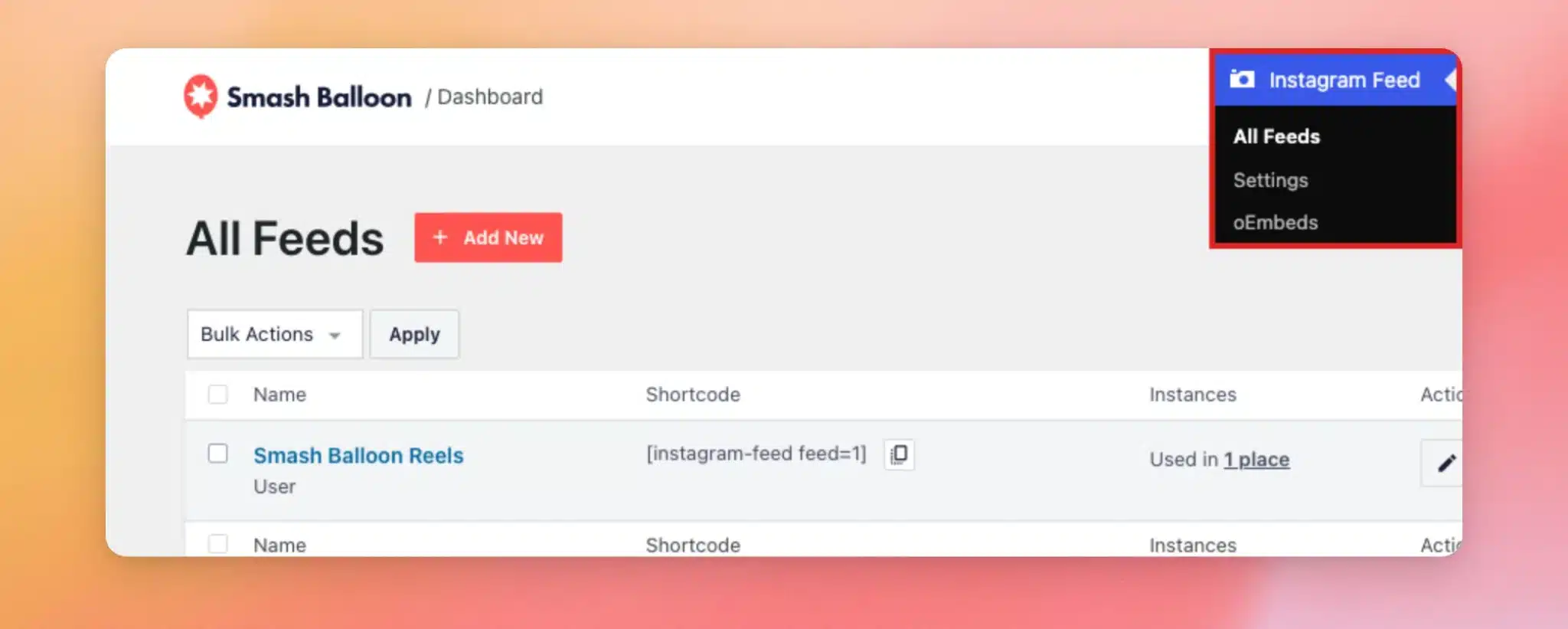
To show a feed on your site, add its shortcode to any page, post, or widget. If you’re new to shortcodes, see How to Add a Shortcode in WordPress for a step-by-step guide.
Once MCP Write Access is on, you can ask your assistant to connect another account. It gives you a link to open in the browser where you’re logged in to WordPress. The link works once and expires after 15 minutes.
Your assistant never sees your login details, because you sign in to Instagram or Facebook yourself. Afterward, you return to the Instagram Feed Settings page to finish connecting the account.
Deleting Feeds with Your AI Assistant
Your AI assistant can’t delete a feed on its own. When you ask it to delete one while MCP Write Access is on, it gives you a confirmation link instead. The link works once and expires after 15 minutes.
Next, open the link in the browser where you’re logged in to WordPress. On the confirmation page, click Delete feed.
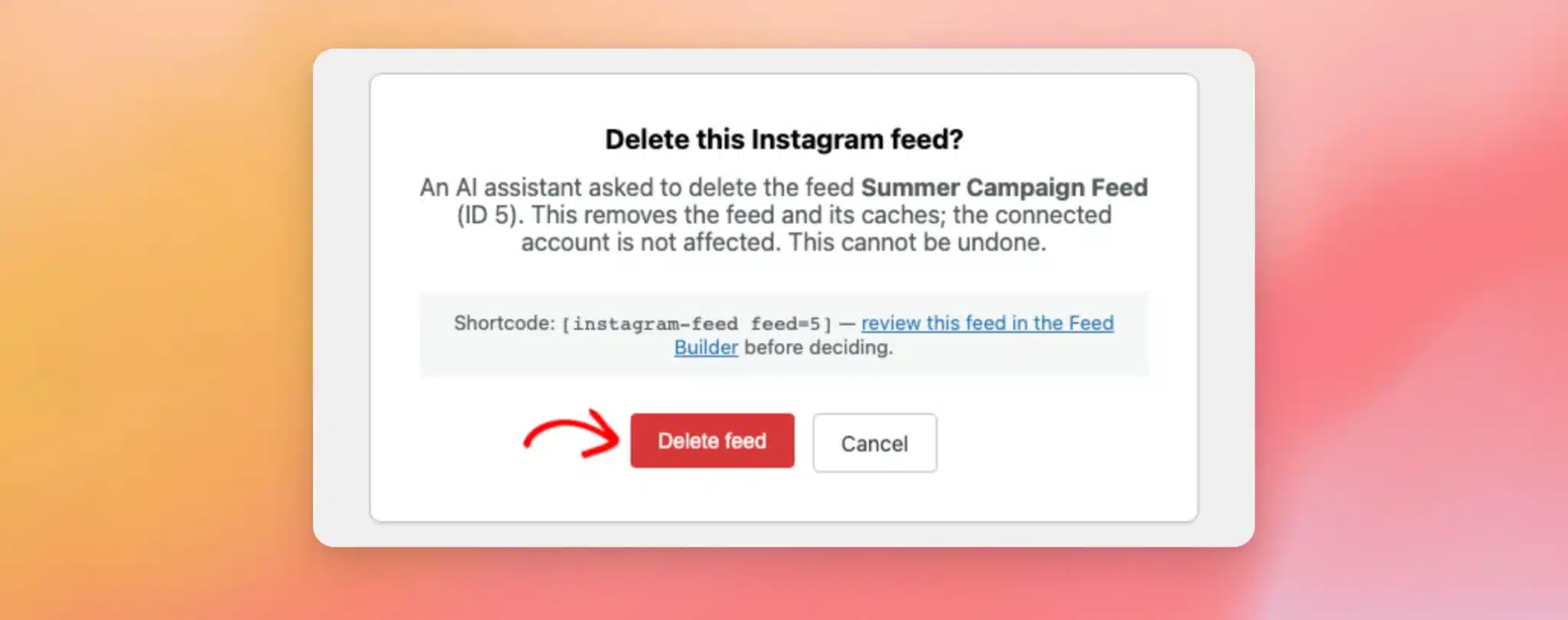
Deleting the feed takes you to the All Feeds page. Your Instagram account stays connected.
Nothing is deleted until you confirm. If you’d rather keep the feed, Cancel leaves it untouched.
Note: Only one feed can wait for confirmation at a time. To delete several feeds, confirm each one before you ask your assistant to delete the next.
That’s it! You’ve connected Instagram Feed Pro to your AI assistant and decided whether it can make changes. Next, take a look at our guide on viewing Instagram Reels in Swipe View to let visitors watch your Reels fullscreen.
Frequently Asked Questions
Below, we’ve answered some of the most common questions about managing Instagram Feed with AI assistants.
Which AI assistants can I use?
You can use any assistant that connects to WordPress through WPVibe, such as ChatGPT, Claude, and Cursor, or any other MCP client.
What can my AI assistant do while MCP Write Access is off?
It can read your feeds and their settings, your plugin-wide settings, and your connected accounts. For accounts, it sees the username, the account type, when the connection expires, and whether it has an error.
What can my AI assistant change once MCP Write Access is on?
It can create feeds and change a feed’s layout, columns, post count, header, captions, buttons, and colors. It can also change which accounts a feed shows and set the source for highlight layouts. Beyond feeds, it can update plugin-wide settings like the feed refresh schedule, image handling, and script loading.
Can my AI assistant see my Instagram login or access tokens?
No. Instagram Feed never shares access tokens or account credentials with your assistant. When you connect an account, you sign in yourself through a link in your browser.
What if my deletion link doesn’t work?
Each deletion link works once and expires after 15 minutes. It also only works for the WordPress account you connected to WPVibe, and only while MCP Write Access is on.
If a link doesn’t work, ask your assistant for a new one.
How do I stop my AI assistant from changing my Instagram feeds?
In your WordPress dashboard, go to Instagram Feed » Settings. From here, turn off the MCP Write Access toggle. Then, click Save Changes. Your assistant can still read your feeds and settings.
Can I use this on a local test site?
A site that only runs on your computer needs a public address first, because WPVibe reaches your site over the internet.
For more details, see WPVibe’s guide on connecting a local site.