


 Social Wall
 Feed Analytics


Would you like to add your Instagram feed to a page or a sidebar straight from the WordPress editor, without pasting a shortcode?
Instagram Feed Pro adds an Instagram Feed block for pages and posts. It also adds an Instagram Feed widget for widget areas such as a sidebar or a footer.
This guide will walk you through adding the block to a page, choosing a feed, and using the widget.
Before you get started, make sure Instagram Feed Pro is installed and activated on your WordPress site, and that you’ve already created at least one feed.
Here is what we will cover.
- Adding the Block to a Page
- Choosing a Feed
- Saving the Page
- Adding the Block From the Embed Popup
- Adding the Widget
- Frequently Asked Questions
Adding the Block to a Page
The Instagram Feed block works in the block editor, on any page or post.
Note: If your site uses the classic editor, you can’t add blocks. Instead, copy the feed’s shortcode from the Embed popup and paste it into the page. For the steps, see the Adding the Block From the Embed Popup section below.
To add the block, follow these steps.
- First, open the page or post where you want your feed. Then, open the block inserter with the plus button at the top of the editor.
- In the search box, type Instagram Feed. Then, click the Instagram Feed block to add it to your page.
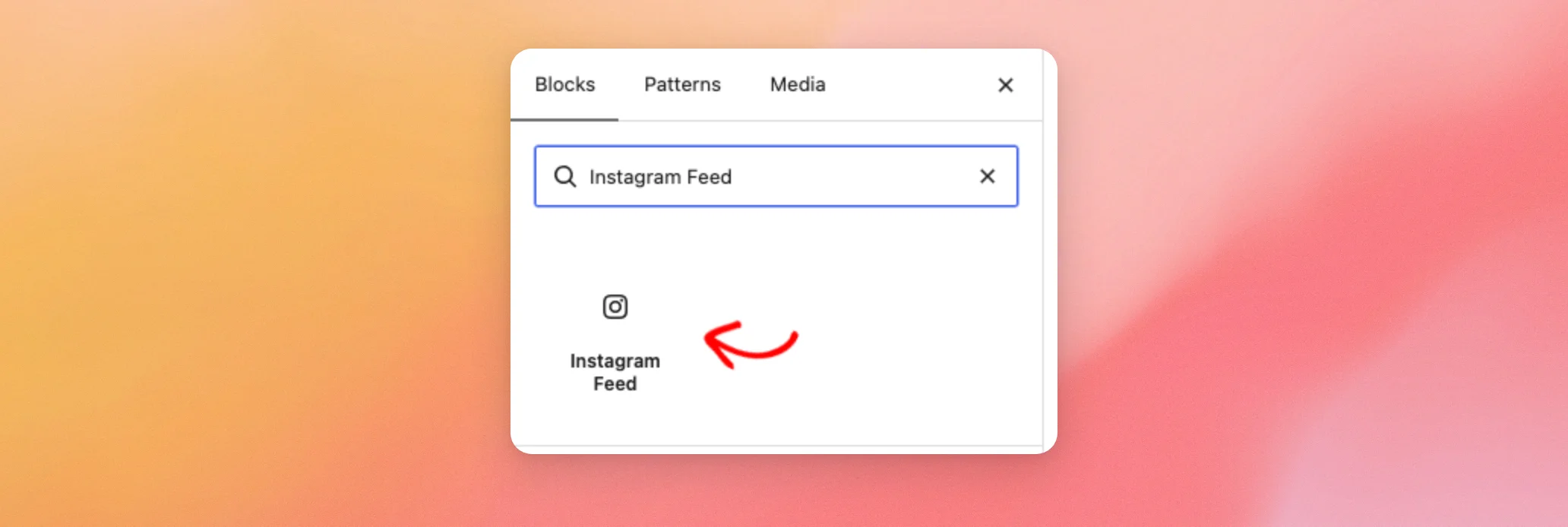
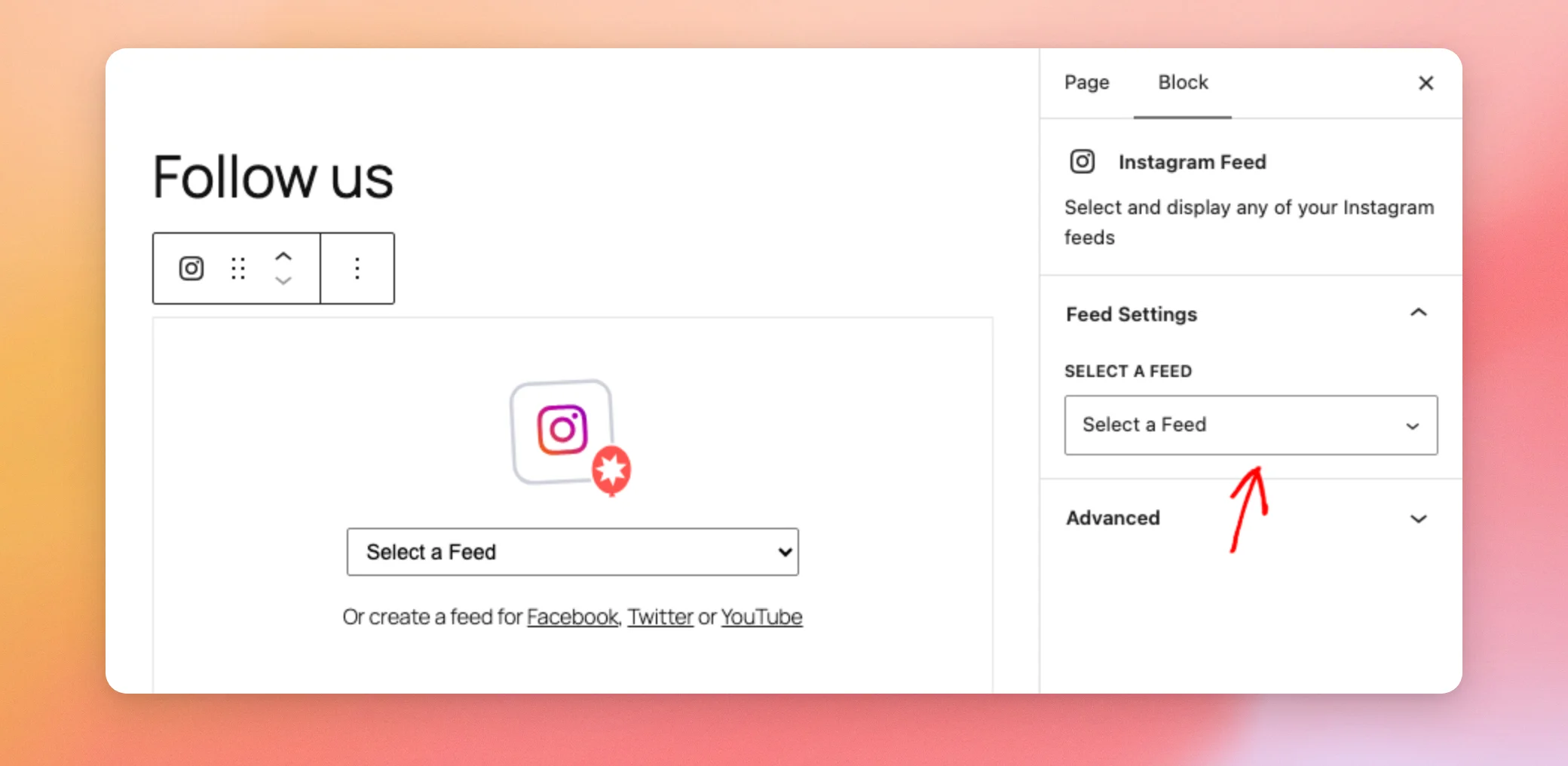
The block now shows a Select a Feed dropdown. Its settings open on the right.
Note: If you don’t see the settings, click the block to select it.
Next, we’ll choose the feed.
Choosing a Feed
The block lists the feeds you created in Instagram Feed, by name. Each block shows one feed. You can add the block again and choose a different feed for each one. To choose a feed, follow these steps.
- In the block settings on the right, open the Select a Feed dropdown and click the feed you want. You can also use the dropdown inside the block itself.
The feed’s posts then appear in the editor. You can see how the feed looks before you save the page.
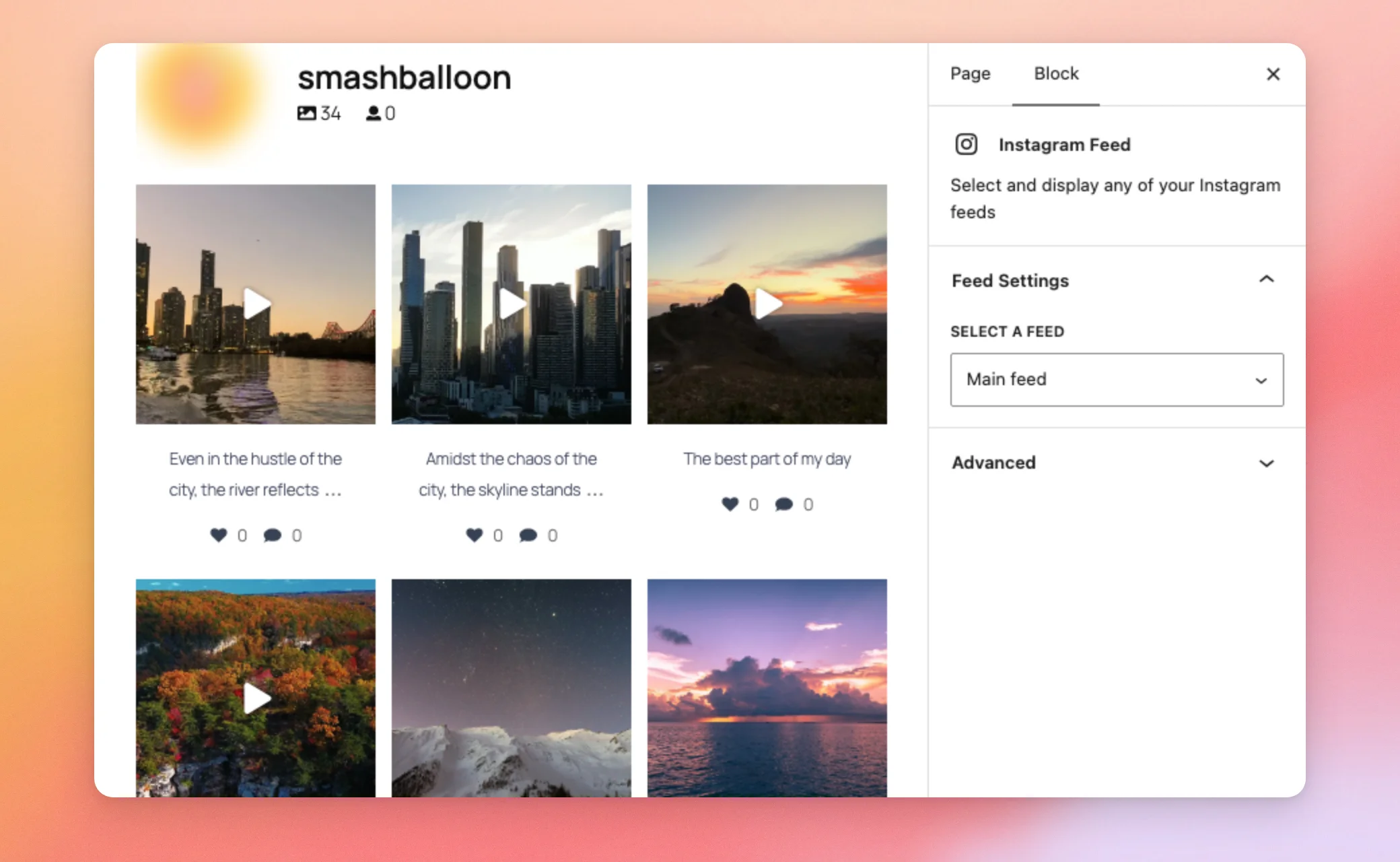
The block uses the feed’s own settings. Any change you save in the feed editor also shows on this page.
Once you choose a feed, the block toolbar also shows a Customizer button. It opens the feed in the feed editor in a new tab. Your page stays open in the editor.
Next, we’ll save the page.
Saving the Page
When you’re happy with the feed, click Save at the top of the editor. On a page that isn’t published yet, the button says Publish.
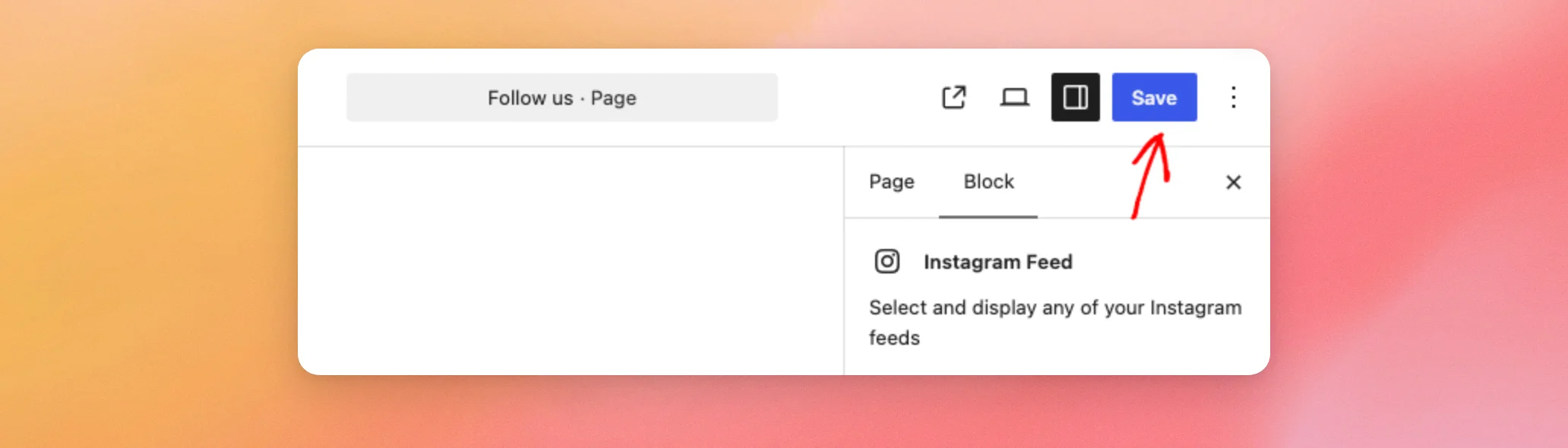
Your page now shows the feed. Next, open the page to see it, just as your visitors do.
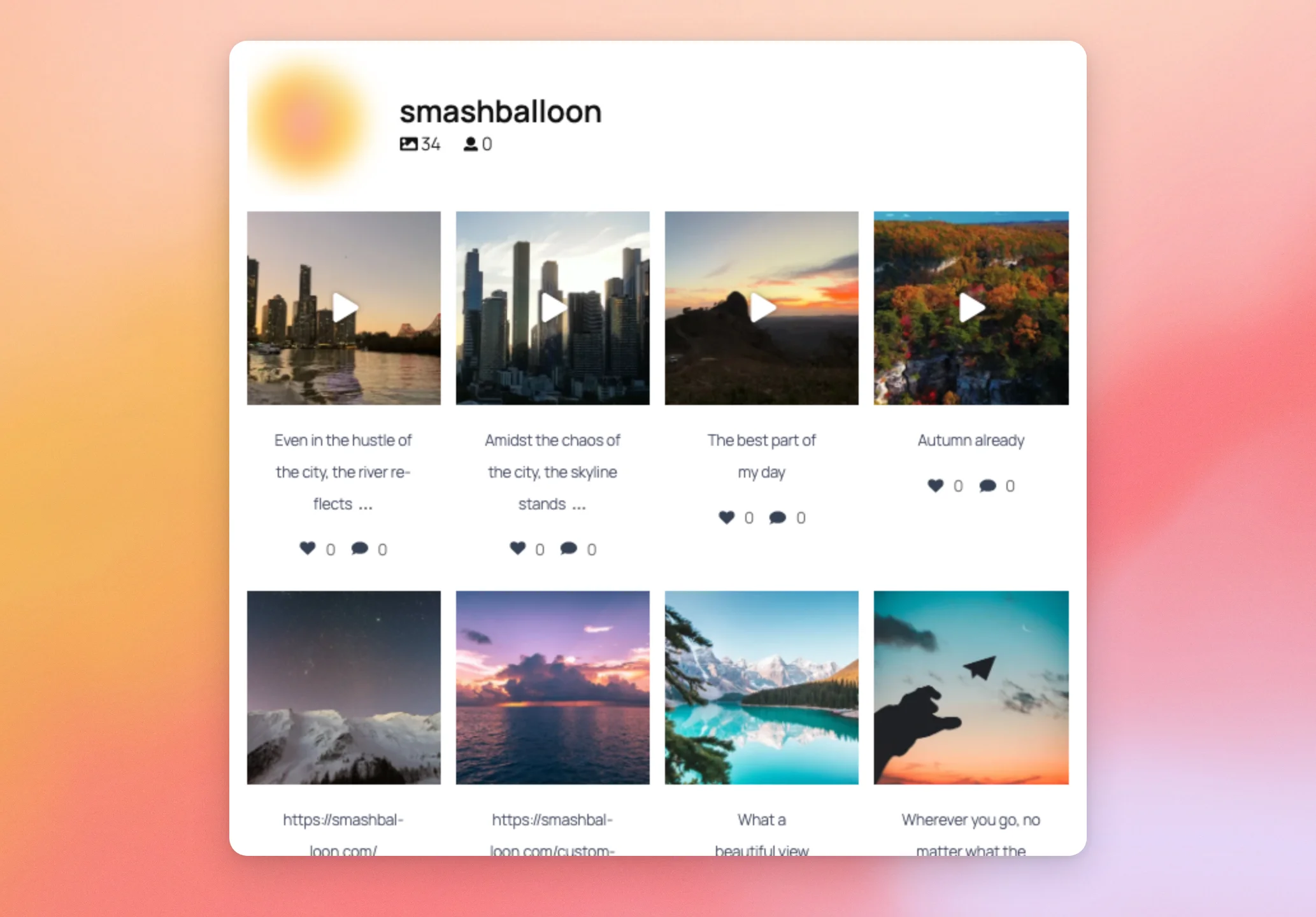
If you choose no feed, the block shows nothing on the page. To show your posts, choose a feed in the block.
Adding the Block From the Embed Popup
You can also add a feed to a page from the feed editor. This way, you don’t have to look for the block yourself. To do that, follow these steps.
- In your WordPress dashboard, open Instagram Feed » All Feeds. Then, open the feed you want to add in the feed editor.
- At the top of the feed editor, click Embed.
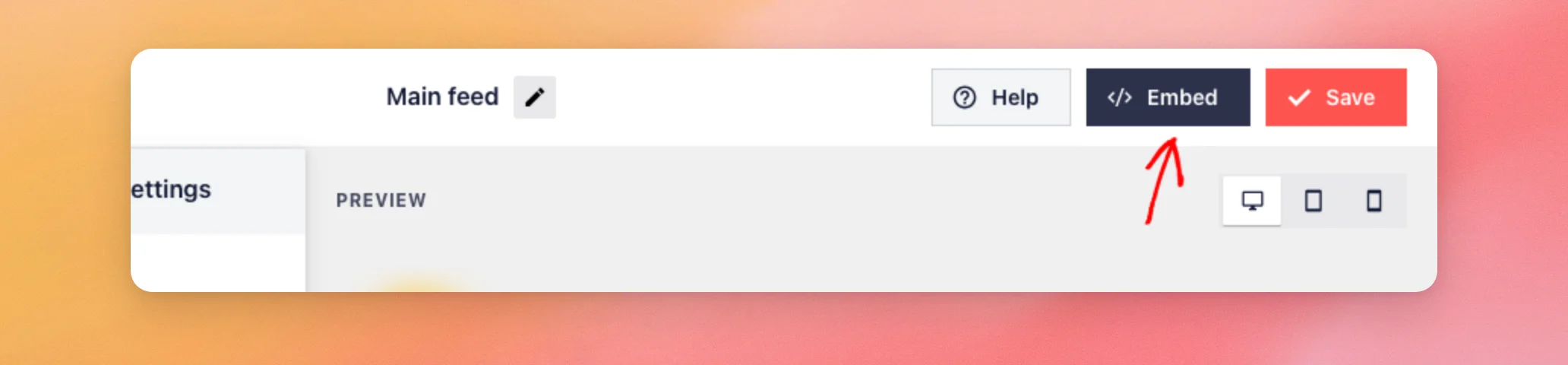
- In the Embed Feed popup, search for the page or post and click it. Then, click Add and Go to Page.
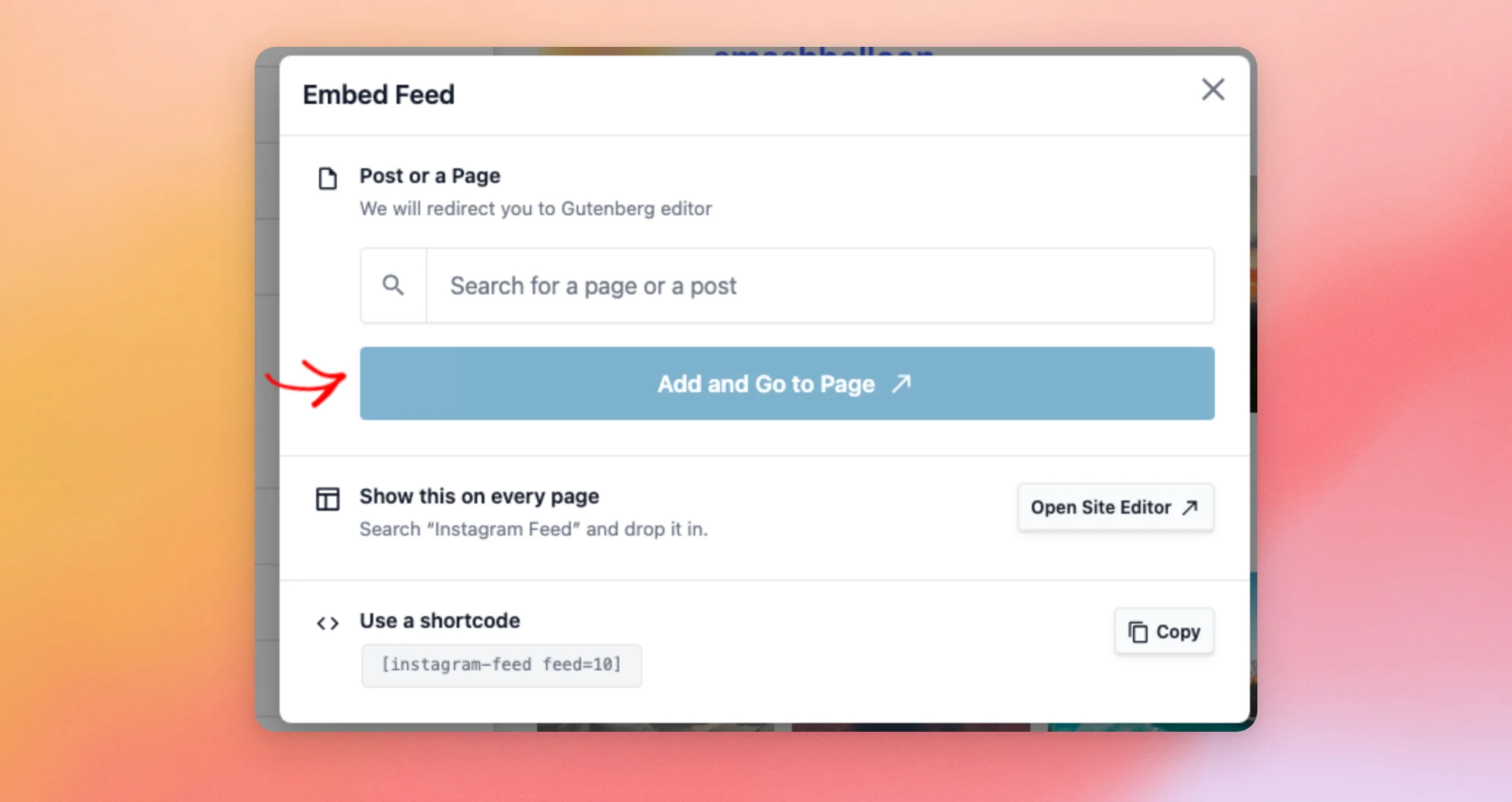
The page opens in the block editor with the Instagram Feed block already added and set to your feed. Then, save the page the same way as in the section above.
The popup has two more ways to add the feed.
- On a site with a block theme, Open Site Editor opens the Site Editor. There, you can add the block to a template, such as one that shows on every page. On a site with a classic theme that has widget areas, the popup shows Add to a Widget with an Open Widgets button instead.
- The shortcode section shows the feed’s shortcode, such as
[instagram-feed feed=10]. To use it, copy the shortcode and paste it into any page, post, or widget. The number is the feed’s own ID.
Next, we’ll add the widget.
Adding the Widget
The Instagram Feed widget shows a feed in a widget area, such as a sidebar or a footer. It needs a theme that has widget areas. To add it, follow these steps.
- In your WordPress dashboard, go to Appearance » Widgets.
- Next, find the Instagram Feed widget and add it to the widget area where you want the feed. The widget’s description reads “Display your Instagram feed”.
- In the widget, type a name in the Title field if you want a heading above the feed. If you leave it empty, the widget shows the feed with no heading.
- Next, open the Feed dropdown, which says Select your feed. Then, click the feed you want.
- Then, click Update or Save, depending on the screen you see.
The widget area now shows your feed on every page that uses it. For more on widget areas in general, see How to Add and Use Widgets in WordPress.
If your site has no feeds yet, the Feed dropdown says No feeds. First, create a feed. Then, come back to the widget.
If your theme is a block theme, the Appearance menu has no Widgets screen. In that case, add the block to a template in the Site Editor, as the Embed popup section shows.
That’s it! You can now add your Instagram feed to a page with the block, from the feed editor, or to a widget area with the widget. Next, you might want to display multiple Instagram feeds on your site.
Frequently Asked Questions
Below, we’ve answered some of the most common questions about adding a feed with the block or the widget.
Why does my Instagram Feed block show nothing?
The block shows nothing on your page until you choose a feed in it. For the steps, see the Choosing a Feed section above. Then, save the page.
Why can’t I find Appearance » Widgets?
Block themes don’t have a Widgets screen. Instead, the Appearance menu lists Editor. To add your feed, put the Instagram Feed block on a page, or in a template in the Site Editor.
Can I show a different feed in each block or widget?
Yes. Each block and each widget saves its own feed. To do this, add the block or the widget again. Then, choose another feed in it.
Do changes I make to a feed show in my blocks and widgets?
Yes. The block and the widget show the feed through its shortcode. This means they use the feed’s saved settings. After you change a feed in the feed editor and save it, every block and widget that uses it shows the change.
Can I use a shortcode instead of the block?
Yes. The Embed popup in the feed editor shows the feed’s shortcode, which you can paste into any page, post, or widget. For the steps, see the Adding the Block From the Embed Popup section above.




