


 Social Wall
 Feed Analytics


Would you like to give your Instagram feed a new look in a few clicks?
Instagram Feed Pro comes with ten feed templates and five feed themes. A template is a starting set of settings. It sets your feed’s layout, how many posts and columns it shows, the header style, and whether likes, comments, and captions show. A theme changes the style of your feed’s header, posts, and buttons. It doesn’t change your other settings.
In this guide, we’ll show you how to pick a template and a theme when you create a feed, and how to change either one later.
Before you get started, make sure Instagram Feed Pro is installed and activated on your WordPress site.
Requirements: Feed templates need the Plus license level or higher. Feed themes need the Elite license level.
Here is what we will cover.
- Comparing the Templates and Themes
- Choosing a Theme and Template for a New Feed
- Changing the Template of an Existing Feed
- Changing the Theme of an Existing Feed
- Frequently Asked Questions
Comparing the Templates and Themes
Here is what each feed template sets up. The numbers of posts and columns are for desktop screens.
| Template | What it sets up |
|---|---|
| Default | A grid of eight posts in four columns, with the standard header, likes and comments, and captions. |
| Simple Grid | A grid of eight posts in four columns, with a text header and no likes, comments, or captions. |
| Simple Grid XL | A grid of 32 posts in eight columns, with a centered header and no likes, comments, or captions. |
| Simple Row | One row of five posts with no space between them, a text header, and no Load More button, likes, comments, or captions. |
| Simple Carousel | A carousel of 12 posts that shows four at a time, with arrows, dots, a text header, likes and comments, and captions. |
| Masonry Cards | A masonry layout of 12 posts in four columns, with each post in a box, the standard header, likes and comments, and captions. |
| Card Grid | A grid of eight posts in four columns, with each post in a box, the standard header, likes and comments, and captions. |
| Highlight | A highlight layout of eight posts, where some posts show larger than the others, with the standard header and no likes, comments, or captions. |
| Single Post | One post, with the standard header and no Load More button, likes, comments, or captions. |
| Single Post Carousel | A carousel of four posts that shows one at a time, with arrows, the standard header, and no Load More button, likes, comments, or captions. |
And here is what each feed theme adds to your posts.
| Theme | What it changes |
|---|---|
| Default | The standard look, with no username or date above the posts. |
| Modern | Adds your profile picture, username, and post date above each post, and an Instagram icon next to the likes and comments. |
| Social Wall | Adds your profile picture, username, and post date above each post, with an Instagram icon next to them. |
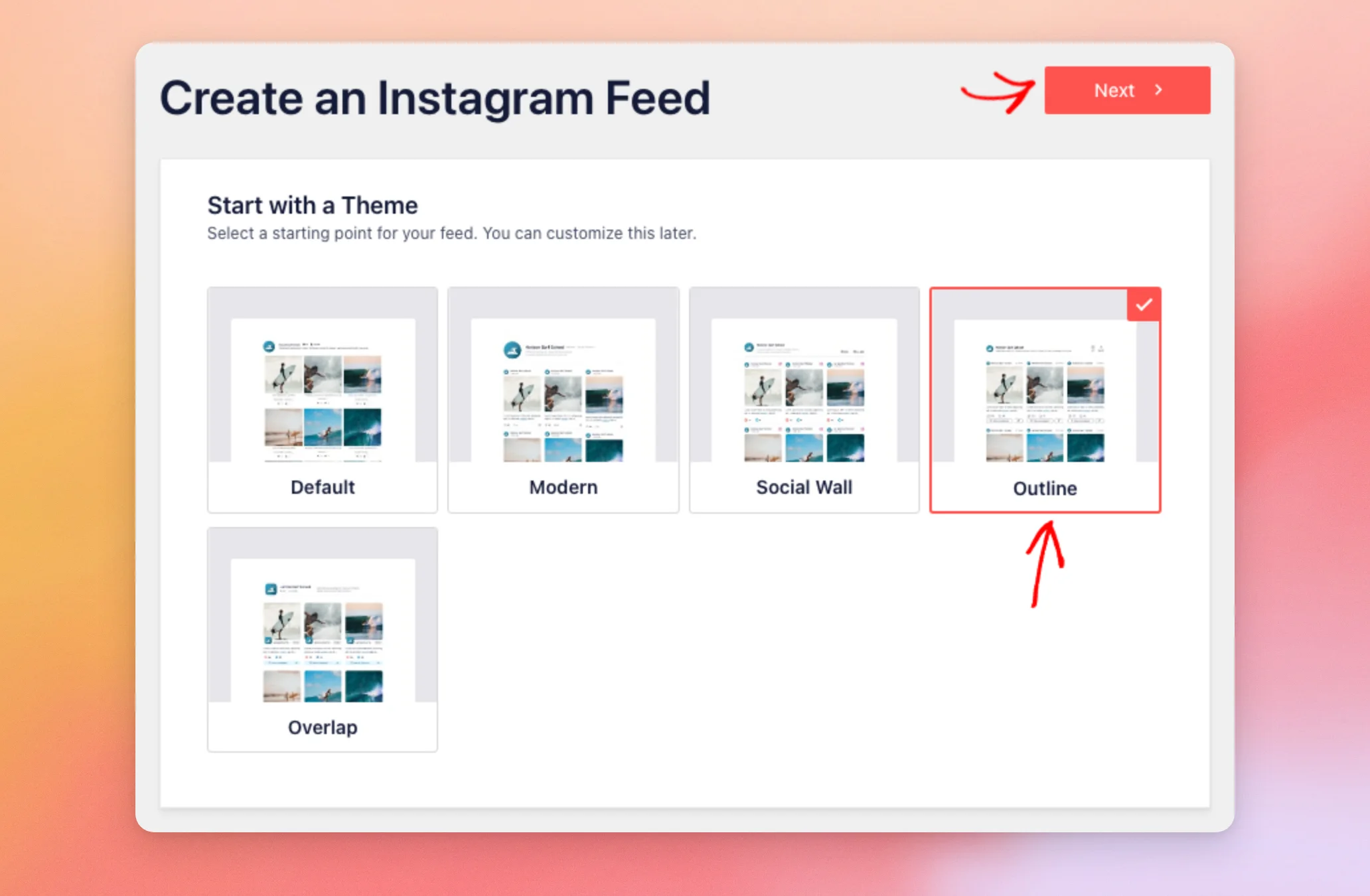
| Outline | Adds your profile picture, username, and post date above each post, and a View on Instagram button below it. |
| Overlap | Places your profile picture over the bottom edge of each photo, shows your username and post date next to it, and adds a View on Instagram button below the post. |
Note: Feed templates are different from custom templates, which are PHP files a developer adds to the WordPress theme to change the feed’s HTML. To learn more, see our guide to creating custom templates.
Next, we’ll show you how to pick a theme and a template for a new feed.
Choosing a Theme and Template for a New Feed
When you create a feed, Instagram Feed asks you to pick a theme and then a template. To create a feed with them, follow these steps.
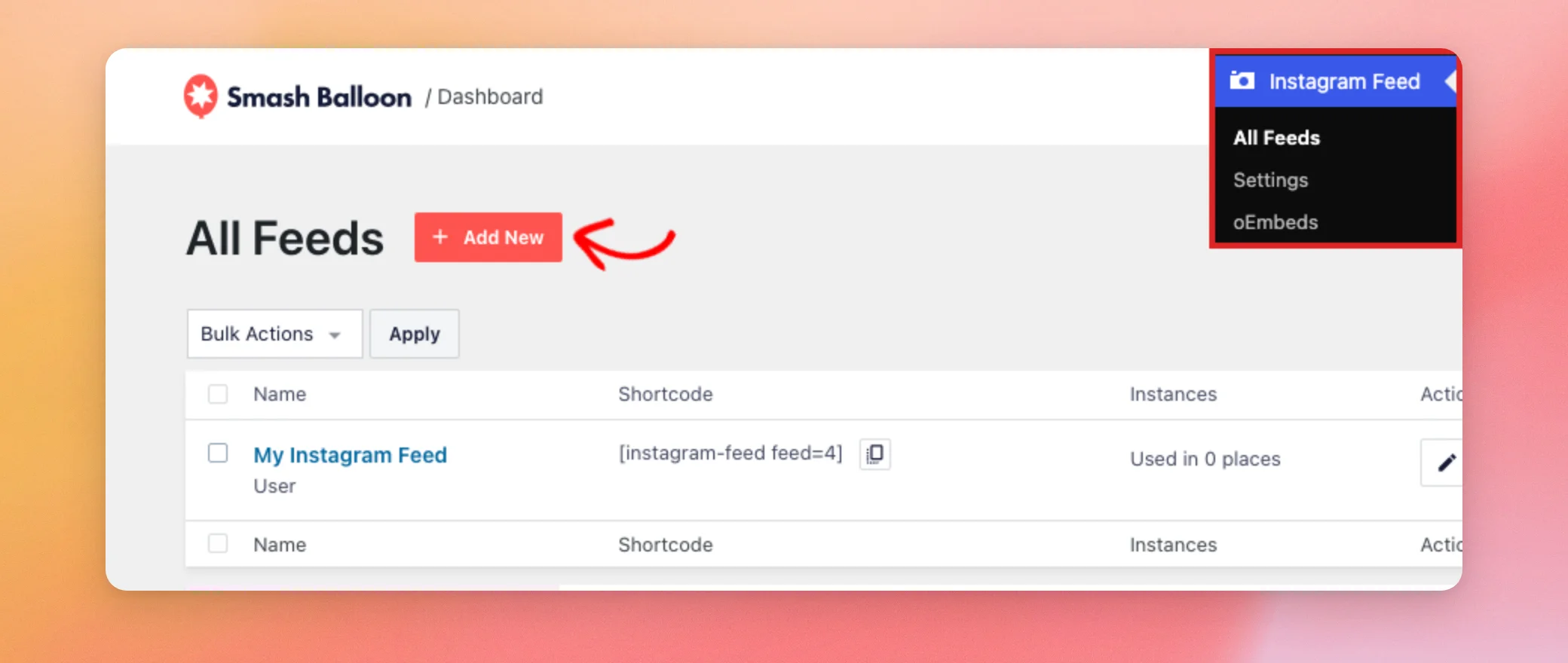
- In your WordPress dashboard, go to Instagram Feed » All Feeds. Then click Add New.
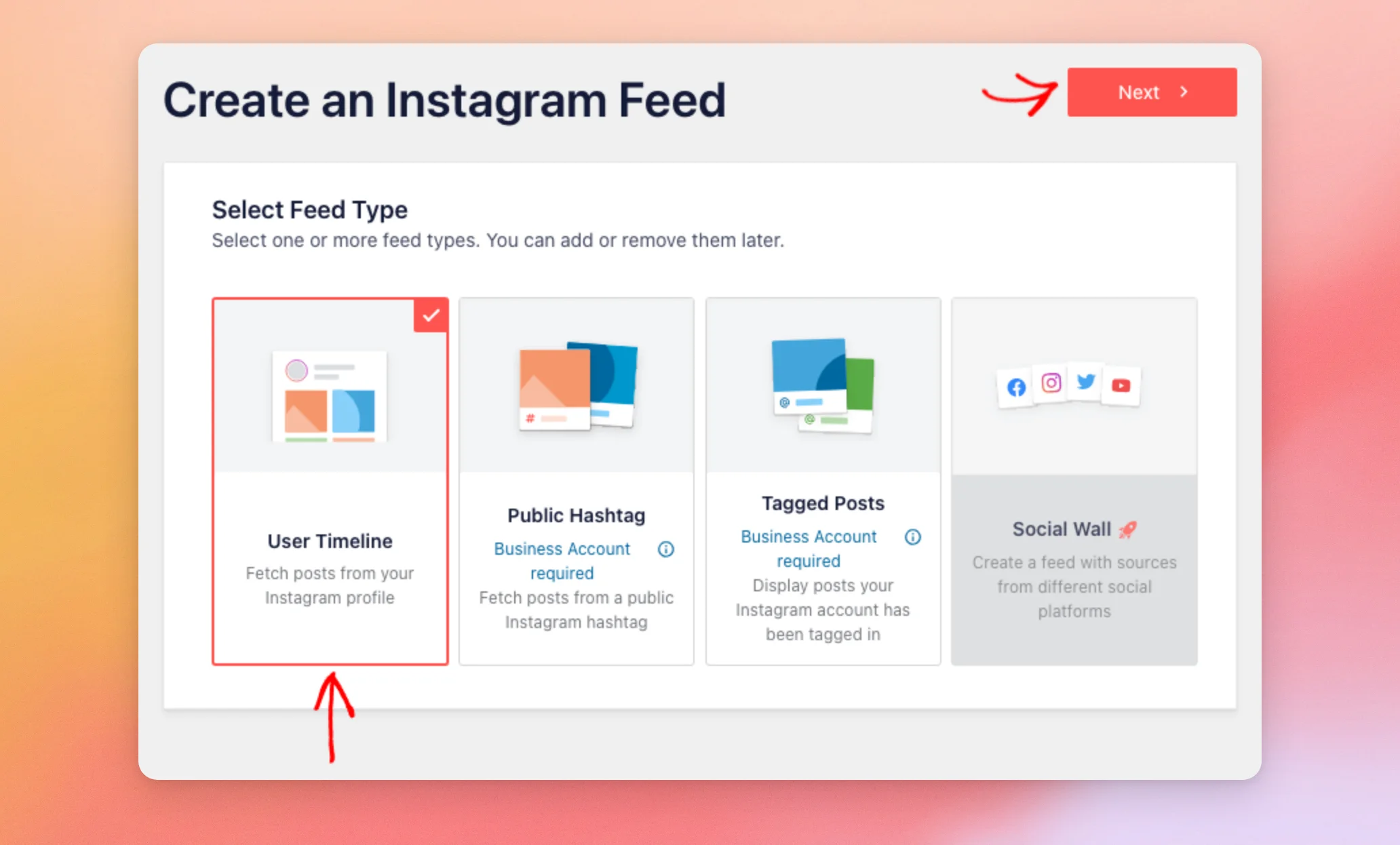
- Under Select Feed Type, click the feed type you want, such as User Timeline. Then click Next.
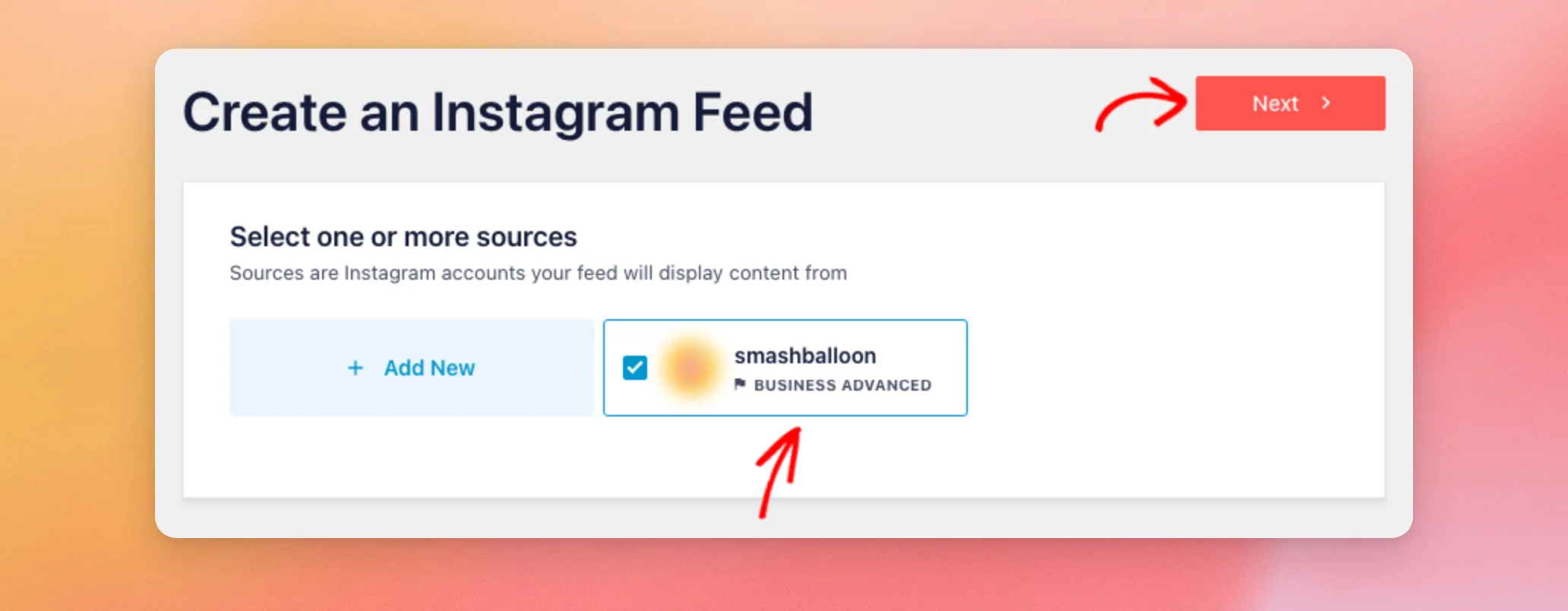
- Under Select one or more sources, click the account this feed will show. Then click Next.
- On the Start with a Theme step, click the theme you want to use. Then click Next.
- On the Start with a template step, click the template you want to use. Then click Next.
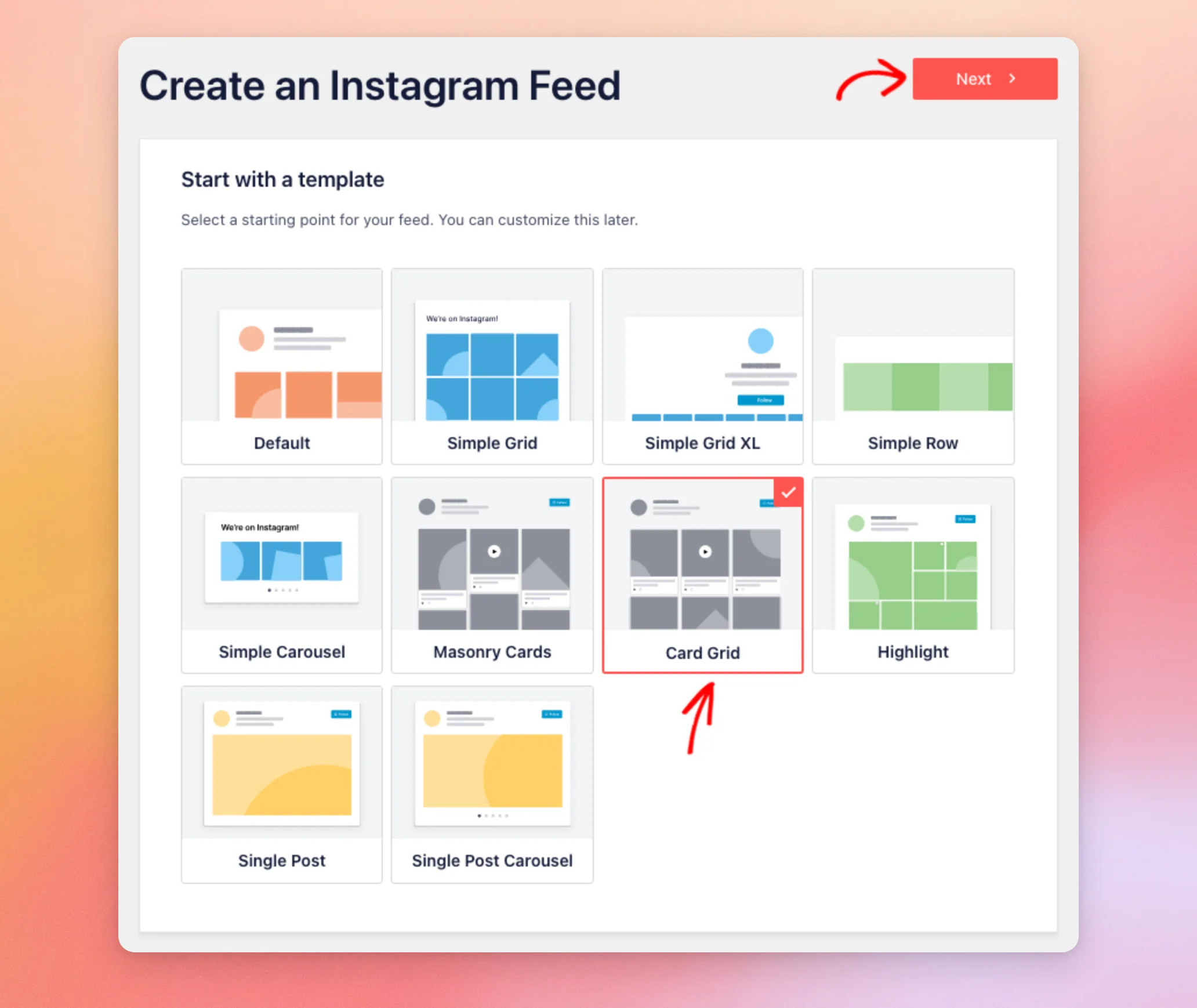
Instagram Feed creates your feed with the template’s settings and the theme you picked. Then it opens the feed in the feed editor.
The steps you see depend on your license level. With the Plus license level, you go from the source step straight to the template step. With the Basic license level, Instagram Feed creates the feed with the Default template and the Default theme.
Next, we’ll show you how to change the template of a feed you already have.
Changing the Template of an Existing Feed
To change a feed’s template in the feed editor, follow these steps.
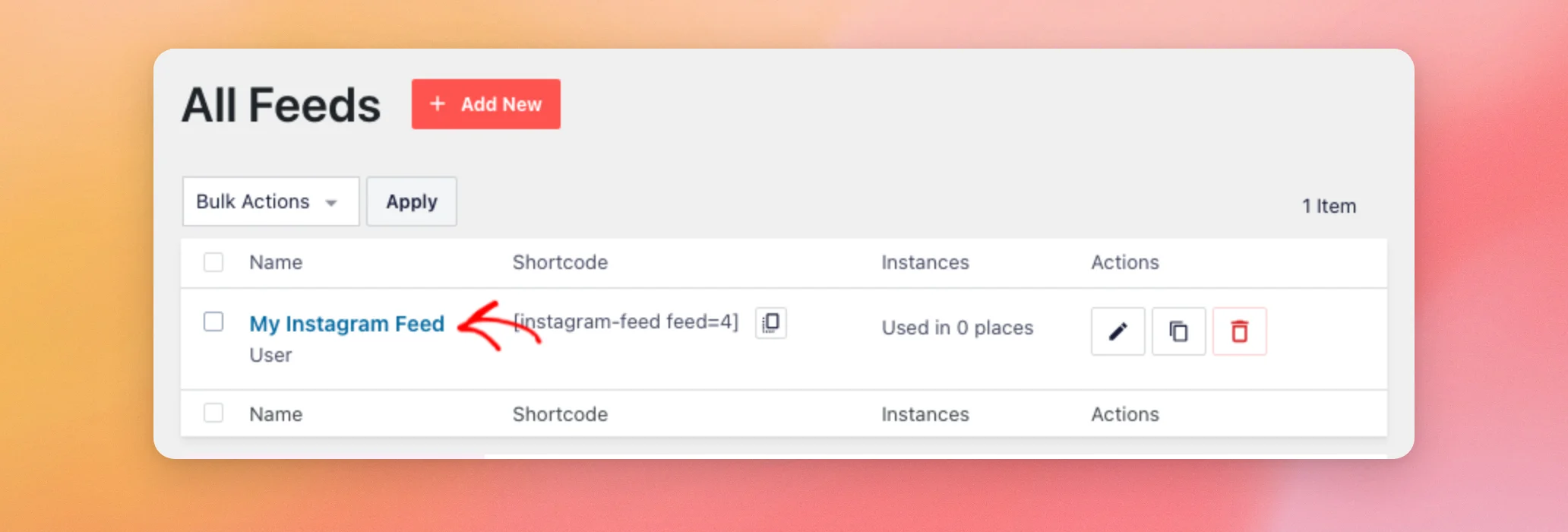
- On the All Feeds page of Instagram Feed, click the name of your feed.
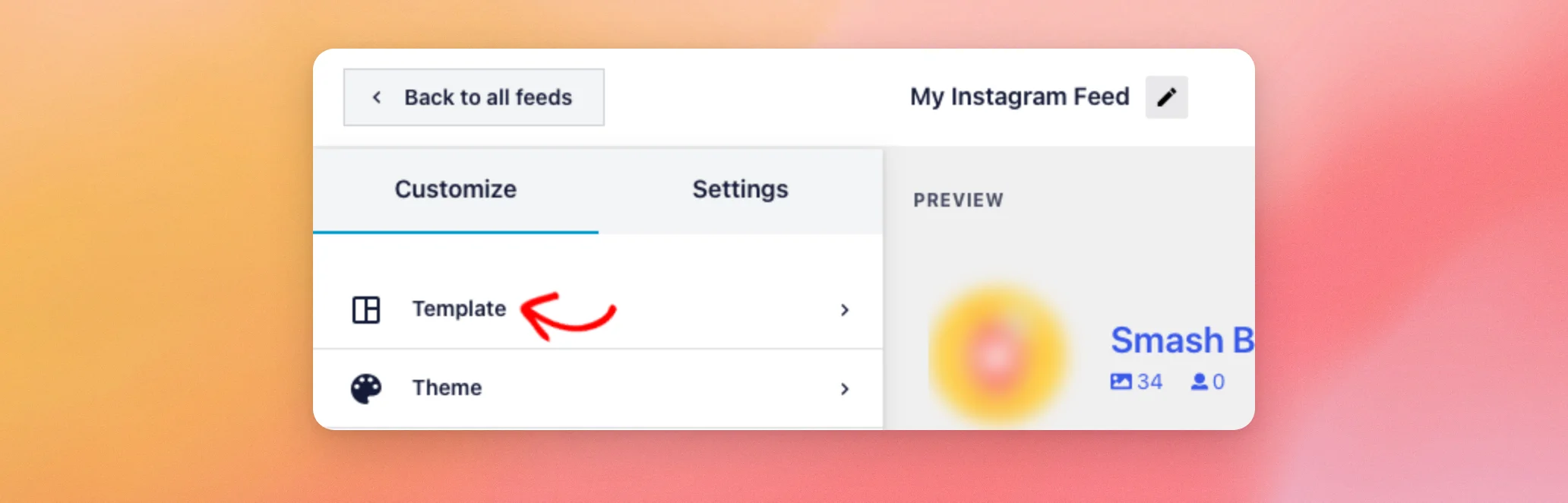
- On the Customize tab, click Template.
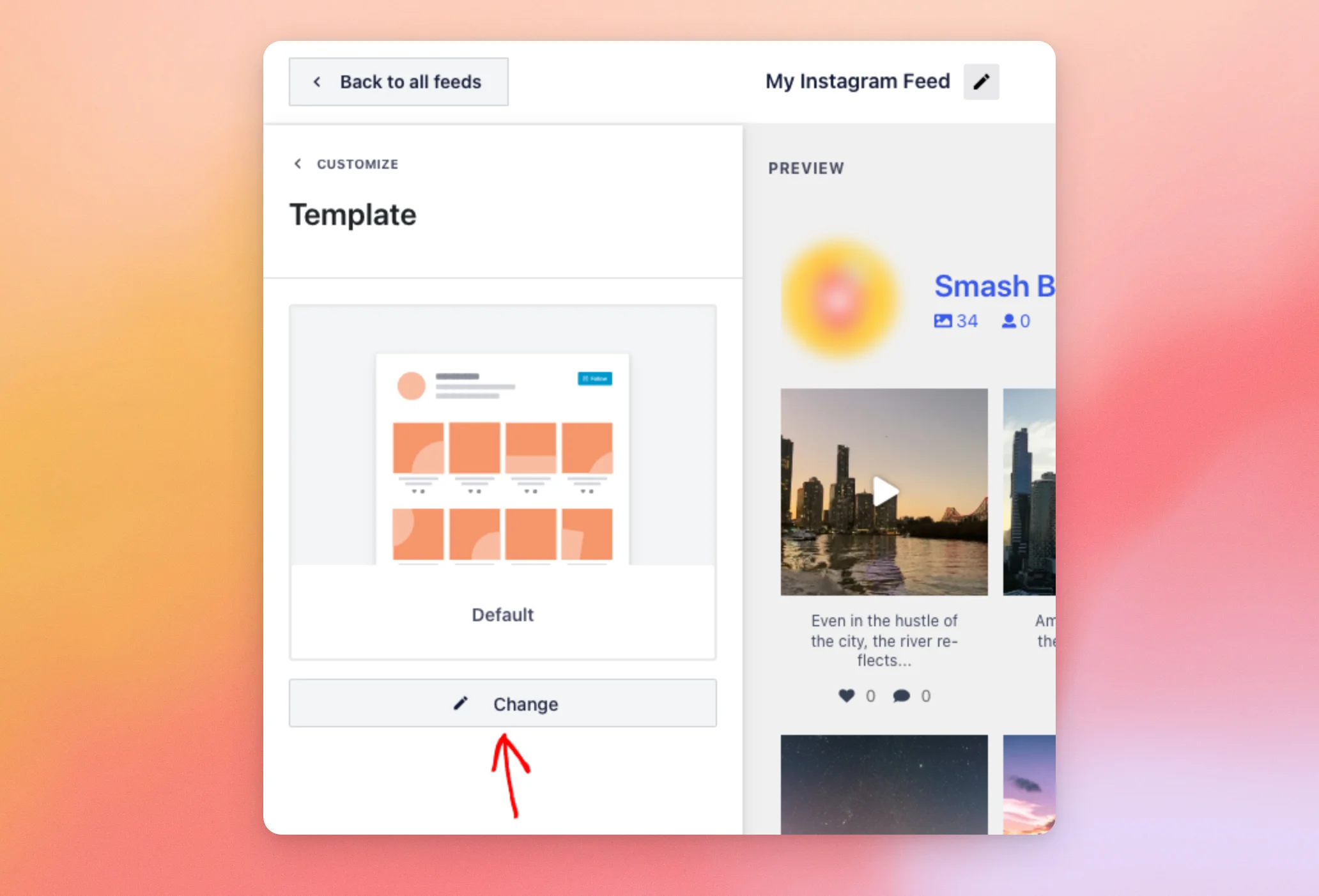
- Your current template shows at the top of the section. To pick another one, click Change.
- In the Select another template window, click the template you want to use. Then click Update.

A message at the top of the window reminds you that changing a template will override your layout, header, and button settings.
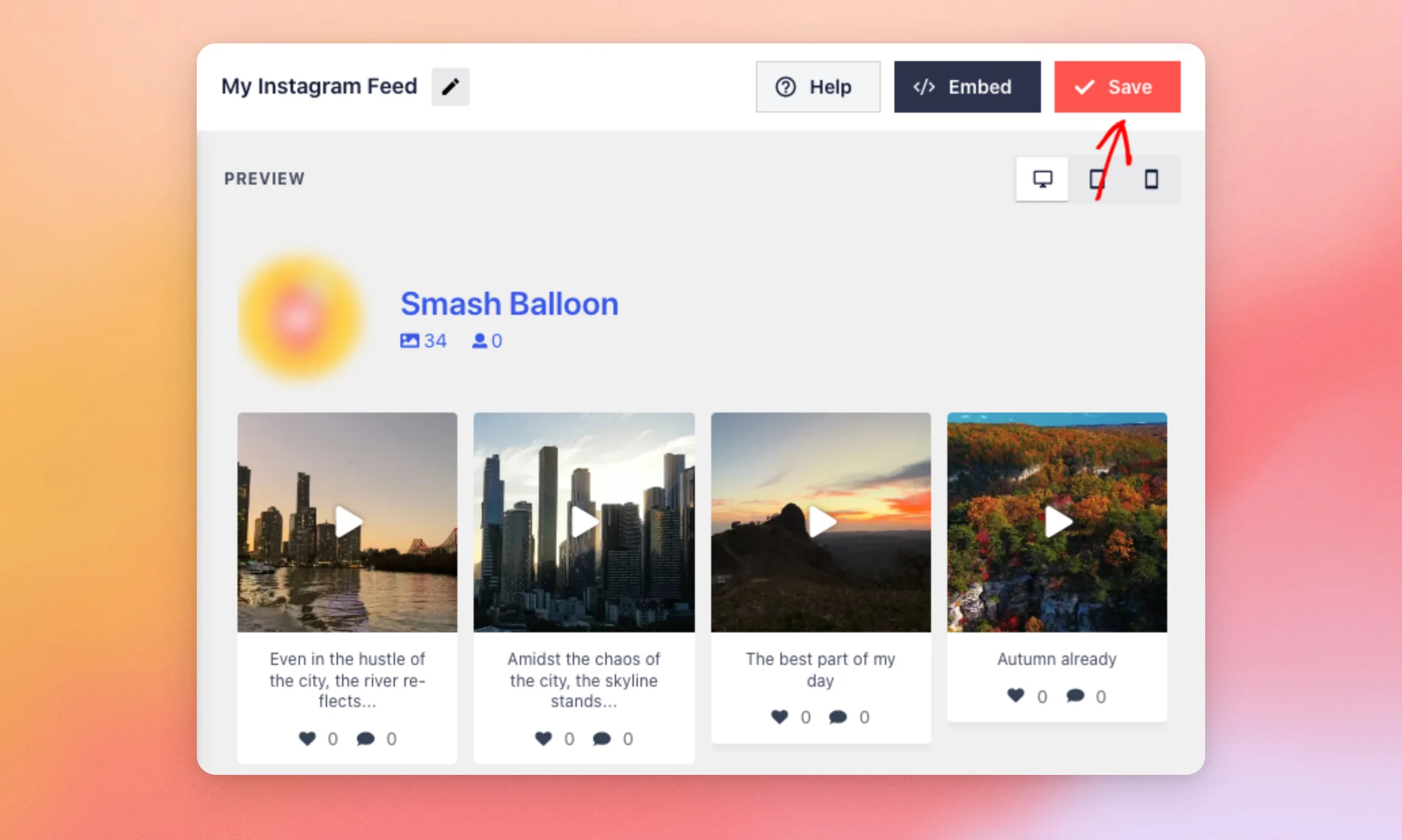
- The preview now shows your feed with the new template. To keep it, click Save.
Next, we’ll show you how to change a feed’s theme.
Changing the Theme of an Existing Feed
You change the theme from the same feed editor. To do it, follow these steps.
- From the All Feeds page, open your feed as in the section above. On the Customize tab, click Theme.
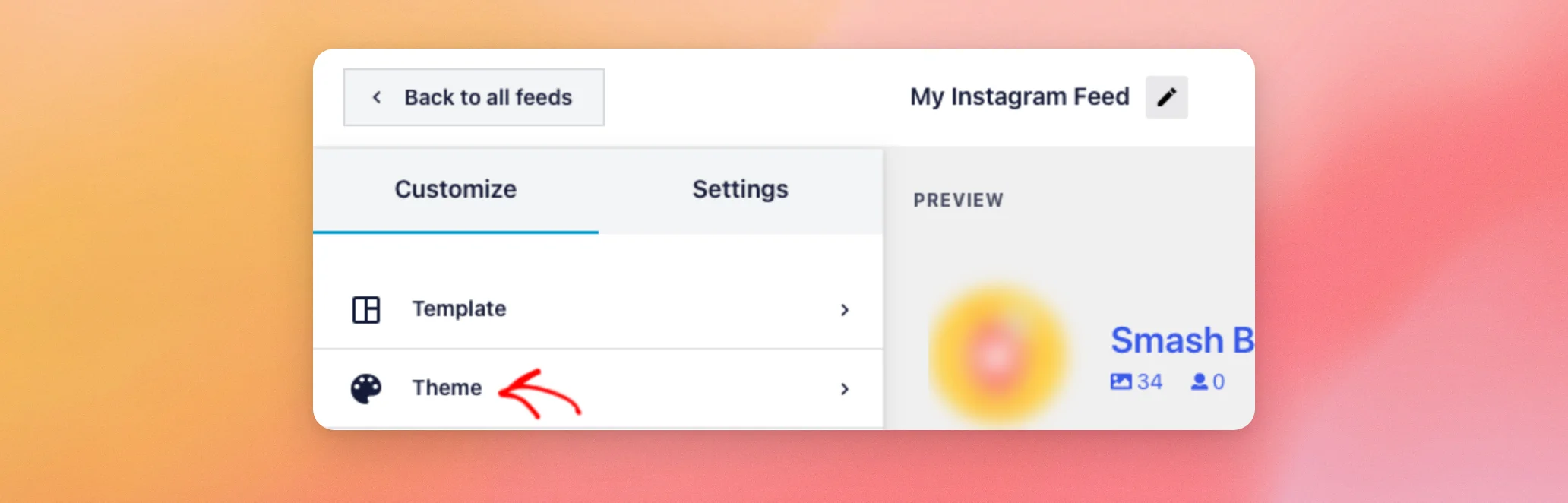
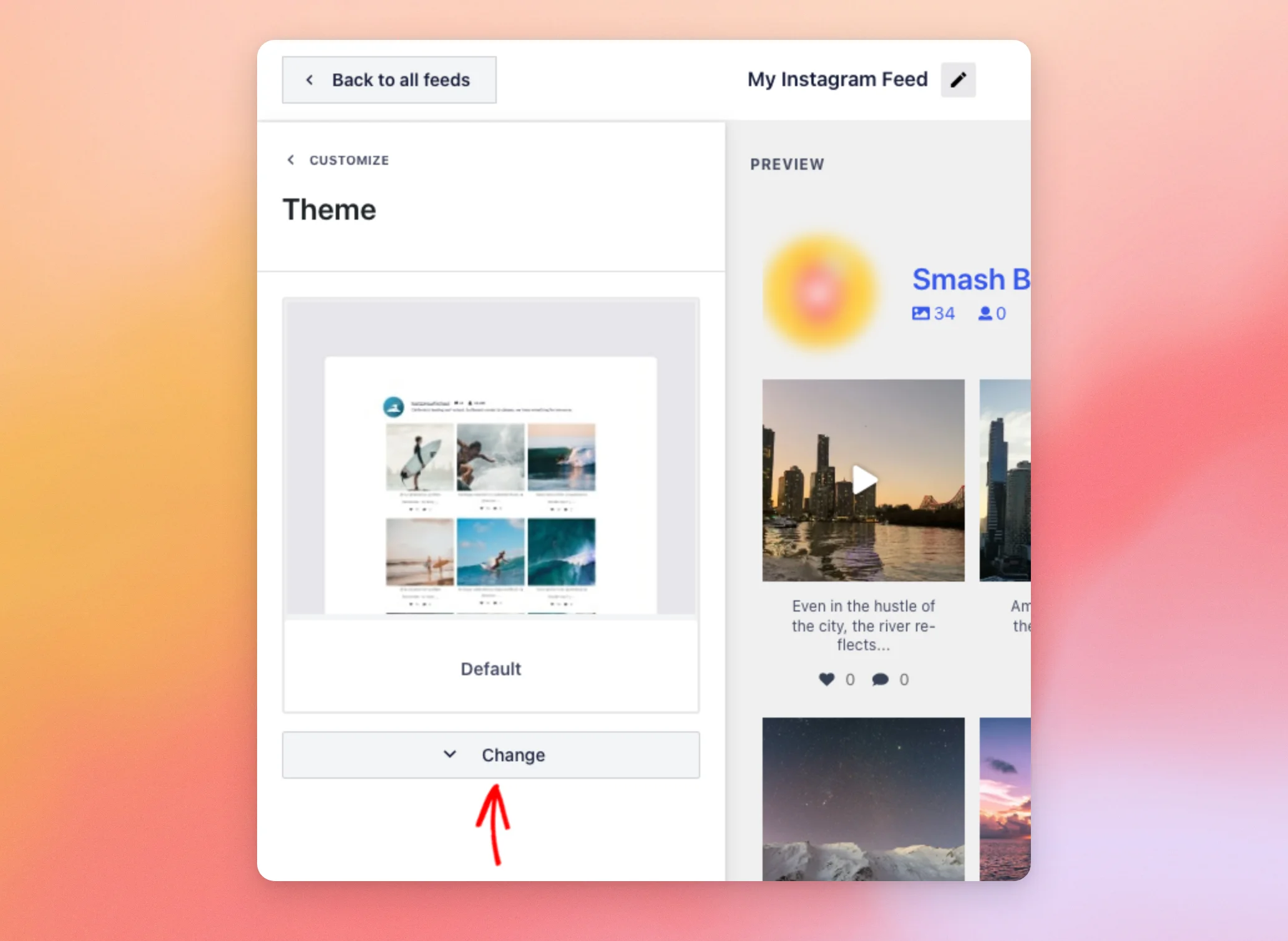
- Your current theme shows at the top of the section. To see the list of themes, click Change.
- Hover over a theme to see a sample of it. The theme your feed uses has Active next to its name. Then click the theme you want to use.
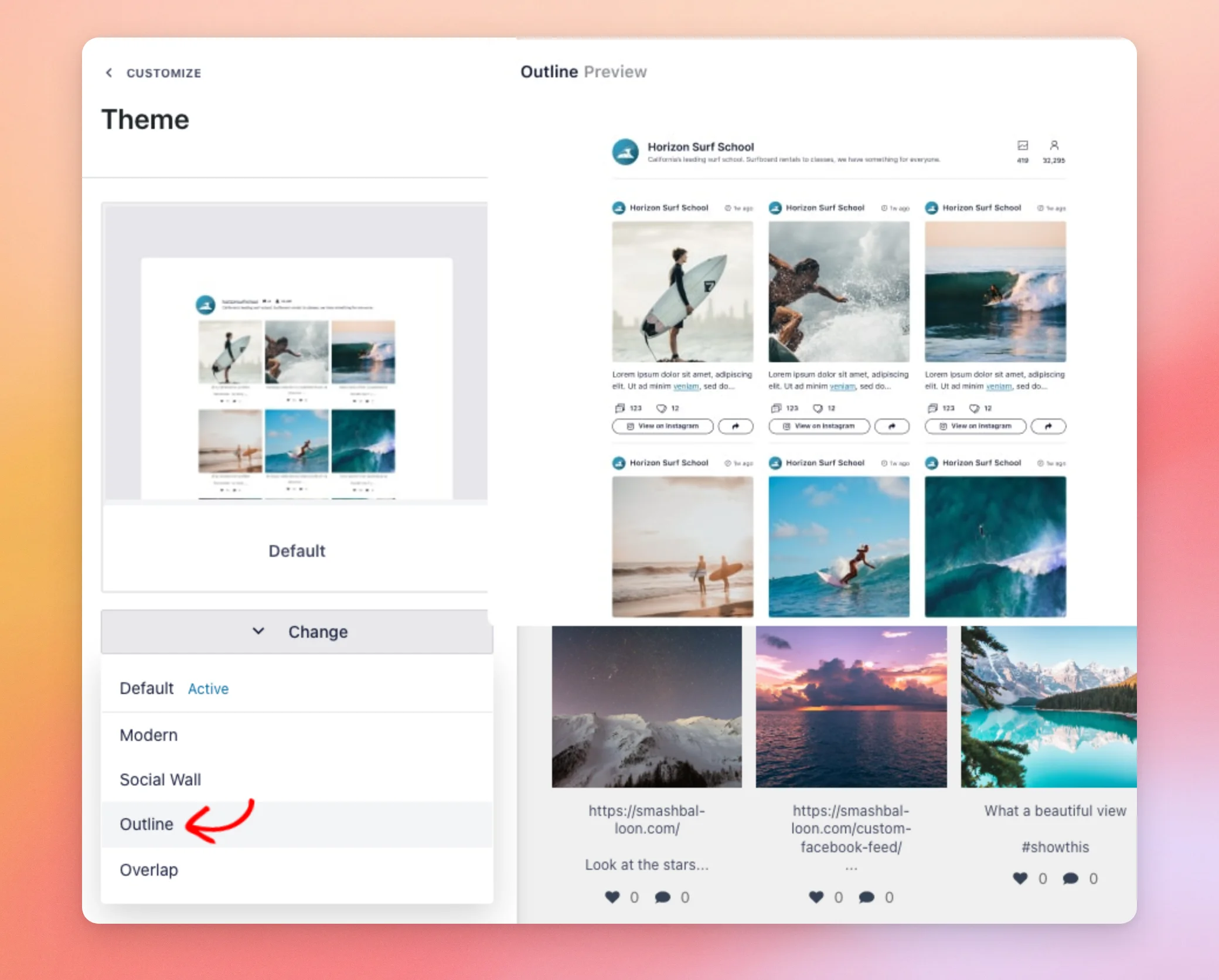
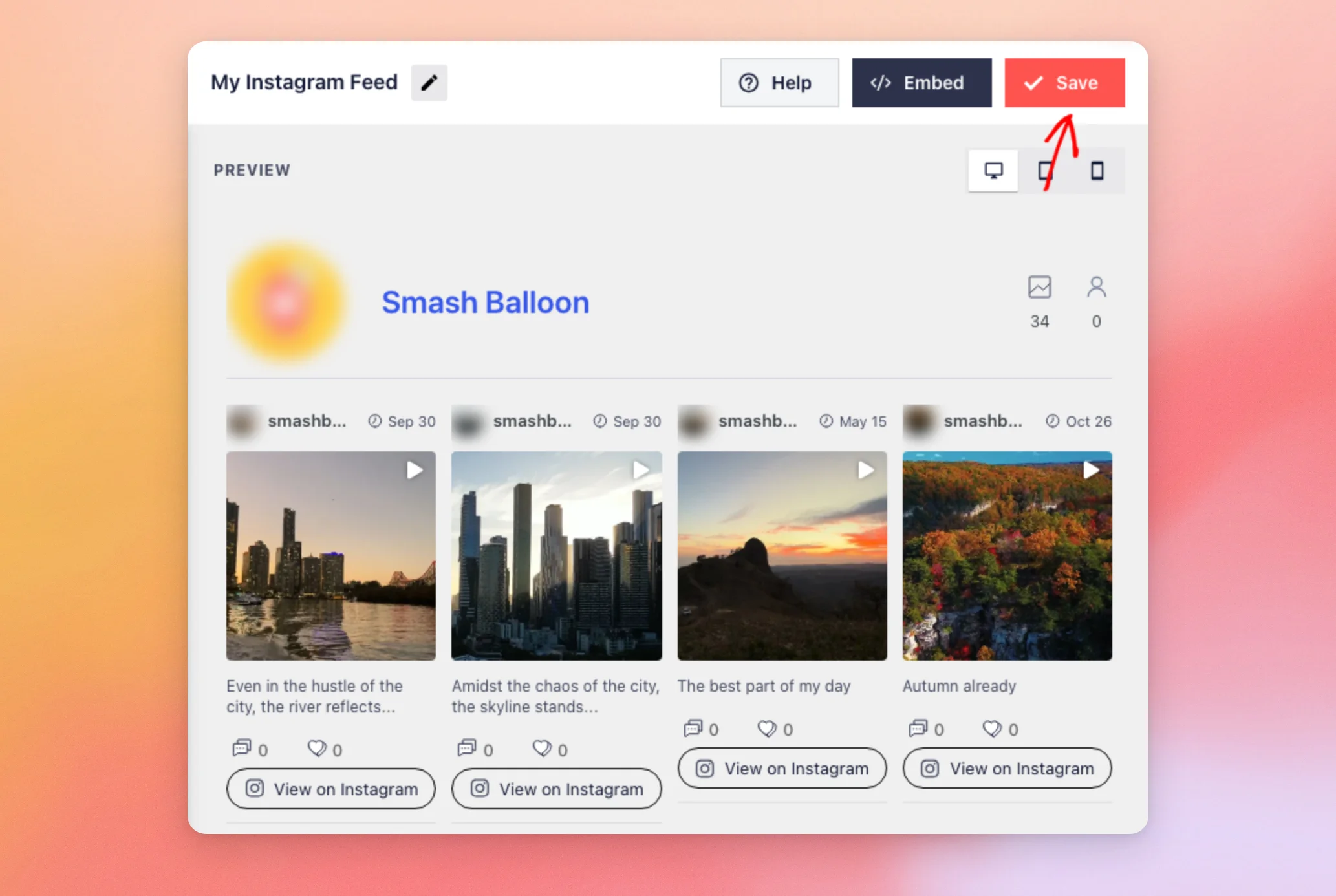
- The preview switches from your current theme to the new one. With the Default theme, the feed shows no username or date above its posts.

The Outline theme adds your profile picture, username, and post date above each post. It also adds a View on Instagram button below each post. To keep the new theme, click Save.
That’s it! You now know how to pick a template and a theme for your Instagram feed, and how to change either one later. If you picked a carousel template, see our guide on auto-rotating your Instagram feed as a carousel.
Frequently Asked Questions
Here are answers to some of the most common questions about feed templates and feed themes.
Does changing the template change my other settings?
Yes. A template sets your feed’s layout, number of posts and columns, header, buttons, likes and comments, and captions to its own values. It replaces any changes you made to those settings. The new settings apply to your feed when you click Save.
Does a feed theme change my WordPress theme?
No. A feed theme only changes how that one Instagram feed looks. Your WordPress theme and your other feeds stay the same.
Can each feed use a different template and theme?
Yes. Each feed keeps its own template and theme, so you can give every feed on your site a different look.
Why don’t I see the Start with a Theme step?
The theme step shows only with the Elite license level. Instagram Feed also skips the theme and template steps when your site has no license key. It skips them too when your license has expired and its grace period has ended.




