


 Social Wall
 Feed Analytics


How to turn a static Instagram grid into a self-rotating carousel, which suits a homepage hero better than a fixed grid.
Would you like to turn your Instagram feed into a slideshow that rotates by itself?
In this guide, we’ll walk you through switching a feed to the Carousel layout and turning on autoplay. We’ll also cover the carousel settings and how visitors can use the carousel with a keyboard. Finally, we’ll look at what to check when the carousel isn’t working.
Before you get started, make sure Instagram Feed Pro is installed and activated on your site.
Requirements: The Carousel layout is part of Instagram Feed Pro at every license level, from Basic up. In the free Instagram Feed plugin, choosing Carousel opens an upgrade popup instead.
Here is what we will cover.
- Creating a Carousel Feed
- Setting Up the Carousel and Autoplay
- Adding Your Carousel to Your Site
- Using the Carousel With a Keyboard
- Carousel Isn’t Working
- Frequently Asked Questions
Creating a Carousel Feed
To get started, we’ll create a User Timeline feed. A carousel makes a long feed shorter on the page. Visitors see a few posts at a time and the rest rotate in.
To switch an existing feed instead, click its name on the All Feeds page to open it. Then skip ahead to Setting Up the Carousel and Autoplay.
- In your WordPress dashboard, go to Instagram Feed » All Feeds.
- Next, click Add New.
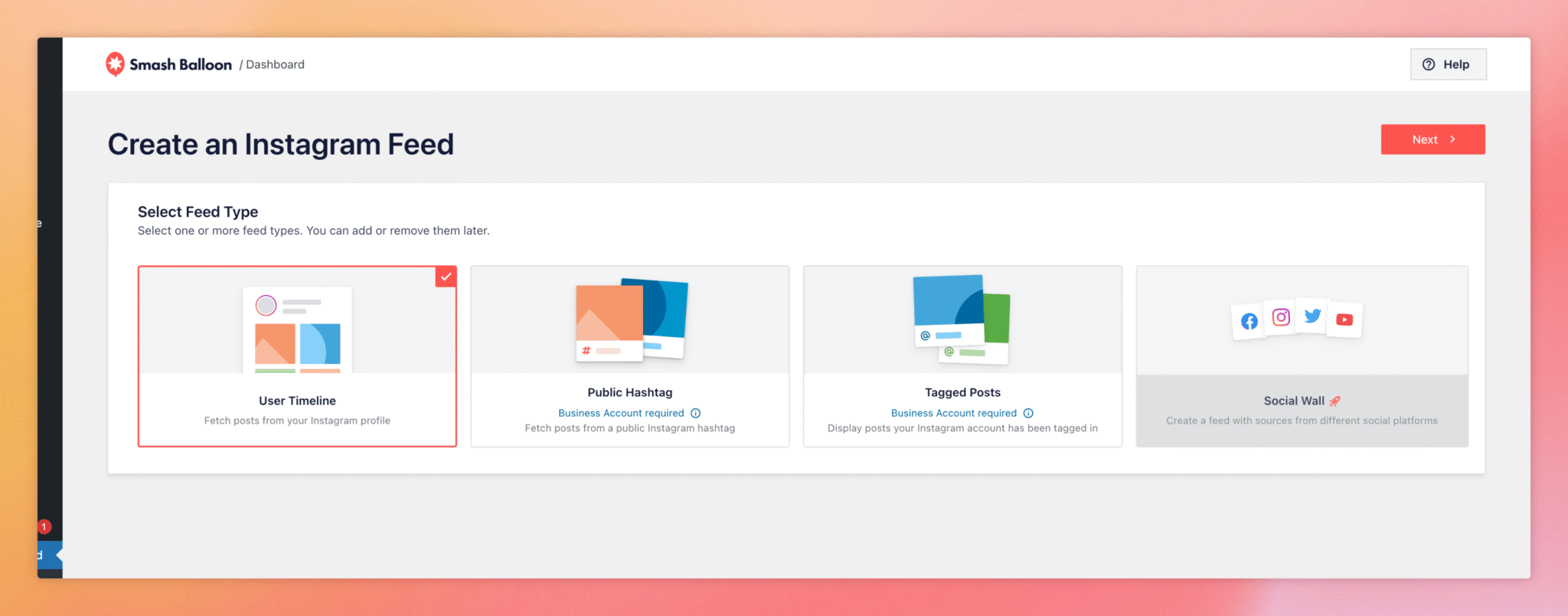
- On the Select Feed Type screen, select User Timeline. Then, click Next.
- Then, select your connected source and follow the prompts until the feed opens in the feed editor.
If you have a Plus or Elite license, you can also start from the Simple Carousel template when you create a feed. The template sets the layout for you. You can still change any setting below. To compare all ten templates, see our guide on using Instagram Feed templates and themes.
Setting Up the Carousel and Autoplay
Now we’ll switch the feed to the Carousel layout and set how it rotates.
- In the feed editor, click Feed Layout in the Customize tab.
- Next to Layout, click Carousel. The preview updates. A Carousel Settings group then appears below the layout choices. It stays hidden for the Grid, Masonry, and Highlight layouts.
- Then, select the Carousel Settings you want, as described below.
- Next, check Enable Autoplay to make the posts rotate by themselves.
- Finally, click Save at the top of the feed editor.
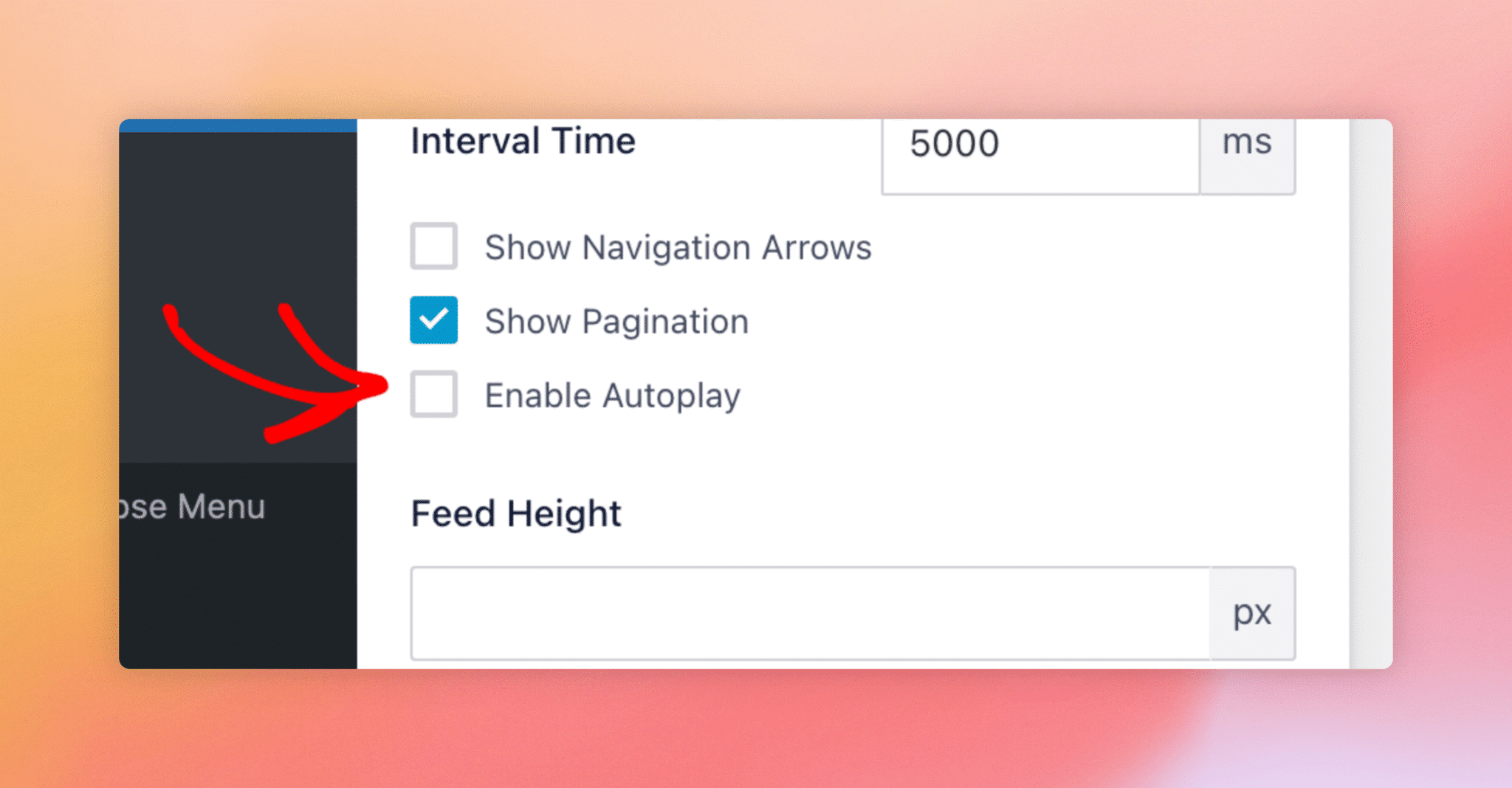
Carousel Settings has these options.
- Rows shows the posts in one or two rows. The default is 1.
- Loop Type is either Rewind or Infinity. The default is Rewind. It returns to the first post at the end. Infinity keeps scrolling through the posts without going back. To let visitors see the feed start over from the first post, choose Rewind. To keep the posts scrolling without a jump back, choose Infinity.
- Interval Time is how long each slide stays on screen, in milliseconds (ms). The default is 5000 ms, which is five seconds. The carousel never rotates faster than 2000 ms, so a lower value runs at 2000 ms. This setting only applies when Enable Autoplay is checked.
- Show Navigation Arrows adds previous and next arrows. It is off by default. A new carousel shows the pagination dots but no arrows.
- Show Pagination adds a dot for each group of posts that fits on screen. Clicking a dot goes to that group. It is on by default. Turning it off hides the dots.
- Enable Autoplay starts the rotation. It is off by default. A new carousel doesn’t rotate until you check it.
A faster interval can feel busy, while a slower one gives visitors time to read captions. Autoplay pauses while a visitor’s pointer is over the carousel. It resumes when the pointer moves away.
How many posts show at once depends on the Columns setting under Feed Layout, which has separate Desktop, Tablet, and Mobile values.
Adding Your Carousel to Your Site
Once you’ve saved the feed, you can add it to a page in two ways.
- In the feed editor, click Embed.
- In the Embed Feed window, click Add to a Page. Then choose a page and follow the prompts to add the feed to it. Or, click Copy to copy the feed’s shortcode, such as
[instagram-feed feed=1]. Then paste it into any page, post, or widget area.
If you only want the carousel to show on phones and tablets, see our guide on displaying the feed as a carousel only on mobile devices.
Using the Carousel With a Keyboard
Visitors can use the carousel without a mouse. The previous and next arrows and the pagination dots are reachable with the Tab key. The Enter or Space key on one of them moves the carousel. Screen readers announce the arrows as “Previous slide” and “Next slide” and each dot as “Go to slide” with its number. Duplicate slides that the carousel adds when Loop Type is Infinity are hidden from screen readers.
Keyboard visitors need the arrows or the dots to move the carousel. The dots are on by default. If you turn off Show Pagination, turn on Show Navigation Arrows.
Carousel Isn’t Working
If the carousel isn’t working, check the following.
- Choosing Carousel opens an upgrade popup. The free Instagram Feed plugin doesn’t include the Carousel layout, so it shows this popup instead. Carousel needs Instagram Feed Pro.
- The posts don’t rotate. Autoplay is off by default. In the feed editor, go to Feed Layout and check Enable Autoplay. Then, save the feed.
- You can’t find Carousel Settings. The group only appears after you select Carousel as the layout.
- The rotation is slower than you set. The carousel never rotates faster than 2000 ms. It also pauses while a visitor’s pointer is over it.
- You can’t see the arrows. Show Navigation Arrows is off by default. To fix this, check it. Then, save the feed.
That’s it! You now know how to create a carousel, make it rotate by itself, and fix it when it isn’t working. Next, see how to filter the posts in your feed.
Frequently Asked Questions
Below, we’ve answered some of the most common questions about carousel feeds.
Which license level do I need for the Carousel layout?
Any Instagram Feed Pro license level, from Basic up. The free plugin doesn’t include it.
Can a carousel show more than one row?
Yes. Under Carousel Settings, set Rows to 2.
Does autoplay pause when a visitor hovers over the carousel?
Yes. Autoplay starts again when the pointer moves away. See Setting Up the Carousel and Autoplay above for the other autoplay options.
Can I set different rotation speeds for different feeds?
Yes. Each feed has its own Carousel Settings, so you can set a different Interval Time for each one.
Why don’t I see Carousel Settings?
Carousel Settings only appears after you select Carousel as the layout. See Setting Up the Carousel and Autoplay above for the steps.




