Social Wall
 Feed Analytics


Would you like to change how your YouTube feed is laid out, from a grid of videos to a carousel or a single featured video?
Feeds for YouTube Pro gives you 2 ways to do it. A template sets the layout of a feed together with its header and buttons. A layout is the single setting that decides how the videos are arranged.
This guide shows where to pick each one and what you can change.
Before you get started, make sure you have created a feed. Choosing or changing a template needs the plus license level or higher. The Carousel layout needs the basic license level or higher. For a full list of what each license level includes, see our Free and paid features guide.
Here is what we will cover:
- Choosing a Template for a New Feed
- Changing a Template Later
- What Does Each Template Set Up?
- Choosing a Layout
- Saving Your Changes
- Frequently Asked Questions
Choosing a Template for a New Feed
The first place you meet templates is when you create a feed. After you pick a feed type and a source, the Start with a template step asks what you want your feed to look like.
Each template shows a small picture of the result. To choose one, click it. Then click Next to continue with that template. You can still change it later.
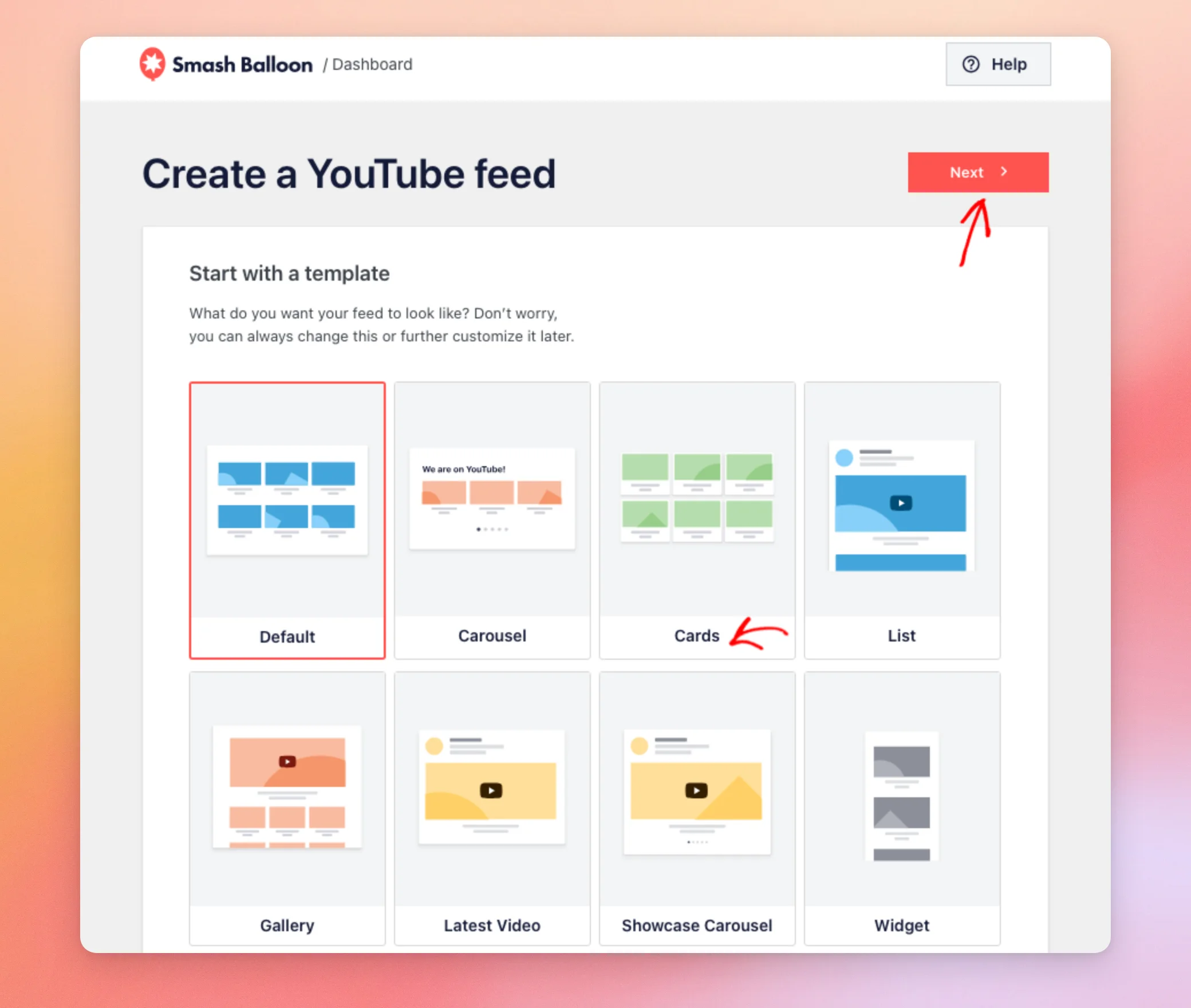
If you are not sure which one to pick, keep Default. It is already selected. It shows a plain grid of 9 videos in 3 columns that you can build on from the Customize tab. Next, here is how to switch templates on a feed you have already made.
Changing a Template Later
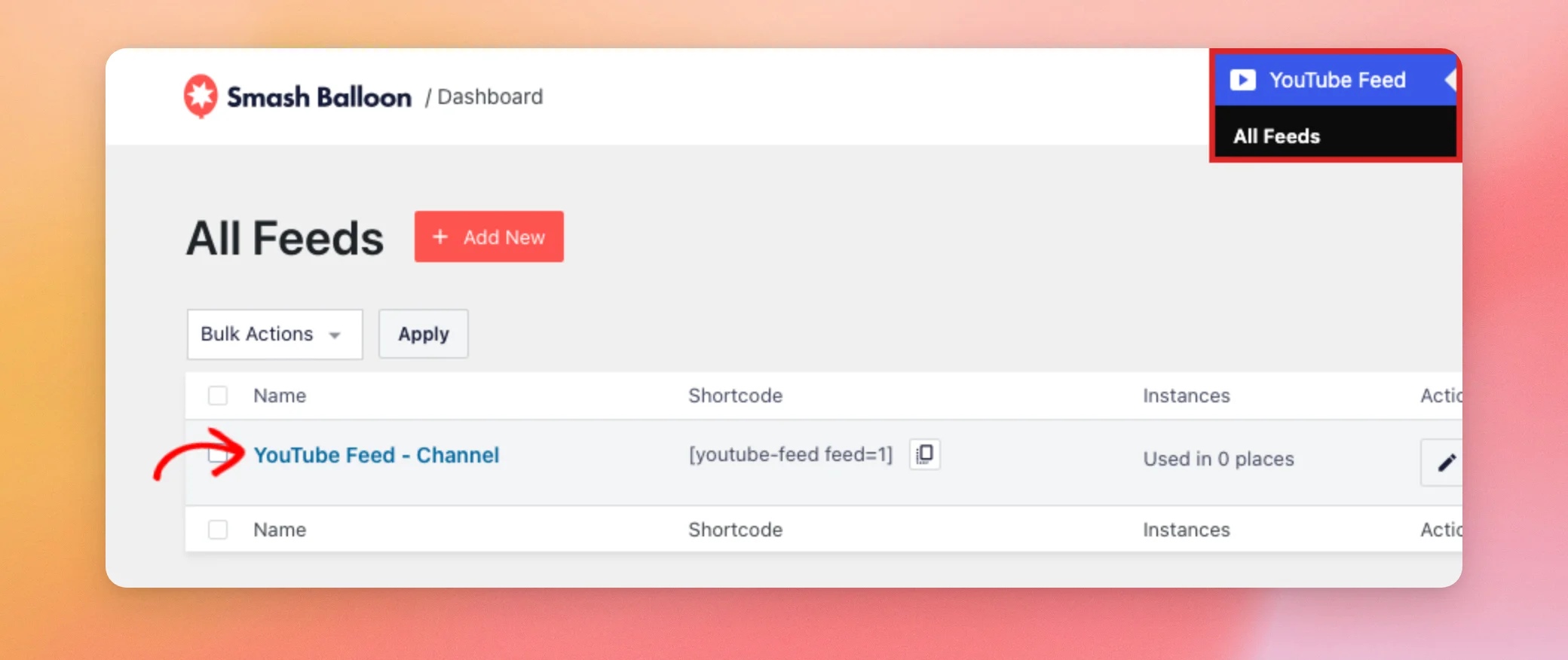
To change the template of an existing feed, go to YouTube Feed » All Feeds in your WordPress dashboard. Then click the name of the feed.
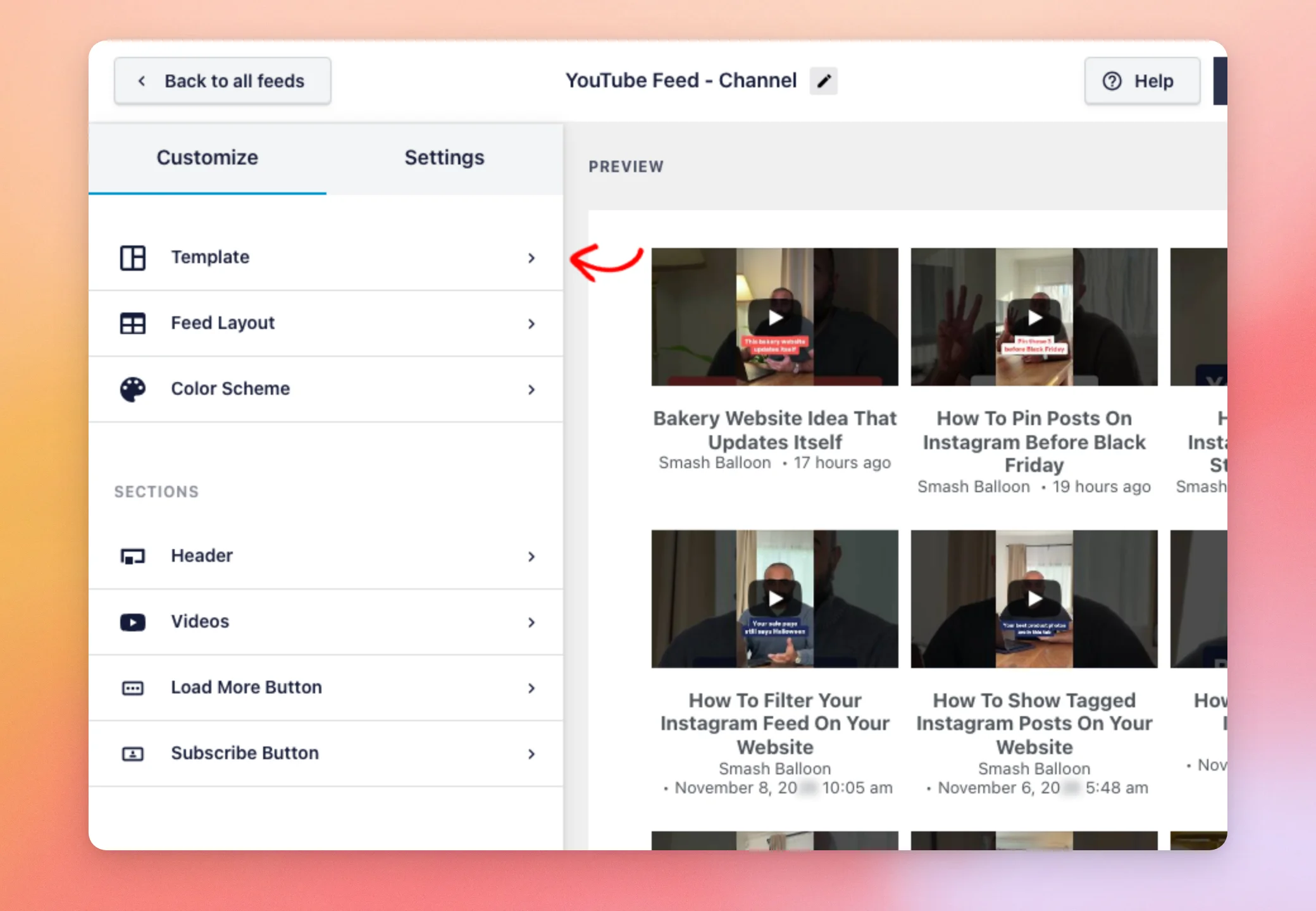
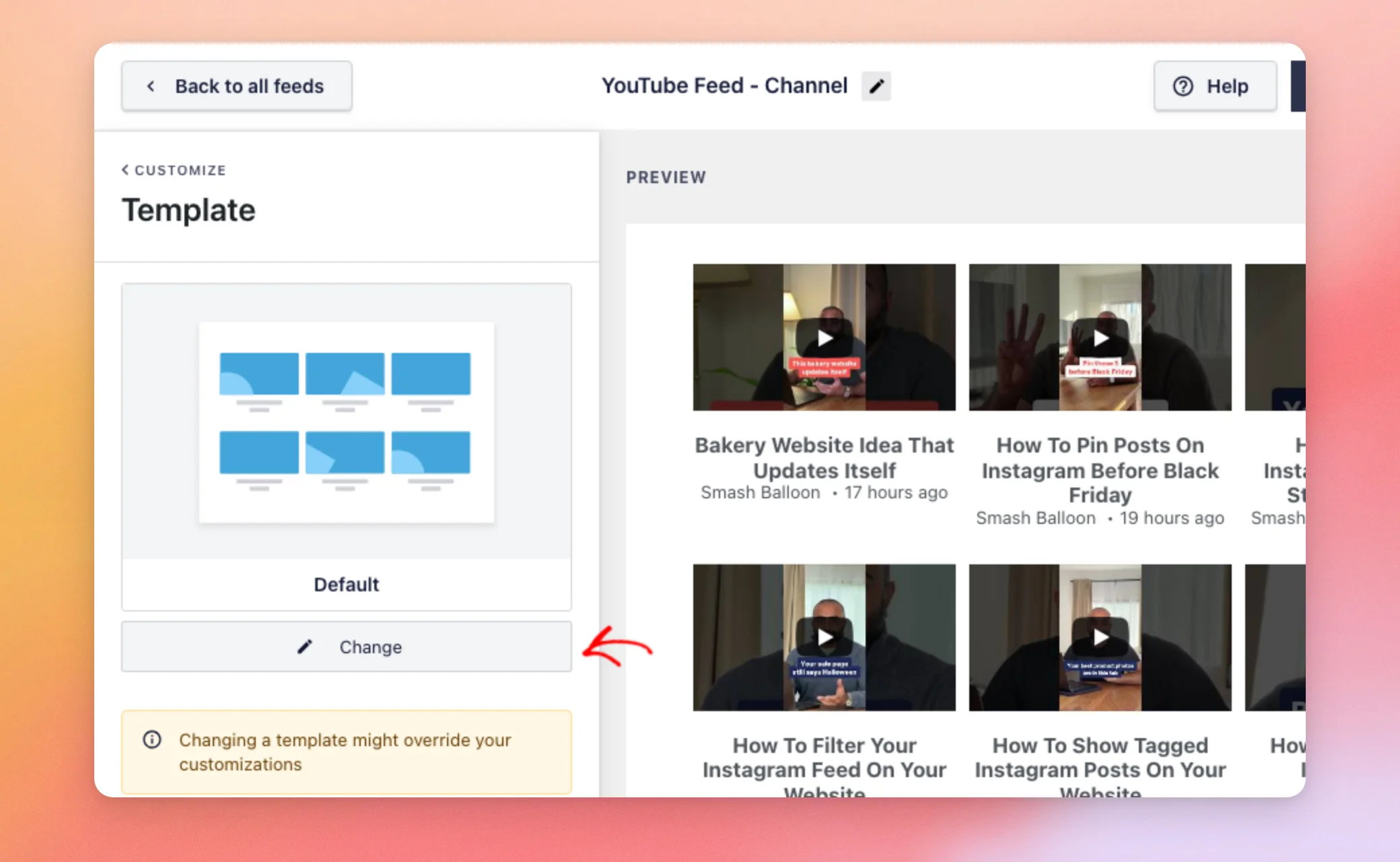
The editor opens on the Customize tab. At the top of the tab, click Template.
The panel shows the template your feed uses now. To pick another one, click Change.
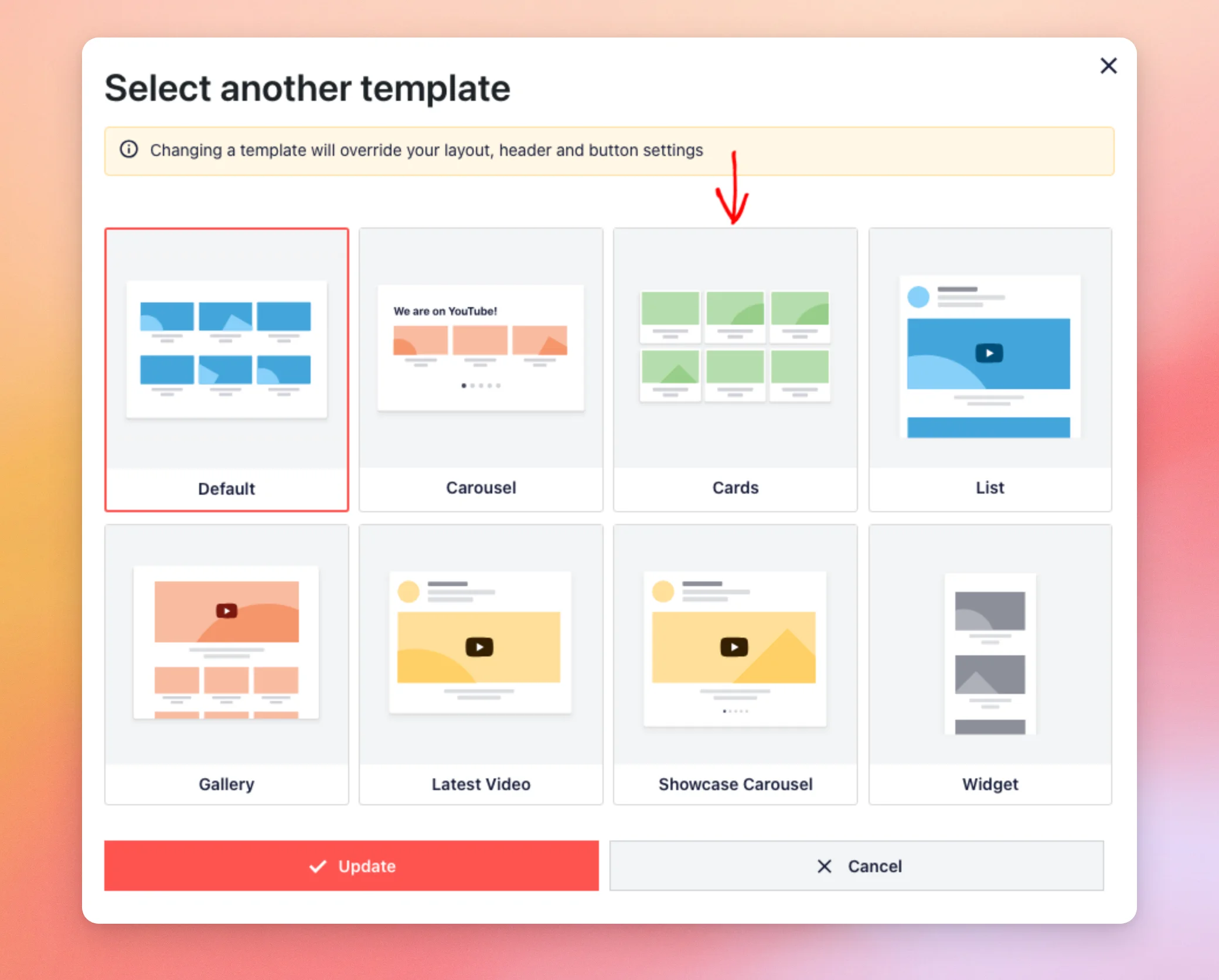
A Select another template window opens with all 8 templates. A note at the top tells you that changing a template overrides your layout, header and button settings. From the grid of templates, click the one you want.
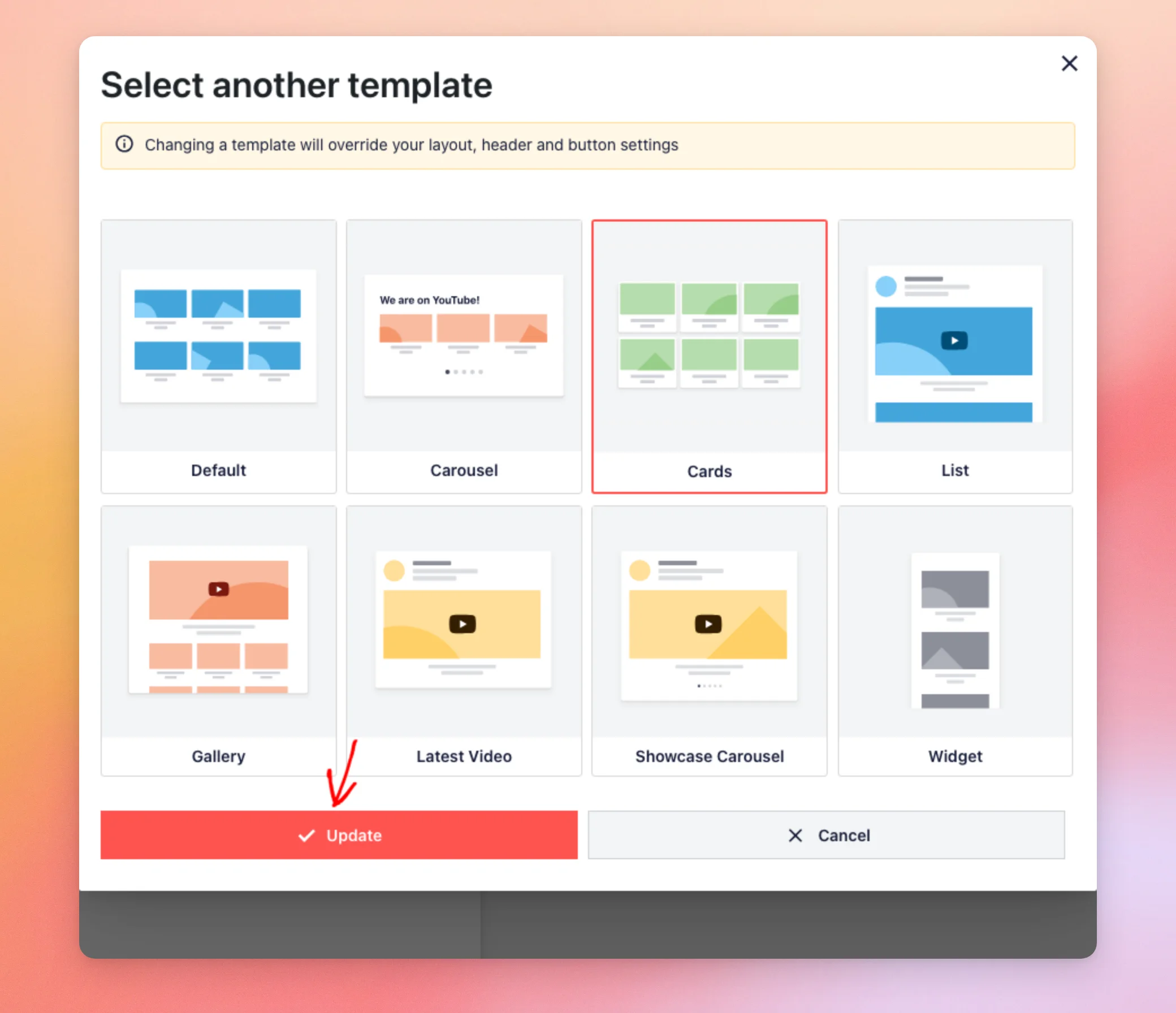
Then click Update to apply it. To keep your current template, click Cancel instead.
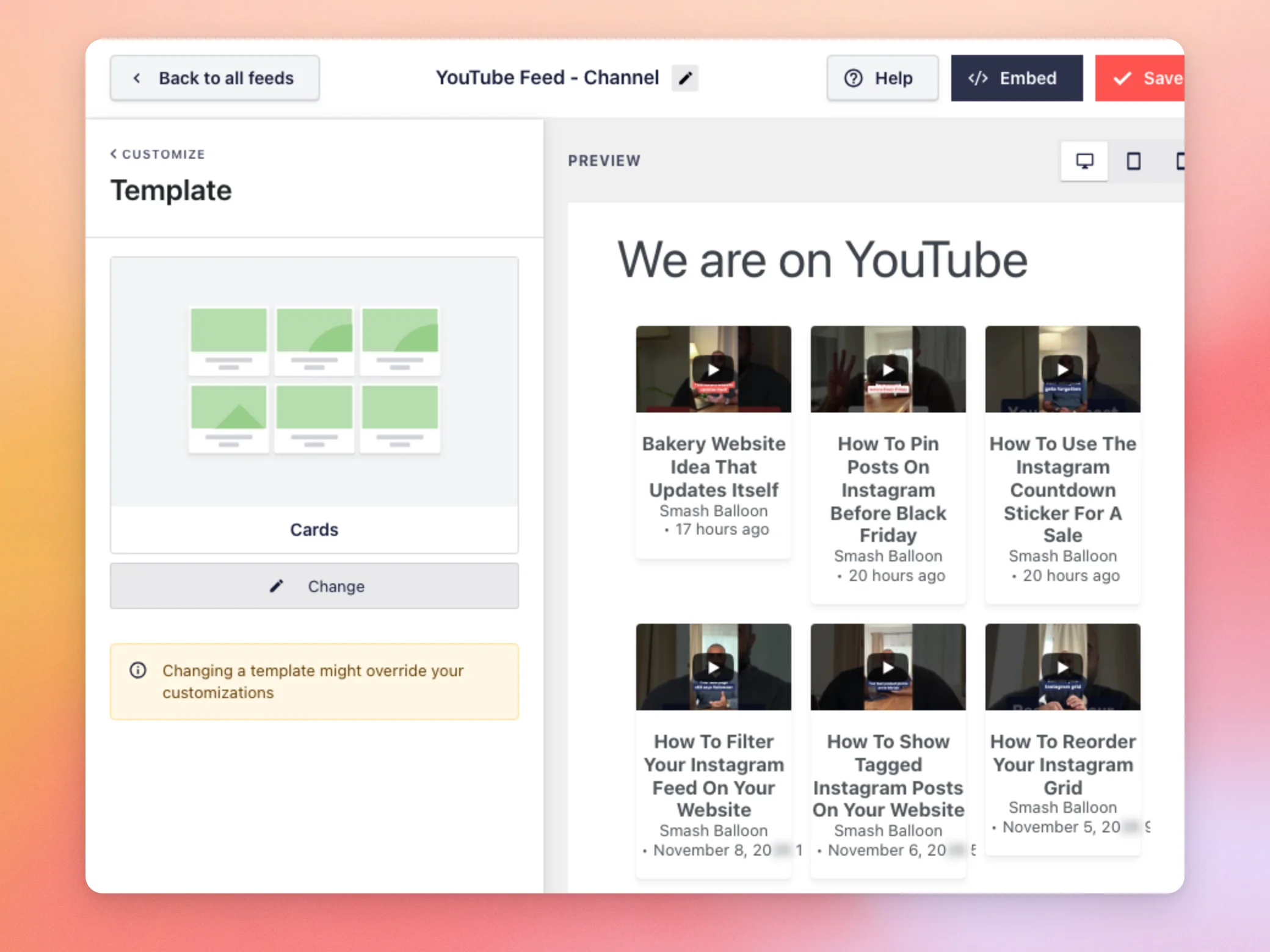
The preview on the right changes straight away. The Cards template shows each video in a boxed card under a text header.
Your template choice is only a starting point. Once it is applied, you can still change the layout and the other settings, as shown below.
What Does Each Template Set Up?
The templates are listed below in the order they appear in the picker. Each one sets the layout, the number of videos and the header together.
- Default shows a grid of 9 videos in 3 columns, with no header.
- Carousel shows 9 videos in a carousel of 3 columns, under a “We are on YouTube” header. Arrows, pagination dots and autoplay are on.
- Cards shows 9 videos in a grid of 3 columns. Each video sits in a boxed card, under the same text header.
- List shows 2 videos in the list layout, with the standard channel header.
- Gallery shows a large featured video above a grid of 3 columns. It loads 6 videos and has no header.
- Latest Video shows only the first video in your feed at a large size, with the header turned on.
- Showcase Carousel shows 1 video at a time in a carousel of 3 videos, with the header turned on.
- Widget shows 2 videos in the list layout with no header.
To change any of this, use the Customize tab after you pick the template. Templates here are not the same as custom templates, which swap the feed’s HTML markup. For those, see our custom templates guide.
Next, here is how to change the layout on its own.
Choosing a Layout
The layout is the single setting that decides how your videos are arranged. A template sets it for you. You can also change it on its own. To do this, go back to the top of the Customize tab and click Feed Layout.
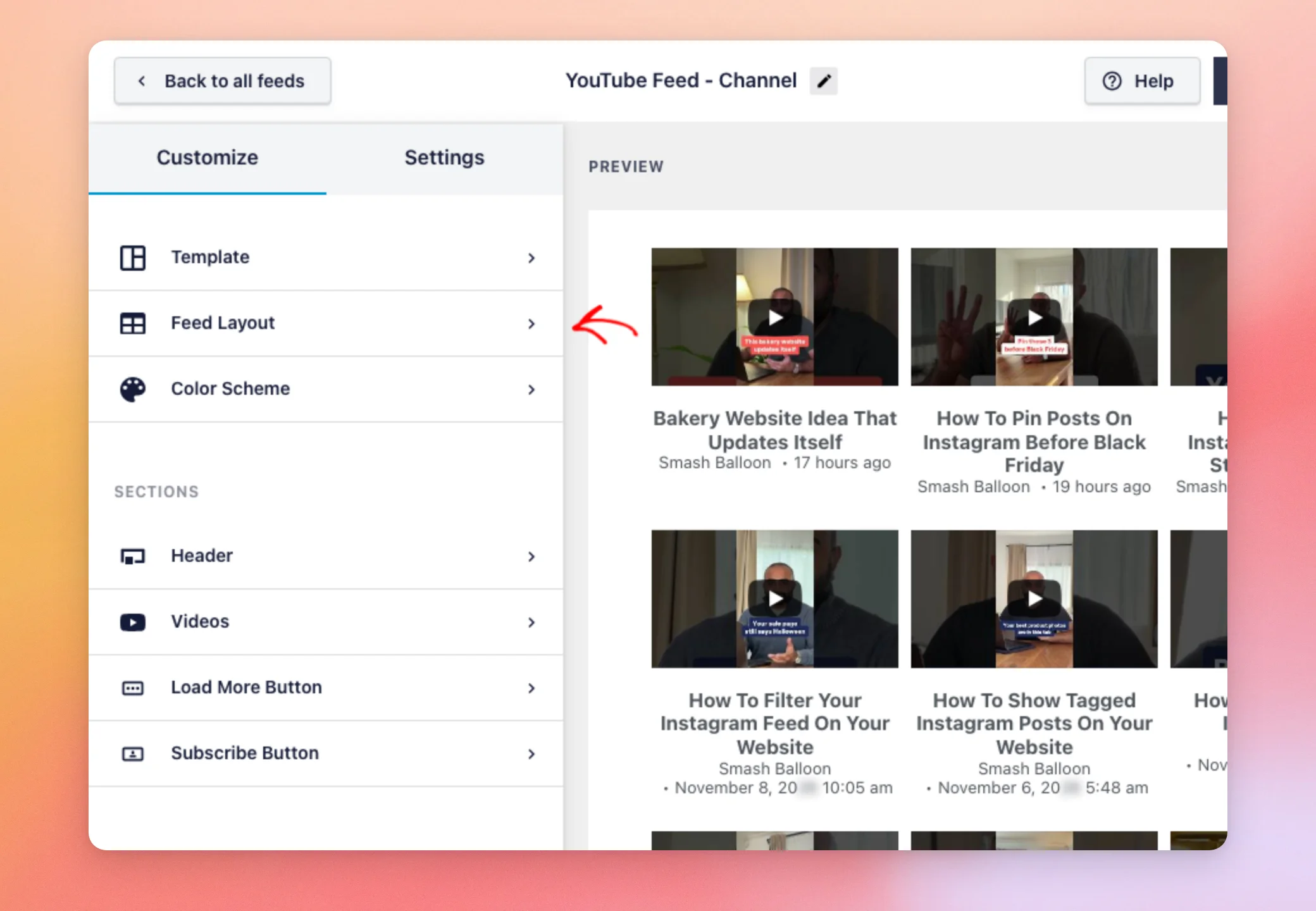
Under Layout you will see 5 options, Grid, Gallery, List, Carousel and Swipe View. The next sections show what each one does in the preview.
Grid, Gallery and List
- Grid lines your videos up in rows and columns of equal size.
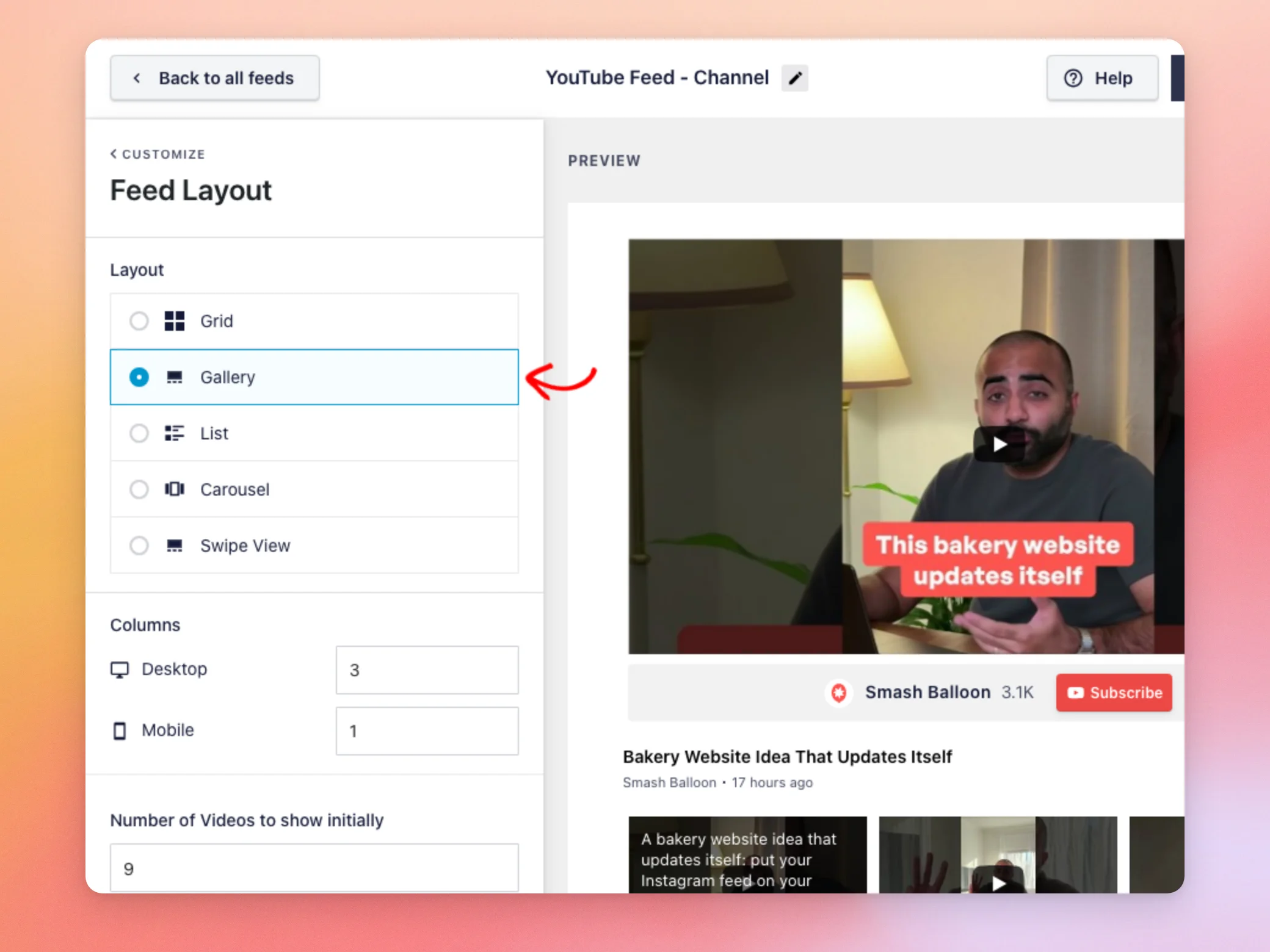
- Gallery shows a large featured video at the top. The rest of your videos sit in a grid underneath it.
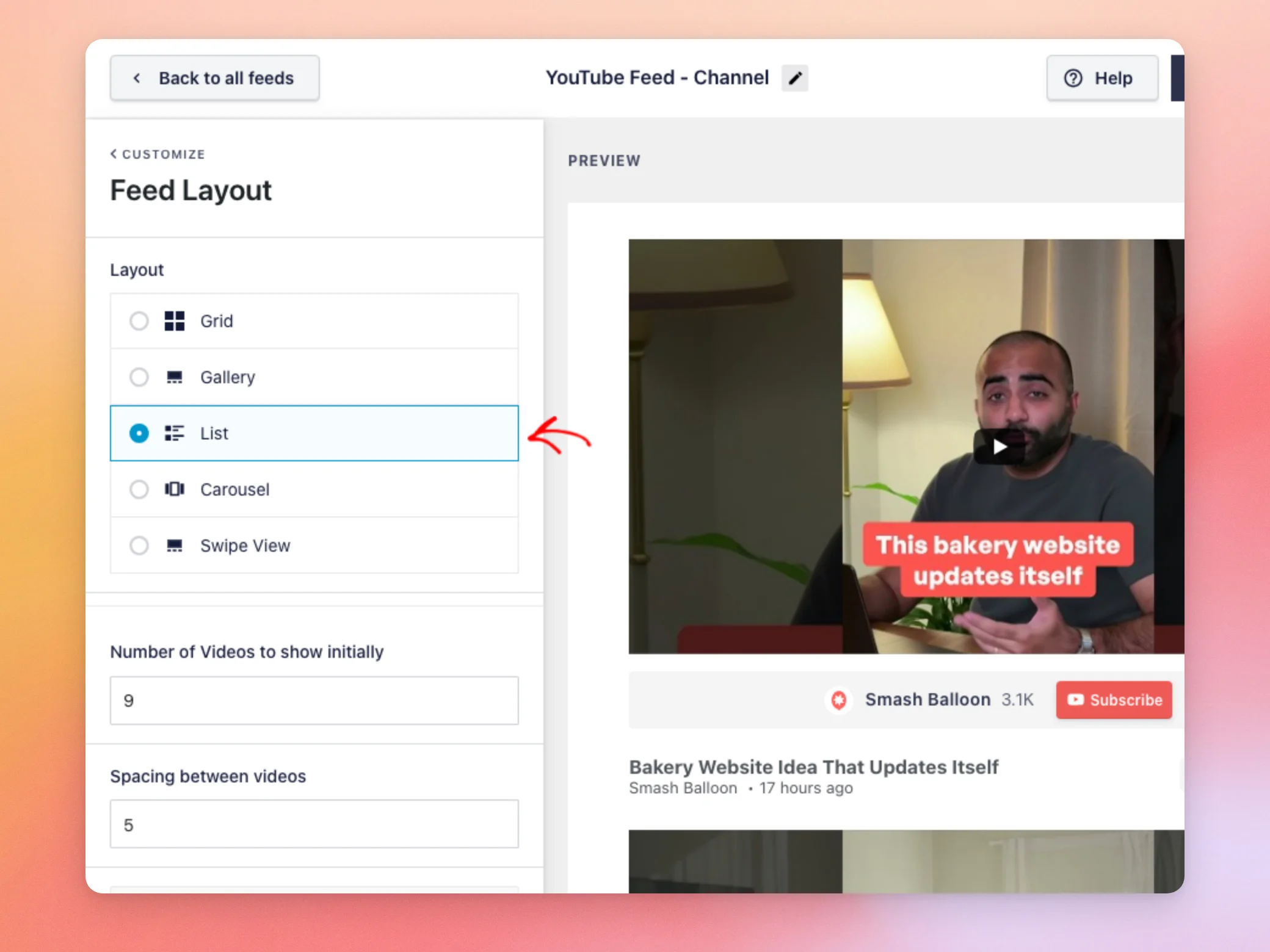
- List shows your videos in a single column.
If you are not sure, start with Grid. Gallery suits a feed where one video should stand out above the rest. List suits a feed where you want your videos stacked in a single column.
To use the Gallery layout, click Gallery.
To use the List layout, click List. The Columns setting is not shown for this layout.
Next, here is the Carousel layout, which adds a few settings of its own.
Carousel
The Carousel layout shows a row of videos that visitors can slide through. In the Layout list, click Carousel. A Carousel Settings section appears below the layout options.
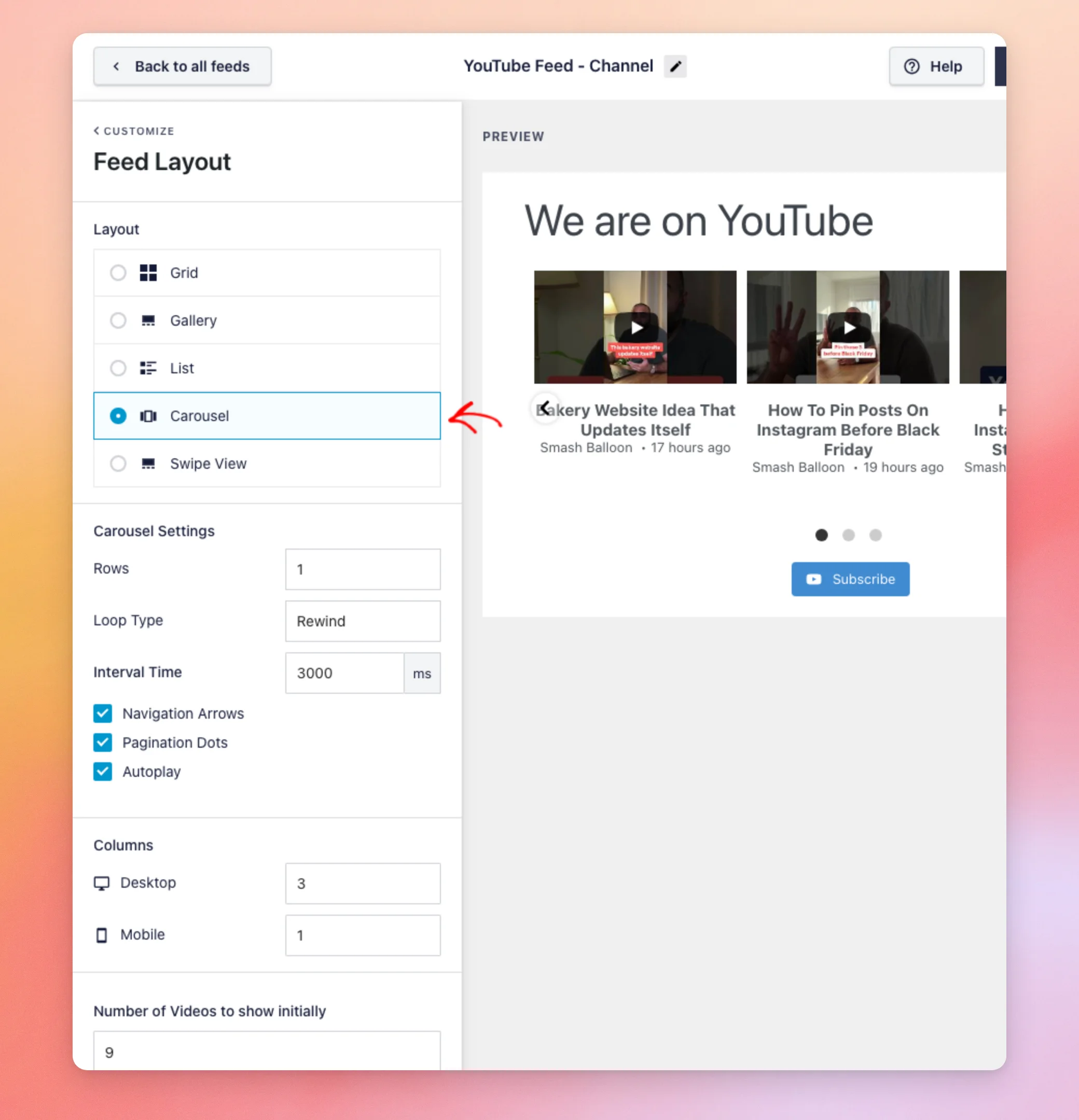
These are the Carousel Settings.
- Rows sets how many lines of videos the carousel shows, either 1 or 2.
- Loop Type is either Rewind or Infinity.
- Interval Time is how long each slide stays, in milliseconds, when Autoplay is on.
- Navigation Arrows turns the previous and next buttons on each side on or off.
- Pagination Dots turns the row of small page markers below the carousel on or off.
- Autoplay makes the carousel move by itself. When it is off, visitors slide through the videos themselves.
Next, here is Swipe View, the last of the 5 layouts.
Swipe View
Swipe View is made for YouTube Shorts feeds. It gives visitors a swipe-through way to browse your Shorts. On a regular Channel feed, choosing it leaves the preview unchanged.
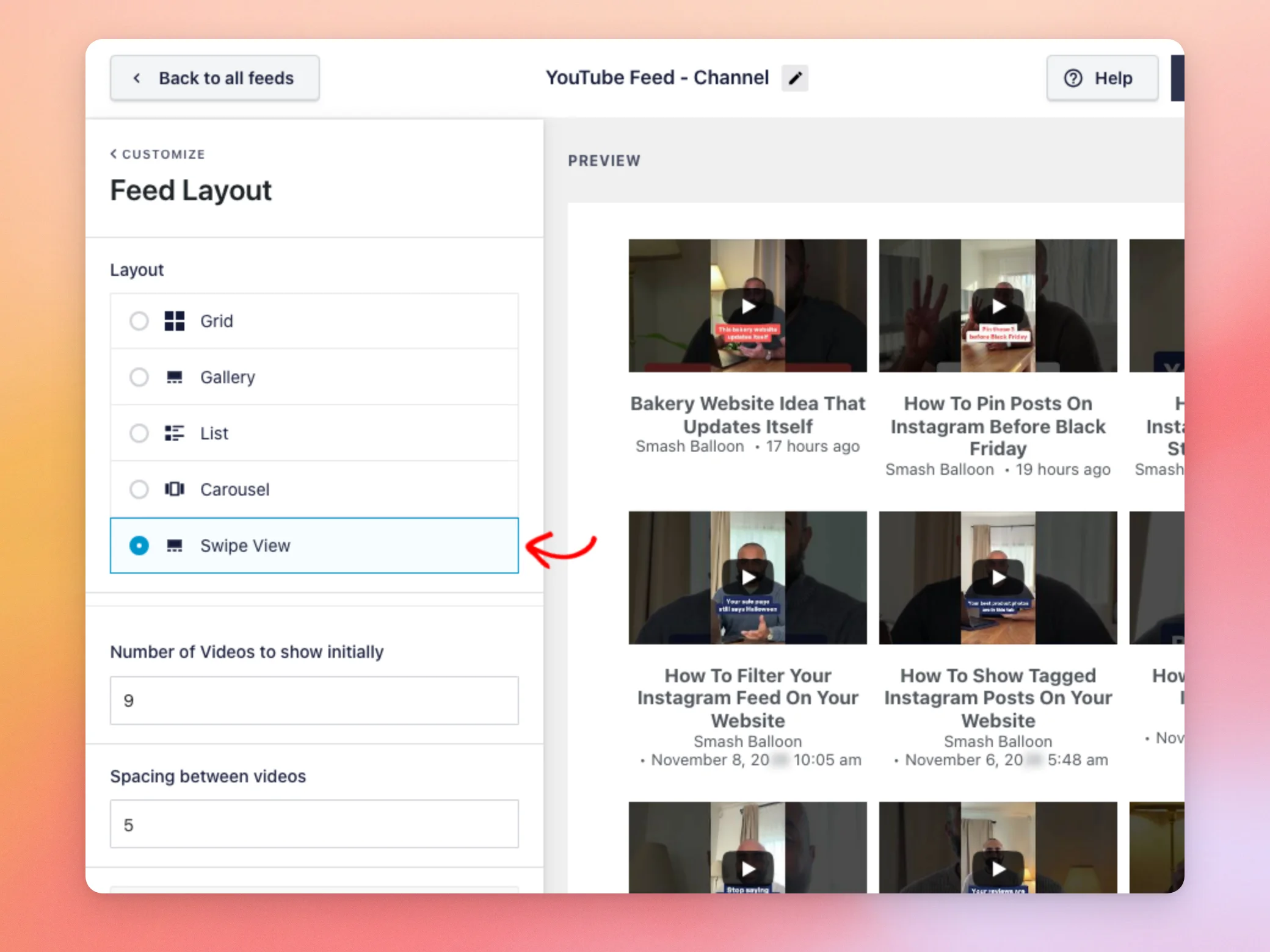
To set up a Shorts feed, see our Shorts and Swipe View guide.
Next, here are the settings that adjust how a layout displays videos.
Columns and Number of Videos
Below the layout options you will find a few more settings.
- Columns sets how many videos sit side by side. It has a Desktop and a Mobile box. It shows for the Grid, Gallery and Carousel layouts.
- Number of Videos to show initially sets how many videos load first.
- Spacing between videos sets the gap between them.
- Tweak Video Styles opens the video settings, such as aspect ratio and which elements show.
For example, to change the number of columns on a Grid layout, type a new number in the Desktop box.
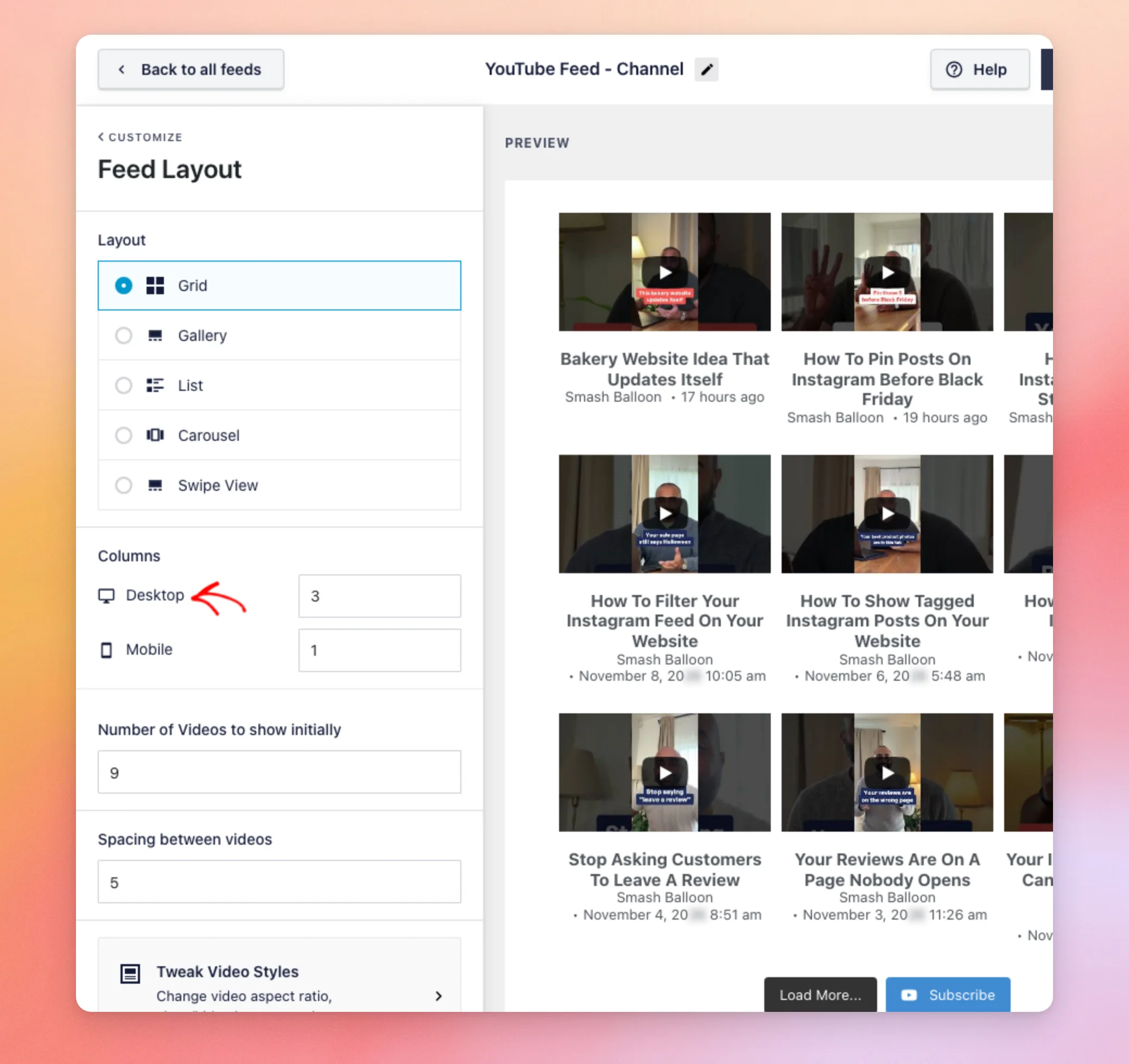
Once you are happy with the look of your feed, save your changes.
Saving Your Changes
Your changes appear in the preview but are not kept until you save them. When you are ready, click Save in the top right.
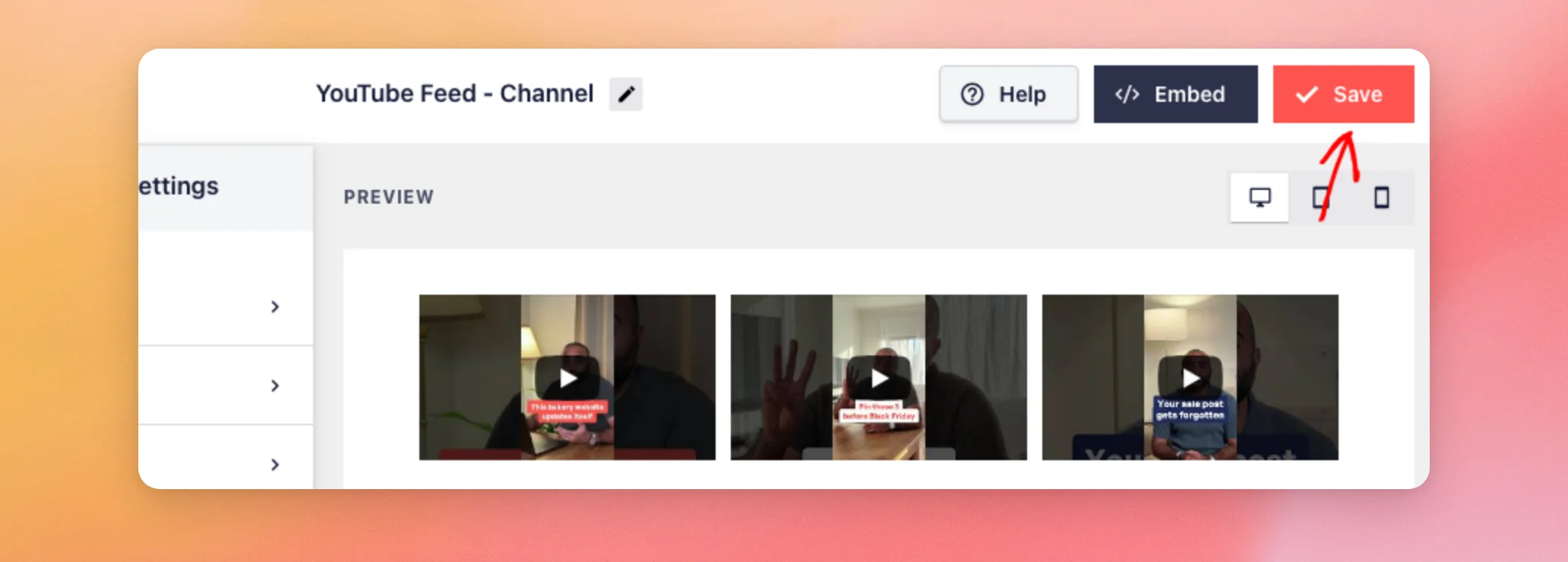
That’s it! You can now start your YouTube feed from a template and switch it later. You can also change the layout on its own, from a grid to a carousel. To place your feed on a page, see our guide to adding feeds to your site.
Frequently Asked Questions
Below, we’ve answered some of the most common questions about templates and layouts.
Do my changes show on my site right away?
No. Your changes show only in the editor’s preview until you click Save. If you leave the editor without saving, the feed goes back to its last saved settings.
Can I change the settings after I pick a template?
Yes. A template is only a starting point. After you apply it, you can change the layout and any other setting from the Customize tab. If you pick a different template later, it overrides your layout, header and button settings again.
Why does nothing change when I pick Swipe View?
Swipe View is made for Shorts feeds. On a Channel feed, the preview looks the same after you pick it. See our Shorts and Swipe View guide to set up a Shorts feed.