


 Social Wall
 Feed Analytics


How to customize YouTube feed HTML with PHP template files in your theme, and the maintenance and support trade-offs.
Would you like to change the HTML that your YouTube feed outputs, using your own template files?
This guide walks through turning on custom templates, adding an sby folder to your theme, and choosing which template files to customize.
Before you get started, make sure YouTube Feed is installed and activated on your WordPress site. You also need a theme whose files you can edit, preferably a child theme.
Here is what we will cover:
- Before You Start
- Turning On Custom Templates
- Creating the sby Folder
- Choosing a Template File
- Copying and Editing a Template
- Frequently Asked Questions
Before You Start
Custom templates replace the plugin’s own HTML with files from your theme. This lets you change the HTML your feed outputs.
It also comes with some trade-offs. Custom templates may need maintenance when you update the plugin, because your copies don’t change when the plugin’s files do. They may also limit the amount of support Smash Balloon can offer.
If you only want to change colors, sizes, or layout, use the feed editor instead. Custom templates are for changes to the HTML itself.
Put your templates in a child theme if you can. A theme update can overwrite files you add to a parent theme.
Turning On Custom Templates
To get started, we’ll turn on the setting that tells the plugin to look for template files in your theme.
First, go to YouTube Feed » Settings in your WordPress dashboard and click the Advanced tab.
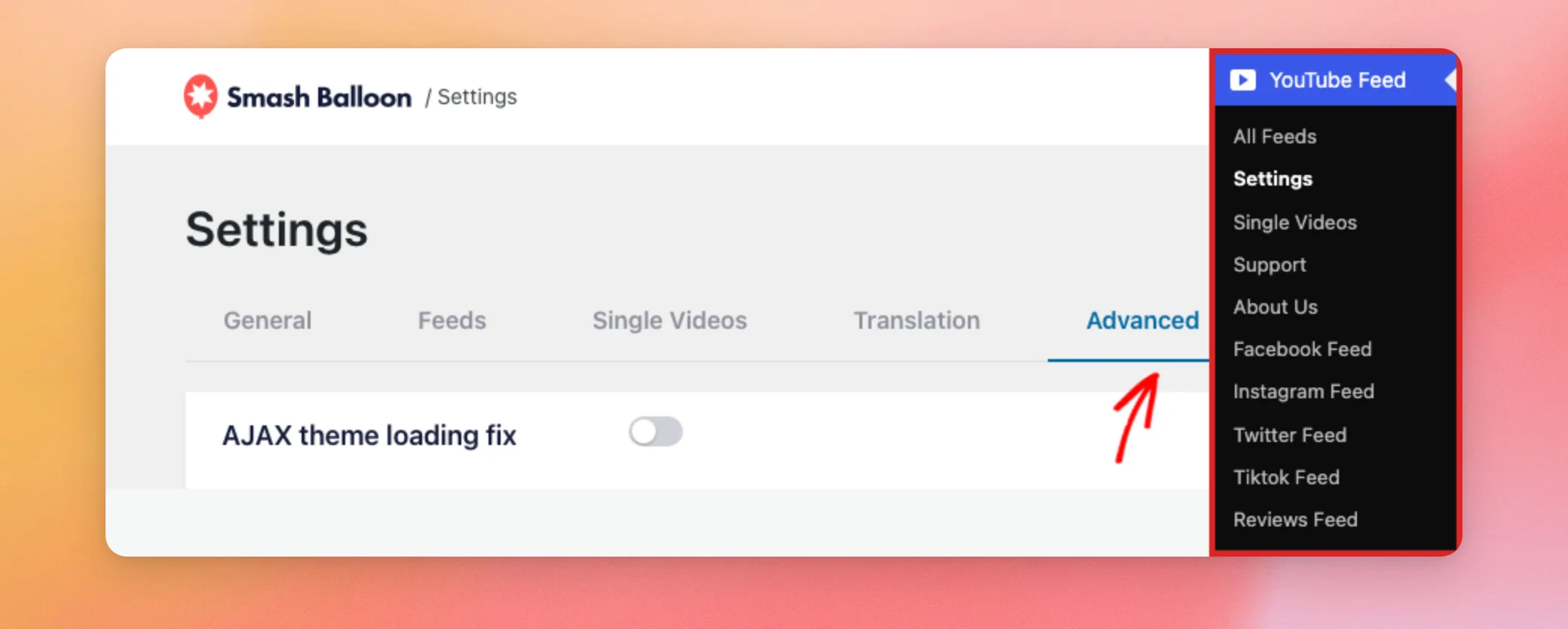
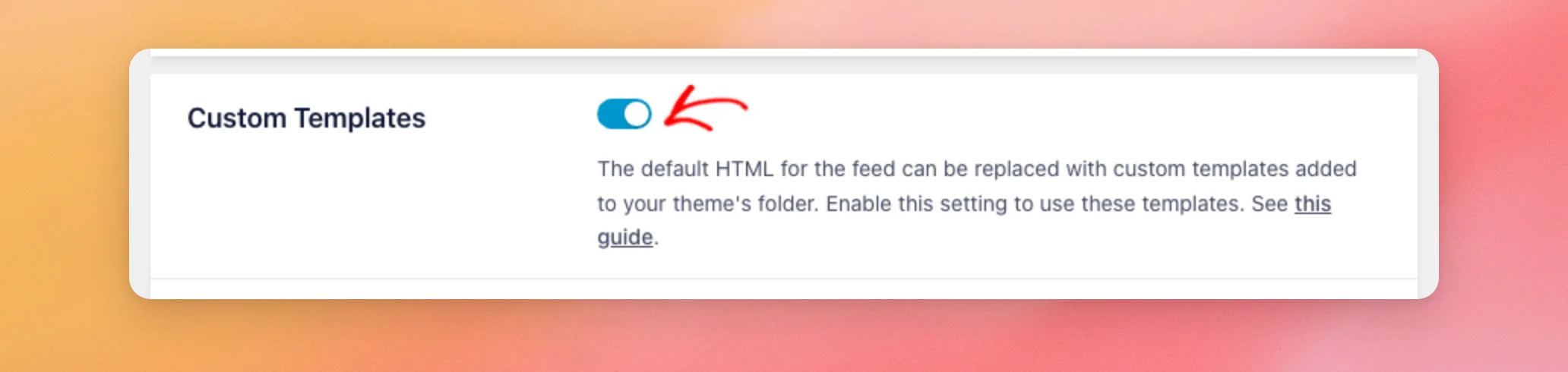
Next, switch on Custom Templates.
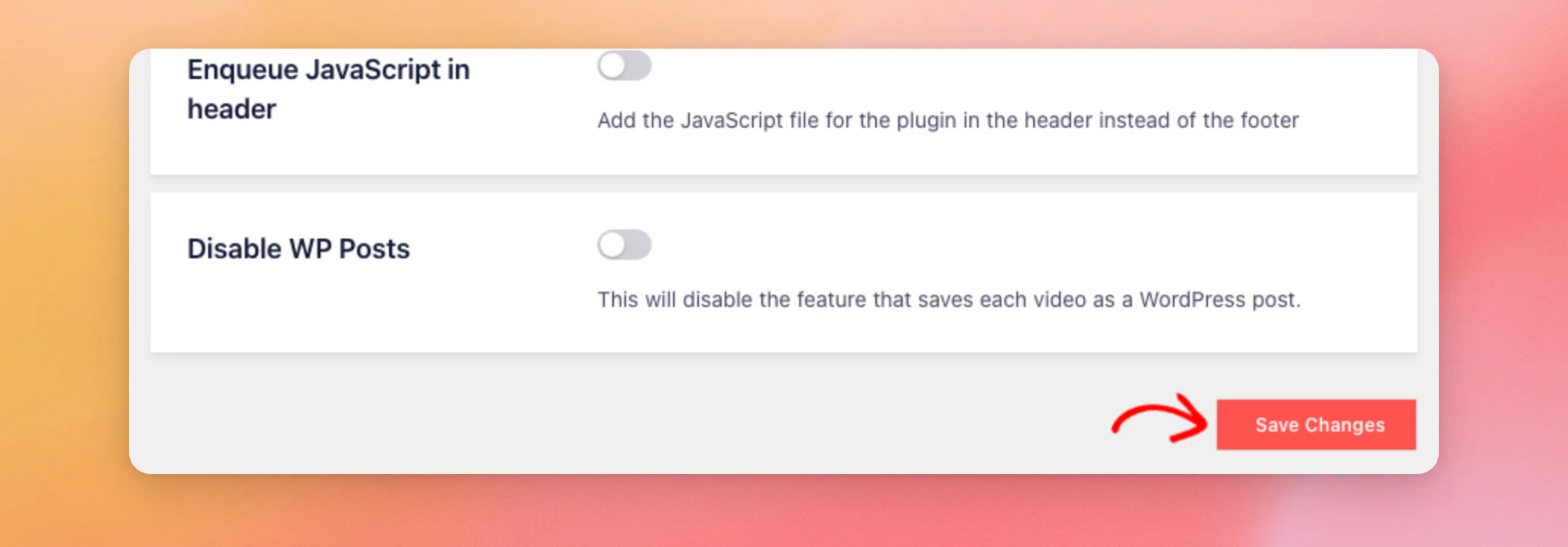
Then, click Save Changes.
The setting applies to every feed on your site. The feed editor has no separate Custom Templates switch for a single feed.
Nothing changes on the front end yet, because the plugin only uses a template file when it finds one in your theme.
Creating the sby Folder
Next, create a new folder named sby in your active theme’s folder. The plugin only looks for your templates in a folder with this exact name. For example:
wp-content/themes/your-child-theme/sby/You can do this with SFTP or with the file manager in your hosting account.
If you use a child theme, the plugin checks it first. If it doesn’t find the file there, it checks the parent theme.
Choosing a Template File
Now, find the file that controls the part of the feed you want to change. The plugin only uses a custom file when its name matches this table. The file must also sit directly in your sby folder:
File in your sby folder | What it controls |
|---|---|
feed.php | The feed container that holds the header, videos, player, and footer |
header.php | The channel header |
header-generic.php | The generic header the plugin shows when it has no channel details |
item.php | Each video in the feed |
info.php | The information shown with each video. The plugin also uses this file for the information shown with the video player |
player.php | The video player |
footer.php | The area below the feed, with the Load More and Subscribe buttons |
cta.php | The Call to Action |
shortcode-content.php | The output of the youtube-feed-single shortcode |
form.php | The video search form of the youtube-feed-search shortcode |
results.php | The wrapper around the search results |
result.php | Each search result |
The plugin’s own copies of shortcode-content.php sit in a single folder. Its copies of form.php, results.php, and result.php sit in a search folder. In your theme, put them straight into sby, because the plugin doesn’t look in subfolders of sby.
Some of these files only come with the paid plugin. The free plugin’s templates folder has feed.php, header.php, header-generic.php, header-text.php, item.php, player.php, and footer.php. The other files in the table only change a feed on a site with the paid plugin.
Copying and Editing a Template
Next, copy the file you chose from the plugin’s templates folder. On a site with the paid plugin, that folder is:
wp-content/plugins/youtube-feed-pro/templates/With the free plugin, the folder is:
wp-content/plugins/feeds-for-youtube/templates/Paste the file into your theme’s sby folder, then edit the copy. For example, to change the HTML of each video in the feed, copy item.php to sby/item.php.
Starting from the plugin’s own file keeps everything the feed already uses, so you only change the parts you need.
You don’t need to add files you don’t want to change. For any file that is missing from sby, the plugin uses its own template.
That’s it! You now know how to turn on custom templates, add an sby folder to your theme, and customize the plugin’s HTML. If you want to change how your feed behaves instead, our custom JavaScript guide is the next step.
Frequently Asked Questions
Below, we’ve answered some of the most common questions about custom templates.
Do I need to copy every template file into my theme?
No. Add only the files you want to change. For every file that isn’t in your sby folder, the plugin uses its own template.
I turned on Custom Templates, but my feed still uses the default HTML. Why?
Check these things first. Custom Templates must be switched on and saved in YouTube Feed » Settings, on the Advanced tab. The folder must be named sby and sit in your active theme, or in its parent theme if you use a child theme. The file name must match the table above exactly. Files that the plugin keeps in a single or search folder must go directly in sby. If you use a caching plugin, clear its cache and reload the page.
Can I customize the text header?
No. When a feed’s Header Style is set to Text, the plugin always uses its own header-text.php file. It doesn’t look for that file in your sby folder.
Will my templates still work after I update the plugin?
Your files stay in your theme, so a plugin update does not remove them. They also don’t pick up the plugin’s changes. After an update, compare your copies with the plugin’s current files and apply any changes you need. A theme update can overwrite files in the theme’s own folder, which is why we recommend a child theme.
Can I turn on custom templates from code instead of the setting?
Yes. The plugin passes the value of the setting through a filter named sby_use_theme_templates. Your code can return true to use the templates in your theme. This helps when you set up your site in code and want the templates on without visiting the Settings page.




