Social Wall
  Feed Analytics

Would you like to show your YouTube Shorts on your site and let visitors swipe through them in a fullscreen player?
In this guide, we’ll walk you through how to create a Shorts feed in Feeds for YouTube Pro and show it in Swipe View. All you need is Feeds for YouTube Pro, a YouTube API key, and a YouTube channel that posts Shorts.
Requirements: Shorts feeds and Swipe View require Feeds for YouTube Pro version 2.10.0 or higher, available with any paid license level.
Before you get started, make sure Feeds for YouTube Pro is installed and activated on your WordPress site. You’ll also need a YouTube API key.
Here is what we will cover:
- Creating a Shorts Feed
- Choosing the Swipe View Layout
- Adding the Feed to Your Site
- Watching Shorts in Swipe View
- Frequently Asked Questions
Creating a Shorts Feed
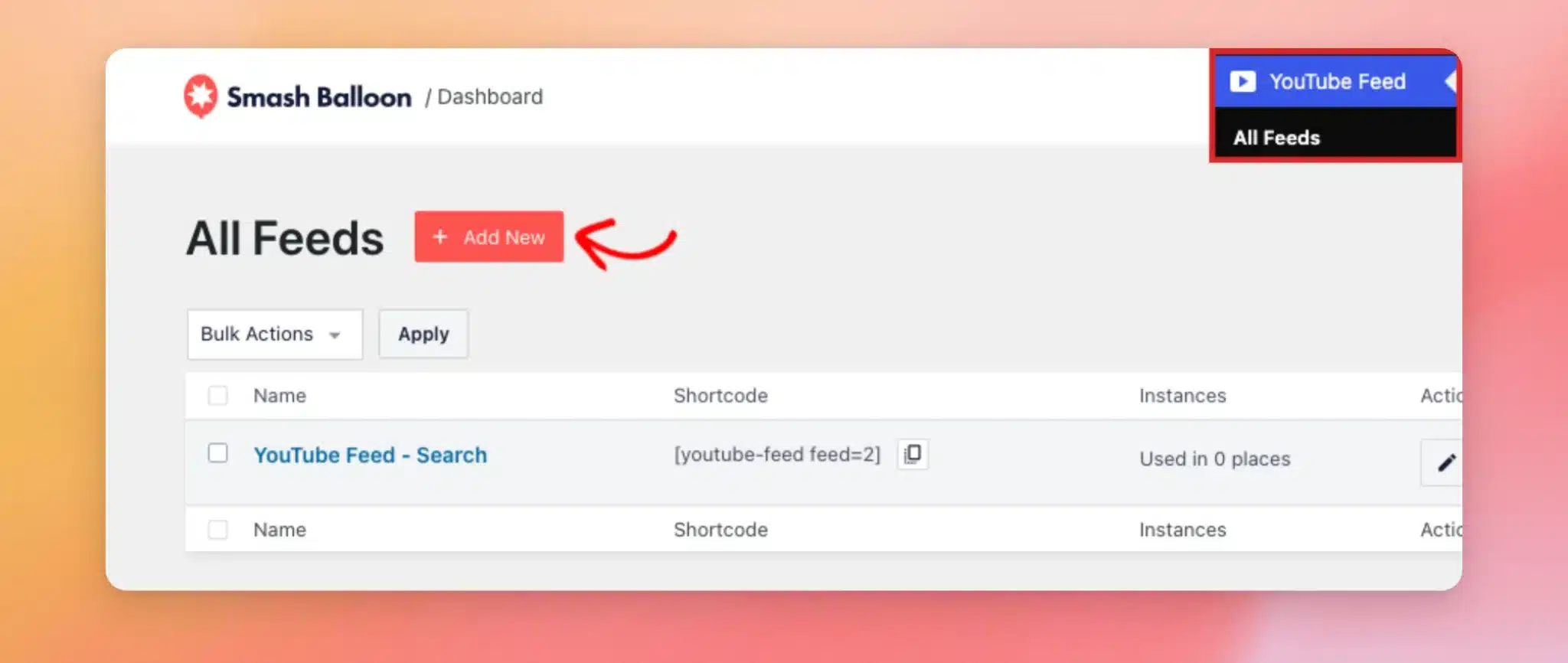
To get started, go to YouTube Feed » All Feeds in your WordPress dashboard. Then, click Add New.
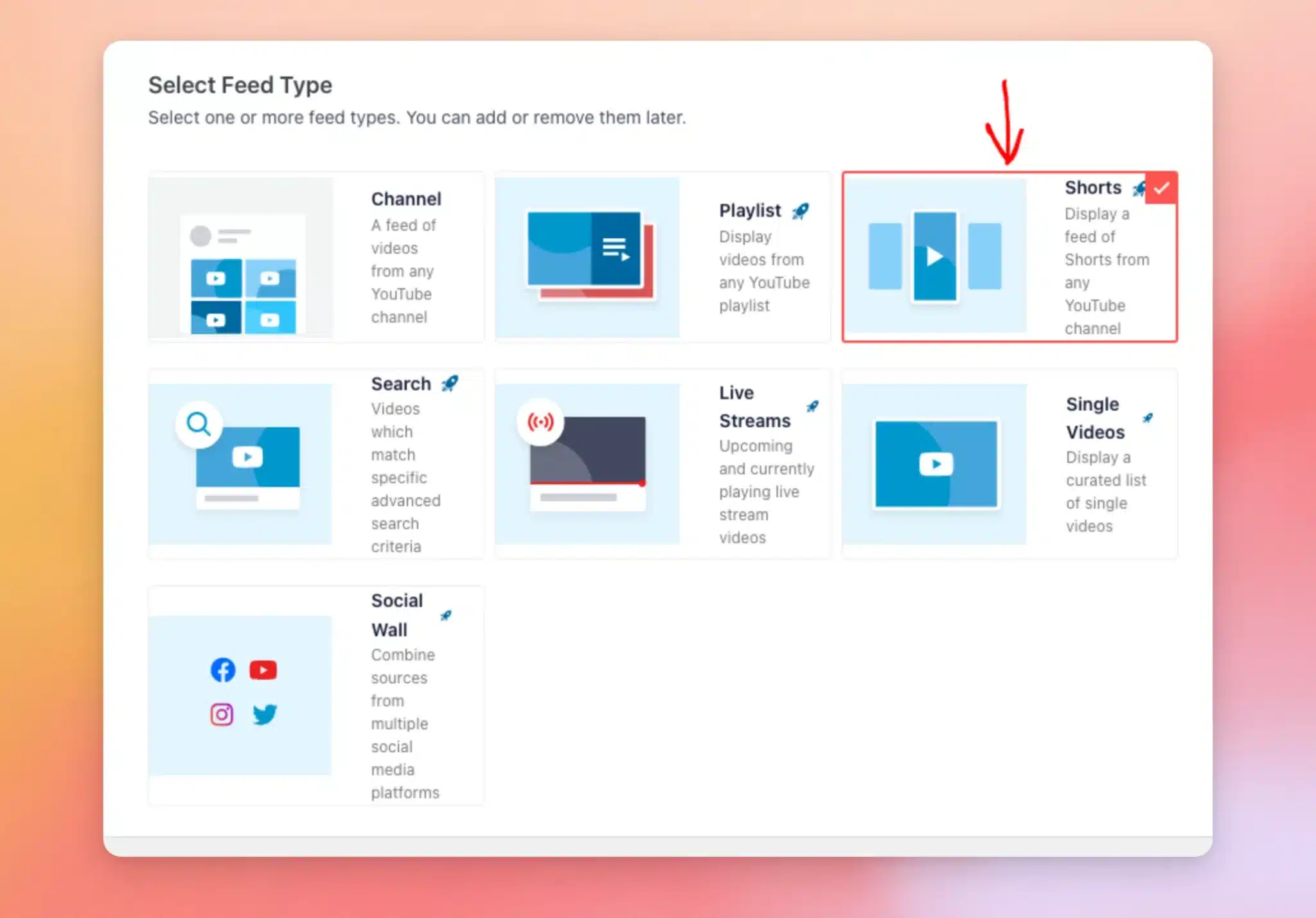
Next, select the Shorts feed type. A Shorts feed shows only a channel’s Shorts, not its other videos.
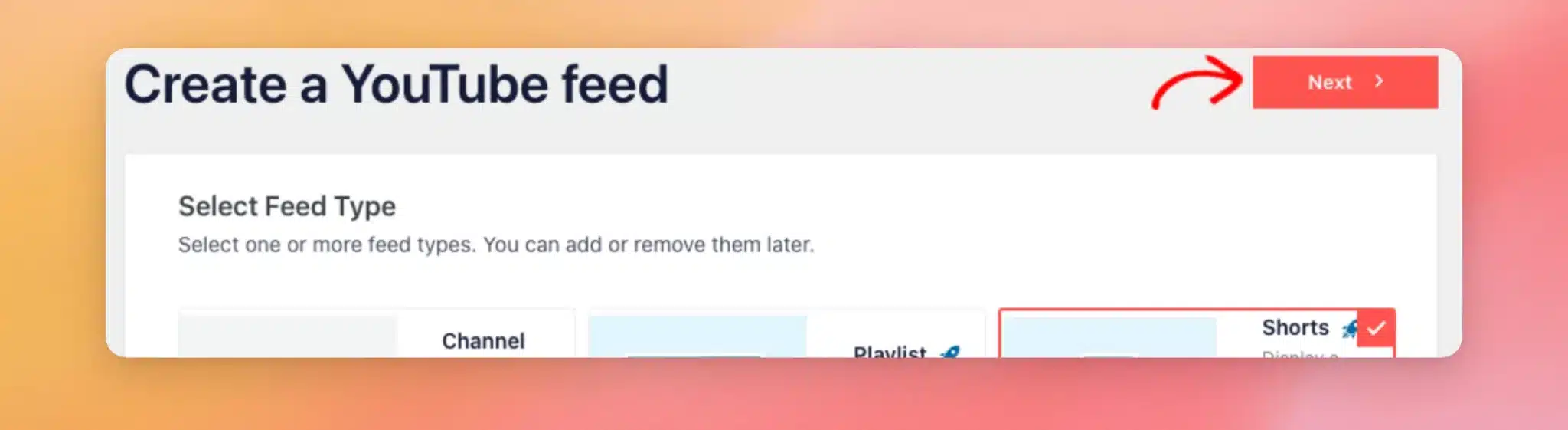
Then, click Next.
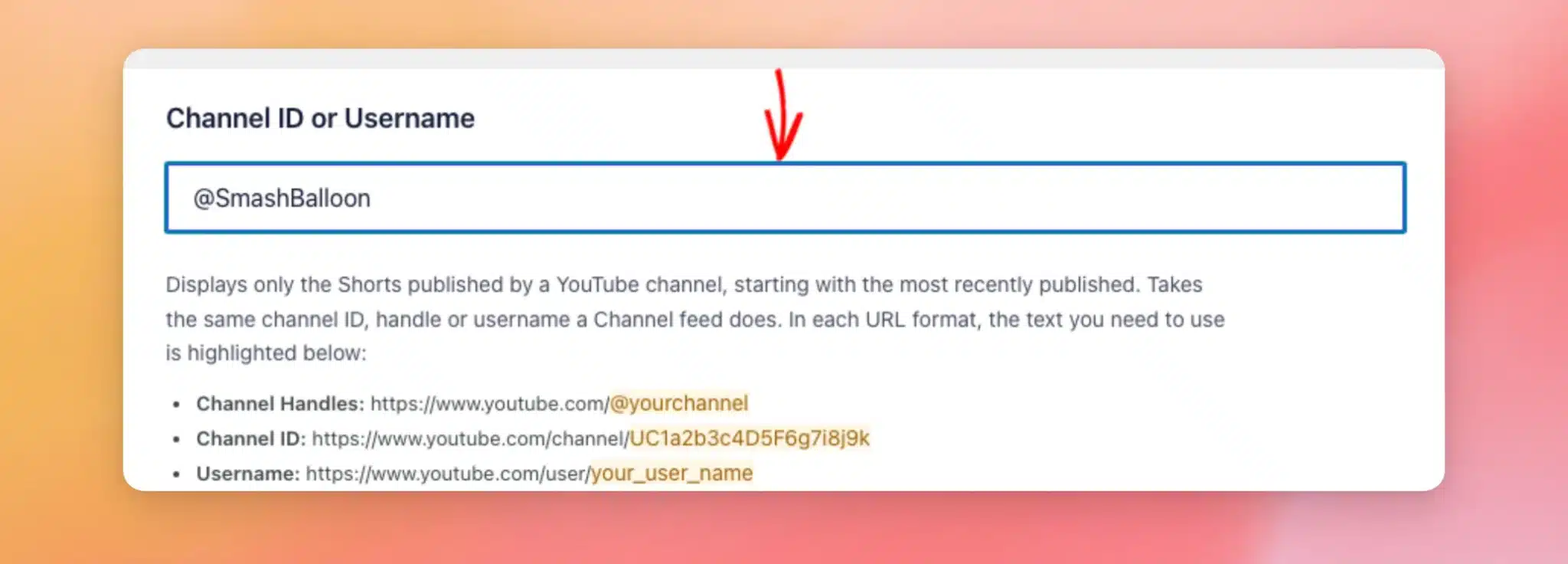
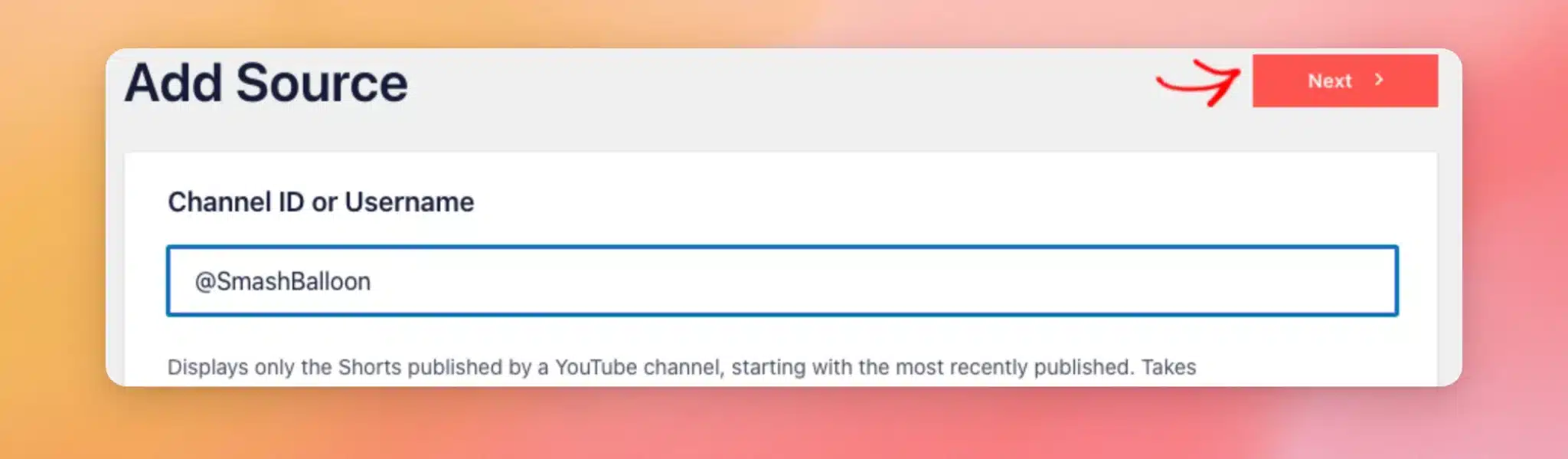
In the Channel ID or Username field, enter the channel whose Shorts you want to show. You can use the channel’s handle, like @SmashBalloon, its channel ID, or its username.
For help finding them, see our guide on finding a YouTube channel ID.
Then, click Next.
Next, choose a template for your feed. You can change it later.
If you’re not sure, keep the Default template. It starts your feed with 9 Shorts for visitors to swipe through. When you’re ready, click Next.

Your new feed opens in the feed editor, with a preview of your Shorts.
Choosing the Swipe View Layout
Swipe View is one of the layouts for Shorts feeds.
With it, your feed shows your Shorts as tiles. Each one opens in a fullscreen player. Visitors can then swipe through the other Shorts in your feed.
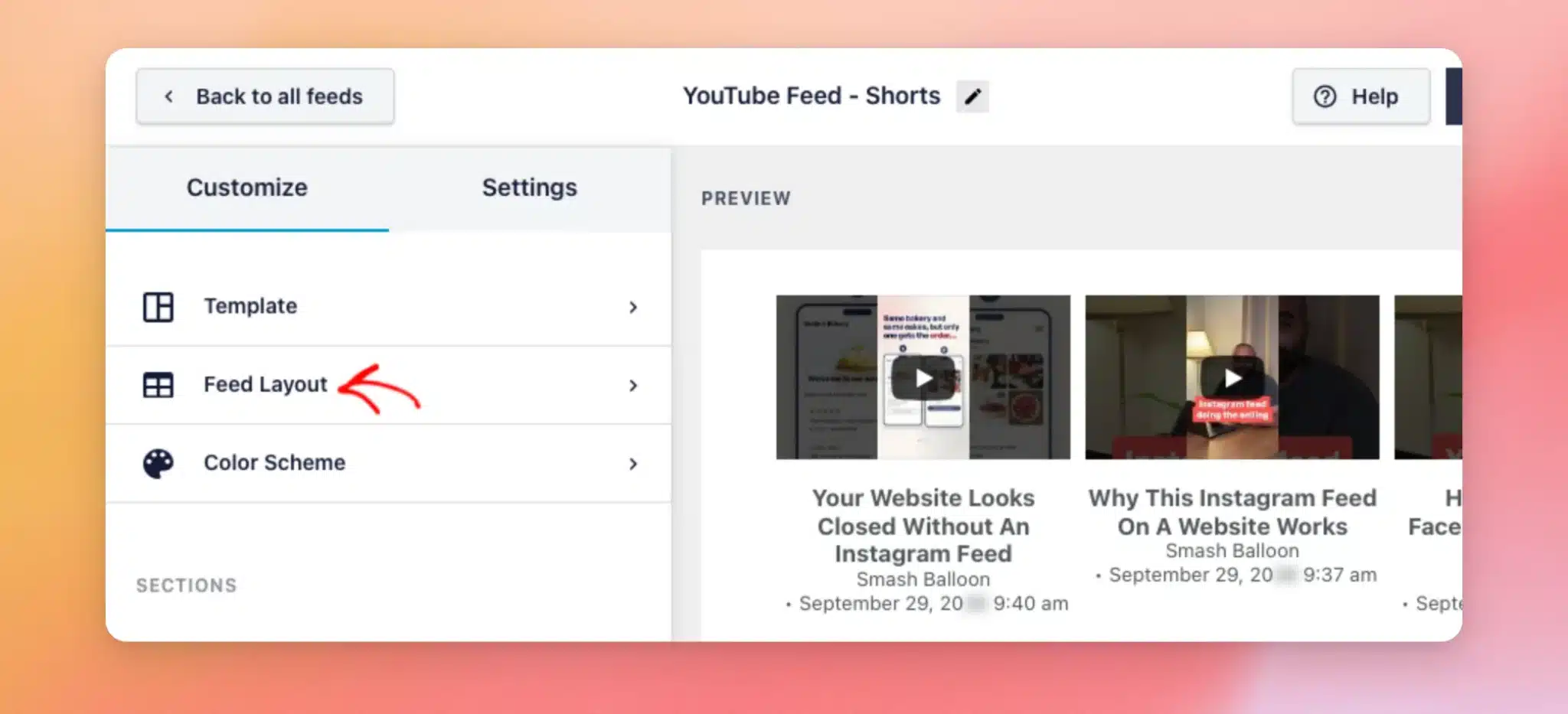
To use it, click Feed Layout in the Customize tab of the feed editor.
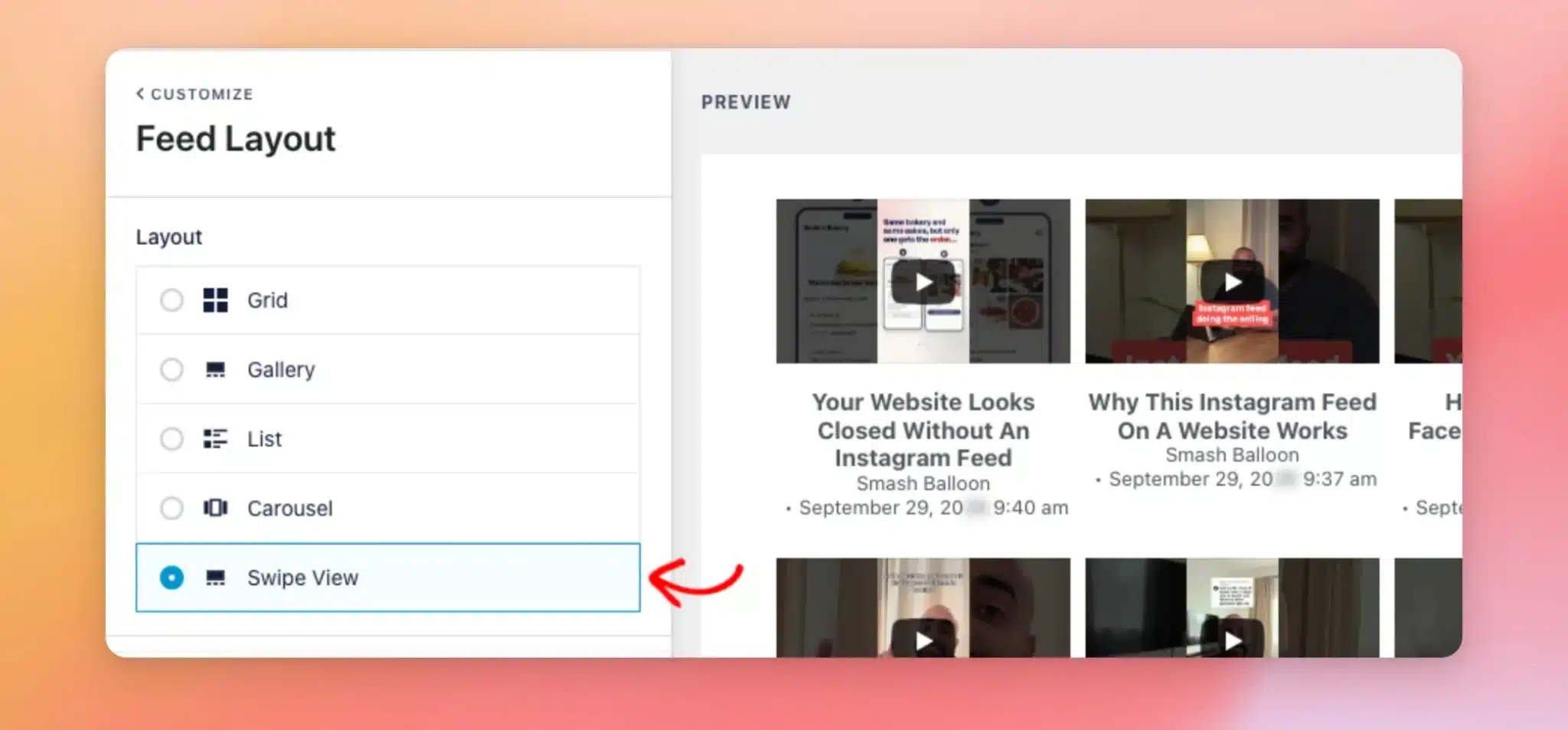
Next, select Swipe View.
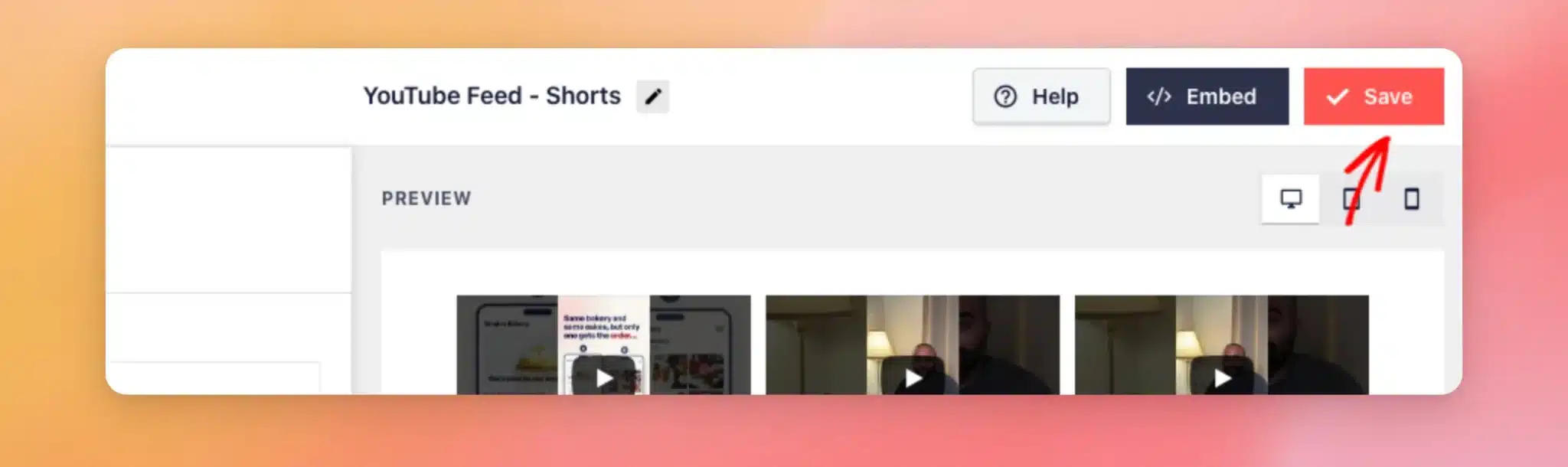
When you’re done, click Save.
Now that your feed uses the Swipe View layout, you’re ready to add it to your site.
Adding the Feed to Your Site
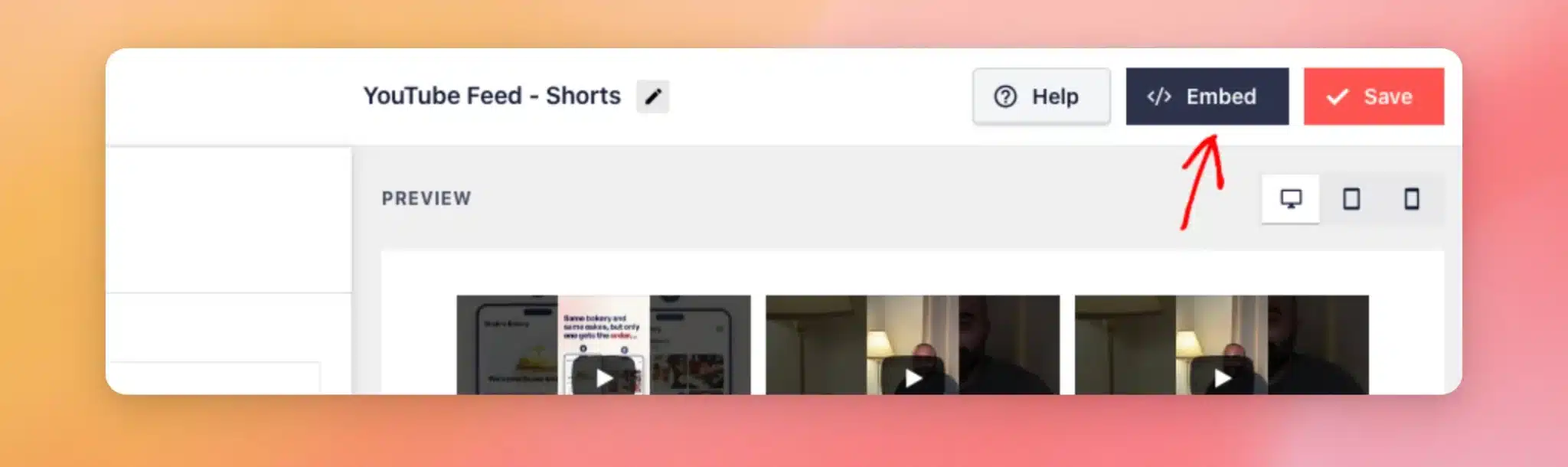
To get your feed’s shortcode, click Embed at the top of the feed editor.
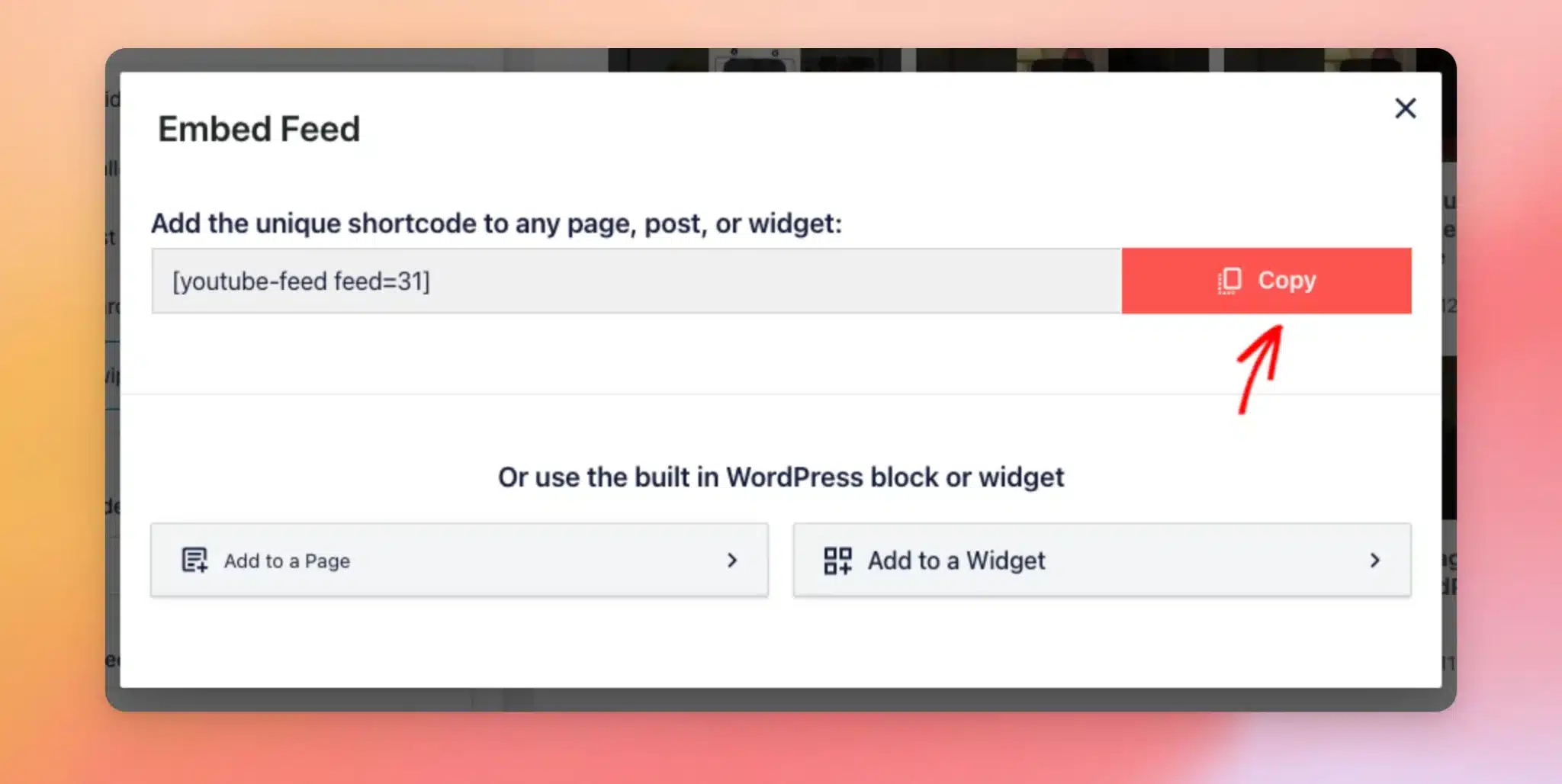
In the Embed Feed window, click Copy next to the shortcode. A “Copied to Clipboard” message confirms it.
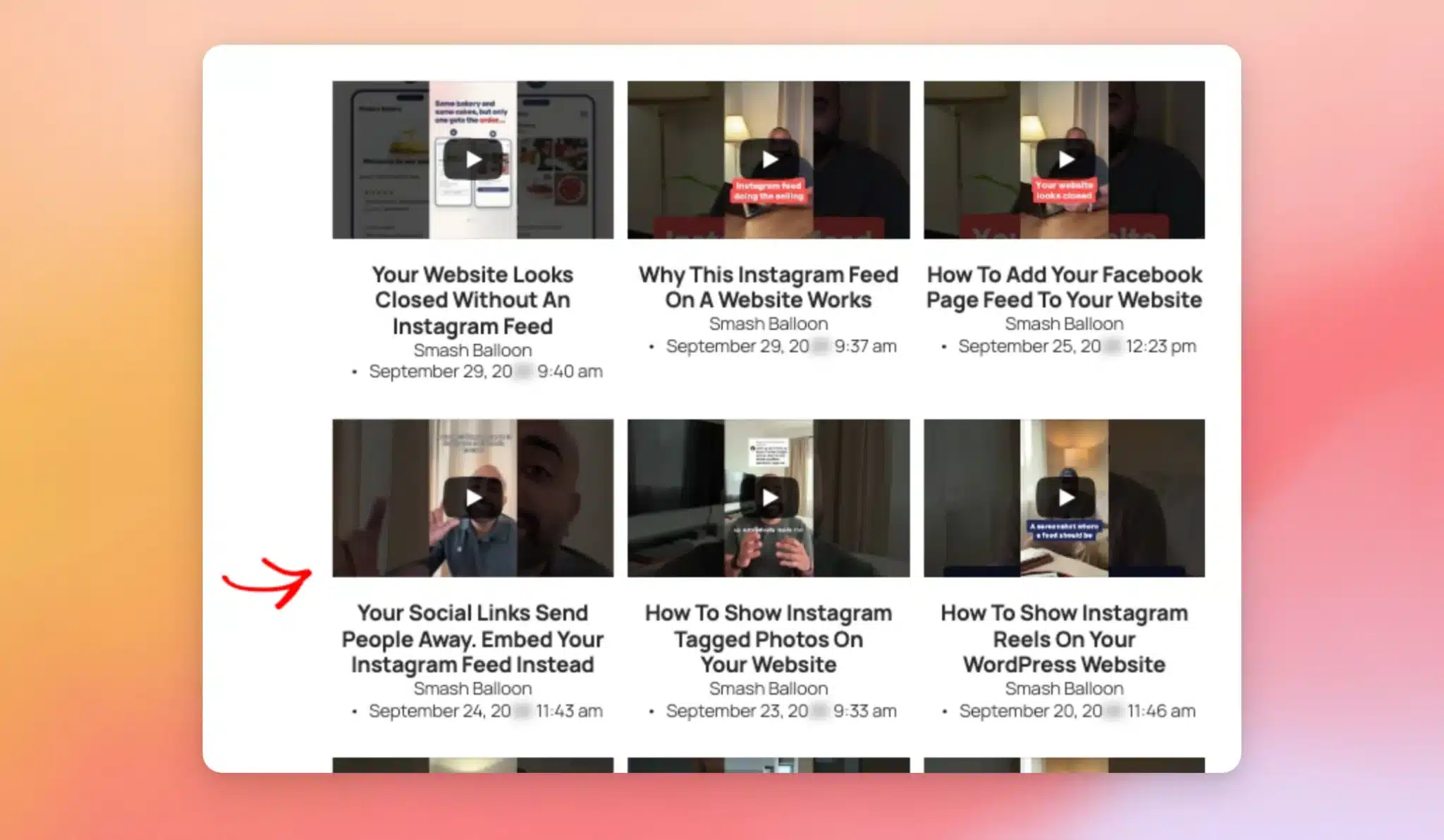
Then, add the shortcode to any page, post, or widget. If you’re new to shortcodes, see How to Add a Shortcode in WordPress for a step-by-step guide.
Watching Shorts in Swipe View
Next, we’ll look at Swipe View the way your visitors see it.
To open Swipe View, click a Short in your feed on the front end of your site.
The Short opens in a fullscreen, vertical player and starts playing. Beside it, visitors can share the Short and view it on YouTube. When YouTube provides them, the player shows the like and comment counts too.
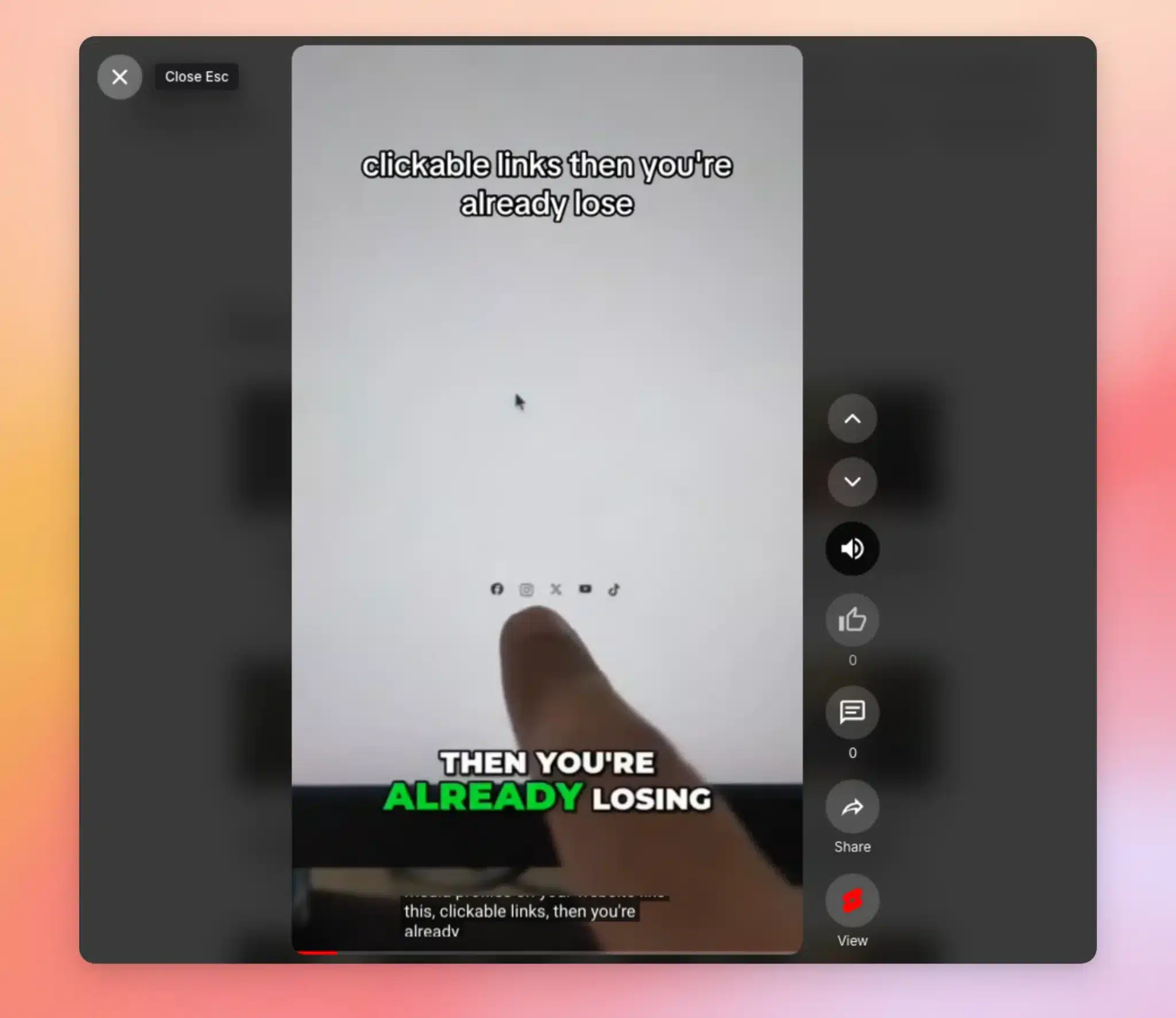
Here’s how visitors can use the player:
- Move between Shorts — Swipe up or down, scroll, or click the arrows beside the player. The up and down arrow keys on a keyboard work too.
- Turn the sound on or off — Beside the player, click the speaker button.
- Close the player — In the top-left corner, click the X. The Esc key works too.
That’s it! You now know how to create a Shorts feed and show it in Swipe View. Next, take a look at our guide on displaying multiple YouTube feeds to show your Shorts alongside your other videos.
Frequently Asked Questions
Below, we’ve answered some of the most common questions about Shorts feeds and Swipe View.
Can I use Swipe View with other feed types?
Swipe View is made for Shorts feeds. For other feed types, choose the Grid, Gallery, List, or Carousel layout.
What happens if the channel has no Shorts?
The feed shows the channel’s latest videos instead.
Can I change how many Shorts the feed shows?
Yes. In the feed editor, go to Feed Layout. Then, change Number of Videos to show initially. When you’re done, click Save.
Why did my feed stop using Swipe View after I changed its template?
Each template comes with its own layout. After you change the template, go to Feed Layout. Then, select Swipe View again. When you’re done, click Save.
Does Swipe View work with GDPR mode?
Yes. When GDPR mode is on, Shorts open in Swipe View once the visitor gives consent. Until then, visitors see your Shorts as tiles in the feed.
How do I preview Swipe View?
Since Swipe View runs on the front end, open a page on your site that shows your feed. Then, click a Short to open it in Swipe View.
Do Shorts play with sound in Swipe View?
Swipe View tries to play each Short with sound. Some browsers only allow videos to start muted. In that case, click the speaker button to turn the sound on.
Does Swipe View work on phones?
Yes. On a phone or tablet, visitors swipe up or down to move from one Short to the next.