Social Wall
 Feed Analytics


How to find a YouTube channel ID or nickname from the channel URL, so you can embed any channel on your site.
Would you like to add any YouTube channel to your feed using its @handle or channel ID?
This guide walks you through the 3 ways to name a channel in YouTube Feed and where to find each one.
Before you get started, make sure YouTube Feed is installed and activated on your site.
Here is what we will cover:
- Ways to Name a Channel
- Entering the Channel in Your Feed
- Finding the Handle or ID on YouTube
- Frequently Asked Questions
Ways to Name a Channel
The Channel ID or Username field in the feed builder accepts 3 formats. The builder’s own help text under the field shows where each one sits in a YouTube address:
- Channel handle: the name that starts with an @, for example
@SmashBalloon. The address looks likehttps://www.youtube.com/@SmashBalloon. - Channel ID: a long code that starts with UC, found at the end of an address like
https://www.youtube.com/channel/UC1a2b3c4D5F6g7i8j9k. - Username: the older name found in addresses like
https://www.youtube.com/user/your_user_name.
We recommend the handle or the channel ID. The plugin converts or uses them directly, as described below.
Entering the Channel in Your Feed
When you create a Channel feed, the source step asks for the channel. In the Channel ID or Username field, type the handle, including the @. In our example, we used the Smash Balloon channel.
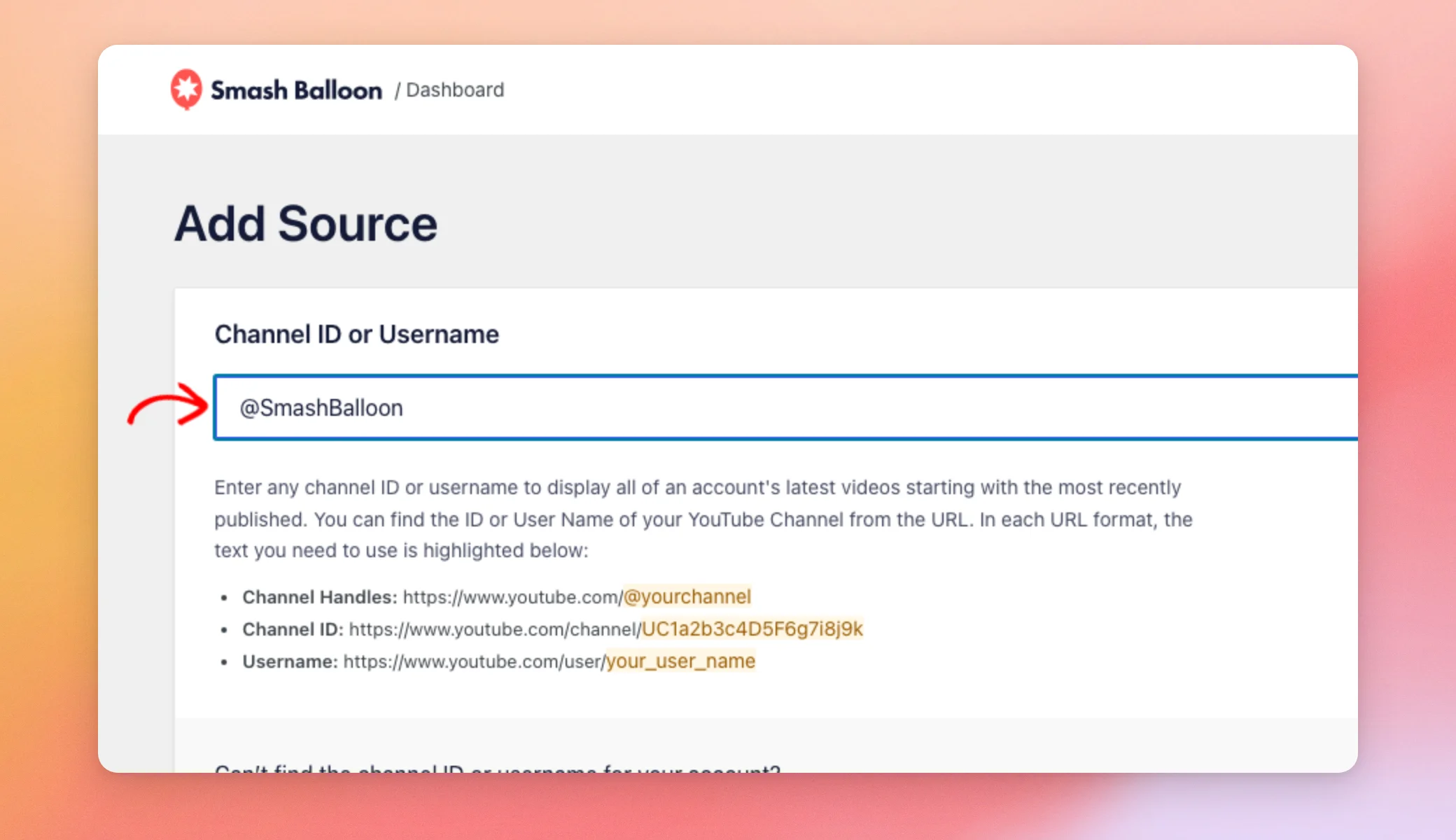
When the builder creates the feed, the plugin looks up the channel ID that belongs to the handle. It saves the ID in the feed instead of the handle. The same field also takes a channel ID, which the plugin uses as it is.
If you are building a feed by hand with a shortcode, use the channel ID. Only the feed builder turns a handle into a channel ID.
For a username, the plugin treats any other value that does not start with UC as a username. It then asks YouTube to look it up. If a channel has no /user/ address, use its handle or channel ID instead.
Both the handle and the channel ID come from YouTube. The next section shows where to find them.
Finding the Handle or ID on YouTube
Your handle and channel ID are shown on YouTube. YouTube explains where to find them on YouTube’s own help page about channel URLs.
For a channel that is not yours, open that channel’s page on YouTube and read the end of the address in your browser. A handle starts with @. A channel ID starts with UC.
That’s it! You now know how to name a YouTube channel in your feed with its handle or channel ID. Next, see our guide to embedding a YouTube channel on your website.
Frequently Asked Questions
Below, we’ve answered some of the most common questions about YouTube channel handles and IDs.
Do I need to type the @ before the handle?
Yes. The plugin recognizes a handle by the @ sign. A name typed without it is treated as a username, not as a handle.
Can I paste the full address of the channel?
Yes, if it is a handle address such as https://www.youtube.com/@SmashBalloon. The plugin reads the handle at the end of it. For a channel ID or a username, enter only the part at the end of the address.
Does the feed keep the handle after I save it?
No. The feed keeps the channel ID that the plugin looked up for the handle, as explained in Entering the Channel in Your Feed. The plugin also remembers the result. It does not need to look up the same handle again.
Can I use a handle with the other feed types too?
The Shorts feed type takes the same channel ID, handle or username as a Channel feed. To confirm, check the help text on the source step of the feed type you are building.