Social Wall
 Feed Analytics


Would you like to show a YouTube playlist, a live stream, or a few videos you pick yourself, not just a channel’s latest videos?
Each feed type in YouTube Feed pulls videos from a different source. Some types need a higher license level.
This guide lists every feed type you can pick when you create a feed. For each one, it covers the source it needs, what it displays, and the license level that unlocks it.
Before you get started, make sure YouTube Feed is installed and activated on your WordPress site. Channel feeds also need a YouTube API key or a connected YouTube account, and every other type needs an API key.
See our guide on creating and using a YouTube API key if you don’t have one yet.
Here is what we will cover:
- Choosing a Feed Type
- Channel
- Playlist
- Shorts
- Search
- Live Streams
- Single Videos
- Social Wall
- Using More Than One Source
- License Levels at a Glance
- Frequently Asked Questions
Choosing a Feed Type
To get started, we’ll open the feed type picker. You choose a feed type when you create a feed.
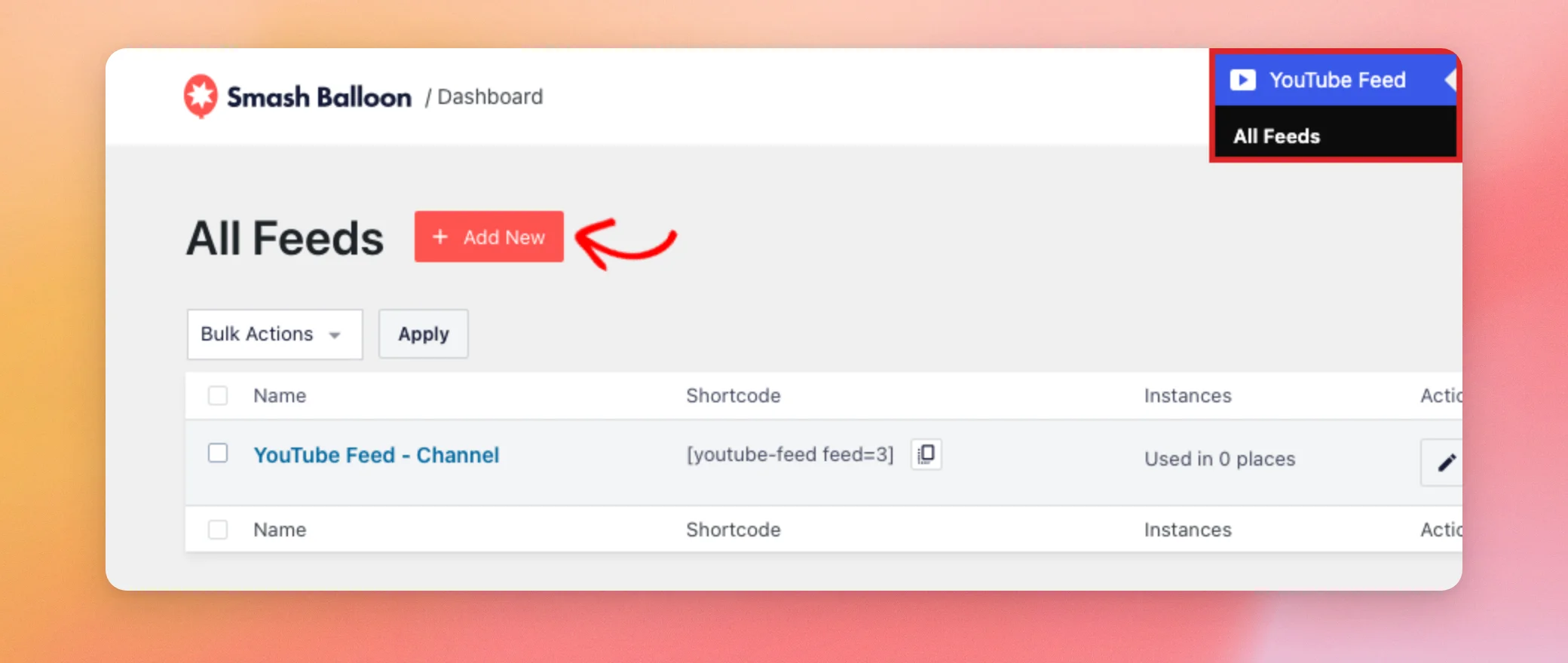
In your WordPress dashboard, go to YouTube Feed » All Feeds. Then click Add New.
The Select Feed Type screen shows a card for each type. To choose one, click the card you want. Then click Next.
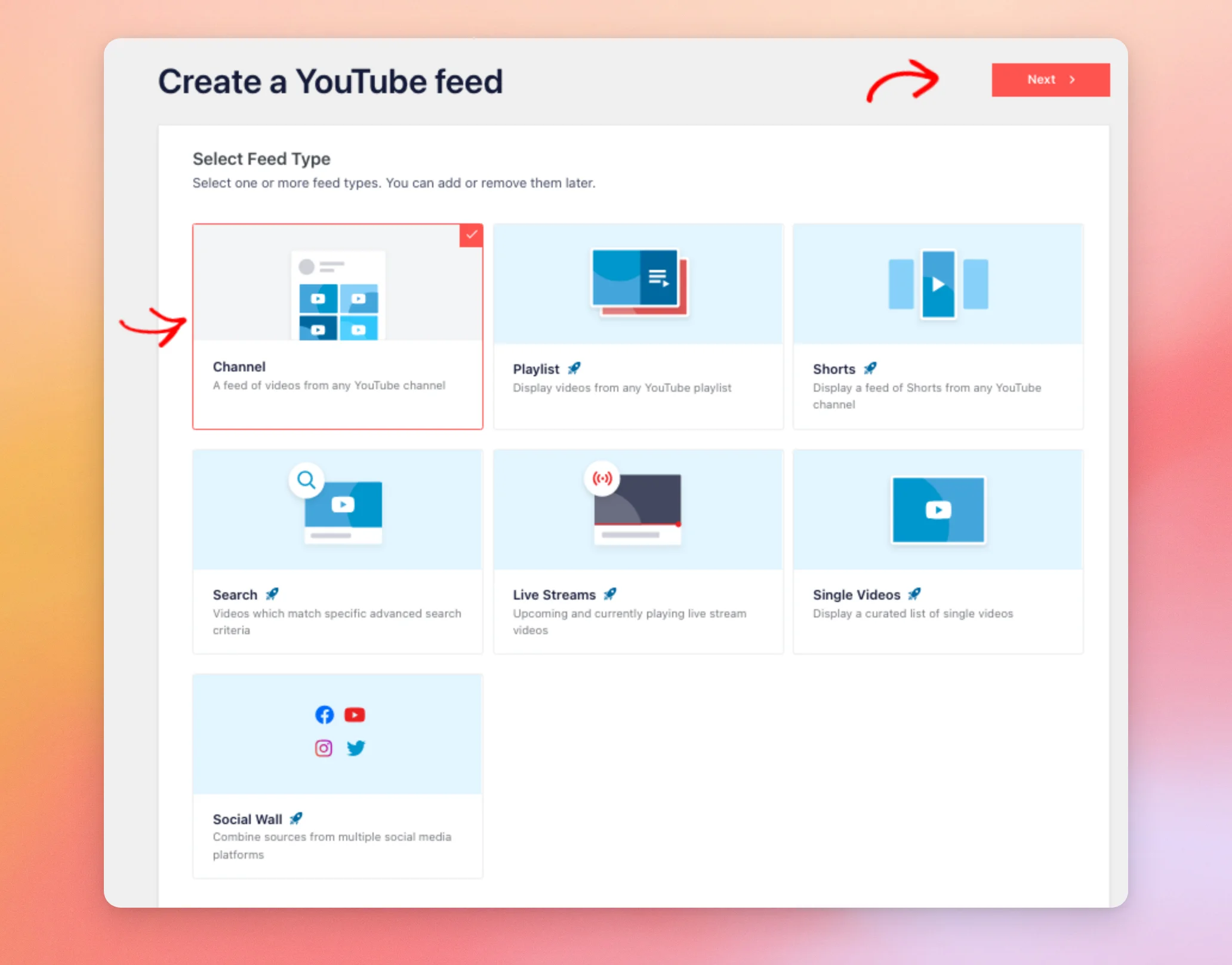
The screen says you can select one or more feed types. Clicking a second card replaces your first choice. Each feed has 1 type.
See Using More Than One Source for how to show several types.
The rocket icon on some cards does not tell you whether your license includes that type. Instead, check the license level in each section.
On the next screen, Add Source, you enter the source for the type you chose. The source field changes from type to type. Each section below shows it.
Let’s start with the Channel type.
Channel
A Channel feed displays the latest videos from a YouTube channel, starting with the most recently published. It is the only feed type included with the free version of YouTube Feed.
On the Add Source screen, enter a channel handle, a channel ID, or a username. For example, @SmashBalloon is the handle of our channel.
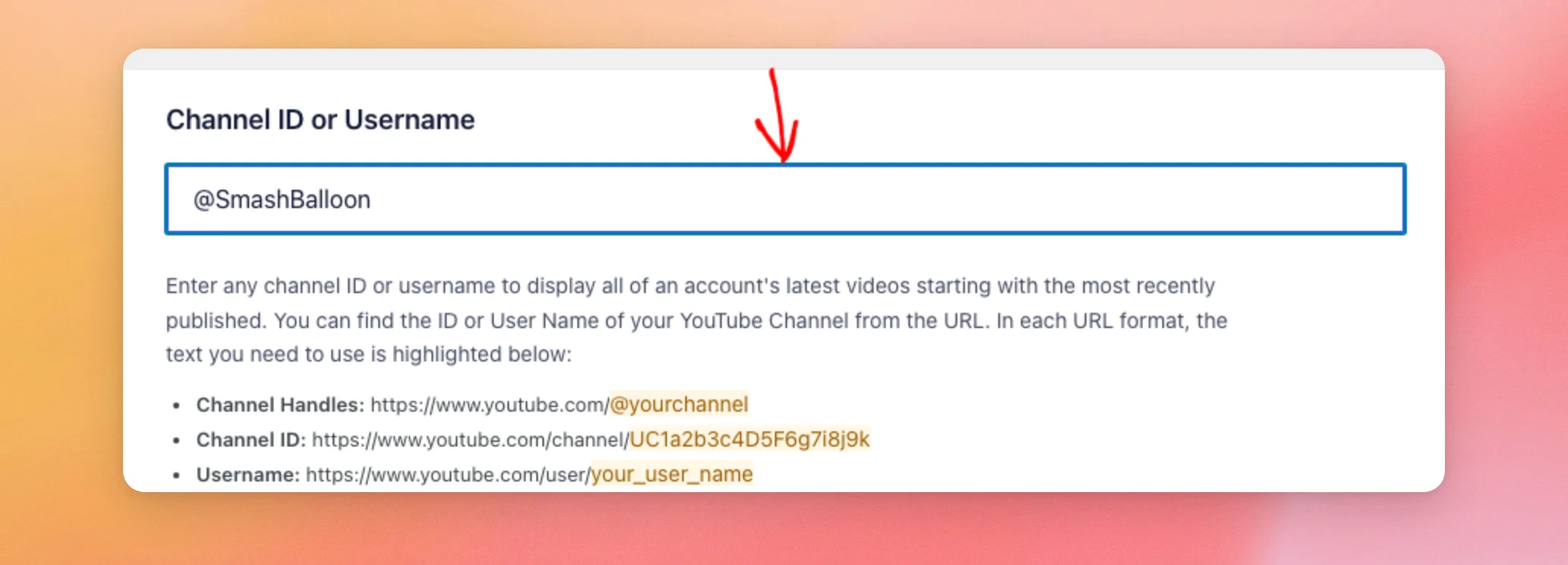
The help text under the field shows where to find each one in the channel’s URL. If you’re not sure which to use, see our guide on finding your YouTube channel ID.
License level: Free and every paid level.
Next, we’ll look at Playlist feeds.
Playlist
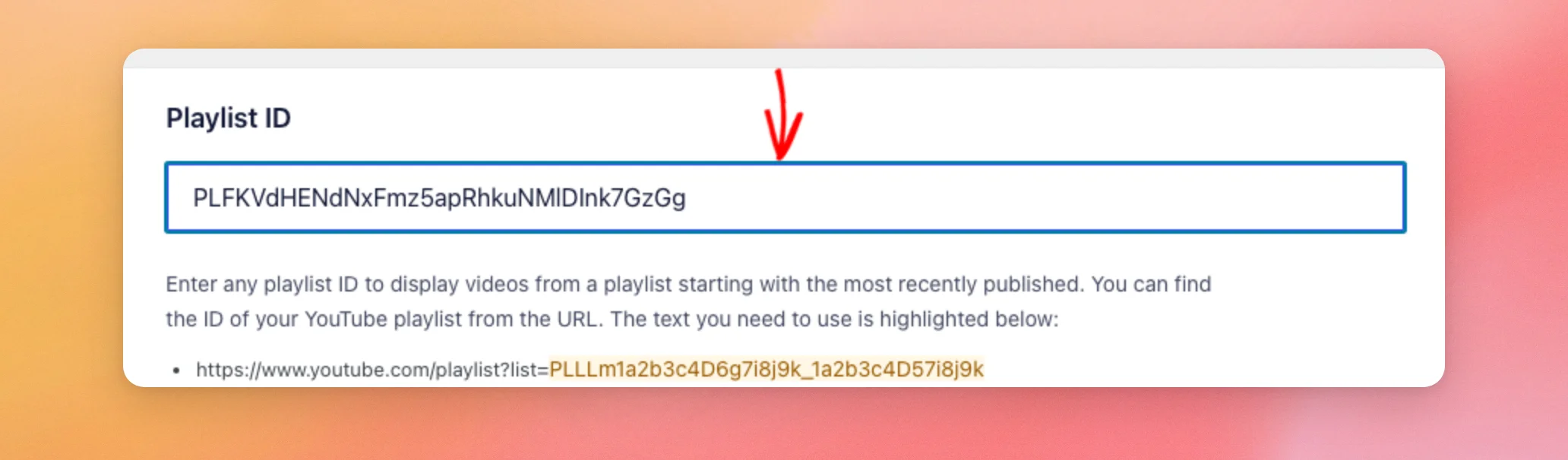
A Playlist feed displays the videos from 1 YouTube playlist, starting with the most recently published.
On the Add Source screen, enter the playlist’s ID. To find it, look in the playlist’s URL after list=.
License level: Basic and higher.
Shorts feeds work much like Channel feeds, so we’ll cover them next.
Shorts
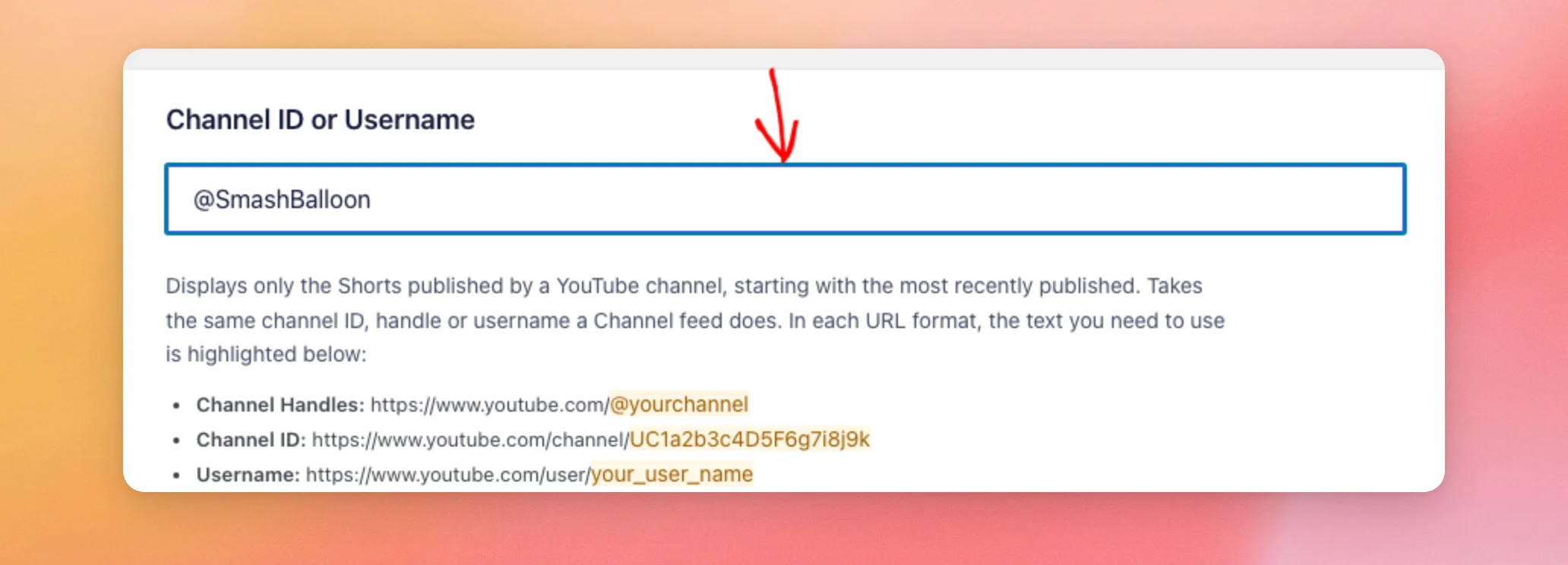
A Shorts feed displays only the Shorts published by a YouTube channel. It takes the same channel handle, channel ID, or username that a Channel feed does.
For the full steps, including Swipe View, see our guide on creating a YouTube Shorts feed with Swipe View.
License level: Basic and higher.
Next, we’ll look at Search feeds.
Search
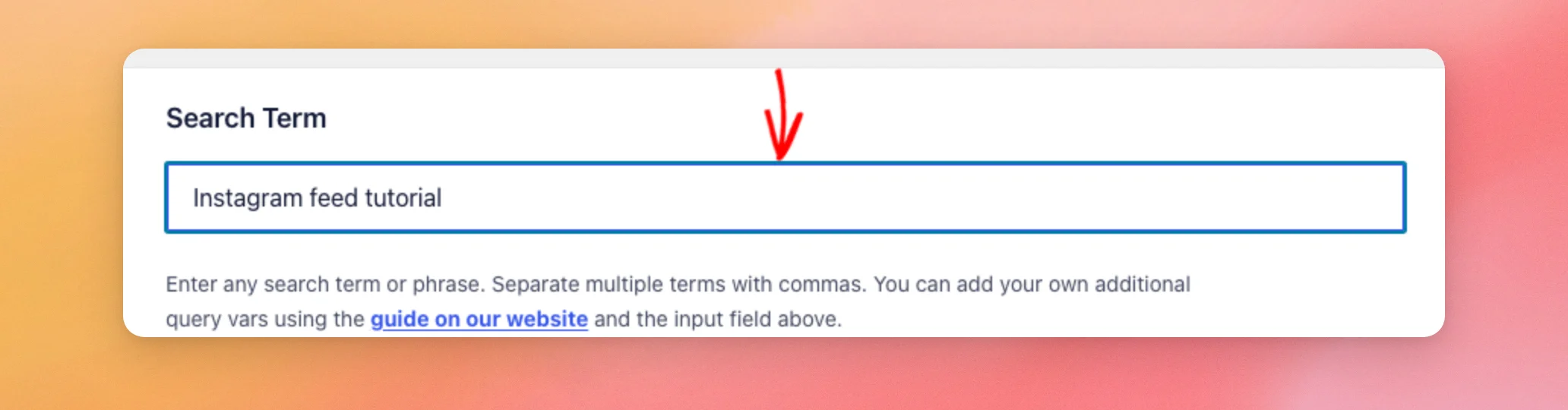
A Search feed displays videos that match a search term or phrase.
On the Add Source screen, enter the term. To search for more than 1 term, separate them with commas.
For advanced search options, see our guide on creating a custom search.
License level: Plus and higher.
Next, we’ll look at Live Streams feeds.
Live Streams
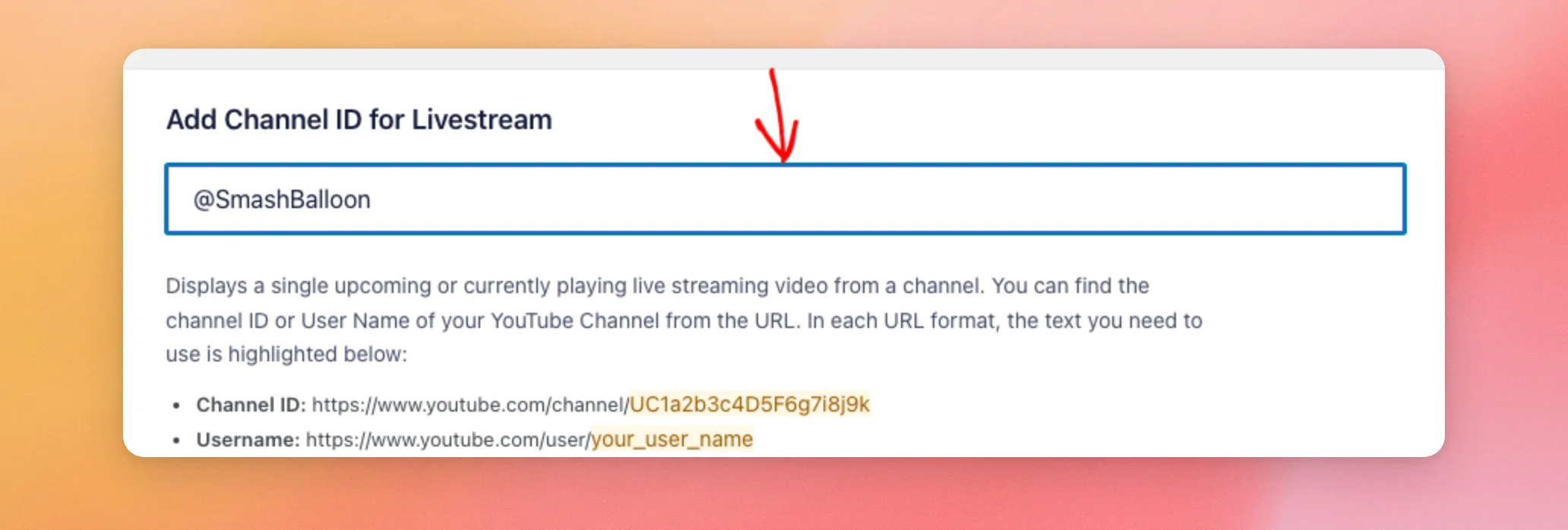
A Live Streams feed displays upcoming and currently playing live streams from a channel.
On the Add Source screen, enter the channel’s ID, handle, or username.
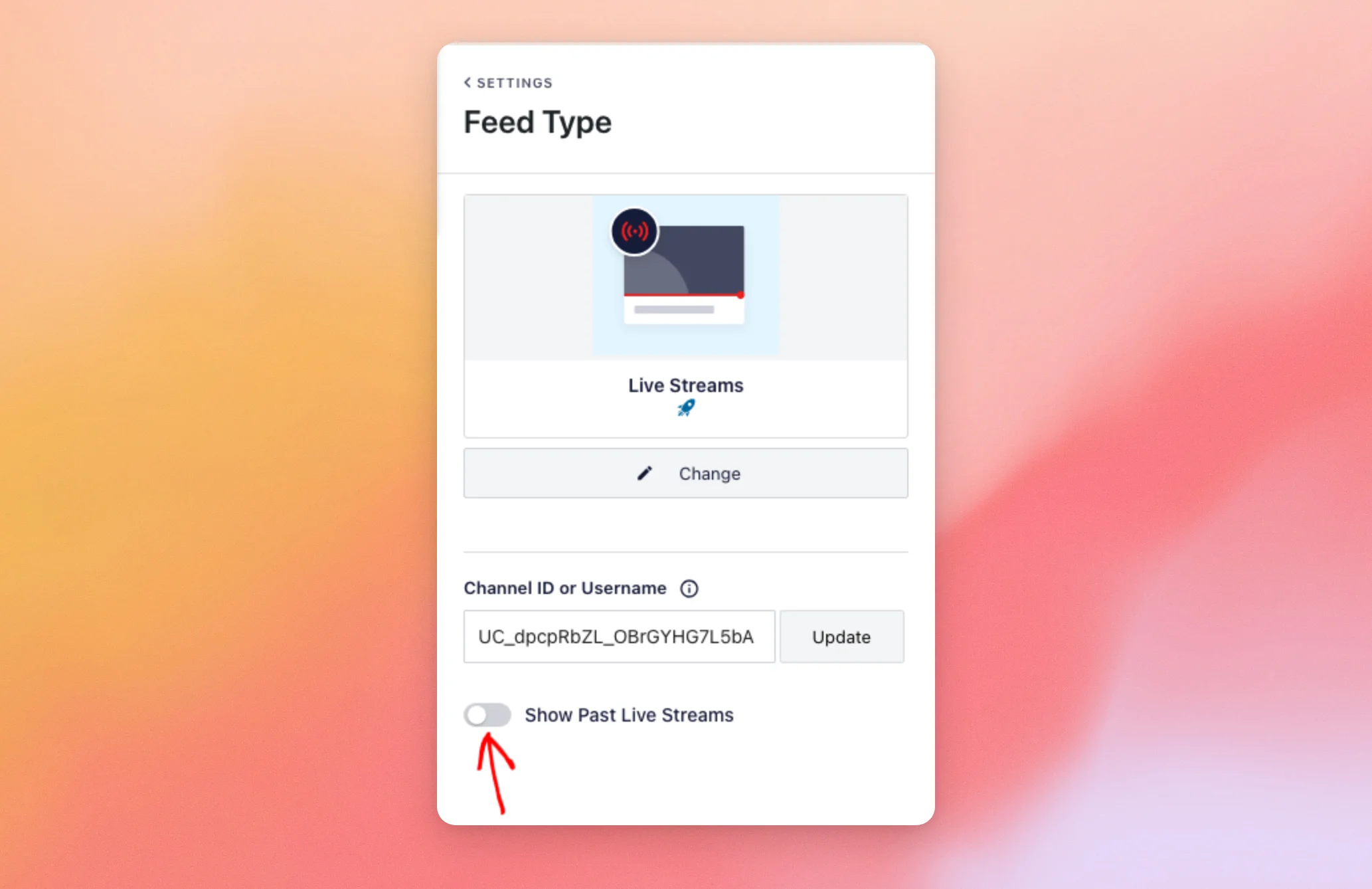
Live Streams feeds have 1 extra setting, Show Past Live Streams, in the Feed Type section of the editor’s Settings tab. When this switch is on, the feed also shows streams that have already ended. When it is off, the feed leaves ended streams out.
License level: Elite.
Next, we’ll look at Single Videos feeds.
Single Videos
A Single Videos feed displays a list of videos you pick yourself.
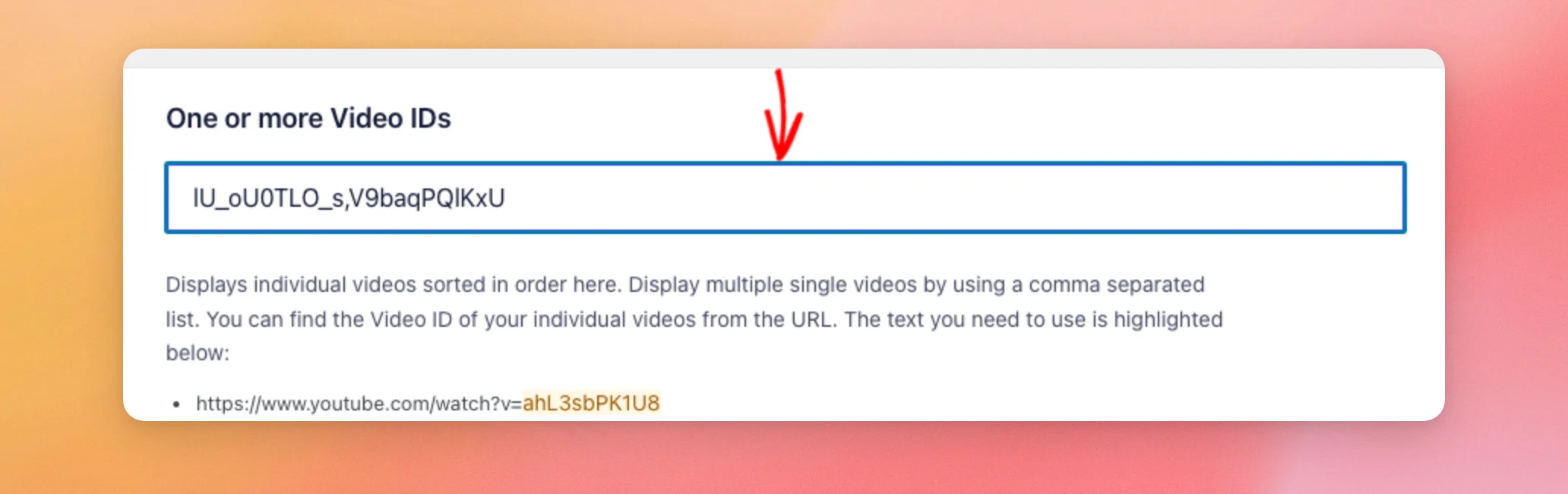
On the Add Source screen, enter 1 or more video IDs. To enter more than 1, separate them with commas.
To find a video ID, look in the video’s URL after v=.
License level: Basic and higher.
The last card in the picker works differently, so we’ll look at Social Wall next.
Social Wall
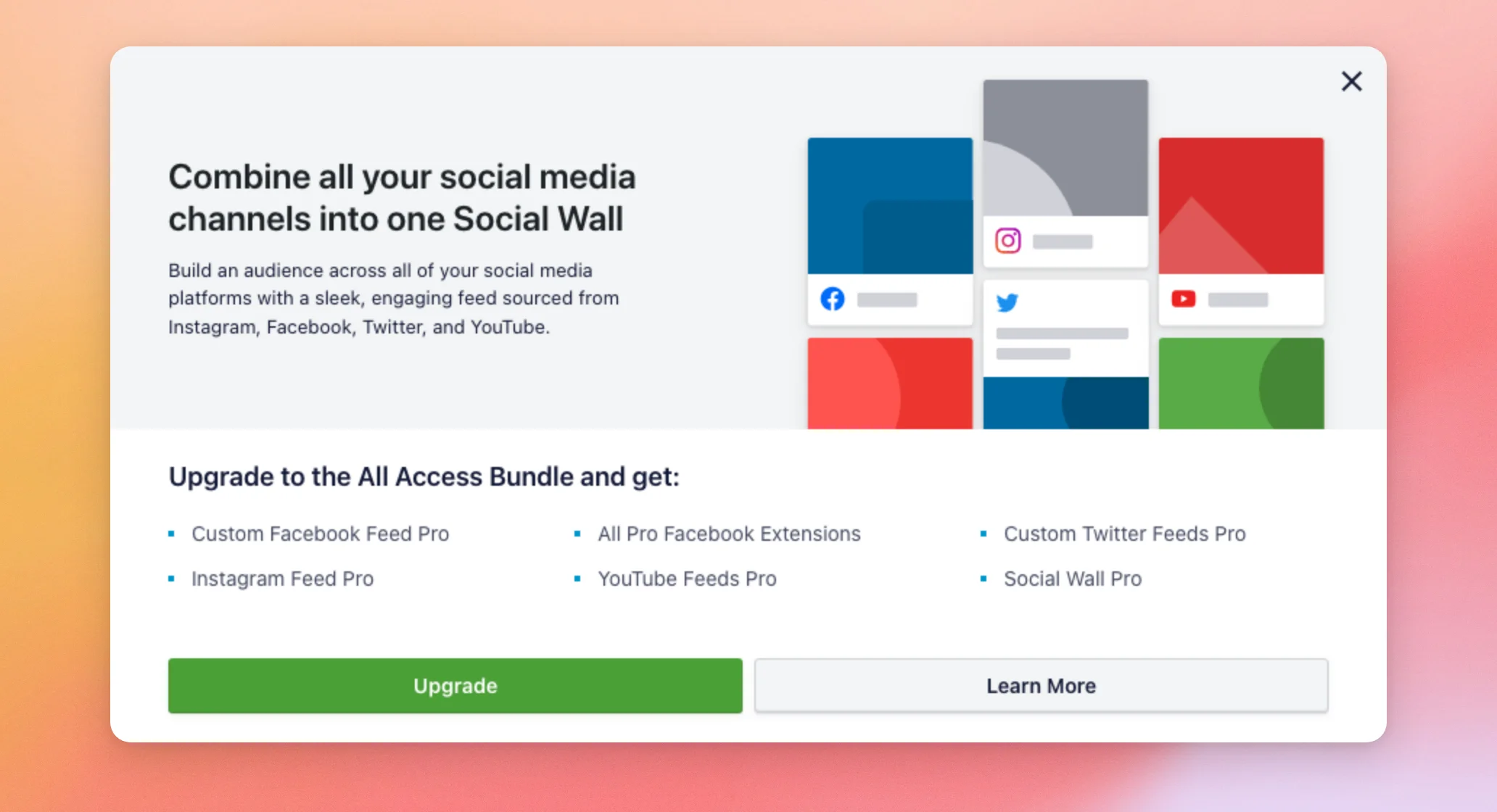
The Social Wall card is for combining feeds from several social networks into 1 wall. It needs the Social Wall plugin.
If that plugin isn’t active, clicking the card opens a popup about the All Access Bundle.
Social Wall is a separate plugin, so it is not part of the license levels below.
If you want videos from more than 1 source, the next section shows how.
Using More Than One Source
A feed in YouTube Feed has 1 feed type and 1 source field.
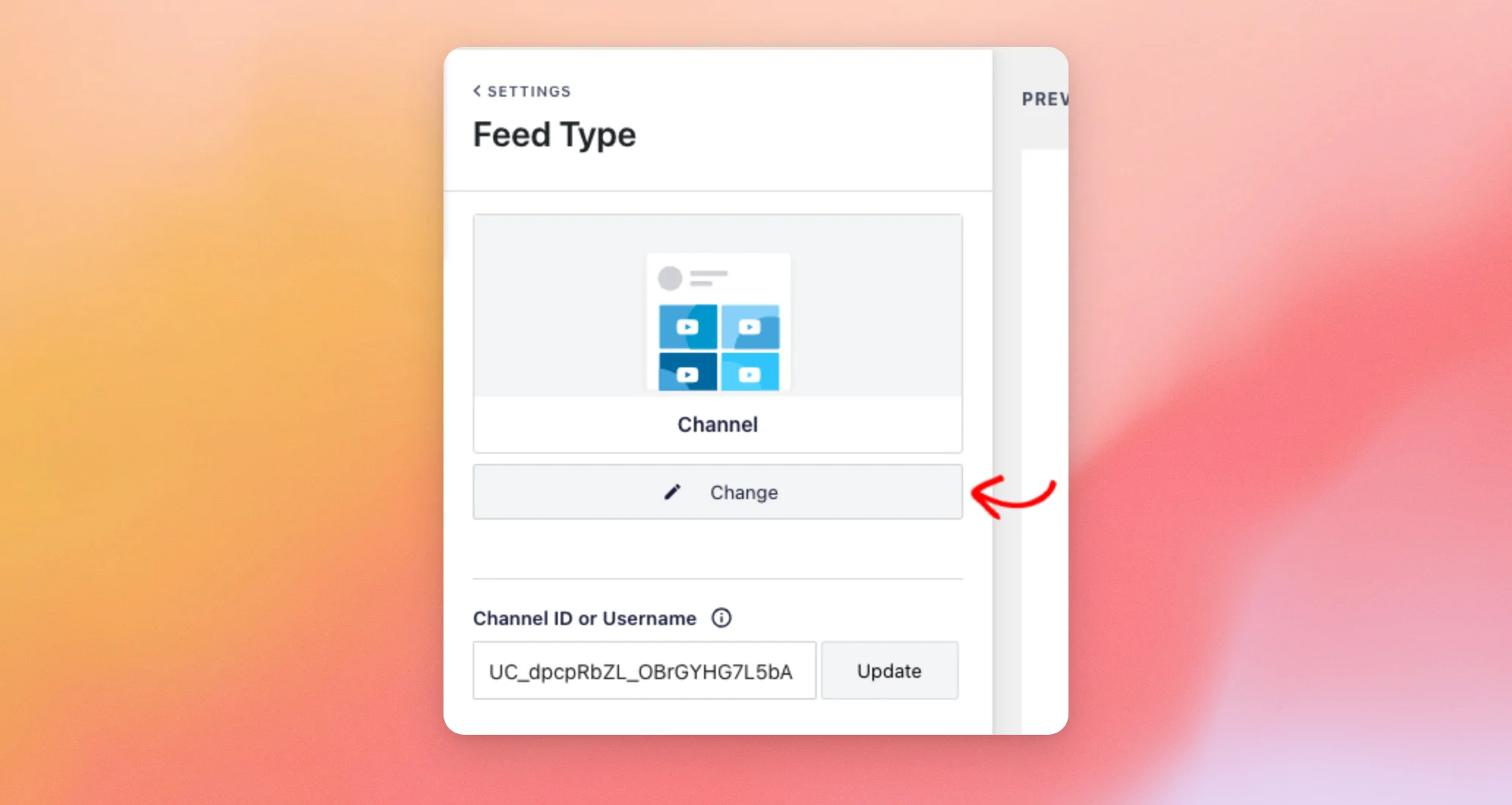
In the feed editor, the Feed Type section of the Settings tab shows the feed’s type, a Change button, and that single source field.
If you want to show videos from more than 1 place, create a separate feed for each source. Then add each feed’s shortcode to the same page. Our guide on displaying multiple YouTube feeds shows how.
The table below sums up which license level unlocks each type.
License Levels at a Glance
| Feed type | Free | Basic | Plus | Elite |
|---|---|---|---|---|
| Channel | Yes | Yes | Yes | Yes |
| Playlist | No | Yes | Yes | Yes |
| Shorts | No | Yes | Yes | Yes |
| Single Videos | No | Yes | Yes | Yes |
| Search | No | No | Yes | Yes |
| Live Streams | No | No | No | Yes |
If you bought YouTube Feed under the older Personal, Business, or Developer plans, you keep every feed type.
For everything else each level includes, see our guide to YouTube Feed features.
That’s it! You now know what each YouTube Feed type displays, the source it needs, and the license level that unlocks it. Ready to build one? Our setup guide shows you how.
Frequently Asked Questions
Below, we’ve answered some of the most common questions about YouTube Feed types.
Can I change a feed’s type after I create it?
Yes. The feed editor has a Change button for this in the Feed Type section of its Settings tab. See Using More Than One Source above.
Which feed types need a paid license?
Playlist, Shorts, Single Videos, Search, and Live Streams need a paid license. Search and Live Streams need a higher level than the others. See the license table above.
Do all feed types need a YouTube API key?
Every type asks for an API key or a connected YouTube account before it can load videos. Only Channel feeds offer the option to connect a YouTube account. See our YouTube API key guide.