


 Social Wall
 Feed Analytics


Would you like to check what a setting on the YouTube Feed Settings page does before you change it?
In this guide, we’ll walk you through the Settings page one tab at a time, covering what each setting does and what its default is.
Before you get started, make sure YouTube Feed is installed and activated on your site.
Note: This guide covers the paid version of the plugin. The defaults listed are the values a new site shows. The Single Videos tab needs the plus license level or higher, so you won’t see it on a basic license.
- Using the General Tab
- Using the Feeds Tab
- Using the Single Videos Tab
- Translating Your Feed Text
- Using the Advanced Tab
- Frequently Asked Questions
Using the General Tab
From your WordPress admin sidebar, go to YouTube Feed » Settings. The page has 5 tabs, which are General, Feeds, Single Videos, Translation, and Advanced. The General tab opens first.
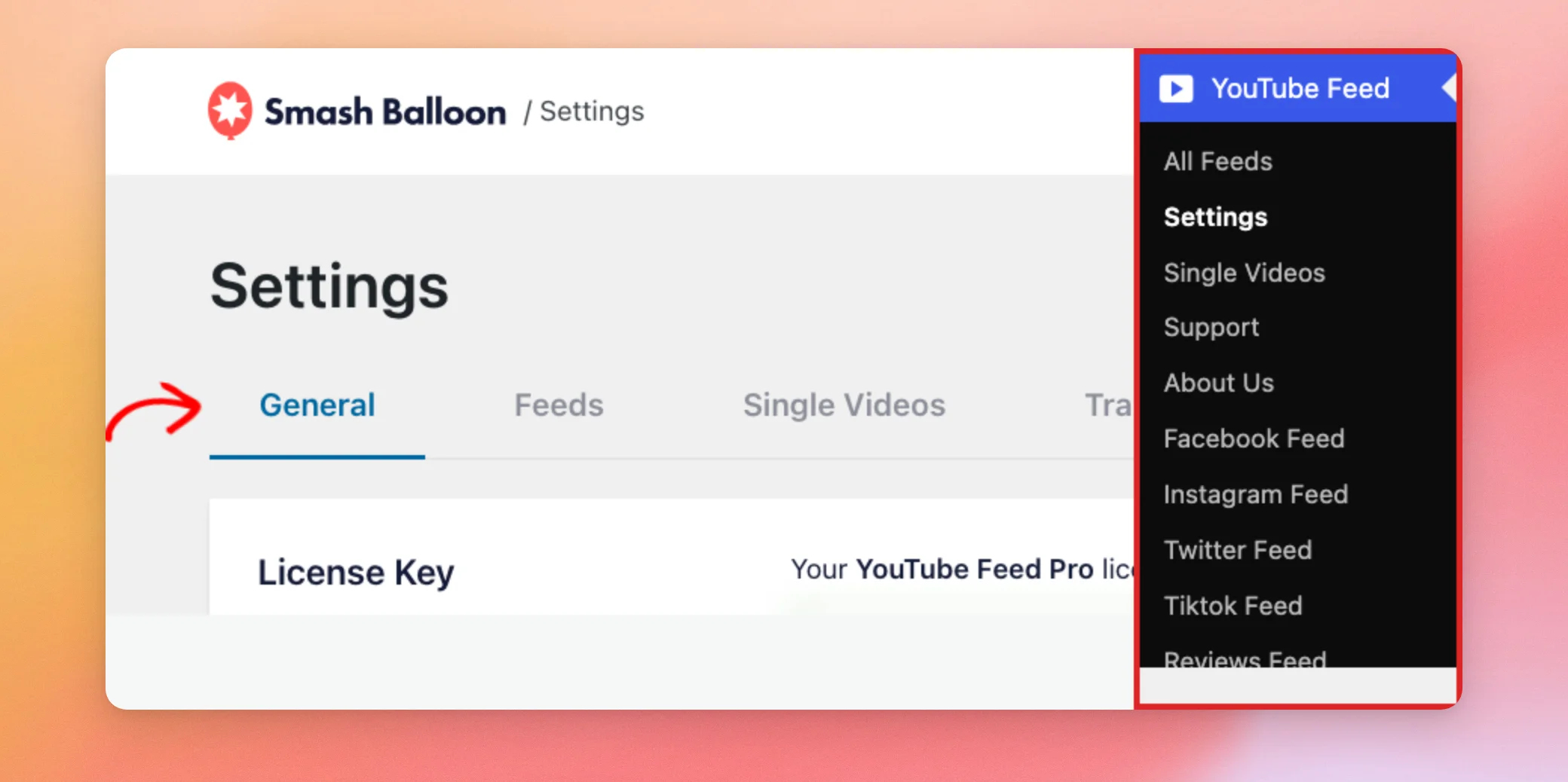
The first group of settings covers your license and the AI tools.
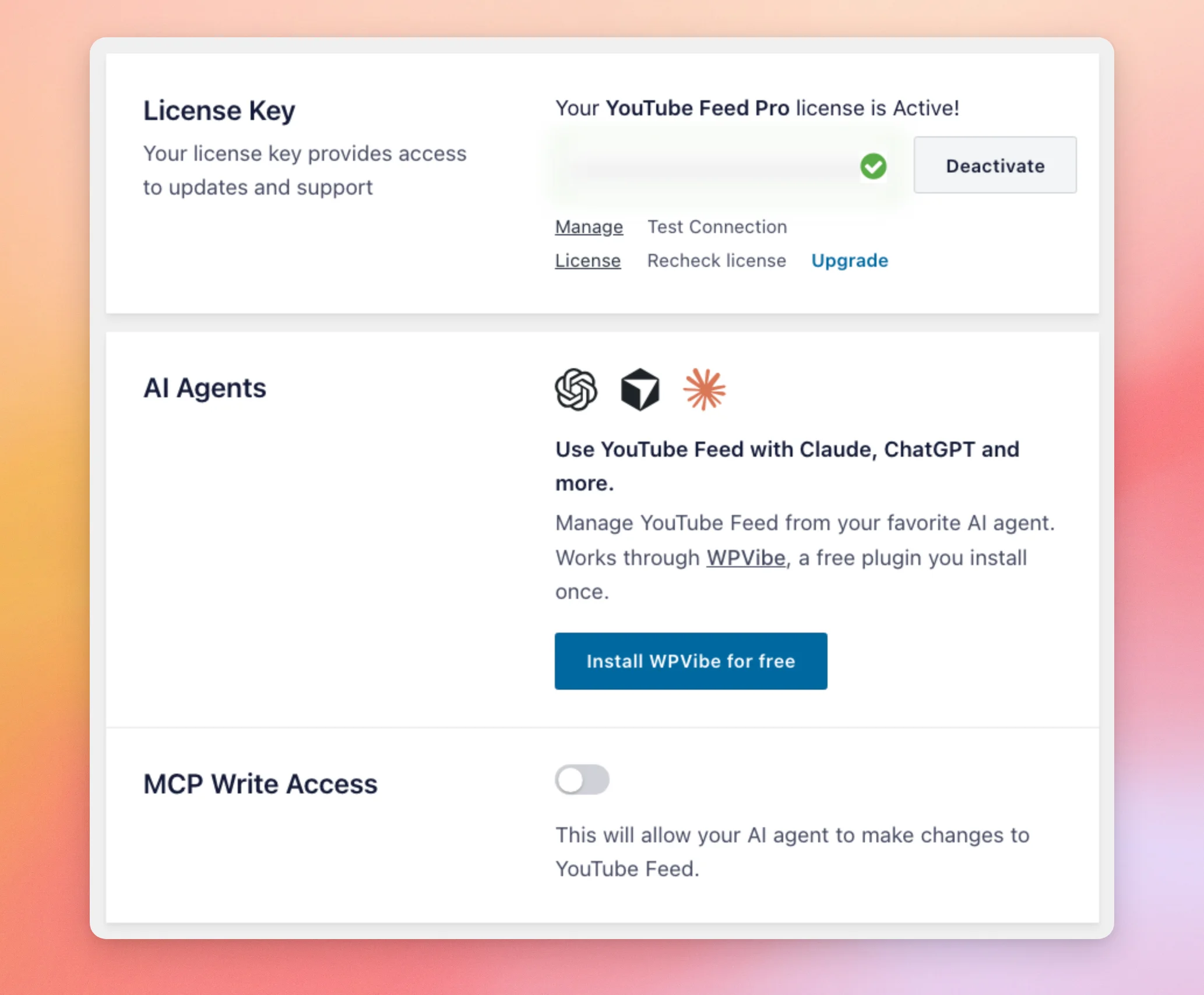
| Setting | What it does | Default |
|---|---|---|
| License Key | Shows whether your license is active. The key itself is hidden. The box also has the Manage License, Test Connection, Recheck license, Upgrade, and Deactivate buttons. | Your active license |
| AI Agents | Lets you manage your feeds from an AI agent such as Claude or ChatGPT. It works through WPVibe, a free plugin that you install once with the Install WPVibe for free button. | Not installed |
| MCP Write Access | Lets your AI agent make changes to your feeds instead of only reading them. | Off |
Next come the settings for your connected account and your API key.
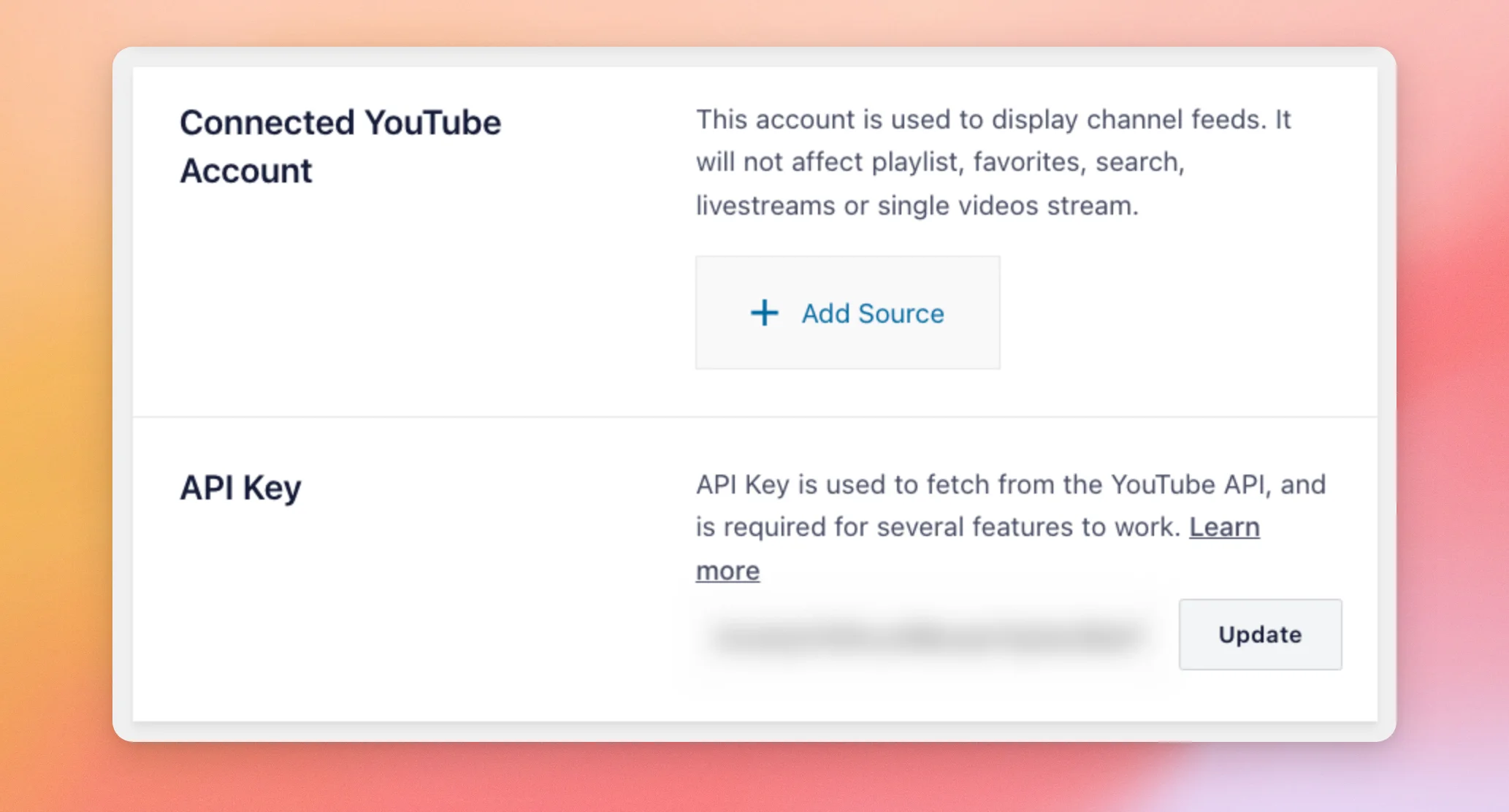
| Setting | What it does | Default |
|---|---|---|
| Connected YouTube Account | The account the plugin uses to display channel feeds. The box says it doesn’t affect playlist, favorites, search, live stream, or single video feeds. Use Add Source to connect an account. | No account |
| API Key | The key the plugin uses to fetch data from the YouTube API. The box says it’s required for several features to work. Once a key is saved, the field shows it with an Update button next to it. To get one, see our guide on creating a YouTube API key. | Empty |
The rest of the General tab holds the settings for keeping and moving your feeds.
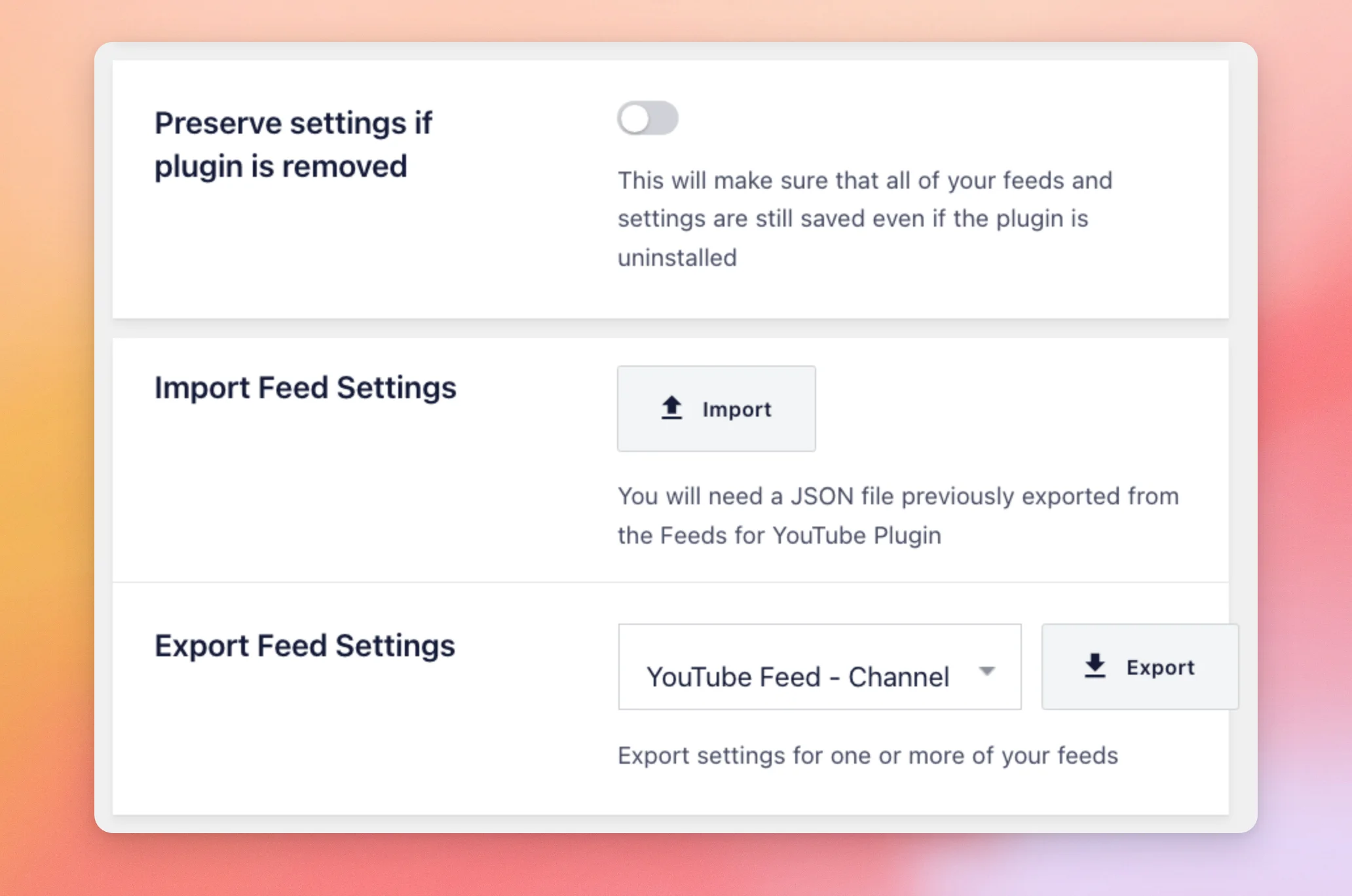
| Setting | What it does | Default |
|---|---|---|
| Preserve settings if plugin is removed | Keeps your feeds and settings saved if you uninstall the plugin. When it’s off, uninstalling the plugin deletes its settings, feeds, and saved video posts. | Off |
| Import Feed Settings | Takes a JSON file that you exported earlier from the plugin. Use the Import button to choose the file. | No file |
| Export Feed Settings | Lets you pick a feed with the Select Feed list and then click Export. The box says it exports settings for one or more of your feeds. The Export button is grayed out until you pick a feed. | No feed selected |
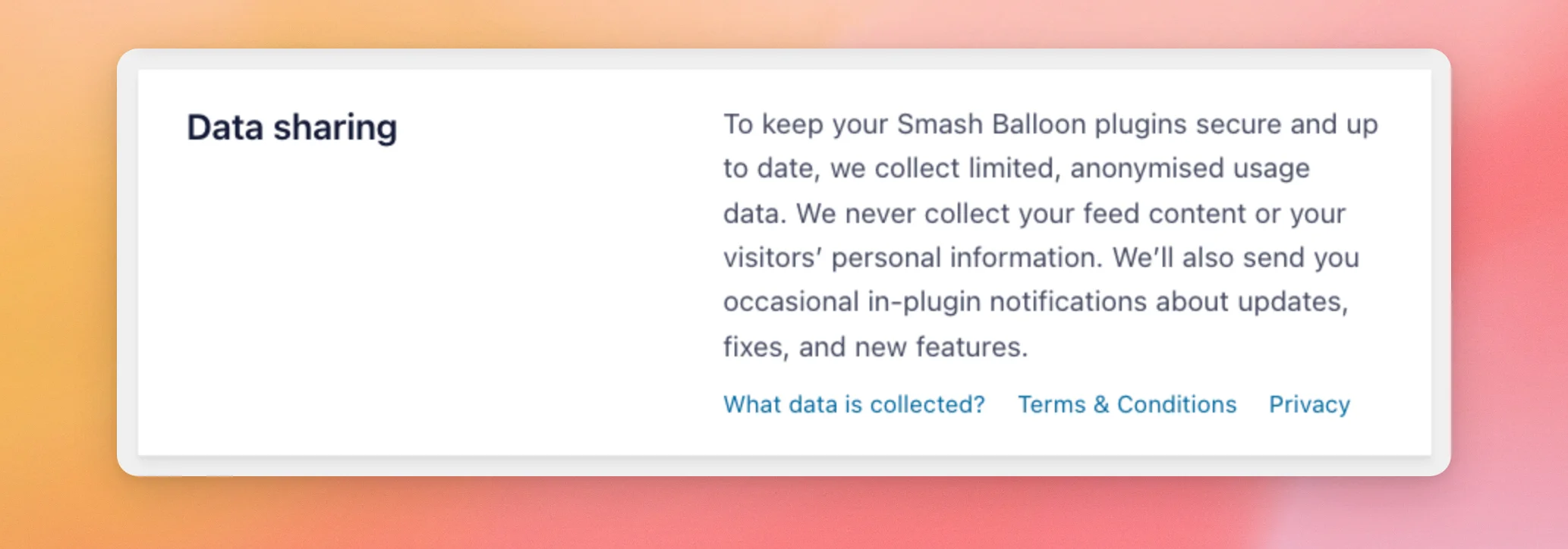
The last box on the tab, Data sharing, is text only, with no switch of its own. It says that Smash Balloon collects limited, anonymized usage data and never collects your feed content or your visitors’ personal information.
Using the Feeds Tab
The Feeds tab controls how often your feeds update, how they handle visitor consent, and any custom code you add.
| Setting | What it does | Default |
|---|---|---|
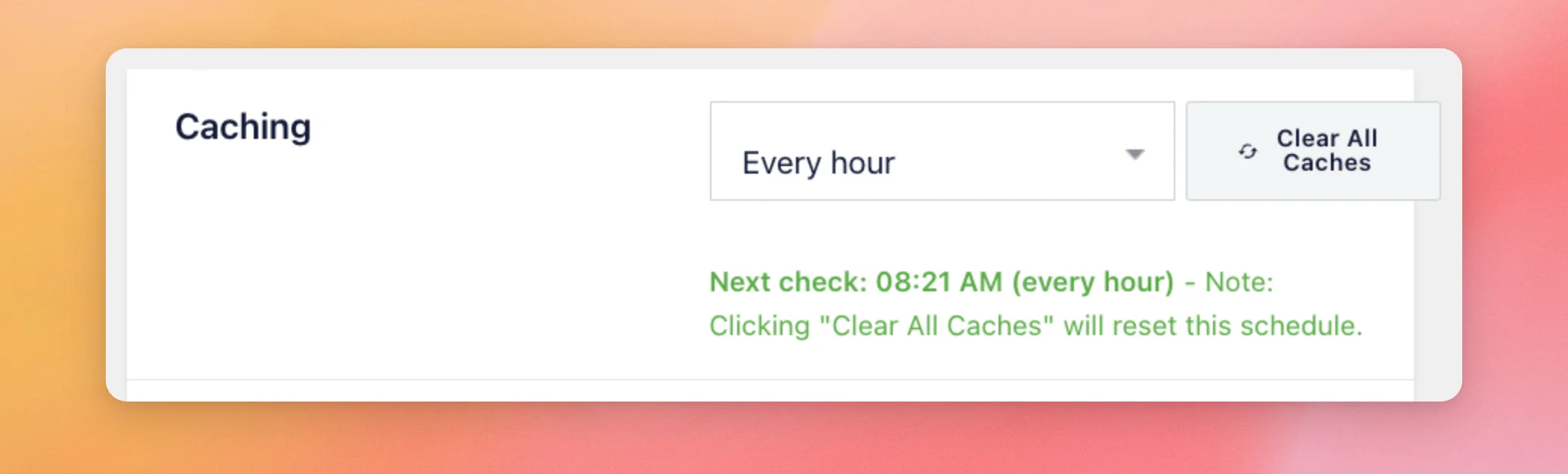
| Caching | Sets how often the plugin’s background update runs. The options are Every 30 minutes, Every hour, Every 12 hours, and Every 24 hours. For the 12 and 24 hour options, two more lists appear so you can pick the hour of the day to start. The green line under it shows when the next check runs. | Every hour |
| Clear All Caches | Empties your stored feed caches. The green line says that clicking it resets the update schedule. | None |
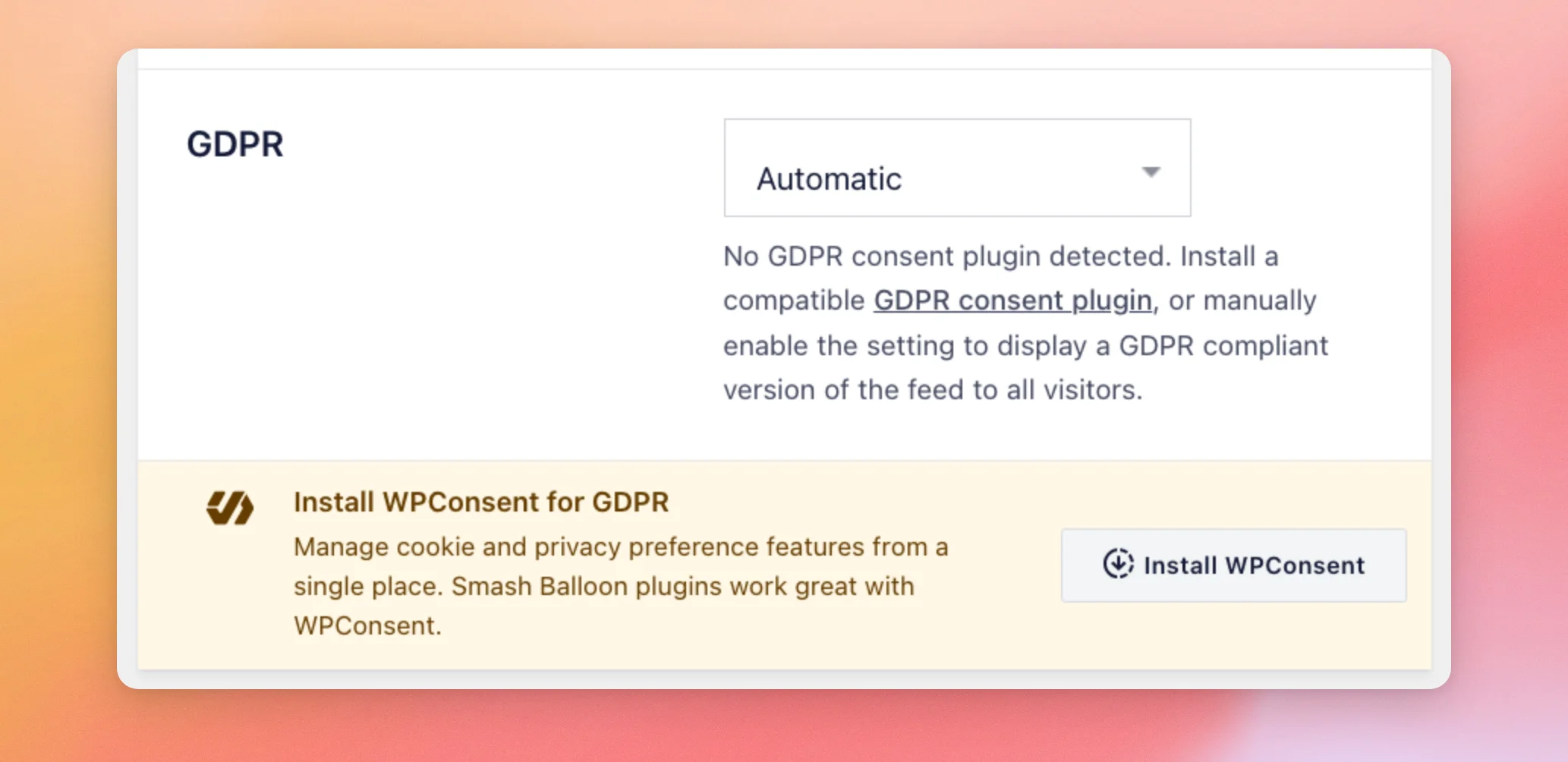
The GDPR setting decides whether your feeds load anything from YouTube before a visitor gives consent. If no consent plugin is detected, the box also offers to install WPConsent.
| Option | What it does |
|---|---|
| Automatic | Turns on the GDPR-friendly version of the feed when the plugin detects a supported consent plugin. The box tells you when none is detected. The default. |
| Yes | Always shows the GDPR-friendly version. The box says no requests are made to third-party websites, so the YouTube player isn’t loaded. Visitors see video thumbnails and click a link to watch the video on youtube.com. A Block CDN Images toggle appears under the list. |
| No | The plugin works as normal and loads videos directly from YouTube. |
For the consent plugins the plugin detects and what visitors see before they accept, see our guide on making YouTube Feed GDPR compliant.
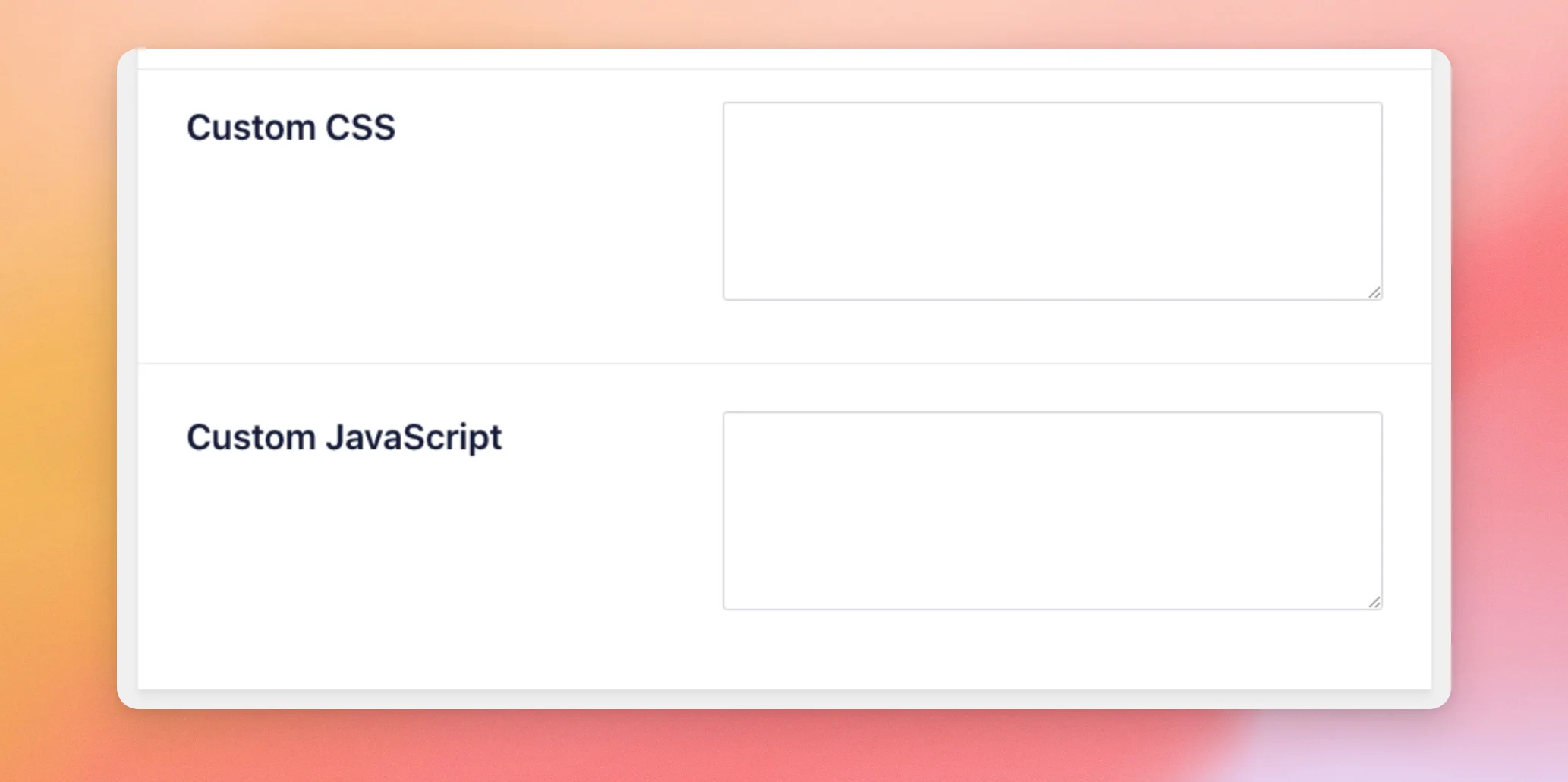
The Custom Code box holds your own CSS and JavaScript. It only shows for users who can add unfiltered HTML on the site.
| Setting | What it does | Default |
|---|---|---|
| Custom CSS | CSS that the plugin adds to the header of your pages. | Empty |
| Custom JavaScript | JavaScript that the plugin adds to the footer of your pages. For another way to add JavaScript, see our guide on adding custom JavaScript. | Empty |
Using the Single Videos Tab
The plugin saves each video in a feed as a post. This tab sets how those posts are created. It needs the plus license level or higher. The page that lists and manages those posts is a separate page, called YouTube Feed » Single Videos. Our guide on converting YouTube videos to a custom post type covers it.
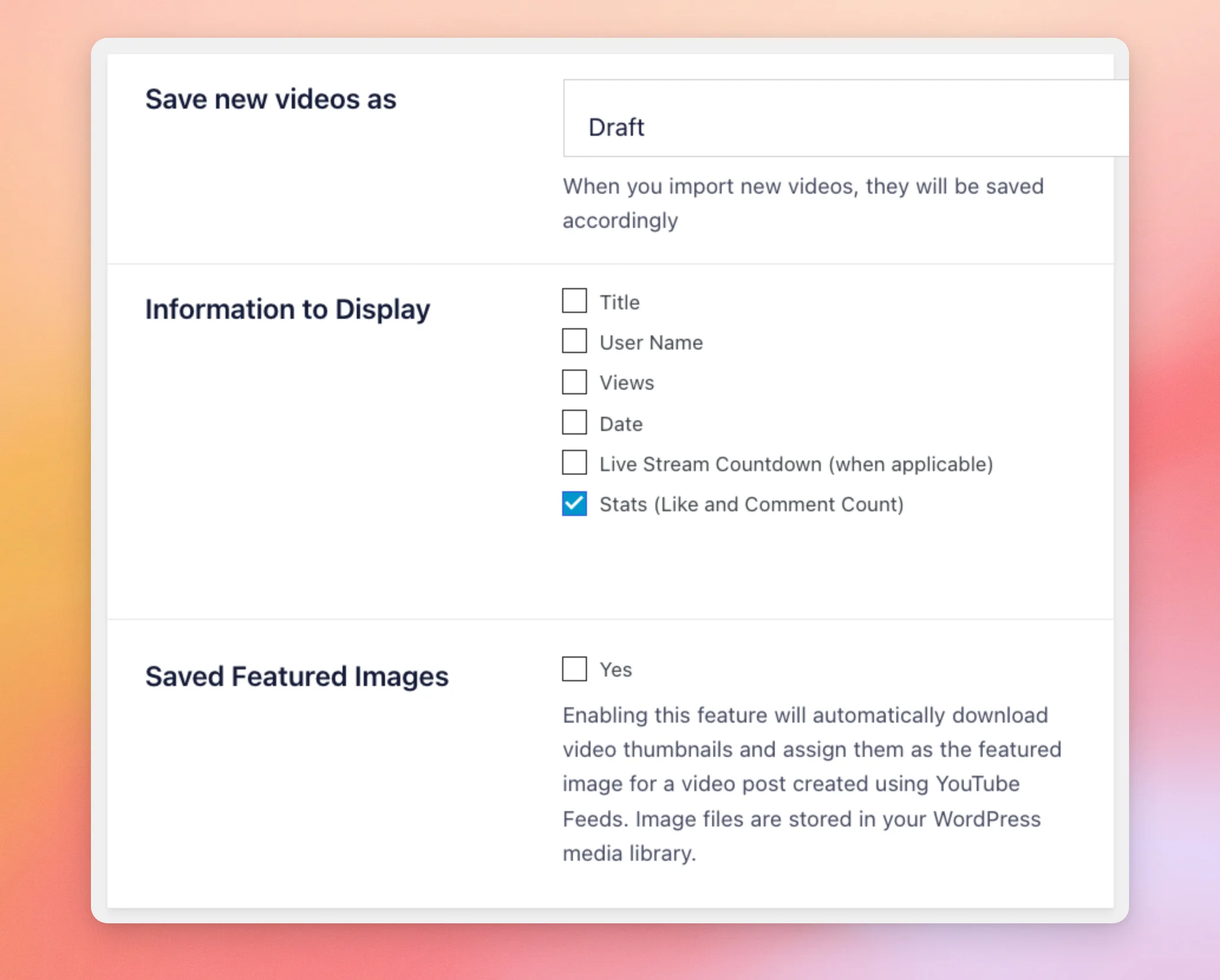
| Setting | What it does | Default |
|---|---|---|
| Save new videos as | Sets the status of new video posts, Draft or Publish. The box says that videos you import are saved accordingly. | Draft |
| Information to Display | Checkboxes for what each video post shows. They are Title, User Name, Views, Date, Live Stream Countdown (when applicable), and Stats (Like and Comment Count). | Only Stats is checked |
| Saved Featured Images | Downloads each video’s thumbnail to your media library and sets it as the featured image of the video post. | Not checked |
Translating Your Feed Text
The Translation tab lets you change the words the plugin adds to a feed, or translate them into your language. Each row has the original word, a box for your own text, and a note on where the word is used. Leave a box as it is to keep the default word.
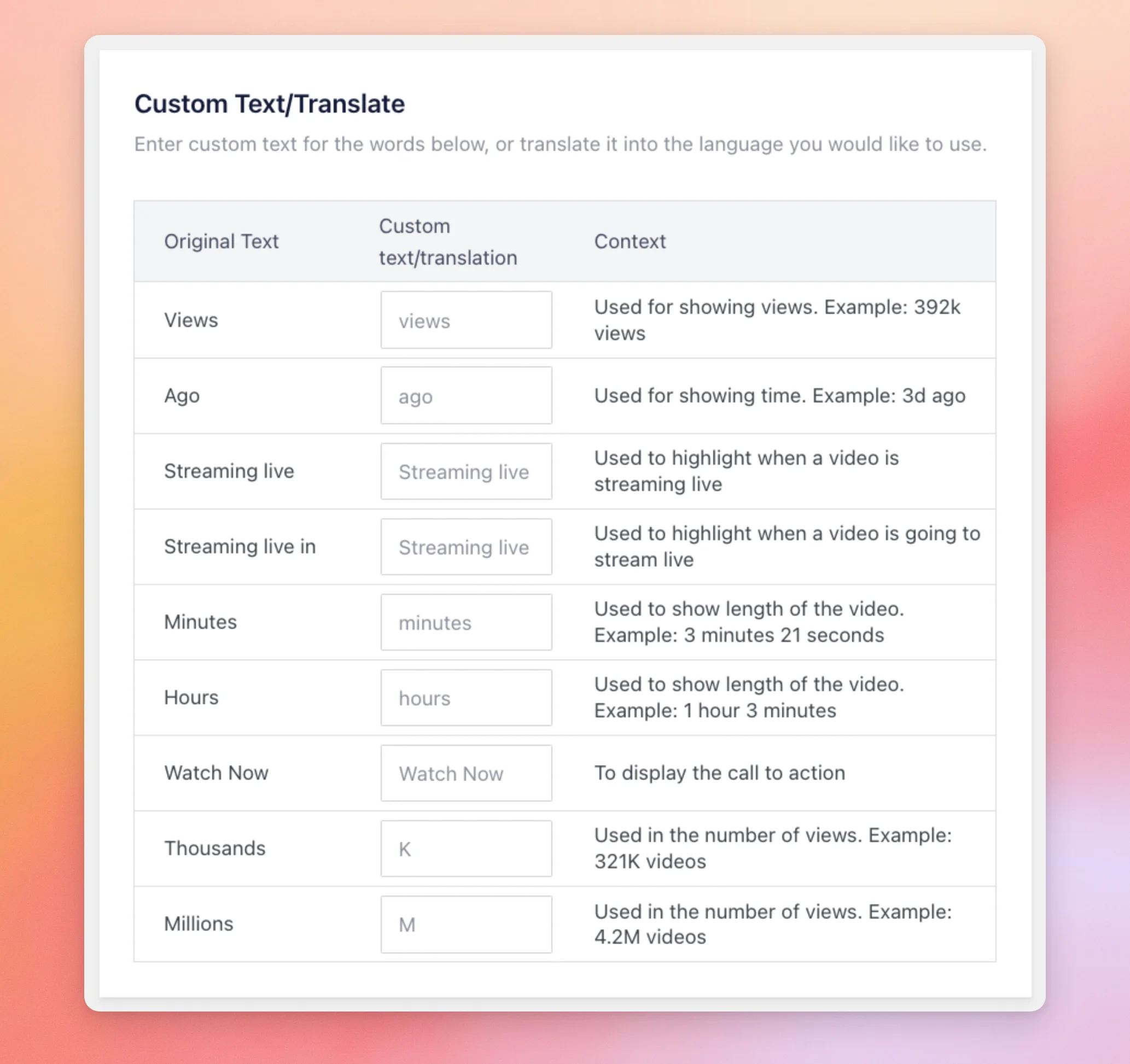
| Original text | Where it shows | Default |
|---|---|---|
| Views | After the view count of a video. Example, 392k views. | views |
| Ago | After the time since a recent video was posted. Example, 3 hours ago. | ago |
| Streaming live | Before the start date of an upcoming live stream. | Streaming live |
| Streaming live in | Before the time left until a live stream starts. Example, Streaming live in 30 minutes. | Streaming live in |
| Minutes | The time since a recent video was posted, or until a live stream starts. Example, 45 minutes ago. | minutes |
| Hours | The time since a recent video was posted, or until a live stream starts. Example, 3 hours ago. | hours |
| Watch Now | On a live stream that has started or ended. | Watch Now |
| Thousands | Shortens counts in the thousands, such as views. Example, 321K views. | K |
| Millions | Shortens counts in the millions, such as views. Example, 4.2M views. | M |
Using the Advanced Tab
The Advanced tab holds fixes for themes, how the plugin loads its code, and how videos are saved.
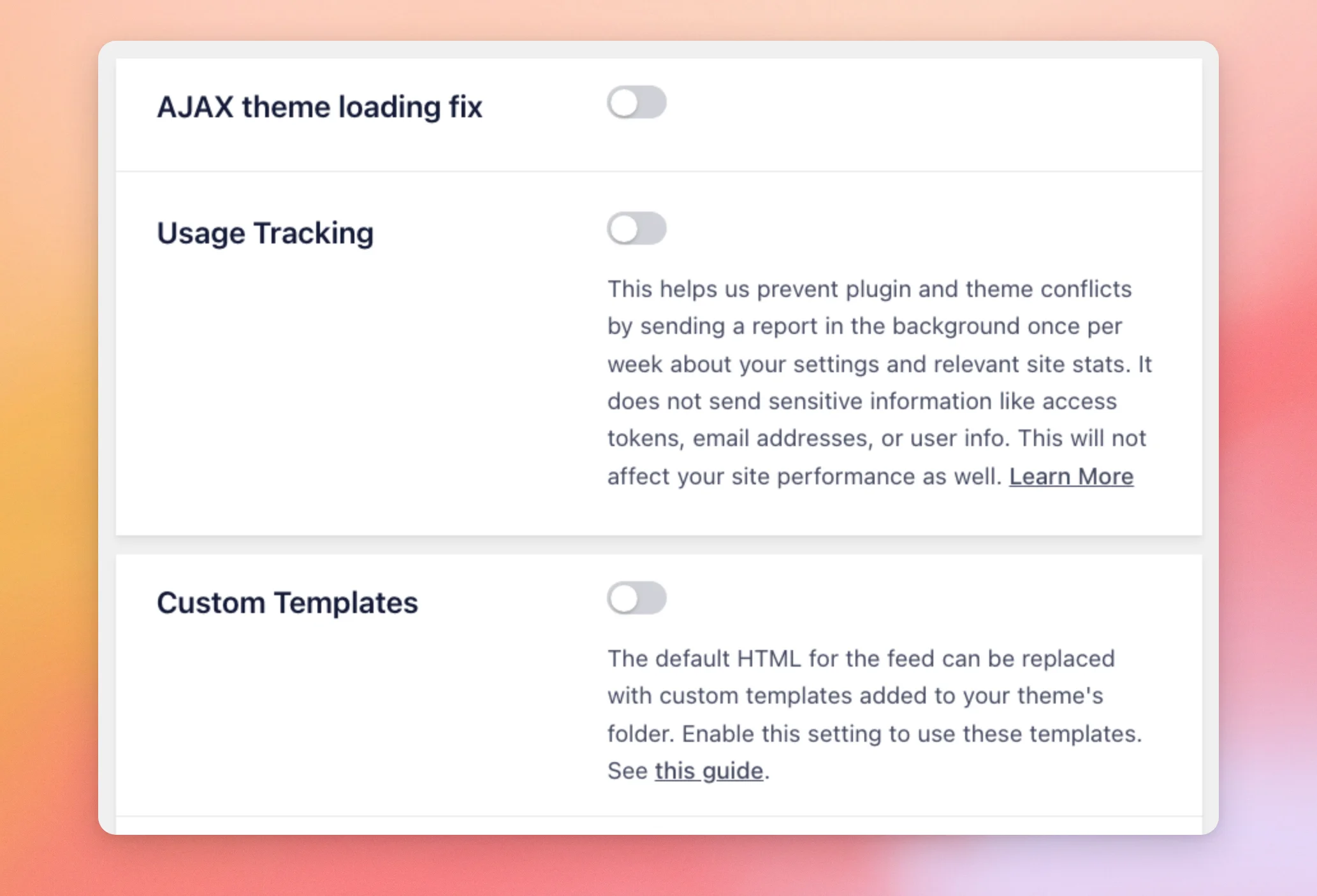
| Setting | What it does | Default |
|---|---|---|
| AJAX theme loading fix | Loads the plugin’s JavaScript together with each feed, instead of on the page itself. It’s for themes that load page content with AJAX. | Off |
| Usage Tracking | Sends a report in the background once a week about your settings and site stats, to help prevent plugin and theme conflicts. The box says it doesn’t send access tokens, email addresses, or user info. | Off |
| Custom Templates | Lets you replace the default HTML of the feed with templates in your theme’s folder. For the steps, see our guide on custom templates. | Off |
The last 2 settings on the tab cover where the plugin loads its JavaScript and whether videos are saved as posts.
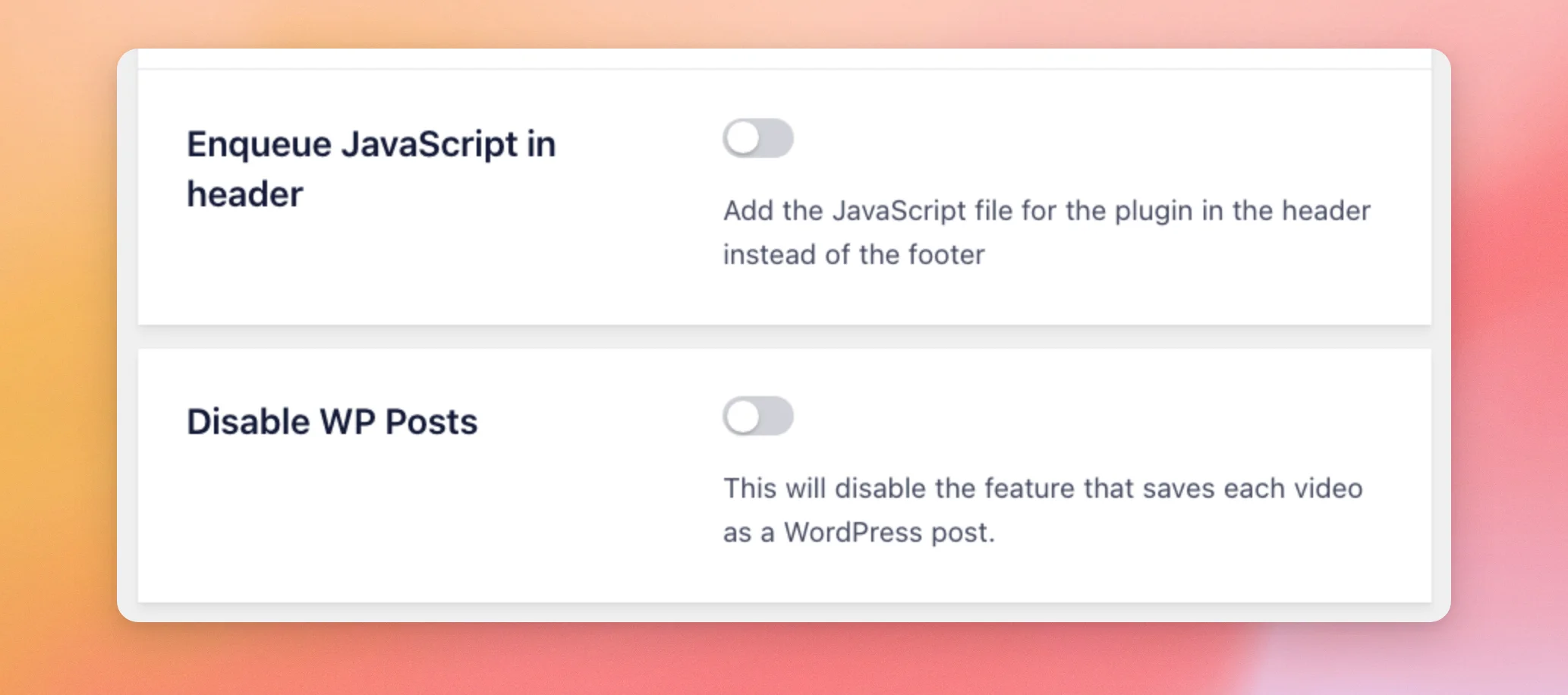
| Setting | What it does | Default |
|---|---|---|
| Enqueue JavaScript in header | Adds the plugin’s JavaScript file to the header of your pages instead of the footer. | Off |
| Disable WP Posts | Stops the plugin from saving each video as a WordPress post. To learn how the plugin keeps your site fast, see our guide on how YouTube Feed avoids slowing your site. | Off |
After you change a setting on any tab, click Save Changes. The button is at the top and at the bottom of every tab.
If something goes wrong with a setting, our guide on getting your System Info shows what to send to support. For forcing the update schedule to run, see our guide on cron job workarounds.
That’s it! You now know what every setting on the Settings page does and what its default is. Next, see our guide on creating a YouTube API key to use the other feed types.
Frequently Asked Questions
Below, we’ve answered some of the most common questions about the Settings page.
Where do I add my YouTube API key?
On the General tab, in the API Key box. Paste your key into the field and click Add.
Why don’t I see the Single Videos tab?
The Single Videos tab needs the plus license level or higher. On a basic license, the plugin doesn’t show it. See the Single Videos tab section above.
Is there a Data Sharing tab?
Not in the paid version. Data sharing is a text box at the bottom of the General tab, with no switch. The switch that controls weekly reports is Usage Tracking, on the Advanced tab.
How do I change the words in my feed, such as ago or views?
You change them on the Translation tab. Type your own text in the box next to the original word, then click Save Changes.
Why can’t I see the Custom Code box on the Feeds tab?
The box only shows for users who can add unfiltered HTML on the site. Ask a site administrator to add your code, or see our guide on adding custom JavaScript.




