


 Social Wall
 Feed Analytics


Would you like to control which posts show in your feed, such as hiding reposts or only showing posts about 1 topic? The Filters section of the feed editor has 8 controls for this.
This guide lists each one, what it does, its default, and how the word filters match your posts.
Before you get started, make sure Custom Twitter Feeds is installed and activated on your site and that you have a feed to edit.
Requirements: The Filters section is part of the paid version of Custom Twitter Feeds.
- Filters at a Glance
- Filtering Replies and Retweets
- Filtering by Allowed and Blocked Words
- Hiding Specific Posts
- Filters and Your License
- Frequently Asked Questions
Filters at a Glance
To get started, we need to open the Filters section in the feed editor.
From your WordPress admin sidebar, go to Twitter Feed » All Feeds.
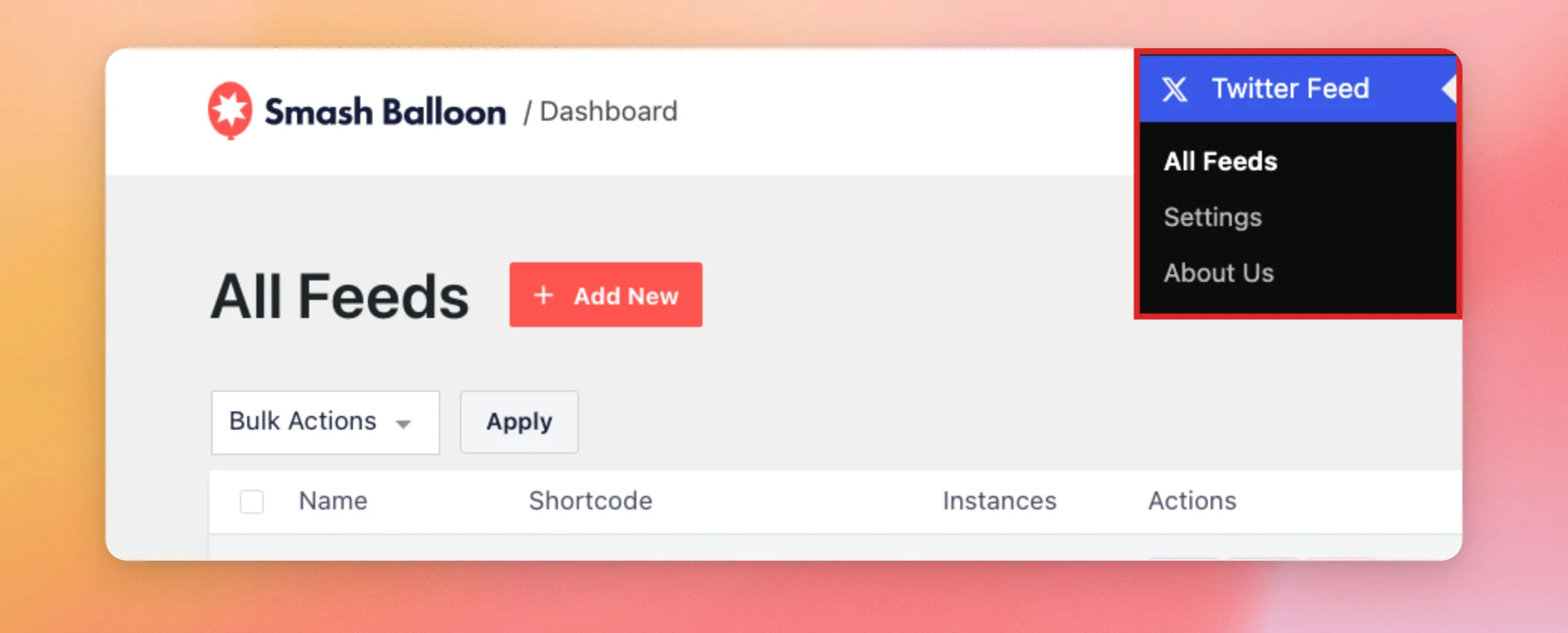
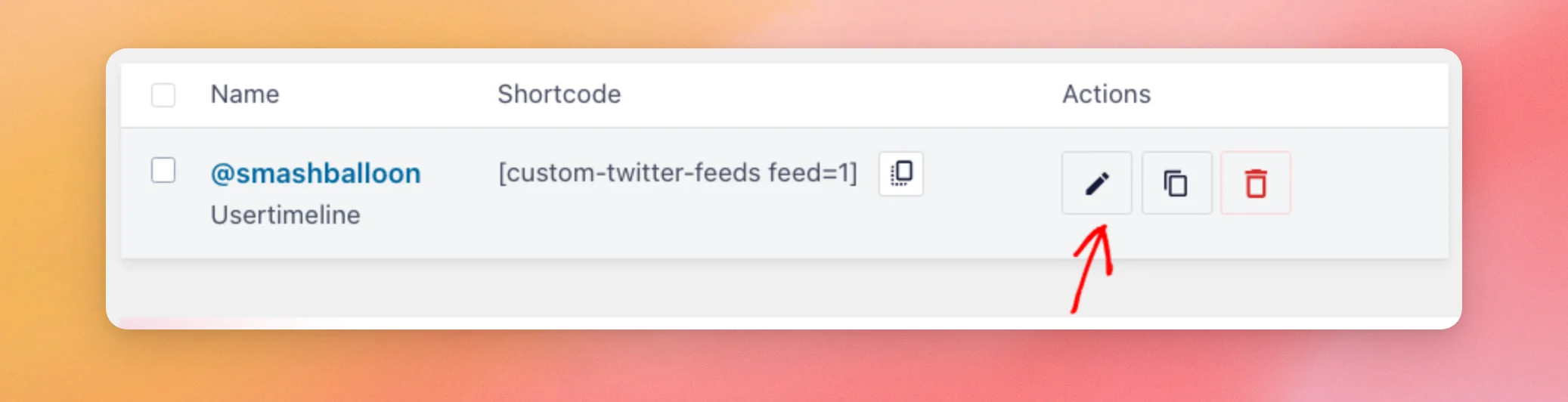
Then click the pencil icon in the Actions column next to the feed you want to change.
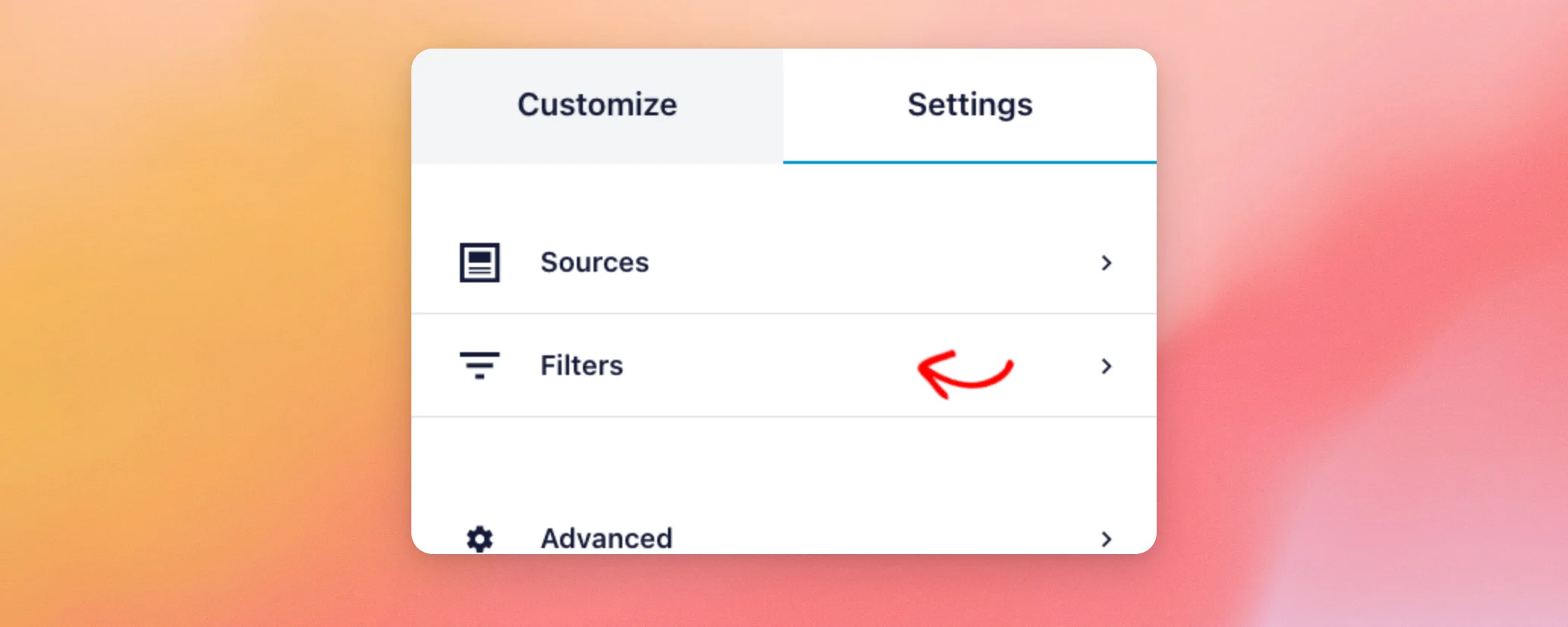
In the feed editor, select the Settings tab. Then click Filters.
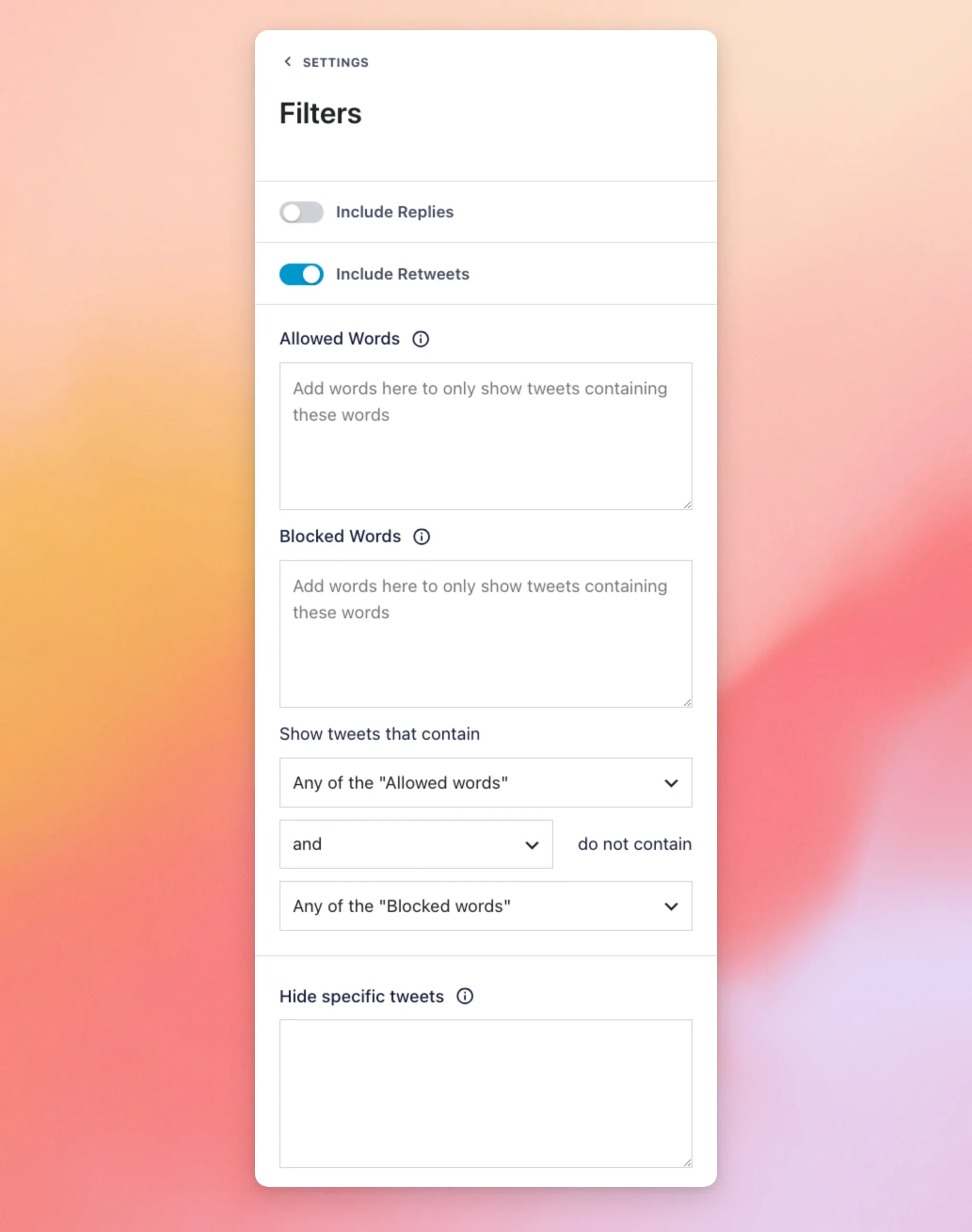
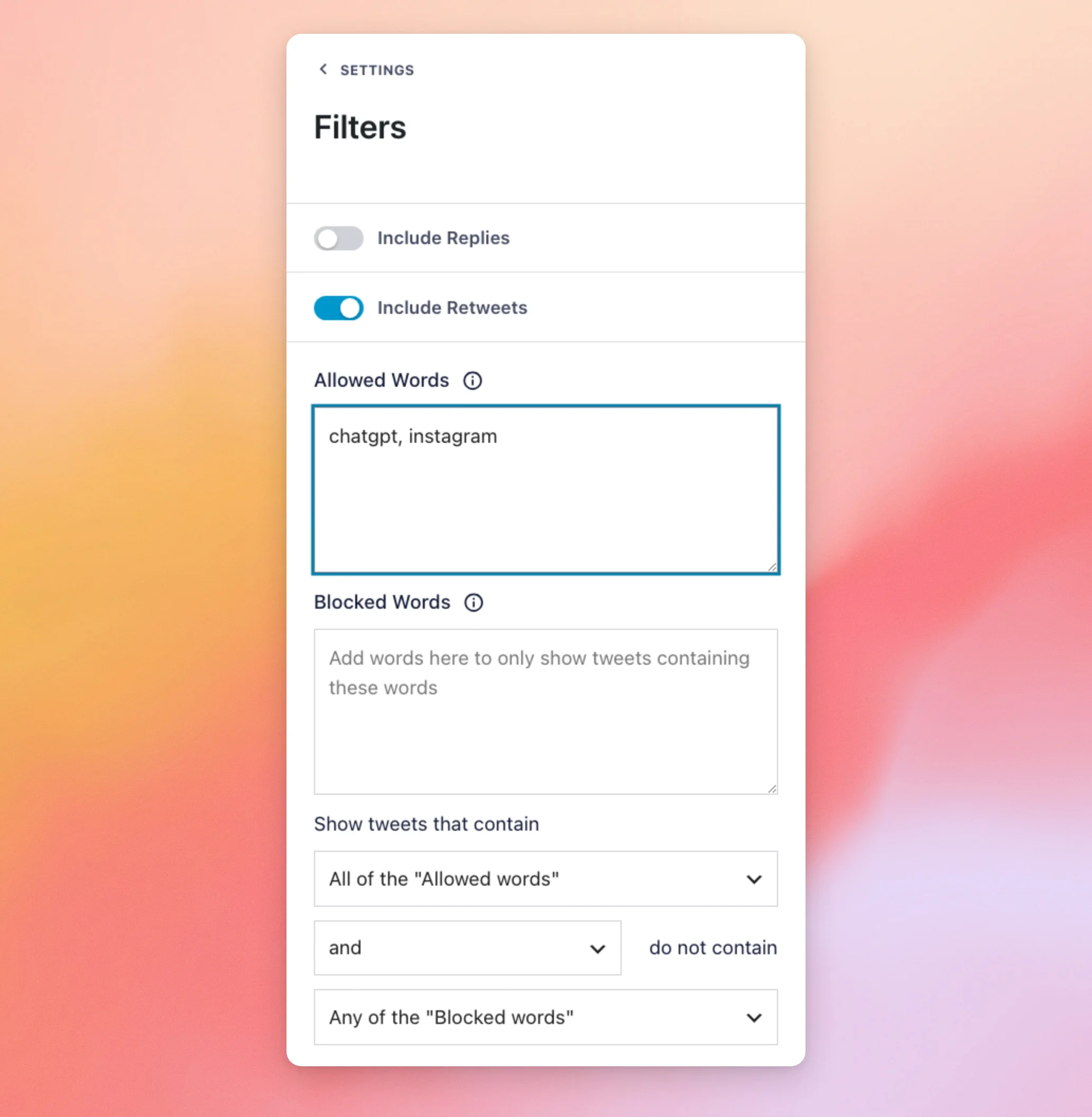
The Filters section opens with all of its controls in one list. The table below lists each control.
| Control | What it does | Default |
|---|---|---|
| Include Replies | Lets replies show in the feed when it’s on. | Off |
| Include Retweets | Shows reposts in the feed when it’s on. | On |
| Allowed Words | Only shows posts that contain these words. | Empty |
| Blocked Words | Hides posts that contain these words. | Empty |
| Show tweets that contain | Chooses whether a post needs any of your Allowed Words or all of them. | Any of the “Allowed words” |
| and / or | Chooses how the Allowed Words rule and the Blocked Words rule work together. | and |
| do not contain | Chooses whether a post is hidden for any of your Blocked Words or all of them. | Any of the “Blocked words” |
| Hide specific tweets | Hides the individual posts whose IDs you list. | Empty |
Note: The editor still uses the word “tweets” in these labels. They mean the posts in your feed.
Filters hide the posts that don’t fit. If a filter hides most of them, your feed can show fewer posts than your Number of tweets to display setting.
Next, we’ll look at the two switches for replies and reposts.
Filtering Replies and Retweets
The 2 switches at the top of the section control replies and reposts. You can see both of them at the top of the Filters screenshot in the previous section.
- Include Replies is off by default. To include replies, turn it on.
- Include Retweets is on by default. Reposts show unless you turn it off.
Next, we’ll look at the word filters.
Filtering by Allowed and Blocked Words
Word filters keep or hide posts based on the words they contain.
To use them, type words into Allowed Words to only show posts that contain them. Or type words into Blocked Words to hide posts that contain them. In both boxes, separate the words with commas.
For example, typing chatgpt, instagram into Allowed Words and choosing All of the “Allowed words” only shows posts that contain both words.
The matching works like this.
- Capital letters don’t matter.
facebookandFACEBOOKmatch the same posts. - Whole words only.
facedoesn’t match a post that only says “Facebook”. - 1 word per entry. Separate the entries with commas, for example
chatgpt, instagram. - A # sign only matches hashtags.
#chatgptdoesn’t match a post that says ChatGPT as plain text.
The 3 lists under the text boxes decide how your words combine.
- Show tweets that contain is set to Any of the “Allowed words” by default. 1 matching word is enough. To require every word, choose All of the “Allowed words”.
- The and or or list sets how the two rules work together. With and, a post has to pass both the Allowed Words and the Blocked Words rules. With or, a post that passes either rule shows.
- The last list is set to Any of the “Blocked words” by default. 1 blocked word hides a post. To hide a post only when it contains every blocked word, choose All of the “Blocked words”. If both boxes have words, this choice only takes effect with or in the middle list.
If you’re not sure which to pick, leave the lists as they are. You can choose All of the “Allowed words” when every post you show has to mention each of your words. An example is a feed about 2 topics at once. You can keep and in the middle list when you want a post to pass both the Allowed Words and the Blocked Words rules.
If your words hide every post, the feed editor shows an admin-only message that no tweets were found for your feed sources. To bring posts back, remove or change a word.
Looking for a feed of 1 account’s posts that use a certain hashtag?
See our guide on showing posts from a screen name with a hashtag.
Hiding Specific Posts
The Hide specific tweets box hides single posts by their ID. It’s the last box in the Filters screenshot shown earlier.
For the steps, see our guide on hiding specific posts.
Finally, we’ll look at how your license affects these controls.
Filters and Your License
The Filters controls work on every paid license level. If your license expires and its grace period ends, the controls in the feed editor are dimmed and can’t be changed until you renew.
That’s it! You now know what each control in the Filters section does and how the word filters match your posts. Next, see our guide on what to do when your feed doesn’t show the latest posts.
Frequently Asked Questions
Below, we’ve answered some of the most common questions about the Filters section.
Why does my feed show fewer posts than I set?
Filters hide the posts that don’t fit, so the feed can show fewer posts than your Number of tweets to display setting. To see more posts, remove or change a word.
Why doesn’t a word with a # sign match my posts?
A word with the # sign only matches hashtags. It doesn’t match the same word written as plain text.
Do capital letters matter in Allowed Words and Blocked Words?
No. See Filtering by Allowed and Blocked Words for how the words match.
Why does my feed say no tweets were found?
Your filters may have hidden every post. To fix this, open the feed’s Settings tab and click Filters. Then remove or change a word.




